Use the Tightknit app shortcuts and slash commands to manage content, events, polls, and members without leaving Slack.
The Tightknit app adds Slack shortcuts and slash commands to your workspace. Global shortcuts and slash commands work anywhere in Slack. Message shortcuts act on a specific message.
Global shortcuts
To open a global shortcut, type / in any message box followed by the shortcut name, or search for the shortcut name in Slack’s search bar. Every member can use these shortcuts.
Shortcut
What it does
Events
Opens the Events List, with the community’s upcoming and past events.
Awards
Opens your Awards Log, with the awards you’ve received and given. Admins also see every award given in the community.
My Journeys
Opens My Journeys, with the community’s journeys and your progress in each.
Message shortcuts
1
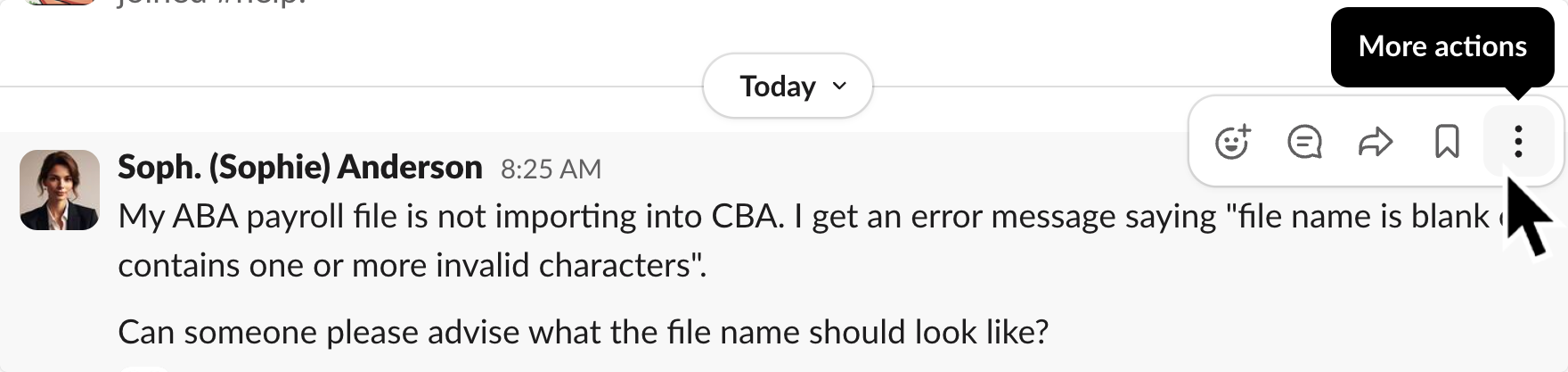
Open the message menu
On desktop, hover over the message and click ⋮. On mobile, tap and hold the message.
Hovering over a message to reveal the shortcuts menu
2
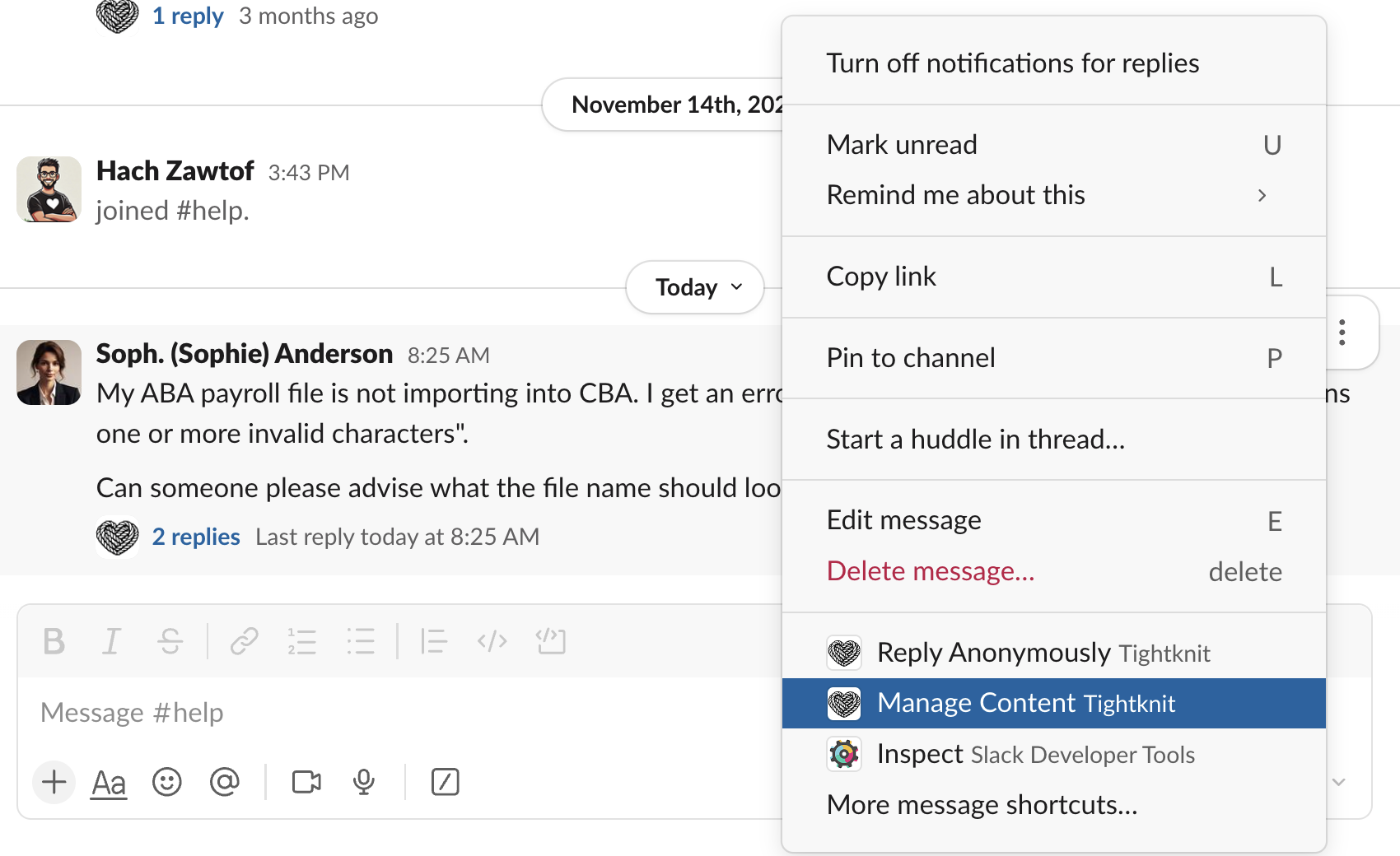
Select a Tightknit shortcut
App shortcuts appear at the bottom of the menu, with the Tightknit name and logo.
Tightknit shortcuts in the message menu
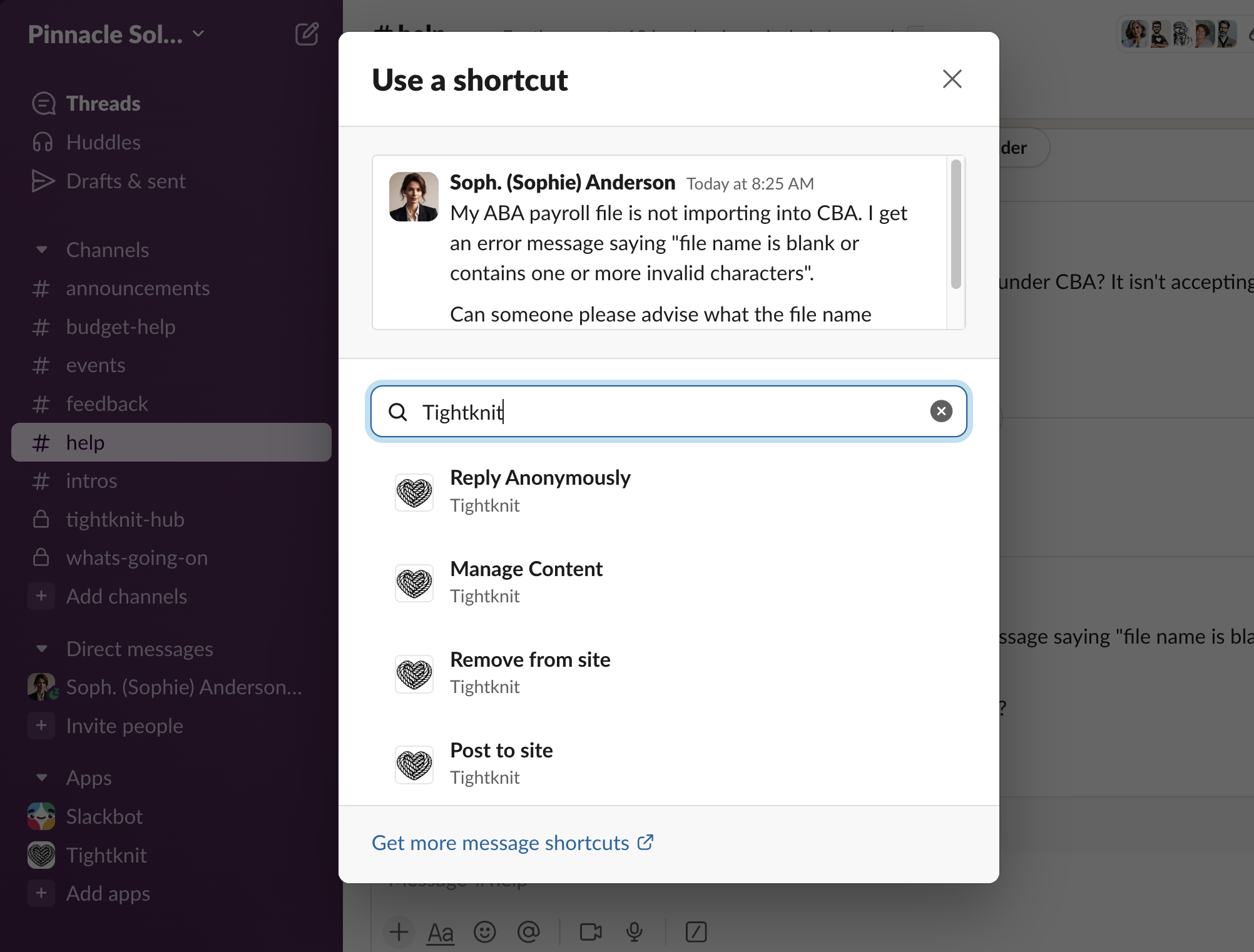
If no Tightknit shortcuts appear, click More message shortcuts... and search for “Tightknit” or the shortcut name.
Searching for Tightknit shortcuts
Shortcuts don’t work on ephemeral messages, the messages in a channel that only you can see.
Shortcut
What it does
Who can use it
Post to site
Syncs the message to the community site. On a top-level message, syncs the whole thread: the post, its comments, file attachments, and emoji reactions. On a reply, syncs that comment if its post is already on the site. Has no effect on content that’s already synced.
Reports the message to your moderators, with a reason and an optional note. The report goes to the moderation review queue when Tightknit stores the message. Works in any channel with the Tightknit app, except on your own messages.
Runs features that are still in testing on the message, such as finding related discussions with AI. Only you see the results.
Admins
Manage Content shortcut
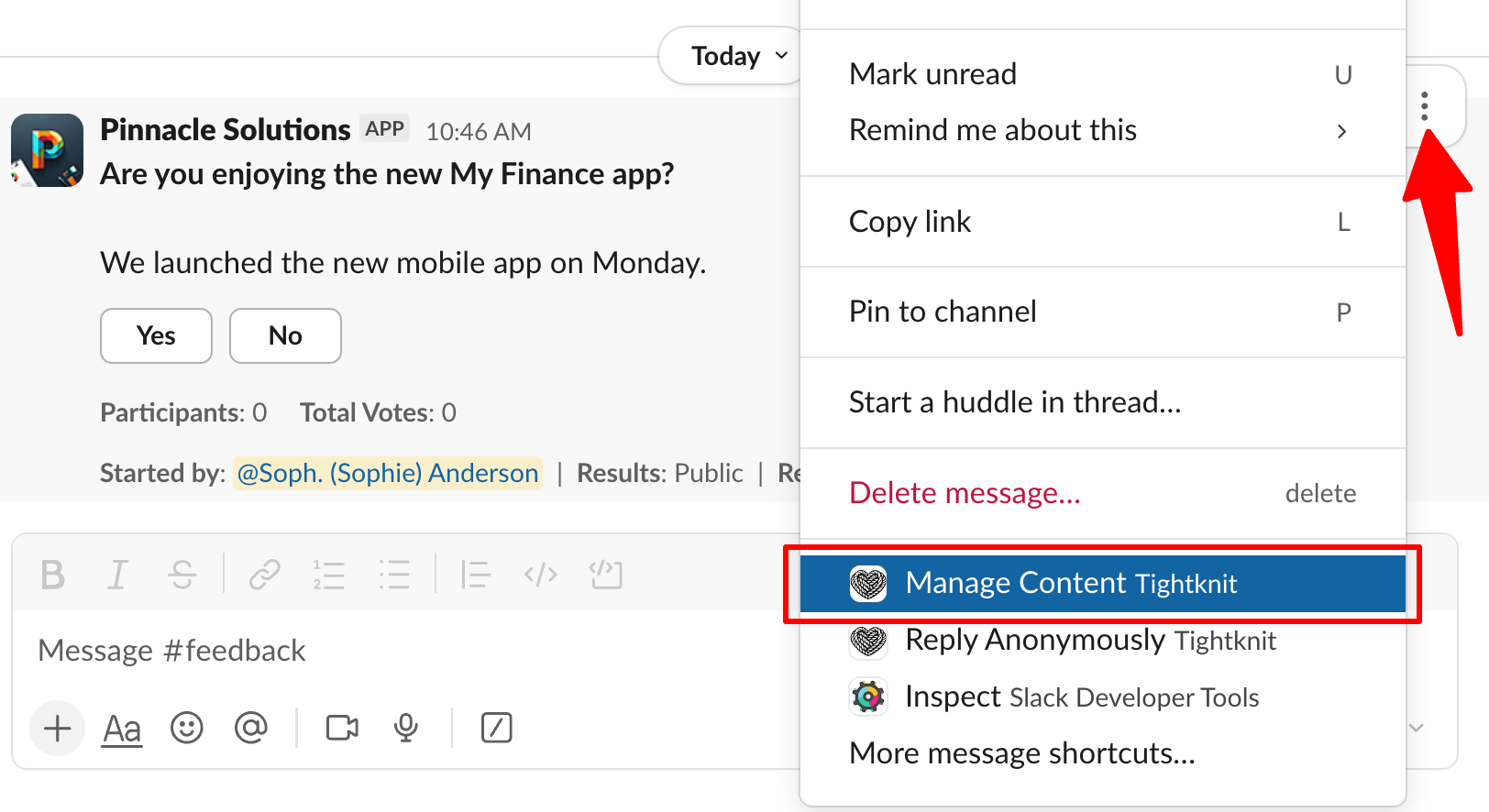
The Manage Content menu shows the actions available for the message and your role. If the message isn’t synced yet, use Post to site first.
The Manage Content shortcut menu
For posts and comments:
Action
What it does
Who can use it
Publish to Site
On a thread that isn’t on the site, publishes the whole thread. On a reply whose post is already on the site, publishes that comment.
Admins
Remove from Site
Removes a post and all its comments, or a single comment, from the site. The Slack message stays.
Admins and the message’s author
Mark as answer, Mark as best answer
Marks the reply as an answer to the thread. Available in feeds with Selected answers turned on. See Emoji reactions.
Admins and the thread’s author
Edit Post
Changes the post’s Post Title, Post Slug, and SEO Description.
Admins
Changing the post slug changes the post’s URL and breaks existing links and bookmarks to it.
On an event announcement, the shortcut opens the Edit Event modal for admins and the event’s owner. On a poll, admins and the poll’s owner can edit, close, or delete the poll.
Slash commands
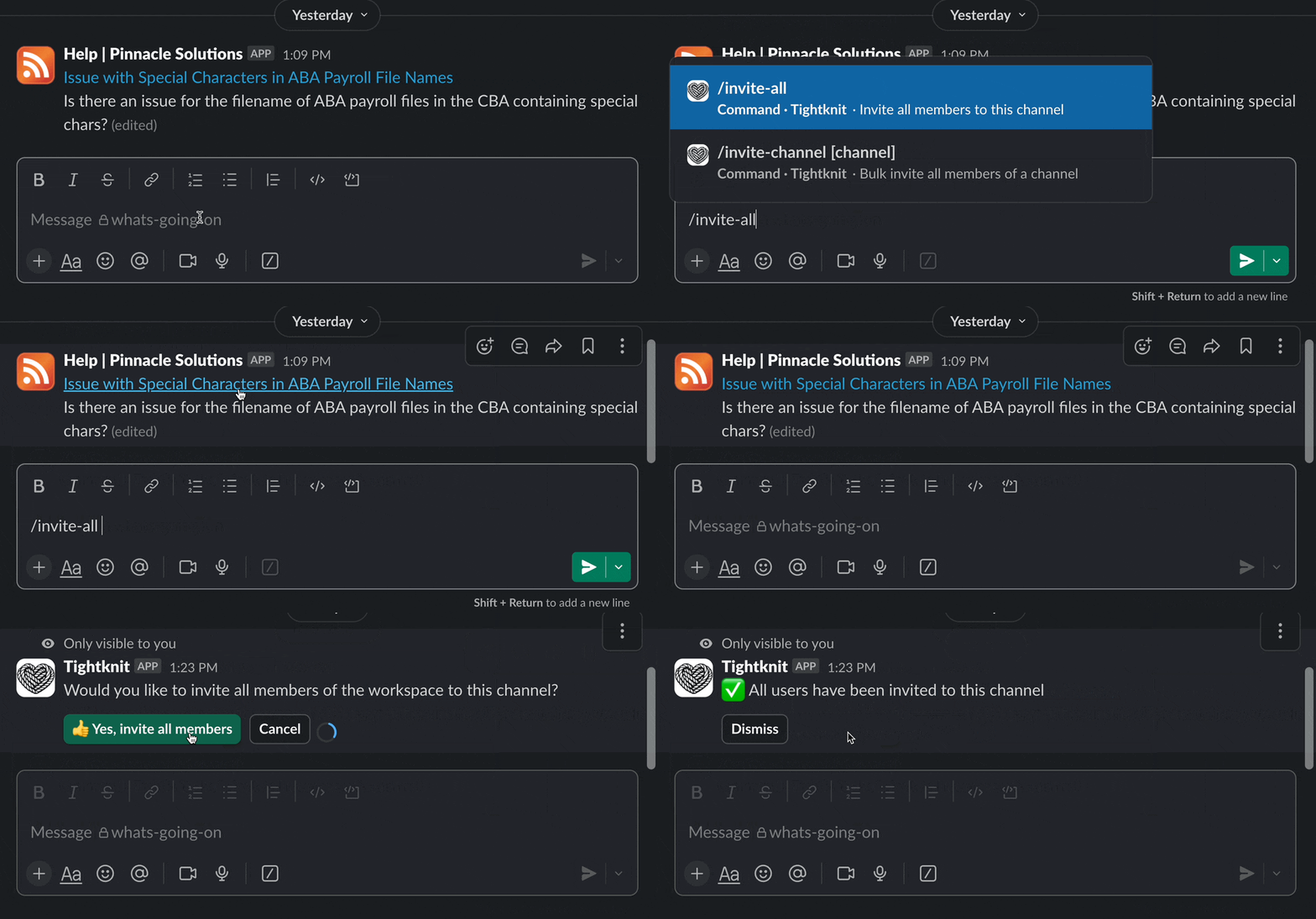
Type / in the message box, followed by the command and any inputs. The channel you type in matters: the invite commands add members to that channel.
Using a slash command in Slack
Command
Optional input
What it does
Who can use it
/invite-all
Opens the Channel Inviter to invite every member of the workspace to the current channel. Bots are excluded, and you confirm before the invites are sent.
Admins
/invite-channel
A channel, such as #general
Opens the Channel Inviter to invite every member of another channel to the current channel. Bots are excluded, and you confirm before the invites are sent.
Admins and members with the Create Pollspermission
Was this page helpful?
{"docsConfig":{"theme":"mint","$schema":"https://mintlify.com/docs.json","name":"Tightknit","colors":{"primary":"#0ea5e9","light":"#0ea5e9","dark":"#0ea5e9"},"logo":{"light":"https://mintcdn.com/tightknit/8RgBfwvyxlVVp-GI/assets/logo/light.png?fit=max\u0026auto=format\u0026n=8RgBfwvyxlVVp-GI\u0026q=85\u0026s=35c245944b73607d7c7b4b7c6fd4f080","dark":"https://mintcdn.com/tightknit/8RgBfwvyxlVVp-GI/assets/logo/dark.png?fit=max\u0026auto=format\u0026n=8RgBfwvyxlVVp-GI\u0026q=85\u0026s=6cd06fb7afb28cdae7bca4f7b6806906","href":"https://tightknit.ai/"},"favicon":"https://mintcdn.com/tightknit/510fnWGbA38NwHOk/favicon.png?fit=max\u0026auto=format\u0026n=510fnWGbA38NwHOk\u0026q=85\u0026s=ca1f972d807039e1bc2acbeb8f00326a","background":{"decoration":"gradient"},"navbar":{"links":[{"href":"https://tightknit.ai/","label":"Homepage ↗"}],"primary":{"type":"button","label":"Book a Demo","href":"https://cal.com/zhawtof/30min"}},"footer":{"socials":{"slack":"https://community.tightknit.ai","linkedin":"https://www.linkedin.com/company/tightknitai","youtube":"https://www.youtube.com/@tightknitai"}},"fonts":{"heading":{"family":"Inter","weight":600,"source":"https://framerusercontent.com/assets/1ZFS7N918ojhhd0nQWdj3jz4w.woff2","format":"woff2"}},"icons":{"library":"fontawesome"},"styling":{"latex":false},"navigation":{"global":{"anchors":[{"anchor":"Community","icon":"slack","href":"https://community.tightknit.ai/"},{"anchor":"Changelog","icon":"bullhorn","href":"https://community.tightknit.ai/x/changelog"}]},"pages":[]}},"deployment":{"deploymentMetadataValue":{"subdomain":"tightknit","hasAudioNarration":false,"actualSubdomain":"tightknit","customDomains":["docs.tightknit.ai"],"gitSource":{"type":"github","owner":"tightknitai","repo":"tightknit-app","deployBranch":"main","contentDirectory":"packages/docs","isPrivate":true,"mountPath":"","label":""},"feedback":{"thumbs":true,"edits":true,"issues":true,"agentFeedback":true},"entitlements":{"AI_CHAT":{"status":"ENABLED"},"WEB_MCP":{"status":"ENABLED"},"NARRATION":{"status":"ENABLED"}},"buildId":"6b0921a0f3da7f068e41cb62","clientVersion":"0.0.4340","searchFilterCounts":[{"language":"default","tag":"API Reference","count":125},{"language":"default","tag":"Admin API","count":120},{"language":"default","tag":"Documentation","count":98},{"language":"default","tag":"Features","count":31},{"language":"default","tag":"Guides","count":17},{"language":"default","tag":"Community site","count":16},{"language":"default","tag":"Events","count":15},{"language":"default","tag":"Compositions","count":15},{"language":"default","tag":"Journeys","count":14},{"language":"default","tag":"Studio","count":13}]},"assistantConfig":{"deflection":{"enabled":true,"email":"[email protected]","showHelpButton":true}},"basePath":"","hasChatPermissions":true,"hasWebMcpPermissions":true,"toggles":[{"name":"kill-isr","enabled":true,"variant":{"name":"disabled","enabled":false,"feature_enabled":true},"impressionData":false},{"name":"custom-rbac-roles","enabled":true,"variant":{"name":"disabled","enabled":false,"feature_enabled":true},"impressionData":false},{"name":"agent-mintlify-slack","enabled":true,"variant":{"name":"disabled","enabled":false,"feature_enabled":true},"impressionData":false},{"name":"agent-integrations-settings","enabled":true,"variant":{"name":"disabled","enabled":false,"feature_enabled":true},"impressionData":false},{"name":"rbac-expansion","enabled":true,"variant":{"name":"disabled","enabled":false,"feature_enabled":true},"impressionData":false},{"name":"automations-pr-grouping","enabled":true,"variant":{"name":"disabled","enabled":false,"feature_enabled":true},"impressionData":false},{"name":"custom-prefix","enabled":true,"variant":{"name":"disabled","enabled":false,"feature_enabled":true},"impressionData":false},{"name":"analytics-v7","enabled":true,"variant":{"name":"disabled","enabled":false,"feature_enabled":true},"impressionData":false},{"name":"user-flows-analytics","enabled":true,"variant":{"name":"disabled","enabled":false,"feature_enabled":true},"impressionData":false},{"name":"no-publish-flow","enabled":true,"variant":{"name":"disabled","enabled":false,"feature_enabled":true},"impressionData":false},{"name":"snapshot-serving-live","enabled":true,"variant":{"name":"disabled","enabled":false,"feature_enabled":true},"impressionData":false},{"name":"stripTemperatureMiddleware","enabled":true,"variant":{"name":"disabled","enabled":false,"feature_enabled":true},"impressionData":false},{"name":"support-platform-pylon-zendesk","enabled":true,"variant":{"name":"disabled","enabled":false,"feature_enabled":true},"impressionData":false},{"name":"snapshot-serving","enabled":true,"variant":{"name":"disabled","enabled":false,"feature_enabled":true},"impressionData":false},{"name":"instant-rollback","enabled":true,"variant":{"name":"disabled","enabled":false,"feature_enabled":true},"impressionData":false},{"name":"granular-notifications-server","enabled":true,"variant":{"name":"disabled","enabled":false,"feature_enabled":true},"impressionData":false},{"name":"granular-notifications","enabled":true,"variant":{"name":"disabled","enabled":false,"feature_enabled":true},"impressionData":false},{"name":"automations-fable","enabled":true,"variant":{"name":"disabled","enabled":false,"feature_enabled":true},"impressionData":false},{"name":"fixed-ai-action-pricing","enabled":true,"variant":{"name":"disabled","enabled":false,"feature_enabled":true},"impressionData":false},{"name":"site-roles","enabled":true,"variant":{"name":"disabled","enabled":false,"feature_enabled":true},"impressionData":false},{"name":"automation-resolve-merge-conflict","enabled":true,"variant":{"name":"disabled","enabled":false,"feature_enabled":true},"impressionData":false},{"name":"scoped-publishing","enabled":true,"variant":{"name":"disabled","enabled":false,"feature_enabled":true},"impressionData":false},{"name":"mintql","enabled":true,"variant":{"name":"disabled","enabled":false,"feature_enabled":true},"impressionData":false},{"name":"page-level-analytics","enabled":true,"variant":{"name":"disabled","enabled":false,"feature_enabled":true},"impressionData":false},{"name":"editor-version-history-v2","enabled":true,"variant":{"name":"disabled","enabled":false,"feature_enabled":true},"impressionData":false},{"name":"billing-page-v2","enabled":true,"variant":{"name":"disabled","enabled":false,"feature_enabled":true},"impressionData":false},{"name":"full-page-search","enabled":true,"variant":{"name":"disabled","enabled":false,"feature_enabled":true},"impressionData":false},{"name":"workspace-projects","enabled":true,"variant":{"name":"disabled","enabled":false,"feature_enabled":true},"impressionData":false},{"name":"fork-pr-previews","enabled":true,"variant":{"name":"disabled","enabled":false,"feature_enabled":true},"impressionData":false},{"name":"revalidation-jwt","enabled":true,"variant":{"name":"disabled","enabled":false,"feature_enabled":true},"impressionData":false},{"name":"hobby-abuse-scan","enabled":true,"variant":{"name":"disabled","enabled":false,"feature_enabled":true},"impressionData":false},{"name":"dashboard-inbox","enabled":true,"variant":{"name":"disabled","enabled":false,"feature_enabled":true},"impressionData":false},{"name":"turbopuffer-dual-write","enabled":true,"variant":{"name":"disabled","enabled":false,"feature_enabled":true},"impressionData":false},{"name":"approve-review-flow","enabled":true,"variant":{"name":"disabled","enabled":false,"feature_enabled":true},"impressionData":false},{"name":"editor-metadata","enabled":true,"variant":{"name":"disabled","enabled":false,"feature_enabled":true},"impressionData":false},{"name":"turbopuffer-serve","enabled":true,"variant":{"name":"disabled","enabled":false,"feature_enabled":true},"impressionData":false},{"name":"live-agents","enabled":true,"variant":{"name":"disabled","enabled":false,"feature_enabled":true},"impressionData":false},{"name":"starter-pricing","enabled":true,"variant":{"name":"control","enabled":true,"payload":{"type":"string","value":"control"},"feature_enabled":true},"impressionData":false},{"name":"llms-txt-v2","enabled":true,"variant":{"name":"disabled","enabled":false,"feature_enabled":true},"impressionData":false},{"name":"wildcard-email-auth","enabled":true,"variant":{"name":"disabled","enabled":false,"feature_enabled":true},"impressionData":false}],"starterQuestions":[],"googleFontsInlined":false},"customCss":[{"filePath":"styles/plan-availability.css","content":".plan-availability{display:flex;align-items:center;justify-content:space-between;gap:1.25rem;flex-wrap:wrap;margin:1rem 0;padding:0.875rem 1.125rem;border:1px solid rgb(14 165 233 / 0.35);border-radius:0.75rem;background:linear-gradient(\n 135deg,\n rgb(14 165 233 / 0.09),\n rgb(56 189 248 / 0.02)\n )}.dark .plan-availability{border-color:rgb(14 165 233 / 0.4);background:linear-gradient(\n 135deg,\n rgb(14 165 233 / 0.14),\n rgb(14 165 233 / 0.03)\n )}.plan-availability-sr{position:absolute;width:1px;height:1px;padding:0;margin:-1px;overflow:hidden;clip:rect(0, 0, 0, 0);white-space:nowrap;border:0}.plan-availability-content{flex:1 1 14rem;min-width:0}.plan-availability-feature{font-size:0.9375rem;font-weight:600;line-height:1.4}.plan-availability-body{margin-top:0.375rem;font-size:0.8125rem;line-height:1.55}.plan-availability-body a{color:#0284c7;font-weight:600;text-decoration:underline;text-underline-offset:2px}.dark .plan-availability-body a{color:#38bdf8}.plan-availability-matrix{display:flex;gap:0.5rem;flex-shrink:0}.plan-availability-plan{display:flex;flex-direction:column;align-items:center;gap:0.3rem;min-width:5rem;padding:0.5rem 0.625rem;border:1px solid rgb(14 165 233 / 0.25);border-radius:0.5rem;background:rgb(255 255 255 / 0.5)}.dark .plan-availability-plan{border-color:rgb(14 165 233 / 0.3);background:rgb(2 6 23 / 0.35)}.plan-availability-plan-name{font-size:0.65rem;font-weight:700;letter-spacing:0.06em;text-transform:uppercase;opacity:0.7;white-space:nowrap}.plan-availability-check{width:1rem;height:1rem;color:#0284c7}.dark .plan-availability-check{color:#38bdf8}.plan-availability-addon{padding:0 0.45rem;border-radius:9999px;font-size:0.65rem;font-weight:700;letter-spacing:0.04em;text-transform:uppercase;line-height:1rem;color:#fff;background:linear-gradient(135deg, #0284c7, #38bdf8);white-space:nowrap}.plan-availability-none{font-size:0.875rem;line-height:1rem;opacity:0.35}"}]}
{"page":{"pagePath":"slack/shortcuts-and-commands","slug":"/slack/shortcuts-and-commands","pageMetadata":{"title":"Shortcuts and commands","description":"Use the Tightknit app shortcuts and slash commands to manage content, events, polls, and members without leaving Slack.","href":"/slack/shortcuts-and-commands"},"description":{"compiledSource":"\"use strict\";\nconst {jsx: _jsx} = arguments[0];\nconst {useMDXComponents: _provideComponents} = arguments[0];\nfunction _createMdxContent(props) {\n const _components = {\n p: \"p\",\n ..._provideComponents(),\n ...props.components\n };\n return _jsx(_components.p, {\n children: \"Use the Tightknit app shortcuts and slash commands to manage content, events, polls, and members without leaving Slack.\"\n });\n}\nfunction MDXContent(props = {}) {\n const {wrapper: MDXLayout} = {\n ..._provideComponents(),\n ...props.components\n };\n return MDXLayout ? _jsx(MDXLayout, {\n ...props,\n children: _jsx(_createMdxContent, {\n ...props\n })\n }) : _createMdxContent(props);\n}\nreturn {\n default: MDXContent\n};\n","frontmatter":{},"scope":{}},"pageType":"default","mdx":{"mdxSource":{"compiledSource":"\"use strict\";const{Fragment:_Fragment,jsx:_jsx,jsxs:_jsxs}=arguments[0];const{useMDXComponents:_provideComponents}=arguments[0];function _createMdxContent(props){const _components={a:`a`,code:`code`,p:`p`,strong:`strong`,tbody:`tbody`,td:`td`,th:`th`,thead:`thead`,tr:`tr`,..._provideComponents(),...props.components},{Frame,Heading,Info,OptimizedImage,Step,Steps,Table,Warning}=_components;if(!Frame)_missingMdxReference(`Frame`,true);if(!Heading)_missingMdxReference(`Heading`,true);if(!Info)_missingMdxReference(`Info`,true);if(!OptimizedImage)_missingMdxReference(`OptimizedImage`,true);if(!Step)_missingMdxReference(`Step`,true);if(!Steps)_missingMdxReference(`Steps`,true);if(!Table)_missingMdxReference(`Table`,true);if(!Warning)_missingMdxReference(`Warning`,true);return _jsxs(_Fragment,{children:[_jsxs(_components.p,{children:[`The Tightknit app adds `,_jsx(_components.a,{href:`https://slack.com/help/articles/360057554553-Use-shortcuts-to-take-actions-in-Slack`,children:`Slack shortcuts`}),` and slash commands to your workspace. Global shortcuts and slash commands work anywhere in Slack. Message shortcuts act on a specific message.`]}),`\n`,_jsx(Heading,{level:`2`,id:`global-shortcuts`,children:`Global shortcuts`}),`\n`,_jsxs(_components.p,{children:[`To open a global shortcut, type `,_jsx(_components.code,{children:`/`}),` in any message box followed by the shortcut name, or search for the shortcut name in Slack’s search bar. Every member can use these shortcuts.`]}),`\n`,_jsxs(Table,{children:[_jsx(_components.thead,{children:_jsxs(_components.tr,{children:[_jsx(_components.th,{style:{textAlign:`left`},children:`Shortcut`}),_jsx(_components.th,{style:{textAlign:`left`},children:`What it does`})]})}),_jsxs(_components.tbody,{children:[_jsxs(_components.tr,{children:[_jsx(_components.td,{style:{textAlign:`left`},children:`Events`}),_jsxs(_components.td,{style:{textAlign:`left`},children:[`Opens the Events List, with the community’s upcoming and past `,_jsx(_components.a,{href:`/events/getting-started`,children:`events`}),`.`]})]}),_jsxs(_components.tr,{children:[_jsx(_components.td,{style:{textAlign:`left`},children:`Awards`}),_jsxs(_components.td,{style:{textAlign:`left`},children:[`Opens your Awards Log, with the `,_jsx(_components.a,{href:`/gamification/awards`,children:`awards`}),` you’ve received and given. Admins also see every award given in the community.`]})]}),_jsxs(_components.tr,{children:[_jsx(_components.td,{style:{textAlign:`left`},children:`My Journeys`}),_jsxs(_components.td,{style:{textAlign:`left`},children:[`Opens My Journeys, with the community’s `,_jsx(_components.a,{href:`/gamification/journeys`,children:`journeys`}),` and your progress in each.`]})]})]})]}),`\n`,_jsx(Heading,{level:`2`,id:`message-shortcuts`,children:`Message shortcuts`}),`\n`,_jsxs(Steps,{children:[_jsxs(Step,{title:`Open the message menu`,children:[_jsxs(_components.p,{children:[`On desktop, hover over the message and click `,_jsx(_components.code,{children:`⋮`}),`. On mobile, tap and hold the message.`]}),_jsx(Frame,{caption:`Hovering over a message to reveal the shortcuts menu`,children:_jsx(OptimizedImage,{src:`https://mintcdn.com/tightknit/Alib_AyeoUZhTrY3/assets/slack-administration/shortcuts-and-commands/message-shortcuts/message-shortcuts-hover.png?fit=max\u0026auto=format\u0026n=Alib_AyeoUZhTrY3\u0026q=85\u0026s=78fde735b91920e239e32fadf363e41f`,alt:`Hovering over a message to reveal the shortcuts menu`,\"data-og-width\":`1760`,width:`1760`,\"data-og-height\":`417`,height:`417`,\"data-path\":`assets/slack-administration/shortcuts-and-commands/message-shortcuts/message-shortcuts-hover.png`,\"data-optimize\":`true`,\"data-opv\":`3`,srcset:`https://mintcdn.com/tightknit/Alib_AyeoUZhTrY3/assets/slack-administration/shortcuts-and-commands/message-shortcuts/message-shortcuts-hover.png?w=280\u0026fit=max\u0026auto=format\u0026n=Alib_AyeoUZhTrY3\u0026q=85\u0026s=f29c3160ac35317c50c3cd562385133f 280w, https://mintcdn.com/tightknit/Alib_AyeoUZhTrY3/assets/slack-administration/shortcuts-and-commands/message-shortcuts/message-shortcuts-hover.png?w=560\u0026fit=max\u0026auto=format\u0026n=Alib_AyeoUZhTrY3\u0026q=85\u0026s=9499ec7ca719a396c77934693c84965d 560w, https://mintcdn.com/tightknit/Alib_AyeoUZhTrY3/assets/slack-administration/shortcuts-and-commands/message-shortcuts/message-shortcuts-hover.png?w=840\u0026fit=max\u0026auto=format\u0026n=Alib_AyeoUZhTrY3\u0026q=85\u0026s=5a99fbecf5d7e9ba1ffc8acc4eaeecc1 840w, https://mintcdn.com/tightknit/Alib_AyeoUZhTrY3/assets/slack-administration/shortcuts-and-commands/message-shortcuts/message-shortcuts-hover.png?w=1100\u0026fit=max\u0026auto=format\u0026n=Alib_AyeoUZhTrY3\u0026q=85\u0026s=7978ae4726f519f4ee8fba7637ecc12b 1100w, https://mintcdn.com/tightknit/Alib_AyeoUZhTrY3/assets/slack-administration/shortcuts-and-commands/message-shortcuts/message-shortcuts-hover.png?w=1650\u0026fit=max\u0026auto=format\u0026n=Alib_AyeoUZhTrY3\u0026q=85\u0026s=6940453716feaf3eaf86011ed46c6d71 1650w, https://mintcdn.com/tightknit/Alib_AyeoUZhTrY3/assets/slack-administration/shortcuts-and-commands/message-shortcuts/message-shortcuts-hover.png?w=2500\u0026fit=max\u0026auto=format\u0026n=Alib_AyeoUZhTrY3\u0026q=85\u0026s=7ba1be2ce9cbc5623138941d29bed483 2500w`})})]}),_jsxs(Step,{title:`Select a Tightknit shortcut`,children:[_jsx(_components.p,{children:`App shortcuts appear at the bottom of the menu, with the Tightknit name and logo.`}),_jsx(Frame,{caption:`Tightknit shortcuts in the message menu`,children:_jsx(OptimizedImage,{src:`https://mintcdn.com/tightknit/Alib_AyeoUZhTrY3/assets/slack-administration/shortcuts-and-commands/message-shortcuts/message-shortcuts.png?fit=max\u0026auto=format\u0026n=Alib_AyeoUZhTrY3\u0026q=85\u0026s=4287ee44847ddad18426b31a85c839b3`,alt:`Tightknit shortcuts in the message menu`,\"data-og-width\":`1700`,width:`1700`,\"data-og-height\":`1040`,height:`1040`,\"data-path\":`assets/slack-administration/shortcuts-and-commands/message-shortcuts/message-shortcuts.png`,\"data-optimize\":`true`,\"data-opv\":`3`,srcset:`https://mintcdn.com/tightknit/Alib_AyeoUZhTrY3/assets/slack-administration/shortcuts-and-commands/message-shortcuts/message-shortcuts.png?w=280\u0026fit=max\u0026auto=format\u0026n=Alib_AyeoUZhTrY3\u0026q=85\u0026s=caa9c1db43a5bc7c9a866a9b7ceca245 280w, https://mintcdn.com/tightknit/Alib_AyeoUZhTrY3/assets/slack-administration/shortcuts-and-commands/message-shortcuts/message-shortcuts.png?w=560\u0026fit=max\u0026auto=format\u0026n=Alib_AyeoUZhTrY3\u0026q=85\u0026s=f135d34b02402ad6a266acf5b031150d 560w, https://mintcdn.com/tightknit/Alib_AyeoUZhTrY3/assets/slack-administration/shortcuts-and-commands/message-shortcuts/message-shortcuts.png?w=840\u0026fit=max\u0026auto=format\u0026n=Alib_AyeoUZhTrY3\u0026q=85\u0026s=45f821316717944d2c62437ca7546601 840w, https://mintcdn.com/tightknit/Alib_AyeoUZhTrY3/assets/slack-administration/shortcuts-and-commands/message-shortcuts/message-shortcuts.png?w=1100\u0026fit=max\u0026auto=format\u0026n=Alib_AyeoUZhTrY3\u0026q=85\u0026s=4b6d637c55c4c7eb378cad7a08612b22 1100w, https://mintcdn.com/tightknit/Alib_AyeoUZhTrY3/assets/slack-administration/shortcuts-and-commands/message-shortcuts/message-shortcuts.png?w=1650\u0026fit=max\u0026auto=format\u0026n=Alib_AyeoUZhTrY3\u0026q=85\u0026s=46b310a93c573d2aeda0b92e1fd1d0d0 1650w, https://mintcdn.com/tightknit/Alib_AyeoUZhTrY3/assets/slack-administration/shortcuts-and-commands/message-shortcuts/message-shortcuts.png?w=2500\u0026fit=max\u0026auto=format\u0026n=Alib_AyeoUZhTrY3\u0026q=85\u0026s=7ecf1fc5600e75894427b1cd9c2cf10f 2500w`})}),_jsxs(_components.p,{children:[`If no Tightknit shortcuts appear, click `,_jsx(_components.code,{children:`More message shortcuts...`}),` and search for “Tightknit” or the shortcut name.`]}),_jsx(Frame,{caption:`Searching for Tightknit shortcuts`,children:_jsx(OptimizedImage,{src:`https://mintcdn.com/tightknit/Alib_AyeoUZhTrY3/assets/slack-administration/shortcuts-and-commands/message-shortcuts/message-shortcuts-search.png?fit=max\u0026auto=format\u0026n=Alib_AyeoUZhTrY3\u0026q=85\u0026s=f504ae8075e384ab9319ce57cd7cab42`,alt:`Searching for Tightknit shortcuts`,\"data-og-width\":`2004`,width:`2004`,\"data-og-height\":`1522`,height:`1522`,\"data-path\":`assets/slack-administration/shortcuts-and-commands/message-shortcuts/message-shortcuts-search.png`,\"data-optimize\":`true`,\"data-opv\":`3`,srcset:`https://mintcdn.com/tightknit/Alib_AyeoUZhTrY3/assets/slack-administration/shortcuts-and-commands/message-shortcuts/message-shortcuts-search.png?w=280\u0026fit=max\u0026auto=format\u0026n=Alib_AyeoUZhTrY3\u0026q=85\u0026s=102edb763bb6a6d6d9e8ec57fa98a9c1 280w, https://mintcdn.com/tightknit/Alib_AyeoUZhTrY3/assets/slack-administration/shortcuts-and-commands/message-shortcuts/message-shortcuts-search.png?w=560\u0026fit=max\u0026auto=format\u0026n=Alib_AyeoUZhTrY3\u0026q=85\u0026s=a31cb84a979ec38c0f8adb3380198204 560w, https://mintcdn.com/tightknit/Alib_AyeoUZhTrY3/assets/slack-administration/shortcuts-and-commands/message-shortcuts/message-shortcuts-search.png?w=840\u0026fit=max\u0026auto=format\u0026n=Alib_AyeoUZhTrY3\u0026q=85\u0026s=c293b02ef3b97323f259e7c1175d15de 840w, https://mintcdn.com/tightknit/Alib_AyeoUZhTrY3/assets/slack-administration/shortcuts-and-commands/message-shortcuts/message-shortcuts-search.png?w=1100\u0026fit=max\u0026auto=format\u0026n=Alib_AyeoUZhTrY3\u0026q=85\u0026s=e55cd89ad86935191529bb8596e99518 1100w, https://mintcdn.com/tightknit/Alib_AyeoUZhTrY3/assets/slack-administration/shortcuts-and-commands/message-shortcuts/message-shortcuts-search.png?w=1650\u0026fit=max\u0026auto=format\u0026n=Alib_AyeoUZhTrY3\u0026q=85\u0026s=16145a7f7361e4e3a614fe63030b08b8 1650w, https://mintcdn.com/tightknit/Alib_AyeoUZhTrY3/assets/slack-administration/shortcuts-and-commands/message-shortcuts/message-shortcuts-search.png?w=2500\u0026fit=max\u0026auto=format\u0026n=Alib_AyeoUZhTrY3\u0026q=85\u0026s=119cefca1754174ff9771041a88c52bb 2500w`})})]})]}),`\n`,_jsx(Info,{children:`Shortcuts don’t work on ephemeral messages, the messages in a channel that only you can see.`}),`\n`,_jsxs(Table,{children:[_jsx(_components.thead,{children:_jsxs(_components.tr,{children:[_jsx(_components.th,{style:{textAlign:`left`},children:`Shortcut`}),_jsx(_components.th,{style:{textAlign:`left`},children:`What it does`}),_jsx(_components.th,{style:{textAlign:`left`},children:`Who can use it`})]})}),_jsxs(_components.tbody,{children:[_jsxs(_components.tr,{children:[_jsx(_components.td,{style:{textAlign:`left`},children:`Post to site`}),_jsx(_components.td,{style:{textAlign:`left`},children:`Syncs the message to the community site. On a top-level message, syncs the whole thread: the post, its comments, file attachments, and emoji reactions. On a reply, syncs that comment if its post is already on the site. Has no effect on content that’s already synced.`}),_jsx(_components.td,{style:{textAlign:`left`},children:`Admins`})]}),_jsxs(_components.tr,{children:[_jsx(_components.td,{style:{textAlign:`left`},children:_jsx(_components.a,{href:`#manage-content-shortcut`,children:`Manage Content`})}),_jsx(_components.td,{style:{textAlign:`left`},children:`Opens a menu for the post, comment, event, or poll behind the message.`}),_jsx(_components.td,{style:{textAlign:`left`},children:`Depends on the content`})]}),_jsxs(_components.tr,{children:[_jsx(_components.td,{style:{textAlign:`left`},children:_jsx(_components.a,{href:`/moderation/ai-moderation#member-reports-from-slack`,children:`Report message`})}),_jsx(_components.td,{style:{textAlign:`left`},children:`Reports the message to your moderators, with a reason and an optional note. The report goes to the moderation review queue when Tightknit stores the message. Works in any channel with the Tightknit app, except on your own messages.`}),_jsx(_components.td,{style:{textAlign:`left`},children:`All members`})]}),_jsxs(_components.tr,{children:[_jsx(_components.td,{style:{textAlign:`left`},children:`Reply Anonymously`}),_jsxs(_components.td,{style:{textAlign:`left`},children:[`Sends an anonymous reply to the thread. Works only in channels with `,_jsx(_components.a,{href:`/member-engagement/anonymous-posting#enabling-channels-for-anonymous-messages`,children:`anonymous messages enabled`}),`.`]}),_jsx(_components.td,{style:{textAlign:`left`},children:`All members`})]}),_jsxs(_components.tr,{children:[_jsx(_components.td,{style:{textAlign:`left`},children:`Admin Experimental`}),_jsx(_components.td,{style:{textAlign:`left`},children:`Runs features that are still in testing on the message, such as finding related discussions with AI. Only you see the results.`}),_jsx(_components.td,{style:{textAlign:`left`},children:`Admins`})]})]})]}),`\n`,_jsx(Heading,{level:`3`,id:`manage-content-shortcut`,children:`Manage Content shortcut`}),`\n`,_jsxs(_components.p,{children:[`The `,_jsx(_components.strong,{children:`Manage Content`}),` menu shows the actions available for the message and your role. If the message isn’t synced yet, use `,_jsx(_components.strong,{children:`Post to site`}),` first.`]}),`\n`,_jsx(Frame,{caption:`The Manage Content shortcut menu`,children:_jsx(OptimizedImage,{src:`https://mintcdn.com/tightknit/Y2ZDpWvcjAo7oWlo/assets/slack-administration/shortcuts-and-commands/message-shortcuts/manage-content-shortcut.png?fit=max\u0026auto=format\u0026n=Y2ZDpWvcjAo7oWlo\u0026q=85\u0026s=83b9e773baf26dedf34778b1ba7823fc`,alt:`The Manage Content shortcut menu`,\"data-og-width\":`1624`,width:`1624`,\"data-og-height\":`886`,height:`886`,\"data-path\":`assets/slack-administration/shortcuts-and-commands/message-shortcuts/manage-content-shortcut.png`,\"data-optimize\":`true`,\"data-opv\":`3`,srcset:`https://mintcdn.com/tightknit/Y2ZDpWvcjAo7oWlo/assets/slack-administration/shortcuts-and-commands/message-shortcuts/manage-content-shortcut.png?w=280\u0026fit=max\u0026auto=format\u0026n=Y2ZDpWvcjAo7oWlo\u0026q=85\u0026s=054d2ce46d0569346d2b27923688e58b 280w, https://mintcdn.com/tightknit/Y2ZDpWvcjAo7oWlo/assets/slack-administration/shortcuts-and-commands/message-shortcuts/manage-content-shortcut.png?w=560\u0026fit=max\u0026auto=format\u0026n=Y2ZDpWvcjAo7oWlo\u0026q=85\u0026s=b8f6d882805e6dca28ae1708535ba4db 560w, https://mintcdn.com/tightknit/Y2ZDpWvcjAo7oWlo/assets/slack-administration/shortcuts-and-commands/message-shortcuts/manage-content-shortcut.png?w=840\u0026fit=max\u0026auto=format\u0026n=Y2ZDpWvcjAo7oWlo\u0026q=85\u0026s=943fb567eea39f6610cd7a80c7eee4a6 840w, https://mintcdn.com/tightknit/Y2ZDpWvcjAo7oWlo/assets/slack-administration/shortcuts-and-commands/message-shortcuts/manage-content-shortcut.png?w=1100\u0026fit=max\u0026auto=format\u0026n=Y2ZDpWvcjAo7oWlo\u0026q=85\u0026s=50c44c6b826f1e7ac84408dad13da6d6 1100w, https://mintcdn.com/tightknit/Y2ZDpWvcjAo7oWlo/assets/slack-administration/shortcuts-and-commands/message-shortcuts/manage-content-shortcut.png?w=1650\u0026fit=max\u0026auto=format\u0026n=Y2ZDpWvcjAo7oWlo\u0026q=85\u0026s=2147755eb6e5bba14fad1f39b92e9b96 1650w, https://mintcdn.com/tightknit/Y2ZDpWvcjAo7oWlo/assets/slack-administration/shortcuts-and-commands/message-shortcuts/manage-content-shortcut.png?w=2500\u0026fit=max\u0026auto=format\u0026n=Y2ZDpWvcjAo7oWlo\u0026q=85\u0026s=79874bf02c0b0bc1cff25effb2a6e256 2500w`})}),`\n`,_jsx(_components.p,{children:`For posts and comments:`}),`\n`,_jsxs(Table,{children:[_jsx(_components.thead,{children:_jsxs(_components.tr,{children:[_jsx(_components.th,{style:{textAlign:`left`},children:`Action`}),_jsx(_components.th,{style:{textAlign:`left`},children:`What it does`}),_jsx(_components.th,{style:{textAlign:`left`},children:`Who can use it`})]})}),_jsxs(_components.tbody,{children:[_jsxs(_components.tr,{children:[_jsx(_components.td,{style:{textAlign:`left`},children:_jsx(_components.strong,{children:`Publish to Site`})}),_jsx(_components.td,{style:{textAlign:`left`},children:`On a thread that isn’t on the site, publishes the whole thread. On a reply whose post is already on the site, publishes that comment.`}),_jsx(_components.td,{style:{textAlign:`left`},children:`Admins`})]}),_jsxs(_components.tr,{children:[_jsx(_components.td,{style:{textAlign:`left`},children:_jsx(_components.strong,{children:`Remove from Site`})}),_jsx(_components.td,{style:{textAlign:`left`},children:`Removes a post and all its comments, or a single comment, from the site. The Slack message stays.`}),_jsx(_components.td,{style:{textAlign:`left`},children:`Admins and the message’s author`})]}),_jsxs(_components.tr,{children:[_jsxs(_components.td,{style:{textAlign:`left`},children:[_jsx(_components.strong,{children:`Mark as answer`}),`, `,_jsx(_components.strong,{children:`Mark as best answer`})]}),_jsxs(_components.td,{style:{textAlign:`left`},children:[`Marks the reply as an answer to the thread. Available in feeds with `,_jsx(_components.strong,{children:`Selected answers`}),` turned on. See `,_jsx(_components.a,{href:`/slack/emoji-reactions#mark-answers-with-reactions`,children:`Emoji reactions`}),`.`]}),_jsx(_components.td,{style:{textAlign:`left`},children:`Admins and the thread’s author`})]}),_jsxs(_components.tr,{children:[_jsx(_components.td,{style:{textAlign:`left`},children:_jsx(_components.strong,{children:`Edit Post`})}),_jsxs(_components.td,{style:{textAlign:`left`},children:[`Changes the post’s `,_jsx(_components.strong,{children:`Post Title`}),`, `,_jsx(_components.strong,{children:`Post Slug`}),`, and `,_jsx(_components.strong,{children:`SEO Description`}),`.`]}),_jsx(_components.td,{style:{textAlign:`left`},children:`Admins`})]})]})]}),`\n`,_jsx(Warning,{children:_jsx(_components.p,{children:`Changing the post slug changes the post’s URL and breaks existing links and bookmarks to it.`})}),`\n`,_jsxs(_components.p,{children:[`On an event announcement, the shortcut opens the `,_jsx(_components.a,{href:`/events/manage-events`,children:`Edit Event`}),` modal for admins and the event’s owner. On a poll, admins and the poll’s owner can edit, close, or delete the poll.`]}),`\n`,_jsx(Heading,{level:`2`,id:`slash-commands`,children:`Slash commands`}),`\n`,_jsxs(_components.p,{children:[`Type `,_jsx(_components.code,{children:`/`}),` in the message box, followed by the command and any inputs. The channel you type in matters: the invite commands add members to that channel.`]}),`\n`,_jsx(Frame,{caption:`Using a slash command in Slack`,children:_jsx(OptimizedImage,{src:`https://mintcdn.com/tightknit/Alib_AyeoUZhTrY3/assets/slack-administration/shortcuts-and-commands/commands/channel-inviter-command.gif?s=243b134ff4d816b951894eb122d0e5bb`,alt:`Using a slash command in Slack`,\"data-og-width\":`960`,width:`960`,\"data-og-height\":`448`,height:`448`,\"data-path\":`assets/slack-administration/shortcuts-and-commands/commands/channel-inviter-command.gif`,\"data-optimize\":`true`,\"data-opv\":`3`})}),`\n`,_jsxs(Table,{children:[_jsx(_components.thead,{children:_jsxs(_components.tr,{children:[_jsx(_components.th,{style:{textAlign:`left`},children:`Command`}),_jsx(_components.th,{style:{textAlign:`left`},children:`Optional input`}),_jsx(_components.th,{style:{textAlign:`left`},children:`What it does`}),_jsx(_components.th,{style:{textAlign:`left`},children:`Who can use it`})]})}),_jsxs(_components.tbody,{children:[_jsxs(_components.tr,{children:[_jsx(_components.td,{style:{textAlign:`left`},children:_jsx(_components.code,{children:`/invite-all`})}),_jsx(_components.td,{style:{textAlign:`left`}}),_jsx(_components.td,{style:{textAlign:`left`},children:`Opens the Channel Inviter to invite every member of the workspace to the current channel. Bots are excluded, and you confirm before the invites are sent.`}),_jsx(_components.td,{style:{textAlign:`left`},children:`Admins`})]}),_jsxs(_components.tr,{children:[_jsx(_components.td,{style:{textAlign:`left`},children:_jsx(_components.code,{children:`/invite-channel`})}),_jsxs(_components.td,{style:{textAlign:`left`},children:[`A channel, such as `,_jsx(_components.code,{children:`#general`})]}),_jsx(_components.td,{style:{textAlign:`left`},children:`Opens the Channel Inviter to invite every member of another channel to the current channel. Bots are excluded, and you confirm before the invites are sent.`}),_jsx(_components.td,{style:{textAlign:`left`},children:`Admins`})]}),_jsxs(_components.tr,{children:[_jsx(_components.td,{style:{textAlign:`left`},children:_jsx(_components.code,{children:`/anonymous`})}),_jsx(_components.td,{style:{textAlign:`left`},children:`The message text`}),_jsxs(_components.td,{style:{textAlign:`left`},children:[`Sends an anonymous message to a channel with `,_jsx(_components.a,{href:`/member-engagement/anonymous-posting#enabling-channels-for-anonymous-messages`,children:`anonymous posting enabled`}),`.`]}),_jsx(_components.td,{style:{textAlign:`left`},children:`All members`})]}),_jsxs(_components.tr,{children:[_jsx(_components.td,{style:{textAlign:`left`},children:_jsx(_components.code,{children:`/poll`})}),_jsx(_components.td,{style:{textAlign:`left`},children:`The poll question`}),_jsxs(_components.td,{style:{textAlign:`left`},children:[`Creates a `,_jsx(_components.a,{href:`/member-engagement/polls`,children:`poll`}),`.`]}),_jsxs(_components.td,{style:{textAlign:`left`},children:[`Admins and members with the `,_jsx(_components.strong,{children:`Create Polls`}),` `,_jsx(_components.a,{href:`/community/permission-sets`,children:`permission`})]})]})]})]})]})}function MDXContent(props={}){const{wrapper:MDXLayout}={..._provideComponents(),...props.components};return MDXLayout?_jsx(MDXLayout,{...props,children:_jsx(_createMdxContent,{...props})}):_createMdxContent(props)}return{default:MDXContent};function _missingMdxReference(id,component){throw new Error(`Expected `+(component?`component`:`object`)+\" `\"+id+\"` to be defined: you likely forgot to import, pass, or provide it.\")}","frontmatter":{},"scope":{"config":{},"pageMetadata":{"title":"Shortcuts and commands","description":"Use the Tightknit app shortcuts and slash commands to manage content, events, polls, and members without leaving Slack.","href":"/slack/shortcuts-and-commands"}}},"mdxSourceWithNoJs":null},"mdxExtracts":{"tableOfContents":[{"title":"Global shortcuts","slug":"global-shortcuts","depth":2,"children":[]},{"title":"Message shortcuts","slug":"message-shortcuts","depth":2,"children":[{"title":"Manage Content shortcut","slug":"manage-content-shortcut","depth":3,"children":[]}]},{"title":"Slash commands","slug":"slash-commands","depth":2,"children":[]}],"codeExamples":{}},"jsLinks":[],"subdomain":"tightknit","siteName":"Tightknit","title":"Shortcuts and commands - Tightknit","relatedPagesConfig":{"enabled":true,"limit":5,"mode":"automatic"},"contextualStarterQuestions":[],"navMaps":{"firstHrefInVersion":{},"firstHrefInLanguage":{}},"lastModified":"2026-11-27T06:22:45.933Z","originalFileLocation":"slack/shortcuts-and-commands.mdx"},"headHtml":"\u003cscript data-mint-head>(function(){var d=document.documentElement,p=null;if(!p){try{p=localStorage.getItem(\"isDarkMode\")}catch(e){}if(p==='true')p='dark';else if(p==='false')p='light';if(p!=='light'\u0026\u0026p!=='dark'\u0026\u0026p!=='system')p=\"system\"}var r=p==='system'?(matchMedia(\"(prefers-color-scheme: dark)\").matches?'dark':'light'):p;d.classList.remove(r==='dark'?'light':'dark');d.classList.add(r);d.setAttribute(\"data-theme-preference\",p)})();\u003c/script>\u003cmeta data-mint-head name=\"description\" content=\"Use the Tightknit app shortcuts and slash commands to manage content, events, polls, and members without leaving Slack.\">\u003cmeta data-mint-head name=\"application-name\" content=\"Tightknit\">\u003cmeta data-mint-head name=\"generator\" content=\"Mintlify\">\u003clink data-mint-head rel=\"icon\" type=\"image/png\" sizes=\"192x192\" href=\"/mintlify-assets/_mintlify/favicons/tightknit/K2mBJECqjK-Pb2jD/_generated/favicon/android-chrome-192x192.png\" media=\"(prefers-color-scheme: light)\">\u003clink data-mint-head rel=\"apple-touch-icon\" type=\"image/png\" sizes=\"180x180\" href=\"/mintlify-assets/_mintlify/favicons/tightknit/K2mBJECqjK-Pb2jD/_generated/favicon/apple-touch-icon.png\">\u003clink data-mint-head rel=\"icon\" type=\"image/png\" sizes=\"16x16\" href=\"/mintlify-assets/_mintlify/favicons/tightknit/K2mBJECqjK-Pb2jD/_generated/favicon/favicon-16x16.png\" media=\"(prefers-color-scheme: light)\">\u003clink data-mint-head rel=\"icon\" type=\"image/png\" sizes=\"32x32\" href=\"/mintlify-assets/_mintlify/favicons/tightknit/K2mBJECqjK-Pb2jD/_generated/favicon/favicon-32x32.png\" media=\"(prefers-color-scheme: light)\">\u003clink data-mint-head rel=\"shortcut icon\" type=\"image/x-icon\" href=\"/mintlify-assets/_mintlify/favicons/tightknit/K2mBJECqjK-Pb2jD/_generated/favicon/favicon.ico\" media=\"(prefers-color-scheme: light)\">\u003clink data-mint-head rel=\"icon\" type=\"image/png\" sizes=\"192x192\" href=\"/mintlify-assets/_mintlify/favicons/tightknit/K2mBJECqjK-Pb2jD/_generated/favicon-dark/android-chrome-192x192.png\" media=\"(prefers-color-scheme: dark)\">\u003clink data-mint-head rel=\"icon\" type=\"image/png\" sizes=\"16x16\" href=\"/mintlify-assets/_mintlify/favicons/tightknit/K2mBJECqjK-Pb2jD/_generated/favicon-dark/favicon-16x16.png\" media=\"(prefers-color-scheme: dark)\">\u003clink data-mint-head rel=\"icon\" type=\"image/png\" sizes=\"32x32\" href=\"/mintlify-assets/_mintlify/favicons/tightknit/K2mBJECqjK-Pb2jD/_generated/favicon-dark/favicon-32x32.png\" media=\"(prefers-color-scheme: dark)\">\u003clink data-mint-head rel=\"shortcut icon\" type=\"image/x-icon\" href=\"/mintlify-assets/_mintlify/favicons/tightknit/K2mBJECqjK-Pb2jD/_generated/favicon-dark/favicon.ico\" media=\"(prefers-color-scheme: dark)\">\u003cmeta data-mint-head property=\"og:title\" content=\"Shortcuts and commands - Tightknit\">\u003cmeta data-mint-head property=\"og:description\" content=\"Use the Tightknit app shortcuts and slash commands to manage content, events, polls, and members without leaving Slack.\">\u003cmeta data-mint-head property=\"og:site_name\" content=\"Tightknit\">\u003cmeta data-mint-head property=\"og:url\" content=\"https://docs.tightknit.ai/slack/shortcuts-and-commands\">\u003cmeta data-mint-head property=\"og:type\" content=\"website\">\u003cmeta data-mint-head property=\"og:image\" content=\"https://tightknit.mintlify.site/_mintlify/api/og/v2?division=Slack+app\u0026amp;title=Shortcuts+and+commands\u0026amp;description=Use+the+Tightknit+app+shortcuts+and+slash+commands+to+manage+content%2C+events%2C+polls%2C+and+members+without+leaving+Slack.\u0026amp;theme=59eb19bf3c88cda9a0e5e6f0\u0026amp;signature=5178b54125d15439823fdbd5595856983c4eeb4493c03d227709b7015ea843e4\">\u003cmeta data-mint-head property=\"og:image:width\" content=\"1200\">\u003cmeta data-mint-head property=\"og:image:height\" content=\"630\">\u003cmeta data-mint-head name=\"twitter:card\" content=\"summary_large_image\">\u003cmeta data-mint-head name=\"twitter:title\" content=\"Shortcuts and commands - Tightknit\">\u003cmeta data-mint-head name=\"twitter:description\" content=\"Use the Tightknit app shortcuts and slash commands to manage content, events, polls, and members without leaving Slack.\">\u003cmeta data-mint-head name=\"twitter:image\" content=\"https://tightknit.mintlify.site/_mintlify/api/og/v2?division=Slack+app\u0026amp;title=Shortcuts+and+commands\u0026amp;description=Use+the+Tightknit+app+shortcuts+and+slash+commands+to+manage+content%2C+events%2C+polls%2C+and+members+without+leaving+Slack.\u0026amp;theme=59eb19bf3c88cda9a0e5e6f0\u0026amp;signature=5178b54125d15439823fdbd5595856983c4eeb4493c03d227709b7015ea843e4\">\u003cmeta data-mint-head name=\"twitter:image:width\" content=\"1200\">\u003cmeta data-mint-head name=\"twitter:image:height\" content=\"630\">\u003cmeta data-mint-head name=\"msapplication-config\" content=\"/mintlify-assets/_mintlify/favicons/tightknit/K2mBJECqjK-Pb2jD/_generated/favicon/browserconfig.xml\">\u003cmeta data-mint-head name=\"apple-mobile-web-app-title\" content=\"Tightknit\">\u003cmeta data-mint-head name=\"msapplication-TileColor\" content=\"#0ea5e9\">\u003clink data-mint-head rel=\"canonical\" href=\"https://docs.tightknit.ai/slack/shortcuts-and-commands\">\u003clink data-mint-head rel=\"alternate\" type=\"application/xml\" href=\"/sitemap.xml\">\u003clink data-mint-head rel=\"alternate\" type=\"text/markdown\" href=\"/slack/shortcuts-and-commands.md\">\u003cscript data-mint-head type=\"application/ld+json\">{\"@context\":\"https://schema.org\",\"@graph\":[{\"@type\":\"Organization\",\"@id\":\"https://docs.tightknit.ai/#organization\",\"name\":\"Tightknit\",\"url\":\"https://docs.tightknit.ai\",\"logo\":{\"@type\":\"ImageObject\",\"url\":\"https://mintcdn.com/tightknit/8RgBfwvyxlVVp-GI/assets/logo/light.png?fit=max\u0026auto=format\u0026n=8RgBfwvyxlVVp-GI\u0026q=85\u0026s=35c245944b73607d7c7b4b7c6fd4f080\"}},{\"@type\":\"WebSite\",\"@id\":\"https://docs.tightknit.ai#website\",\"name\":\"Tightknit\",\"url\":\"https://docs.tightknit.ai\",\"publisher\":{\"@id\":\"https://docs.tightknit.ai/#organization\"}},{\"@type\":\"WebPage\",\"@id\":\"https://docs.tightknit.ai/slack/shortcuts-and-commands#webpage\",\"url\":\"https://docs.tightknit.ai/slack/shortcuts-and-commands\",\"name\":\"Shortcuts and commands\",\"description\":\"Use the Tightknit app shortcuts and slash commands to manage content, events, polls, and members without leaving Slack.\",\"dateModified\":\"2026-11-27T06:22:45.933Z\",\"isPartOf\":{\"@id\":\"https://docs.tightknit.ai#website\"},\"breadcrumb\":{\"@id\":\"https://docs.tightknit.ai/slack/shortcuts-and-commands#breadcrumb\"}},{\"@type\":\"BreadcrumbList\",\"@id\":\"https://docs.tightknit.ai/slack/shortcuts-and-commands#breadcrumb\",\"itemListElement\":[{\"@type\":\"ListItem\",\"position\":1,\"name\":\"Slack app\",\"item\":\"https://docs.tightknit.ai/slack/getting-started\"},{\"@type\":\"ListItem\",\"position\":2,\"name\":\"Shortcuts and commands\",\"item\":\"https://docs.tightknit.ai/slack/shortcuts-and-commands\"}]},{\"@type\":[\"Article\",\"TechArticle\"],\"@id\":\"https://docs.tightknit.ai/slack/shortcuts-and-commands#article\",\"headline\":\"Shortcuts and commands\",\"name\":\"Shortcuts and commands\",\"description\":\"Use the Tightknit app shortcuts and slash commands to manage content, events, polls, and members without leaving Slack.\",\"url\":\"https://docs.tightknit.ai/slack/shortcuts-and-commands\",\"mainEntityOfPage\":{\"@id\":\"https://docs.tightknit.ai/slack/shortcuts-and-commands#webpage\"},\"dateModified\":\"2026-11-27T06:22:45.933Z\",\"publisher\":{\"@id\":\"https://docs.tightknit.ai/#organization\"},\"isPartOf\":{\"@id\":\"https://docs.tightknit.ai#website\"}}]}\u003c/script>\u003cscript data-mint-head type=\"application/ld+json\">{\"@context\":\"https://schema.org\",\"@type\":\"WebSite\",\"name\":\"Tightknit\",\"publisher\":{\"@type\":\"Organization\",\"name\":\"Tightknit\"},\"provider\":{\"@type\":\"Organization\",\"name\":\"Mintlify\",\"url\":\"https://mintlify.com\"}}\u003c/script>","agentPointerHref":"/slack/shortcuts-and-commands.md","siteName":"Tightknit","nav":{"global":{"anchors":[{"anchor":"Community","icon":"slack","href":"https://community.tightknit.ai/"},{"anchor":"Changelog","icon":"bullhorn","href":"https://community.tightknit.ai/x/changelog"}]},"tabs":[{"tab":"Documentation","groups":[{"group":"Get started","pages":[{"title":"Introduction","icon":"handshake","href":"/introduction"},{"title":"Quickstart","icon":"rocket","href":"/getting-started"},{"title":"Glossary","icon":"book","href":"/glossary"}]},{"group":"Slack app","icon":"slack","pages":[{"title":"Getting started with the Tightknit app","sidebarTitle":"Getting started","href":"/slack/getting-started"},{"title":"Community Home","description":"The Tightknit app home that members see in Slack, where they find community events, their achievements, and their journeys.","href":"/slack/community-home"},{"title":"Shortcuts and commands","href":"/slack/shortcuts-and-commands"},{"title":"Community settings","description":"Set the name and icon the Tightknit app uses in your Slack workspace, and choose the private channel that receives Tightknit alerts.","href":"/slack/community-settings"},{"title":"Team notifications","sidebarTitle":"Team notifications","href":"/slack/notification-settings"},{"group":"Syncing Slack content","pages":[{"title":"Slack sync guide","sidebarTitle":"Overview","href":"/slack/sync-guide"},{"title":"Posts and comments","href":"/slack/posts-and-comments"},{"title":"Emoji reactions","href":"/slack/emoji-reactions"},{"title":"Working with file attachments","href":"/slack/working-with-file-attachments"}]},{"title":"Slack Connect","href":"/slack/slack-connect"},{"title":"Single-channel and multi-channel guests","sidebarTitle":"Guests","href":"/slack/guests"},{"title":"Tightknit Enterprise Slack app","href":"/slack/tightknit-enterprise-slack-app"}]},{"group":"Community site","icon":"globe-pointer","pages":[{"title":"Community site overview","sidebarTitle":"Overview","href":"/community-site/overview"},{"title":"Pages","href":"/community-site/pages"},{"title":"General site settings","sidebarTitle":"General settings","href":"/community-site/general"},{"title":"Home page","href":"/community-site/home-page"},{"title":"Navigation and routes","href":"/community-site/navigation"},{"title":"Announcement banner","sidebarTitle":"Announcement banner","href":"/community-site/announcement-banner"},{"title":"Call to action","href":"/community-site/call-to-action"},{"title":"Branding guide","icon":"palette","href":"/branding"},{"title":"Domain and URL","sidebarTitle":"Domain \u0026 URL","href":"/community-site/custom-domain"},{"title":"SEO and metadata","sidebarTitle":"SEO \u0026 metadata","href":"/community-site/seo-metadata"},{"title":"Integrations","href":"/community-site/integrations"},{"title":"Community site analytics","sidebarTitle":"Site analytics","href":"/community-site/analytics"},{"title":"Embeds","href":"/community-site/embeds"},{"title":"Notifications","href":"/community-site/notifications"},{"group":"Access and sign-in","pages":[{"title":"Authentication","href":"/community-site/authentication"},{"title":"Single sign-on (SSO)","sidebarTitle":"Single sign-on (SSO)","href":"/community-site/sso"}]}]},{"group":"Studio","icon":"chart-mixed","pages":[{"title":"Tightknit Studio","sidebarTitle":"Overview","href":"/studio/overview"},{"title":"Set up Tightknit Studio","sidebarTitle":"Getting started","href":"/studio/getting-started"},{"title":"Access the Studio","sidebarTitle":"Access","href":"/studio/access"},{"title":"Community analytics dashboard","sidebarTitle":"Analytics","href":"/studio/analytics"},{"title":"Members","sidebarTitle":"Members","href":"/studio/members"},{"title":"Discussions","sidebarTitle":"Discussions","href":"/studio/discussions"},{"title":"Calendar","sidebarTitle":"Calendar","href":"/studio/calendar"},{"title":"Message Blaster","sidebarTitle":"Message Blaster","href":"/studio/message-blaster"},{"title":"Search in Studio","sidebarTitle":"Search","href":"/studio/search"},{"title":"Ozzy","sidebarTitle":"Ozzy","href":"/studio/ai-assistant"},{"title":"Studio settings","sidebarTitle":"Settings","href":"/studio/settings"},{"title":"Audit","sidebarTitle":"Audit","href":"/studio/audit"},{"title":"Billing","sidebarTitle":"Billing","href":"/studio/billing"}]},{"group":"Features","pages":[{"group":"Channels and feeds","icon":"rss","pages":[{"title":"Activate a channel","href":"/channels-and-feeds/activate-channel"},{"title":"Create a feed","href":"/channels-and-feeds/create-feed"},{"title":"Manage feeds","href":"/channels-and-feeds/manage-feeds"},{"title":"AI \u0026 agent settings","href":"/channels-and-feeds/agent-settings"},{"title":"Engagement settings","href":"/channels-and-feeds/engagement-settings"}]},{"group":"Events","icon":"calendar","pages":[{"title":"Get started with events","sidebarTitle":"Getting started","href":"/events/getting-started"},{"title":"Create an event","href":"/events/create-event"},{"title":"Manage events","href":"/events/manage-events"},{"title":"Event registration","href":"/events/event-registration"},{"title":"Event recaps and recordings","href":"/events/event-recap"},{"title":"Global event settings","href":"/events/global-event-settings"}]},{"group":"Member engagement","icon":"handshake","pages":[{"title":"New member onboarding","href":"/member-engagement/onboarding"},{"title":"Polls","href":"/member-engagement/polls"},{"title":"Anonymous posting","href":"/member-engagement/anonymous-posting"},{"title":"Thread engagement reminder","href":"/member-engagement/thread-responder"}]},{"group":"Gamification","icon":"trophy","pages":[{"title":"Journeys","href":"/gamification/journeys"},{"title":"Awards","href":"/gamification/awards"},{"title":"Gamification settings","href":"/gamification/settings"}]},{"group":"Groups and permissions","icon":"user-group-crown","pages":[{"title":"Groups","href":"/community/groups"},{"title":"Permission sets","href":"/community/permission-sets"}]},{"group":"Profiles","icon":"user","pages":[{"title":"Manage member profiles","sidebarTitle":"Manage member profiles","href":"/profiles/manage-profiles"},{"title":"Member profile fields","href":"/profiles/profile-fields"},{"title":"Profile settings","href":"/profiles/profile-settings"},{"title":"Blocked bot profiles","href":"/profiles/blocked-bots"}]},{"group":"Tags","icon":"tags","pages":[{"title":"Get started with tags","sidebarTitle":"Get started","href":"/tags/getting-started"}]},{"group":"Content library","icon":"books","pages":[{"title":"Get started with Content Resource Libraries","sidebarTitle":"Get started","href":"/content-resource-library/getting-started"}]},{"group":"Moderation","icon":"shield","pages":[{"title":"AI moderation","href":"/moderation/ai-moderation"},{"title":"Community guidelines","href":"/moderation/community-guidelines"}]},{"group":"AI","icon":"sparkles","pages":[{"title":"AI at Tightknit","sidebarTitle":"Overview","icon":"sparkles","href":"/ai/overview"}]},{"group":"Activity log","icon":"rectangle-history","pages":[{"title":"Read and filter community activity logs","sidebarTitle":"Activity logs","href":"/activity-logs/getting-started"},{"title":"Activity log metadata versions","href":"/activity-logs/versions"}]}]},{"group":"Integrations","pages":[{"title":"Slack integration settings","sidebarTitle":"Slack","href":"/integrations/slack"},{"title":"API keys","icon":"key","href":"/integrations/api-keys"},{"group":"MCP","icon":"robot","pages":[{"title":"MCP server","sidebarTitle":"Set up the MCP","icon":"robot","href":"/integrations/mcp"},{"title":"Add events with the MCP","sidebarTitle":"Add events","icon":"calendar-plus","href":"/integrations/mcp/events"},{"title":"Build journeys and give awards with the MCP","sidebarTitle":"Journeys and awards","icon":"trophy","href":"/integrations/mcp/journeys-and-awards"},{"title":"Set up and brand your site with the MCP","sidebarTitle":"Site setup and branding","icon":"palette","href":"/integrations/mcp/site-setup-and-branding"}]},{"title":"Luma","iconType":"solid","icon":"sparkle","href":"/integrations/luma"},{"title":"Salesforce","icon":"salesforce","href":"/integrations/salesforce"},{"title":"HubSpot","icon":"hubspot","tag":"BETA","href":"/integrations/hubspot"},{"title":"Webhooks","icon":"webhook","href":"/integrations/webhooks"}]},{"group":"Support","pages":[{"title":"Contact us","icon":"phone","href":"/support/contact"},{"title":"Troubleshooting","icon":"wrench","href":"/support/troubleshooting"},{"title":"Limitations","icon":"square-exclamation","href":"/support/limitations"},{"title":"Known issues","icon":"bug","href":"/support/known-issues"}]},{"group":"Security","pages":[{"title":"Security at Tightknit","sidebarTitle":"Overview","icon":"shield","href":"/security/overview"},{"title":"Infrastructure and application security","sidebarTitle":"Infrastructure \u0026 Application","icon":"server","href":"/security/application"},{"title":"Data security and privacy","sidebarTitle":"Data Security \u0026 Privacy","icon":"lock","href":"/security/data"},{"title":"Slack scopes and permissions","sidebarTitle":"Slack Permissions","icon":"slack","href":"/security/slack-scopes"},{"title":"Vulnerability disclosure policy","sidebarTitle":"Vulnerability Disclosure","icon":"shield-exclamation","href":"/security/vulnerability-disclosure"},{"group":"Compliance","icon":"shield-check","pages":[{"title":"SOC 2 compliance","sidebarTitle":"SOC 2","href":"/security/soc-2"},{"title":"ISO 27001 compliance","sidebarTitle":"ISO 27001","href":"/security/iso-27001"},{"title":"GDPR compliance","sidebarTitle":"GDPR","href":"/security/gdpr"},{"title":"CCPA compliance","sidebarTitle":"CCPA","href":"/security/ccpa"}]}]}]},{"tab":"API Reference","versions":[{"version":"v1","default":true,"groups":[{"group":"Overview","pages":[{"title":"Tightknit Admin API v1 introduction","sidebarTitle":"Introduction","href":"/v1/api-reference/introduction"},{"title":"Migrate from the Admin API v0","sidebarTitle":"Migrate from v0","href":"/v1/api-reference/migrating-from-v0"},{"title":"Webhooks","href":"/api-reference/webhooks"},{"title":"Tightknit Admin API v1 rate limits","sidebarTitle":"Rate limits","href":"/v1/api-reference/rate-limits"}]},{"group":"Admin API","pages":[{"group":"System","pages":[{"title":"Liveness check","deprecated":null,"version":null,"playground":"none","openapi":"/openapi-v1.json get /v1/health","href":"/v1/api-reference/system/liveness-check"}]},{"group":"API keys","pages":[{"title":"Retrieve the calling API key","deprecated":null,"version":null,"playground":"none","openapi":"/openapi-v1.json get /v1/api_key","href":"/v1/api-reference/api-keys/retrieve-the-calling-api-key"}]},{"group":"Awards","pages":[{"title":"List awards","deprecated":null,"version":null,"playground":"none","openapi":"/openapi-v1.json get /v1/awards","href":"/v1/api-reference/awards/list-awards"},{"title":"Retrieve an award","deprecated":null,"version":null,"playground":"none","openapi":"/openapi-v1.json get /v1/awards/{award_id}","href":"/v1/api-reference/awards/retrieve-an-award"},{"title":"List award assignments","deprecated":null,"version":null,"playground":"none","openapi":"/openapi-v1.json get /v1/award_assignments","href":"/v1/api-reference/awards/list-award-assignments"},{"title":"Create an award assignment","deprecated":null,"version":null,"playground":"none","openapi":"/openapi-v1.json post /v1/award_assignments","href":"/v1/api-reference/awards/create-an-award-assignment"},{"title":"Retrieve an award assignment","deprecated":null,"version":null,"playground":"none","openapi":"/openapi-v1.json get /v1/award_assignments/{award_assignment_id}","href":"/v1/api-reference/awards/retrieve-an-award-assignment"},{"title":"Delete an award assignment","deprecated":null,"version":null,"playground":"none","openapi":"/openapi-v1.json delete /v1/award_assignments/{award_assignment_id}","href":"/v1/api-reference/awards/delete-an-award-assignment"}]},{"group":"Events","pages":[{"title":"List calendar events","deprecated":null,"version":null,"playground":"none","openapi":"/openapi-v1.json get /v1/events","href":"/v1/api-reference/events/list-calendar-events"},{"title":"Create a calendar event","deprecated":null,"version":null,"playground":"none","openapi":"/openapi-v1.json post /v1/events","href":"/v1/api-reference/events/create-a-calendar-event"},{"title":"Retrieve a calendar event","deprecated":null,"version":null,"playground":"none","openapi":"/openapi-v1.json get /v1/events/{event_id}","href":"/v1/api-reference/events/retrieve-a-calendar-event"},{"title":"Delete a calendar event","deprecated":null,"version":null,"playground":"none","openapi":"/openapi-v1.json delete /v1/events/{event_id}","href":"/v1/api-reference/events/delete-a-calendar-event"},{"title":"Update a calendar event","deprecated":null,"version":null,"playground":"none","openapi":"/openapi-v1.json patch /v1/events/{event_id}","href":"/v1/api-reference/events/update-a-calendar-event"},{"title":"List event participants","deprecated":null,"version":null,"playground":"none","openapi":"/openapi-v1.json get /v1/event_participants","href":"/v1/api-reference/events/list-event-participants"},{"title":"Create an event participant","deprecated":null,"version":null,"playground":"none","openapi":"/openapi-v1.json post /v1/event_participants","href":"/v1/api-reference/events/create-an-event-participant"},{"title":"Retrieve an event participant","deprecated":null,"version":null,"playground":"none","openapi":"/openapi-v1.json get /v1/event_participants/{event_participant_id}","href":"/v1/api-reference/events/retrieve-an-event-participant"},{"title":"Update an event participant","deprecated":null,"version":null,"playground":"none","openapi":"/openapi-v1.json patch /v1/event_participants/{event_participant_id}","href":"/v1/api-reference/events/update-an-event-participant"}]},{"group":"Journeys","pages":[{"title":"List journeys","deprecated":null,"version":null,"playground":"none","openapi":"/openapi-v1.json get /v1/journeys","href":"/v1/api-reference/journeys/list-journeys"},{"title":"Retrieve a journey","deprecated":null,"version":null,"playground":"none","openapi":"/openapi-v1.json get /v1/journeys/{journey_id}","href":"/v1/api-reference/journeys/retrieve-a-journey"},{"title":"List journey achievements","deprecated":null,"version":null,"playground":"none","openapi":"/openapi-v1.json get /v1/journey_achievements","href":"/v1/api-reference/journeys/list-journey-achievements"},{"title":"Retrieve a journey achievement","deprecated":null,"version":null,"playground":"none","openapi":"/openapi-v1.json get /v1/journey_achievements/{journey_achievement_id}","href":"/v1/api-reference/journeys/retrieve-a-journey-achievement"},{"title":"List milestones","deprecated":null,"version":null,"playground":"none","openapi":"/openapi-v1.json get /v1/milestones","href":"/v1/api-reference/journeys/list-milestones"},{"title":"Retrieve a milestone","deprecated":null,"version":null,"playground":"none","openapi":"/openapi-v1.json get /v1/milestones/{milestone_id}","href":"/v1/api-reference/journeys/retrieve-a-milestone"},{"title":"List milestone achievements","deprecated":null,"version":null,"playground":"none","openapi":"/openapi-v1.json get /v1/milestone_achievements","href":"/v1/api-reference/journeys/list-milestone-achievements"},{"title":"Create a milestone achievement","deprecated":null,"version":null,"playground":"none","openapi":"/openapi-v1.json post /v1/milestone_achievements","href":"/v1/api-reference/journeys/create-a-milestone-achievement"},{"title":"Retrieve a milestone achievement","deprecated":null,"version":null,"playground":"none","openapi":"/openapi-v1.json get /v1/milestone_achievements/{milestone_achievement_id}","href":"/v1/api-reference/journeys/retrieve-a-milestone-achievement"},{"title":"List milestone Slack channels","deprecated":null,"version":null,"playground":"none","openapi":"/openapi-v1.json get /v1/milestone_slack_channels","href":"/v1/api-reference/journeys/list-milestone-slack-channels"},{"title":"Create a milestone Slack channel","deprecated":null,"version":null,"playground":"none","openapi":"/openapi-v1.json post /v1/milestone_slack_channels","href":"/v1/api-reference/journeys/create-a-milestone-slack-channel"},{"title":"Retrieve a milestone Slack channel","deprecated":null,"version":null,"playground":"none","openapi":"/openapi-v1.json get /v1/milestone_slack_channels/{milestone_slack_channel_id}","href":"/v1/api-reference/journeys/retrieve-a-milestone-slack-channel"},{"title":"Delete a milestone Slack channel","deprecated":null,"version":null,"playground":"none","openapi":"/openapi-v1.json delete /v1/milestone_slack_channels/{milestone_slack_channel_id}","href":"/v1/api-reference/journeys/delete-a-milestone-slack-channel"},{"title":"Update a milestone Slack channel","deprecated":null,"version":null,"playground":"none","openapi":"/openapi-v1.json patch /v1/milestone_slack_channels/{milestone_slack_channel_id}","href":"/v1/api-reference/journeys/update-a-milestone-slack-channel"}]},{"group":"Tags","pages":[{"title":"List tags","deprecated":null,"version":null,"playground":"none","openapi":"/openapi-v1.json get /v1/tags","href":"/v1/api-reference/tags/list-tags"},{"title":"Retrieve a tag","deprecated":null,"version":null,"playground":"none","openapi":"/openapi-v1.json get /v1/tags/{tag_id}","href":"/v1/api-reference/tags/retrieve-a-tag"},{"title":"List tag groups","deprecated":null,"version":null,"playground":"none","openapi":"/openapi-v1.json get /v1/tag_groups","href":"/v1/api-reference/tags/list-tag-groups"},{"title":"Retrieve a tag group","deprecated":null,"version":null,"playground":"none","openapi":"/openapi-v1.json get /v1/tag_groups/{tag_group_id}","href":"/v1/api-reference/tags/retrieve-a-tag-group"}]},{"group":"Groups","pages":[{"title":"List groups","deprecated":null,"version":null,"playground":"none","openapi":"/openapi-v1.json get /v1/groups","href":"/v1/api-reference/groups/list-groups"},{"title":"Retrieve a group","deprecated":null,"version":null,"playground":"none","openapi":"/openapi-v1.json get /v1/groups/{group_id}","href":"/v1/api-reference/groups/retrieve-a-group"},{"title":"List group memberships","deprecated":null,"version":null,"playground":"none","openapi":"/openapi-v1.json get /v1/group_memberships","href":"/v1/api-reference/groups/list-group-memberships"},{"title":"Create a group membership","deprecated":null,"version":null,"playground":"none","openapi":"/openapi-v1.json post /v1/group_memberships","href":"/v1/api-reference/groups/create-a-group-membership"},{"title":"Retrieve a group membership","deprecated":null,"version":null,"playground":"none","openapi":"/openapi-v1.json get /v1/group_memberships/{group_membership_id}","href":"/v1/api-reference/groups/retrieve-a-group-membership"},{"title":"Delete a group membership","deprecated":null,"version":null,"playground":"none","openapi":"/openapi-v1.json delete /v1/group_memberships/{group_membership_id}","href":"/v1/api-reference/groups/delete-a-group-membership"}]},{"group":"Content","pages":[{"title":"List content collections","deprecated":null,"version":null,"playground":"none","openapi":"/openapi-v1.json get /v1/content_collections","href":"/v1/api-reference/content/list-content-collections"},{"title":"Retrieve a content collection","deprecated":null,"version":null,"playground":"none","openapi":"/openapi-v1.json get /v1/content_collections/{content_collection_id}","href":"/v1/api-reference/content/retrieve-a-content-collection"},{"title":"List content resources","deprecated":null,"version":null,"playground":"none","openapi":"/openapi-v1.json get /v1/content_resources","href":"/v1/api-reference/content/list-content-resources"},{"title":"Retrieve a content resource","deprecated":null,"version":null,"playground":"none","openapi":"/openapi-v1.json get /v1/content_resources/{content_resource_id}","href":"/v1/api-reference/content/retrieve-a-content-resource"}]},{"group":"Feeds","pages":[{"title":"List feeds","deprecated":null,"version":null,"playground":"none","openapi":"/openapi-v1.json get /v1/feeds","href":"/v1/api-reference/feeds/list-feeds"},{"title":"Retrieve a feed","deprecated":null,"version":null,"playground":"none","openapi":"/openapi-v1.json get /v1/feeds/{feed_id}","href":"/v1/api-reference/feeds/retrieve-a-feed"},{"title":"List feed members","deprecated":null,"version":null,"playground":"none","openapi":"/openapi-v1.json get /v1/feed_members","href":"/v1/api-reference/feeds/list-feed-members"},{"title":"Create a feed member","deprecated":null,"version":null,"playground":"none","openapi":"/openapi-v1.json post /v1/feed_members","href":"/v1/api-reference/feeds/create-a-feed-member"},{"title":"Retrieve a feed member","deprecated":null,"version":null,"playground":"none","openapi":"/openapi-v1.json get /v1/feed_members/{feed_member_id}","href":"/v1/api-reference/feeds/retrieve-a-feed-member"},{"title":"Delete a feed member","deprecated":null,"version":null,"playground":"none","openapi":"/openapi-v1.json delete /v1/feed_members/{feed_member_id}","href":"/v1/api-reference/feeds/delete-a-feed-member"},{"title":"List pinned messages","deprecated":null,"version":null,"playground":"none","openapi":"/openapi-v1.json get /v1/pinned_messages","href":"/v1/api-reference/feeds/list-pinned-messages"},{"title":"Retrieve a pinned message","deprecated":null,"version":null,"playground":"none","openapi":"/openapi-v1.json get /v1/pinned_messages/{pinned_message_id}","href":"/v1/api-reference/feeds/retrieve-a-pinned-message"}]},{"group":"Files","pages":[{"title":"Upload a file","deprecated":null,"version":null,"playground":"none","openapi":"/openapi-v1.json post /v1/files","href":"/v1/api-reference/files/upload-a-file"}]},{"group":"Members","pages":[{"title":"List members","deprecated":null,"version":null,"playground":"none","openapi":"/openapi-v1.json get /v1/profiles","href":"/v1/api-reference/members/list-members"},{"title":"Create a member","deprecated":null,"version":null,"playground":"none","openapi":"/openapi-v1.json post /v1/profiles","href":"/v1/api-reference/members/create-a-member"},{"title":"Retrieve a member","deprecated":null,"version":null,"playground":"none","openapi":"/openapi-v1.json get /v1/profiles/{profile_id}","href":"/v1/api-reference/members/retrieve-a-member"},{"title":"Delete a member","deprecated":null,"version":null,"playground":"none","openapi":"/openapi-v1.json delete /v1/profiles/{profile_id}","href":"/v1/api-reference/members/delete-a-member"},{"title":"Activate a member","deprecated":null,"version":null,"playground":"none","openapi":"/openapi-v1.json post /v1/profiles/{profile_id}/activate","href":"/v1/api-reference/members/activate-a-member"},{"title":"Deactivate a member","deprecated":null,"version":null,"playground":"none","openapi":"/openapi-v1.json post /v1/profiles/{profile_id}/deactivate","href":"/v1/api-reference/members/deactivate-a-member"},{"title":"List profile fields","deprecated":null,"version":null,"playground":"none","openapi":"/openapi-v1.json get /v1/profile_fields","href":"/v1/api-reference/members/list-profile-fields"},{"title":"Retrieve a profile field","deprecated":null,"version":null,"playground":"none","openapi":"/openapi-v1.json get /v1/profile_fields/{profile_field_id}","href":"/v1/api-reference/members/retrieve-a-profile-field"}]},{"group":"Follows","pages":[{"title":"List follows","deprecated":null,"version":null,"playground":"none","openapi":"/openapi-v1.json get /v1/follows","href":"/v1/api-reference/follows/list-follows"},{"title":"Retrieve a follow","deprecated":null,"version":null,"playground":"none","openapi":"/openapi-v1.json get /v1/follows/{follow_id}","href":"/v1/api-reference/follows/retrieve-a-follow"}]},{"group":"Messages","pages":[{"title":"List messages","deprecated":null,"version":null,"playground":"none","openapi":"/openapi-v1.json get /v1/messages","href":"/v1/api-reference/messages/list-messages"},{"title":"Retrieve a message","deprecated":null,"version":null,"playground":"none","openapi":"/openapi-v1.json get /v1/messages/{message_id}","href":"/v1/api-reference/messages/retrieve-a-message"},{"title":"Publish a message","deprecated":null,"version":null,"playground":"none","openapi":"/openapi-v1.json post /v1/messages/{message_id}/publish","href":"/v1/api-reference/messages/publish-a-message"},{"title":"Unpublish a message","deprecated":null,"version":null,"playground":"none","openapi":"/openapi-v1.json post /v1/messages/{message_id}/unpublish","href":"/v1/api-reference/messages/unpublish-a-message"},{"title":"Set a post’s notice","deprecated":null,"version":null,"playground":"none","openapi":"/openapi-v1.json post /v1/messages/{message_id}/notice","href":"/v1/api-reference/messages/set-a-post’s-notice"},{"title":"List message attachments","deprecated":null,"version":null,"playground":"none","openapi":"/openapi-v1.json get /v1/messages/{message_id}/attachments","href":"/v1/api-reference/messages/list-message-attachments"},{"title":"Retrieve a message attachment","deprecated":null,"version":null,"playground":"none","openapi":"/openapi-v1.json get /v1/messages/{message_id}/attachments/{file_id}","href":"/v1/api-reference/messages/retrieve-a-message-attachment"},{"title":"List message versions","deprecated":null,"version":null,"playground":"none","openapi":"/openapi-v1.json get /v1/messages/{message_id}/versions","href":"/v1/api-reference/messages/list-message-versions"},{"title":"Retrieve a message version","deprecated":null,"version":null,"playground":"none","openapi":"/openapi-v1.json get /v1/messages/{message_id}/versions/{version_id}","href":"/v1/api-reference/messages/retrieve-a-message-version"},{"title":"Search messages","deprecated":null,"version":null,"playground":"none","openapi":"/openapi-v1.json get /v1/search","href":"/v1/api-reference/messages/search-messages"}]},{"group":"Polls","pages":[{"title":"List polls","deprecated":null,"version":null,"playground":"none","openapi":"/openapi-v1.json get /v1/polls","href":"/v1/api-reference/polls/list-polls"},{"title":"Retrieve a poll","deprecated":null,"version":null,"playground":"none","openapi":"/openapi-v1.json get /v1/polls/{poll_id}","href":"/v1/api-reference/polls/retrieve-a-poll"},{"title":"List poll responses","deprecated":null,"version":null,"playground":"none","openapi":"/openapi-v1.json get /v1/poll_responses","href":"/v1/api-reference/polls/list-poll-responses"},{"title":"Retrieve a poll response","deprecated":null,"version":null,"playground":"none","openapi":"/openapi-v1.json get /v1/poll_responses/{poll_response_id}","href":"/v1/api-reference/polls/retrieve-a-poll-response"}]},{"group":"Slack messages","pages":[{"title":"Create a Slack message","deprecated":true,"version":null,"playground":"none","openapi":"/openapi-v1.json post /v1/slack_messages","href":"/v1/api-reference/slack-messages/create-a-slack-message"}]},{"group":"Compositions","pages":[{"title":"List compositions","deprecated":null,"version":null,"playground":"none","openapi":"/openapi-v1.json get /v1/compositions","href":"/v1/api-reference/compositions/list-compositions"},{"title":"Create a composition","deprecated":null,"version":null,"playground":"none","openapi":"/openapi-v1.json post /v1/compositions","href":"/v1/api-reference/compositions/create-a-composition"},{"title":"Retrieve a composition","deprecated":null,"version":null,"playground":"none","openapi":"/openapi-v1.json get /v1/compositions/{composition_id}","href":"/v1/api-reference/compositions/retrieve-a-composition"},{"title":"Delete a composition","deprecated":null,"version":null,"playground":"none","openapi":"/openapi-v1.json delete /v1/compositions/{composition_id}","href":"/v1/api-reference/compositions/delete-a-composition"},{"title":"Update a composition","deprecated":null,"version":null,"playground":"none","openapi":"/openapi-v1.json patch /v1/compositions/{composition_id}","href":"/v1/api-reference/compositions/update-a-composition"},{"title":"Send or schedule a composition","deprecated":null,"version":null,"playground":"none","openapi":"/openapi-v1.json post /v1/compositions/{composition_id}/deliver","href":"/v1/api-reference/compositions/send-or-schedule-a-composition"},{"title":"Cancel a composition’s scheduled send","deprecated":null,"version":null,"playground":"none","openapi":"/openapi-v1.json post /v1/compositions/{composition_id}/cancel_schedule","href":"/v1/api-reference/compositions/cancel-a-composition’s-scheduled-send"},{"title":"List composition versions","deprecated":null,"version":null,"playground":"none","openapi":"/openapi-v1.json get /v1/compositions/{composition_id}/versions","href":"/v1/api-reference/compositions/list-composition-versions"},{"title":"Retrieve a composition version","deprecated":null,"version":null,"playground":"none","openapi":"/openapi-v1.json get /v1/compositions/{composition_id}/versions/{version_id}","href":"/v1/api-reference/compositions/retrieve-a-composition-version"},{"title":"List composition deliveries","deprecated":null,"version":null,"playground":"none","openapi":"/openapi-v1.json get /v1/composition_deliveries","href":"/v1/api-reference/compositions/list-composition-deliveries"},{"title":"Create a composition delivery","deprecated":null,"version":null,"playground":"none","openapi":"/openapi-v1.json post /v1/composition_deliveries","href":"/v1/api-reference/compositions/create-a-composition-delivery"},{"title":"Retrieve a composition delivery","deprecated":null,"version":null,"playground":"none","openapi":"/openapi-v1.json get /v1/composition_deliveries/{composition_delivery_id}","href":"/v1/api-reference/compositions/retrieve-a-composition-delivery"},{"title":"Delete a composition delivery","deprecated":null,"version":null,"playground":"none","openapi":"/openapi-v1.json delete /v1/composition_deliveries/{composition_delivery_id}","href":"/v1/api-reference/compositions/delete-a-composition-delivery"},{"title":"List composition comments","deprecated":null,"version":null,"playground":"none","openapi":"/openapi-v1.json get /v1/composition_comments","href":"/v1/api-reference/compositions/list-composition-comments"},{"title":"Retrieve a composition comment","deprecated":null,"version":null,"playground":"none","openapi":"/openapi-v1.json get /v1/composition_comments/{composition_comment_id}","href":"/v1/api-reference/compositions/retrieve-a-composition-comment"}]},{"group":"Activity logs","pages":[{"title":"List activity logs","deprecated":null,"version":null,"playground":"none","openapi":"/openapi-v1.json get /v1/activity_logs","href":"/v1/api-reference/activity-logs/list-activity-logs"},{"title":"Retrieve an activity log","deprecated":null,"version":null,"playground":"none","openapi":"/openapi-v1.json get /v1/activity_logs/{activity_log_id}","href":"/v1/api-reference/activity-logs/retrieve-an-activity-log"}]}]}]},{"version":"v0","pages":[{"title":"v0","href":"/api-reference/introduction"}]}]},{"tab":"Guides","pages":[{"title":"Guides","href":"/guides"}]}]},"basePath":"","title":"Shortcuts and commands - Tightknit","deploymentId":"dpl_EtLmMeZHkKGqAjV1DiX4ZXCriDj3","buildId":"dpl_EtLmMeZHkKGqAjV1DiX4ZXCriDj3","dynamics":["07c022d89b","a74be98ba7"],"chunks":["Frame-CCOo5IeD.js","DynamicMarkdown-Czhs88Hc.js","zoom-image-lightbox-BA_UUN68.js","lightbox-handle-r17bVUz3.js"]}