

The announcement banner is a bar of text shown site-wide. It is not the same as your page banners, which are the images at the top of individual pages. Page banner images are set under Site > Overview.
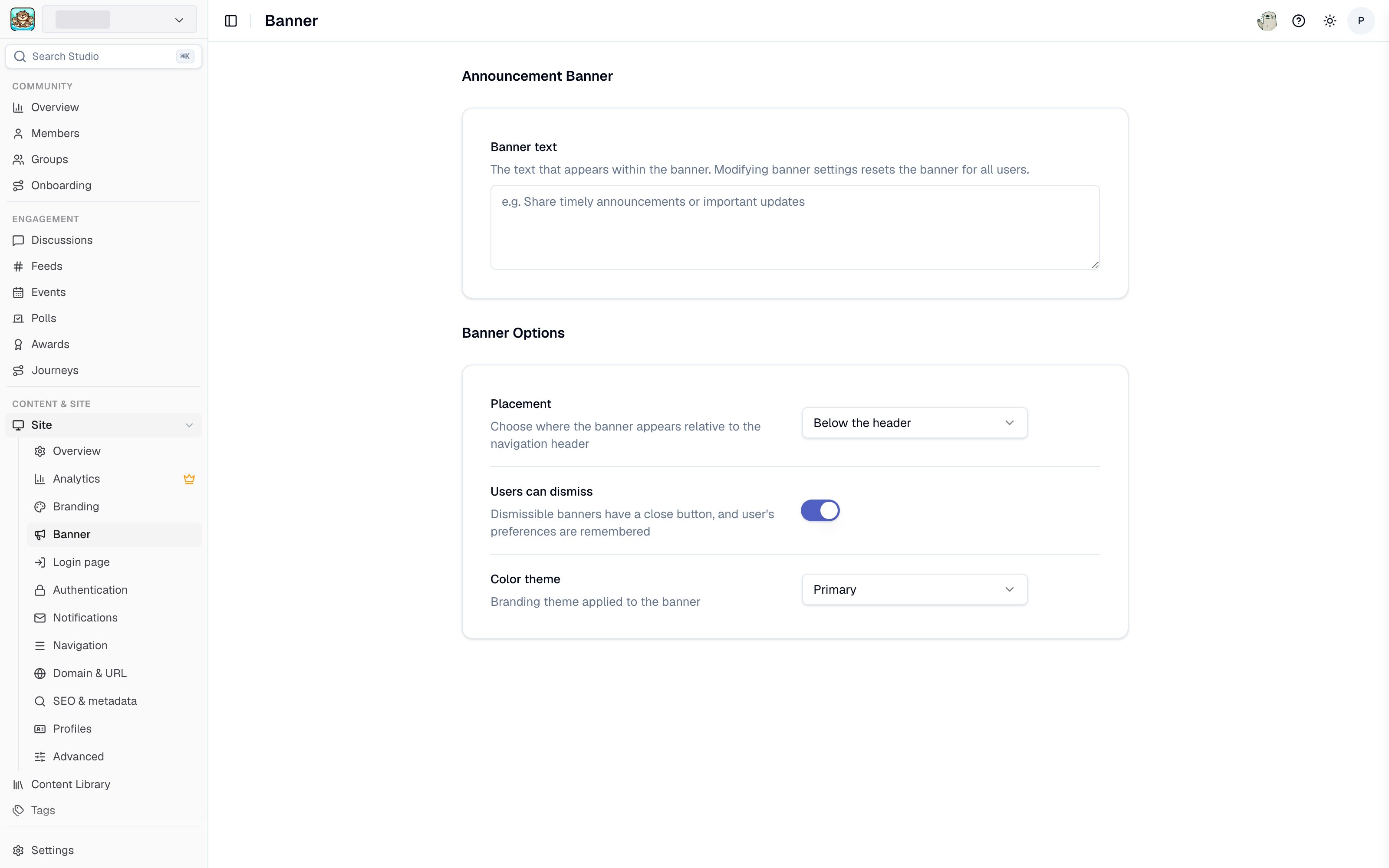
Announcement banner settings in Studio
Settings
Studio splits these across two sections: Announcement Banner holds the text, and Banner Options holds the rest.- Banner text - The message itself. Keep it to one line where you can, since the banner appears on every page.
- Placement - Choose Above the header or Below the header. Above the header is the more prominent of the two.
- Users can dismiss - When enabled, visitors get a close button and the banner stays hidden for them afterwards. Enable this for informational messages, and leave it off for anything a visitor must see on every visit.
- Color theme - Choose Primary, Secondary, or Muted. Each maps to a color from your active branding set, so the banner stays on-brand automatically. Use Primary to draw attention and Muted for background information.
Related pages
- Call to action - a persistent prompt to join your Slack community, rather than a temporary announcement.
- Branding - the colors the banner themes are drawn from.
- Home page - page banner images.