Install the Tightknit Enterprise Slack app to enable Slack admin operations
The Tightknit Enterprise Slack app enables Tightknit to perform approved Slack admin operations on behalf of your community. It is a separate app from the main Tightknit Slack app and stores the organization-level permission used for these operations.Tightknit currently uses the Enterprise app to invite new members to your Slack workspace from Studio or the Admin API.
Your Slack workspace must belong to a Slack Enterprise Grid
organization.
The Tightknit Enterprise app is not available to workspaces on other Slack
plans.
Select Install Tightknit Enterprise
app. On Slack’s
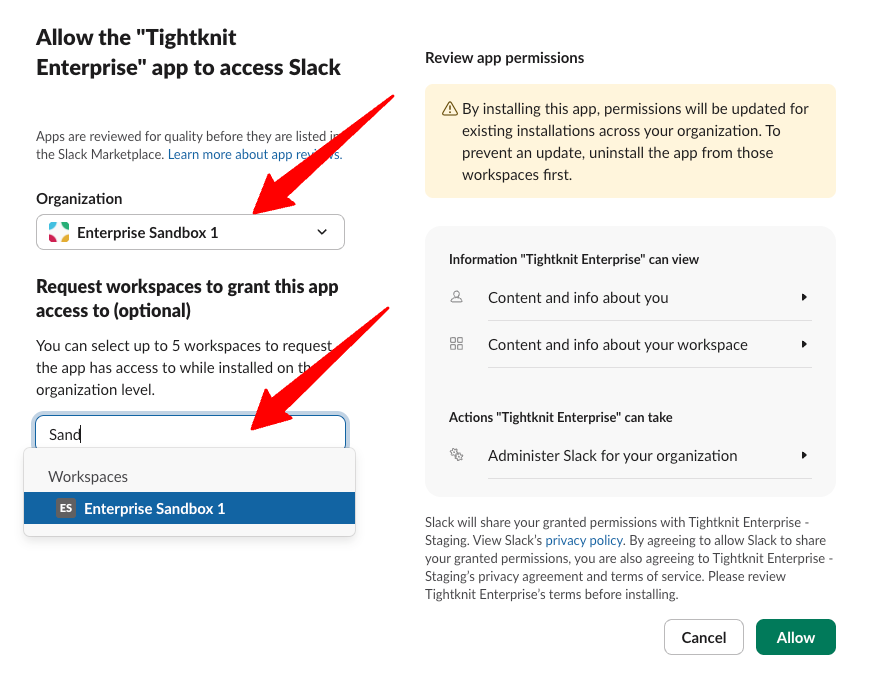
consent screen, select your organization, not an individual workspace.Under Request workspaces to grant this app access to, select your
community’s workspace. Slack labels this step as optional, but Tightknit
cannot perform admin actions in the workspace without it.Only a Slack Org Owner or Org Admin can complete this installation.
Granting the Tightknit Enterprise app access to a Slack workspace
3
Register your Slack admin account
Return to Studio and refresh the page. Under Registered admin, select your
account and confirm the registration.You can register only your own account. It must be a Slack workspace or org
admin or owner.
4
Configure invitation defaults (optional)
Choose Default invite channels or add an Invitation message if you want
invitations to inherit them. Each invitation must use at least one channel,
either from these defaults or from the invitation itself.Private channels can be used only when the registered Slack admin is a member
of them.
In Studio, open Members, select Create Member, and choose Invite user to the Slack workspace. You can override the default invite channels and message before creating the member.API clients can also invite a member by using the invite_to_slack option when creating a member through the Admin API.
The Tightknit Enterprise app is installed, but setup is incomplete
The app may be installed on the organization without access to your community’s workspace. Install the app again and select the workspace under Request workspaces to grant this app access to.If your Slack organization requires app approval, check Integrations > Requests in the Slack organization console.
Confirm that you are registering your own account and that it is a Slack workspace or org admin or owner. If the authorization was revoked, install the Tightknit Enterprise app again before registering.
Was this page helpful?
Assistant
Responses are generated using AI and may contain mistakes.