
Which pages are enabled
Which of these pages appear on your site is controlled in Studio under Site > Navigation, in the Routes section. See Navigation and routes.Navigation
Navbar Header
The navbar header will contain your site logo and the call-to-action button. The logo will be the Site Horizontal Logo, if configured, otherwise the Site Icon alongside the name of the site.
Site navbar header with logo and call-to-action
Call-to-Action Button

Call-to-action button
Sidebar
The navigation sidebar contains links to all Feeds, except hidden Feeds, as well as the following items: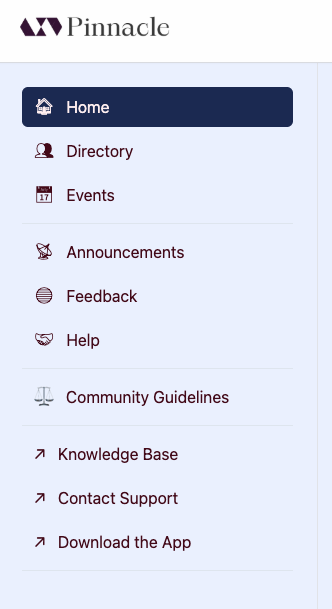
Navigation sidebar with feeds and page links
Home
The Home page of your site encapsulates what your community is about and why users should join while directing them immediately to relevant content, featuring:- Welcome message and community description
- Banner image
- Stats of the community: number of posts and number of members
- Upcoming events
- Feeds Tile Menu list
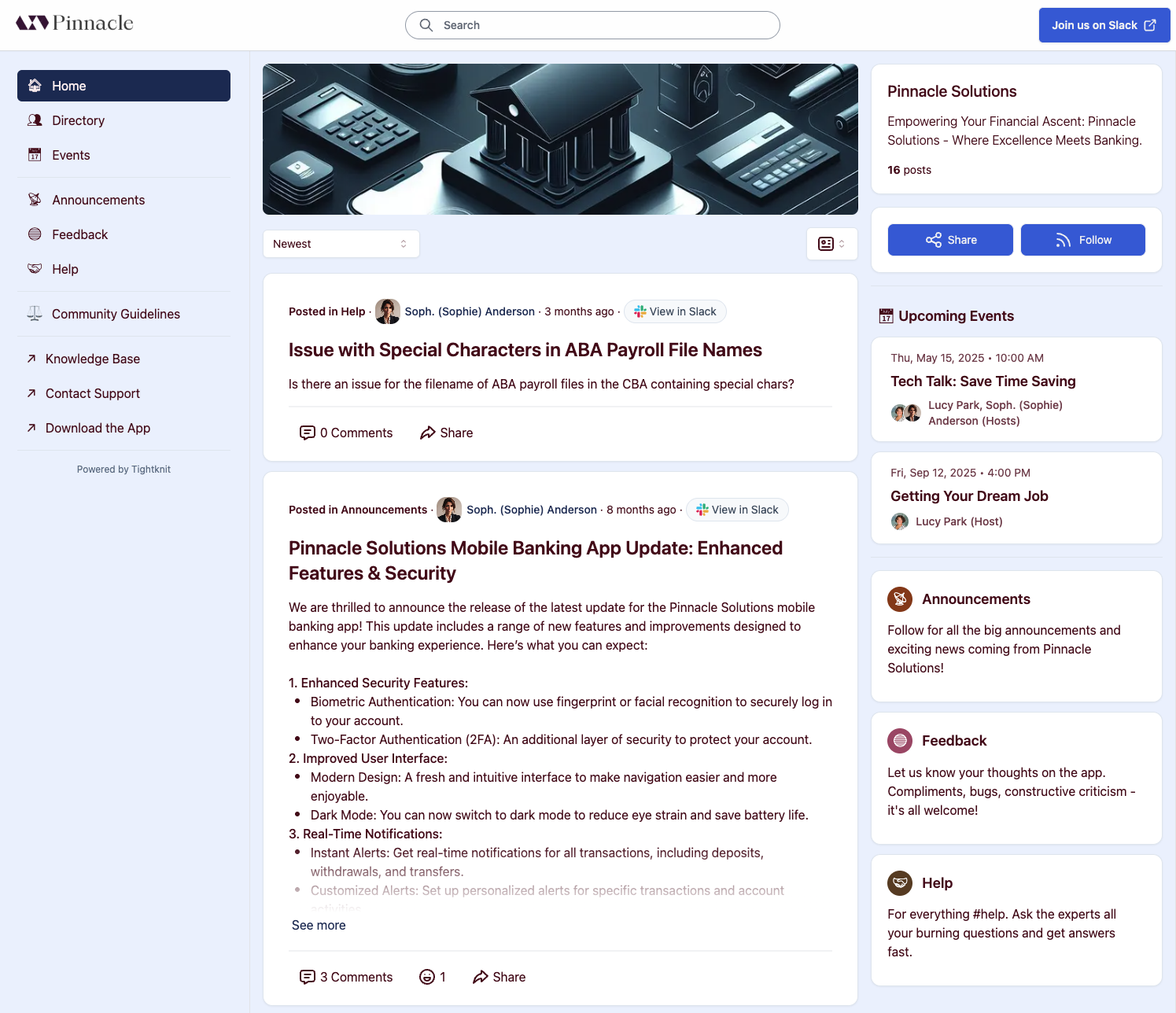
Community site home page
Brand new communities don’t need to worry about displaying a potentially underwhelming post count on the Home page. Under 10 posts, we’ll skip it. The member count always shows; turn off Community member count under Enabled Components if you’d rather hide it for now. We’ve all got to start somewhere after all. Happy growing! 📈
Feed
The Feed detail page displays the sorted posts within a Feed. A Feed is connected to a channel in your Slack workspace. Feed pages are found at the URL path/x/<feed-slug>.
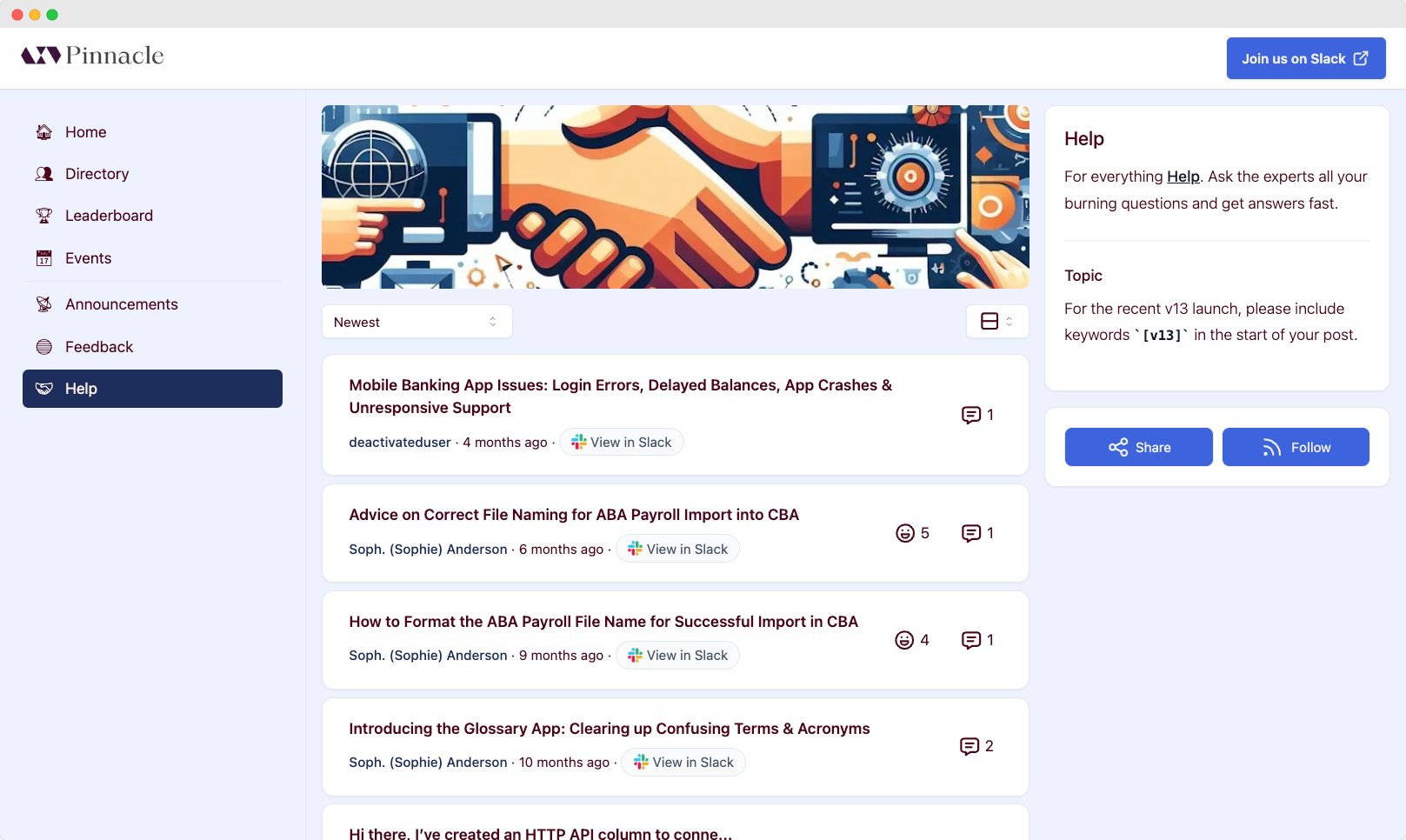
Feed page with sorted posts
Pinned Posts
If Show Pinned Posts is enabled for a Feed, a Pinned Posts carousel appears at the top of the Feed page, highlighting important posts that have been pinned by admins.Description and Topic
Describes the purpose and topic of your Feed. This section is linked to theDescription and Topic, respectively, of your Slack channels
and will be updated automatically when the channel is updated.
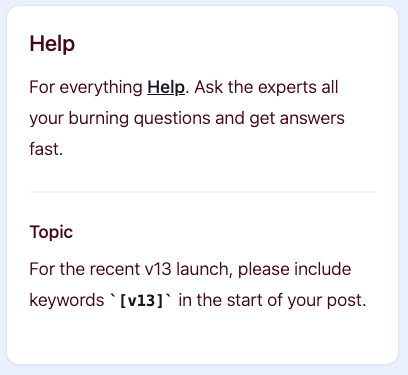
Feed description and topic section
Member Count
The number of members in the Feed, shown below its description and topic. It counts the Feed’s members the same way the Home page counts your community: anyone with a pending Slack invitation is included, while bots, deactivated members, revoked invitations, and members you added who have not joined yet are not. A Feed with no members shows no count. To hide it on every Feed page, turn off Feed member count under Enabled Components in Studio’s Site > Overview.Sorting
Use the Feed sort select menu to choose the order the Feed posts are displayed.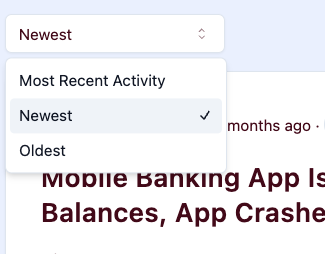
Feed sort options menu
- Most Recent Activity - the posts with the most recent comments are displayed first
- Newest - the posts created most recently are displayed first
- Oldest - the oldest posts are displayed first
Display Settings
The default list view display setting is determined by the “List View Display” setting in the admin Feed settings. Users can also use the Feed post display select menu to choose the format in which Feed posts are displayed. User display setting preferences are remembered on a per-Feed basis.Snippet
Includes the body of the post, up to a certain length, and attachments.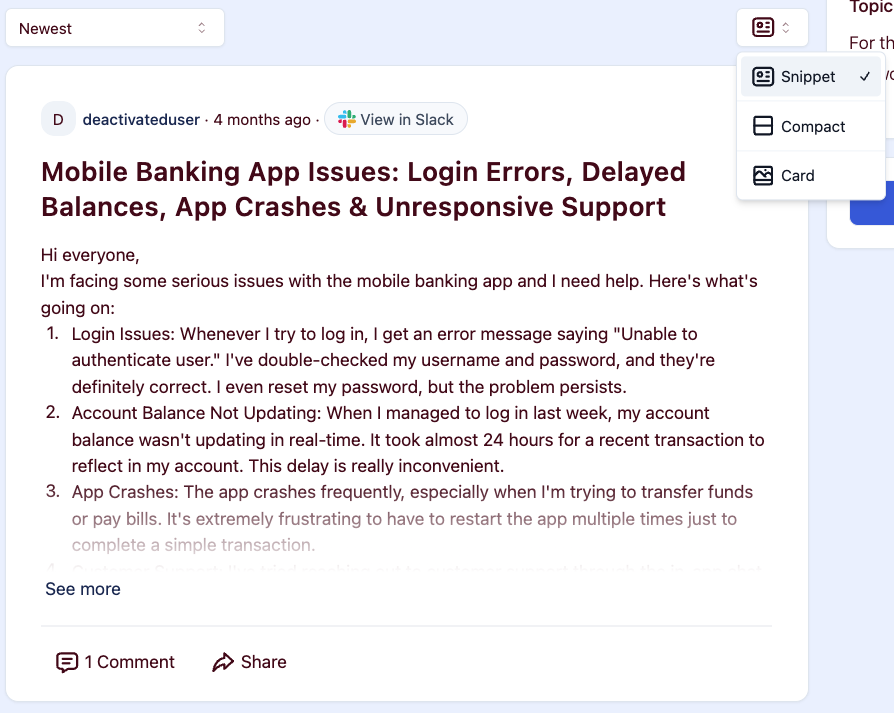
Snippet display view with post body preview
Compact
Displays only the title and some activity stats.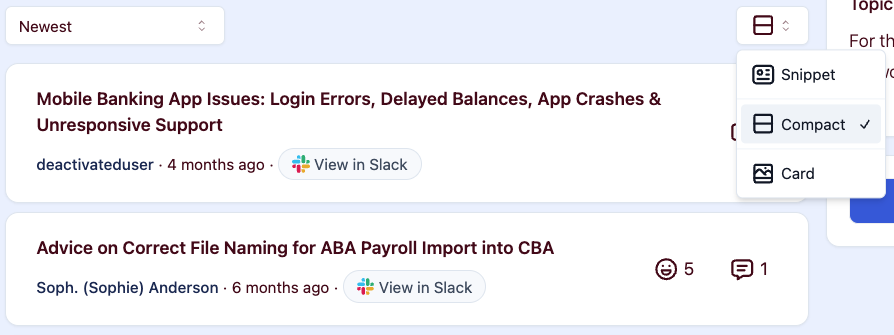
Compact display view with titles only
Card
Displays the post in a blog-like style, including a cover image and reading time. The cover image is the first image file attachment on the associated Slack message, if any.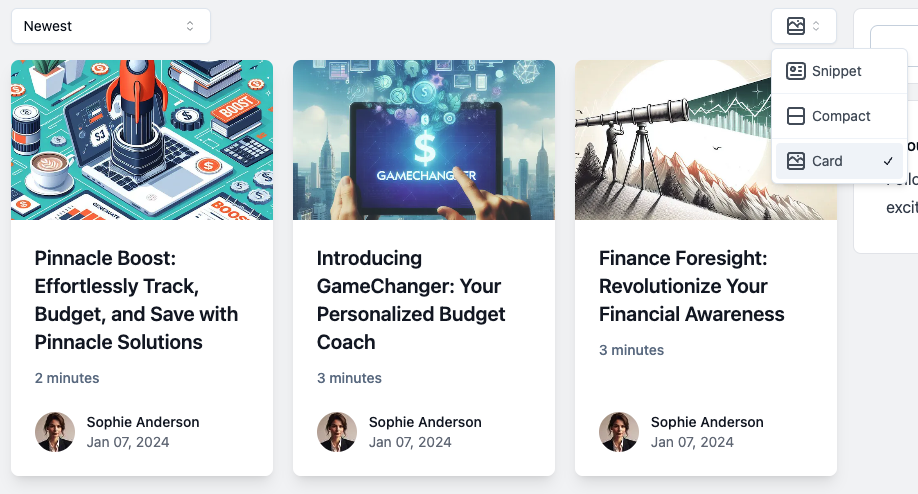
Card display view with cover images
Changelog
Displays posts in a chronological timeline grouped by date, ideal for product updates and release notes. Each entry shows the full post body, author profile, and date.Share
Click theShare button to bring up the Share modal.
Share button on a feed page
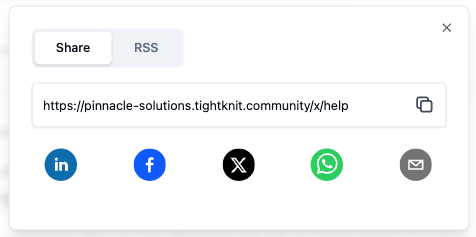
Share modal with social sharing options
Follow (RSS)
Click theFollow button to bring up the RSS modal.
Follow button on a feed page
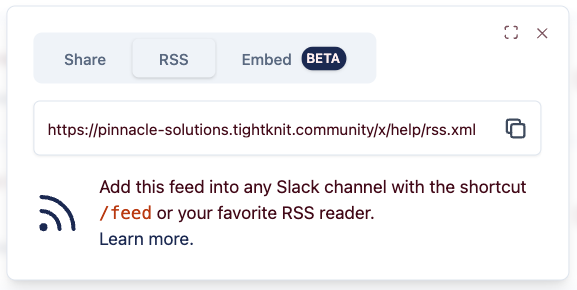
RSS subscription modal
Subscribing in Slack
Slack has a nifty tool to subscribe to RSS updates within a channel!Slack feed Command
Simply start typing a message in your channel and type /feed <RSS-LINK>,
where the RSS link is replaced with the link shown in the Tightknit RSS modal.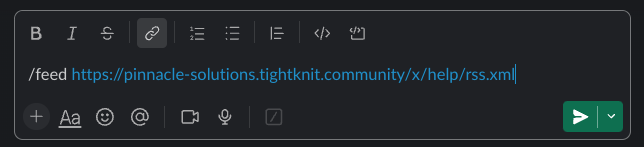
Using the Slack /feed command to subscribe
Subscribe
Once the command is entered, your Slack channel will now be notified every time there is a new post made in the Tightknit Feed.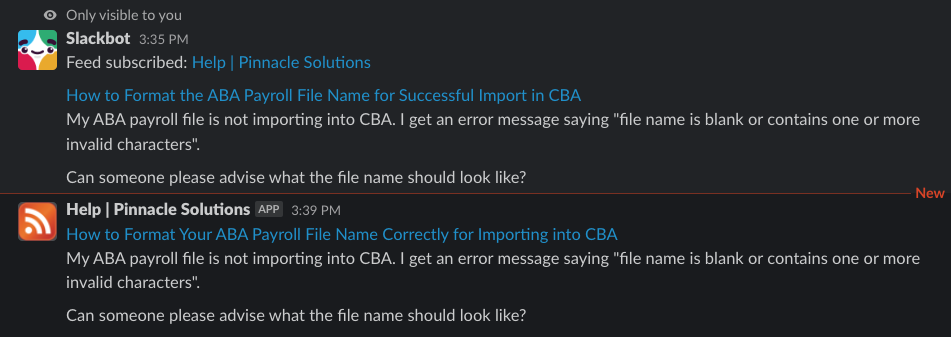
RSS notification received in Slack
Embed (Beta)
Click theEmbed tab within the Share/Follow modal to get the iframe code you can put in another website and embed the Tightknit Feed. The Embed Preview shows an example of what the iframe would look like with the provided parameters.
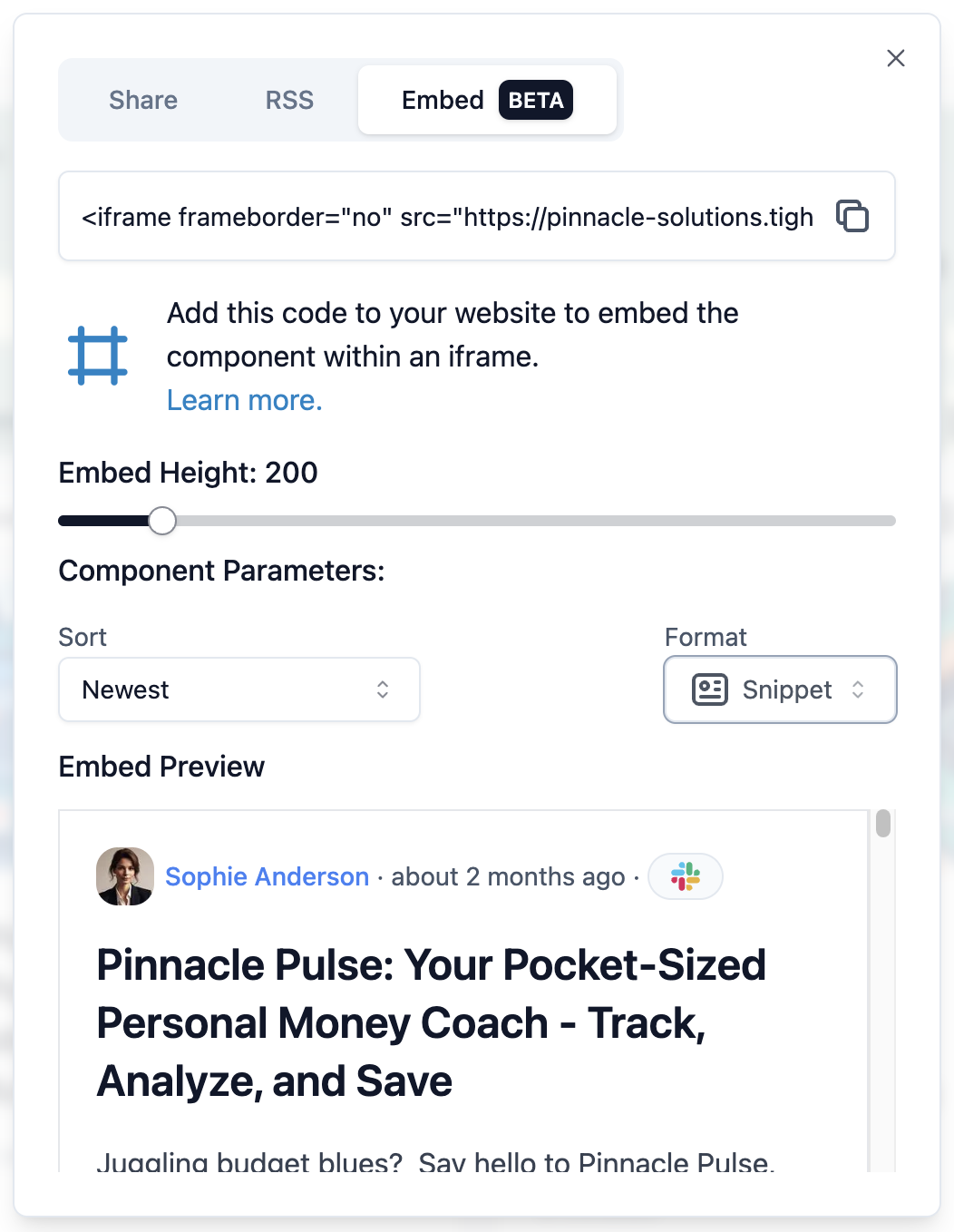
Embed tab with iframe code for a feed
Post
The Post detail page displays a post and comments from a community Feed. Posts are sourced from messages in Slack and are updated automatically when the original message changes. Post detail pages are found at the URL path/x/<feed-slug>/<post-id>/<post-slug>.
Users will be redirected to this canonical URL if the post slug in the URL is omitted or incorrect.
The Post detail page generally includes:
- An auto-generated title
- The author
- The posted date (respects the original Slack message send date)
- A permalink back to the original Slack message
- Emoji reactions from the original Slack message
- All synced comments on the post, with the above info on each comment
Display Settings
The post detail display type is determined by the “Post Detail Display” setting in the admin Feed settings.Discussion
The Discussion display is best suited for chats, FAQs, and threaded discussions.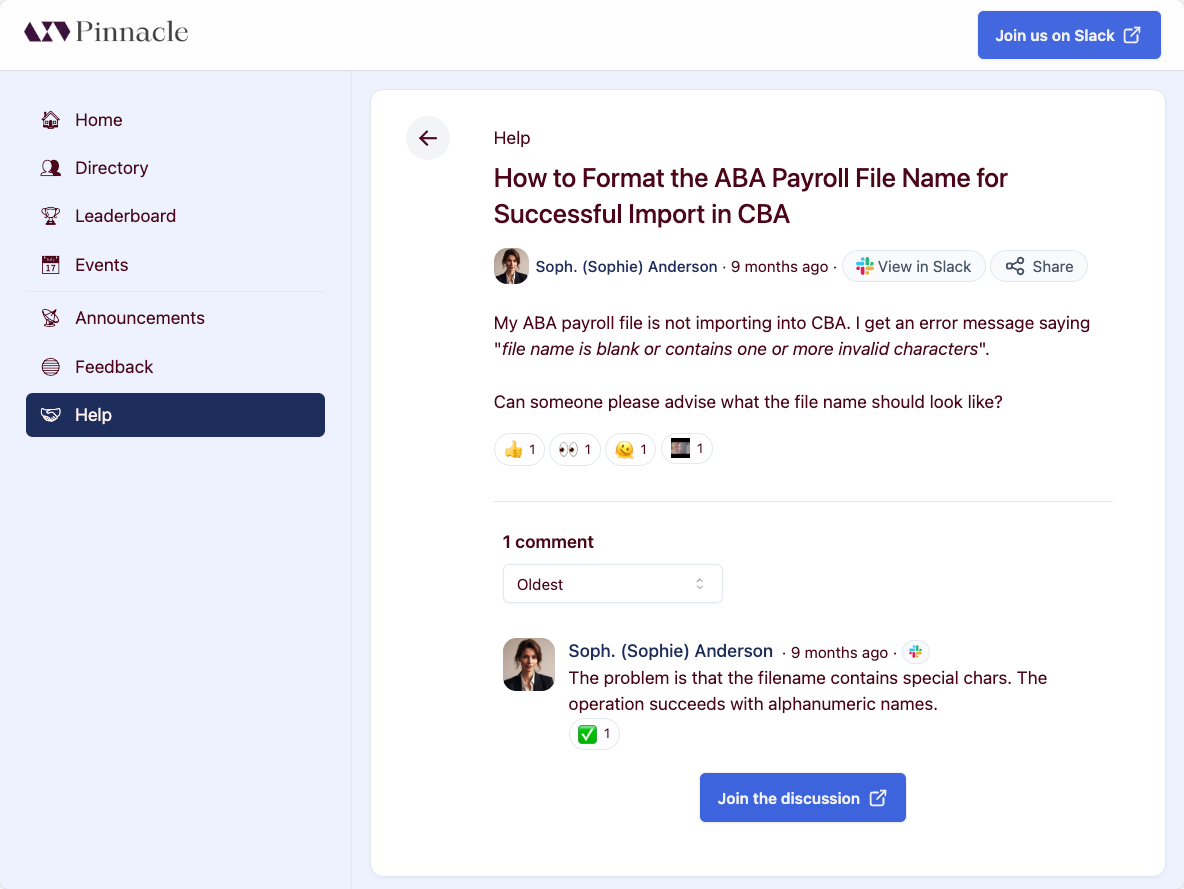
Post detail page in discussion display
Blog
The Blog display is best suited for blog posts, where the cover image should take front and center. The cover image is the first image file attachment on the associated Slack message, if any, and is not included in the attachments section if there are additional files.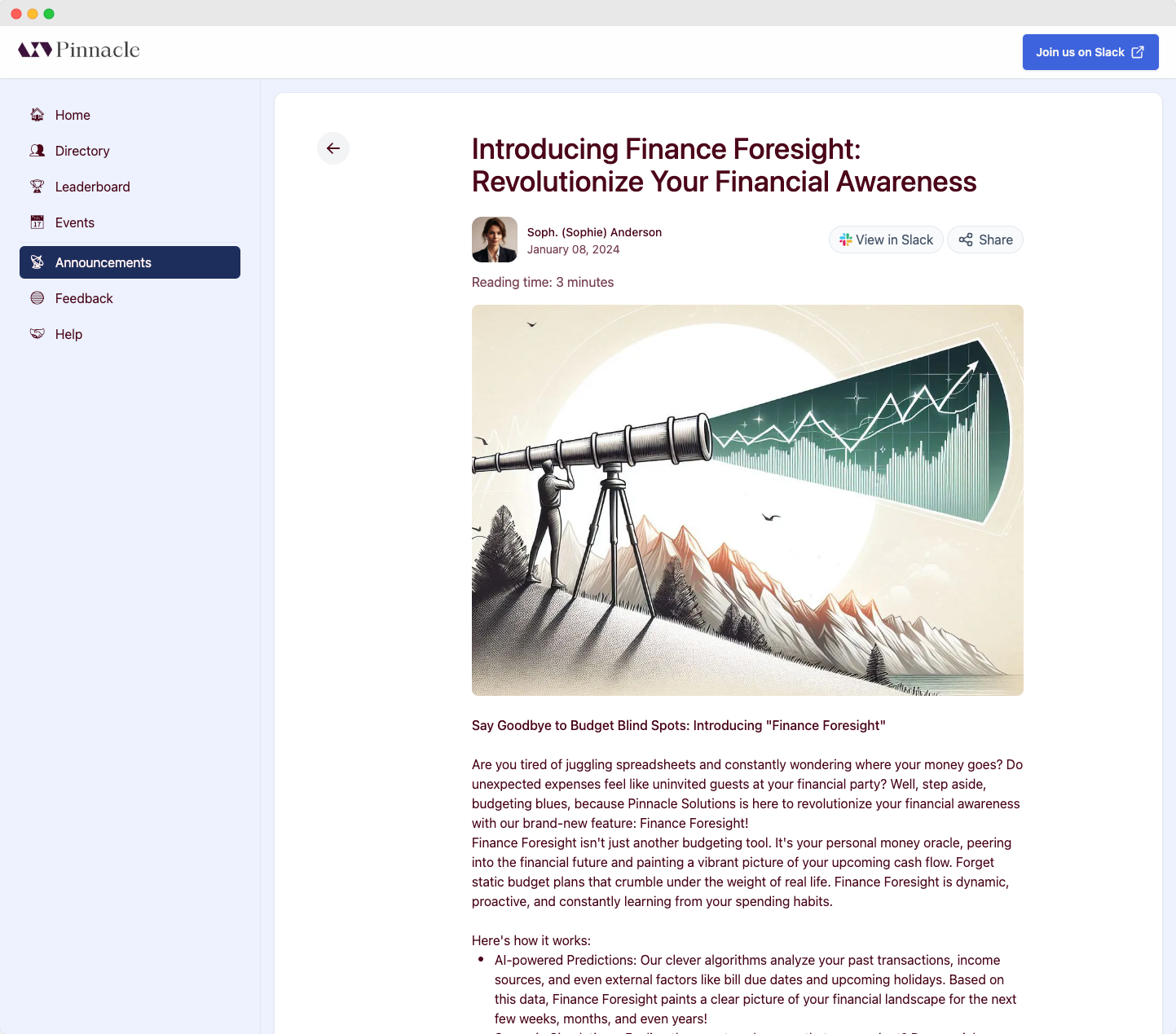
Post detail page in blog display
Related Posts
Related posts are displayed in a section at the bottom of the page.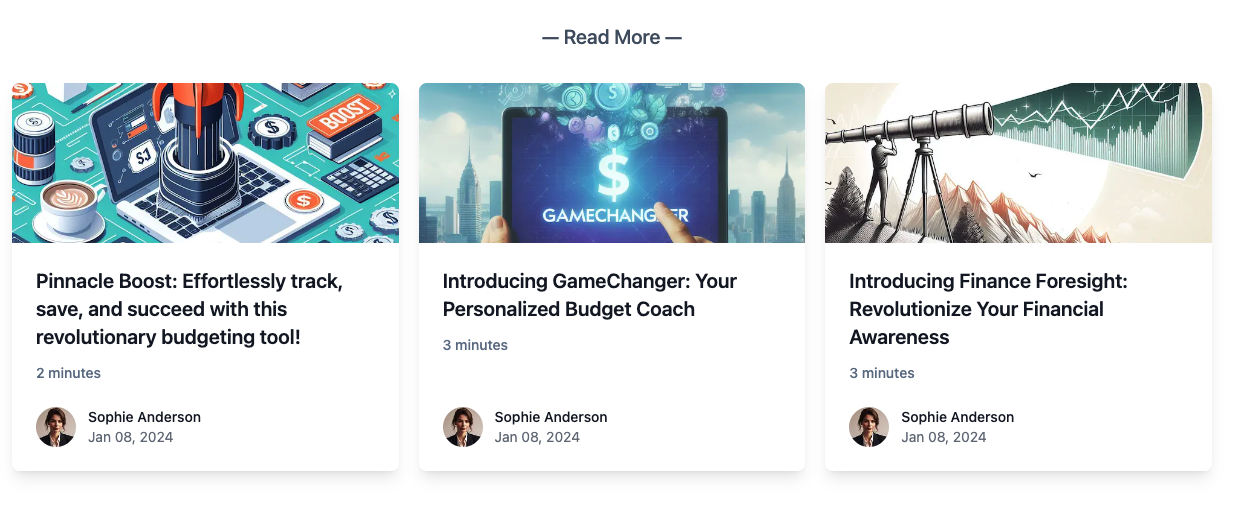
Related posts section on a blog post
Share
Click theShare button to bring up the Share modal.

Share button on a post detail page
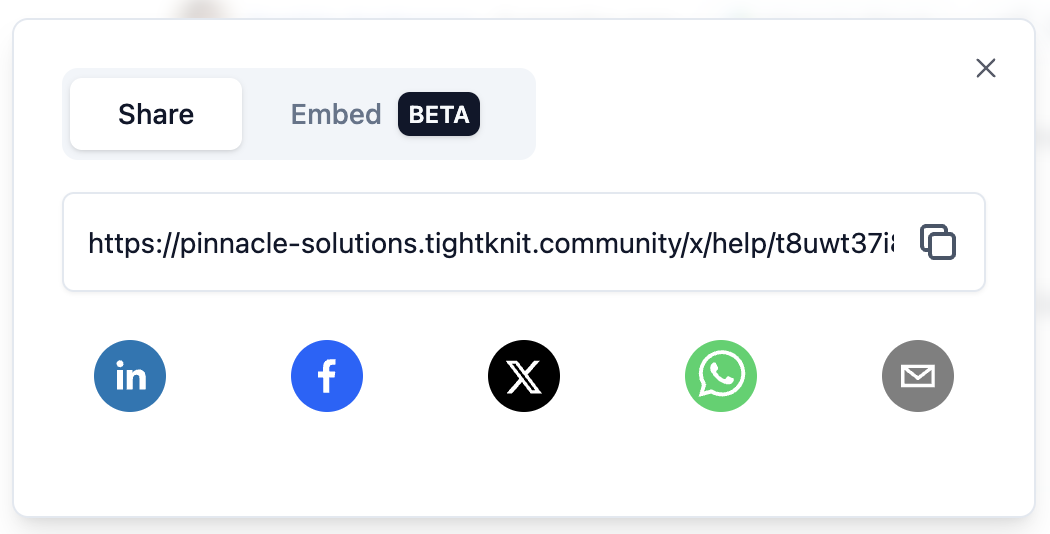
Share modal for a post
Embed (Beta)
Click theEmbed tab within the Share modal to get the iframe code you can put in another website and embed the Tightknit post. The Embed Preview shows an example of what the iframe would look like with the provided parameters.
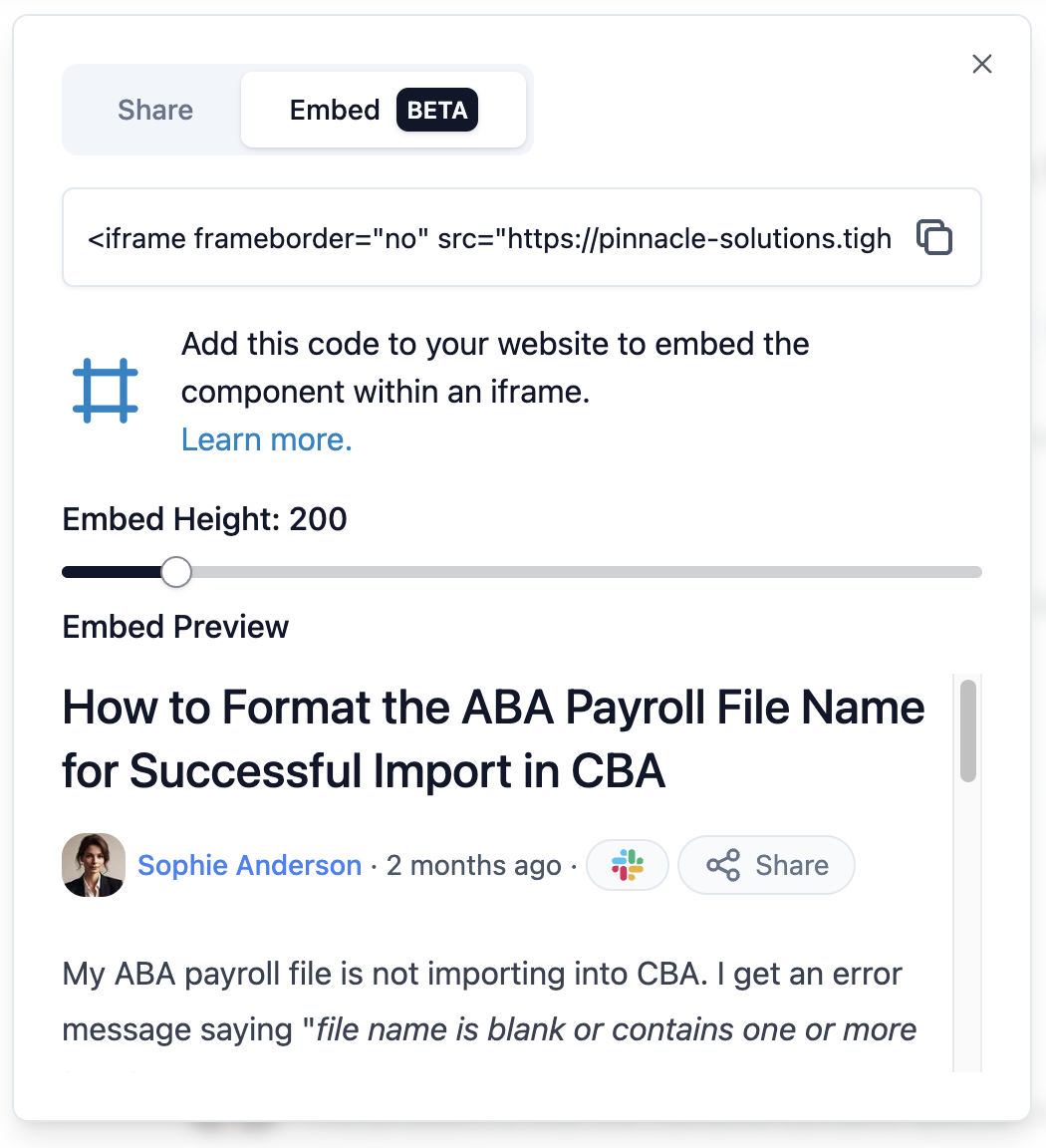
Embed tab with iframe code for a post
Post Creation
Authenticated users can create new posts directly from the community site at/post/new. Users can select a Feed to post to, compose their content, and publish. The post will be synced to the associated Slack channel.
Image Uploads
When composing a post, you can attach images directly in the editor. Images are embedded inline in the post body and also sync to the Slack message as image blocks.- Up to 10 images per post
- Supported formats: JPEG, PNG, GIF, WebP
- Maximum file size per image is determined by your plan settings
Link Previews
When composing a post, pasting a URL on its own line automatically generates an inline link preview card showing the page’s title, description, and image (sourced from the page’s Open Graph metadata). The preview is saved with the post and renders on both the community site and in Slack (via Slack’s native unfurl). Link previews only appear when a URL is pasted on its own line. URLs included inline within a sentence remain as regular links.Post Length
A post in a Feed synced to a Slack channel must fit in one Slack message. Each paragraph (blank lines included), heading, list, quoted paragraph, code block, divider, image, and link preview counts as one block. A post can have up to 48 blocks and a comment up to 50. The editor shows an error as soon as a post or comment is over the limit.Post Editing
Post authors can edit their own site-created posts by clicking the actions menu on the post detail page and selecting Edit. You can modify both the title and body of the post. Edits are automatically synced back to the associated Slack message.Comment Editing
Comment authors can edit their own site-created comments inline by clicking the actions menu on a comment and selecting Edit. Edits are automatically synced back to the associated Slack thread reply.Events List
The Events List page displays the events in the community. Users can discover events and navigate to individual Event detail pages. The page has three tabs for filtering events by time:- All (default): Shows all events in a unified stream, with currently happening first, then upcoming in chronological order, then past in reverse-chronological order.
- Upcoming: Shows only future events in chronological order.
- Past: Shows only past events in reverse-chronological order.
Event
The Event detail page displays information about a specific event, including:- Cover image
- Event details
- Call-to-action
- Register button, shown for events that have not ended yet when the event has the registration button enabled.
- Add to Calendar button, shown for events that have not ended yet when the Add to Calendar Button setting is enabled. See Add to Calendar Button.
- Recap and video recording
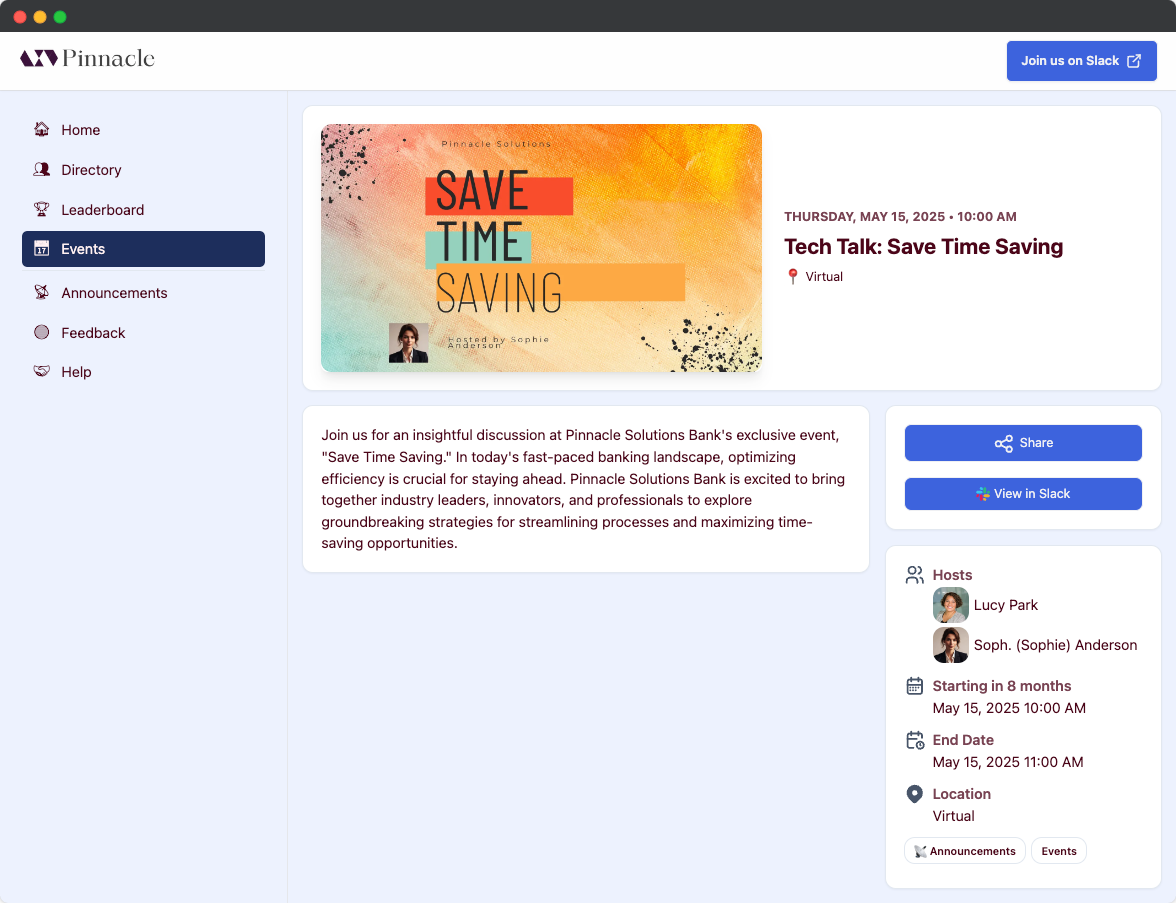
Event detail page
Groups List
The Groups List page displays the public user groups of the community. Group visibility can be configured in the Groups settings.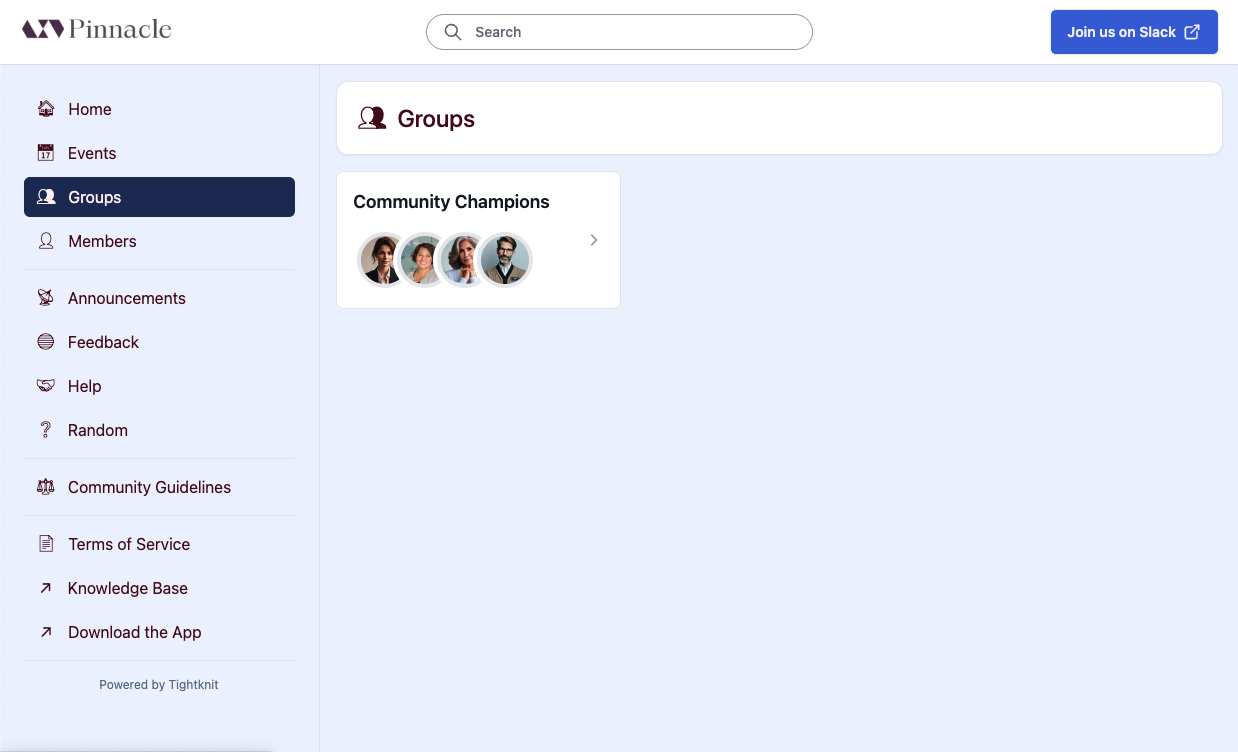
Groups list page
Group
The Group detail page displays information about a specific featured member Group, including the group members.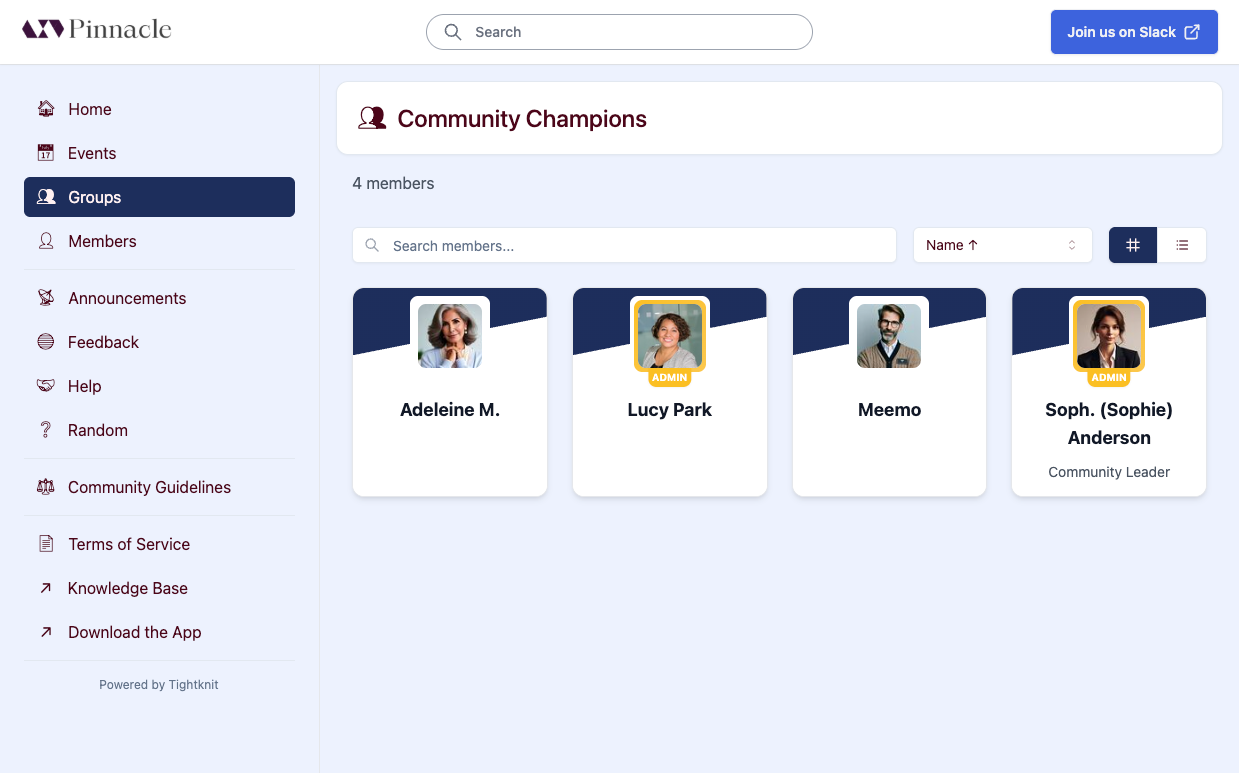
Group detail page with member list
Members List
The Members List page lists the members of the community in a directory.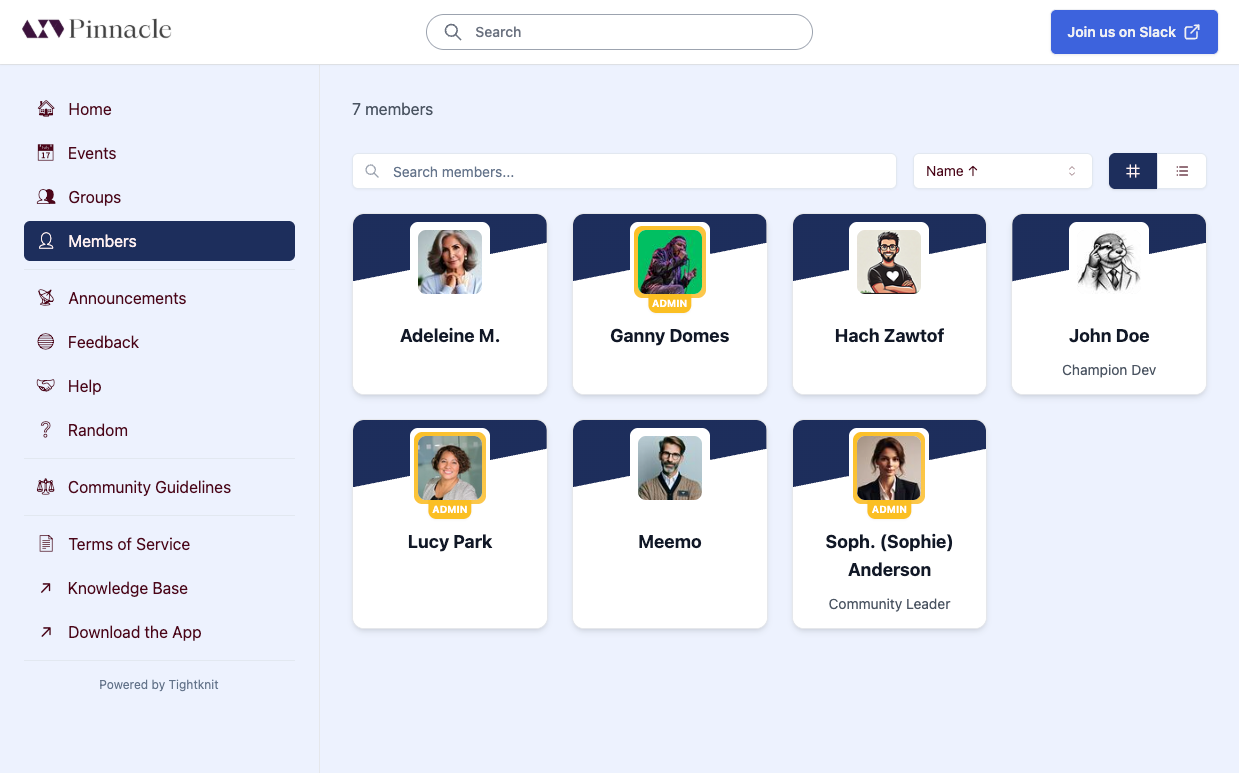
Members list directory page
Profile
The Profile detail page shows the user’s info and activity within the community. Profile detail pages are found at the URL path/user/<profile-id>.
Note that the id belongs to the user’s Tightknit profile, not their Slack profile.
Admin users have an ADMIN badge next to their name.
Users connected to Slack bots or apps will have an APP badge next to their name.
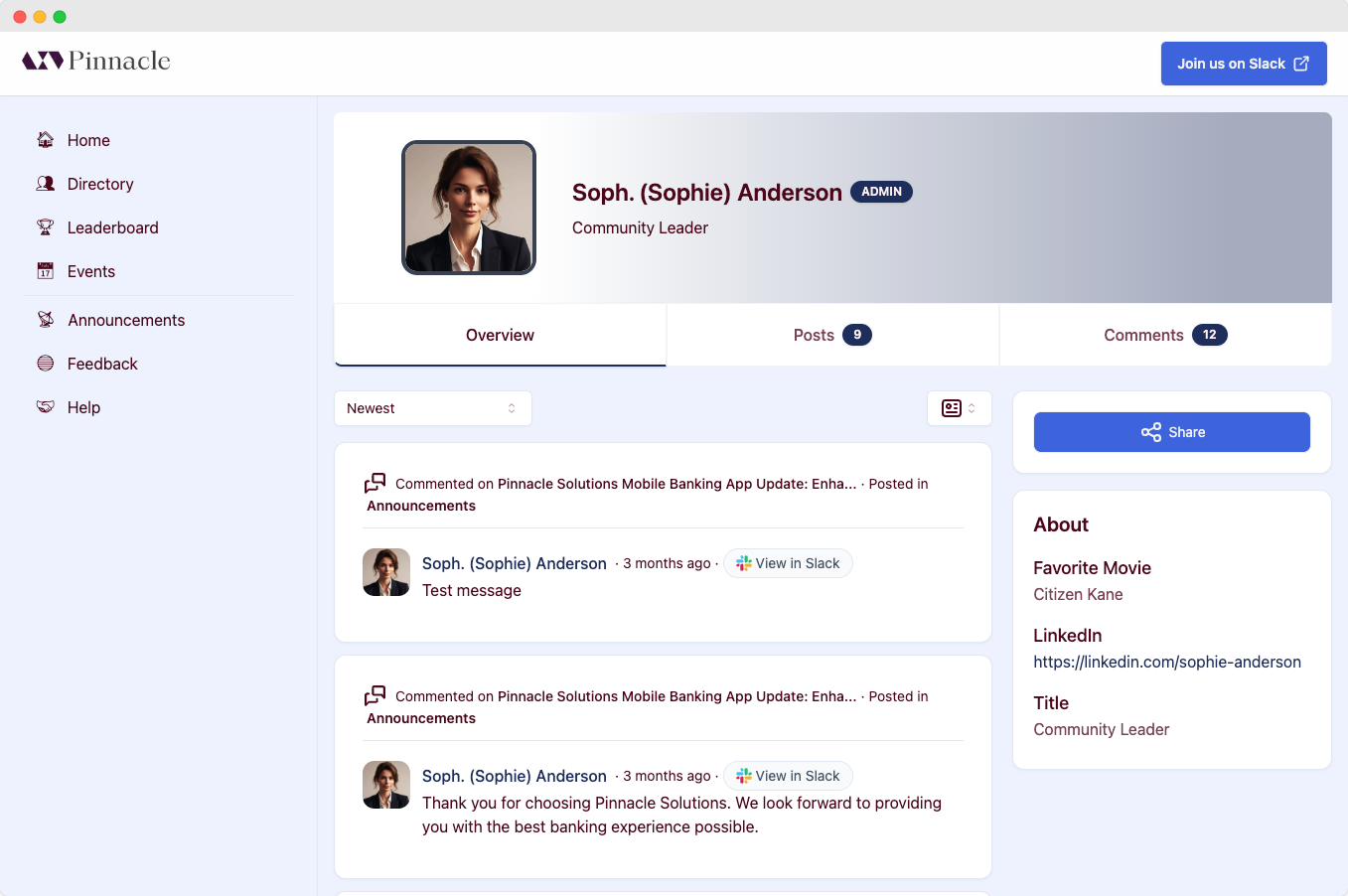
User profile detail page
Profile Tabs
Overview
The Overview tab contains a Feed of the user’s combined post and comment activity in all Feeds, except unlisted Feeds. It also displays certain profile fields, which may be synced from the user’s Slack profile. The sidebar shows the user’s Awards & Badges, any public groups the user belongs to, and their About section with profile fields.Posts
The Posts tab contains a count of the user’s authored posts and a Feed containing the user’s post activity in all Feeds.Comments
The Comments tab contains a count of the user’s authored comments and a Feed containing the user’s comment activity in all Feeds.Resources
The Resources List page displays content collections for the community. Each collection can contain curated resources organized by topic. Resource collection pages are found at the URL path/resources/<collection-slug>.
Tag Detail
The Tag detail page displays all content associated with a specific tag. Tag detail pages are found at the URL path/tags/<tag-slug>.
The page shows the tag’s label and description, along with all content associated with that tag.
Tag detail pages are linked from tag badges that appear on event cards, resource cards, and other content throughout the site.
Search
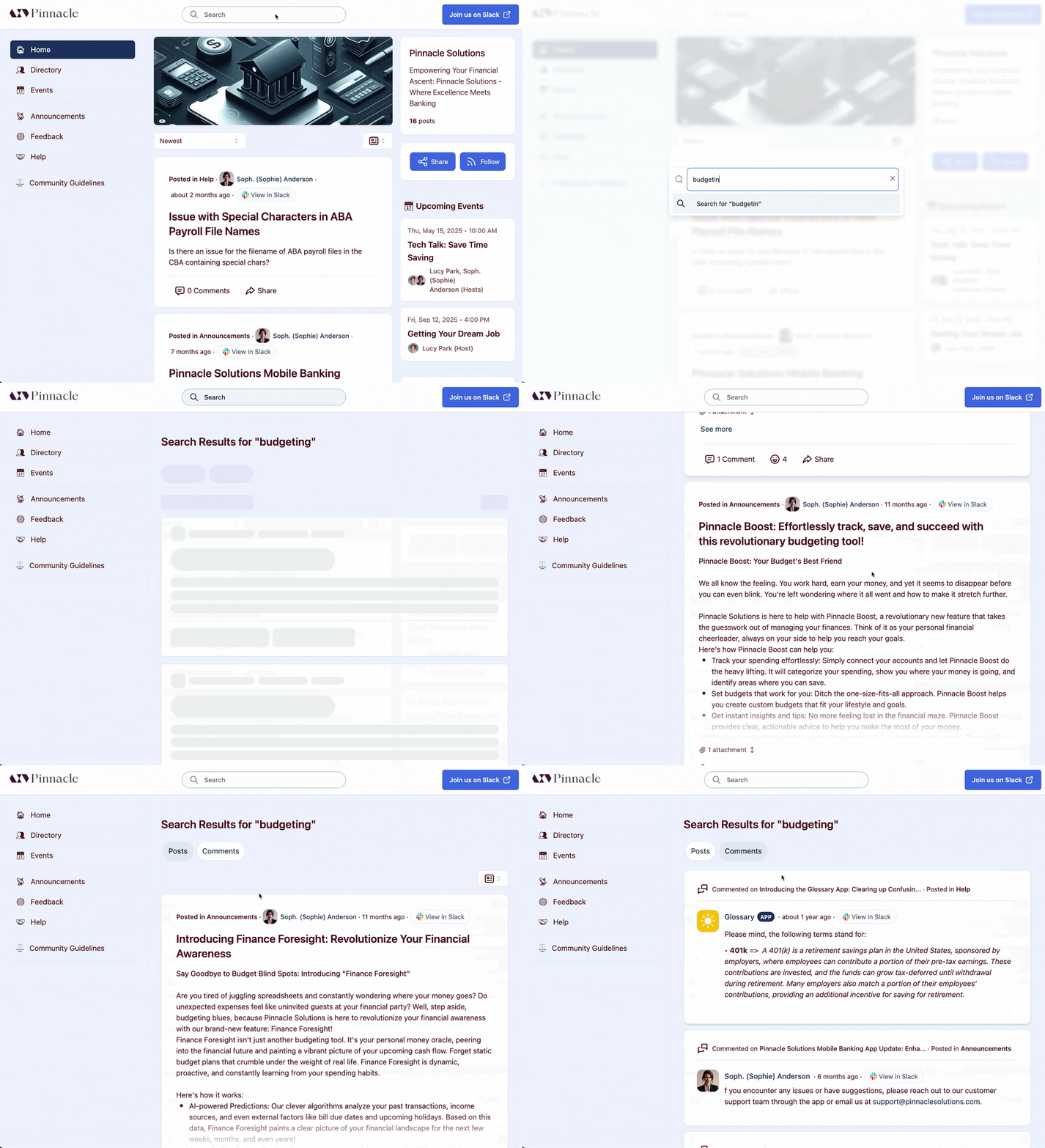
Search results on the community site
Community Guidelines
The Community Guidelines page displays the community guidelines, if you have configured guidelines in Tightknit settings.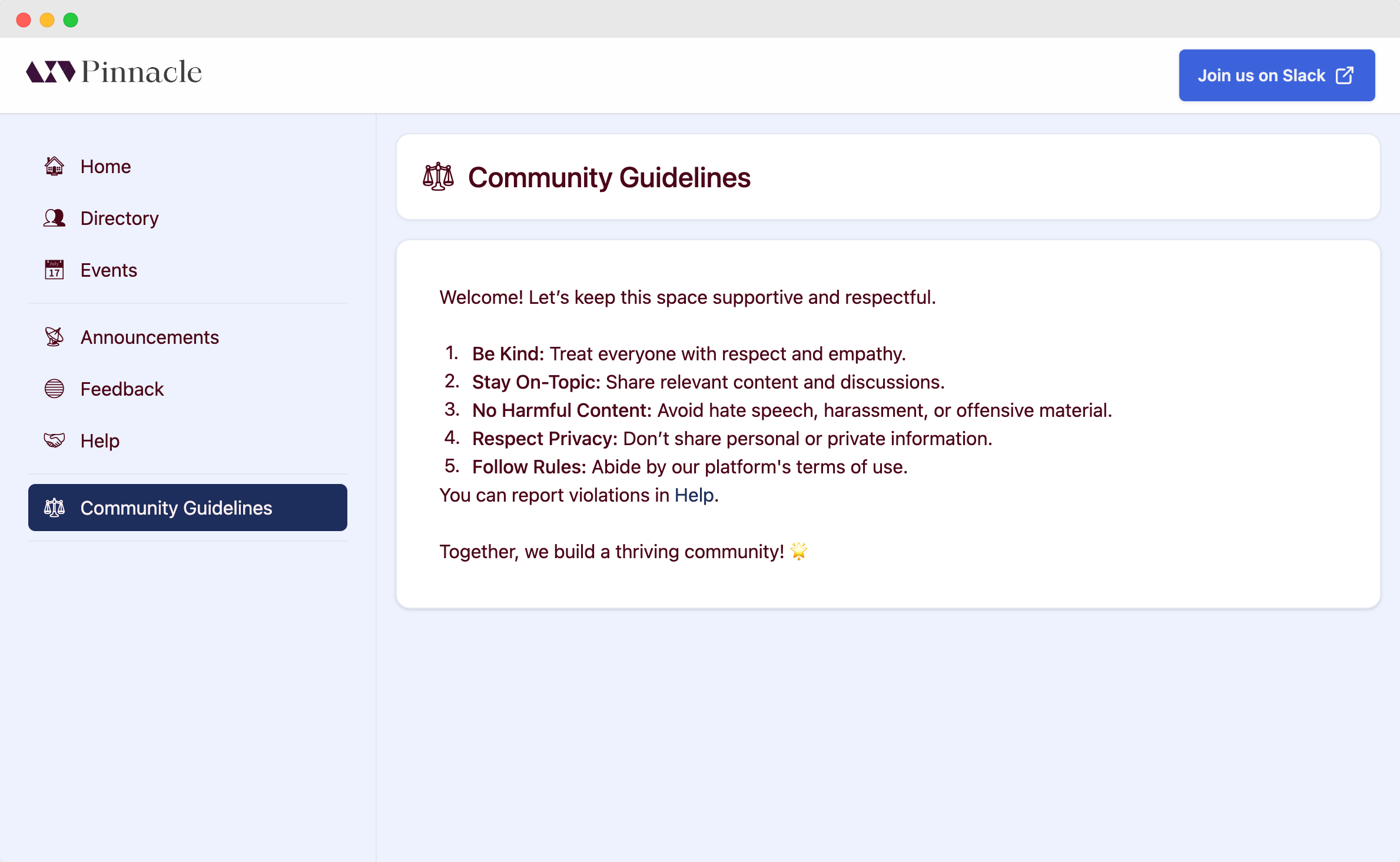
Community guidelines page