Go to Site > Overview and edit the call-to-action text and URL.
Site > Overview in Studio, which holds the call-to-action fields
The call-to-action text and URL are managed in Studio only. Open the Tightknit app home and click Community Site ➚ under the Community module to jump straight there.You can still update your Static Join Link from Slack: open the Tightknit app home and click Static Join Link under the Community module.
Did you know you can change this with our MCP server too? Try asking your agent: “Change our site’s call-to-action button to say Join us on Slack.”
Call-to-Action Text - This is the text that is present on the Call-to-Action button across the Tightknit community site experience. If you do not wish to show this button, leave this field empty.
Call-to-Action URL - This is the URL that the button will link to when clicked. By default, it is the /join URL of your site. Read More↗
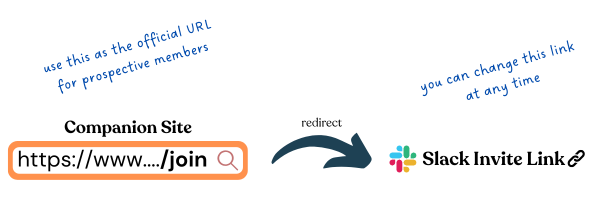
Each Community Site has a /join URL that is inactive unless you have registered a Static Join Link with Tightknit. Once you have provided a join link, for example https://www.how-to-join-my-community.com, then users that visit the /join URL on your site will now be redirected to https://www.how-to-join-my-community.com.What’s the purpose of this? Well, the method to join your community could change over time. One day you may use a Slack invite link to let users directly join the workspace; but later, you may instead want to lead users to an initial sign-up form. Regardless, the /join URL of your Community Site stays the same (and looks nice!). This way, you can always give the /join URL to prospective community members, such as in outbound emails, and safely change the redirect URL behind the scenes at any point in the future. Tightknit will also track the number of visitors to the /join URL.
Is your link expired or expiring? Go into your Slack workspace admin settings. Select the “Invitations” page under the administration menu, i.e., the URL is at /admin/invites. Click on the “Invite Links” tab. Find the user whose link was registered with Tightknit and click “Deactivate.”Now, simply repeat the process to generate an invite link. Don’t forget to register it again with Tightknit! Paste it into Static Join Link under the Community module of the Tightknit app home, or into the Static join link field on Site > Overview in Studio.
Was this page helpful?
Assistant
Responses are generated using AI and may contain mistakes.