

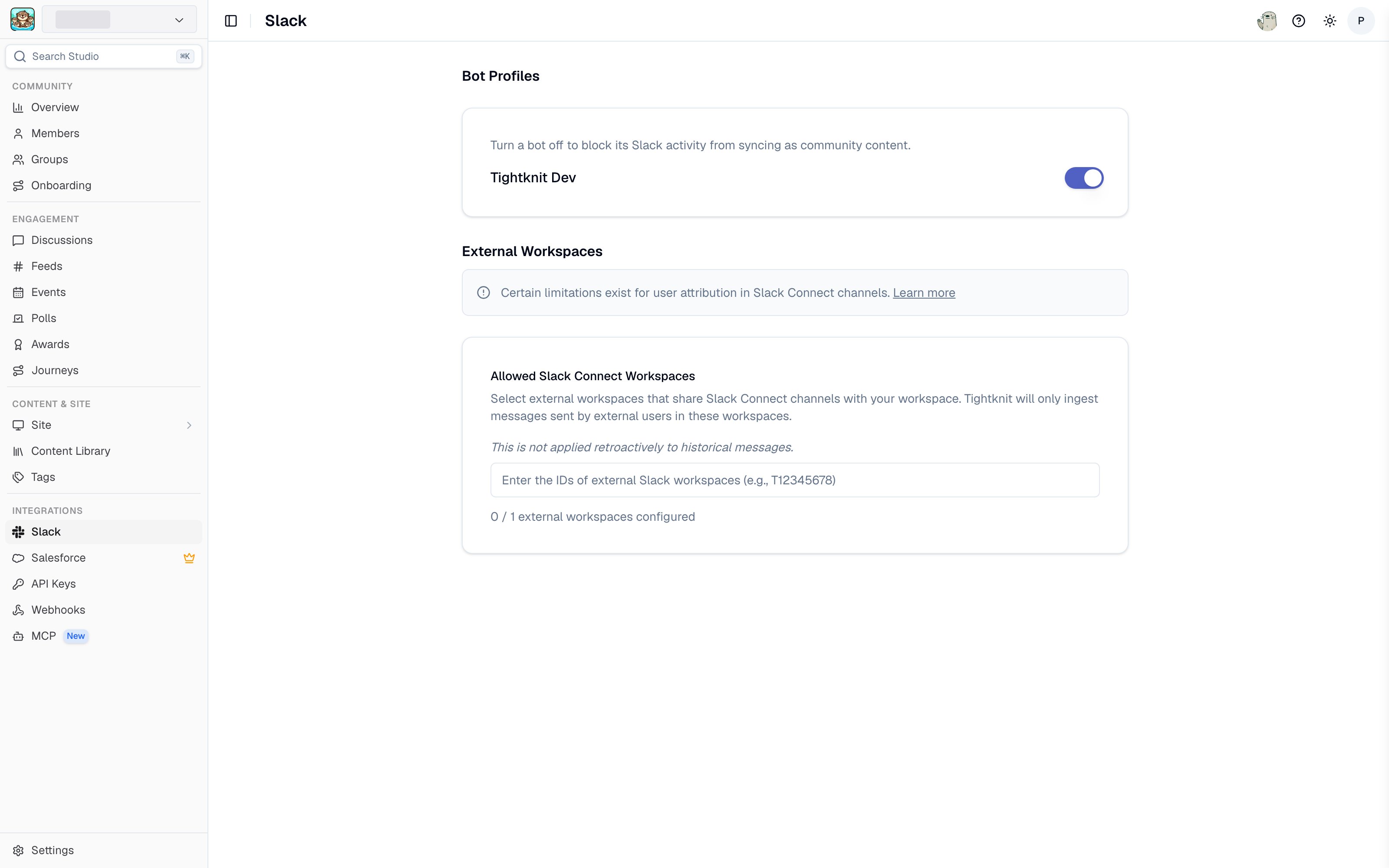
Slack integration settings in Studio
This page requires the Integrations Manager role or admin access. Some sections are additionally gated on your plan. See Access and roles.
Community
Your community’s name, icon, and horizontal logo. The Tightknit bot uses these when it posts in public channels, so your messages carry your branding instead of Tightknit’s. Full detail, including image specs, is in Community settings.Bot Profiles
Every bot Tightknit has seen in your Slack workspace, each with a toggle. Turning a bot off blocks its Slack activity from syncing as community content. This keeps automated noise, such as a CI bot or a status-page bot, out of Discussions, your community site feeds, and your analytics. See Blocked bots for how blocking interacts with existing content.External Workspaces
Manage the Slack Connect shared channels your community participates in. Tightknit can sync content from channels shared with external workspaces, which is how partner and customer channels become part of your community.Slack Connect support depends on your plan. Where it is unavailable, the section shows an upgrade prompt instead. See Slack Connect limitations.
Team Notifications
Choose your Tightknit Hub Channel, the private Slack channel where Tightknit posts admin alerts, and pick which notifications go to it. Notifications are grouped by topic so you can switch off the categories your team does not need. For the full list and troubleshooting, see Notification settings.Slack Community Home
The app home that non-admin members see when they open Tightknit in Slack. Set the Community Home banner shown at the top of it. For what members see there, see Community Home.Slack Admin Operations
Slack Admin Operations is an Enterprise add-on and requires a Slack Enterprise Grid workspace. Contact sales to enable it.
Connect and reconnect
If Tightknit is not yet connected to a Slack workspace, this page offers the install flow. To reinstall after a permissions change, see Reinstalling the Slack app.Sync history
Sync history lists the sync jobs between Slack and Tightknit, including backfills, with their status and results. Use it to confirm a backfill completed before concluding that messages are missing. The same history, alongside Salesforce sync jobs and member imports, is available under Audit.Related pages
- Slack sync guide - what syncs, and when.
- Data sync reliability - how Tightknit handles gaps and retries.
- Slack scopes - the permissions Tightknit requests and why.