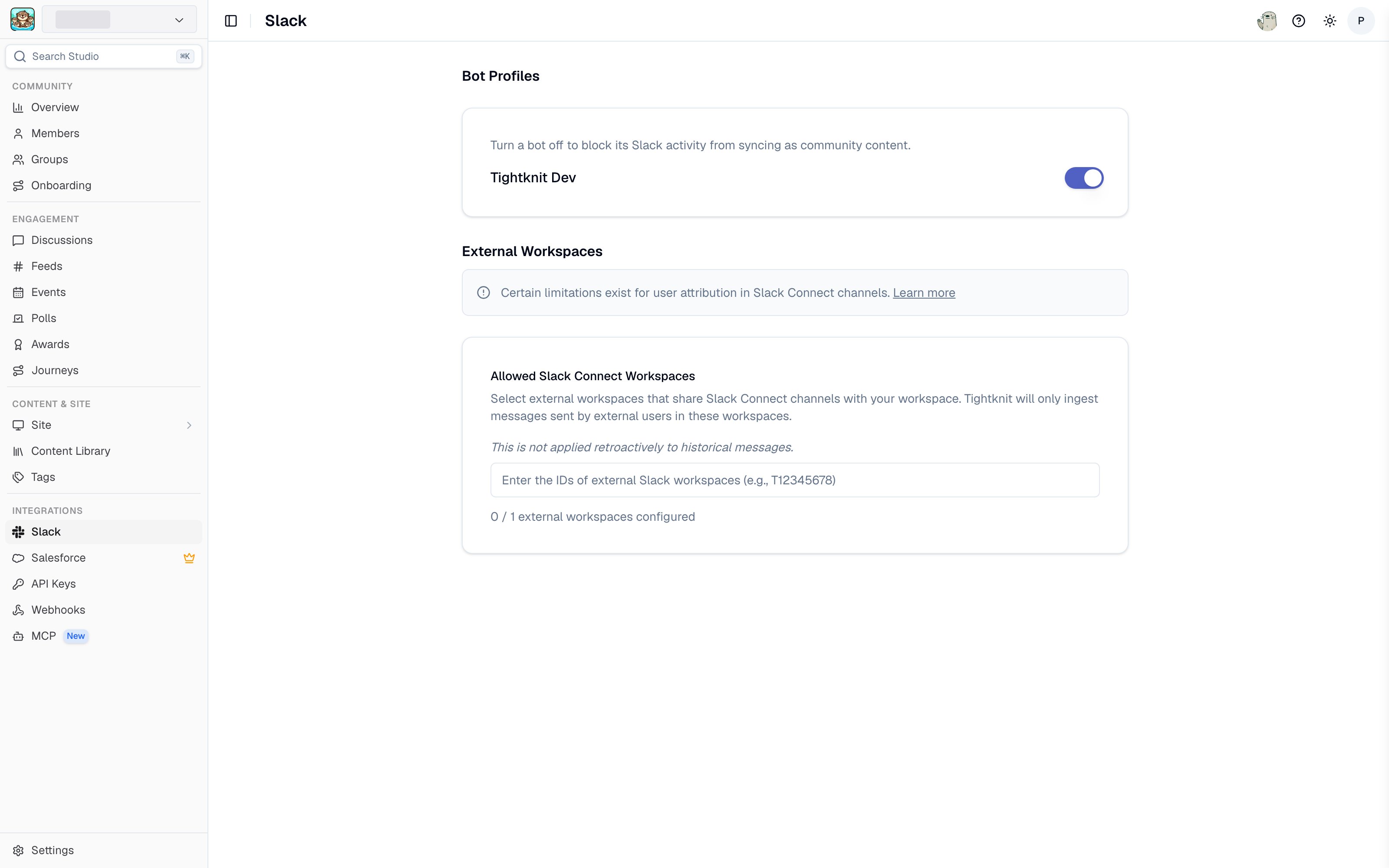
Set your community name, icon, and logo, and configure the Tightknit Hub channel.
The “Community” is the primary Tightknit object that is associated with your Slack workspace. It is an umbrella over other Tightknit modules which you may enable and disable for your Community.If you are new to Tightknit, follow the guided setup flow to configure your Community.
Community Name - This is the name of your community. When the Tightknit bot sends a message in public channels, it overrides its appearance to match the name and icon of the community. In other words, you can maintain your community branding without distracting your users with a “Tightknit” bot.
When Tightknit sends private messages to individual users in a DM, it appears as the Tightknit bot. These messages can be found under the Messages tab of the app home.
You can configure the following images associated with your community’s brand in the Slack workspace:
Community Icon - Square logo used as the community avatar, and as the user icon when the Tightknit app sends public Slack messages to members of the community. Set it in Slack under Community > Community Bot, or in Studio under Integrations > Slack.
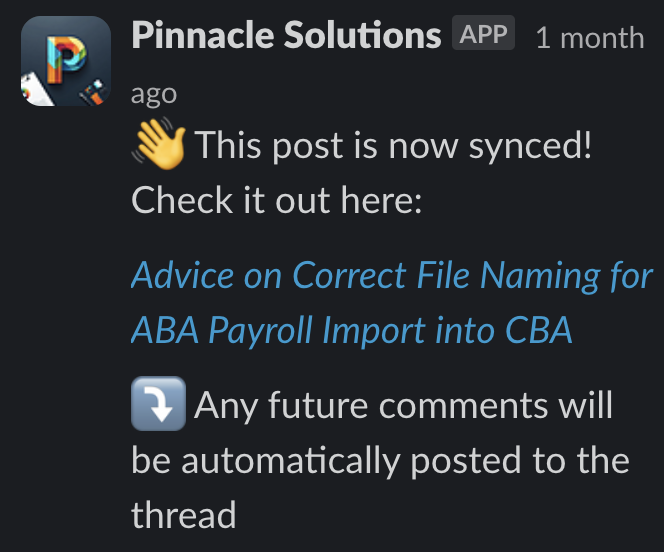
For specs and recommendations, see the Branding Guide. The horizontal logo in your community site’s header is the Site Horizontal Logo, set on the site in Studio.Here’s an example of the New Post Notification Agent replying in a public thread while using the branded name and icon of the community “Pinnacle Solutions”.
New Post Notification Agent using branded name and icon
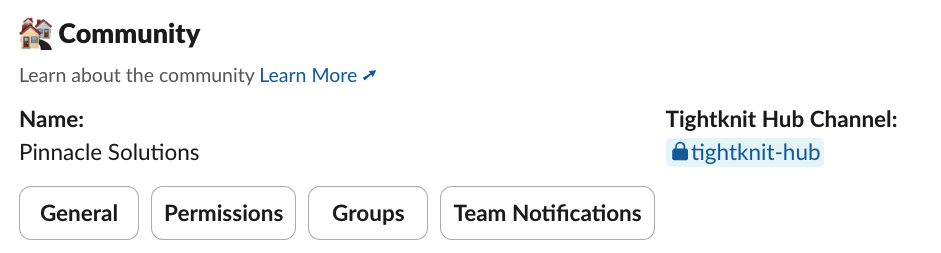
When you first set up your Tightknit community, we will create a private channel that will serve as your Tightknit notifications hub. We will send important analytics, updates, and alerts about your community here. This is a private channel that should only include select admins.By default, the channel is named tightknit-hub, but you are free to rename it to anything you like in Team Notifications.
We may be unable to create the Tightknit Hub channel, especially if your
workspace does not allow non-admin users to create private channels. To fix
this, you can either modify that
permission
for your Slack workspace and try again, or set the Tightknit Hub to a channel
of your own choice in the Notification
Settings.
Was this page helpful?
{"docsConfig":{"theme":"mint","$schema":"https://mintlify.com/docs.json","name":"Tightknit","colors":{"primary":"#0ea5e9","light":"#0ea5e9","dark":"#0ea5e9"},"logo":{"light":"https://mintcdn.com/tightknit/8RgBfwvyxlVVp-GI/assets/logo/light.png?fit=max\u0026auto=format\u0026n=8RgBfwvyxlVVp-GI\u0026q=85\u0026s=35c245944b73607d7c7b4b7c6fd4f080","dark":"https://mintcdn.com/tightknit/8RgBfwvyxlVVp-GI/assets/logo/dark.png?fit=max\u0026auto=format\u0026n=8RgBfwvyxlVVp-GI\u0026q=85\u0026s=6cd06fb7afb28cdae7bca4f7b6806906","href":"https://tightknit.ai/"},"favicon":"https://mintcdn.com/tightknit/510fnWGbA38NwHOk/favicon.png?fit=max\u0026auto=format\u0026n=510fnWGbA38NwHOk\u0026q=85\u0026s=ca1f972d807039e1bc2acbeb8f00326a","background":{"decoration":"gradient"},"navbar":{"links":[{"href":"https://tightknit.ai/","label":"Homepage ↗"}],"primary":{"type":"button","label":"Book a Demo","href":"https://cal.com/zhawtof/30min"}},"footer":{"socials":{"slack":"https://community.tightknit.ai","linkedin":"https://www.linkedin.com/company/tightknitai","youtube":"https://www.youtube.com/@tightknitai"}},"fonts":{"heading":{"family":"Inter","weight":600,"source":"https://framerusercontent.com/assets/1ZFS7N918ojhhd0nQWdj3jz4w.woff2","format":"woff2"}},"icons":{"library":"fontawesome"},"styling":{"latex":false},"navigation":{"global":{"anchors":[{"anchor":"Community","icon":"slack","href":"https://community.tightknit.ai/"},{"anchor":"Changelog","icon":"bullhorn","href":"https://community.tightknit.ai/x/changelog"}]},"pages":[]}},"deployment":{"deploymentMetadataValue":{"subdomain":"tightknit","hasAudioNarration":false,"actualSubdomain":"tightknit","customDomains":["docs.tightknit.ai"],"gitSource":{"type":"github","owner":"tightknitai","repo":"tightknit-app","deployBranch":"main","contentDirectory":"packages/docs","isPrivate":true,"mountPath":"","label":""},"chroma":{"liveDeploymentHistoryId":"6ae199debaf7b9e7b5b40c16","collectionId":"187648b8-c40b-4c09-a3eb-ce6f53e95933","schemaVersion":"v3","latestBuiltDeploymentHistoryId":"6ae199debaf7b9e7b5b40c16"},"feedback":{"thumbs":true,"edits":true,"issues":true,"agentFeedback":true},"entitlements":{"AI_CHAT":{"status":"ENABLED"},"WEB_MCP":{"status":"ENABLED"},"NARRATION":{"status":"ENABLED"}},"buildId":"6ae1acf8f9cefd8f8d795c5e","clientVersion":"0.0.3990","searchFilterCounts":[{"language":"default","tag":"Documentation","count":108},{"language":"default","tag":"App Guides","count":46},{"language":"default","tag":"Platform","count":39},{"language":"default","tag":"API Reference","count":26},{"language":"default","tag":"Admin API","count":24},{"language":"default","tag":"Slack App","count":17},{"language":"default","tag":"Community Site","count":16},{"language":"default","tag":"Guides","count":13},{"language":"default","tag":"Admin Studio","count":13},{"language":"default","tag":"Events","count":10}]},"assistantConfig":{"deflection":{"enabled":true,"email":"[email protected]","showHelpButton":true}},"basePath":"","hasChatPermissions":true,"hasWebMcpPermissions":true,"toggles":[{"name":"kill-isr","enabled":true,"variant":{"name":"disabled","enabled":false,"feature_enabled":true},"impressionData":false},{"name":"agent-mintlify-slack","enabled":true,"variant":{"name":"disabled","enabled":false,"feature_enabled":true},"impressionData":false},{"name":"editor-v7-file-tree","enabled":true,"variant":{"name":"disabled","enabled":false,"feature_enabled":true},"impressionData":false},{"name":"agent-integrations-settings","enabled":true,"variant":{"name":"disabled","enabled":false,"feature_enabled":true},"impressionData":false},{"name":"automations-pr-grouping","enabled":true,"variant":{"name":"disabled","enabled":false,"feature_enabled":true},"impressionData":false},{"name":"custom-prefix","enabled":true,"variant":{"name":"disabled","enabled":false,"feature_enabled":true},"impressionData":false},{"name":"analytics-v7","enabled":true,"variant":{"name":"disabled","enabled":false,"feature_enabled":true},"impressionData":false},{"name":"user-flows-analytics","enabled":true,"variant":{"name":"disabled","enabled":false,"feature_enabled":true},"impressionData":false},{"name":"no-publish-flow","enabled":true,"variant":{"name":"disabled","enabled":false,"feature_enabled":true},"impressionData":false},{"name":"workos-onboarding","enabled":true,"variant":{"name":"disabled","enabled":false,"feature_enabled":true},"impressionData":false},{"name":"llms-txt-v2","enabled":true,"variant":{"name":"disabled","enabled":false,"feature_enabled":true},"impressionData":false},{"name":"pause-universal-search-reconcile","enabled":true,"variant":{"name":"disabled","enabled":false,"feature_enabled":true},"impressionData":false},{"name":"snapshot-serving-live","enabled":true,"variant":{"name":"disabled","enabled":false,"feature_enabled":true},"impressionData":false},{"name":"stripTemperatureMiddleware","enabled":true,"variant":{"name":"disabled","enabled":false,"feature_enabled":true},"impressionData":false},{"name":"per-site-search-delta","enabled":true,"variant":{"name":"disabled","enabled":false,"feature_enabled":true},"impressionData":false},{"name":"support-platform-pylon-zendesk","enabled":true,"variant":{"name":"disabled","enabled":false,"feature_enabled":true},"impressionData":false},{"name":"snapshot-serving","enabled":true,"variant":{"name":"disabled","enabled":false,"feature_enabled":true},"impressionData":false},{"name":"instant-rollback","enabled":true,"variant":{"name":"disabled","enabled":false,"feature_enabled":true},"impressionData":false},{"name":"granular-notifications-server","enabled":true,"variant":{"name":"disabled","enabled":false,"feature_enabled":true},"impressionData":false},{"name":"granular-notifications","enabled":true,"variant":{"name":"disabled","enabled":false,"feature_enabled":true},"impressionData":false},{"name":"editor-private-page-search","enabled":true,"variant":{"name":"disabled","enabled":false,"feature_enabled":true},"impressionData":false},{"name":"automations-fable","enabled":true,"variant":{"name":"disabled","enabled":false,"feature_enabled":true},"impressionData":false},{"name":"fixed-ai-action-pricing","enabled":true,"variant":{"name":"disabled","enabled":false,"feature_enabled":true},"impressionData":false},{"name":"automation-resolve-merge-conflict","enabled":true,"variant":{"name":"disabled","enabled":false,"feature_enabled":true},"impressionData":false},{"name":"scoped-publishing","enabled":true,"variant":{"name":"disabled","enabled":false,"feature_enabled":true},"impressionData":false},{"name":"mintql","enabled":true,"variant":{"name":"disabled","enabled":false,"feature_enabled":true},"impressionData":false},{"name":"page-level-analytics","enabled":true,"variant":{"name":"disabled","enabled":false,"feature_enabled":true},"impressionData":false},{"name":"editor-version-history-v2","enabled":true,"variant":{"name":"disabled","enabled":false,"feature_enabled":true},"impressionData":false},{"name":"editor-nav-generations","enabled":true,"variant":{"name":"disabled","enabled":false,"feature_enabled":true},"impressionData":false},{"name":"billing-page-v2","enabled":true,"variant":{"name":"disabled","enabled":false,"feature_enabled":true},"impressionData":false},{"name":"workspace-projects","enabled":true,"variant":{"name":"disabled","enabled":false,"feature_enabled":true},"impressionData":false},{"name":"assistant-v5","enabled":true,"variant":{"name":"disabled","enabled":false,"feature_enabled":true},"impressionData":false},{"name":"byok-sep-25","enabled":true,"variant":{"name":"disabled","enabled":false,"feature_enabled":true},"impressionData":false},{"name":"fork-pr-previews","enabled":true,"variant":{"name":"disabled","enabled":false,"feature_enabled":true},"impressionData":false},{"name":"revalidation-jwt","enabled":true,"variant":{"name":"disabled","enabled":false,"feature_enabled":true},"impressionData":false},{"name":"vite-origin","enabled":true,"variant":{"name":"disabled","enabled":false,"feature_enabled":true},"impressionData":false},{"name":"editor-agent-model-picker","enabled":true,"variant":{"name":"disabled","enabled":false,"feature_enabled":true},"impressionData":false},{"name":"billing-updated-9-15","enabled":true,"variant":{"name":"disabled","enabled":false,"feature_enabled":true},"impressionData":false},{"name":"workos-sso-scim","enabled":true,"variant":{"name":"disabled","enabled":false,"feature_enabled":true},"impressionData":false},{"name":"hobby-abuse-scan","enabled":true,"variant":{"name":"disabled","enabled":false,"feature_enabled":true},"impressionData":false},{"name":"dashboard-inbox","enabled":true,"variant":{"name":"disabled","enabled":false,"feature_enabled":true},"impressionData":false},{"name":"workos-signup","enabled":true,"variant":{"name":"disabled","enabled":false,"feature_enabled":true},"impressionData":false},{"name":"workos-enabled","enabled":true,"variant":{"name":"disabled","enabled":false,"feature_enabled":true},"impressionData":false}],"isAtlas":false,"googleFontsInlined":false},"customCss":[{"filePath":"styles/plan-availability.css","content":".plan-availability{display:flex;align-items:center;justify-content:space-between;gap:1.25rem;flex-wrap:wrap;margin:1rem 0;padding:.875rem 1.125rem;border:1px solid rgb(14 165 233/.35);border-radius:.75rem;background:linear-gradient(135deg,rgb(14 165 233/.09),rgb(56 189 248/.02))}.dark .plan-availability{border-color:rgb(14 165 233/.4);background:linear-gradient(135deg,rgb(14 165 233/.14),rgb(14 165 233/.03))}.plan-availability-sr{position:absolute;width:1px;height:1px;padding:0;margin:-1px;overflow:hidden;clip:rect(0,0,0,0);white-space:nowrap;border:0}.plan-availability-content{flex:1 1 14rem;min-width:0}.plan-availability-feature{font-size:.9375rem;font-weight:600;line-height:1.4}.plan-availability-body{margin-top:.375rem;font-size:.8125rem;line-height:1.55}.plan-availability-body a{color:#0284c7;font-weight:600;text-decoration:underline;text-underline-offset:2px}.dark .plan-availability-body a{color:#38bdf8}.plan-availability-matrix{display:flex;gap:.5rem;flex-shrink:0}.plan-availability-plan{display:flex;flex-direction:column;align-items:center;gap:.3rem;min-width:5rem;padding:.5rem .625rem;border:1px solid rgb(14 165 233/.25);border-radius:.5rem;background:rgb(255 255 255/.5)}.dark .plan-availability-plan{border-color:rgb(14 165 233/.3);background:rgb(2 6 23/.35)}.plan-availability-plan-name{font-size:.65rem;font-weight:700;letter-spacing:.06em;text-transform:uppercase;opacity:.7;white-space:nowrap}.plan-availability-check{width:1rem;height:1rem;color:#0284c7}.dark .plan-availability-check{color:#38bdf8}.plan-availability-addon{padding:0 .45rem;border-radius:9999px;font-size:.65rem;font-weight:700;letter-spacing:.04em;text-transform:uppercase;line-height:1rem;color:#fff;background:linear-gradient(135deg,#0284c7,#38bdf8);white-space:nowrap}.plan-availability-none{font-size:.875rem;line-height:1rem;opacity:.35}"}],"page":{"pagePath":"slack/community-settings","slug":"/slack/community-settings","pageMetadata":{"title":"Community Settings","description":"Set your community name, icon, and logo, and configure the Tightknit Hub channel.","href":"/slack/community-settings"},"description":{"compiledSource":"\"use strict\";\nconst {jsx: _jsx} = arguments[0];\nconst {useMDXComponents: _provideComponents} = arguments[0];\nfunction _createMdxContent(props) {\n const _components = {\n p: \"p\",\n ..._provideComponents(),\n ...props.components\n };\n return _jsx(_components.p, {\n children: \"Set your community name, icon, and logo, and configure the Tightknit Hub channel.\"\n });\n}\nfunction MDXContent(props = {}) {\n const {wrapper: MDXLayout} = {\n ..._provideComponents(),\n ...props.components\n };\n return MDXLayout ? _jsx(MDXLayout, {\n ...props,\n children: _jsx(_createMdxContent, {\n ...props\n })\n }) : _createMdxContent(props);\n}\nreturn {\n default: MDXContent\n};\n","frontmatter":{},"scope":{}},"pageType":"default","mdx":{"mdxSource":{"compiledSource":"\"use strict\";const{Fragment:_Fragment,jsx:_jsx,jsxs:_jsxs}=arguments[0];const{useMDXComponents:_provideComponents}=arguments[0];function _createMdxContent(props){const _components={a:`a`,code:`code`,li:`li`,p:`p`,strong:`strong`,ul:`ul`,..._provideComponents(),...props.components},{Frame,Heading,Note,OptimizedImage,Tab,Tabs}=_components;if(!Frame)_missingMdxReference(`Frame`,true);if(!Heading)_missingMdxReference(`Heading`,true);if(!Note)_missingMdxReference(`Note`,true);if(!OptimizedImage)_missingMdxReference(`OptimizedImage`,true);if(!Tab)_missingMdxReference(`Tab`,true);if(!Tabs)_missingMdxReference(`Tabs`,true);return _jsxs(_Fragment,{children:[_jsx(_components.p,{children:`The “Community” is the primary Tightknit object that is associated with your Slack workspace. It is an umbrella over other Tightknit modules which you may enable and disable for your Community.`}),`\n`,_jsxs(_components.p,{children:[`If you are new to Tightknit, follow the `,_jsx(_components.a,{href:`/getting-started#part-2-install-tightknit`,children:`guided setup flow`}),` to configure your Community.`]}),`\n`,_jsx(Heading,{level:`2`,id:`where-to-configure-community-settings`,children:`Where to configure community settings`}),`\n`,_jsxs(Tabs,{children:[_jsxs(Tab,{title:`In Studio`,id:`in-studio`,children:[_jsxs(_components.p,{children:[`Go to `,_jsx(_components.strong,{children:_jsx(_components.a,{href:`https://studio.tightknit.ai/-/integrations/slack`,children:`Integrations > Slack`})}),` and open the `,_jsx(_components.strong,{children:`Community`}),` section. Every field saves automatically as you edit it.`]}),_jsx(Frame,{caption:`Slack integration settings in Studio`,children:_jsx(OptimizedImage,{src:`https://mintcdn.com/tightknit/YGPRBt0aH8krlk98/assets/studio/integrations/slack.png?fit=max\u0026auto=format\u0026n=YGPRBt0aH8krlk98\u0026q=85\u0026s=5b4bdf59986ca26008a838af67fa8505`,alt:`Slack integration settings in Studio`,\"data-og-width\":`3200`,width:`3200`,\"data-og-height\":`2000`,height:`2000`,\"data-path\":`assets/studio/integrations/slack.png`,\"data-optimize\":`true`,\"data-opv\":`3`,srcset:`https://mintcdn.com/tightknit/YGPRBt0aH8krlk98/assets/studio/integrations/slack.png?w=280\u0026fit=max\u0026auto=format\u0026n=YGPRBt0aH8krlk98\u0026q=85\u0026s=b19ff35f85b621d4a59a71daf8c595f1 280w, https://mintcdn.com/tightknit/YGPRBt0aH8krlk98/assets/studio/integrations/slack.png?w=560\u0026fit=max\u0026auto=format\u0026n=YGPRBt0aH8krlk98\u0026q=85\u0026s=2b09bb05789fd22df987524dc5e1665c 560w, https://mintcdn.com/tightknit/YGPRBt0aH8krlk98/assets/studio/integrations/slack.png?w=840\u0026fit=max\u0026auto=format\u0026n=YGPRBt0aH8krlk98\u0026q=85\u0026s=4d6494c6f492ec10359f5353658e2fee 840w, https://mintcdn.com/tightknit/YGPRBt0aH8krlk98/assets/studio/integrations/slack.png?w=1100\u0026fit=max\u0026auto=format\u0026n=YGPRBt0aH8krlk98\u0026q=85\u0026s=92d82769958917b0507fa85b085597bd 1100w, https://mintcdn.com/tightknit/YGPRBt0aH8krlk98/assets/studio/integrations/slack.png?w=1650\u0026fit=max\u0026auto=format\u0026n=YGPRBt0aH8krlk98\u0026q=85\u0026s=8f49ee4e2b5bb84ada63342aa8321ecc 1650w, https://mintcdn.com/tightknit/YGPRBt0aH8krlk98/assets/studio/integrations/slack.png?w=2500\u0026fit=max\u0026auto=format\u0026n=YGPRBt0aH8krlk98\u0026q=85\u0026s=0347cfb5b1593705ca5c28f3d8ec1123 2500w`})})]}),_jsxs(Tab,{title:`In Slack`,id:`in-slack`,children:[_jsxs(_components.p,{children:[`Open the Tightknit app home, then use the `,_jsx(_components.strong,{children:`Community`}),` module:`]}),_jsxs(_components.ul,{children:[`\n`,_jsxs(_components.li,{children:[_jsx(_components.strong,{children:`Community Bot`}),` sets the name and icon the Tightknit bot uses when it posts in your workspace.`]}),`\n`,_jsxs(_components.li,{children:[_jsx(_components.strong,{children:`Member Community Home`}),` sets what members see on the app’s Home tab. See `,_jsx(_components.a,{href:`/slack/community-home`,children:`Community Home`}),`.`]}),`\n`,_jsxs(_components.li,{children:[_jsx(_components.strong,{children:`Static Join Link`}),` sets where your community site’s `,_jsx(_components.code,{children:`/join`}),` URL redirects, such as your Slack invite link or a sign-up form. See `,_jsx(_components.a,{href:`/community-site/call-to-action#static-join-link`,children:`Static Join Link`}),`.`]}),`\n`]}),_jsx(Frame,{caption:`In Slack: Community settings in the Tightknit app home`,children:_jsx(OptimizedImage,{src:`https://mintcdn.com/tightknit/UUILCHqZIh1p4QUW/assets/community/community-module.png?fit=max\u0026auto=format\u0026n=UUILCHqZIh1p4QUW\u0026q=85\u0026s=29c75522d9d13b37cd599738d7c45444`,alt:`Community settings in the Tightknit app home`,\"data-og-width\":`941`,width:`941`,\"data-og-height\":`253`,height:`253`,\"data-path\":`assets/community/community-module.png`,\"data-optimize\":`true`,\"data-opv\":`3`,srcset:`https://mintcdn.com/tightknit/UUILCHqZIh1p4QUW/assets/community/community-module.png?w=280\u0026fit=max\u0026auto=format\u0026n=UUILCHqZIh1p4QUW\u0026q=85\u0026s=58a90395206714554edf1a8c4884233c 280w, https://mintcdn.com/tightknit/UUILCHqZIh1p4QUW/assets/community/community-module.png?w=560\u0026fit=max\u0026auto=format\u0026n=UUILCHqZIh1p4QUW\u0026q=85\u0026s=b0a325eb824a3ac0f63800ef54973058 560w, https://mintcdn.com/tightknit/UUILCHqZIh1p4QUW/assets/community/community-module.png?w=840\u0026fit=max\u0026auto=format\u0026n=UUILCHqZIh1p4QUW\u0026q=85\u0026s=daf986d086989060ad23723cf4423d7b 840w, https://mintcdn.com/tightknit/UUILCHqZIh1p4QUW/assets/community/community-module.png?w=1100\u0026fit=max\u0026auto=format\u0026n=UUILCHqZIh1p4QUW\u0026q=85\u0026s=c8e329fa294eab65a931c36d3787c022 1100w, https://mintcdn.com/tightknit/UUILCHqZIh1p4QUW/assets/community/community-module.png?w=1650\u0026fit=max\u0026auto=format\u0026n=UUILCHqZIh1p4QUW\u0026q=85\u0026s=ec32a8fc9486214488dd67cc43bc793e 1650w, https://mintcdn.com/tightknit/UUILCHqZIh1p4QUW/assets/community/community-module.png?w=2500\u0026fit=max\u0026auto=format\u0026n=UUILCHqZIh1p4QUW\u0026q=85\u0026s=2cc34aa739302ddbc8e98b0635cd1a69 2500w`})})]})]}),`\n`,_jsx(Heading,{level:`2`,id:`community-details`,children:`Community details`}),`\n`,_jsxs(_components.ul,{children:[`\n`,_jsxs(_components.li,{children:[_jsx(_components.strong,{children:`Community Name`}),` - This is the name of your community. When the Tightknit bot sends a message in public channels, it overrides its appearance to match the name and icon of the community. In other words, you can maintain your community branding without distracting your users with a “Tightknit” bot.`]}),`\n`]}),`\n`,_jsx(Note,{children:_jsxs(_components.p,{children:[`When Tightknit sends private messages to individual users in a DM, it appears as the Tightknit bot. These messages can be found under the `,_jsx(_components.strong,{children:`Messages`}),` tab of the app home.`]})}),`\n`,_jsx(Heading,{level:`2`,id:`community-images`,children:`Community images`}),`\n`,_jsx(_components.p,{children:`You can configure the following images associated with your community’s brand in the Slack workspace:`}),`\n`,_jsxs(_components.ul,{children:[`\n`,_jsxs(_components.li,{children:[_jsx(_components.strong,{children:`Community Icon`}),` - Square logo used as the community avatar, and as the user icon when the Tightknit app sends public Slack messages to members of the community. Set it in Slack under `,_jsx(_components.strong,{children:`Community > Community Bot`}),`, or in Studio under `,_jsx(_components.strong,{children:_jsx(_components.a,{href:`https://studio.tightknit.ai/-/integrations/slack`,children:`Integrations > Slack`})}),`.`]}),`\n`]}),`\n`,_jsxs(_components.p,{children:[`For specs and recommendations, see the `,_jsx(_components.a,{href:`/branding#image-assets`,children:`Branding Guide`}),`. The horizontal logo in your community site’s header is the `,_jsx(_components.strong,{children:`Site Horizontal Logo`}),`, set on the site in Studio.`]}),`\n`,_jsxs(_components.p,{children:[`Here’s an example of the `,_jsx(_components.strong,{children:`New Post Notification Agent`}),` replying in a public thread while using the branded name and icon of the community “Pinnacle Solutions”.`]}),`\n`,_jsx(Frame,{caption:`New Post Notification Agent using branded name and icon`,children:_jsx(OptimizedImage,{src:`https://mintcdn.com/tightknit/UUILCHqZIh1p4QUW/assets/community/tightknit-bot-responder.png?fit=max\u0026auto=format\u0026n=UUILCHqZIh1p4QUW\u0026q=85\u0026s=18b75ff1046f10ca6499eacb6c696b1c`,alt:`New Post Notification Agent using branded name and icon`,\"data-og-width\":`664`,width:`664`,\"data-og-height\":`552`,height:`552`,\"data-path\":`assets/community/tightknit-bot-responder.png`,\"data-optimize\":`true`,\"data-opv\":`3`,srcset:`https://mintcdn.com/tightknit/UUILCHqZIh1p4QUW/assets/community/tightknit-bot-responder.png?w=280\u0026fit=max\u0026auto=format\u0026n=UUILCHqZIh1p4QUW\u0026q=85\u0026s=f6d0da0684fe45982368b611d435f443 280w, https://mintcdn.com/tightknit/UUILCHqZIh1p4QUW/assets/community/tightknit-bot-responder.png?w=560\u0026fit=max\u0026auto=format\u0026n=UUILCHqZIh1p4QUW\u0026q=85\u0026s=676dc4e3e21f5f132d12530addd90b0c 560w, https://mintcdn.com/tightknit/UUILCHqZIh1p4QUW/assets/community/tightknit-bot-responder.png?w=840\u0026fit=max\u0026auto=format\u0026n=UUILCHqZIh1p4QUW\u0026q=85\u0026s=d2001b7789697052405c8db80806b188 840w, https://mintcdn.com/tightknit/UUILCHqZIh1p4QUW/assets/community/tightknit-bot-responder.png?w=1100\u0026fit=max\u0026auto=format\u0026n=UUILCHqZIh1p4QUW\u0026q=85\u0026s=f9c9e77014e78eaa78900019eec391d6 1100w, https://mintcdn.com/tightknit/UUILCHqZIh1p4QUW/assets/community/tightknit-bot-responder.png?w=1650\u0026fit=max\u0026auto=format\u0026n=UUILCHqZIh1p4QUW\u0026q=85\u0026s=ec83e6ab1d9f797bf590af06cbd034aa 1650w, https://mintcdn.com/tightknit/UUILCHqZIh1p4QUW/assets/community/tightknit-bot-responder.png?w=2500\u0026fit=max\u0026auto=format\u0026n=UUILCHqZIh1p4QUW\u0026q=85\u0026s=f70e3473905cd5ce5f00112799e30039 2500w`})}),`\n`,_jsx(Heading,{level:`2`,id:`tightknit-hub-channel`,children:`Tightknit Hub channel`}),`\n`,_jsx(_components.p,{children:`When you first set up your Tightknit community, we will create a private channel that will serve as your Tightknit notifications hub. We will send important analytics, updates, and alerts about your community here. This is a private channel that should only include select admins.`}),`\n`,_jsxs(_components.p,{children:[`By default, the channel is named `,_jsx(_components.strong,{children:_jsx(_components.code,{children:`tightknit-hub`})}),`, but you are free to rename it to anything you like in `,_jsx(_components.a,{href:`/slack/notification-settings`,children:`Team Notifications`}),`.`]}),`\n`,_jsx(Note,{children:_jsxs(_components.p,{children:[`We may be unable to create the Tightknit Hub channel, especially if your\nworkspace does not allow non-admin users to create private channels. To fix\nthis, you can either `,_jsx(_components.a,{href:`https://slack.com/help/articles/360052445454-Manage-permissions-for-channel-management-tools`,children:`modify that\npermission`}),`\nfor your Slack workspace and try again, or set the Tightknit Hub to a channel\nof your own choice in the `,_jsx(_components.a,{href:`/slack/notification-settings`,children:`Notification\nSettings`}),`.`]})})]})}function MDXContent(props={}){const{wrapper:MDXLayout}={..._provideComponents(),...props.components};return MDXLayout?_jsx(MDXLayout,{...props,children:_jsx(_createMdxContent,{...props})}):_createMdxContent(props)}return{default:MDXContent};function _missingMdxReference(id,component){throw new Error(`Expected `+(component?`component`:`object`)+\" `\"+id+\"` to be defined: you likely forgot to import, pass, or provide it.\")}","frontmatter":{},"scope":{"config":{},"pageMetadata":{"title":"Community Settings","description":"Set your community name, icon, and logo, and configure the Tightknit Hub channel.","href":"/slack/community-settings"}}},"mdxSourceWithNoJs":null},"mdxExtracts":{"tableOfContents":[{"title":"Where to configure community settings","slug":"where-to-configure-community-settings","depth":2,"children":[]},{"title":"Community details","slug":"community-details","depth":2,"children":[]},{"title":"Community images","slug":"community-images","depth":2,"children":[]},{"title":"Tightknit Hub channel","slug":"tightknit-hub-channel","depth":2,"children":[]}],"codeExamples":{}},"jsLinks":[],"subdomain":"tightknit","siteName":"Tightknit","title":"Community Settings - Tightknit","relatedPagesConfig":{"enabled":true,"limit":5,"mode":"automatic"},"navMaps":{"firstHrefInVersion":{},"firstHrefInLanguage":{}},"lastModified":"2026-10-26T16:27:39.704Z","originalFileLocation":"slack/community-settings.mdx"},"headHtml":"\u003cscript data-mint-head>(function(){var d=document.documentElement,p=null;if(!p){try{p=localStorage.getItem(\"isDarkMode\")}catch(e){}if(p==='true')p='dark';else if(p==='false')p='light';if(p!=='light'\u0026\u0026p!=='dark'\u0026\u0026p!=='system')p=\"system\"}var r=p==='system'?(matchMedia(\"(prefers-color-scheme: dark)\").matches?'dark':'light'):p;d.classList.remove(r==='dark'?'light':'dark');d.classList.add(r);d.setAttribute(\"data-theme-preference\",p)})();\u003c/script>\u003cmeta data-mint-head name=\"description\" content=\"Set your community name, icon, and logo, and configure the Tightknit Hub channel.\">\u003cmeta data-mint-head name=\"application-name\" content=\"Tightknit\">\u003cmeta data-mint-head name=\"generator\" content=\"Mintlify\">\u003clink data-mint-head rel=\"icon\" type=\"image/png\" sizes=\"192x192\" href=\"/mintlify-assets/_mintlify/favicons/tightknit/K2mBJECqjK-Pb2jD/_generated/favicon/android-chrome-192x192.png\" media=\"(prefers-color-scheme: light)\">\u003clink data-mint-head rel=\"apple-touch-icon\" type=\"image/png\" sizes=\"180x180\" href=\"/mintlify-assets/_mintlify/favicons/tightknit/K2mBJECqjK-Pb2jD/_generated/favicon/apple-touch-icon.png\">\u003clink data-mint-head rel=\"icon\" type=\"image/png\" sizes=\"16x16\" href=\"/mintlify-assets/_mintlify/favicons/tightknit/K2mBJECqjK-Pb2jD/_generated/favicon/favicon-16x16.png\" media=\"(prefers-color-scheme: light)\">\u003clink data-mint-head rel=\"icon\" type=\"image/png\" sizes=\"32x32\" href=\"/mintlify-assets/_mintlify/favicons/tightknit/K2mBJECqjK-Pb2jD/_generated/favicon/favicon-32x32.png\" media=\"(prefers-color-scheme: light)\">\u003clink data-mint-head rel=\"shortcut icon\" type=\"image/x-icon\" href=\"/mintlify-assets/_mintlify/favicons/tightknit/K2mBJECqjK-Pb2jD/_generated/favicon/favicon.ico\" media=\"(prefers-color-scheme: light)\">\u003clink data-mint-head rel=\"icon\" type=\"image/png\" sizes=\"192x192\" href=\"/mintlify-assets/_mintlify/favicons/tightknit/K2mBJECqjK-Pb2jD/_generated/favicon-dark/android-chrome-192x192.png\" media=\"(prefers-color-scheme: dark)\">\u003clink data-mint-head rel=\"icon\" type=\"image/png\" sizes=\"16x16\" href=\"/mintlify-assets/_mintlify/favicons/tightknit/K2mBJECqjK-Pb2jD/_generated/favicon-dark/favicon-16x16.png\" media=\"(prefers-color-scheme: dark)\">\u003clink data-mint-head rel=\"icon\" type=\"image/png\" sizes=\"32x32\" href=\"/mintlify-assets/_mintlify/favicons/tightknit/K2mBJECqjK-Pb2jD/_generated/favicon-dark/favicon-32x32.png\" media=\"(prefers-color-scheme: dark)\">\u003clink data-mint-head rel=\"shortcut icon\" type=\"image/x-icon\" href=\"/mintlify-assets/_mintlify/favicons/tightknit/K2mBJECqjK-Pb2jD/_generated/favicon-dark/favicon.ico\" media=\"(prefers-color-scheme: dark)\">\u003cmeta data-mint-head property=\"og:title\" content=\"Community Settings - Tightknit\">\u003cmeta data-mint-head property=\"og:description\" content=\"Set your community name, icon, and logo, and configure the Tightknit Hub channel.\">\u003cmeta data-mint-head property=\"og:site_name\" content=\"Tightknit\">\u003cmeta data-mint-head property=\"og:url\" content=\"https://docs.tightknit.ai/slack/community-settings\">\u003cmeta data-mint-head property=\"og:type\" content=\"website\">\u003cmeta data-mint-head property=\"og:image\" content=\"https://tightknit.mintlify.app/_mintlify/api/og/v2?division=Slack+App\u0026amp;title=Community+Settings\u0026amp;description=Set+your+community+name%2C+icon%2C+and+logo%2C+and+configure+the+Tightknit+Hub+channel.\u0026amp;theme=08f62e5a520f2c5c2d29007f\u0026amp;signature=31b507b3952eab7728c613ca3c1990107f2777420588d523b003cd71b495a906\">\u003cmeta data-mint-head property=\"og:image:width\" content=\"1200\">\u003cmeta data-mint-head property=\"og:image:height\" content=\"630\">\u003cmeta data-mint-head name=\"twitter:card\" content=\"summary_large_image\">\u003cmeta data-mint-head name=\"twitter:title\" content=\"Community Settings - Tightknit\">\u003cmeta data-mint-head name=\"twitter:description\" content=\"Set your community name, icon, and logo, and configure the Tightknit Hub channel.\">\u003cmeta data-mint-head name=\"twitter:image\" content=\"https://tightknit.mintlify.app/_mintlify/api/og/v2?division=Slack+App\u0026amp;title=Community+Settings\u0026amp;description=Set+your+community+name%2C+icon%2C+and+logo%2C+and+configure+the+Tightknit+Hub+channel.\u0026amp;theme=08f62e5a520f2c5c2d29007f\u0026amp;signature=31b507b3952eab7728c613ca3c1990107f2777420588d523b003cd71b495a906\">\u003cmeta data-mint-head name=\"twitter:image:width\" content=\"1200\">\u003cmeta data-mint-head name=\"twitter:image:height\" content=\"630\">\u003cmeta data-mint-head name=\"msapplication-config\" content=\"/mintlify-assets/_mintlify/favicons/tightknit/K2mBJECqjK-Pb2jD/_generated/favicon/browserconfig.xml\">\u003cmeta data-mint-head name=\"apple-mobile-web-app-title\" content=\"Tightknit\">\u003cmeta data-mint-head name=\"msapplication-TileColor\" content=\"#0ea5e9\">\u003clink data-mint-head rel=\"canonical\" href=\"https://docs.tightknit.ai/slack/community-settings\">\u003clink data-mint-head rel=\"alternate\" type=\"application/xml\" href=\"/sitemap.xml\">\u003clink data-mint-head rel=\"alternate\" type=\"text/markdown\" href=\"/slack/community-settings.md\">\u003cscript data-mint-head type=\"application/ld+json\">{\"@context\":\"https://schema.org\",\"@graph\":[{\"@type\":\"Organization\",\"@id\":\"https://docs.tightknit.ai/#organization\",\"name\":\"Tightknit\",\"url\":\"https://docs.tightknit.ai\",\"logo\":{\"@type\":\"ImageObject\",\"url\":\"https://mintcdn.com/tightknit/8RgBfwvyxlVVp-GI/assets/logo/light.png?fit=max\u0026auto=format\u0026n=8RgBfwvyxlVVp-GI\u0026q=85\u0026s=35c245944b73607d7c7b4b7c6fd4f080\"}},{\"@type\":\"WebSite\",\"@id\":\"https://docs.tightknit.ai#website\",\"name\":\"Tightknit\",\"url\":\"https://docs.tightknit.ai\",\"publisher\":{\"@id\":\"https://docs.tightknit.ai/#organization\"}},{\"@type\":\"WebPage\",\"@id\":\"https://docs.tightknit.ai/slack/community-settings#webpage\",\"url\":\"https://docs.tightknit.ai/slack/community-settings\",\"name\":\"Community Settings\",\"description\":\"Set your community name, icon, and logo, and configure the Tightknit Hub channel.\",\"dateModified\":\"2026-10-26T16:27:39.704Z\",\"isPartOf\":{\"@id\":\"https://docs.tightknit.ai#website\"},\"breadcrumb\":{\"@id\":\"https://docs.tightknit.ai/slack/community-settings#breadcrumb\"}},{\"@type\":\"BreadcrumbList\",\"@id\":\"https://docs.tightknit.ai/slack/community-settings#breadcrumb\",\"itemListElement\":[{\"@type\":\"ListItem\",\"position\":1,\"name\":\"App Guides\",\"item\":\"https://docs.tightknit.ai/slack/getting-started\"},{\"@type\":\"ListItem\",\"position\":2,\"name\":\"Slack App\",\"item\":\"https://docs.tightknit.ai/slack/getting-started\"},{\"@type\":\"ListItem\",\"position\":3,\"name\":\"Community Settings\",\"item\":\"https://docs.tightknit.ai/slack/community-settings\"}]},{\"@type\":[\"Article\",\"TechArticle\"],\"@id\":\"https://docs.tightknit.ai/slack/community-settings#article\",\"headline\":\"Community Settings\",\"name\":\"Community Settings\",\"description\":\"Set your community name, icon, and logo, and configure the Tightknit Hub channel.\",\"url\":\"https://docs.tightknit.ai/slack/community-settings\",\"mainEntityOfPage\":{\"@id\":\"https://docs.tightknit.ai/slack/community-settings#webpage\"},\"dateModified\":\"2026-10-26T16:27:39.704Z\",\"publisher\":{\"@id\":\"https://docs.tightknit.ai/#organization\"},\"isPartOf\":{\"@id\":\"https://docs.tightknit.ai#website\"}}]}\u003c/script>\u003cscript data-mint-head type=\"application/ld+json\">{\"@context\":\"https://schema.org\",\"@type\":\"WebSite\",\"name\":\"Tightknit\",\"creator\":{\"@type\":\"Organization\",\"name\":\"Mintlify\",\"url\":\"https://mintlify.com\"}}\u003c/script>","siteName":"Tightknit","nav":{"global":{"anchors":[{"anchor":"Community","icon":"slack","href":"https://community.tightknit.ai/"},{"anchor":"Changelog","icon":"bullhorn","href":"https://community.tightknit.ai/x/changelog"}]},"tabs":[{"tab":"Documentation","groups":[{"group":"Getting Started","pages":[{"title":"Introduction","icon":"handshake","href":"/introduction"},{"title":"Quickstart","icon":"rocket","href":"/getting-started"},{"title":"Glossary","icon":"book","href":"/glossary"},{"title":"Branding Guide","icon":"palette","href":"/branding"}]},{"group":"App Guides","pages":[{"group":"Slack App","icon":"slack","pages":[{"title":"Getting Started with the Tightknit Slack App","sidebarTitle":"Getting Started","href":"/slack/getting-started"},{"group":"Syncing Data","pages":[{"title":"Slack Sync Guide","sidebarTitle":"Overview","href":"/slack/sync-guide"},{"title":"Create a Post or Comment","href":"/slack/posts-and-comments/create-post-or-comment"},{"title":"Edit a Post or Comment","href":"/slack/posts-and-comments/edit-post-or-comment"},{"title":"Delete a Post or Comment","href":"/slack/posts-and-comments/delete-post-or-comment"},{"title":"Emoji Reactions","href":"/slack/posts-and-comments/emoji-reactions"},{"title":"Working With File Attachments","href":"/slack/working-with-file-attachments"},{"title":"Data sync reliability","href":"/slack/data-sync-reliability"}]},{"group":"Shortcuts \u0026 Commands","pages":[{"title":"Global Shortcuts","icon":"globe","href":"/slack/shortcuts-and-commands/global-shortcuts"},{"title":"Message Shortcuts","icon":"ellipsis-stroke-vertical","href":"/slack/shortcuts-and-commands/message-shortcuts"},{"title":"Slash Commands","icon":"slash-back","href":"/slack/shortcuts-and-commands/slash-commands"}]},{"title":"Community Home","description":"The hub for community members to explore events, achievements, journeys, and more","href":"/slack/community-home"},{"title":"Community Settings","href":"/slack/community-settings"},{"title":"Team Notifications","sidebarTitle":"Team Notifications","description":"Choose where Tightknit sends admin notifications in Slack, and which community activity your team is alerted about.","href":"/slack/notification-settings"},{"title":"Tightknit Enterprise Slack App","href":"/slack/tightknit-enterprise-slack-app"},{"title":"Slack Connect","href":"/slack/slack-connect"},{"title":"Single \u0026 Multi-Channel Guests","href":"/slack/guests"}]},{"group":"Community Site","icon":"globe-pointer","pages":[{"title":"Getting Started with the Community Site","sidebarTitle":"Getting Started","href":"/community-site/getting-started"},{"title":"Community Site Overview","sidebarTitle":"Overview","href":"/community-site/overview"},{"title":"Pages","href":"/community-site/pages"},{"title":"Site Overview Settings","sidebarTitle":"General Settings","href":"/community-site/general"},{"title":"Home Page","href":"/community-site/home-page"},{"title":"Announcement Banner","sidebarTitle":"Announcement Banner","href":"/community-site/announcement-banner"},{"title":"Call to Action","href":"/community-site/call-to-action"},{"title":"Navigation \u0026 Routes","href":"/community-site/navigation"},{"title":"Domain and URL","sidebarTitle":"Domain \u0026 URL","href":"/community-site/custom-domain"},{"title":"SEO and Metadata","sidebarTitle":"SEO \u0026 Metadata","href":"/community-site/seo-metadata"},{"title":"Community Site Analytics","sidebarTitle":"Site Analytics","href":"/community-site/analytics"},{"title":"Authentication","href":"/community-site/authentication"},{"title":"Single sign-on (SSO)","sidebarTitle":"Single Sign-On (SSO)","href":"/community-site/sso"},{"title":"Notifications","href":"/community-site/notifications"},{"title":"Notification Email Templates","sidebarTitle":"Notification Templates","href":"/community-site/notification-templates"},{"title":"Integrations","href":"/community-site/integrations"}]},{"group":"Admin Studio","icon":"chart-mixed","pages":[{"title":"Tightknit Studio","sidebarTitle":"Overview","href":"/studio/overview"},{"title":"Set Up Tightknit Studio","sidebarTitle":"Getting Started","href":"/studio/getting-started"},{"title":"Access the Studio","sidebarTitle":"Access","href":"/studio/access"},{"title":"Community Analytics Dashboard","sidebarTitle":"Analytics","href":"/studio/analytics"},{"title":"Members","sidebarTitle":"Members","href":"/studio/members"},{"title":"Discussions","sidebarTitle":"Discussions","href":"/studio/discussions"},{"title":"Calendar","sidebarTitle":"Calendar","href":"/studio/calendar"},{"title":"Message Blaster","sidebarTitle":"Message Blaster","href":"/studio/message-blaster"},{"title":"Search in Studio","sidebarTitle":"Search","href":"/studio/search"},{"title":"AI Assistant","sidebarTitle":"AI Assistant","href":"/studio/ai-assistant"},{"title":"Studio Settings","sidebarTitle":"Settings","href":"/studio/settings"},{"title":"Audit","sidebarTitle":"Audit","href":"/studio/audit"},{"title":"Billing","sidebarTitle":"Billing","href":"/studio/billing"}]}]},{"group":"Platform","pages":[{"group":"AI","icon":"sparkles","pages":[{"title":"AI at Tightknit","sidebarTitle":"Overview","icon":"sparkles","href":"/ai/overview"}]},{"group":"Channels \u0026 Feeds","icon":"rss","pages":[{"title":"Getting Started with Channels \u0026 Feeds","sidebarTitle":"Getting Started","href":"/channels-and-feeds/getting-started"},{"title":"Activate a Channel for Tightknit","href":"/channels-and-feeds/activate-channel"},{"title":"Create a Feed","href":"/channels-and-feeds/create-feed"},{"title":"Manage Feeds","href":"/channels-and-feeds/manage-feeds"},{"title":"AI \u0026 Agent Settings","href":"/channels-and-feeds/agent-settings"},{"title":"Engagement Settings","href":"/channels-and-feeds/engagement-settings"}]},{"group":"Content Resource Libraries","icon":"books","pages":[{"title":"Getting Started with Content Resource Libraries","sidebarTitle":"Getting Started","href":"/content-resource-library/getting-started"}]},{"group":"Events","icon":"calendar","pages":[{"title":"Getting Started with Events","sidebarTitle":"Getting Started","href":"/events/getting-started"},{"title":"Create a New Event","href":"/events/create-event"},{"title":"Manage Events","href":"/events/manage-events"},{"title":"Event Registration","href":"/events/event-registration"},{"title":"Event Recaps \u0026 Recordings","href":"/events/event-recap"},{"title":"Global Event Settings","href":"/events/global-event-settings"},{"group":"Tutorials","pages":[{"title":"Tutorial: Zapier Webhook → Zoom","href":"/events/tutorials/webhook-zapier-zoom"},{"title":"Tutorial: Make Webhook → Zoom","href":"/events/tutorials/webhook-make-zoom"},{"title":"Tutorial: Make Webhook → Slack notification","href":"/events/tutorials/webhook-make-slack"},{"title":"Tutorial: Simultaneous Events Across Multiple Zoom Accounts","href":"/events/tutorials/multiple-zoom-accounts"}]}]},{"group":"Gamification","icon":"trophy","pages":[{"title":"Getting Started with Gamification","sidebarTitle":"Getting Started","href":"/gamification/getting-started"},{"title":"Journeys","href":"/gamification/journeys"},{"title":"Awards","href":"/gamification/awards"},{"title":"Gamification Settings","href":"/gamification/settings"}]},{"group":"Groups \u0026 Permissions","icon":"user-group-crown","pages":[{"title":"Permission Sets","href":"/community/permission-sets"},{"title":"Groups","href":"/community/groups"}]},{"group":"Member Engagement","icon":"handshake","pages":[{"title":"Getting Started with Member Engagement","sidebarTitle":"Getting Started","href":"/member-engagement/getting-started"},{"title":"New Member Onboarding","href":"/member-engagement/onboarding"},{"title":"Anonymous Posting","href":"/member-engagement/anonymous-posting"},{"title":"Polls","href":"/member-engagement/polls"},{"title":"Thread Engagement Reminder","href":"/member-engagement/thread-responder"}]},{"group":"Moderation","icon":"shield","pages":[{"title":"Getting Started with Moderation","sidebarTitle":"Getting Started","href":"/moderation/getting-started"},{"title":"Community Guidelines","href":"/moderation/community-guidelines"}]},{"group":"Profiles","icon":"user","pages":[{"title":"Getting Started with Profiles","sidebarTitle":"Getting Started","href":"/profiles/getting-started"},{"title":"Manage Member Profiles","sidebarTitle":"Manage Member Profiles","href":"/profiles/manage-profiles"},{"title":"Member Profile","href":"/profiles/profile-fields"},{"title":"Profile Settings","href":"/profiles/profile-settings"},{"title":"Blocked Bot Profiles","href":"/profiles/blocked-bots"}]},{"group":"Tags","icon":"tags","pages":[{"title":"Getting Started with Tags","sidebarTitle":"Getting Started","href":"/tags/getting-started"}]},{"group":"Activity Logs","icon":"rectangle-history","pages":[{"title":"Activity Logs","href":"/activity-logs/getting-started"},{"title":"Activity Log Metadata Versions","href":"/activity-logs/versions"}]}]},{"group":"Integrations","pages":[{"title":"Slack Integration Settings","sidebarTitle":"Slack","href":"/integrations/slack"},{"title":"API Keys","icon":"key","href":"/integrations/api-keys"},{"title":"MCP Server","icon":"robot","href":"/integrations/mcp"},{"title":"Luma","iconType":"solid","icon":"sparkle","href":"/integrations/luma"},{"title":"Salesforce","icon":"salesforce","href":"/integrations/salesforce"},{"title":"Webhooks","icon":"webhook","href":"/integrations/webhooks"}]},{"group":"Support","pages":[{"title":"Contact Us","icon":"phone","href":"/support/contact"},{"title":"Troubleshooting","icon":"wrench","href":"/support/troubleshooting"},{"title":"Limitations","icon":"square-exclamation","href":"/support/limitations"},{"title":"Known Issues","icon":"bug","href":"/support/known-issues"}]},{"group":"Security","pages":[{"title":"Security at Tightknit","sidebarTitle":"Overview","icon":"shield","href":"/security/overview"},{"title":"Tightknit Infrastructure \u0026 Application Security","sidebarTitle":"Infrastructure \u0026 Application","icon":"server","href":"/security/application"},{"title":"Tightknit Data Security \u0026 Privacy","sidebarTitle":"Data Security \u0026 Privacy","icon":"lock","href":"/security/data"},{"title":"Slack Scopes \u0026 Permissions","sidebarTitle":"Slack Permissions","icon":"slack","href":"/security/slack-scopes"},{"title":"Vulnerability Disclosure Policy","sidebarTitle":"Vulnerability Disclosure","icon":"shield-exclamation","href":"/security/vulnerability-disclosure"},{"group":"Compliance","icon":"shield-check","pages":[{"title":"SOC 2 Compliance","sidebarTitle":"SOC 2","href":"/security/soc-2"},{"title":"ISO 27001 Compliance","sidebarTitle":"ISO 27001","href":"/security/iso-27001"},{"title":"GDPR Compliance","sidebarTitle":"GDPR","href":"/security/gdpr"},{"title":"CCPA Compliance","sidebarTitle":"CCPA","href":"/security/ccpa"}]}]}]},{"tab":"API Reference","versions":[{"version":"v0","default":true,"groups":[{"group":"Overview","pages":[{"title":"Tightknit Admin API Introduction","sidebarTitle":"Introduction","href":"/api-reference/introduction"},{"title":"Webhooks","href":"/api-reference/webhooks"}]},{"group":"Admin API","pages":[{"group":"API Keys","pages":[{"title":"Introspect current API key","deprecated":null,"version":null,"openapi":"https://api.tightknit.ai/doc-mintlify get /admin/v0/api_key/me","href":"/api-reference/api-keys/introspect-current-api-key"}]},{"group":"Award","pages":[{"title":"Assign award to user","deprecated":null,"version":null,"openapi":"https://api.tightknit.ai/doc-mintlify post /admin/v0/awards/{award_id}/assign","href":"/api-reference/award/assign-award-to-user"}]},{"group":"Calendar Events","pages":[{"title":"List calendar events","deprecated":null,"version":null,"openapi":"https://api.tightknit.ai/doc-mintlify get /admin/v0/calendar_events","href":"/api-reference/calendar-events/list-calendar-events"},{"title":"Create calendar event","deprecated":null,"version":null,"openapi":"https://api.tightknit.ai/doc-mintlify post /admin/v0/calendar_events","href":"/api-reference/calendar-events/create-calendar-event"},{"title":"Retrieve calendar event","deprecated":null,"version":null,"openapi":"https://api.tightknit.ai/doc-mintlify get /admin/v0/calendar_events/{calendar_event_id}","href":"/api-reference/calendar-events/retrieve-calendar-event"},{"title":"Delete calendar event","deprecated":null,"version":null,"openapi":"https://api.tightknit.ai/doc-mintlify delete /admin/v0/calendar_events/{calendar_event_id}","href":"/api-reference/calendar-events/delete-calendar-event"},{"title":"Update calendar event attendee","deprecated":null,"version":null,"openapi":"https://api.tightknit.ai/doc-mintlify patch /admin/v0/calendar_events/{calendar_event_id}/attendees","href":"/api-reference/calendar-events/update-calendar-event-attendee"}]},{"group":"Feeds","pages":[{"title":"List feeds","deprecated":null,"version":null,"openapi":"https://api.tightknit.ai/doc-mintlify get /admin/v0/feeds","href":"/api-reference/feeds/list-feeds"},{"title":"Retrieve feed","deprecated":null,"version":null,"openapi":"https://api.tightknit.ai/doc-mintlify get /admin/v0/feeds/{feed_id}","href":"/api-reference/feeds/retrieve-feed"},{"title":"List posts in a feed","deprecated":null,"version":null,"openapi":"https://api.tightknit.ai/doc-mintlify get /admin/v0/feeds/{feed_id}/posts","href":"/api-reference/feeds/list-posts-in-a-feed"}]},{"group":"Files","pages":[{"title":"Upload file","deprecated":null,"version":null,"openapi":"https://api.tightknit.ai/doc-mintlify post /admin/v0/files","href":"/api-reference/files/upload-file"}]},{"group":"Groups","pages":[{"title":"Add user to group","deprecated":null,"version":null,"openapi":"https://api.tightknit.ai/doc-mintlify post /admin/v0/groups/{group_id}/members","href":"/api-reference/groups/add-user-to-group"}]},{"group":"Members","pages":[{"title":"Check membership","deprecated":null,"version":null,"openapi":"https://api.tightknit.ai/doc-mintlify post /admin/v0/members/check","href":"/api-reference/members/check-membership"},{"title":"Add member","deprecated":null,"version":null,"openapi":"https://api.tightknit.ai/doc-mintlify post /admin/v0/members","href":"/api-reference/members/add-member"},{"title":"Deactivate member","deprecated":null,"version":null,"openapi":"https://api.tightknit.ai/doc-mintlify post /admin/v0/members/{member_id}/deactivate","href":"/api-reference/members/deactivate-member"}]},{"group":"Messages","pages":[{"title":"Send Slack message","deprecated":null,"version":null,"openapi":"https://api.tightknit.ai/doc-mintlify post /admin/v0/messages","href":"/api-reference/messages/send-slack-message"}]},{"group":"Posts","pages":[{"title":"Retrieve post","deprecated":null,"version":null,"openapi":"https://api.tightknit.ai/doc-mintlify get /admin/v0/posts/{post_id}","href":"/api-reference/posts/retrieve-post"}]},{"group":"Search","pages":[{"title":"Search documents","deprecated":null,"version":null,"openapi":"https://api.tightknit.ai/doc-mintlify get /admin/v0/search","href":"/api-reference/search/search-documents"}]},{"group":"Webhooks","pages":[{"title":"Triggered when an award is given","version":null,"deprecated":null,"openapi":"https://api.tightknit.ai/doc-mintlify webhook award.given","href":"/api-reference/webhooks/triggered-when-an-award-is-given"},{"title":"Triggered when a user registers for a calendar event","version":null,"deprecated":null,"openapi":"https://api.tightknit.ai/doc-mintlify webhook calendar_event.user_registered","href":"/api-reference/webhooks/triggered-when-a-user-registers-for-a-calendar-event"},{"title":"Triggered when a user unregisters for a calendar event","version":null,"deprecated":null,"openapi":"https://api.tightknit.ai/doc-mintlify webhook calendar_event.user_unregistered","href":"/api-reference/webhooks/triggered-when-a-user-unregisters-for-a-calendar-event"},{"title":"Triggered when a calendar event is published","version":null,"deprecated":null,"openapi":"https://api.tightknit.ai/doc-mintlify webhook calendar_event.published","href":"/api-reference/webhooks/triggered-when-a-calendar-event-is-published"},{"title":"Triggered when a calendar event ends","version":null,"deprecated":null,"openapi":"https://api.tightknit.ai/doc-mintlify webhook calendar_event.ended","href":"/api-reference/webhooks/triggered-when-a-calendar-event-ends"},{"title":"Triggered when a member joins a community","version":null,"deprecated":null,"openapi":"https://api.tightknit.ai/doc-mintlify webhook member.joined","href":"/api-reference/webhooks/triggered-when-a-member-joins-a-community"}]}]}]},{"version":"v1","hidden":true,"pages":[{"title":"v1","href":"/v1/api-reference/introduction","hidden":true}]}]},{"tab":"Guides","pages":[{"title":"Guides","href":"/guides"}]}]},"title":"Community Settings - Tightknit","buildId":"dpl_2oYXwqkEXirXBPk8wV1FtM5USFWi","deploymentId":"dpl_2oYXwqkEXirXBPk8wV1FtM5USFWi","dynamics":["07c022d89b","a74be98ba7"],"chunks":["Frame-BbYRHtLl.js","DynamicMarkdown-DN96a4Ur.js","zoom-image-lightbox-D7yRe3On.js","lightbox-handle-r17bVUz3.js"]}