

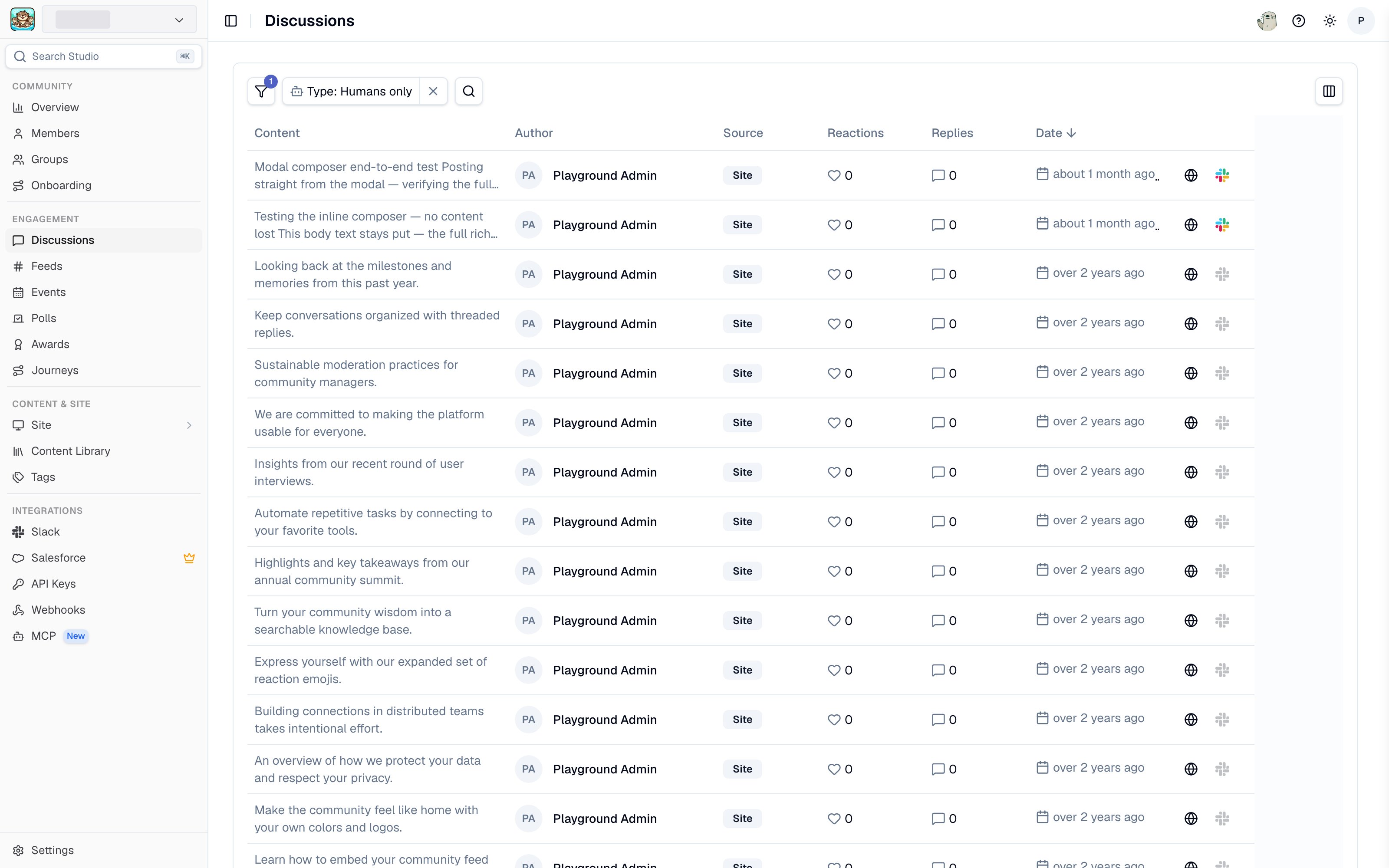
The Discussions list in Studio
Discussions requires community data access. The Discussions Manager role grants viewing plus publishing. See Access and roles.
The Discussions list
Each row is a top-level message. The table shows:
Search by content or author, filter by team membership and member type, and sort by date, reactions, or replies. Sorting by replies is the fastest way to find the conversations worth promoting to your site.
Reading a thread
Click any message to open its detail page. You get the full thread in order, plus a details panel showing the Source, Sent at, Edited at, Deleted at, Synced to site at, and Latest activity at timestamps. Synced to site at is the one to check when a member reports that a thread is missing from your site: if it is empty, the thread was never published.Publishing to your community site
Publishing is how a Slack conversation becomes a public page. Open the actions menu on any message and choose Publish to site or Unpublish from site. Comments can be published and unpublished individually. Unpublishing a single comment hides just that comment from the post page, leaving the rest of the thread intact. This is the tool to reach for when one reply in an otherwise useful thread should not be public. Studio asks you to confirm before either action, and tells you which cascade applies.Related pages
- Slack channels - which channels are activated and feeding Discussions.
- Moderation - removing content rather than unpublishing it.
- Activity feed - the chronological record of edits, deletions, and reactions.