

Studio
The app home covers the most common settings without leaving Slack. Everything, plus the data pages that exist nowhere else, lives in Tightknit Studio at studio.tightknit.ai.Finding Tightknit in Slack
To get started, click on Tightknit under the Apps section in the Slack sidebar, or search “Tightknit” in the search bar.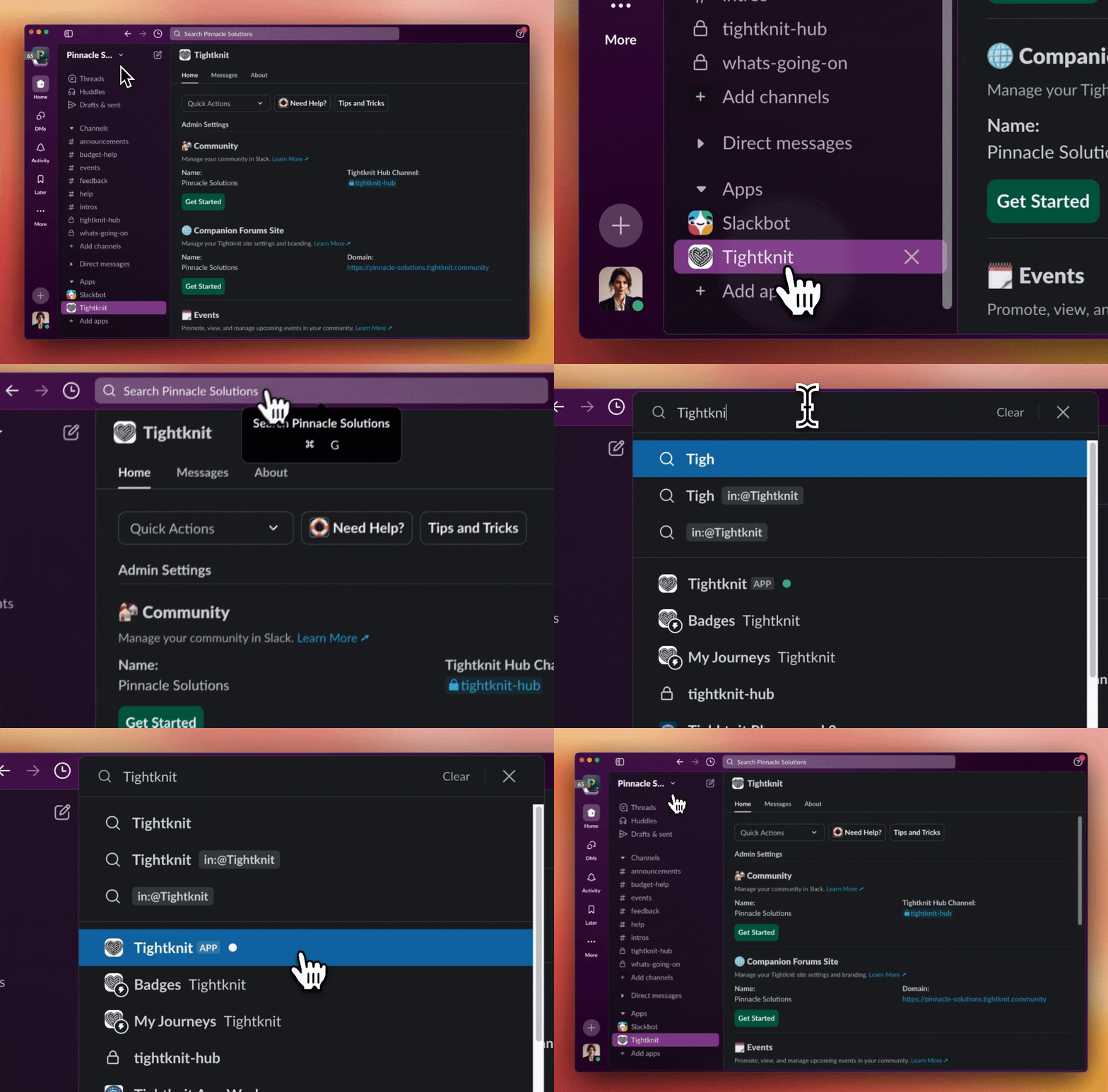
Finding the Tightknit app in Slack
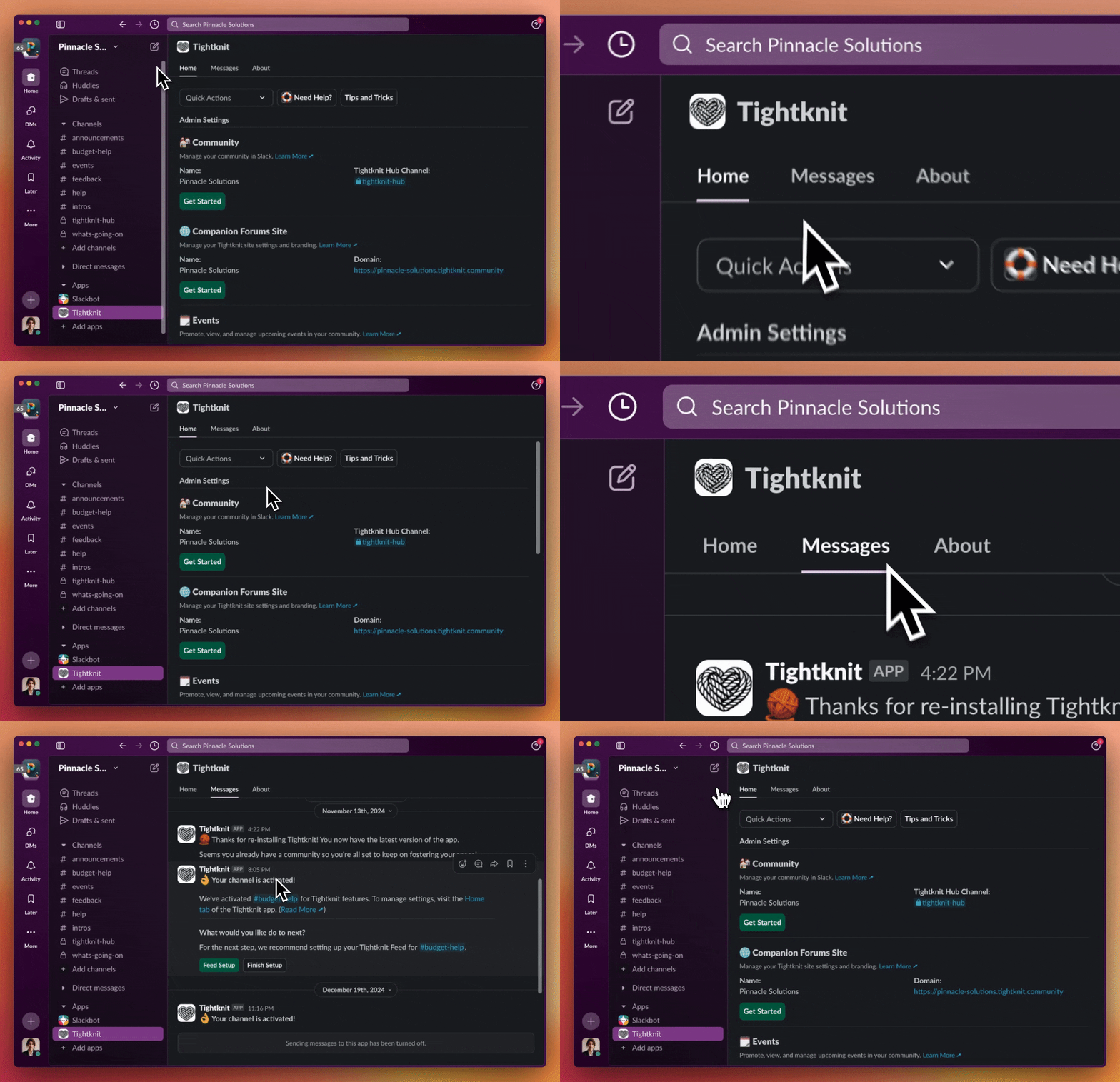
The Home, Messages, and About tabs
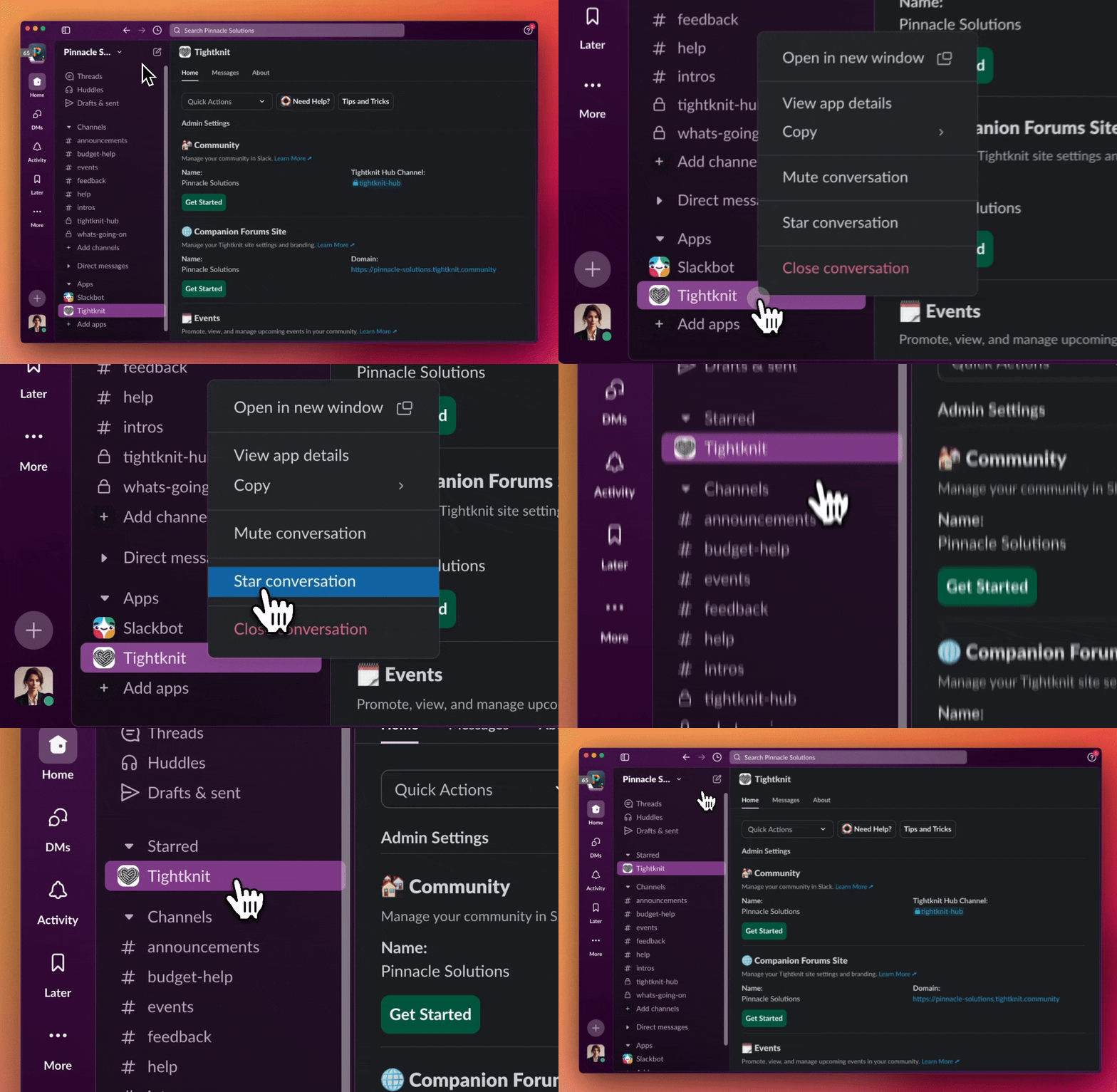
Starring the Tightknit app for quick access
App Home
Welcome to the Tightknit app Home! This is where admins can manage and configure everything related to your Tightknit community. The app home is divided into sections called “modules”. Each module has different features and settings.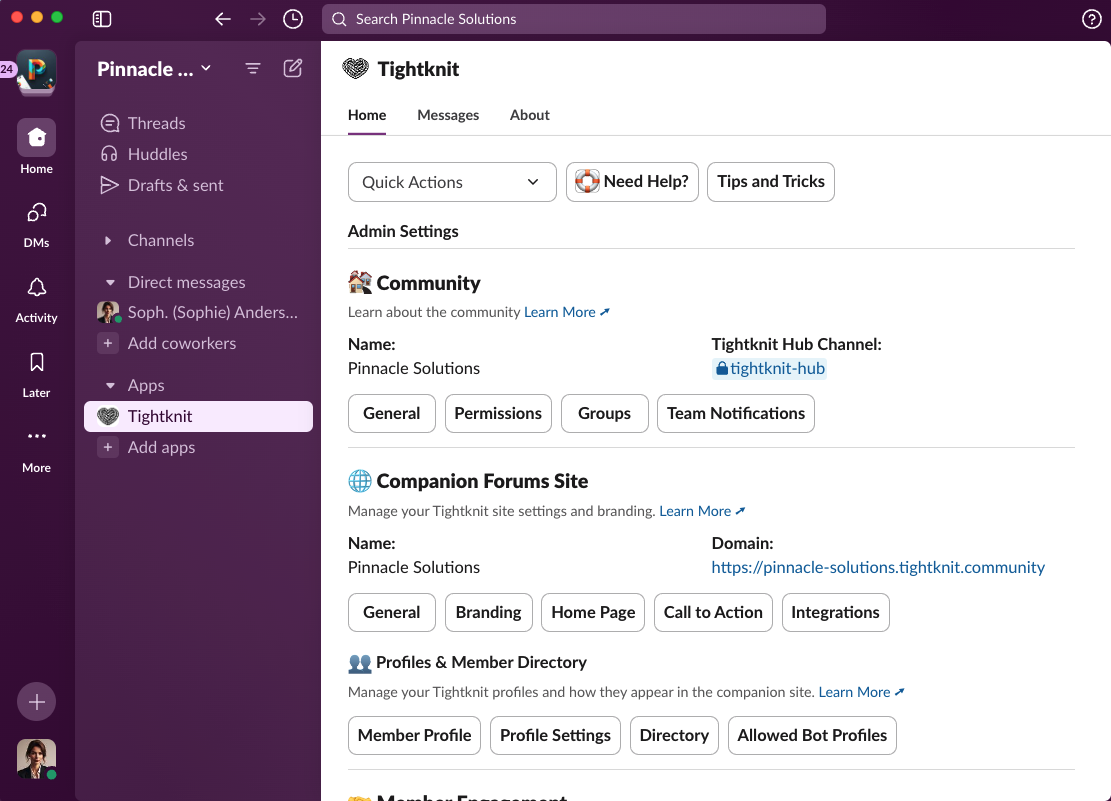
The Tightknit App Home dashboard
Quick actions
Once you’re a Tightknit power user 💪, check out the Quick Actions menu at the top of App Home. This menu lets you get to important actions faster (and it is searchable)!
Quick Actions menu in App Home
Rename the Tightknit Slack bot
When sending messages on behalf of your community, the Tightknit bot adopts the name and icon configured in Community settings. However, when the Tightknit bot sends notifications to admins, is tagged in a message, or is listed in Slack workspace management views, it will appear as the default “Tightknit” app; for these scenarios, you can customize the bot name using the following method:- Navigate to the Slack marketplace Tightknit app page.
- Select your Slack workspace where Tightknit is installed using the top-right dropdown.
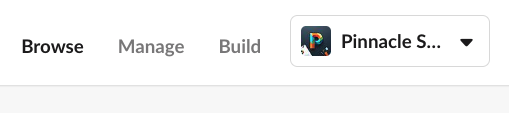
Selecting your Slack workspace
- Click the Configuration tab.
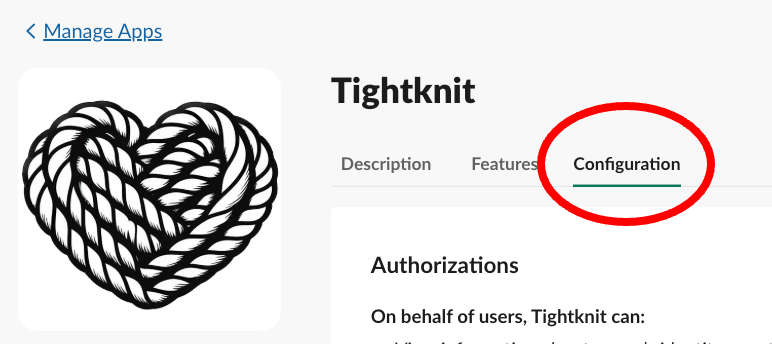
The Configuration tab in Slack app settings
- In the Bot User section, click “Edit” to rename the Tightknit bot.
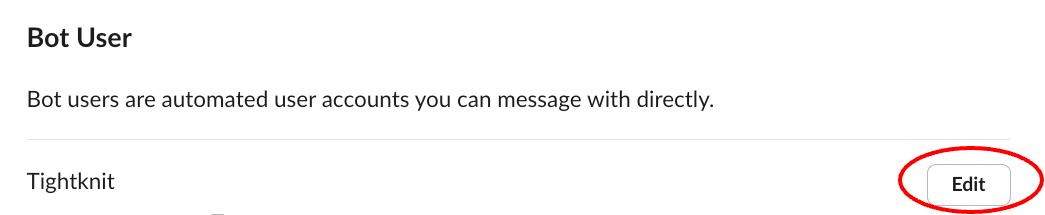
Editing the bot user name