

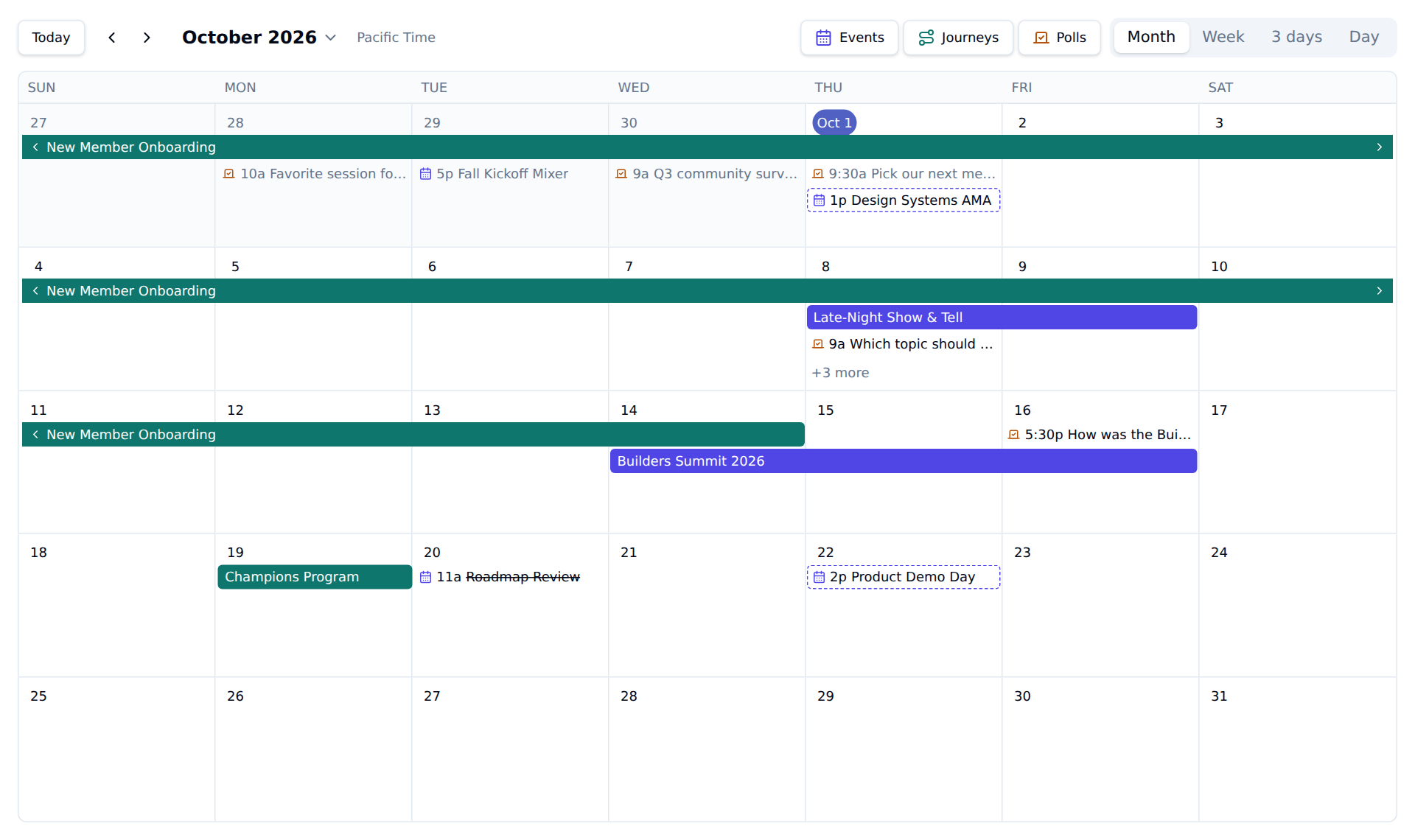
The month view of Calendar in Studio
Calendar shows the kinds of item your role can manage. The Events Manager role sees events, Journeys Manager sees journeys, and Polls Manager sees scheduled polls. Admins see all three. See Access and roles.
Views and navigation
Choose Month, Week, 3 days, or Day in the top right. Today returns to the current date, and the arrows move back or forward one month, week, three days, or day. Click the month name to jump straight to any month. The view and date are part of the page URL, so you can bookmark a week or share it with a teammate. Times are shown in your browser’s time zone, which is named next to the date. Use the Events, Journeys, and Polls buttons to show or hide each kind of item.What the calendar shows
When a day has more items than fit, the extra ones fold into +N more. Click it to see the whole day.
Click any item to see its details: when it happens, where it’s published, and how many members registered, completed, or voted. Open event, Open journey, or Open poll takes you to its page.
Reschedule an item
Drag it to another day
Drag an event or a scheduled poll to a different day. It keeps its time of day, and an event keeps its length. The calendar shows the move straight away, and the message that confirms it has an Undo button. Dragging a published event asks you to confirm first, because its Slack announcement and reminders move to the new date. Tools connected through webhooks aren’t told about the new date. Some items can’t be moved by dragging:- Journeys — change a journey’s dates on its page.
- Cancelled events — they stay on their original dates.
- Started events — a published event, or one awaiting approval, can’t move once it has started, or into the past. A draft can move to any day.
- Posted polls — once a poll is open, its time is part of its history.
- Polls about to post — a poll can’t move within a minute of its posting time, or while it shows as Overdue.
Edit or duplicate it
Click an item, then:- Edit — opens the same edit dialog as the event or poll page, so you can change the time, or anything else, without leaving the calendar.
- Duplicate — available for events. Creates a draft copy on the same days, which you can then drag to its own date.
Scheduled poll statuses
Related pages
- Manage events - editing, publishing, and cancelling events.
- Journeys - setting a journey’s dates and milestones.
- Polls - creating and scheduling polls.
- Access and roles - the roles that decide what Calendar shows.