Embed Luma event registration directly into your Tightknit community site.
Tightknit integrates with Luma to provide a seamless event registration experience on your community site. When you link a Luma event to a Tightknit event, visitors can register directly from your event page without being redirected away.
When you provide a Luma URL (e.g., https://lu.ma/event/evt-XYZ123 or https://luma.com/event/evt-XYZ123) as the Event Link for a Tightknit event, Tightknit automatically detects it and enables an embedded checkout experience on your community site’s event page.Instead of navigating away to Luma, visitors see a Register button that opens the Luma checkout flow inline, keeping them on your site while completing registration through Luma.
No separate configuration or authentication is required. The integration activates automatically based on the event link you provide.
1
Create or edit an event
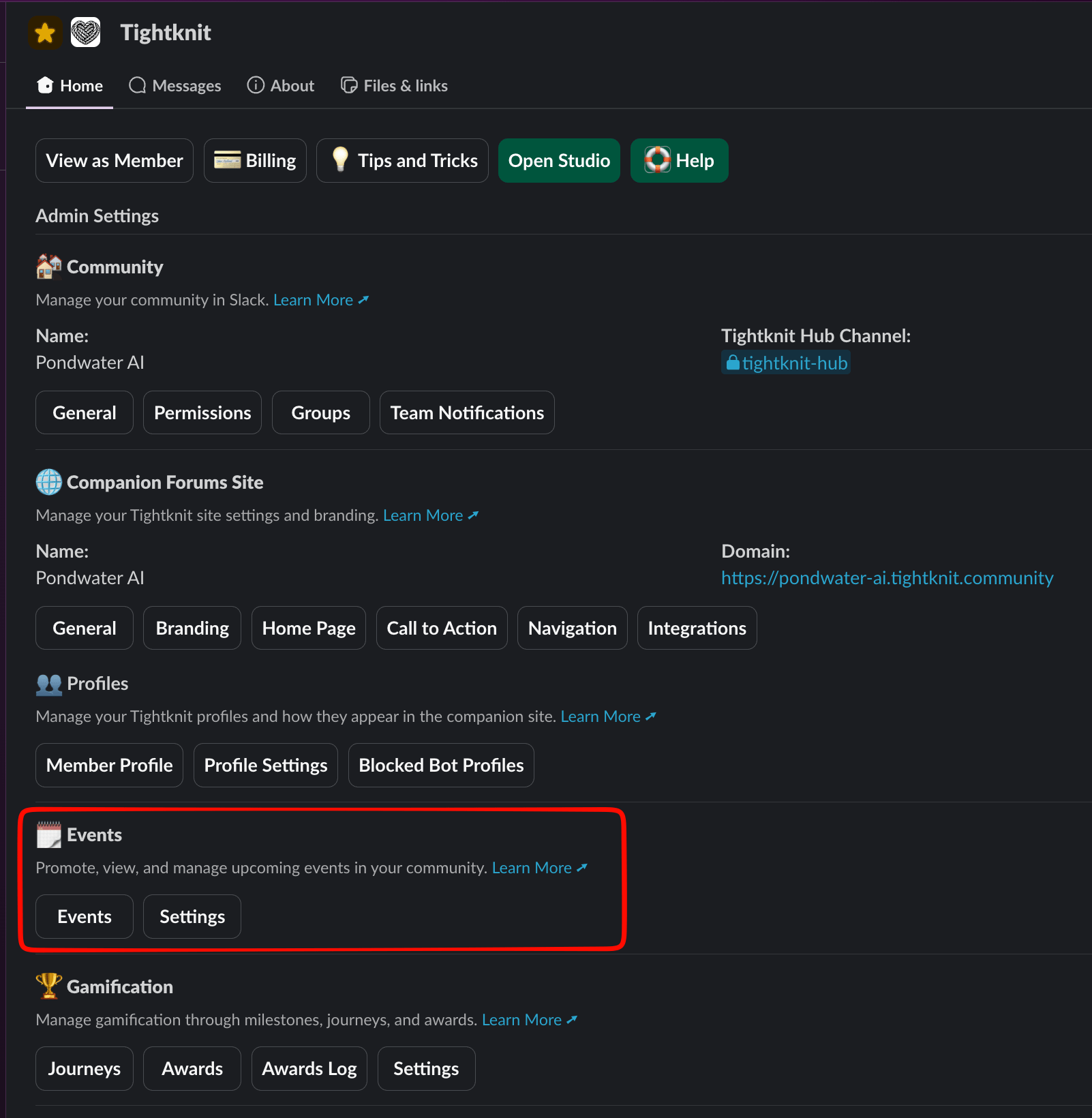
Use the /events command in Slack, or open the Events section from the Tightknit app’s Home tab, to manage your events. Create a new event or edit an existing one.
The Events section on the Tightknit app's Home tab in Slack
2
Add a Luma URL as the Event Link
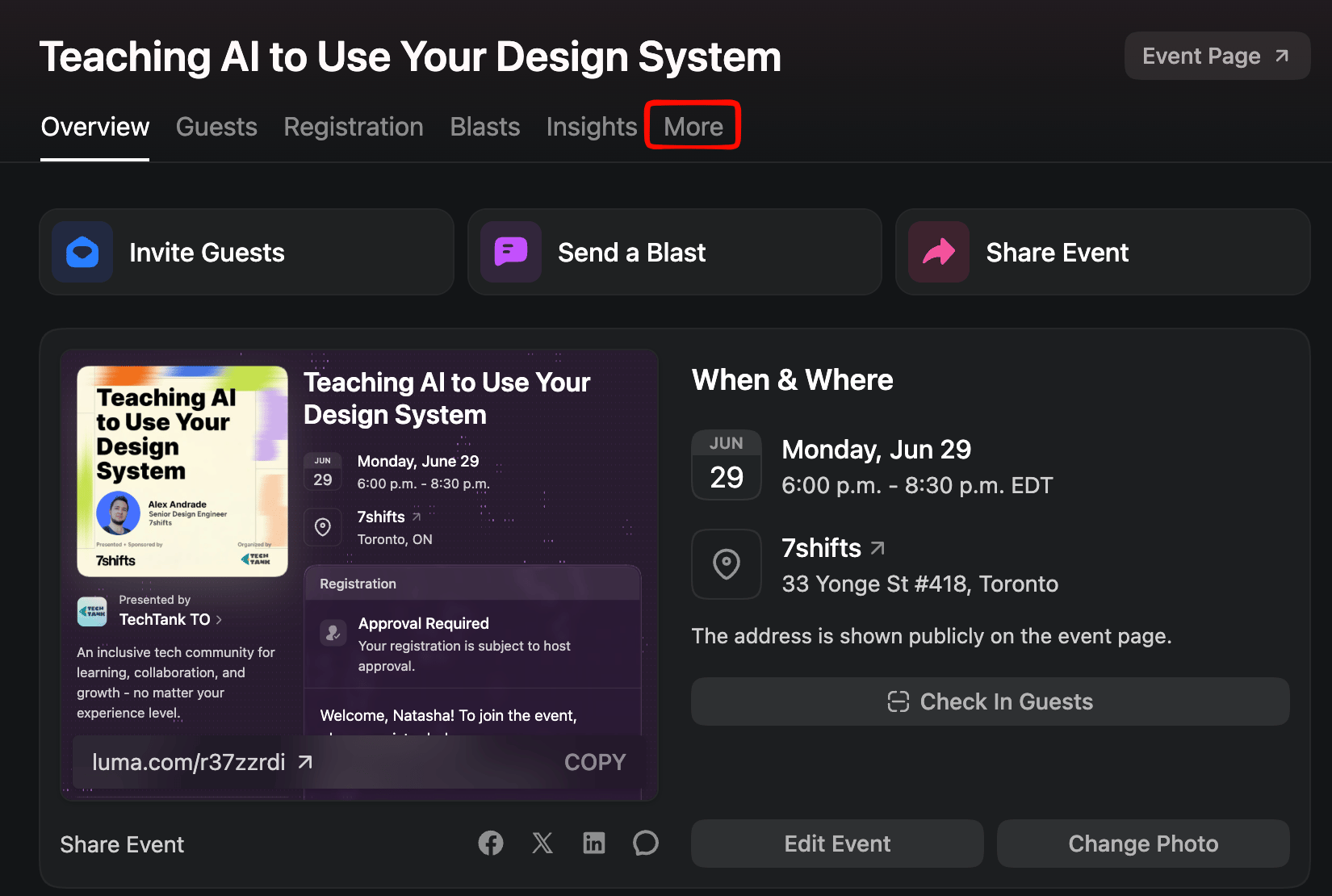
You need the full Luma event URL, which includes the evt- event ID. To find it, open your event in Luma and go to the More tab.
Open your event in Luma and select the More tab
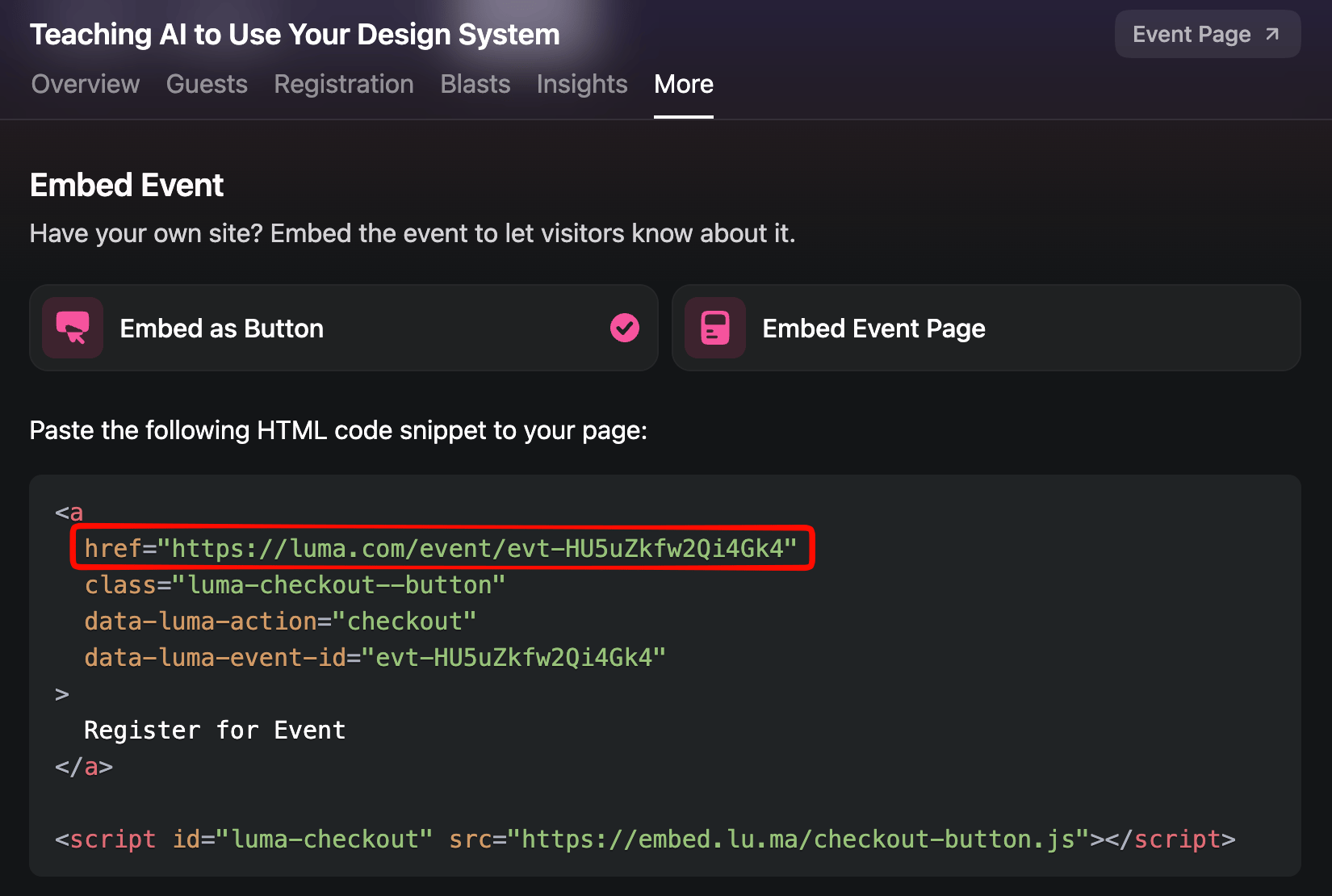
Copy the event URL from the href in the generated HTML snippet.
Copy the event URL from the href in the Embed as Button snippet
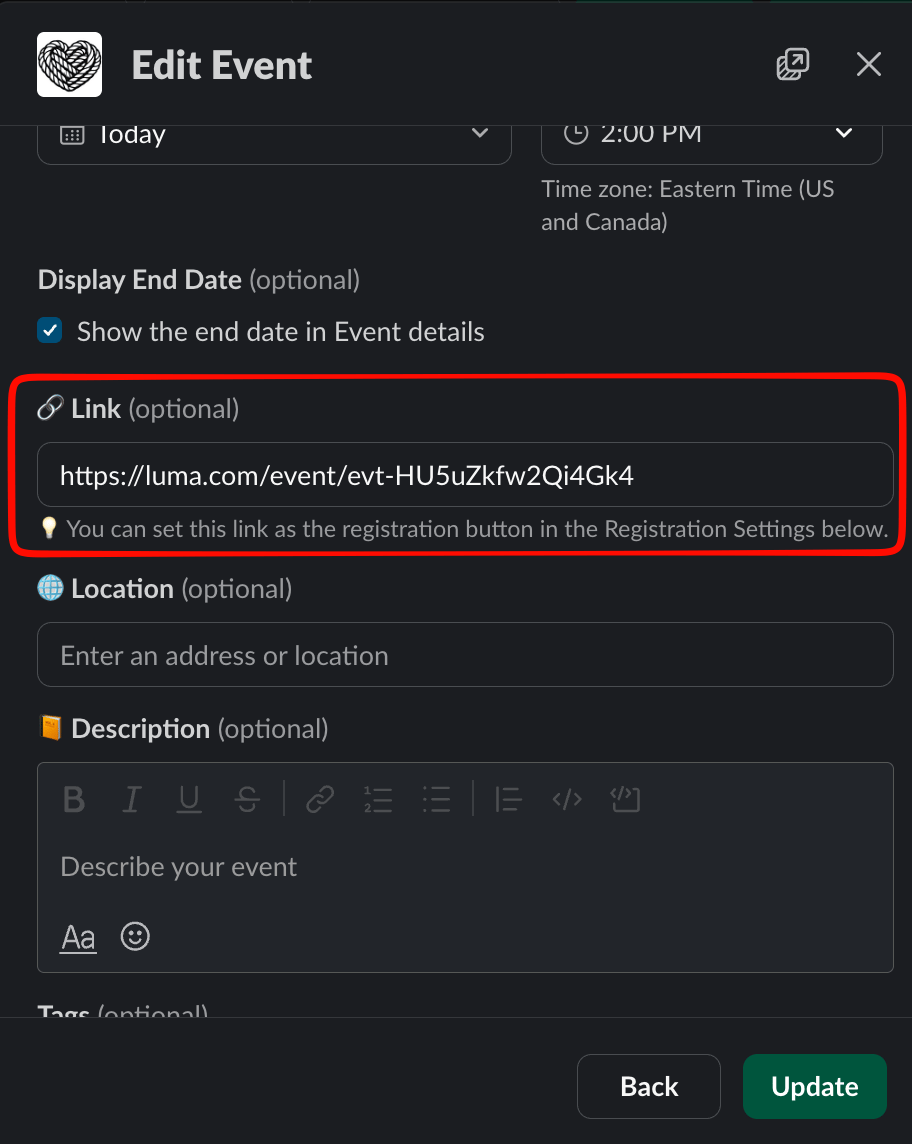
Back in the Tightknit event editor, paste the URL into the Link field.
Paste the Luma event URL into the Link field
The URL must include the full event path with the evt- identifier (e.g., https://lu.ma/event/evt-XYZ123 or https://luma.com/event/evt-XYZ123). Both lu.ma and luma.com domains are supported. Short or vanity Luma URLs like https://lu.ma/my-event are not supported.
3
Publish to your community site
In the Publish Settings, enable Publish to community site. Once published, the event page on your community site displays a Register button that opens the Luma checkout inline — visitors complete registration without leaving your site.
The Luma registration flow opening inline on a published community site event page
This integration works alongside all other Tightknit event features, including event announcements in Slack, event reminders, and the events list on your community site.
Create a New Event
Learn more about creating and publishing events in Tightknit.
Was this page helpful?
Assistant
Responses are generated using AI and may contain mistakes.