
Access control options
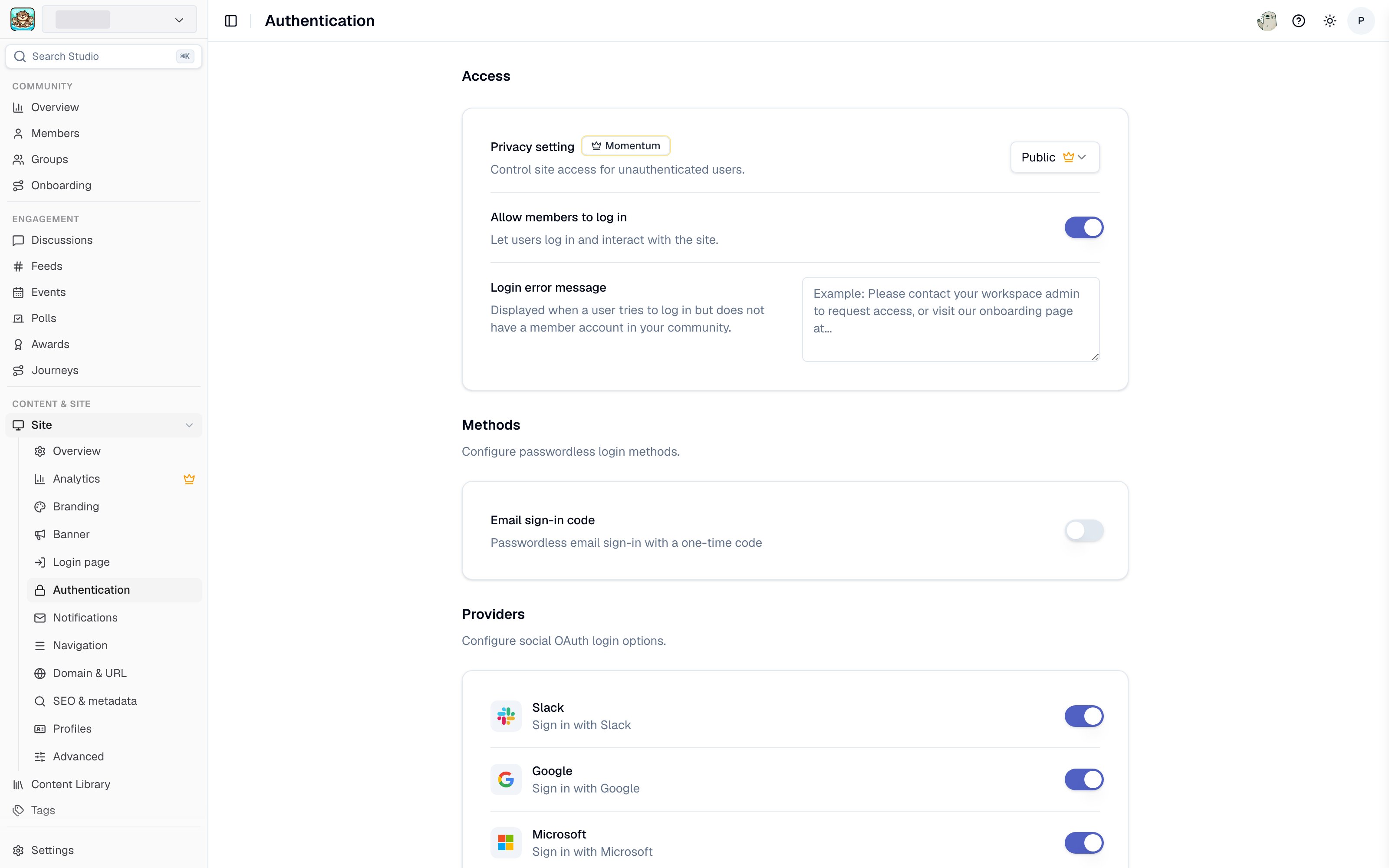
Authentication settings in Studio
Public access
- All pages are publicly accessible to anyone on the internet
- No login required to view content
- Content is discoverable by search engines
- Perfect for public communities and open knowledge sharing
- Users can optionally sign in for personalized features
Restricted access
- All pages require authentication
- Only authenticated users can access the site
- Content is private and not indexed by search engines
- Ideal for internal teams and private communities
- Certain public-facing actions are automatically hidden (see below)
Enabling authentication
You can configure site access and authentication settings from the Community Site settings in Studio or from the Slack app home:- Go to the Tightknit app home in Slack
- Navigate to the Community Site module
- Click General to open the site settings
- Under Site Access Control, select 🔒 Restricted Access - login required
- Save your changes
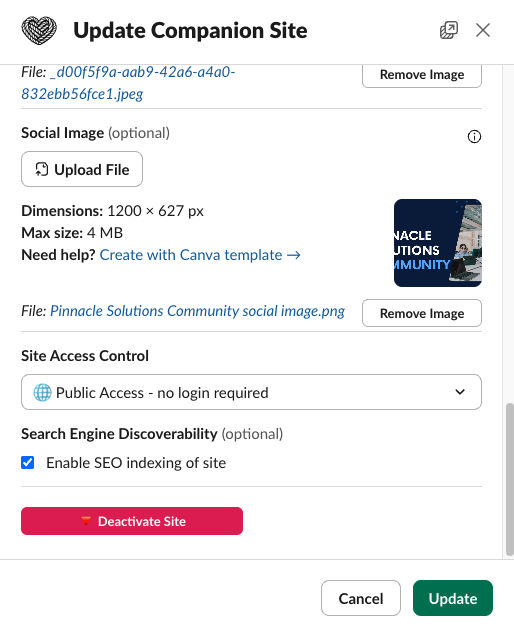
Site access control settings modal
Site privacy (public vs. restricted) is managed separately from which login methods are enabled. You can enable login providers on a public site to allow users to sign in for personalized features, without requiring login to view content.
Supported login methods
Tightknit supports a variety of login methods for your community site. You can customize which authentication providers appear on your login page from the community site authentication settings in Studio.OAuth providers
Sign in with third-party accounts using industry-standard OAuth 2.0:- Google - Sign in with any Google account
- Microsoft - Sign in with a Microsoft account
- GitHub - Sign in with a GitHub account
- Slack - Sign in with a Slack account that’s a member of your workspace
Email sign-in code
- Email Sign-in Code - Users enter their email address and receive a one-time 6-digit verification code. They enter the code on the site to sign in. No password required.
Sign-in emails can be blocked, quarantined, or filtered as spam by strict corporate email security, and members sometimes sign in with a different email than the one on their profile. For member-friendly guidance (including how to allowlist our senders), see Not receiving emails from Tightknit.
Single sign-on (SSO)
- Enterprise SSO - Integrate with your organization’s identity provider using OIDC, SAML 2.0, or token-based JWT. Learn more about SSO.
All login methods use secure, industry-standard authentication protocols.
Who can sign in
Tightknit matches the email from the sign-in method to a member profile in your community. The profile must be active. For a first-time OAuth sign-in, the provider must verify the profile’s email address.Why some sign-in errors are generic
After an OAuth provider verifies the member’s email address, Tightknit can explain that the profile is deactivated or no longer available. Sign-ins with an unverified OAuth email and Token-based JWT SSO use a generic profile error. Legacy magic links and Email Sign-in Code requests also do not reveal whether an active profile matches the email. These safeguards prevent visitors from testing email addresses to discover member records. Admins can investigate sign-in failures in the community-wide authentication audit in Studio.Customize the login error message
When a person signs in with an account that does not match an active member profile, you can replace the default Unable to sign in message with guidance specific to your community. For example, link to an application form or explain who to contact for access. In Studio, open Site > Authentication > Access and edit Login error message. The message supports bold, italic, underline, strikethrough, lists, quotes, code, emoji, and HTTPS links. It can contain up to 200 visible characters. The custom message applies to themember_not_found error. It also appears on the Email Sign-in Code screen under Still no code? after 30 seconds, because Tightknit sends codes only to emails with an active member profile. Everyone sees this guidance, so it does not reveal whether an email has a profile. Without a custom message, the screen asks people to contact your community team for access.
Connected accounts
Members who sign in with one method can link additional sign-in methods under Settings > Account on the community site. For example, a member who first signed in with an email code can later connect their Slack or Google account so they can use either method going forward. The list also shows a member’s single sign-on identities, once they have signed in with your community’s SSO provider. A custom token provider that matches members by email only never adds one (see How Tightknit recognizes returning members). Your community manages these identities, so members can’t disconnect them there. Linking works by verifying ownership: the member is already signed in, and the provider they connect confirms a second identity belongs to them. No admin action is required.Managing connected accounts
Members open Settings from the profile menu, select the Account tab, and manage their linked methods under Sign-in methods:- Link a provider — Click Connect next to an available provider (Slack, Google, or GitHub). A sign-in window opens to verify the account, and the provider is added as a linked sign-in method.
- Unlink a provider — Click Disconnect next to a linked provider to remove it. Tightknit blocks the disconnect if it would leave the member with no way to sign in to one of their communities.
A provider is offered as linkable only when both conditions hold: it is one of the providers Tightknit supports for linking (Slack, Google, and GitHub), and it is enabled in your community’s authentication settings. Microsoft can be offered as a login method but is never linkable (see the tip below). If you disable a provider, members can no longer sign in with it or link new accounts to it. Members who previously linked a disabled provider still see it listed, marked as not enabled in the current community, so they can disconnect it.
Authentication audit trail
Studio provides two views for monitoring authentication activity across your community:- Per-member — Open a member’s detail page in Studio Members and select the Authentication tab to see that member’s sign-in history and connected accounts. See Member detail page for details.
- Community-wide — Go to Workspace Settings > Audit in Studio and open the Authentication section to browse all authentication events across every member, with search and filtering.
Allowing members to log in
Member login is available on every plan. Turn it on to let members sign in to your community site, including a site with Public Access. A site with Restricted Access always requires login. Configure these settings in Studio under Site > Authentication:1
Allow members to log in
Under Access, turn on Allow members to log in. If your site uses Restricted Access, login is required and this setting is enabled automatically.
2
Enable at least one login method
Give members a way to sign in by enabling one or more methods:
- Methods — Email Sign-in Code (passwordless email sign-in via one-time code)
- Providers — Slack, Google, Microsoft, or GitHub
- Single Sign-On — your organization’s SSO provider (Enterprise plan)
Enabling interactivity
Interactivity lets signed-in members do more than read content. With it, members can create posts and leave comments that sync back to your Slack workspace, follow members, Feeds, and posts, get site notifications, and register for events from the site. On plans without interactivity, members can still log in, but they cannot do any of these things on the site. To enable interactivity:1
Allow members to log in
Turn on member login and enable at least one login method. See Allowing members to log in.
2
Allow posting on your Feeds
To let members create posts and comments from the site, enable Post from Site on each Feed where you want it. See Feed settings.
Posting and commenting are controlled per Feed. Members can only create posts or comments on Feeds that have Post from Site turned on.
Limitations
Google Groups and aliases
Google Sign-in does not support email aliases, Google Groups, or other distribution list emails. OAuth authentication requires individual user accounts, not shared or group email addresses. Examples of unsupported email types:- Google Groups (e.g., [email protected], [email protected])
- Email distribution lists
- Shared mailboxes
- Service accounts
Restricted access behavior
When your site is set to Restricted Access, several public-facing actions are automatically hidden across the site since all visitors are already authenticated members:- Share — The Share button and Share overflow menu are hidden on all pages, including feeds, posts, events, members, and resources.
- Embed — Embed options are hidden since content is not publicly accessible.
- Follow (RSS) — The Follow/RSS button is hidden on feed pages.
- Ask AI — The Ask AI button is hidden on feed pages.
Login page customization
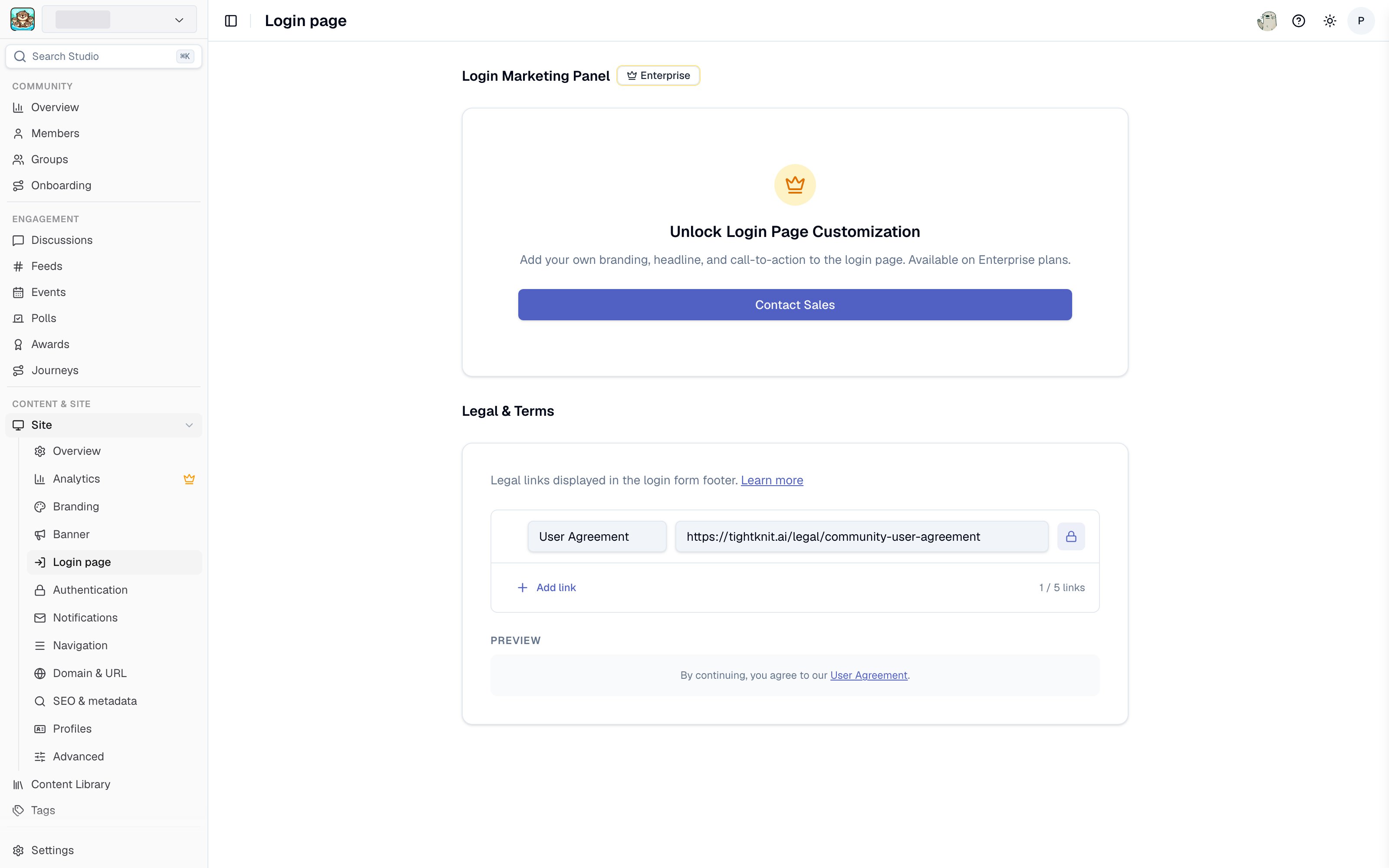
Login page settings in Studio
- Enabled — Toggle the marketing panel on or off.
- Color theme — Select a color theme for the panel.
- Background color — Set a solid background color (hex) that overrides the default branding gradient.
- Background image — Upload an image to use as a full-cover background on the side panel. When set, the background image takes precedence over the background color.
- Title and description — Customize the marketing copy shown on the panel.
- Media image — Upload a featured image to display on the panel.
Legal links
You can configure legal links that appear in the footer of the login form. These links are displayed as a consent line (e.g., “By continuing, you agree to our User Agreement and Privacy Policy”). To manage legal links, go to Site > Authentication > Legal Links in Studio. You can add up to 5 links, reorder them via drag-and-drop, and customize each link’s label and URL.User Agreement
By default, the Tightknit User Agreement appears on every community site login page. It sets the rules members agree to when they use a community that runs on Tightknit. You can’t edit its link or URL in Studio. What to know about the User Agreement:- How member data is handled — Tightknit processes your members’ data on your behalf, as your processor under your agreement with Tightknit. Your privacy notice explains how their data is used, so add it as a custom legal link where members can find it.
- Community standards — The agreement sets baseline expectations for acceptable behavior and content on your community, protecting both you and your members.
- Your privacy obligations — As the controller of your members’ data, you are responsible for telling members how you use it and for any consent you need. The User Agreement doesn’t do that for you.
Enterprise communities can ask Tightknit to remove the User Agreement from their login page, so members accept only your own legal links. Contact your Tightknit account team to turn it off.
Adding custom legal links
You can add your own legal links, such as your privacy notice (recommended) or Terms of Service. Each link requires a label and a valid HTTPS URL. All configured links appear together in the login form consent line.Session management
Once signed in, users remain authenticated for 7 days. After this period, they’ll need to sign in again to access restricted content. Sessions are automatically refreshed when users are active on the site. If a user accesses the site within 24 hours of their last activity, their session is extended for another 7 days. This means active users won’t be logged out unexpectedly during normal use.Security features
- Secure Cookies - All authentication cookies are encrypted and secure
- HTTPS Only - Authentication only works over secure connections
- Session Timeout - Automatic logout after 7 days of inactivity
- OAuth 2.0 - Industry-standard authentication protocol
- Token Encryption - OAuth access tokens and refresh tokens are encrypted at rest in the database to protect against unauthorized access if the database is compromised
Login error codes
When authentication fails, the login page displays an error message based on an error code in the URL query parameter. These codes help identify the specific failure reason.Troubleshooting
Users can’t sign in
- Ensure the user is using a supported browser
- Check that they have a valid account for one of the enabled login methods
- Verify the user is a member of your Slack workspace (for Slack login)
- If using Email Sign-in Code, check that the verification code email was not caught by a spam filter
- If an SSO member is told to check their email, they are being asked to confirm connecting SSO to an account that already exists. See Connecting SSO to an existing account
Session issues
- Clear browser cookies and try again
- Check that the site is using HTTPS
- Ensure cookies are enabled in the browser
Access denied
- Confirm the user is a member of your Slack workspace (if using Slack login)
- Check that the site access control is set to “Restricted Access”
- Verify the user completed the full authentication flow