

- 🏷️ Create tag groups to define categories for your content
- 📚 Apply tags to Events, Content Resources, and more for easy filtering and discovery
- 🔍 Enable tag-based filtering on your community site
How Tags Work
Tags are organized into tag groups. A tag group is a named category (e.g., “Topic”, “Region”, “Skill Level”) that contains individual tags (e.g., “Engineering”, “Marketing”, “Design”). Each tag group can be configured to apply to specific content types:- Events — Tags appear as filters on the events listing page and display on individual event pages.
- Content Collections — Tag groups can be linked to specific content collections, enabling tag-based filtering within that collection.
Managing Tags
Go to Tags under Content & Site in the Studio sidebar.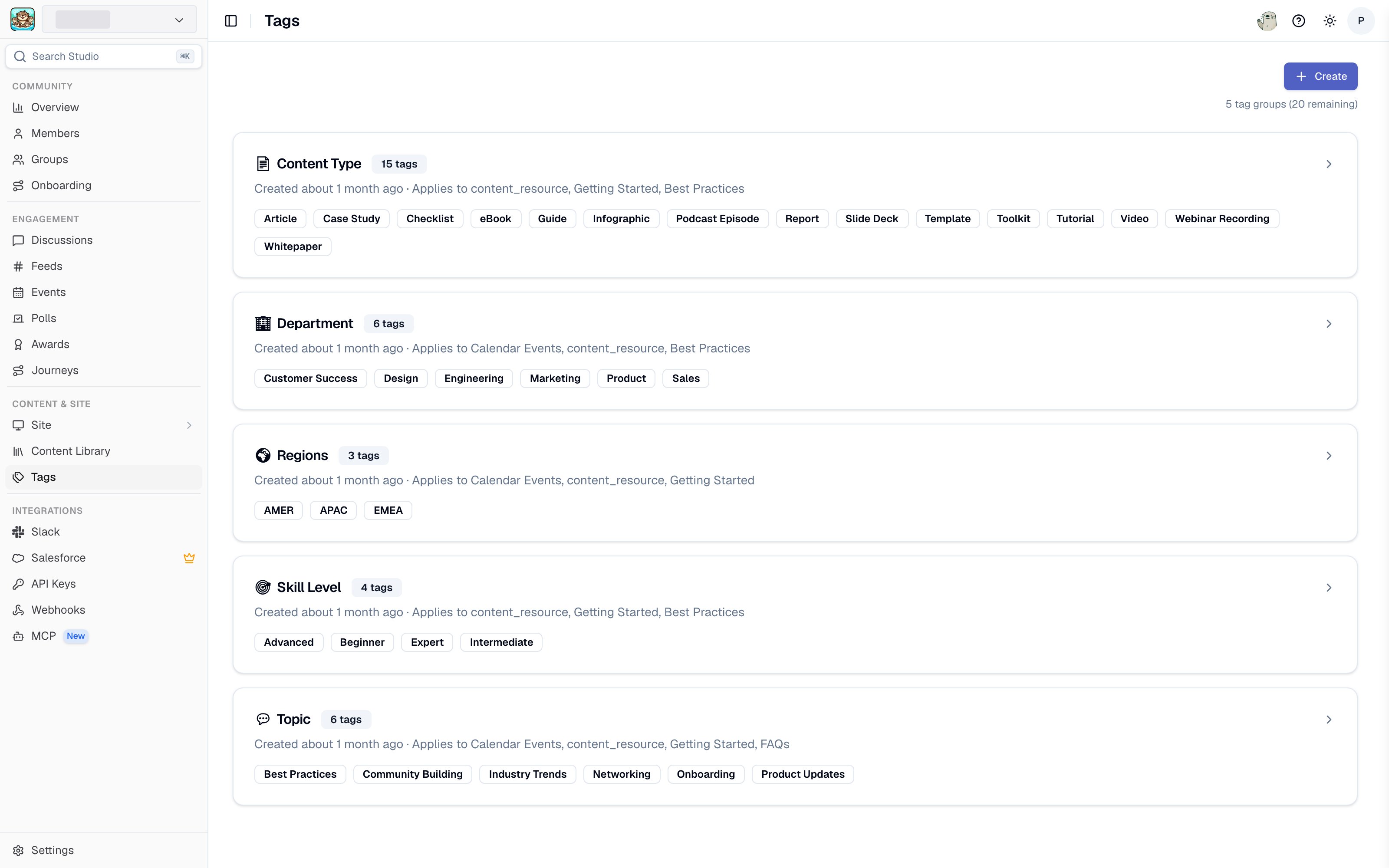
Tag groups in Studio
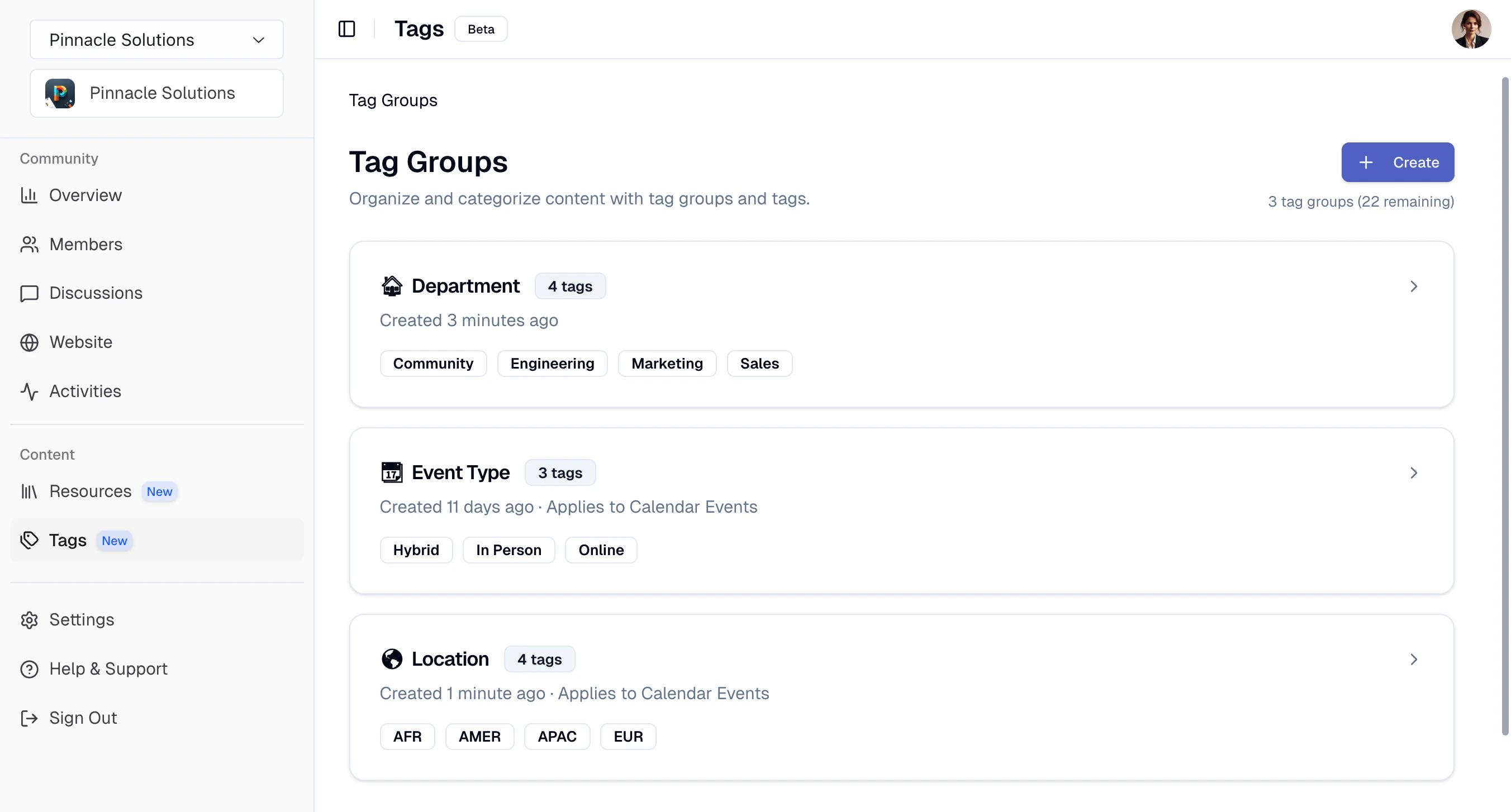
Tags page in the Studio
Tag Groups
A tag group has the following properties:- Name — A display label for the group (max 25 characters). You can optionally add an emoji icon.
- Slug — A URL-safe identifier, auto-generated from the name if not provided.
- Emoji Icon — An optional emoji icon to display next to the group name.
- Description — An optional description of the group (max 150 characters).
- Applies to — Controls which content types this tag group applies to (e.g., Calendar Events). Content Collection tagging is managed instead from the Content Collection page.
Create and select Tag Group from the Tags section.
Tags
Each tag within a group has the following properties:- Label — The display name (max 25 characters). Must be unique across all tag groups in your community.
- Slug — A URL-safe identifier, auto-generated from the label.
- Description — An optional description (max 150 characters).
- Section — An optional section name used to visually sub-group tags within a tag group (see Sections below).
Add Tag.
To move a tag into a different group, choose Move Tag from the tag’s actions menu and pick the destination Tag Group. The tag keeps every place it has already been applied.
Sections
Sections let you visually sub-group tags inside a single tag group. This is useful when a tag group has many tags that naturally fall into sub-categories (for example, a “Region” tag group with tags grouped under “Asia-Pacific”, “North America”, and “Europe”). To use sections:- Open or create a tag inside a tag group.
- Set the Section field to the name of the section the tag belongs to (e.g.,
Asia-Pacific). Tags that share the same section name will be grouped together. - Leave the section field blank for tags that should appear ungrouped at the top of the list.
Applying Tags to Events
Tags can be applied to events in two ways:- From Slack — When creating or editing an event using the Tightknit event modal, select up to 5 tags from the available tag groups.
- From the Studio — coming soon!
Applying Tags to Content Resources
To use tags with content resources, link one or more tag groups to a content collection in the collection’s settings. Once linked, those tag groups’ tags become available when creating or editing content resources in that collection.Tags on the Community Site
Tags appear on your community site in two ways:Filtering
Tags power dropdown filters on list pages:- Events list page — Each tag group applied to events appears as its own filter dropdown. Visitors can select tags from each group to filter the events list.
- Content collection pages — Tag groups linked to a collection appear as filter dropdowns for browsing resources.
Tag detail pages
Each tag has its own detail page at/tags/<tag-slug> on the community site. The tag detail page displays all content associated with that tag, including tagged calendar events and tagged content resources. Visitors can navigate to a tag detail page by clicking on a tag badge anywhere it appears on the site.