

Let your agent set it up for you
The fastest way to get started is to hand this page to your agent and let it walk you through the setup. Paste the following prompt into Claude, ChatGPT, Cursor, or the agent of your choice:Copy this into your agent
Connection details
Your connection details live at Integrations > MCP in Studio.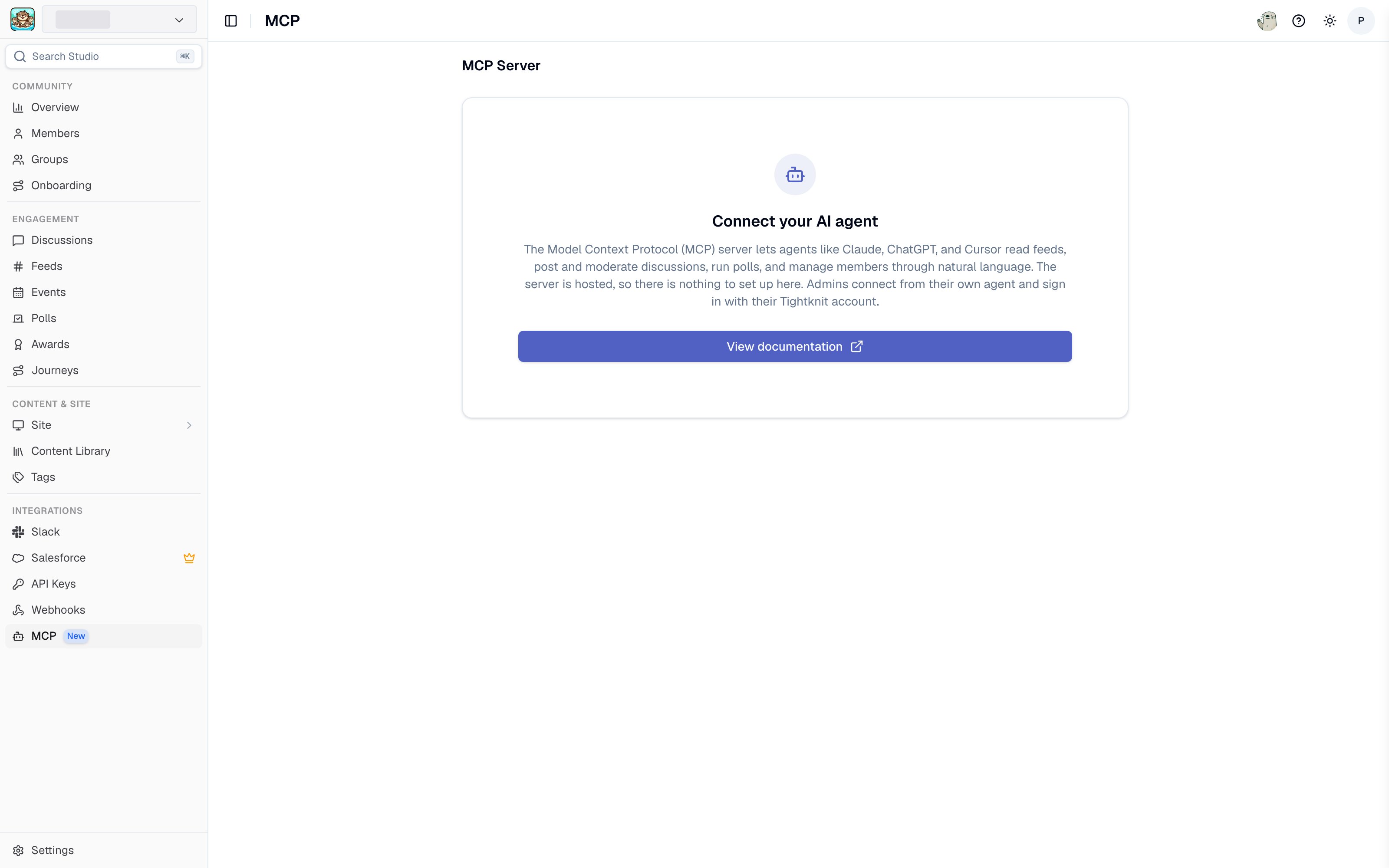
The MCP page in Studio
Access requires the MCP User role (admins have full access). If you can’t sign in, ask an admin of your community to grant you the role.
You never paste a token or secret. On first connect, your agent opens a browser window where you sign in, and the communities you can access are scoped to that account automatically.
Connect your agent
- Claude Code
- Claude Desktop & claude.ai
- Cursor
- VS Code
- ChatGPT & Codex
- Any MCP client
Add the server from the terminal:Then run
/mcp inside Claude Code and choose Authenticate to sign in through your browser. Once connected, /mcp lists the Tightknit tools as available.How access works
The MCP server never holds your password and issues no long-lived key. Your agent completes a standard OAuth 2.1 sign-in, and every request is authorized against your role and permissions in the Studio. A few things follow from this:- Role-based — Admins have full access. Everyone else needs the MCP User role, which grants the
mcp:accesspermission to connect. Without it, you can’t reach the server. - Tools follow your Studio permissions — Beyond connecting, each tool checks your Studio role and permissions, so an agent only sees the tools your roles allow. For example, pairing MCP User with Events Manager exposes the events tools but not the polls, members, or site tools. Admins can use every tool.
- Scoped to your communities — The agent only acts on communities where your role has access. If you can reach more than one, ask the agent to run
list_tenantsfirst, then reference the community you want by thetenant_idit returns.
Available tools
Each tool is annotated so your agent understands the impact of an action before it runs one:- Read — Fetches data. Never changes anything.
- Write — Creates or updates content in your community.
- Destructive — Deletes content. Cannot be undone.
confirm parameter the agent must set to true. It makes a delete an explicit act rather than an incidental one, but the agent supplies it, so it is not a substitute for your own approval: keep a human in the loop for deletes.
Destructive here means the row is gone, not hidden: there is no trash and nothing to restore from. Where a reversible option exists, the tool’s description points at it — an event can go back to draft instead of being deleted, a journey can be disabled, a feed can be archived, and a post or comment can be unpublished.
Communities
Events
Activity
Slack
Analytics
Polls
Members
list_members, get_member, create_member, and set_member_teammate return each member’s url, a link to their profile page on your community site. It is null when there is no page to open: your community has no active site, the member has opted out of a public profile, or they were invited to Slack and have not joined yet.
Posts and comments
Search
Feeds
Groups
Site
Slack community settings
Message blaster
Onboarding
Team email domains
Journeys
Awards
Content library
Tags
Custom fonts
Available on plans that include custom fonts. A font family is created empty, then one font file is attached to it per weight and style you want the site to render in — the same two steps as uploading a font in Studio. Deleting a face or a family deletes the font files behind it. Anything the site rendered in a deleted family reverts to the default typeface.Branding
A branding set is a named collection of style tokens for your site, including its colors, typefaces, and corner roundness. Your site has one active branding set at a time which is applied. The rest are saved alternatives, so an agent can prepare a look and you apply it when you’re ready.Files
Several tools can attach an image you hold as a local file, such as an event cover, an award badge, a site logo, a group banner, or a content cover. The agent uploads the file withprepare_file_upload first, then passes the returned file id to the tool that uses it. Custom font files (.woff2 and .woff) go through the same two steps, then attach with add_custom_font_face.
On the edit tools, every image parameter takes null to remove the image that is currently set. Omitting the parameter leaves the existing image alone. The same holds for optional text such as a description or a link: pass null to clear it, omit it to leave it as it is.
Uploads are capped both by what the file is used for and by your community’s upload limit, whichever is lower. prepare_file_upload states the cap it applied when it turns a file down.
Let the agent reach the upload domain
The agent sends the file bytes itself, from its own sandbox, so that sandbox needs network access tomcp.tightknit.ai. This is a separate setting from the connector you already approved, and most clients restrict it by default.
Claude desktop and claude.ai: unless your Domain allowlist is set to All domains, uploads fail until you add the Tightknit domain. Go to Settings > Capabilities, enter *.tightknit.ai under Additional allowed domains, and select Add.
ChatGPT web and desktop: sandbox internet access is all or nothing rather than per domain. Turn on Allow public internet access under Settings > Data controls > Work network access. While it is off, the sandbox reaches only OpenAI’s own managed allowlist and uploads fail. This setting may be controlled by your workspace admin.
Every other tool reaches Tightknit through the connector itself, so only file uploads need this.
Feedback
Tell us what’s working and what isn’t. Ask your agent to submit feedback to the Tightknit team for a feature request, for a tool that failed, for an idea for the product, or for something that worked well.Rate limits
Tool calls are limited per minute, per person, so one busy agent can’t slow things down for everyone else. Each tool draws on one of three budgets:
Budgets are separate, so a run of searches never eats into what’s left for writes. A budget covers all the communities you administer rather than each one separately. There is also an overall cap of 300 requests a minute per connected agent. Limits are counted per region, so an agent spread across regions may get more than the figures above, never less.
If your agent goes over a tool budget, the tool returns a message saying which one was exhausted. Going over the overall 300 cap instead fails at the connection level with an HTTP 429, which most clients report as a request error rather than a tool result. Either way, ask the agent to wait a minute and continue.
A further ceiling of 3,000 requests a minute applies per source IP address, before your token is checked. It exists to bound credential brute-force attempts. At ten times the per-agent cap, a single agent cannot reach it, and it only comes into play when more than ten separate agents run behind one outbound IP, such as a shared corporate gateway. Requests carrying an invalid token count toward it.
Connection-level refusals carry
Retry-After and RateLimit-Limit headers so a client can pace its retries. RateLimit-Remaining is always 0, because the headers are sent only when a request is refused.
Tools that take a list, such as give_award and add_group_members, cost one call no matter how many members you pass. Batching is cheaper against these limits than looping, but it does more at once, so keep the batches to what you actually intend to happen.
Troubleshooting
Sign-in fails or the agent sees no tools
Sign-in fails or the agent sees no tools
Access requires the MCP User role (or Admin). Confirm you’re signing in with the right account, and ask an admin of your community to grant you the role if you don’t have it. If you have the role and still can’t connect, contact Support.If sign-in completes and the client still reports a generic error with no tools, remove the connector and add it again. Some clients cache a failed handshake and keep replaying it.
The agent asks which community to use
The agent asks which community to use
If you can access more than one community, tools need to know which one to target. Ask the agent to run
list_tenants and then reference the community by the tenant_id it returns.The agent says it hit a rate limit
The agent says it hit a rate limit
Each budget refills every minute. Ask the agent to wait and retry, or to batch its work: passing a list of members to
give_award or add_group_members costs one call rather than one per member. See Rate limits for the budgets.A file upload fails or times out
A file upload fails or times out
The agent uploads file bytes from its own sandbox, which needs network access to
mcp.tightknit.ai. In Claude, add *.tightknit.ai under Settings > Capabilities > Additional allowed domains. In ChatGPT, turn on Allow public internet access under Settings > Data controls > Work network access. See Files for the full steps.My client won't connect
My client won't connect
The server uses the Streamable HTTP transport with OAuth. Make sure your client supports remote MCP servers (not only local stdio servers) and that you entered
https://mcp.tightknit.ai/mcp exactly, including the /mcp path.My client asks for an Auth URL, Token URL, or client secret
My client asks for an Auth URL, Token URL, or client secret
It doesn’t need them. Enter
https://mcp.tightknit.ai/mcp and leave the OAuth fields blank: the server publishes its own metadata, and clients register themselves automatically, so there is no client ID or client secret to issue.If your client requires the values manually:Related
API Keys
Generate keys for direct access to the Tightknit Admin API.