
Custom notification templates are a pilot feature. Contact us to request access.
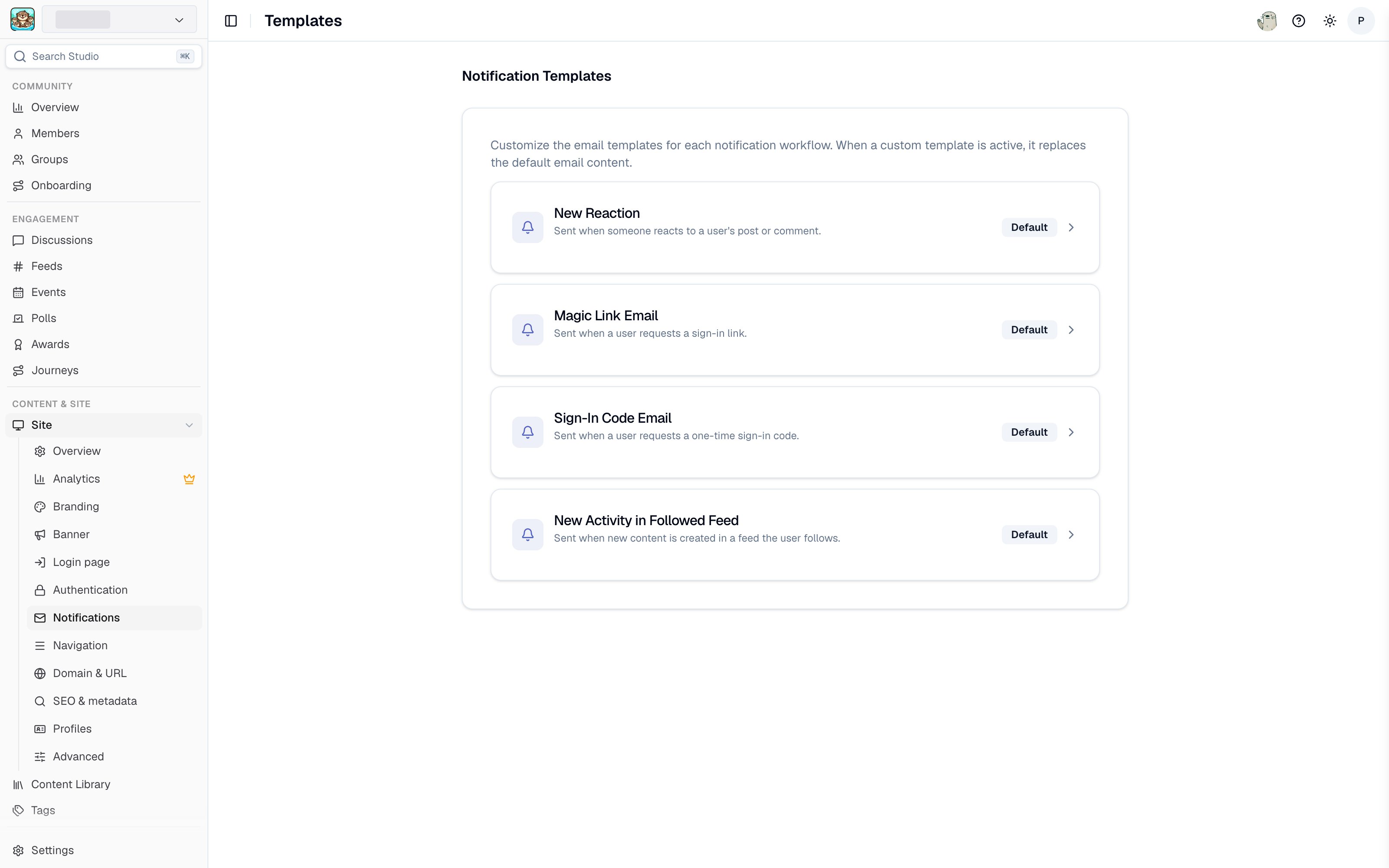
Notification templates in Studio
The templates list
Each notification workflow gets a card showing its name, what it sends, and a badge:- Default - the workflow uses Tightknit’s standard template.
- Custom - you have customized this workflow’s template, and the card shows when it was last edited.
Editing a template
Each template has a subject line, a body built from blocks, and a footer. Add, reorder, and remove blocks to compose the body:
An Email preview panel renders the template as you edit, so you can see the result without sending yourself a test.
Variables
Text fields support workflow variables, which are replaced with real values when the email is sent, for example the recipient’s name or the post that triggered the notification. Type{ in any text field to open the autocomplete list of variables available for that workflow. Each workflow exposes a different set, because a new-post notification has different data available than a mention notification.
Reverting to the default
Click Reset to Default in the editor to discard your customizations and return the workflow to Tightknit’s default template. The badge on the templates list goes back to Default.Related pages
- Notifications - turning member notifications on or off, and email digests.
- Custom email domain - sending from your own domain.
- Branding - the colors and logos to match.