

Upload a file
Files attached to Slack messages are synced to the Tightknit community site, up to your plan’s per-file size limit. They will appear as attachments on the corresponding post or comment.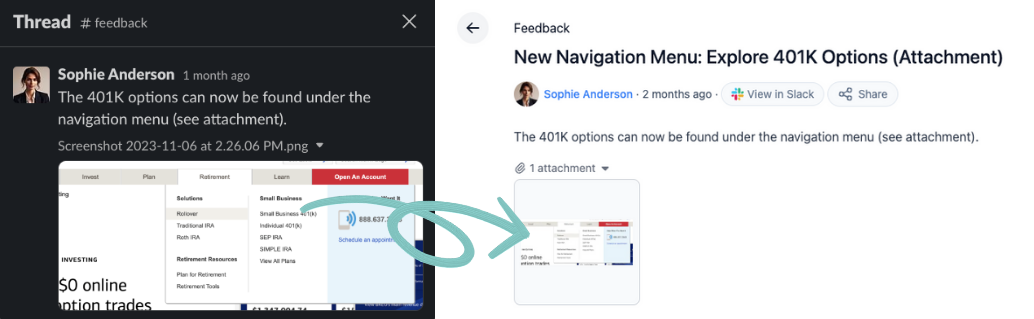
File attachments synced from Slack to the community site
Please contact Support if you need to upload
files larger than your plan’s limit.
Tightknit communities are limited to 50GB of total file storage per workspace.
Blog cover images
For Feeds that are configured to display posts as “Blogs,” the cover image used is the first image file attachment on the Slack message, if any. Images added through Block Kit cannot be used as a cover image. See Images in Block Kit messages.Delete a file
If a file is attached to a message and the message is deleted in Slack, or the post/comment is removed from the Tightknit site using the message shortcut, the file is also deleted. You may also use theDelete file action in Slack. This action will only delete the file in Slack and in the Tightknit community site, and the post/comment will be preserved.
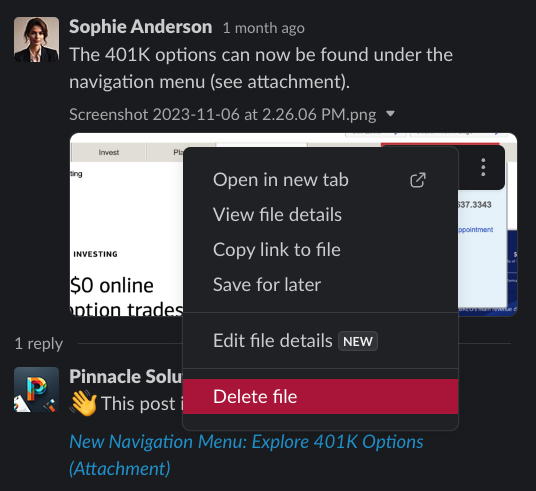
Deleting a file attachment in Slack
Limitations
Tightknit doesn’t currently support or ingest the following files or attachments:- Snippets
- Slack Connect files
- Unfurled attachments, such as Google Drive files or Google Docs
- Files larger than your plan’s maximum file size
- Forwarded or shared Slack messages
- Files or images sent as
blocksusing Block Kit UI (see Images in Block Kit messages)