Navigation
Navbar Header
The navbar header will contain your site logo and the call-to-action button. The logo will be the Site Horizontal Logo, if configured, otherwise the Site Icon alongside the name of the site.
Call-to-Action Button

Sidebar
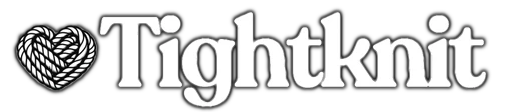
The navigation sidebar contains links to all Feeds, except hidden Feeds, as well as the following items: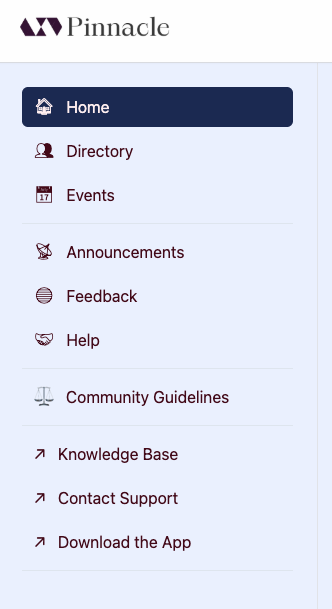
Home
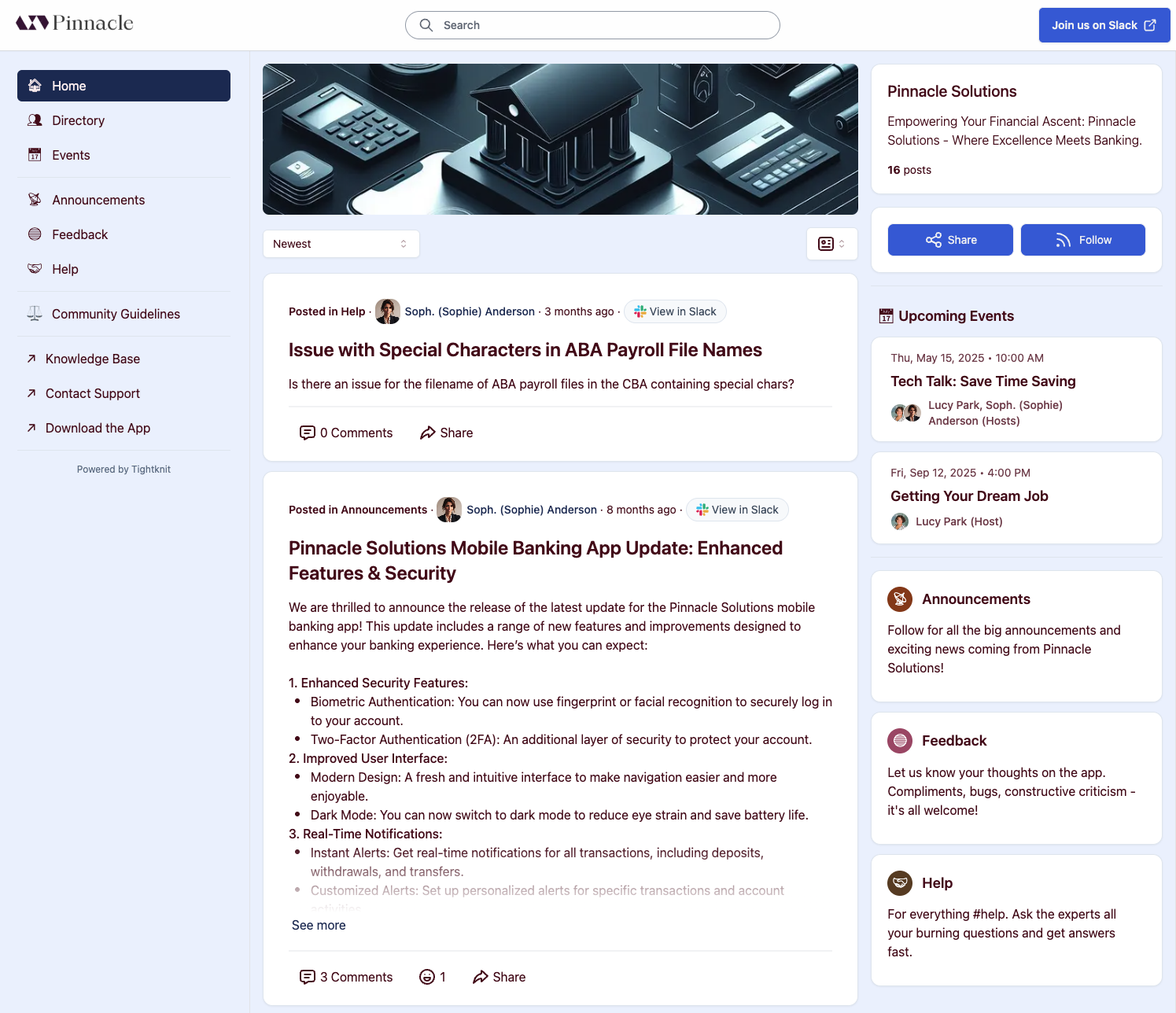
The Home page of your site encapsulates what your community is about and why users should join while directing them immediately to relevant content, featuring:- Welcome message and community description
- Banner image
- Stats of the community: number of posts and number of members
- Upcoming events
- Feeds Tile Menu list
Early Stage Communities
Brand new communities don’t need to worry about displaying potentially underwhelming stats, like
Brand new communities don’t need to worry about displaying potentially underwhelming stats, like
1 member, on the Home page. If they’re under 10 members,
we’ll skip them. We’ve all got to start somewhere after all. Happy growing! 📈Feed
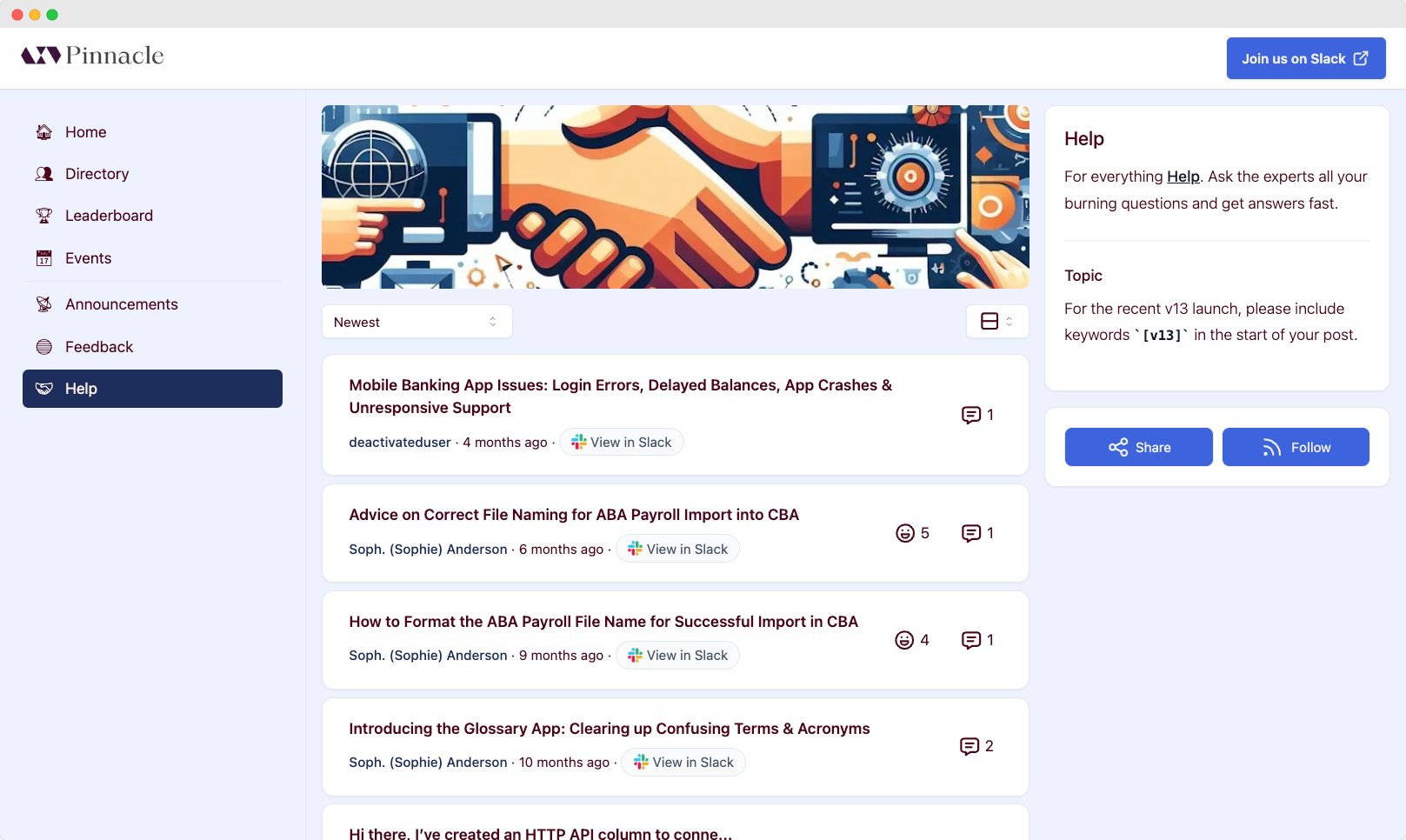
The Feed detail page displays the sorted posts within a Feed. A Feed is connected to a channel in your Slack workspace. Feed pages are found at the URL path/x/<feed-slug>.
Pinned Posts
If Show Pinned Posts is enabled for a Feed, a Pinned Posts carousel appears at the top of the Feed page, highlighting important posts that have been pinned by admins.Description and Topic
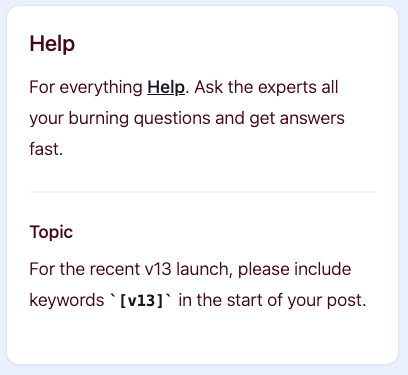
Describes the purpose and topic of your Feed. This section is linked to theDescription and Topic, respectively, of your Slack channels
and will be updated automatically when the channel is updated.
Sorting
Use the Feed sort select menu to choose the order the Feed posts are displayed.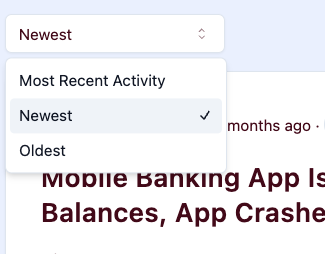
- Most Recent Activity - the posts with the most recent comments are displayed first
- Newest - the posts created most recently are displayed first
- Oldest - the oldest posts are displayed first
Display Settings
The default list view display setting is determined by the “List View Display” setting in the admin Feed settings. Users can also use the Feed post display select menu to choose the format in which Feed posts are displayed. User display setting preferences are remembered on a per-Feed basis.Snippet
Includes the body of the post, up to a certain length, and attachments.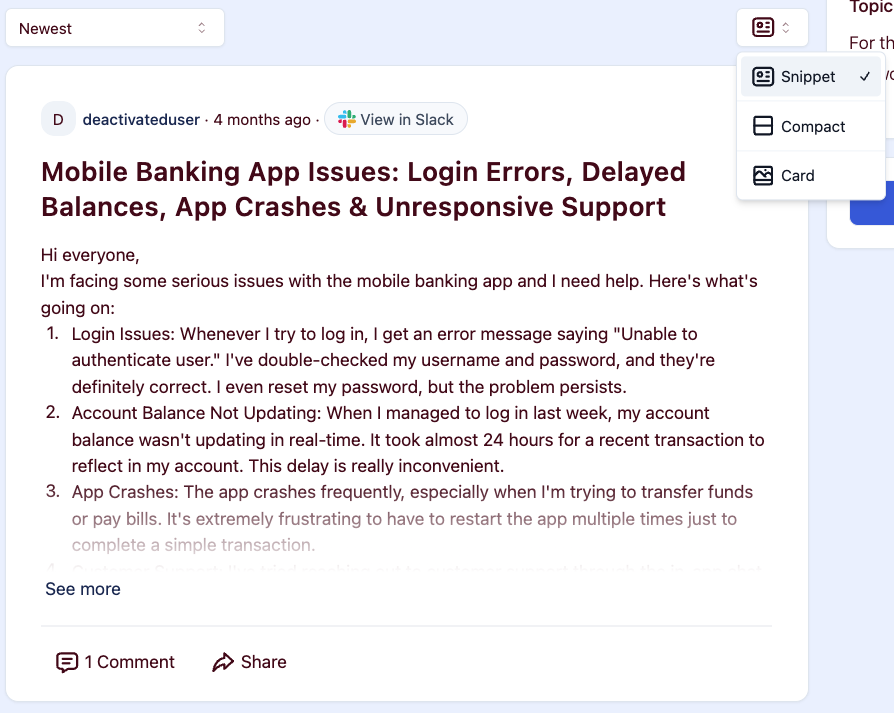
Compact
Displays only the title and some activity stats.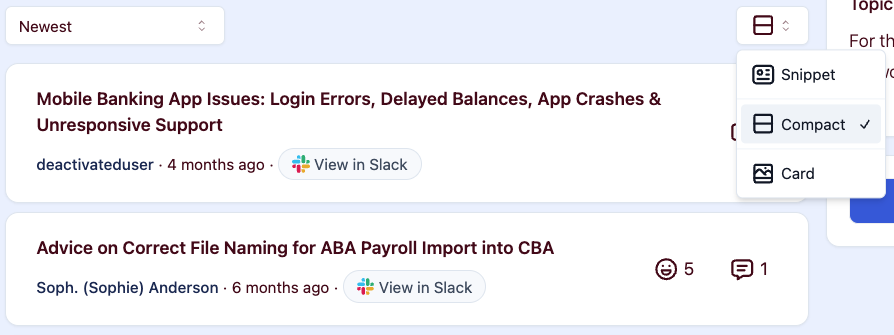
Card
Displays the post in a blog-like style, including a cover image and reading time. The cover image is the first image file attachment on the associated Slack message, if any.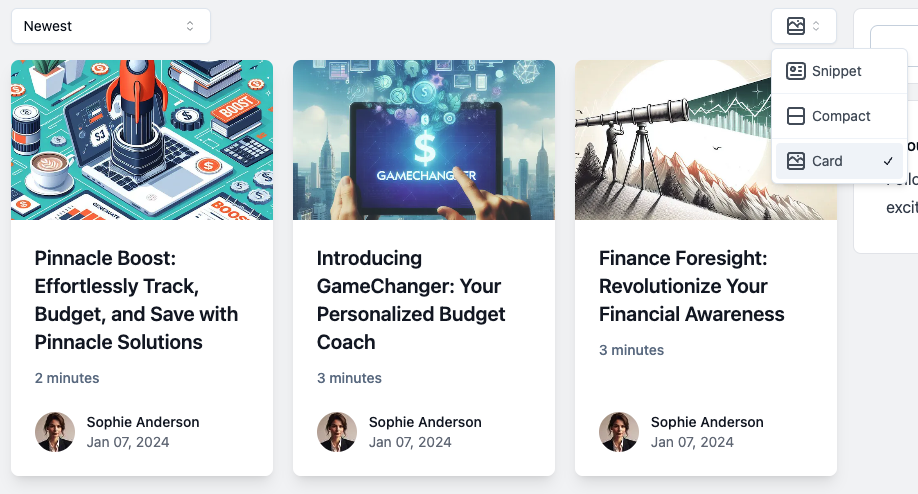
Changelog
Displays posts in a chronological timeline grouped by date, ideal for product updates and release notes. Each entry shows the full post body, author profile, and date.Share
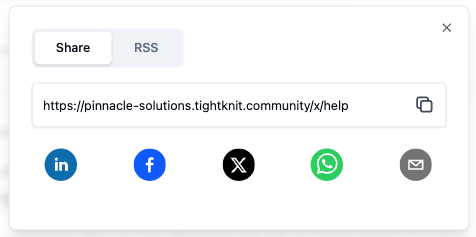
Click theShare button to bring up the Share modal.
Follow (RSS)
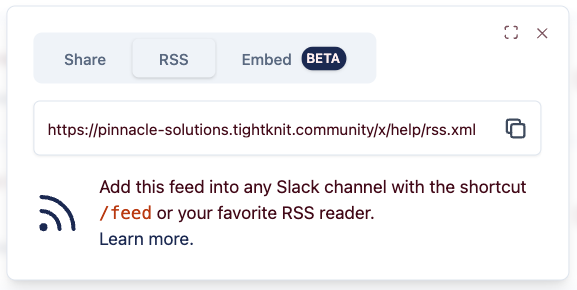
Click theFollow button to bring up the RSS modal.
Subscribing in Slack
Slack has a nifty tool to subscribe to RSS updates within a channel!Slack feed Command
Simply start typing a message in your channel and type /feed <RSS-LINK>,
where the RSS link is replaced with the link shown in the Tightknit RSS modal.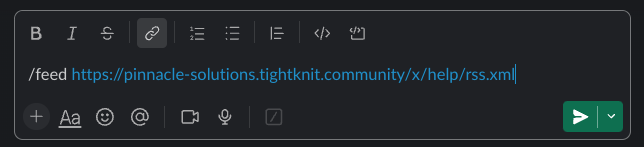
Subscribe
Once the command is entered, your Slack channel will now be notified every time there is a new post made in the Tightknit Feed.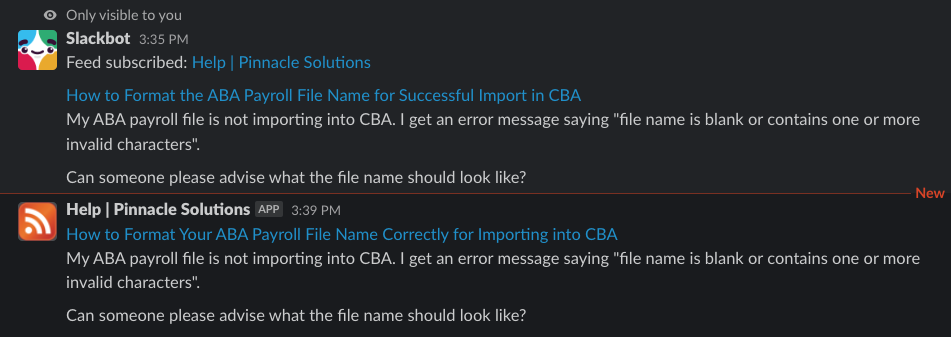
Embed (Beta)
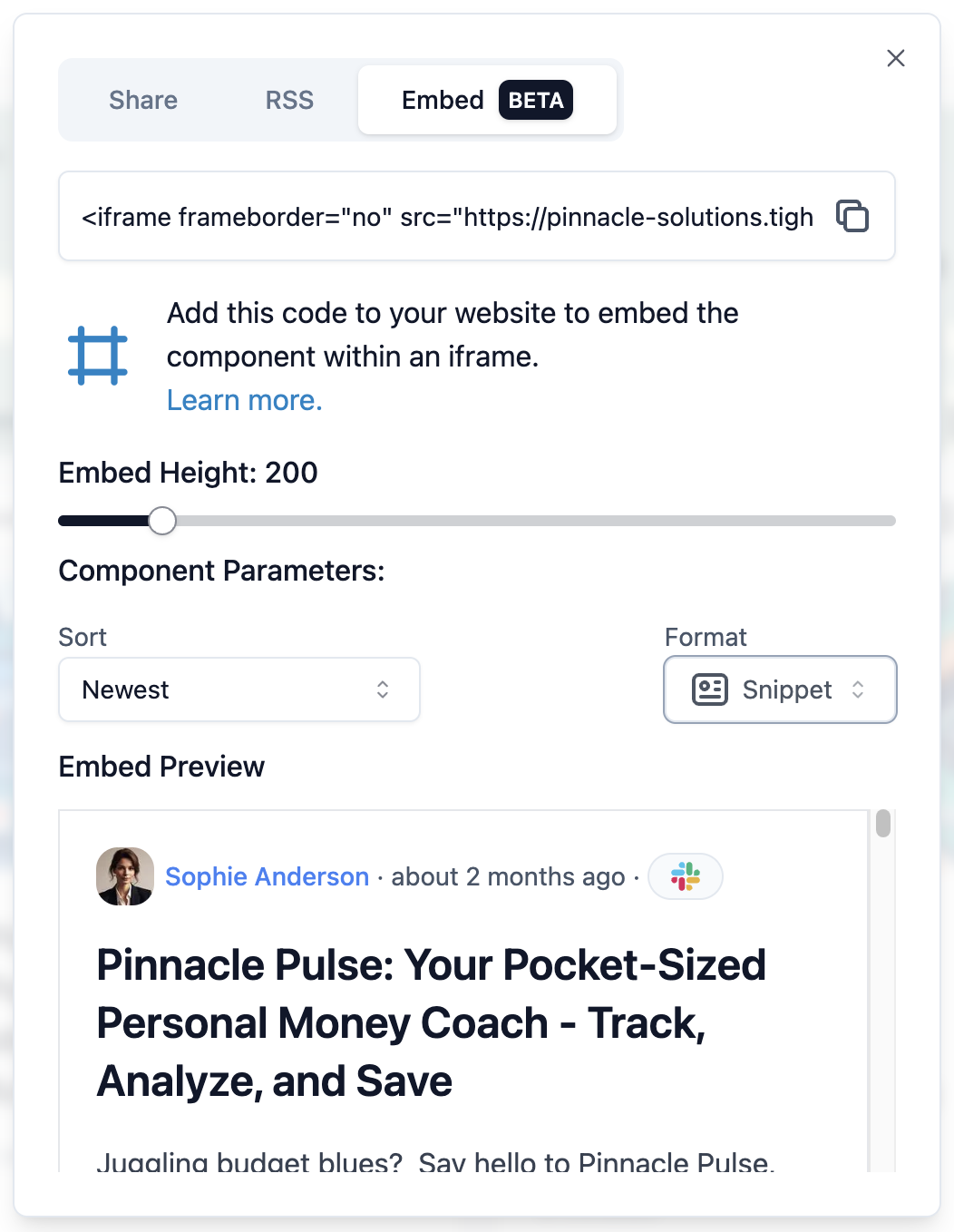
Click theEmbed tab within the Share/Follow modal to get the iframe code you can put in another website and embed the Tightknit Feed. The Embed Preview shows an example of what the iframe would look like with the provided parameters.
Post
The Post detail page displays a post and comments from a community Feed. Posts are sourced from messages in Slack and are updated automatically when the original message changes. Post detail pages are found at the URL path/x/<feed-slug>/<post-id>/<post-slug>.
Users will be redirected to this canonical URL if the post slug in the URL is omitted or incorrect.
The Post detail page generally includes:
- An auto-generated title
- The author
- The posted date (respects the original Slack message send date)
- A permalink back to the original Slack message
- Emoji reactions from the original Slack message
- All synced comments on the post, with the above info on each comment
Display Settings
The post detail display type is determined by the “Post Detail Display” setting in the admin Feed settings.Discussion
The Discussion display is best suited for chats, FAQs, and traditional forum posts.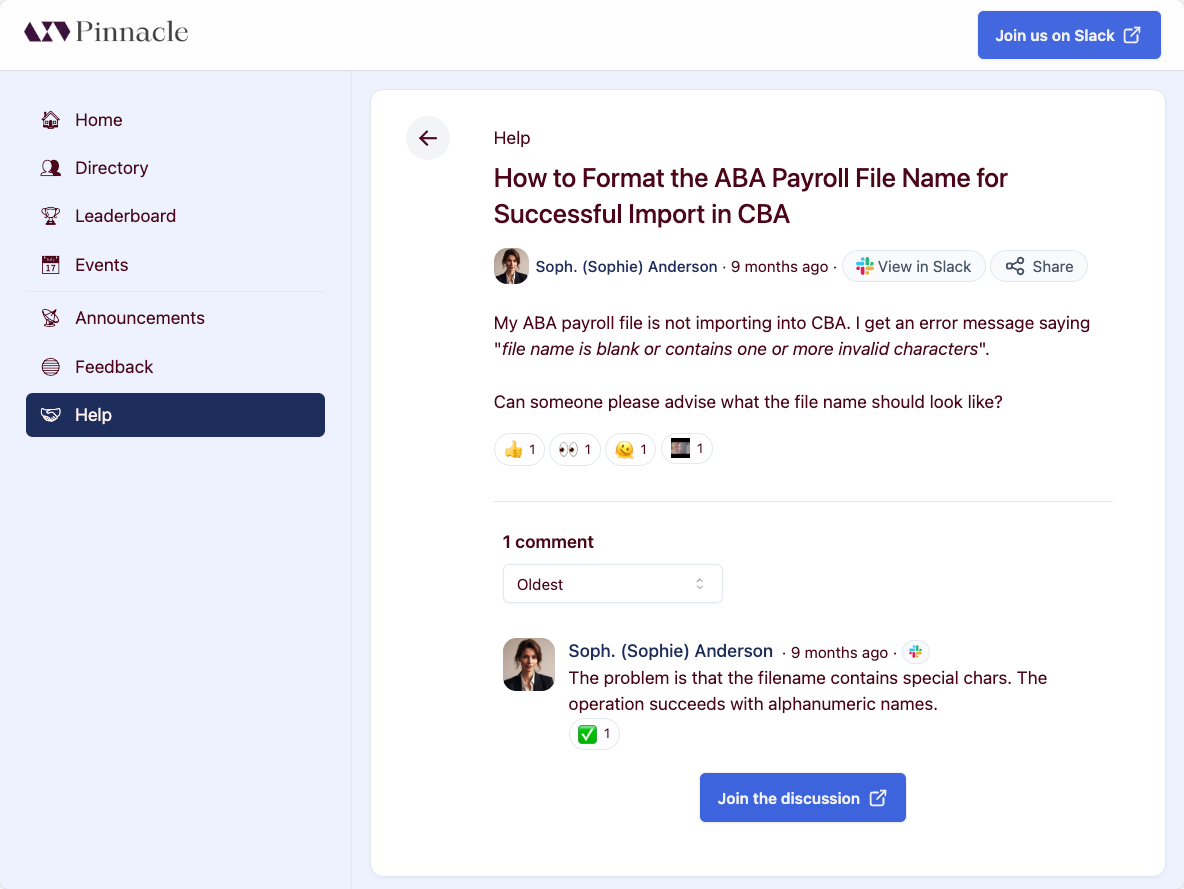
Blog
The Blog display is best suited for blog posts, where the cover image should take front and center. The cover image is the first image file attachment on the associated Slack message, if any, and is not included in the attachments section if there are additional files.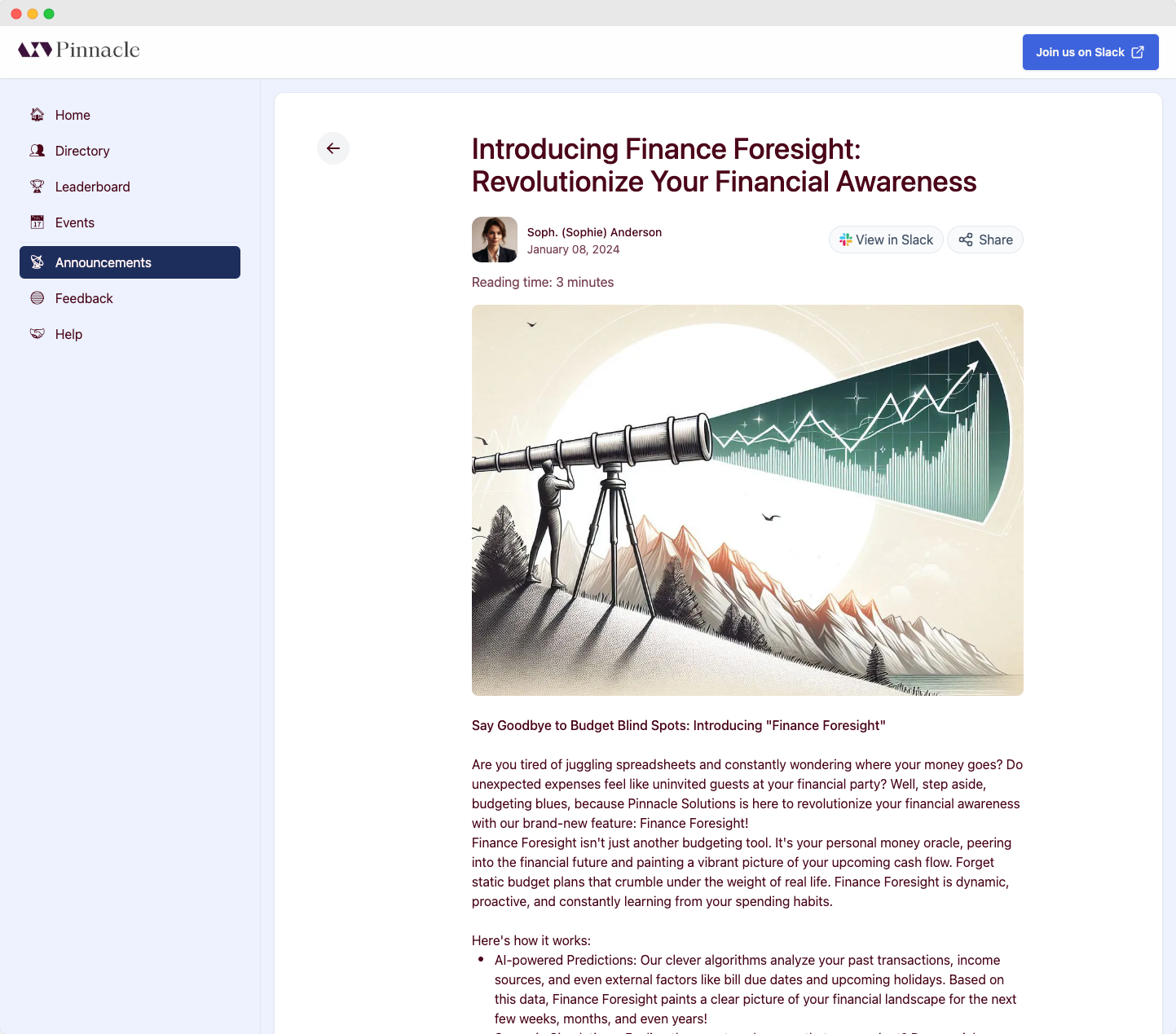
Related Posts
Related posts are displayed in a section at the bottom of the page.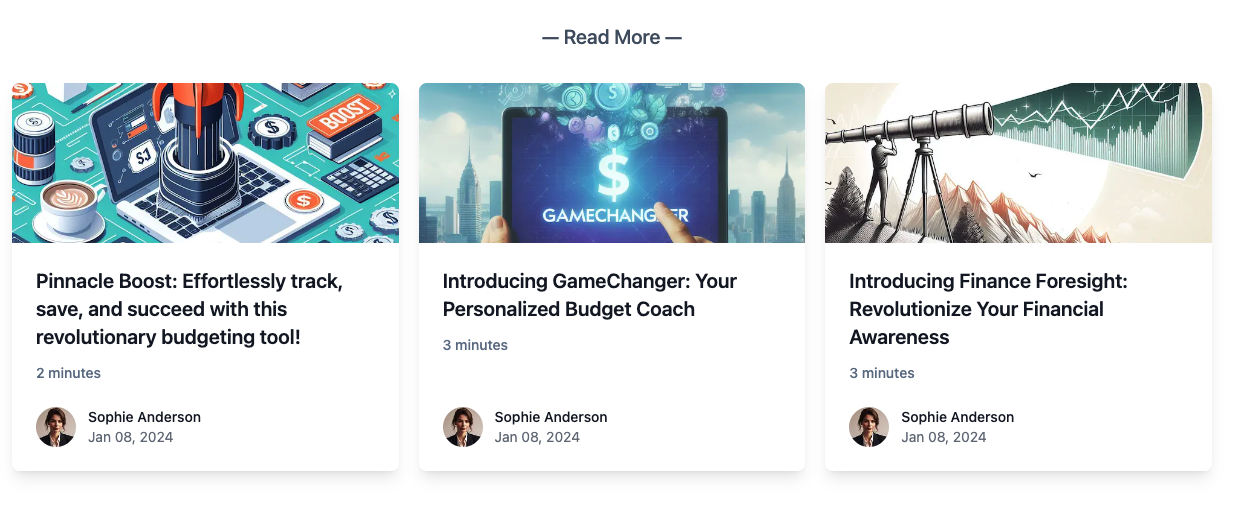
Related posts is currently in beta. Please reach out to
Support if you are interested in this feature.
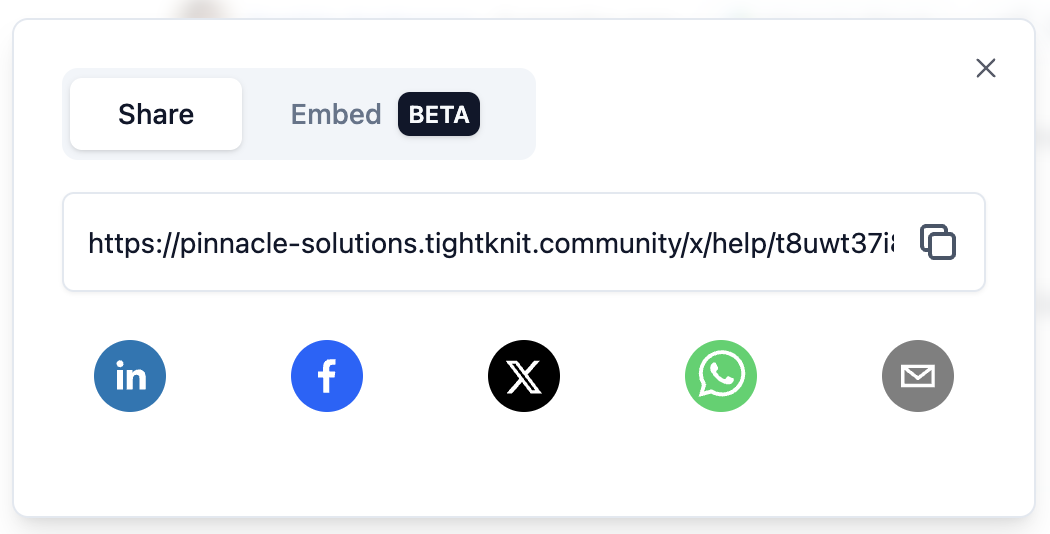
Share
Click theShare button to bring up the Share modal.

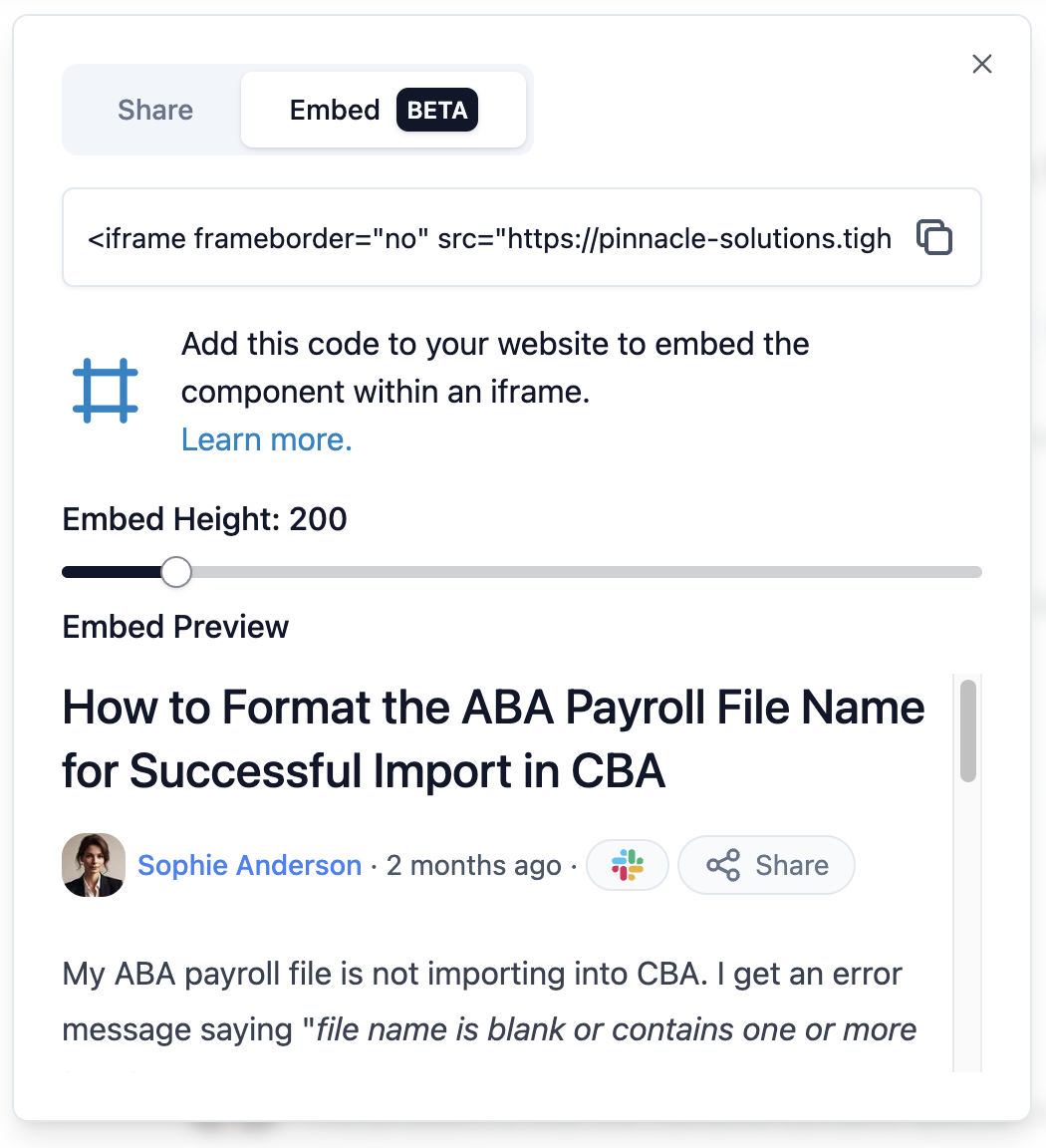
Embed (Beta)
Click theEmbed tab within the Share modal to get the iframe code you can put in another website and embed the Tightknit post. The Embed Preview shows an example of what the iframe would look like with the provided parameters.
Post Creation
Authenticated users can create new posts directly from the companion site at/post/new. Users can select a Feed to post to, compose their content, and publish. The post will be synced to the associated Slack channel.
Image Uploads
When composing a post, you can attach images directly in the editor. Images are embedded inline in the post body and also sync to the Slack message as image blocks.- Up to 10 images per post
- Supported formats: JPEG, PNG, GIF, WebP
- Maximum file size per image is determined by your plan settings
Link Previews
When composing a post, pasting a URL on its own line automatically generates an inline link preview card showing the page’s title, description, and image (sourced from the page’s Open Graph metadata). The preview is saved with the post and renders on both the companion site and in Slack (via Slack’s native unfurl). Link previews only appear when a URL is pasted on its own line. URLs included inline within a sentence remain as regular links.Post Editing
Post authors can edit their own site-created posts by clicking the actions menu on the post detail page and selecting Edit. You can modify both the title and body of the post. Edits are automatically synced back to the associated Slack message.Comment Editing
Comment authors can edit their own site-created comments inline by clicking the actions menu on a comment and selecting Edit. Edits are automatically synced back to the associated Slack thread reply.Events List
The Events List page displays the events in the community. Users can discover events and navigate to individual Event detail pages. The page has three tabs for filtering events by time:- All (default): Shows all events in a unified stream, with currently happening first, then upcoming in chronological order, then past in reverse-chronological order.
- Upcoming: Shows only future events in chronological order.
- Past: Shows only past events in reverse-chronological order.
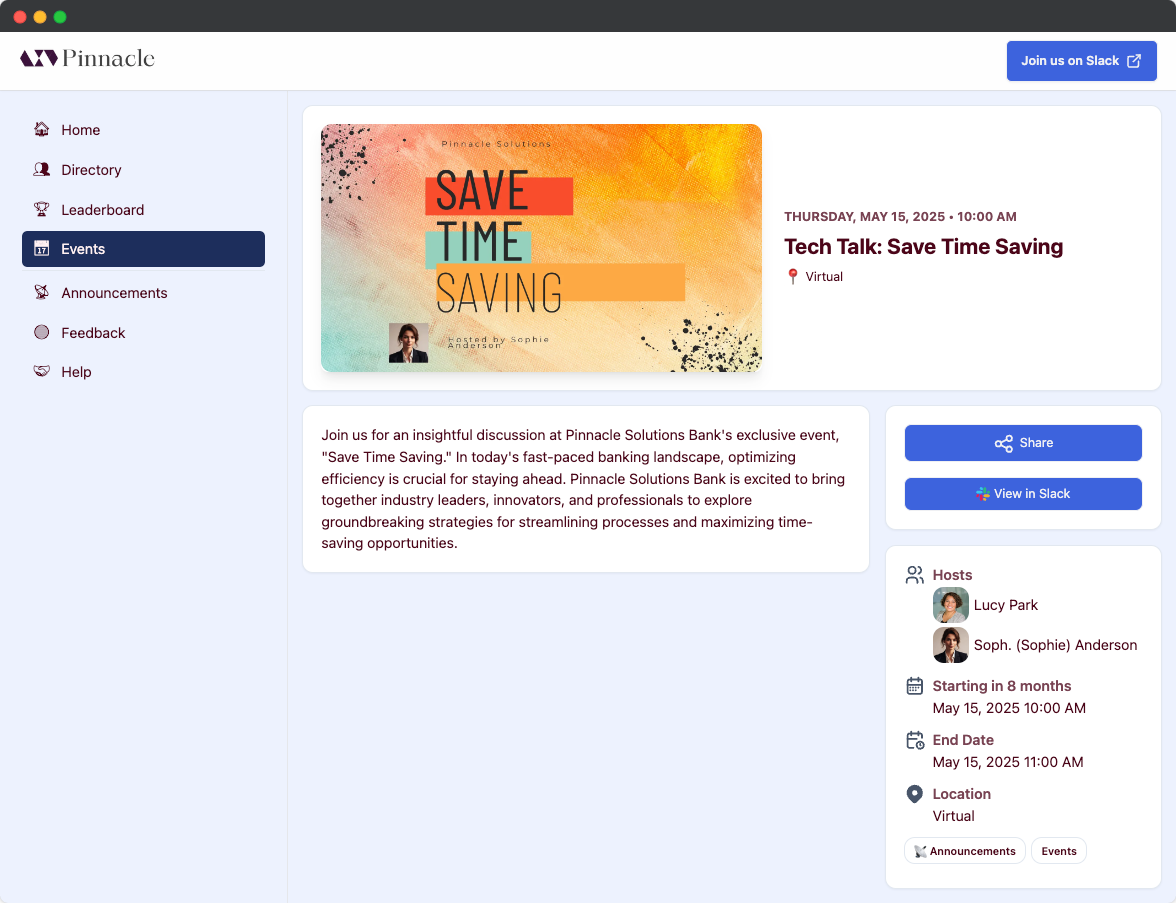
Event
The Event detail page displays information about a specific event, including:- Cover image
- Event details
- Call-to-action
- Registration buttons (coming soon)
- Recap and video recording (coming soon)
Groups List
The Groups List page displays the public user groups of the community. Group visibility can be configured in the Groups settings.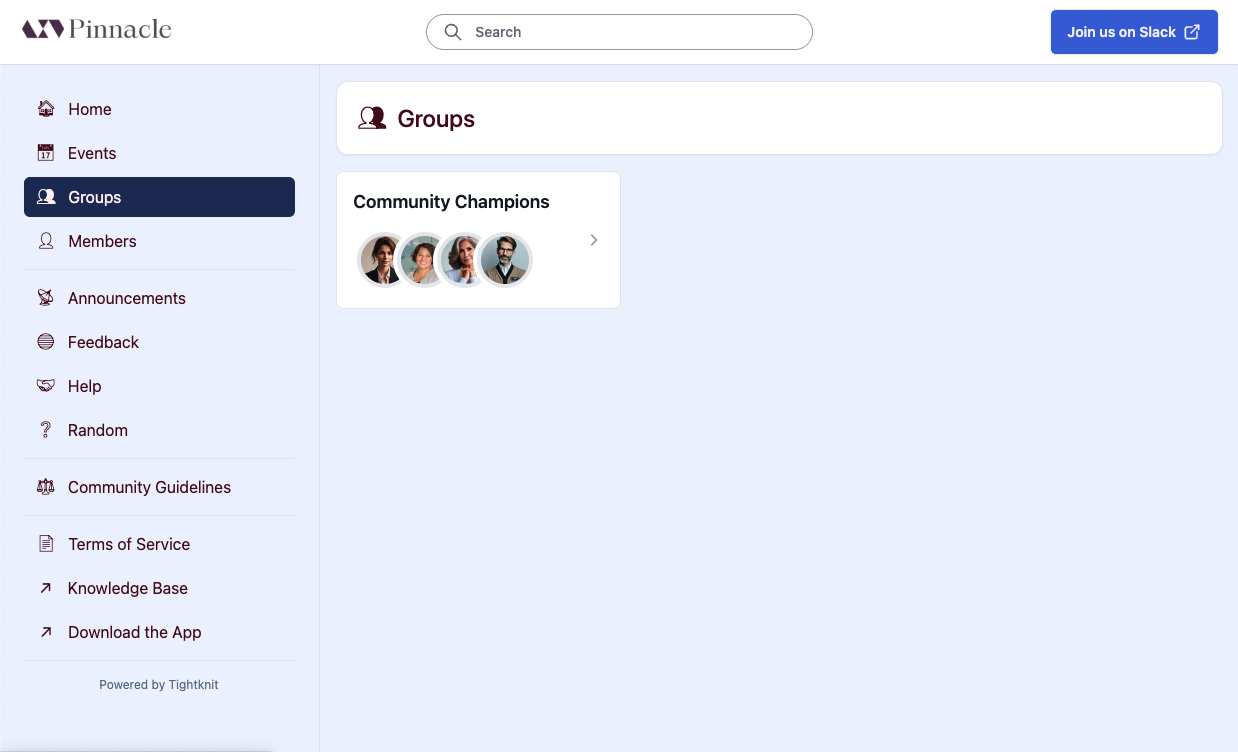
Group
The Group detail page displays information about a specific featured member Group, including the group members.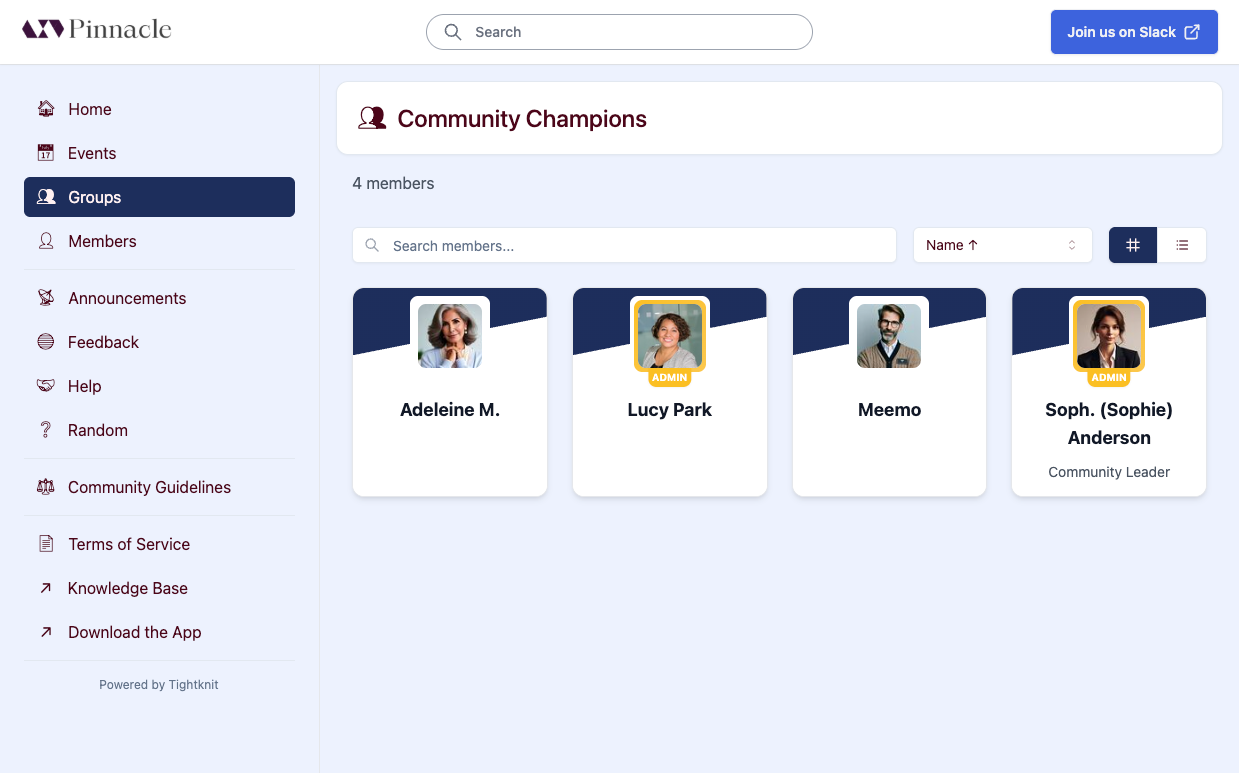
Members List
The Members List page lists the members of the community in a directory.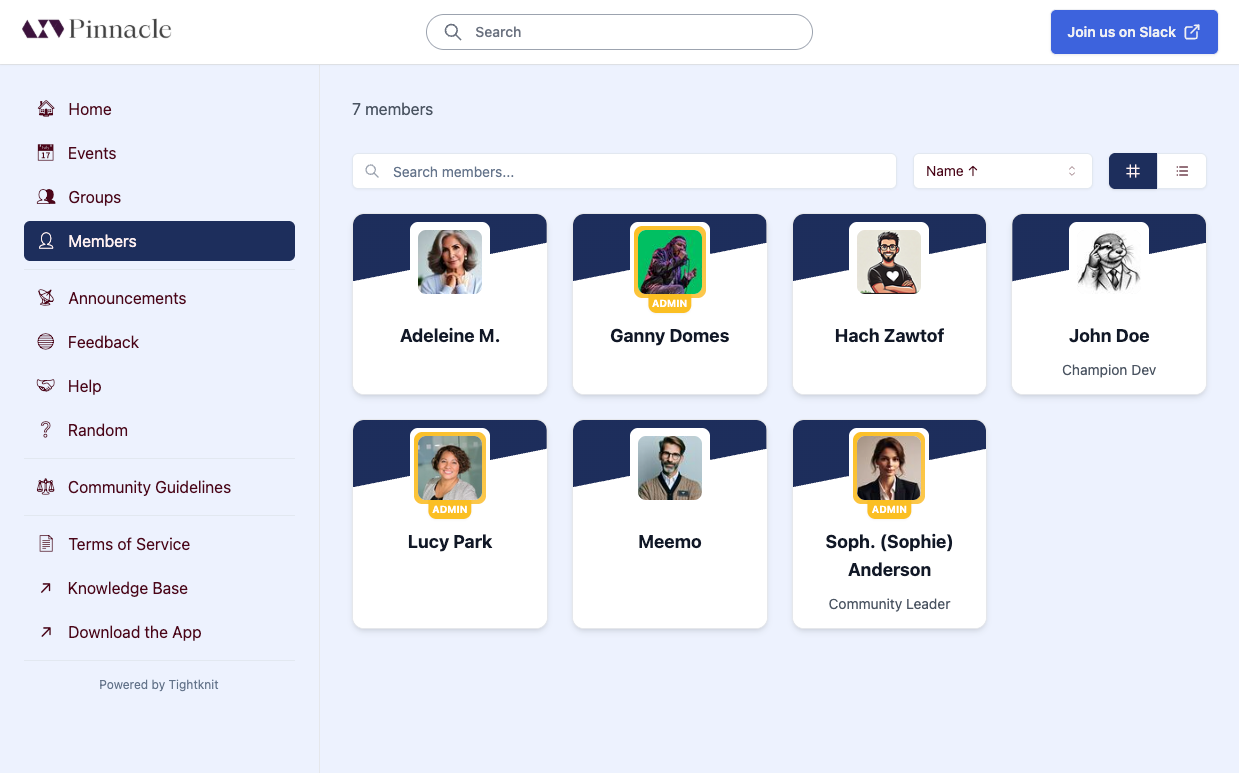
Profile
The Profile detail page shows the user’s info and activity within the community. Profile detail pages are found at the URL path/user/<profile-id>.
Note that the id belongs to the user’s Tightknit profile, not their Slack profile.
Admin users have ADMIN badge next to their name.
Users connected to Slack bots or apps will have an APP badge next to their name.
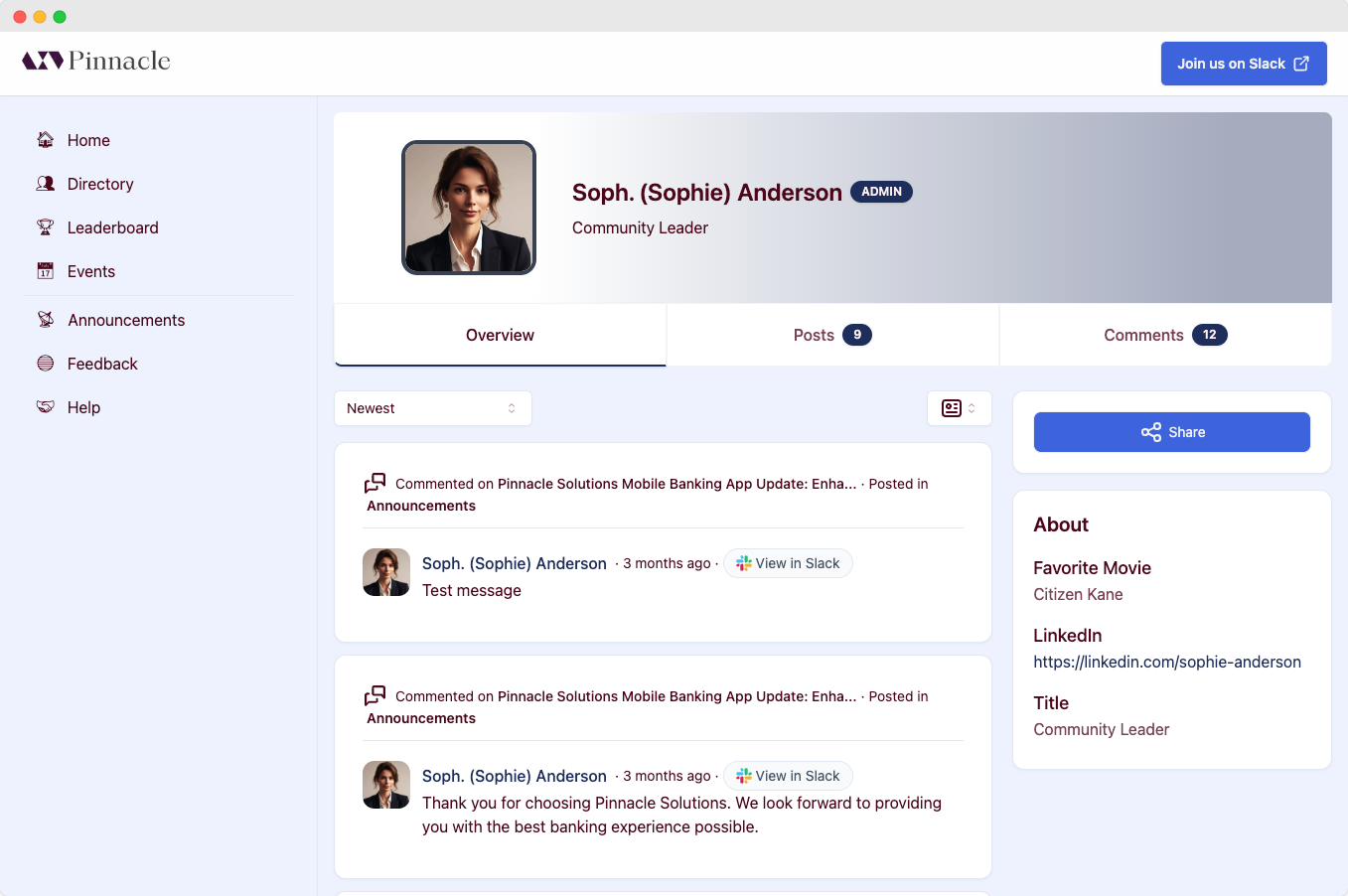
By default, the Tightknit companion site shows the full name from the user’s
Slack profile. Please contact Support if you
need a different name display style.
Profiles of bot users always display the full bot name and image from Slack.
If you prefer that bot profile images instead reflect your community logo,
please contact Support.
Profile Tabs
Overview
The Overview tab contains a Feed of the user’s combined post and comment activity in all Feeds, except unlisted Feeds. It also displays certain profile fields from the user’s Slack profile. The sidebar shows the user’s Awards & Badges, any public groups the user belongs to, and their About section with profile fields.Want to know when a user’s profile info is synced from Slack to the companion
site? See the Companion Site Sync Guide .
Posts
The Posts tab contains a count of the user’s authored posts and a Feed containing the user’s post activity in all Feeds.Comments
The Comments tab contains a count of the user’s authored comments and a Feed containing the user’s comment activity in all Feeds.Resources
The Resources List page displays content collections for the community. Each collection can contain curated resources organized by topic. Resource collection pages are found at the URL path/resources/<collection-slug>.
Tag Detail
The Tag detail page displays all content associated with a specific tag. Tag detail pages are found at the URL path/tags/<tag-slug>.
The page shows the tag’s label and description, along with all content associated with that tag.
Tag detail pages are linked from tag badges that appear on event cards, resource cards, and other content throughout the site.
Search
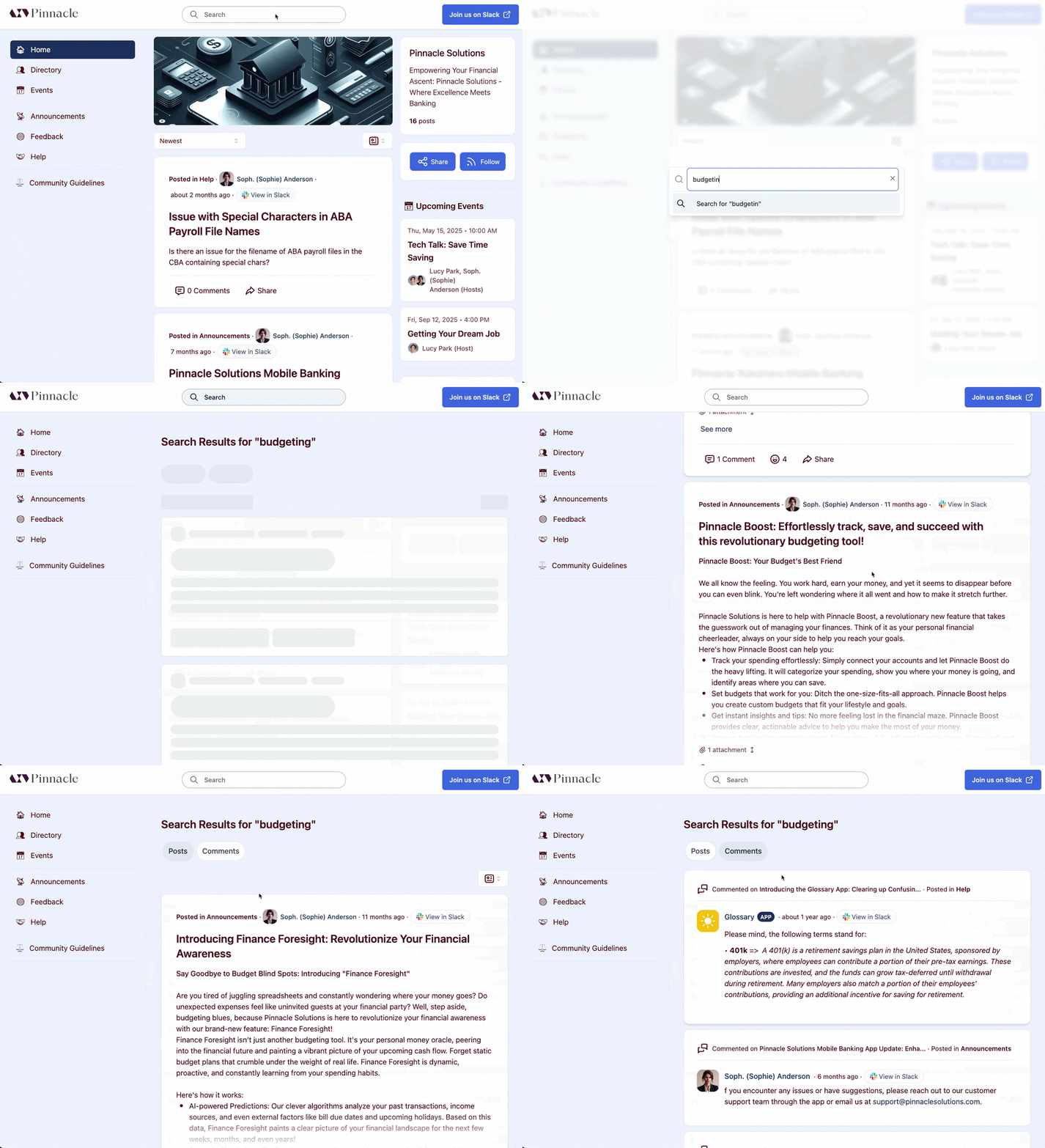
Search is currently in alpha. Please reach out to
Support if you are interested in this feature.
Community Guidelines
The Community Guidelines page displays the community guidelines, if you have configured guidelines in Tightknit settings.