
Overview
Tightknit’s Gamification module lets you:- Map Journeys that reflect how members progress in your community
- Define Milestones that track specific behaviors along those journeys
- Create Awards (badges, framed profile photos, and credentials) that recognize and celebrate completion
1. Access gamification in Tightknit
- Open the Tightknit app from your Slack sidebar.
- In the Tightknit Home view, navigate to the Gamification section.
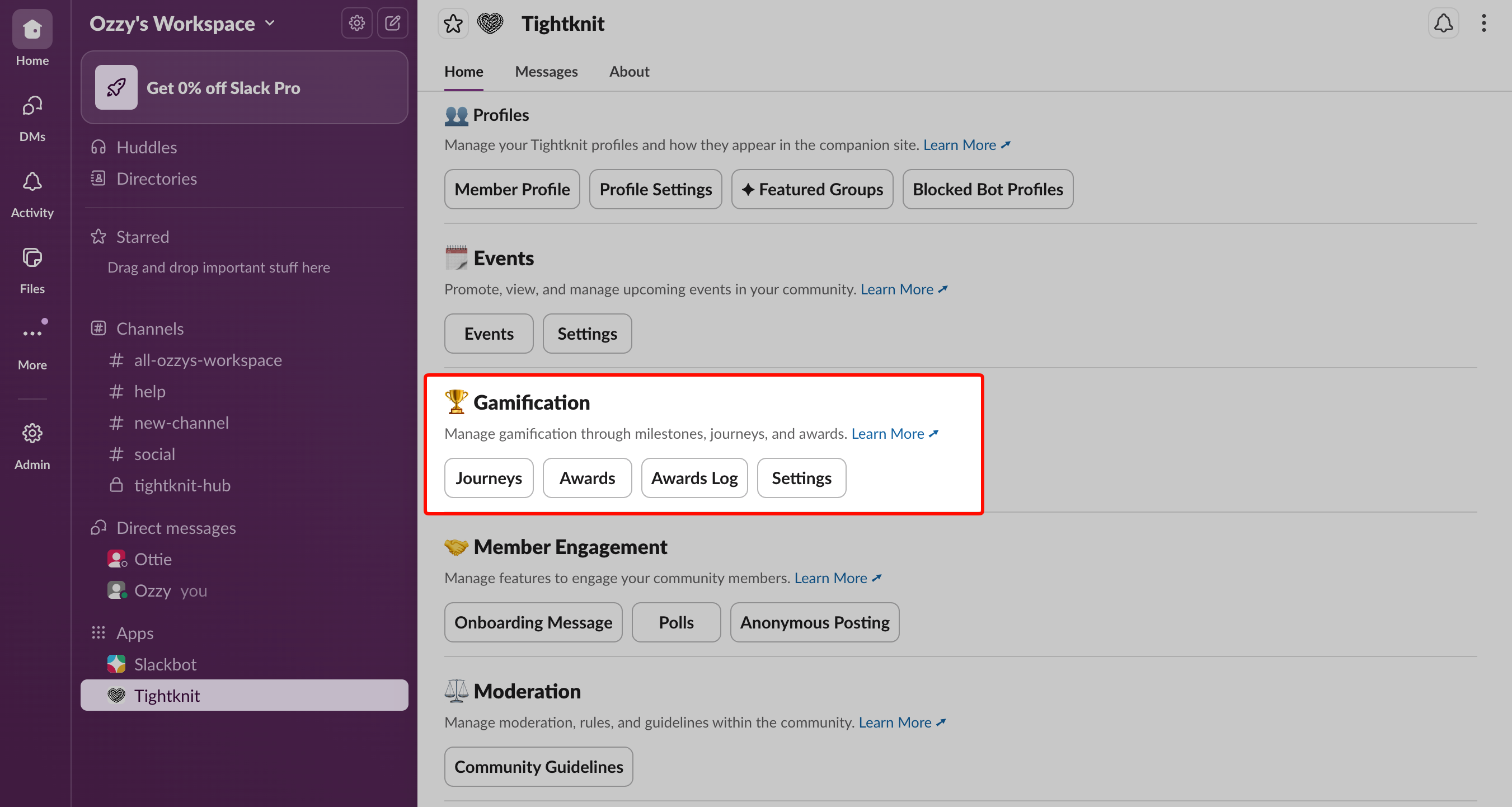
Gamification section in Tightknit Home
2. Create member journeys
Journeys represent the paths you want members to take in your community (for example: “New member → Confident participant”). A Journey is a collection of Milestones. Members must complete each Milestone in the Journey, in any order, to receive the Journey’s reward.Access the journeys list
In the Gamification module, click the Journeys button. This opens the Journeys List panel, where you can:- Create new Journeys
- Edit existing Journeys
- Manage Milestones within each Journey
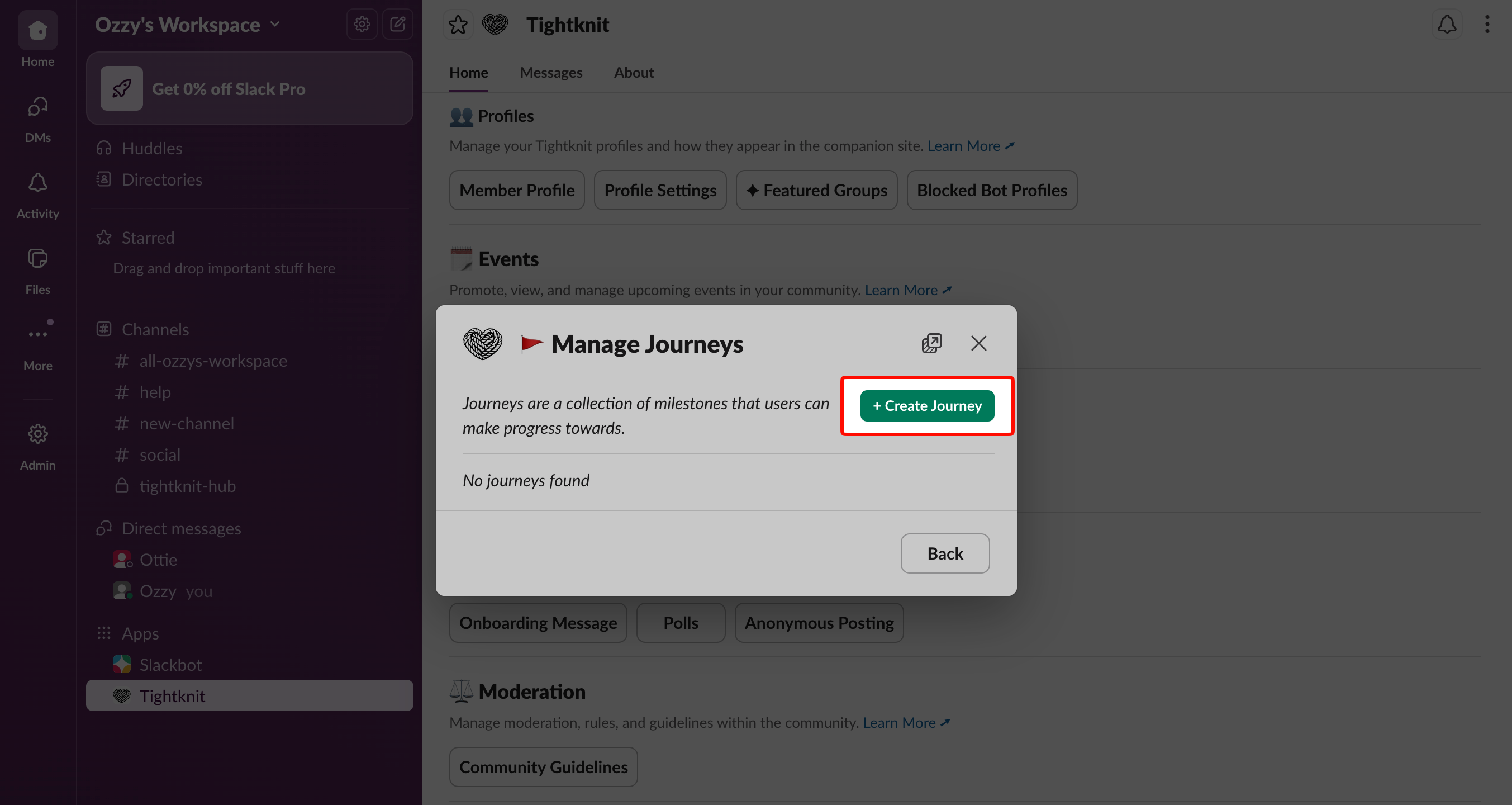
Journeys list panel
Configure a journey
When you create or edit a Journey, you can configure:- Name — The name of the Journey as members and admins will see it.
- Completion Window — The time period during which members’ actions count toward this Journey.
- Start Date — When actions begin counting toward Milestones in the Journey.
- End Date — When actions stop counting. Once a Journey passes its End Date, it is set to Inactive. If you leave End Date blank, the Journey stays open indefinitely.
- Award (optional) — The Award a member receives when they complete all Milestones in this Journey.
- Activation — The publication status of the Journey:
- Active: visible and available to members.
- Inactive: hidden from members and not trackable.
- The Journey is activated, and
- Their actions occur within the Journey’s completion window.
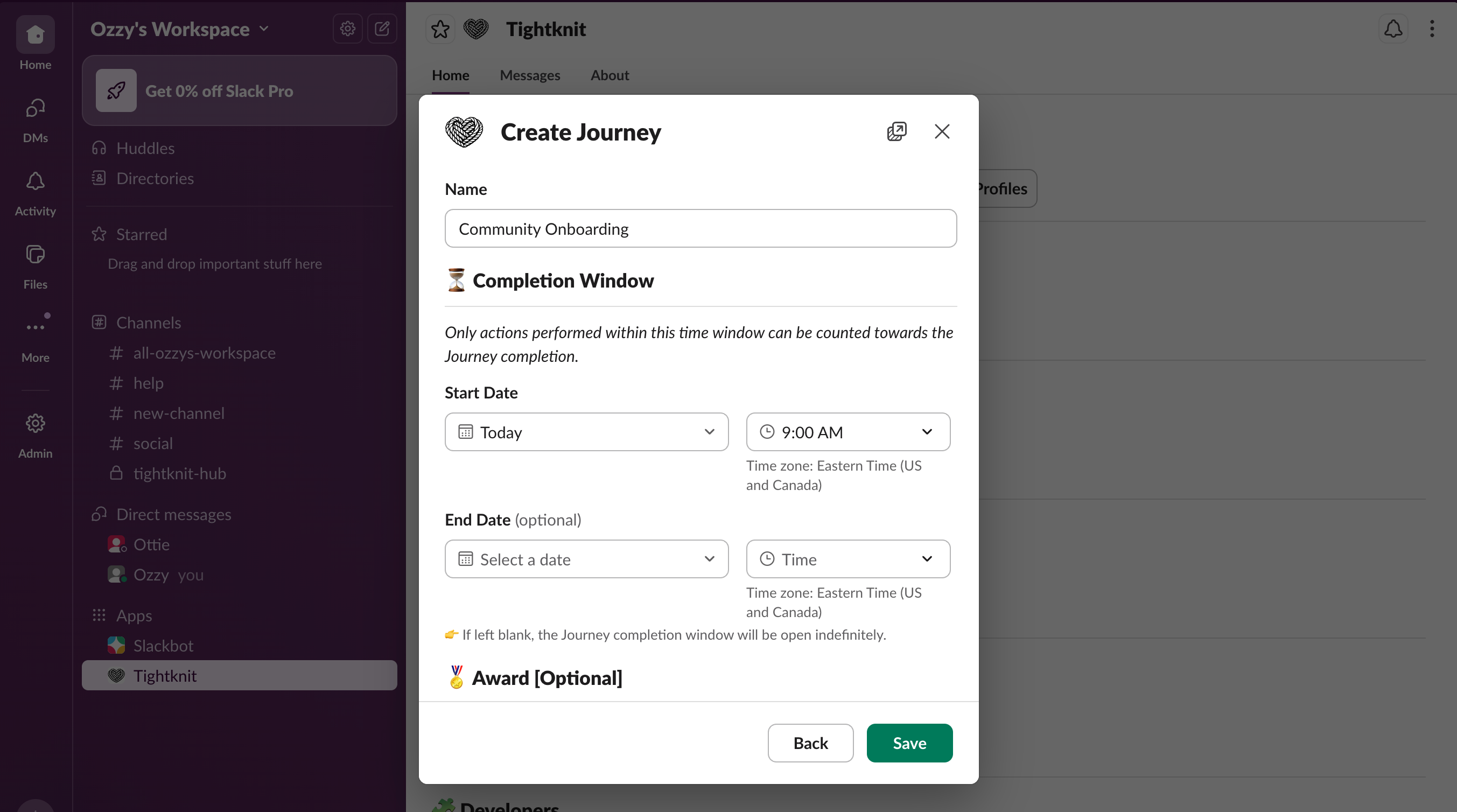
Journey configuration form
3. Define milestones for each journey
A Milestone is a specific goal or behavior a member must achieve as part of a Journey. Each Milestone belongs to exactly one parent Journey.Manage milestones for a journey
- In the Journeys List panel, find a Journey.
- Click the menu next to that Journey.
- Select Manage Milestones.
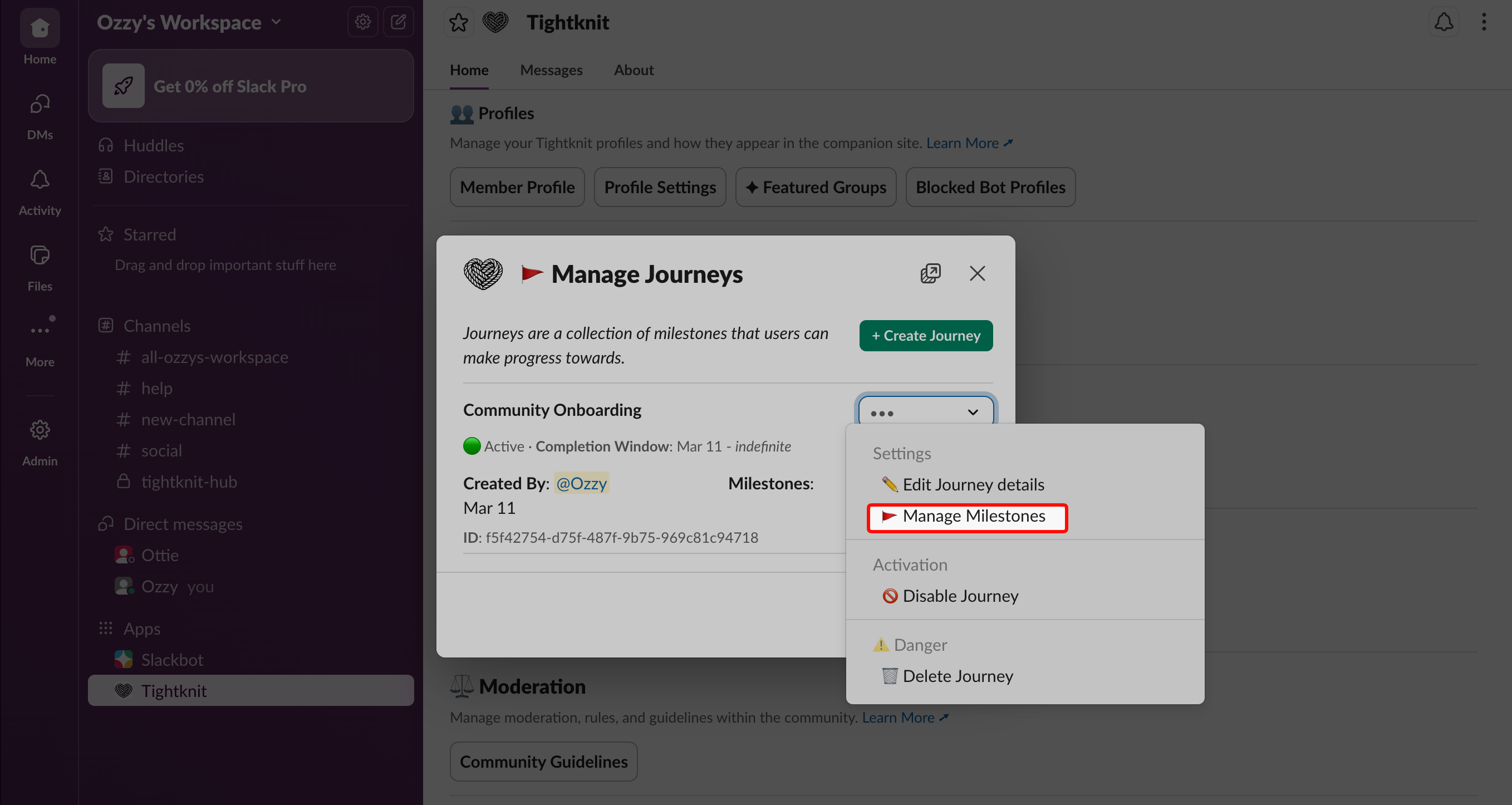
Manage Milestones menu option
Create a new milestone
From the Manage Milestones view:- Click the Create Milestone button.
- Configure the Milestone:
- Name — The label for this Milestone (for example, “Introduce Yourself”).
- Action — The action type that will count toward this Milestone, such as “Post in channel” or “Reply in thread”.
- Count Threshold — For supported action types, the number of actions required to complete the Milestone. Example: for a “Post in channel” Milestone with Count Threshold = 1, a member must post 1 time in that channel to complete the Milestone.
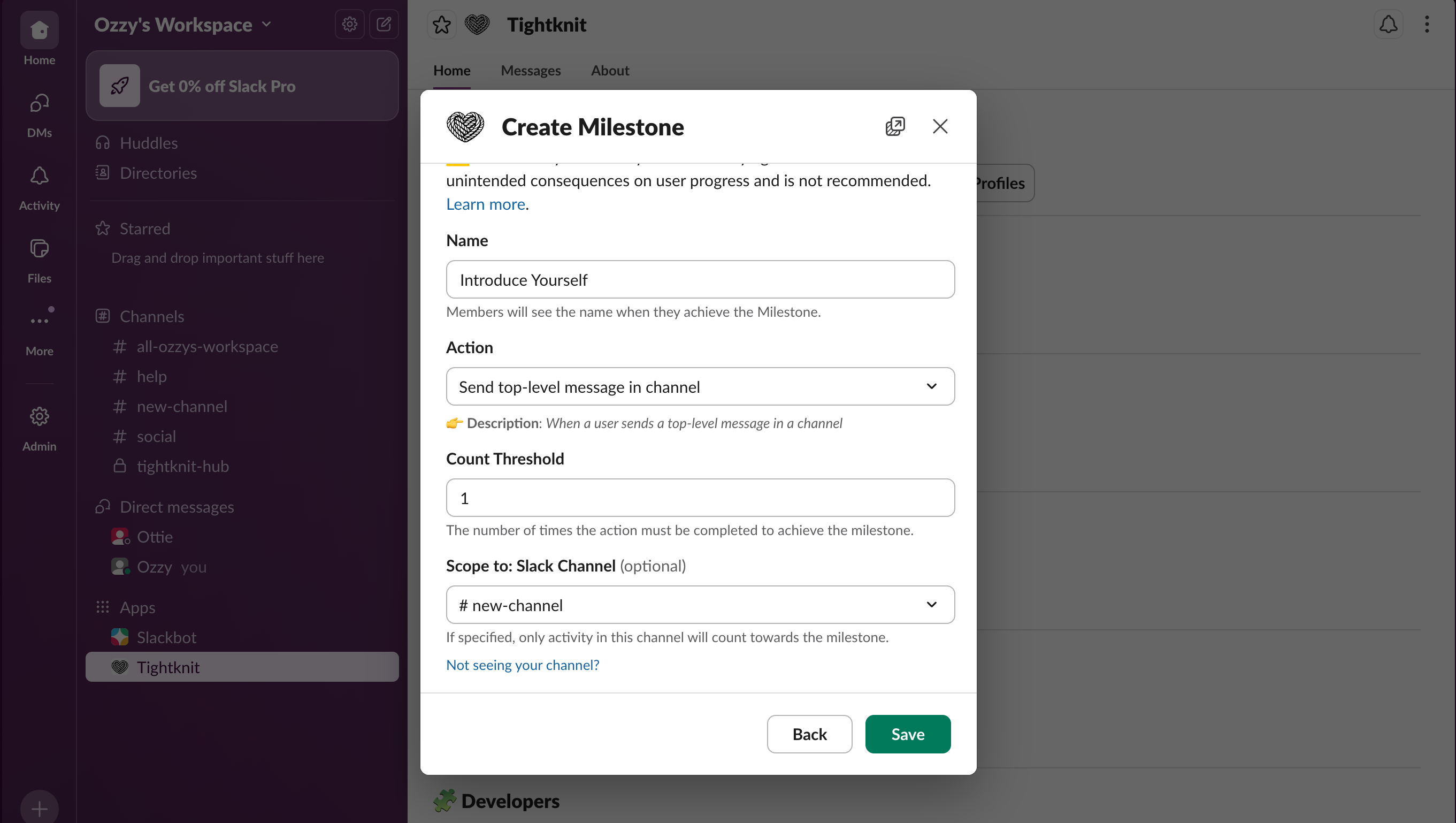
Milestone creation form
- Posting helpful questions or updates in key channels
- Replying with thoughtful answers in support or discussion threads
- Participating in events (RSVPs, live chat, follow-up threads)
Completing a journey
When a member completes all Milestones in a Journey:- They receive a private notification.
- If an Award is configured for that Journey, it is automatically given at completion.
4. Set up awards and recognition
An Award is the core recognition object in Tightknit gamification. It can include one or more of:- A badge
- A profile photo frame
- A credential / certificate
Badge
A Badge is a visual marker or icon that:- Recognizes specific achievements (for example, completing a Journey)
- Indicates exclusive status (for example, membership in a Group)
Profile photo frame
A profile photo frame lets recipients generate a framed version of their profile photo:- Members can show off achievements clearly within the community.
- Framed photos can also be used externally (for example, on social profiles).
- Helps other members quickly identify contributors and experts
Credential / Certificate
Awards can include credential-style elements that:- Support LinkedIn sharing
- Provide a more “official” artifact of the achievement
Create an award
In the Awards section of the Gamification module, click Create Award.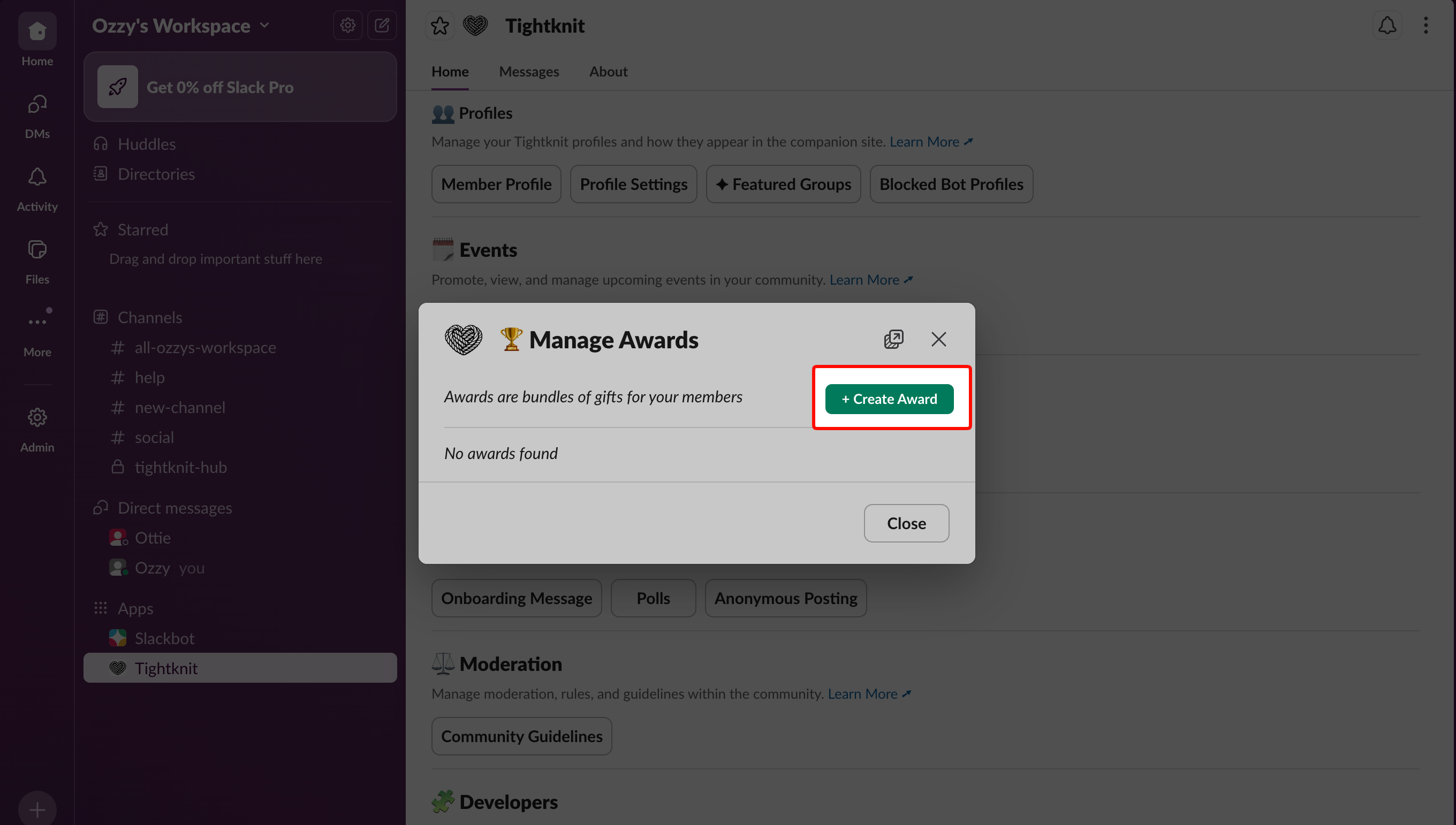
Create Award button in the Awards section
- Name
- Award Description — What this Award represents and under which conditions it is given.
- Default Award Message — The default message sent to the member when they receive this Award. This can be overridden when giving an Award manually.
- Can be given by non-admins — If enabled, members with the “Give Award” permission via a Permission Set and admins can give this Award. If disabled, only admins may give this Award.
- LinkedIn Sharing — If enabled, the notification includes an Add to LinkedIn button. This opens a pre-filled form to add a new License & certification entry to the member’s profile. The framed profile photo message also includes instructions for sharing the award in a LinkedIn post.
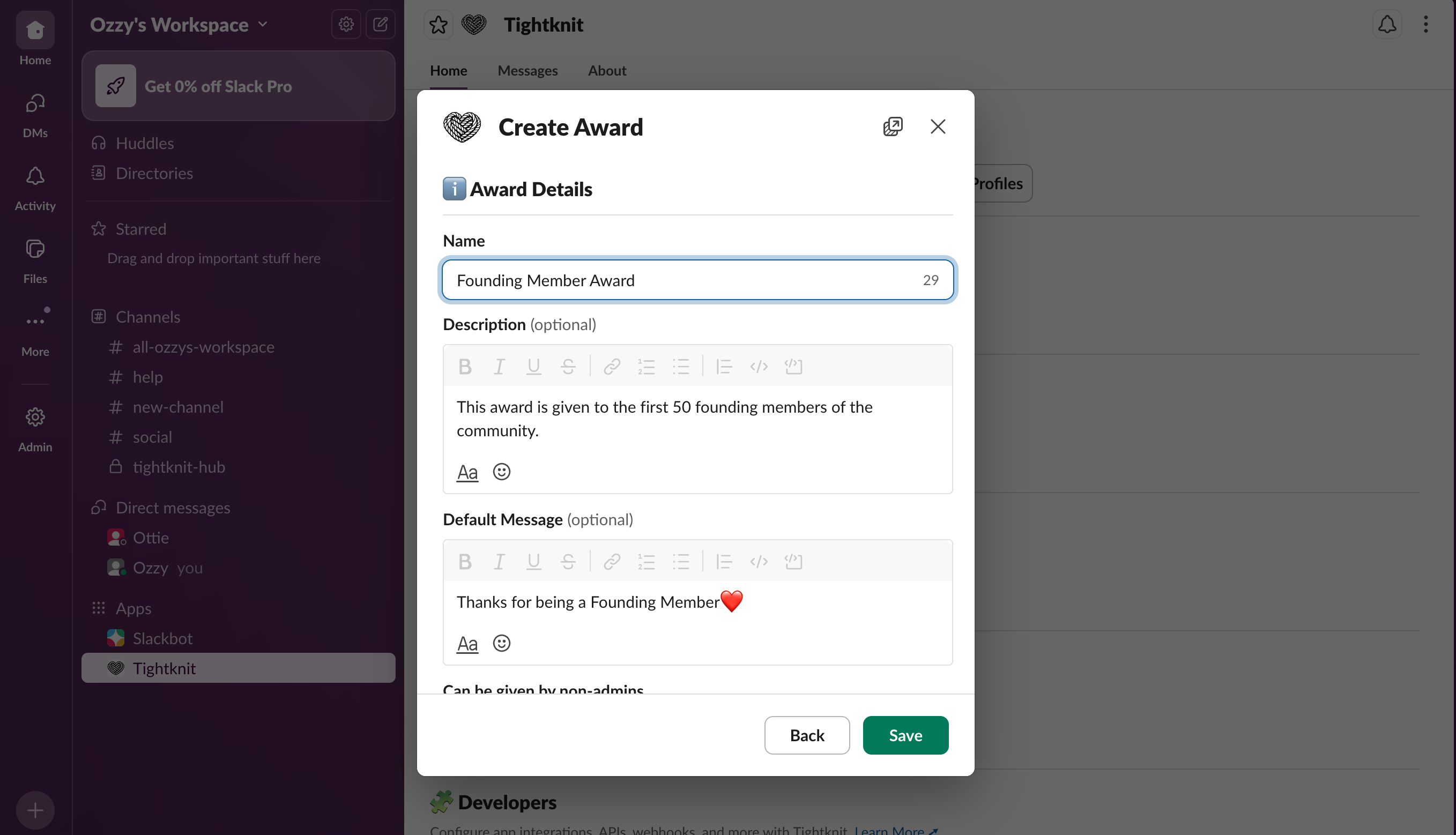
Award configuration form
- Upload a badge image or frame for the Award (see branding guide for badge templates).
Receiving an award
When a member receives an Award, they get a private notification that includes:- Who sent the Award (unless it was sent anonymously)
- The Award message
- The badge image (if configured)
- The Award description
- Action buttons (for example, add to LinkedIn, view profile, etc.)
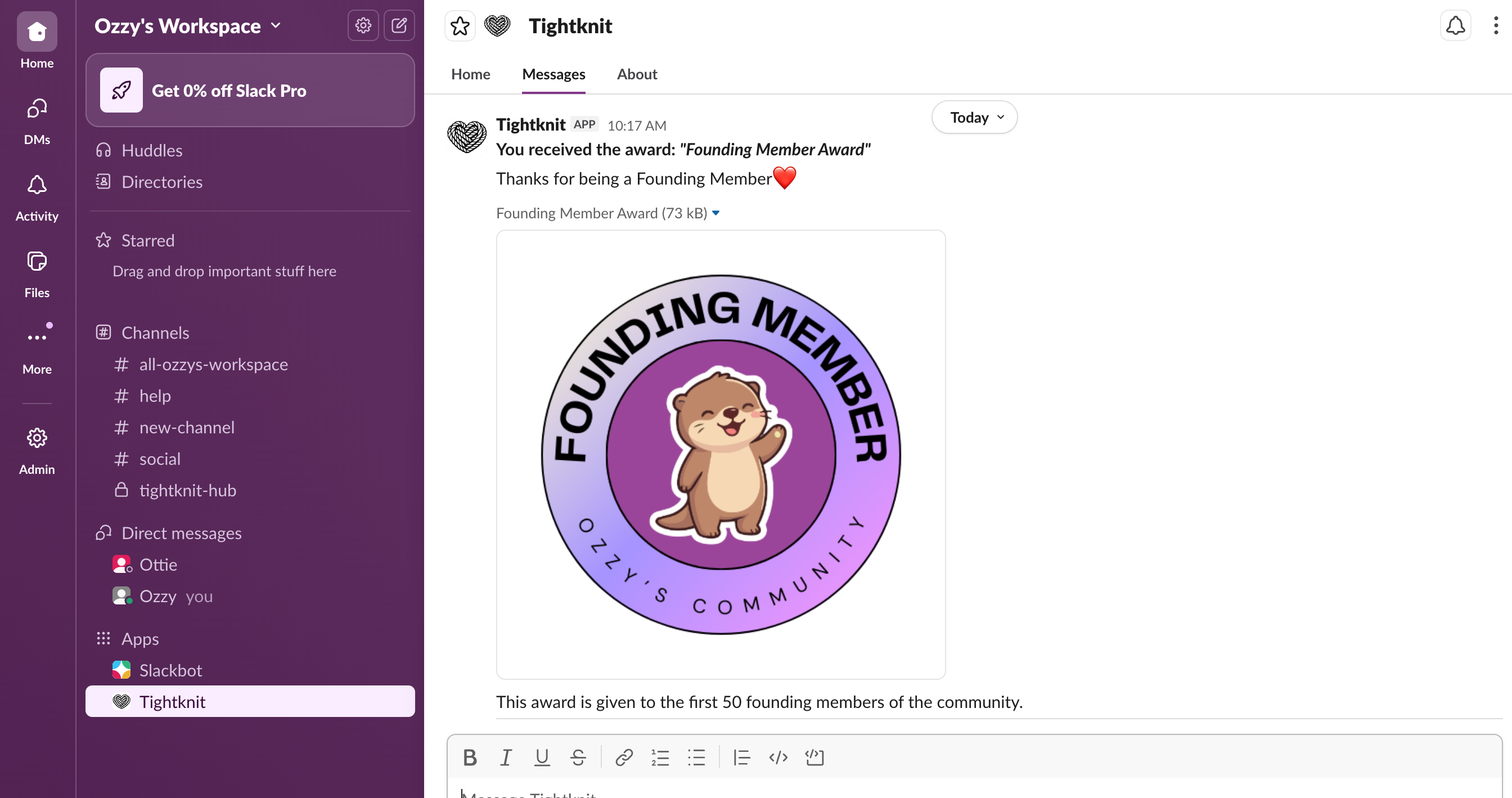
Award notification sent to a member
5. Connect gamification to real community goals
To avoid “points for points’ sake,” always tie Journeys, Milestones, and Awards back to real goals.- Double-check that every rewardable action supports a real outcome, such as:
- Better support quality — More accurate answers in support or security channels.
- Deeper product adoption — Members sharing use cases, playbooks, or best practices.
- Stronger cohort engagement — Participation in premium or programmatic channels, events, or cohorts.
- Decide how you will celebrate milestones, beyond the automated Award:
- Shout-outs in
#celebrationsor recap posts. - Access to special channels, cohorts, or events.
- Shout-outs in
6. Monitor impact in Tightknit Studio
Use Tightknit Studio to see whether gamification is driving the right behavior.- Open Tightknit Studio in your browser.
- Select a time range that starts before you launched gamification and extends at least 1–2 weeks after.
- Track changes in:
- Total messages and replies
- Active members vs. total members
- Activity in channels tied to your Journeys and Milestones
- Qualitatively assess whether:
- The quality of conversation is improving
- New contributors are participating, not just existing power users
Troubleshooting
Only a small group of power users are earning all the recognition
Only a small group of power users are earning all the recognition
- Add on-ramp rewards for early milestones (First Post, First Answer, first event attended) to give newer members quick wins.
- Create a “Most Improved” or participation-based badge that highlights growth, not just top volume.
Gamification feels confusing to members
Gamification feels confusing to members
- Share a short explanation post in a main channel outlining what is rewarded and why.
- Keep the number of Journeys, Milestones, and Awards small at first so members can understand how to participate.
You are not seeing any impact in the metrics
You are not seeing any impact in the metrics
- Confirm that your Journeys and Milestones target high-traffic channels and are linked to visible Awards or shout-outs.
- Run a time-boxed experiment (for example, a 2-week challenge) and promote it more actively to test whether visibility, not incentives, is the bottleneck.