

1. Install Tightknit
- Visit tightknit.ai and click Add to Slack
- Select your workspace and grant the requested permissions
- Click Allow, then Open Slack
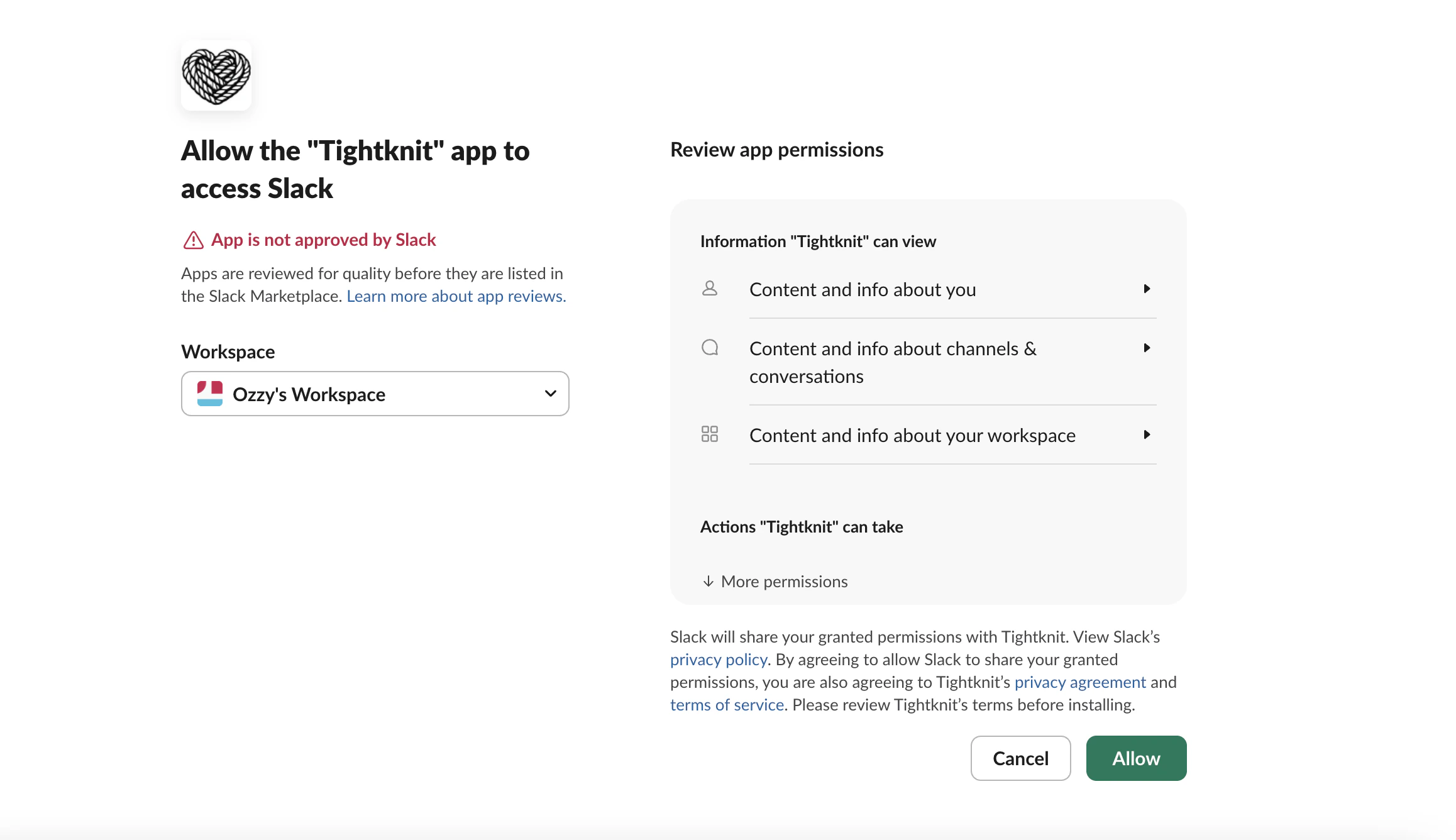
Installing Tightknit to your Slack workspace
2. Open Tightknit inside Slack
- Find the Tightknit app in your sidebar (or search for it)
- On the Home tab, click Tightknit Settings → Getting started
- Star the app to keep it pinned in your sidebar
3. Create the community site
- On the Tightknit Home tab, scroll to Community Site
- Click Create Community Site and follow the wizard
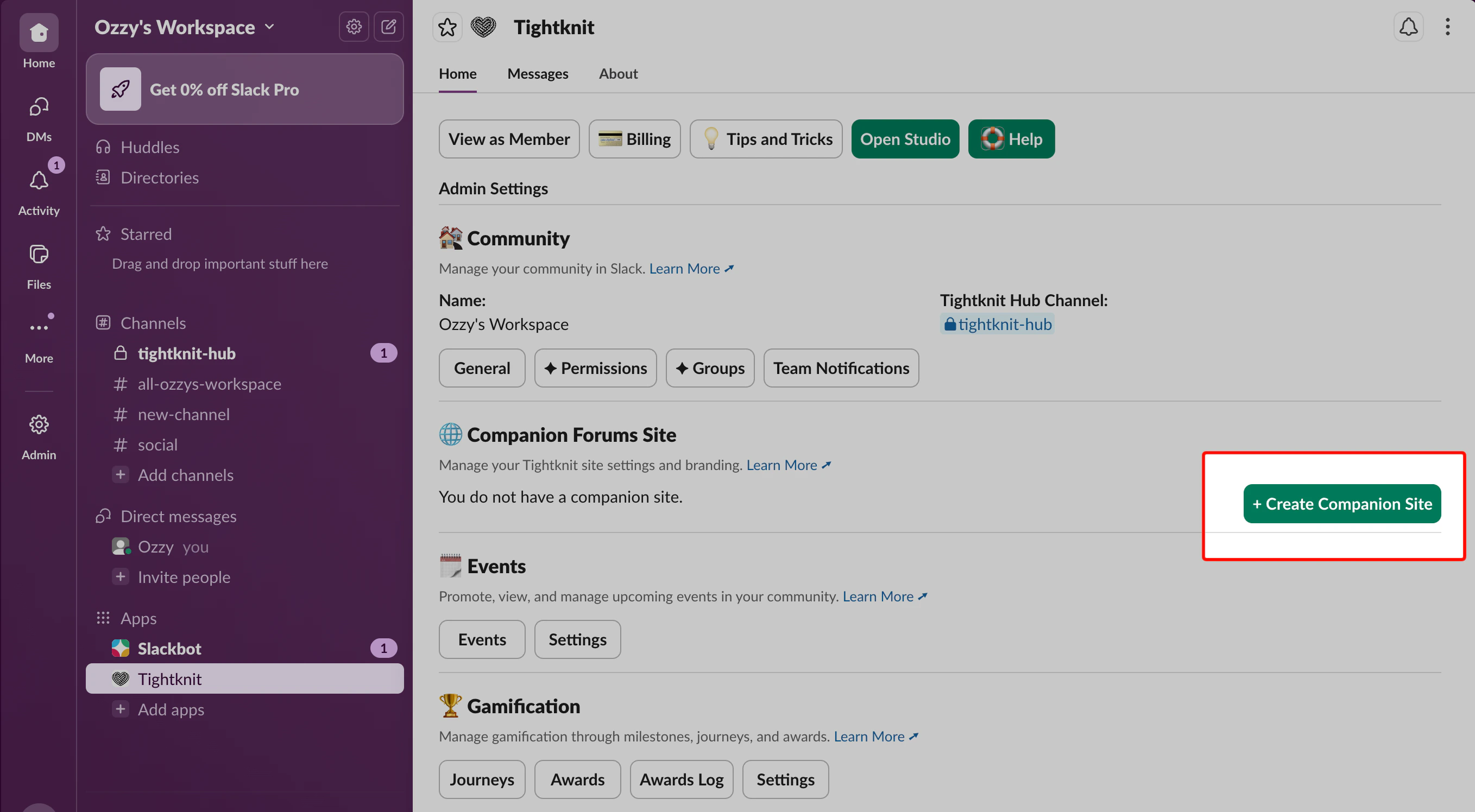
Creating your community site
4. Connect a Slack channel to Tightknit
- In the setup flow, scroll to Channel Setup
- Choose a channel to connect (e.g.,
#helpor#general) - Click Submit to activate.
5. Connect a Feed to the Community Site
- In the setup flow, scroll to Feed Setup
- Choose the same channel you just activated
- Click Submit to activate.
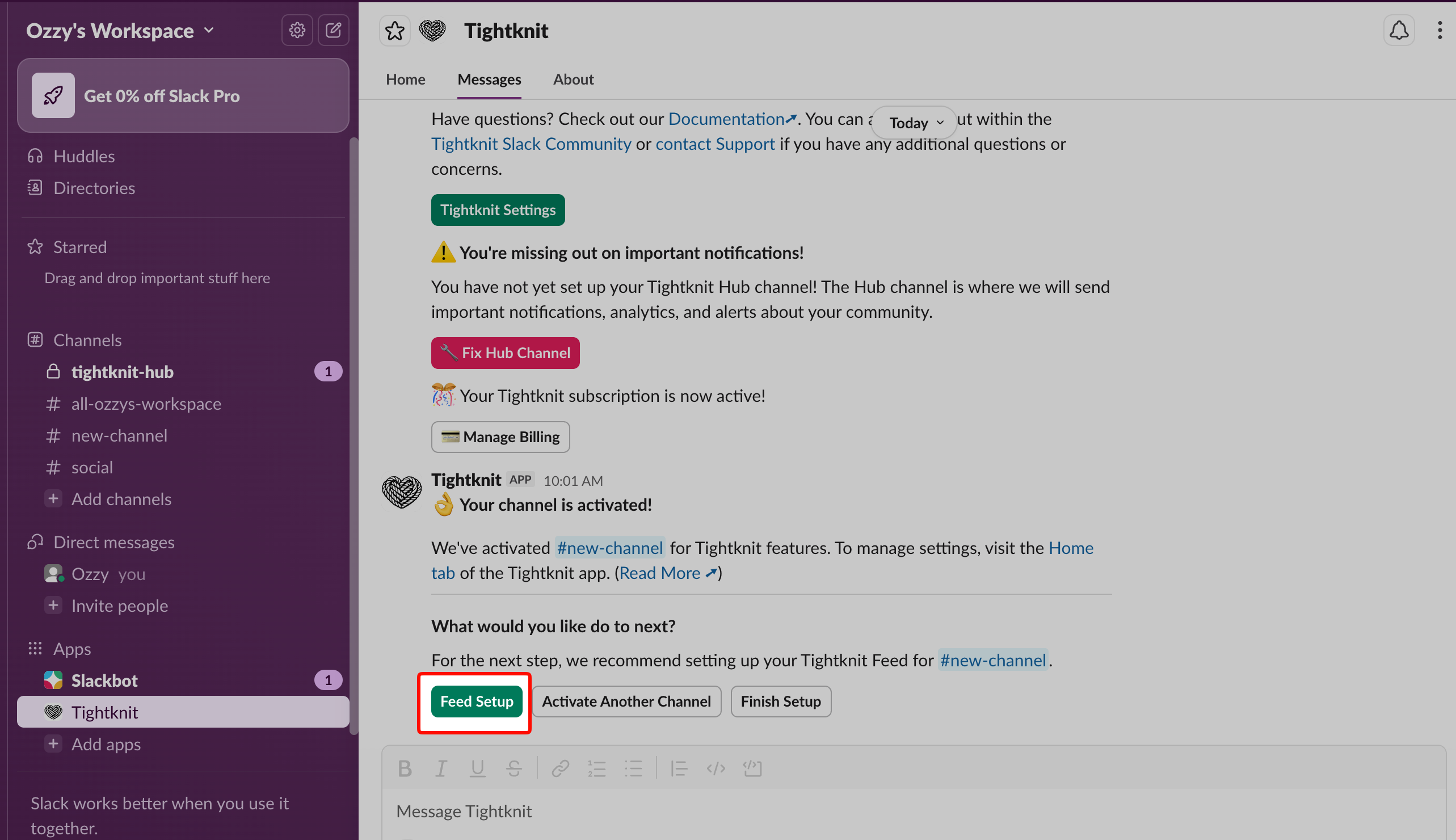
Feed setup for your channel
6. Post your first message
Post a message (80+ characters) in the connected channel, it will automatically sync to your site.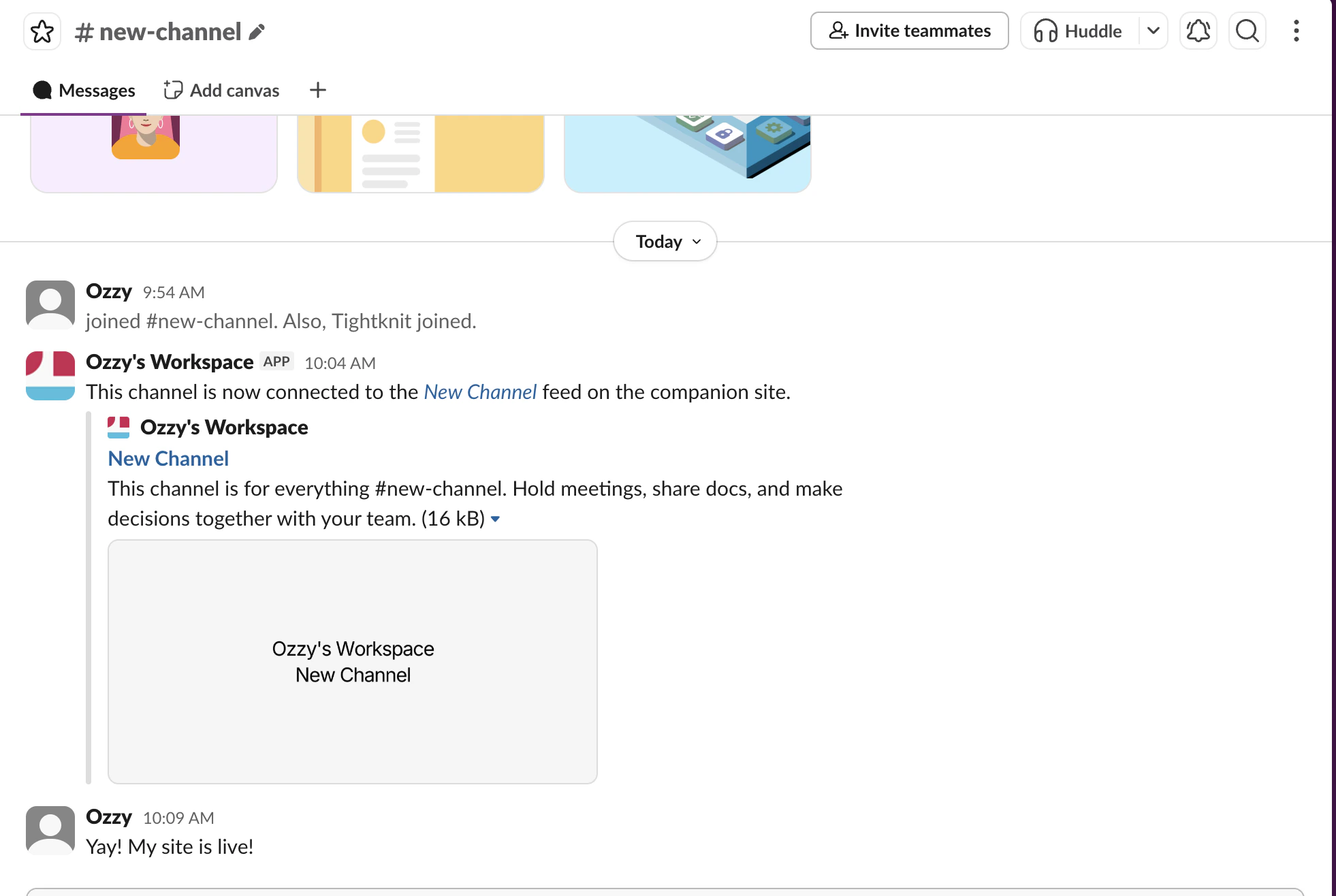
Posting your first message in a connected channel
7. Verify your site
- On the Tightknit Home tab under Community Site, click your domain link
- Confirm your post appears on the site
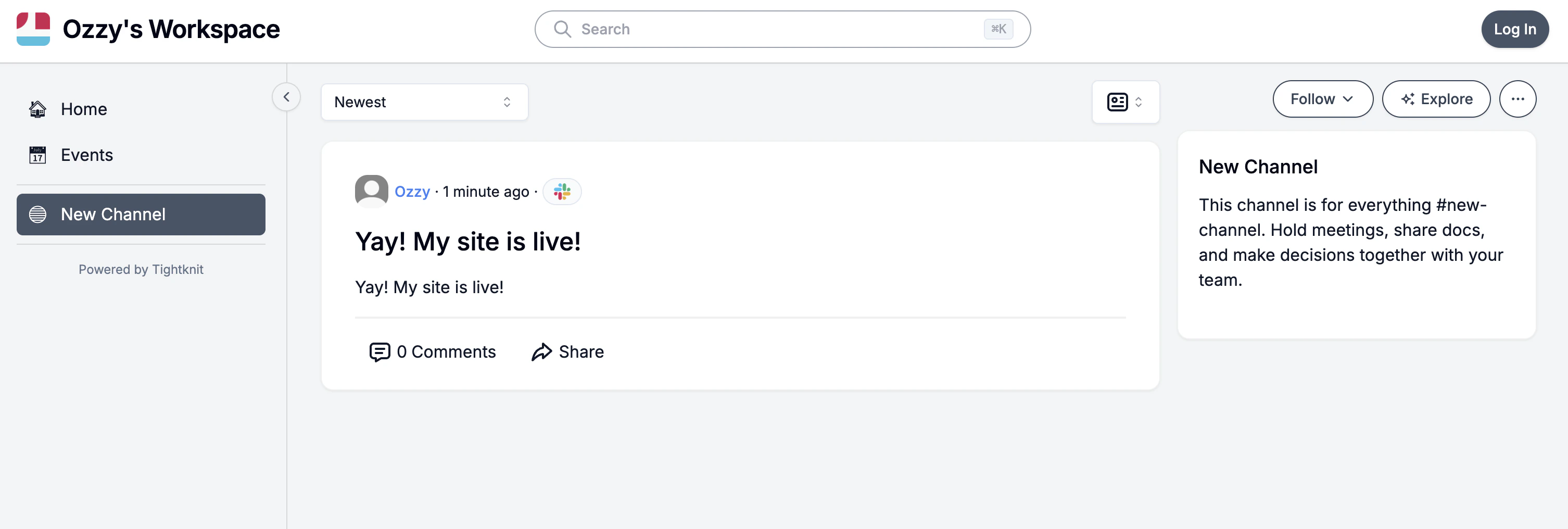
Message synced to the community site
8. Lock down access (optional)
For private communities:- On the Tightknit Home tab, click General under Community Site
- Scroll to Site access control and select Beta restricted access-Slack login required
- Click Update
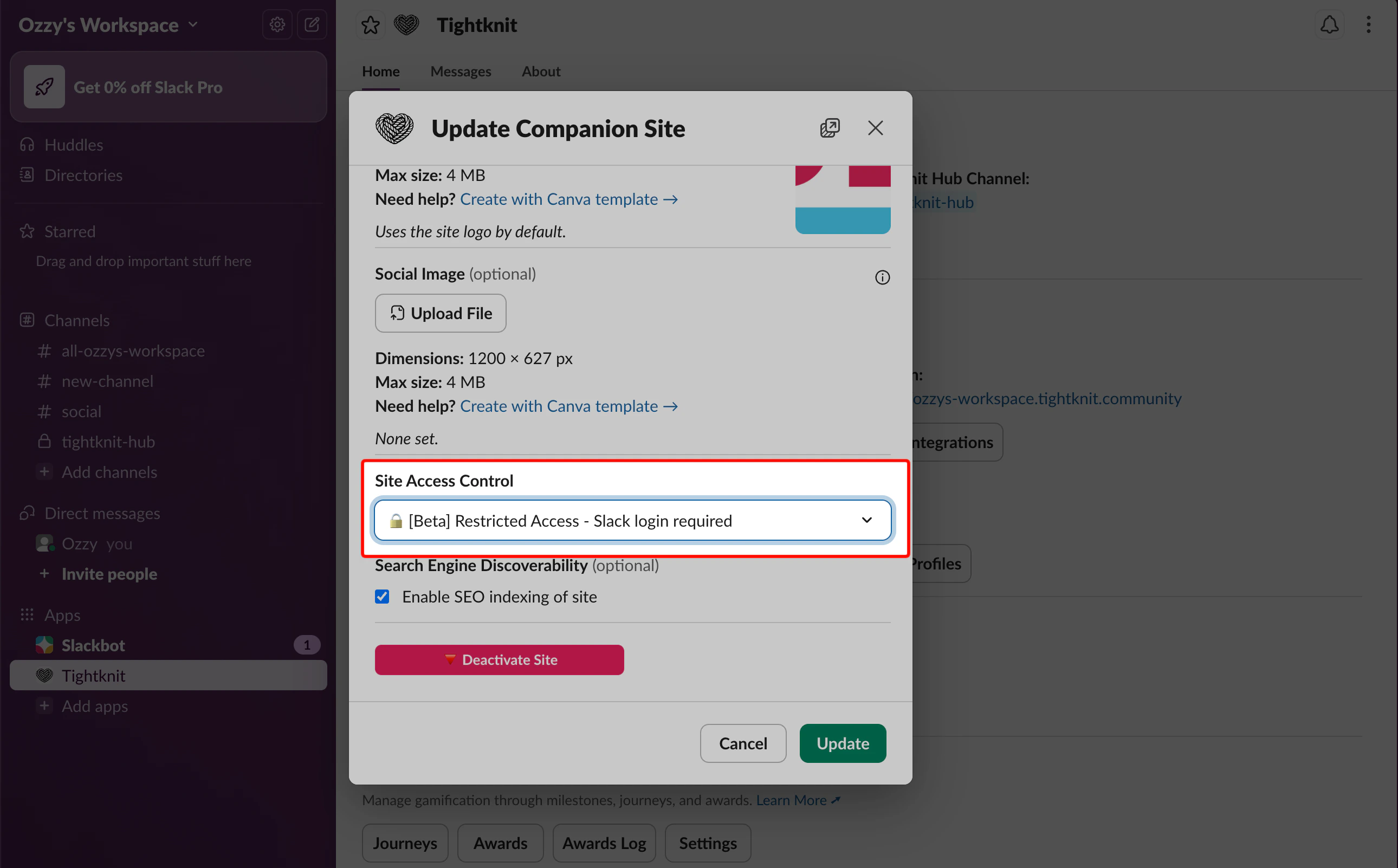
Site access control settings
Troubleshooting
I don't see the Tightknit app in Slack
I don't see the Tightknit app in Slack
- Make sure you clicked Open Slack after the Add to Slack flow
- Click Browse apps in the Apps section of your sidebar and search for “Tightknit”
The community site isn't being created
The community site isn't being created
- Ensure you’re on the Tightknit Home tab, not Messages
- Close and reopen Slack, then retry the flow
My Slack post isn't showing on the site
My Slack post isn't showing on the site
- Check that the message is at least 80 characters
- Confirm you posted in the connected channel
- Wait 1–2 minutes and refresh