

1. Invite members to Slack
Go to Slackbot and click Invite New Members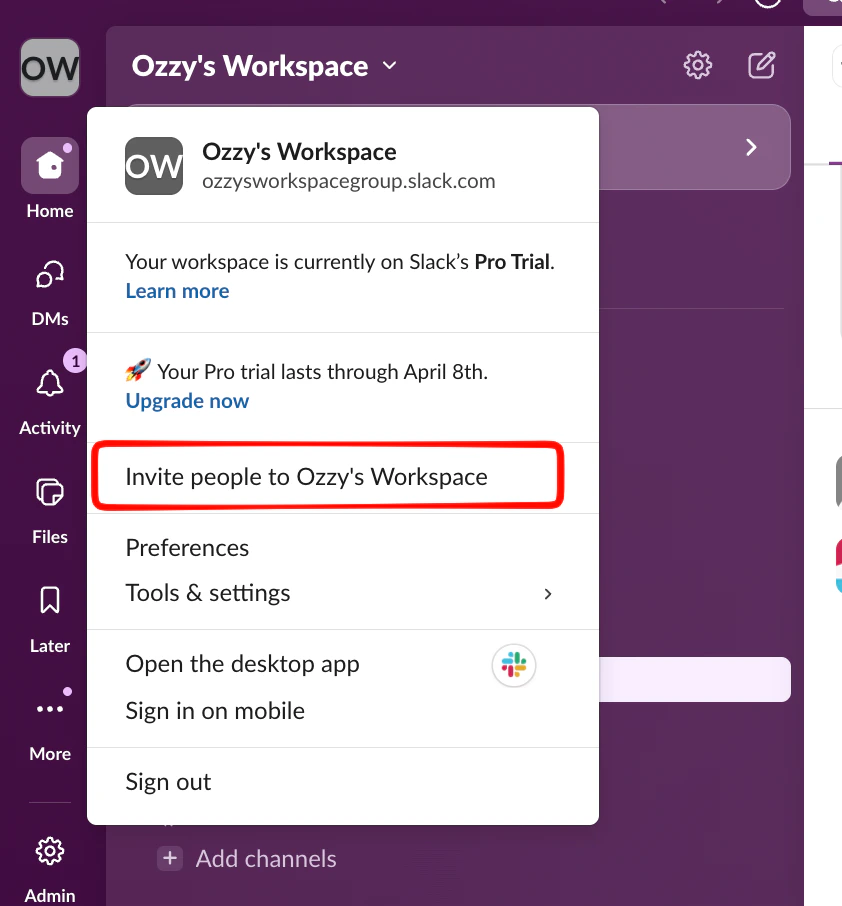
Invite new members from Slackbot
- Email: Enter addresses separated by commas
- Invite link: Generate a shareable link
- Domain allowlist: Auto-approve specific email domains
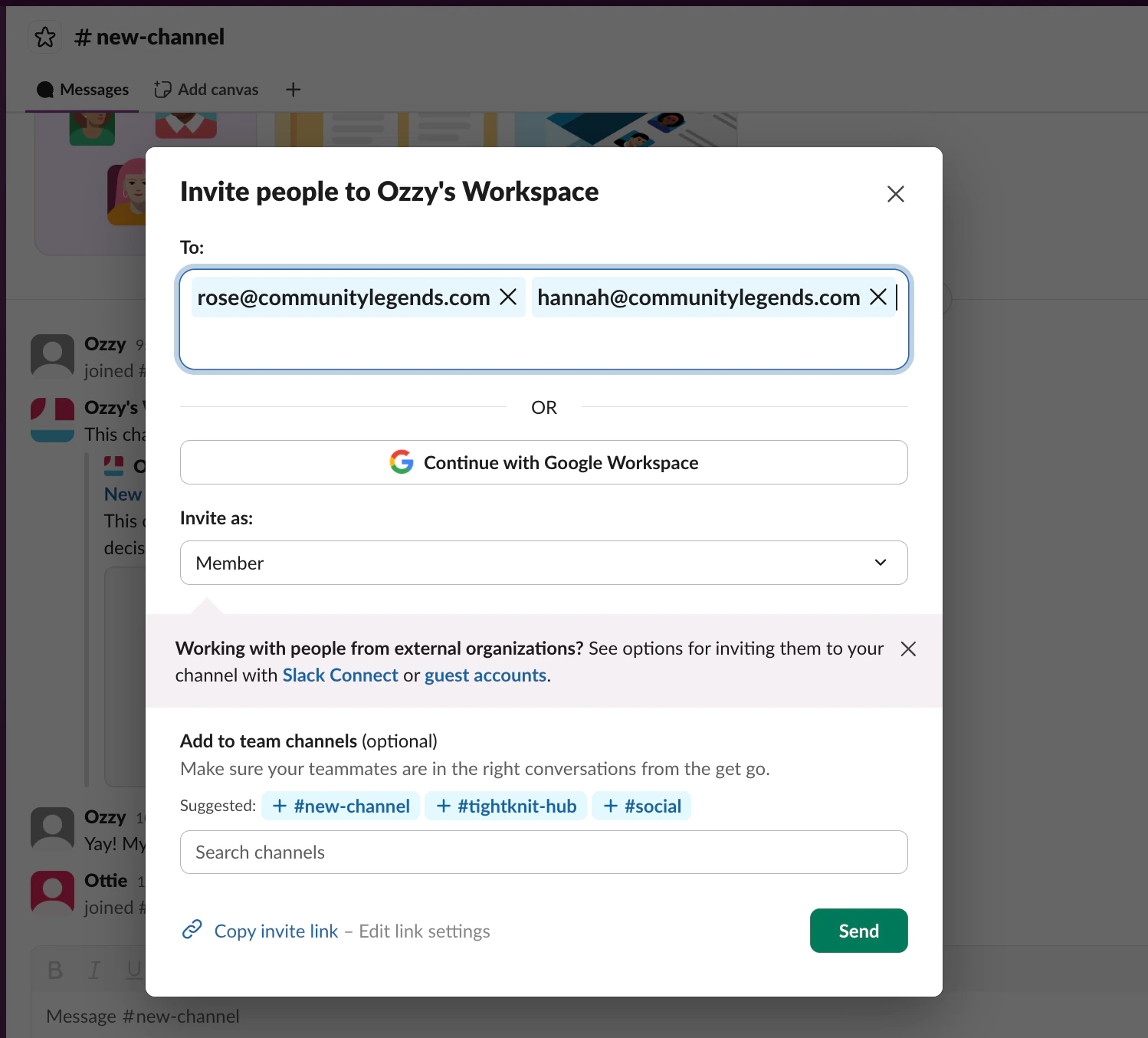
Invitation methods: email, link, or domain allowlist
2. Add community admins
Admins help with moderation, welcoming members, and distributing decision-making.- Go to Members in your Slack dashboard
- Click on a member’s name to open their profile
- Click Edit Role → select Workspace Admin
- Confirm the role change
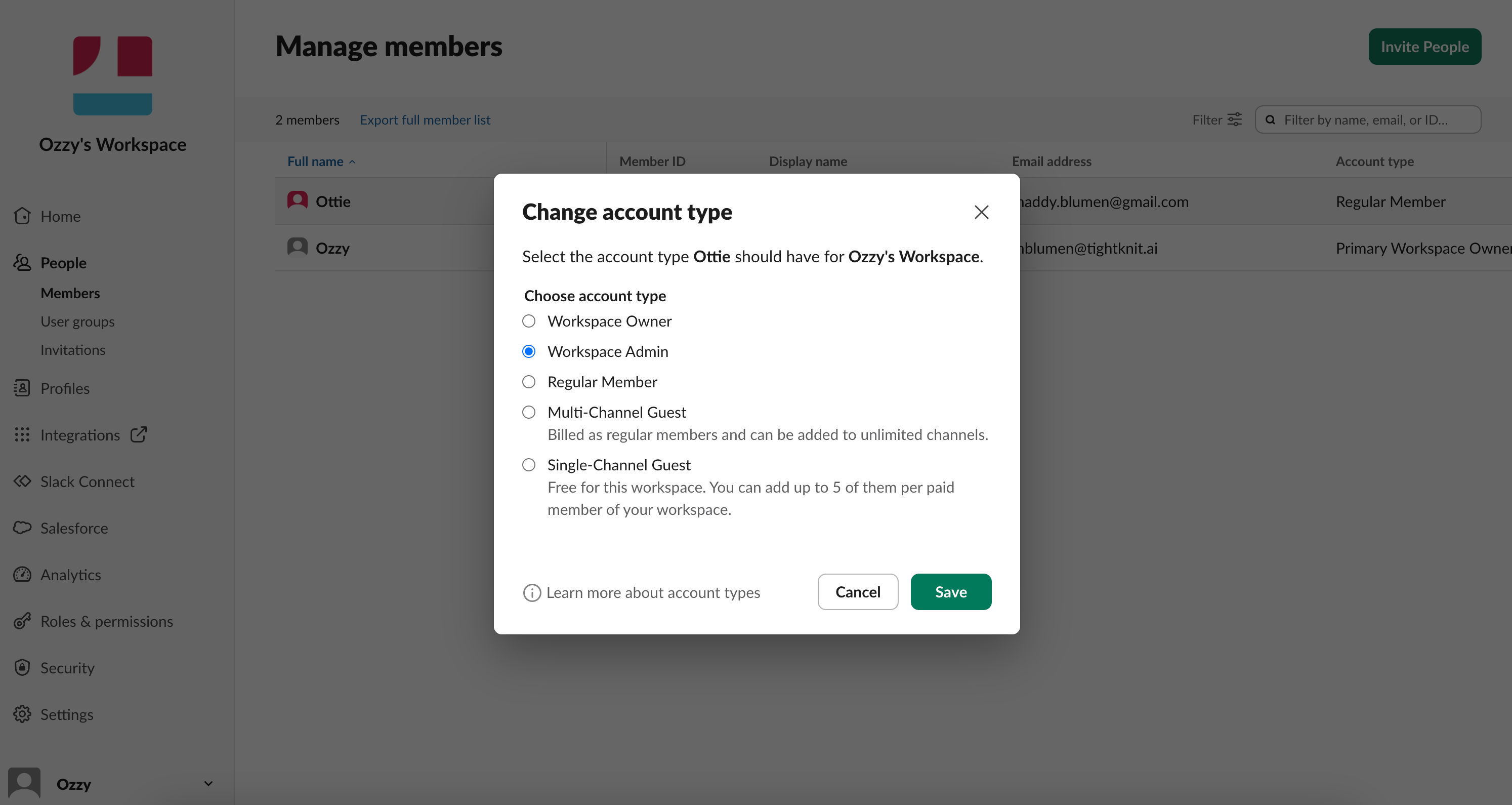
Changing a member's account type
3. Configure admin permissions
Go to Settings → Roles & Permissions to define what admins can do:- Click Account Types
- Edit permissions by clicking the three dots next to each item
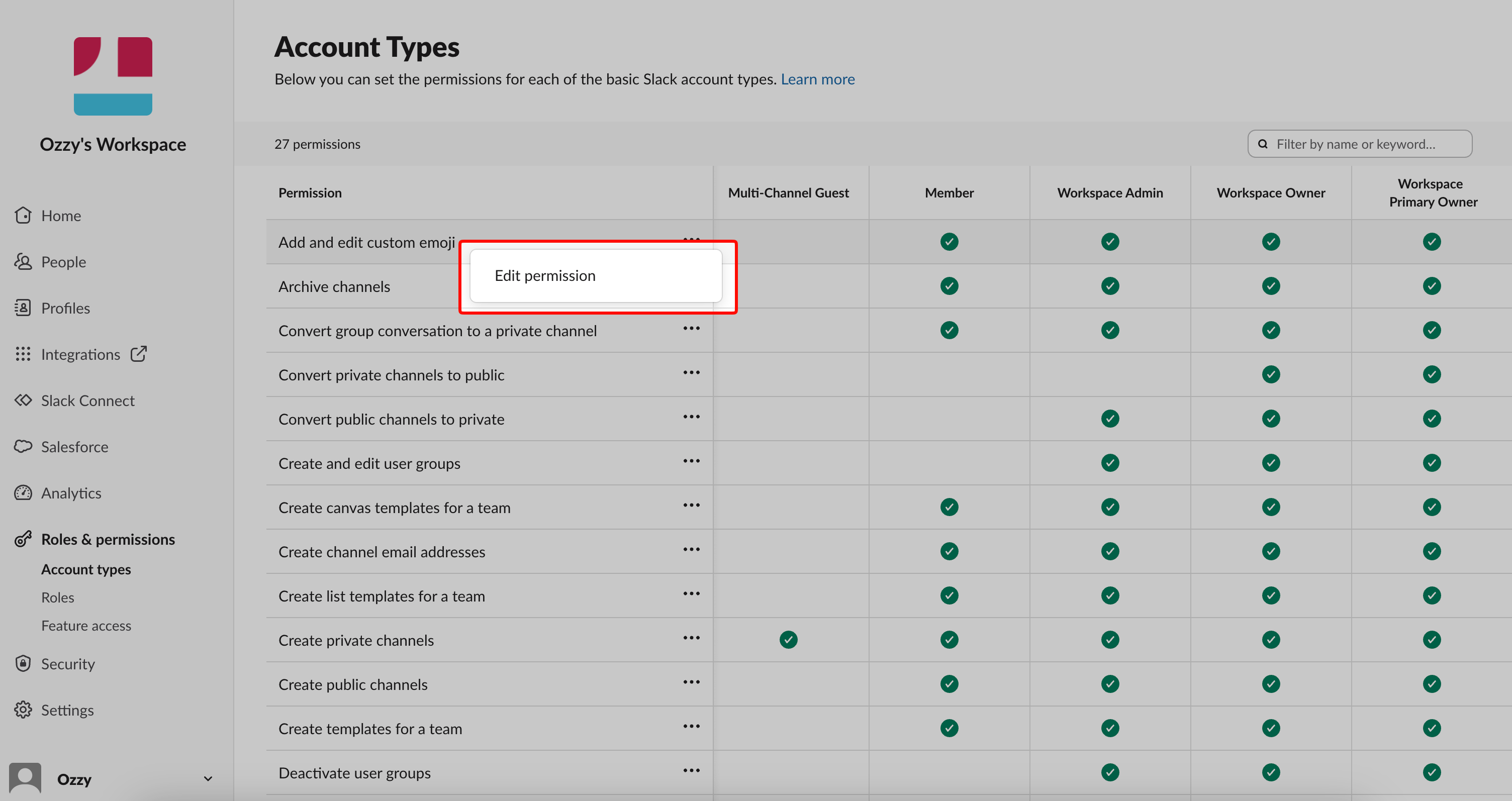
Editing admin permissions
Troubleshooting
Members aren't receiving invitation emails
Members aren't receiving invitation emails
- Check email addresses for typos
- Ask members to check spam folders
- Try using an invite link instead
New members can't see certain channels
New members can't see certain channels
Go to Settings → Channels and verify channel permissions allow new members.
Admin can't access certain features
Admin can't access certain features
Go to Settings → Admin Roles and ensure the permission is enabled. Some features may be owner-only.
Invite link isn't working
Invite link isn't working
- Set the link to never expire
- Check if maximum uses has been reached
- Verify new sign-ups are allowed