

Prerequisites
Before you start, make sure you have:- A Zoom Business, Education, or Enterprise account
- Account owner or admin privileges
- Meeting Templates enabled in your account settings (Zoom’s guide on enabling templates)
Creating Your Template
Navigate to Meeting Templates
- Sign in to the Zoom web portal as an admin.
- In the left sidebar under Admin, expand Account Management and click Account Settings.
- Click the Meeting tab.
- In the left sub-navigation, click Schedule Meeting and find Meeting Templates.
- Click Manage Templates then + Add Template.
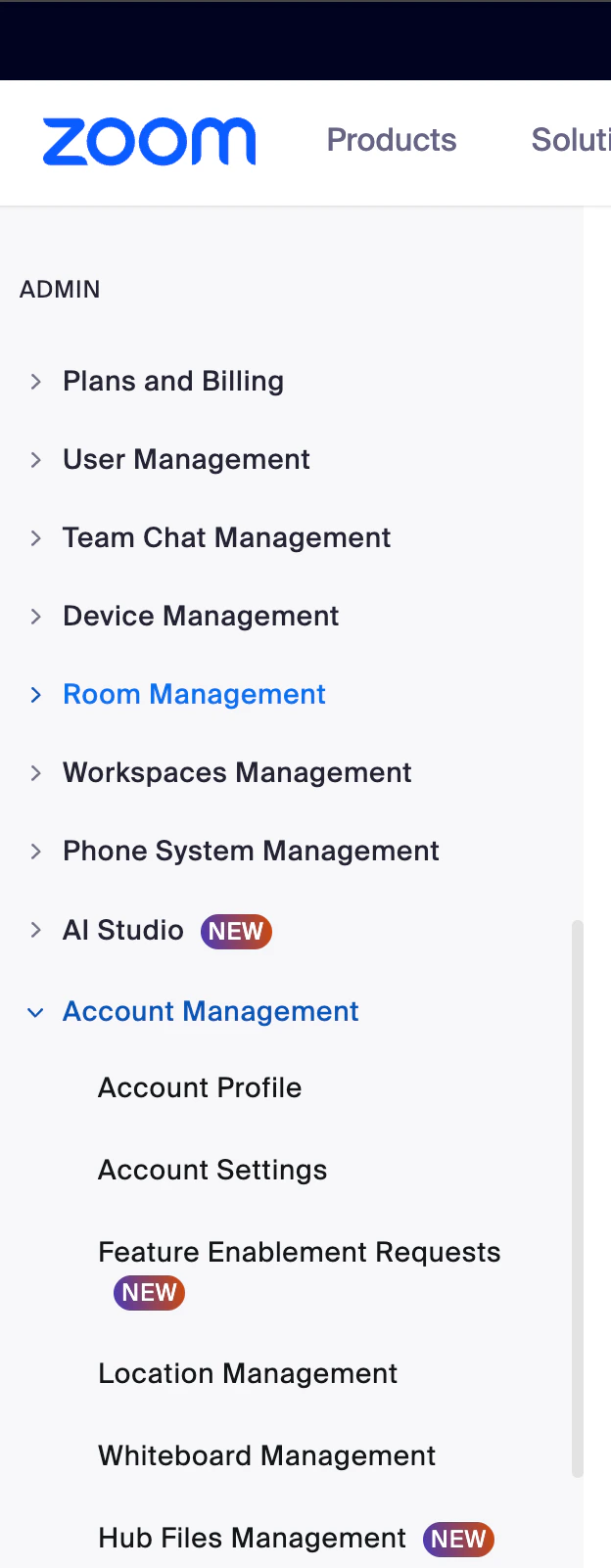
Zoom admin sidebar showing Account Management expanded with Account Settings visible
Name Your Template
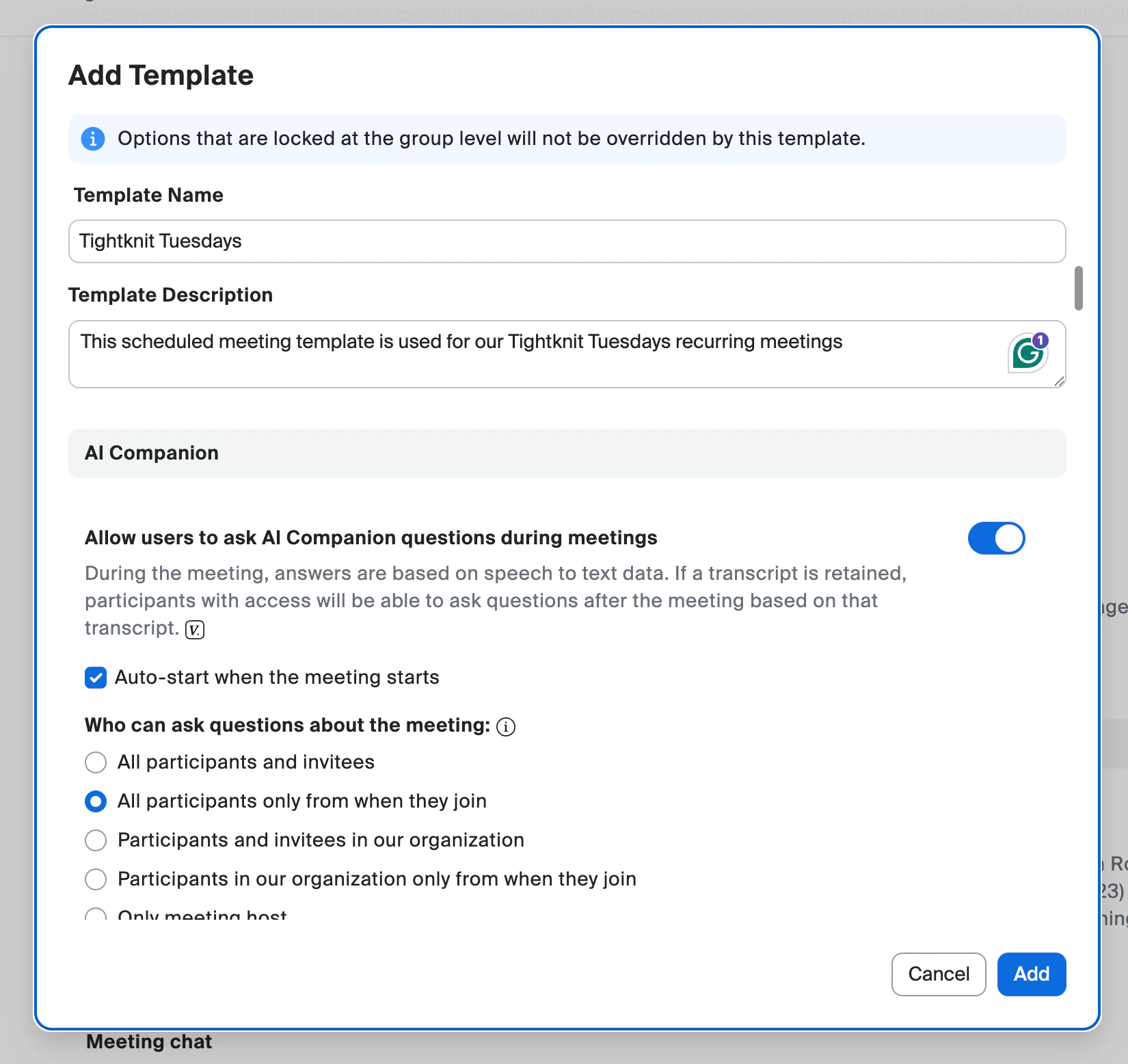
Add Template dialog showing the template name and description fields
Configure AI Companion & Summary
AI Companion Questions
Recommendation: On, auto-start, all participants can ask from when they joinIf someone joins late, they can ask Zoom’s AI companion what they missed. This is especially helpful for community events where people drop in at different times.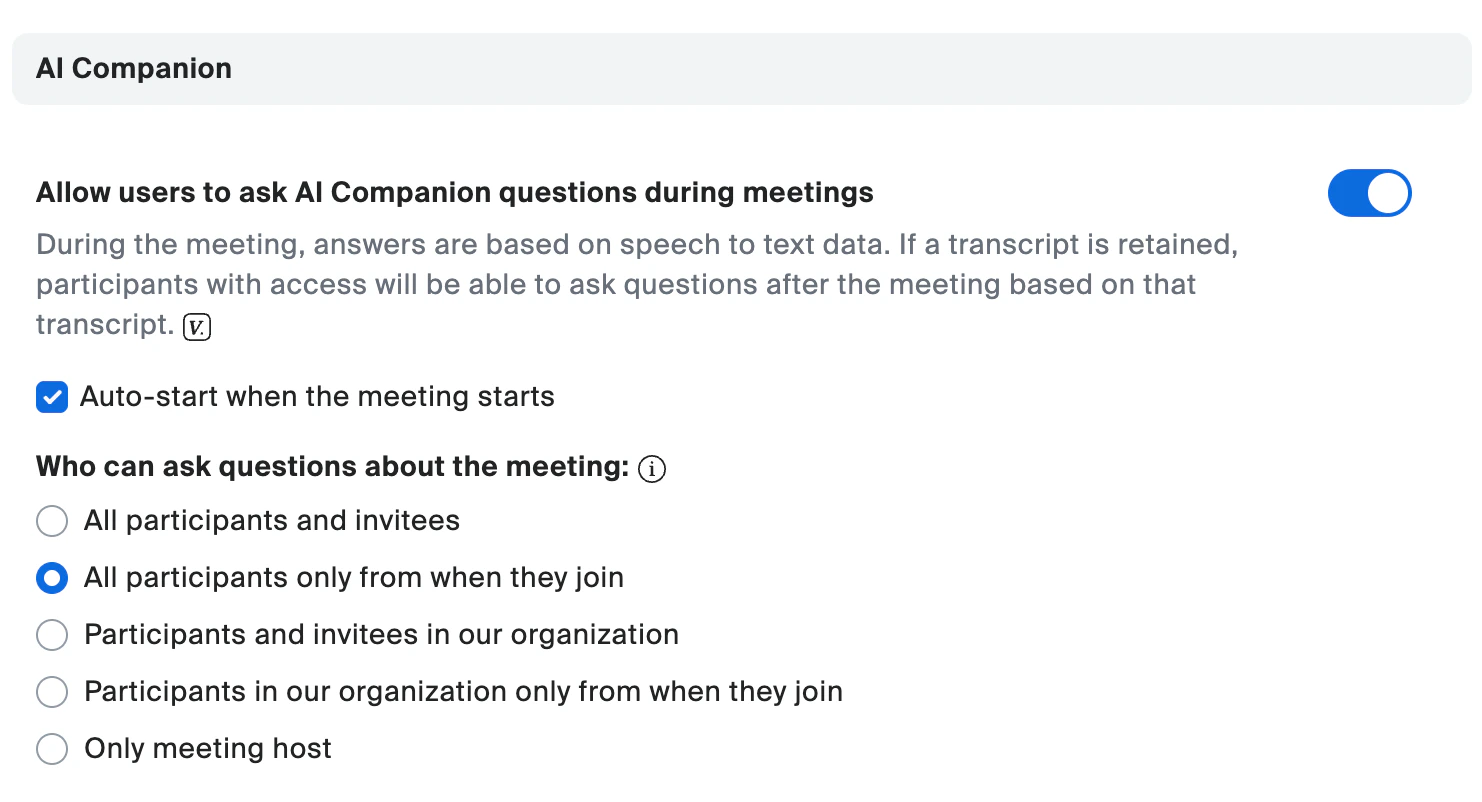
AI Companion settings with auto-start and participant access configured
Meeting Summary (AI Companion)
Recommendation: On, auto-start when the meeting startsThis generates an automatic summary of the meeting. Configure it to:- Auto-start when meeting starts: Yes
- Send an email notification when sharing to participants: Yes
- Include summary text in the email: Yes, makes it easy for attendees to get the recap without logging into Zoom
- Automatically share with: All meeting invitees including those outside of our organization
- Include meeting participants (not invited before the meeting): Yes
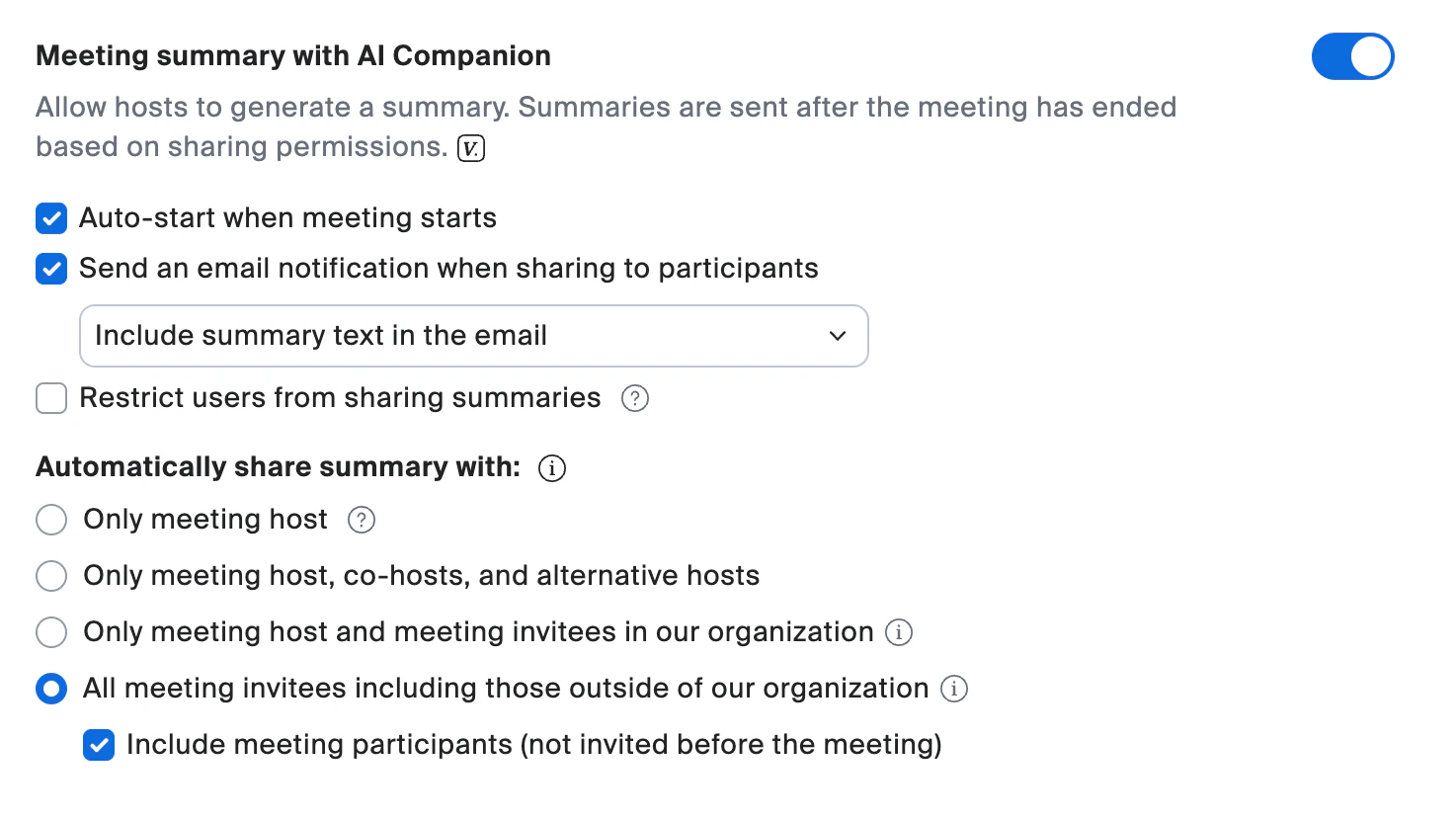
Meeting summary with AI Companion settings showing full sharing configuration
Configure the Waiting Room
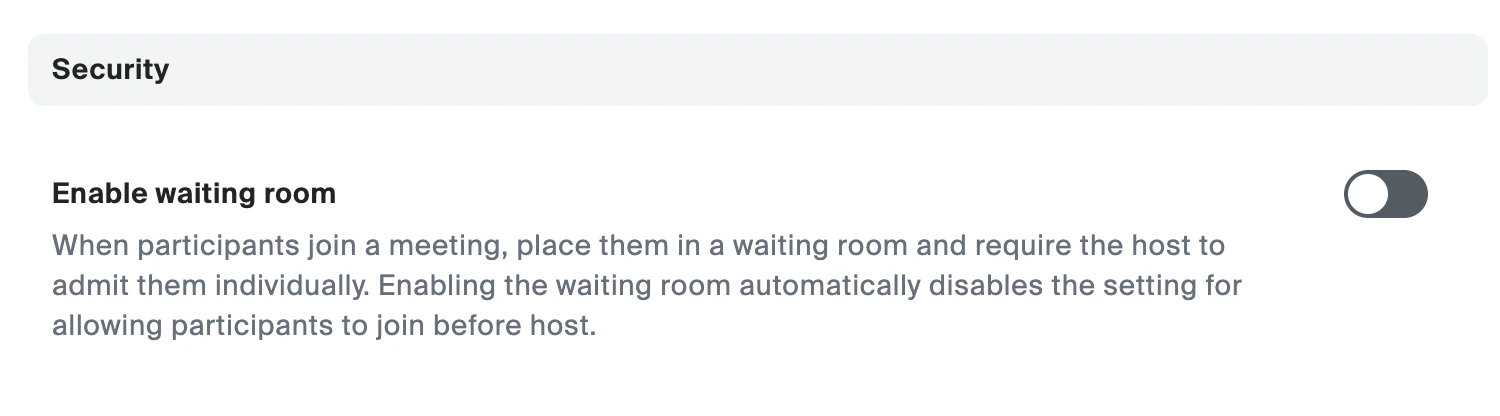
Waiting room toggle set to off under Security settings
Configure Video & Audio Defaults
Host Video
Recommendation: OnAs the host, your camera should almost always be on. You’re the face of the event, and being visible builds trust with your community.Participant Video
Recommendation: On (or Off depending on event type)For community events where you want to build intimacy and connection, leaving participant video on encourages face-to-face interaction. For larger webinar-style events, consider turning it off so participants aren’t caught off guard.Mute Participants on Join
Recommendation: OnThis is critical for any event with more than a handful of people. Without it, someone will inevitably join with background noise that disrupts the entire meeting. Participants can unmute themselves when they want to speak.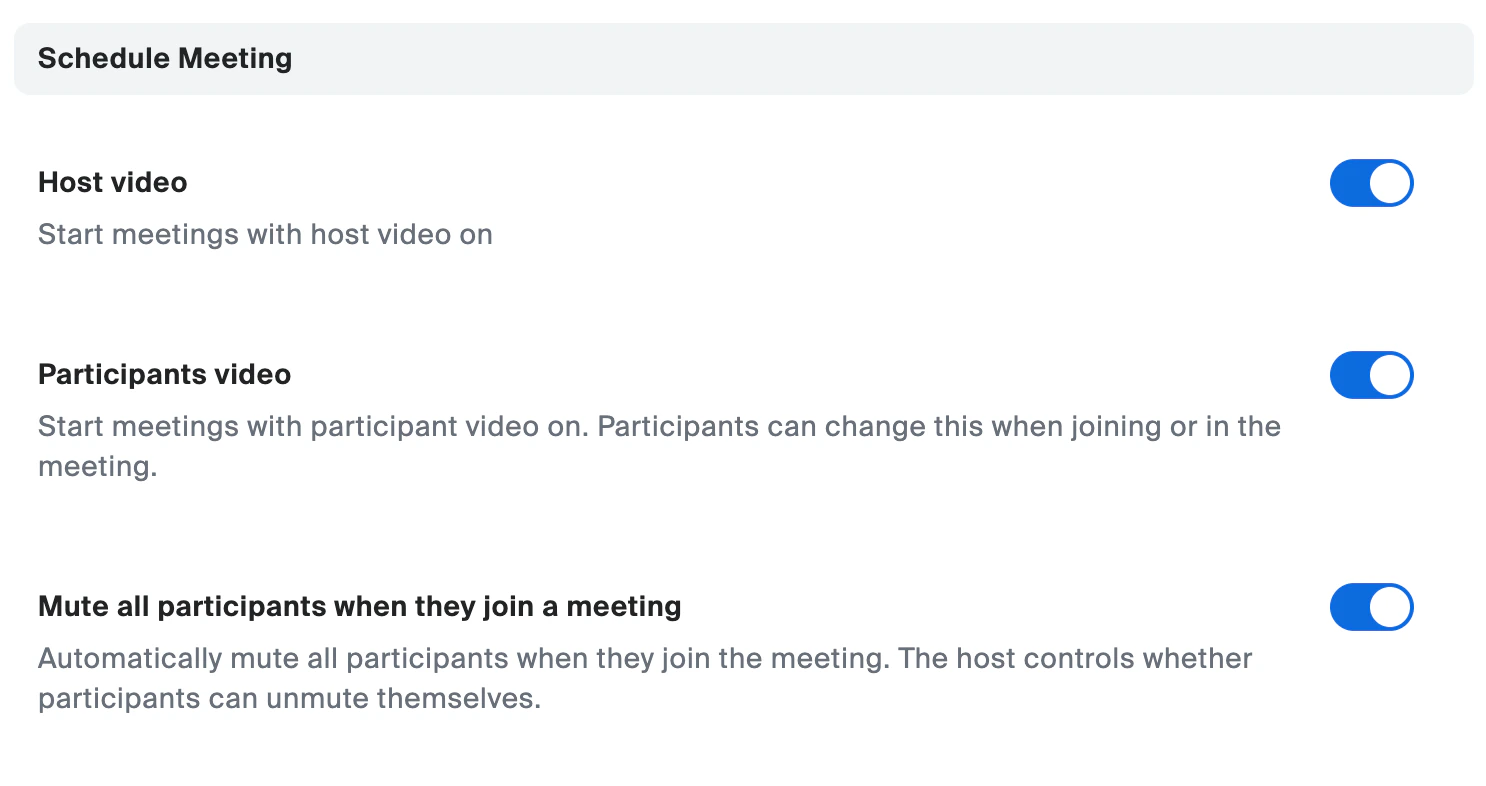
Video and audio settings showing host video on, participant video on, and mute on join enabled
Configure Recording
Auto-Record
Recommendation: On, record to the cloudCloud recording is more reliable than local recording. If your internet hiccups or your laptop crashes, the cloud recording continues from Zoom’s servers. It also makes sharing easier since the recording lives in Zoom’s cloud rather than on your hard drive.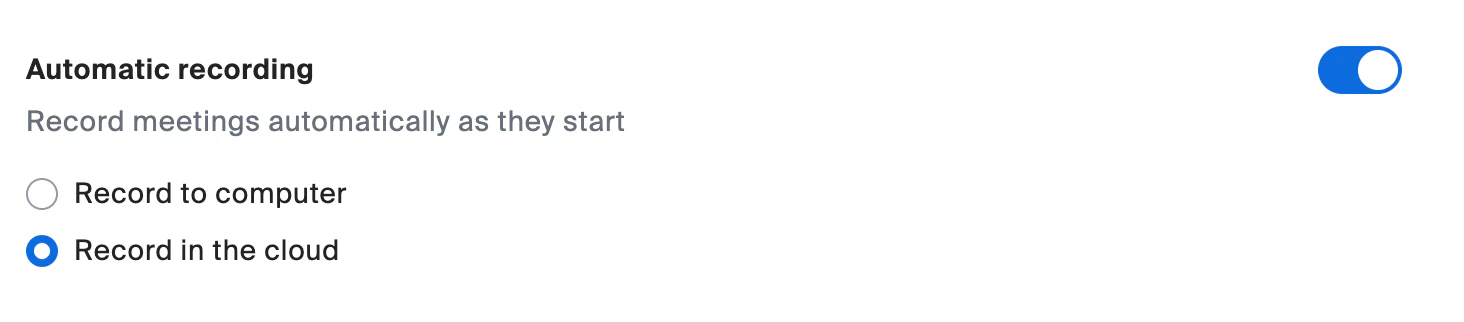
Automatic recording toggle on with Record in the cloud selected
Cloud Recording Settings
Configure these for maximum flexibility when editing and repurposing content later: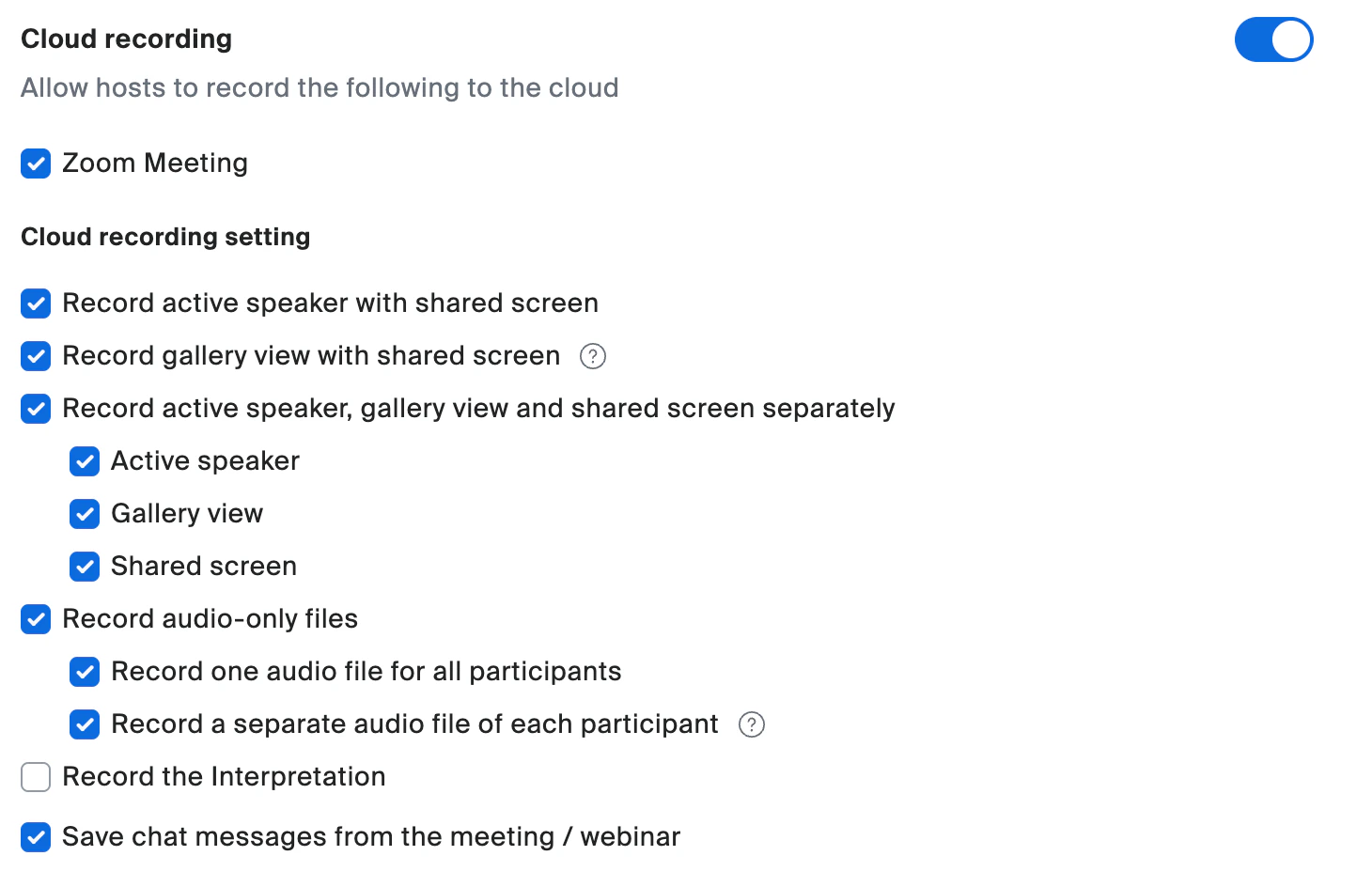
Cloud recording settings showing all recording options enabled except interpretation
Advanced Cloud Recording Settings
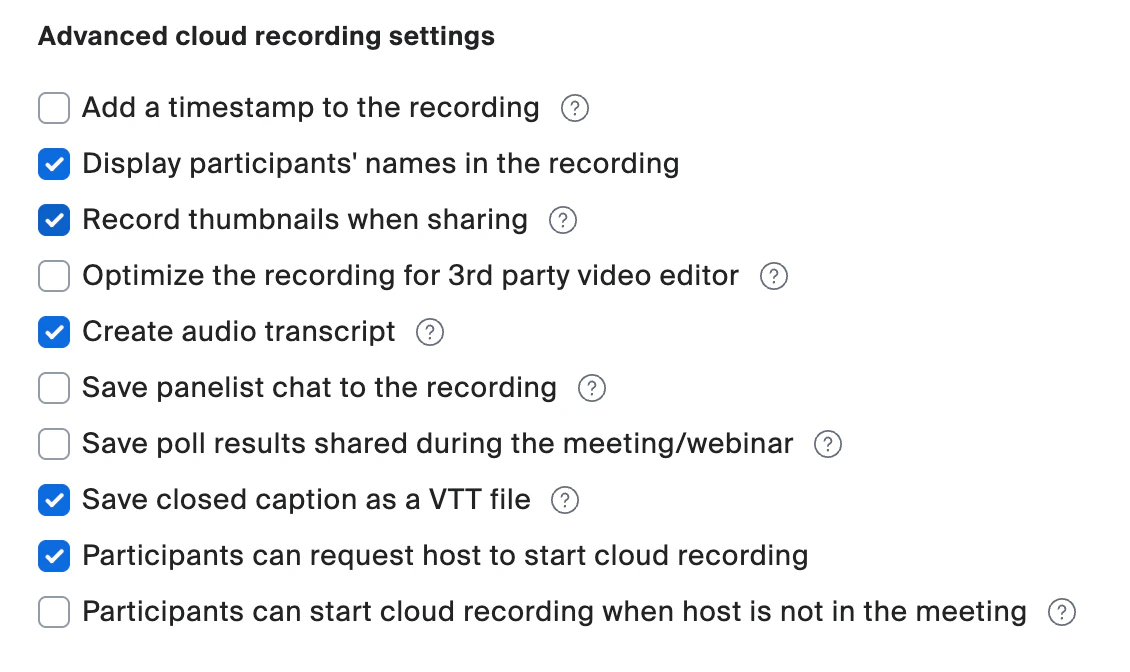
Advanced cloud recording settings
Configure In-Meeting Chat
Chat Permissions
Recommendation: Everyone and anyone directly (or Host only for large events)For community events where interaction is the goal, allowing everyone to chat creates a more engaging experience. For very large or formal events, restrict to host-only.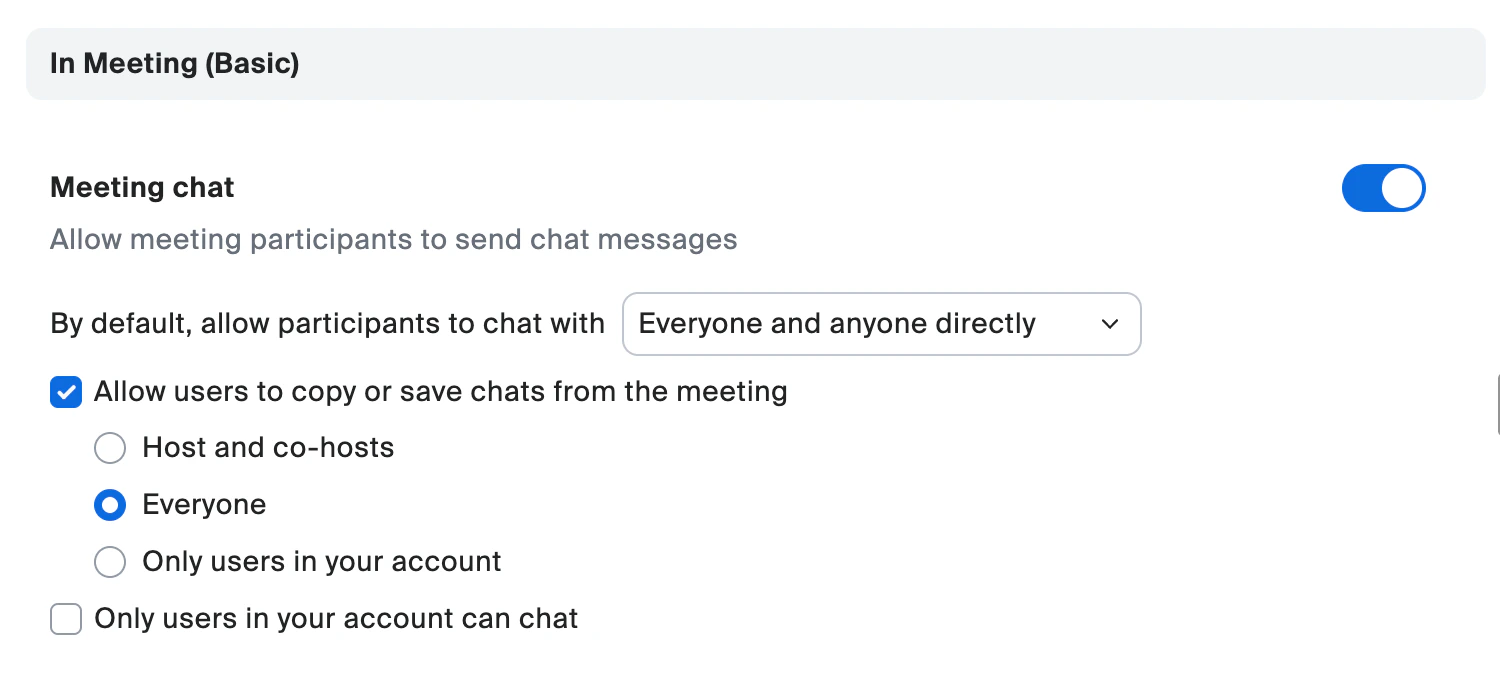
Meeting chat settings showing the chat permission dropdown and copy/save options
Continuous Meeting Chat
Recommendation: On for recurring meetings, Off for one-offsContinuous meeting chat lets the conversation persist before, during, and after the meeting in Zoom’s Team Chat.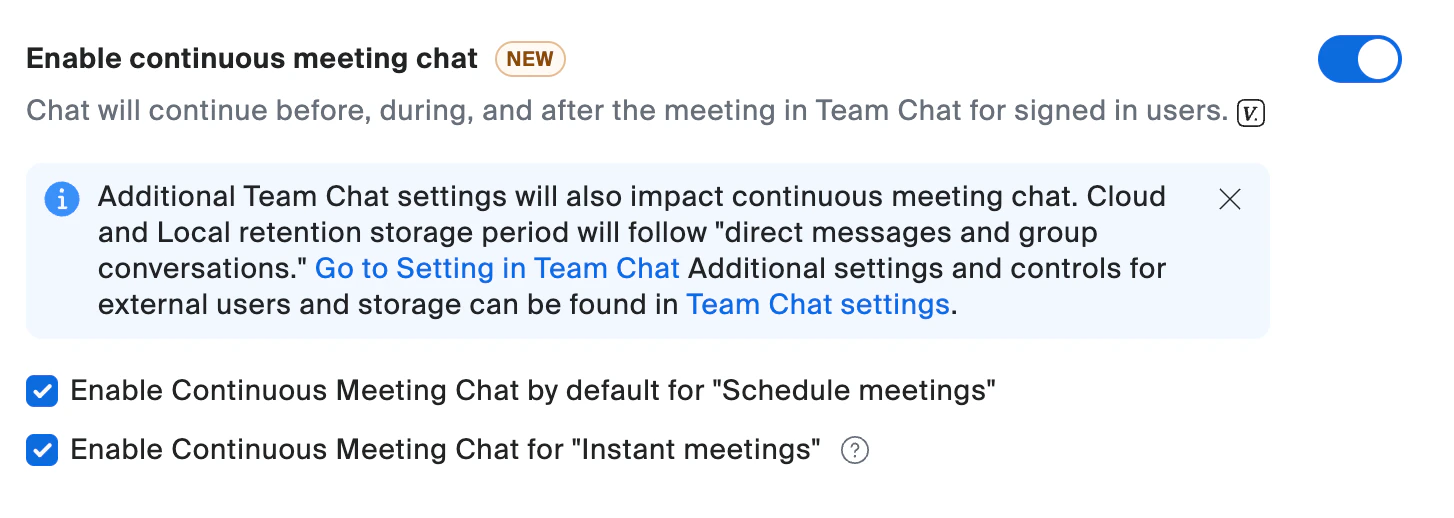
Continuous meeting chat settings
Other Chat Settings
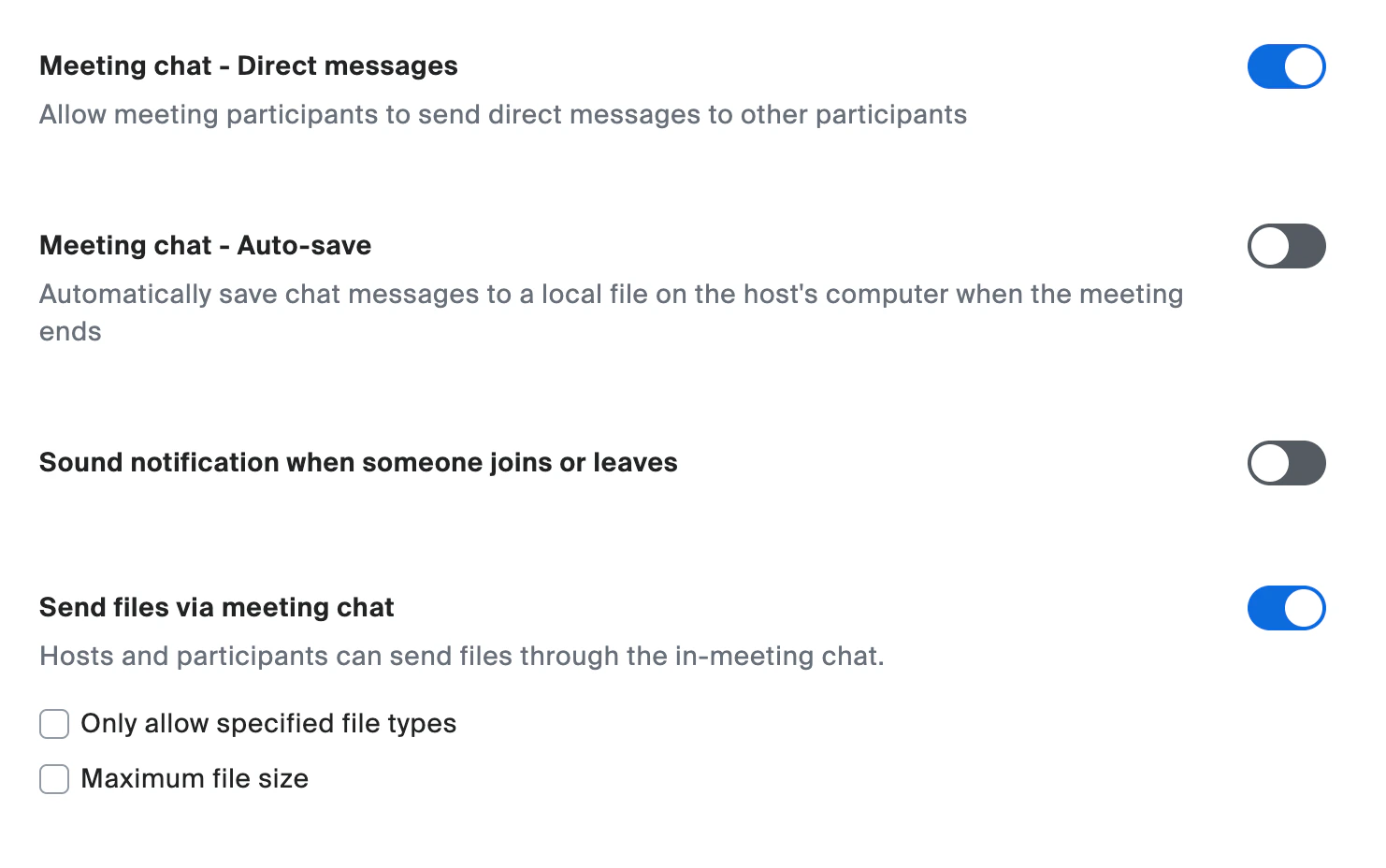
Chat DM, auto-save, join/leave sound, and file sharing settings
Configure Feedback, Polls & Surveys
Feedback to Zoom
Recommendation: On (low impact)Zoom’s own satisfaction prompt. Unobtrusive, leave it on or off, it won’t affect your attendees.Co-host
Recommendation: OnAlways leave co-host enabled so you can promote someone during the meeting if needed.Meeting Polls/Quizzes
Recommendation: OnPolls are great for icebreakers, topic voting, or quick feedback during events.Meeting Survey
Recommendation: On, create a custom surveyCheck “Add specified participant survey to all meetings scheduled with this template” and create your survey in Survey Management.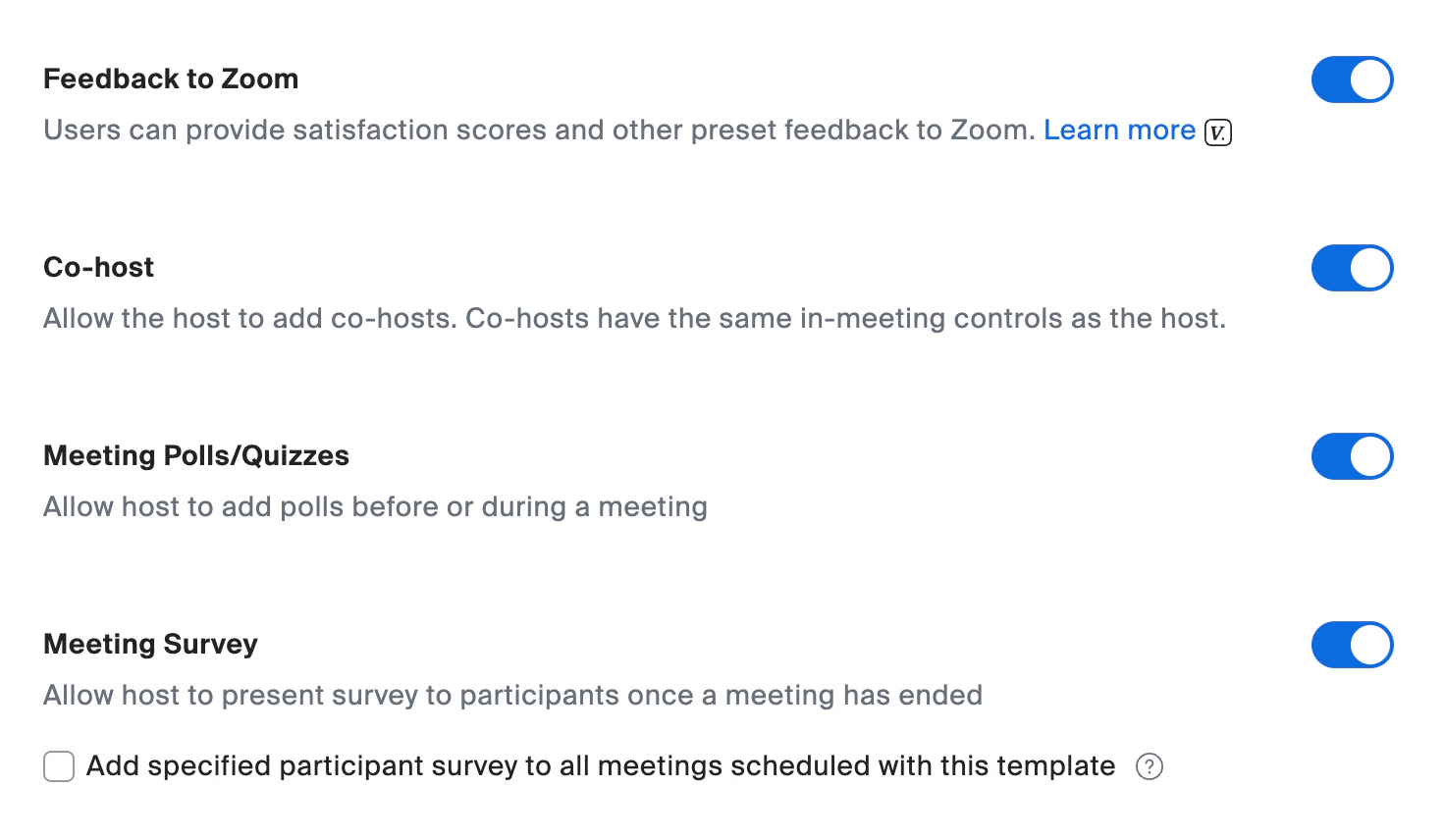
Feedback, co-host, polls, and meeting survey settings
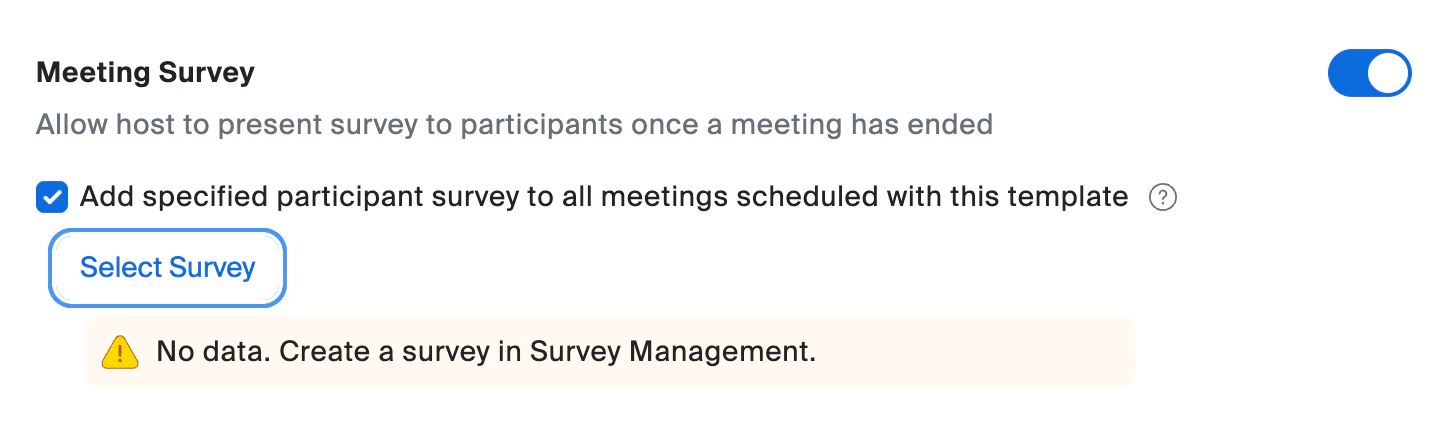
Meeting survey showing 'No data' until you create one in Survey Management
End-of-Meeting Experience Survey
Recommendation: OffThis is Zoom’s generic quality survey, not your community feedback survey. Skip it to avoid survey fatigue.
End-of-meeting experience feedback survey toggle set to off
Configure Screen Sharing
Who Can Share & How Many
Recommendation: One participant at a time, Host onlyPrevents participants from hijacking the presentation. You can promote someone to co-host during the meeting.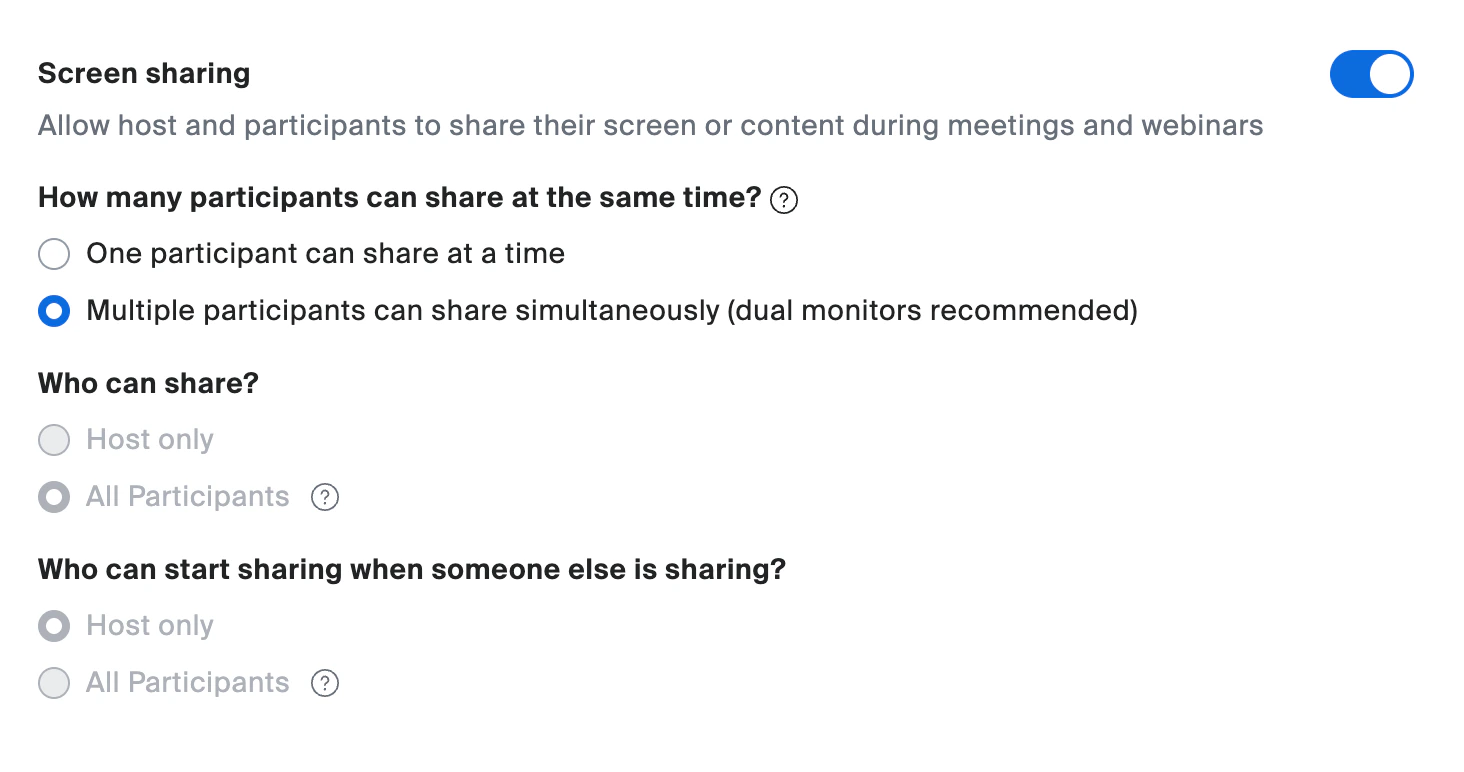
Screen sharing settings showing sharing permissions
Annotation & Whiteboard Classic
Recommendation: Off for bothAnnotation and Classic Whiteboards add noise and disruption potential for community webinars.Disable Desktop Screen Sharing
Recommendation: Off (keep desktop sharing enabled)You want the option to share your full desktop when presenting.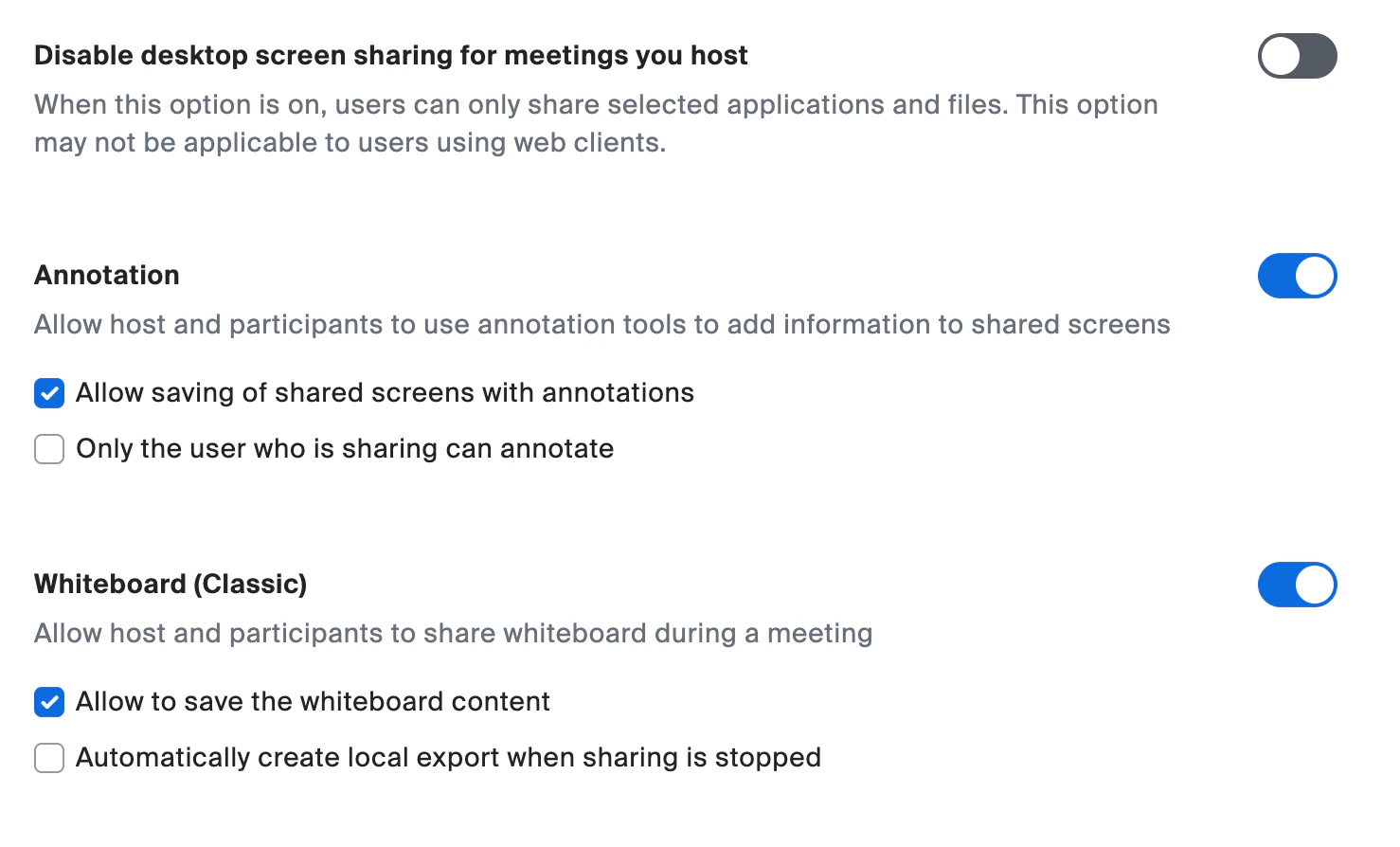
Annotation, Whiteboard Classic, and desktop sharing settings
Remote Control & Slide Control
Recommendation: Off for bothRemote control is a security risk. Slide control causes confusion, most people don’t know how to use it.Allow Removed Participants to Rejoin
Recommendation: OffIf you remove someone, it’s for a good reason. Don’t let them back in.Allow Participants to Rename Themselves
Recommendation: OffPrevents trolling and maintains professionalism.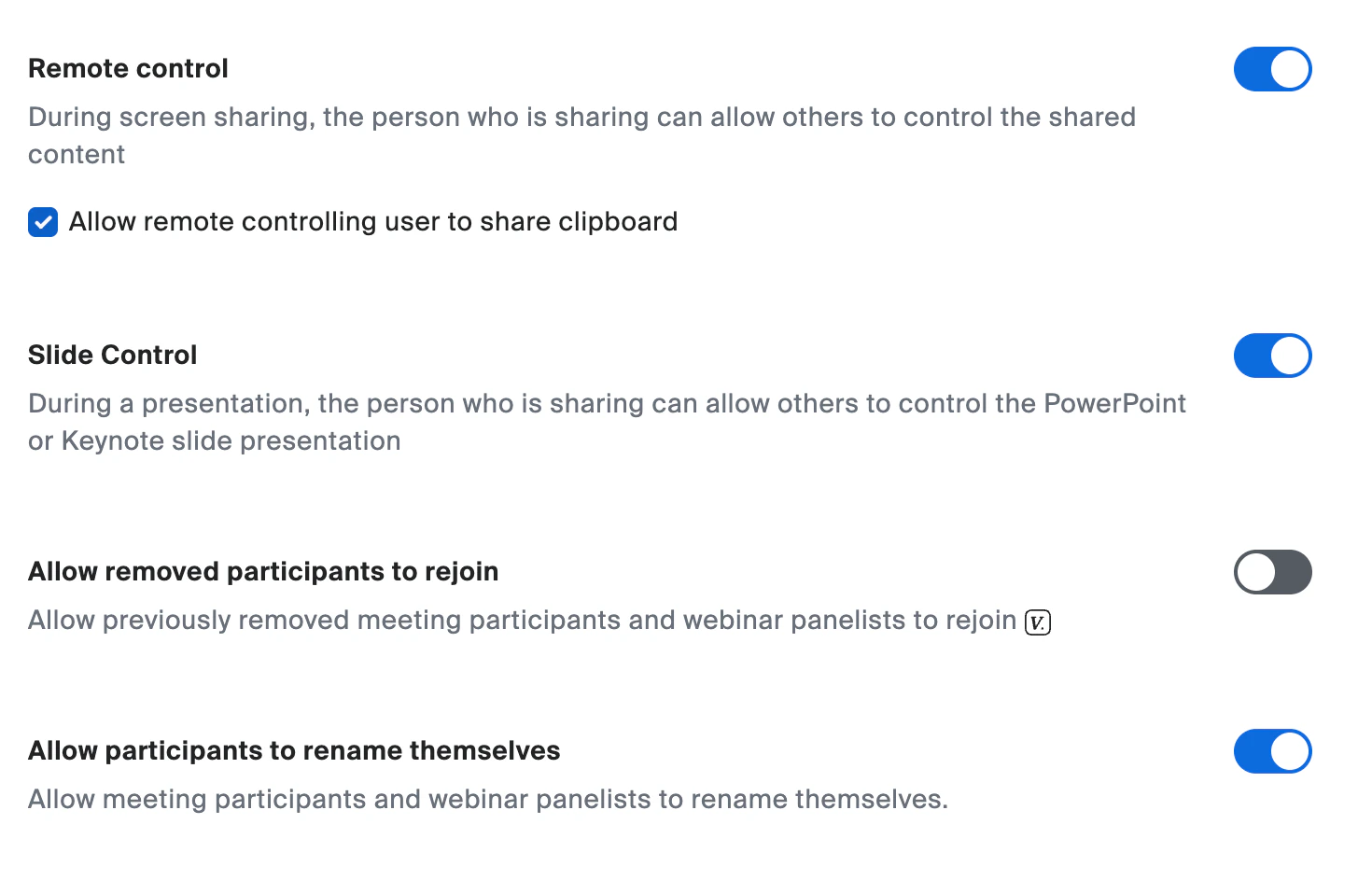
Remote control, slide control, rejoin, and rename settings
Configure Participant Management
Host/Co-host Rename in Waiting Room
Recommendation: OnHosts can rename participants in the waiting room even with self-renaming disabled. Participants get notified.Hide Participant Profile Pictures
Recommendation: OffLet people show their pictures, it adds personality to community events.Default Meeting Wallpaper
Recommendation: Set up laterA branded wallpaper is a nice touch but not required for launch.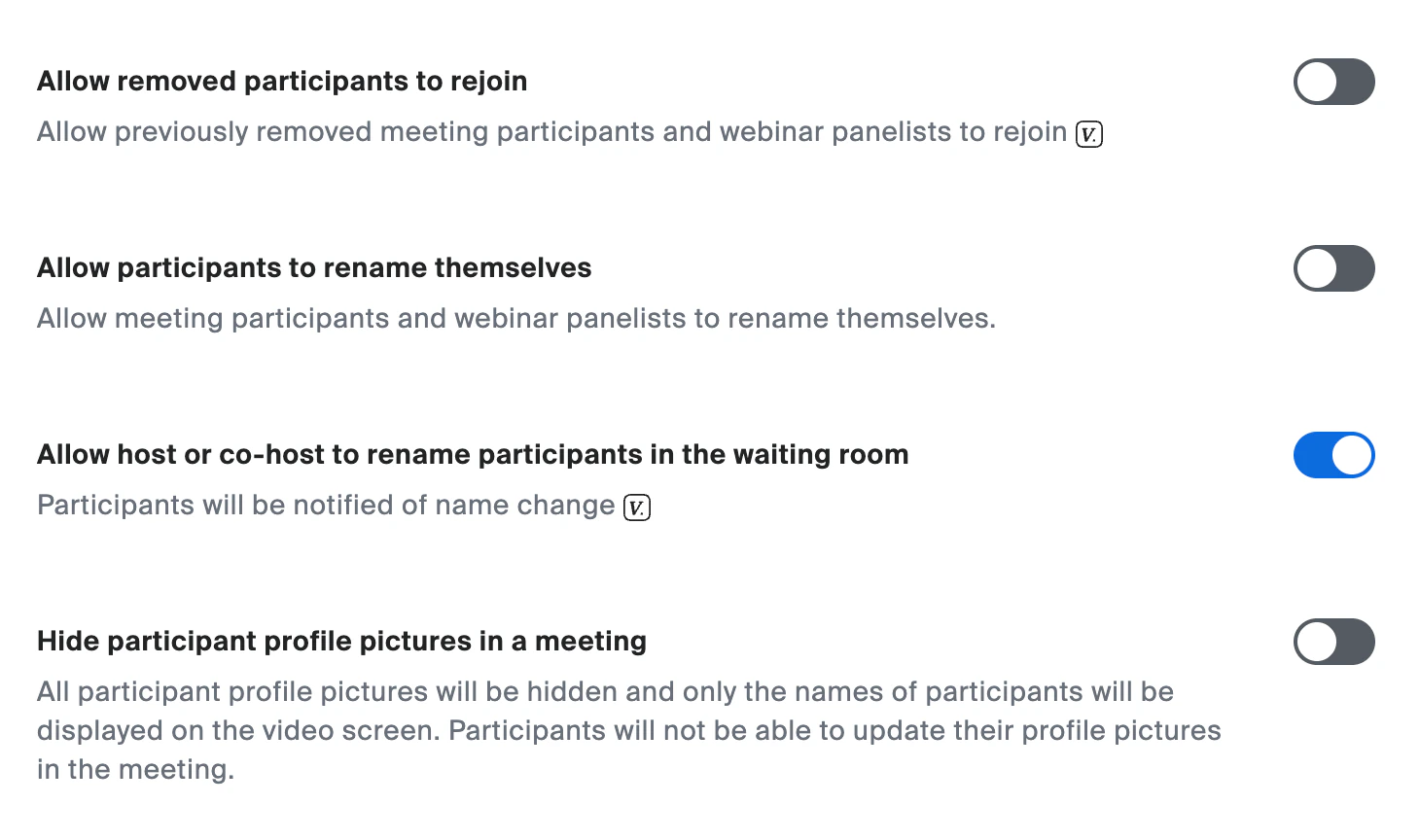
Participant management settings

Default meeting wallpaper toggle set to off
Configure Breakout Rooms
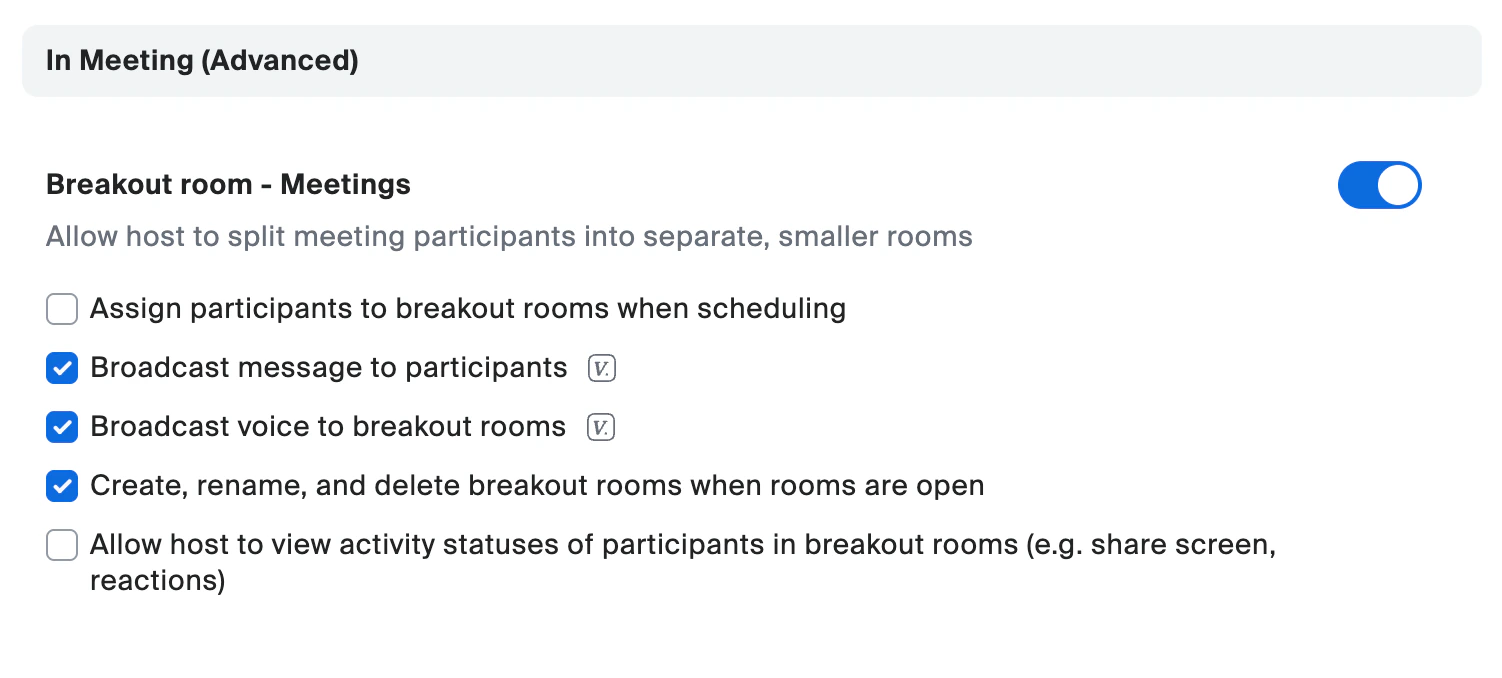
Breakout room settings
Configure Accessibility & Captions
Remote Support
Recommendation: Off. IT support only, not needed for community events.Manual Captions
Recommendation: Off. Unless you have a live captioner.Automated Captions
Recommendation: OnA huge accessibility win. Makes your event accessible to deaf/hard-of-hearing members, non-native speakers, and anyone in a noisy environment.Save Captions
Recommendation: OnCreates a text record participants can reference later.Immersive View
Recommendation: Off. Novelty feature, not useful for professional events.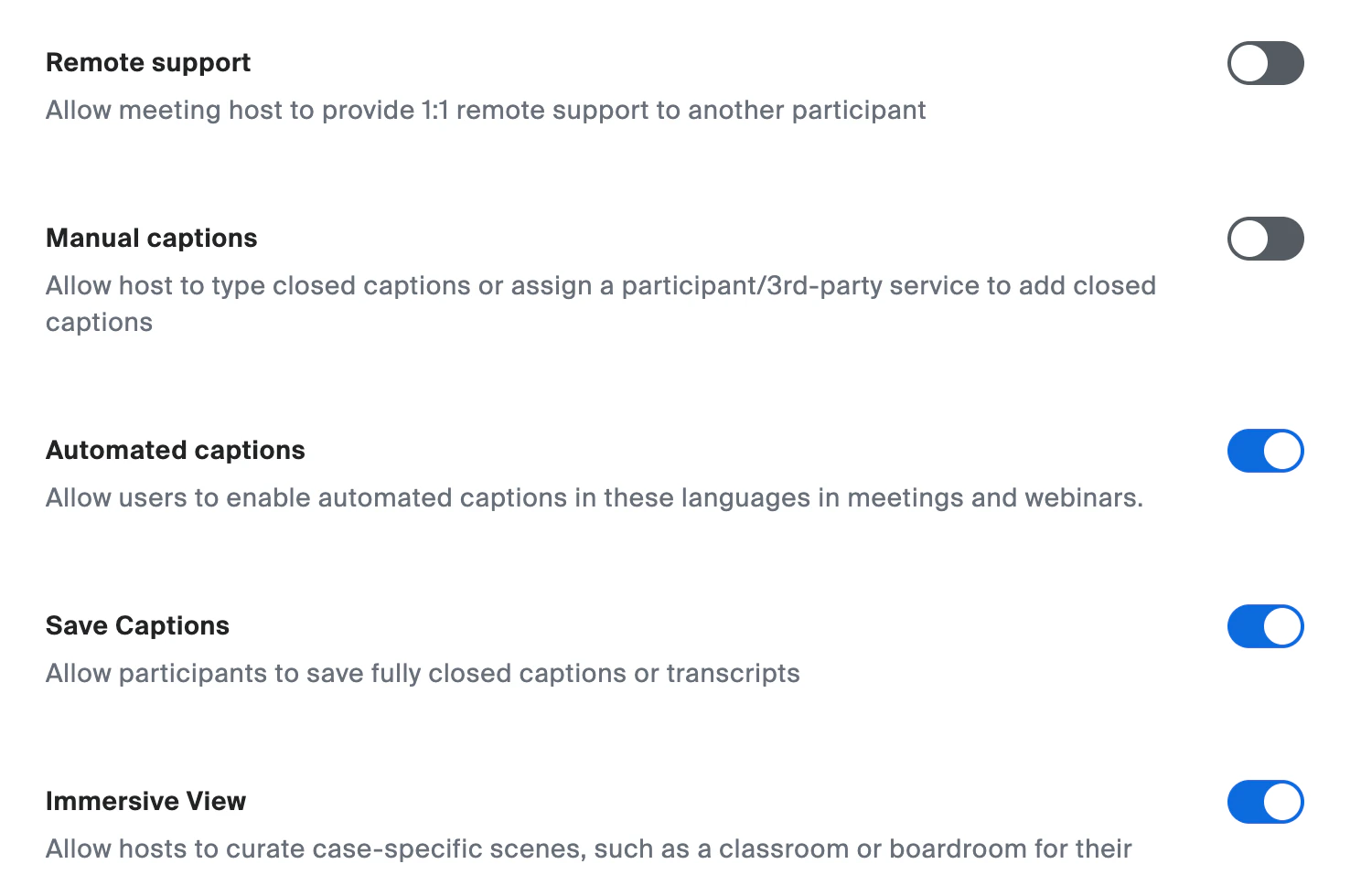
Captions and immersive view settings
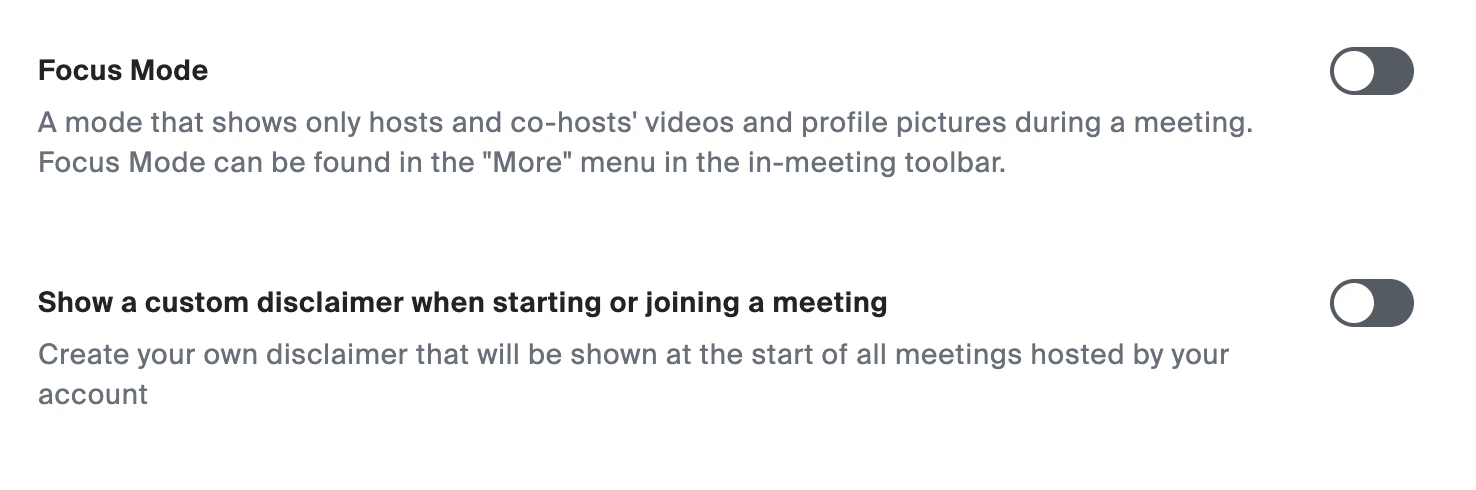
Save Your Template
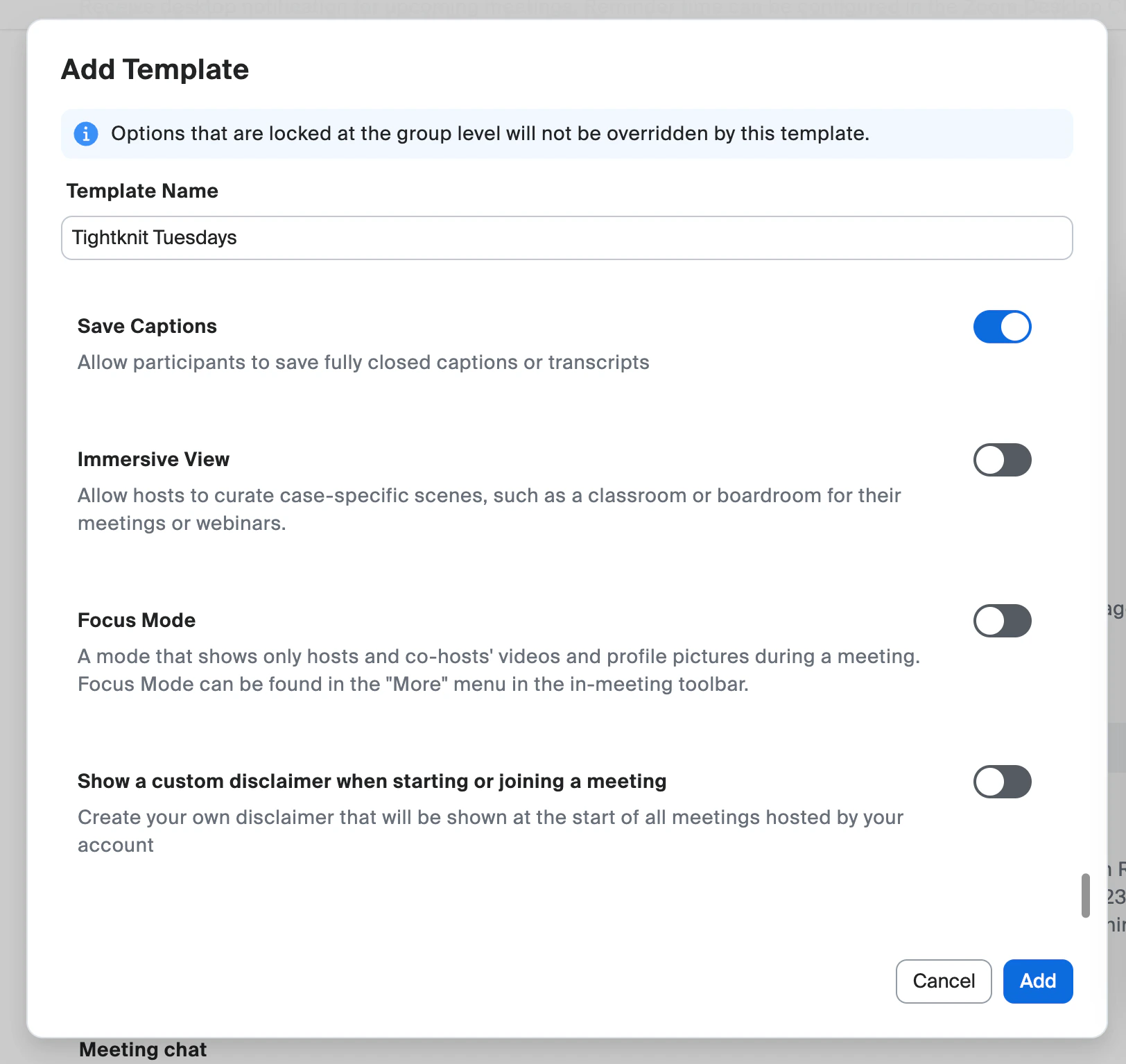
Bottom of the template dialog with the Add button
Scheduling a Meeting with Your Template
Now that your template exists, here’s how to use it.Start a New Meeting
- Sign in to the Zoom web portal.
- Click Schedule in the top navigation bar.
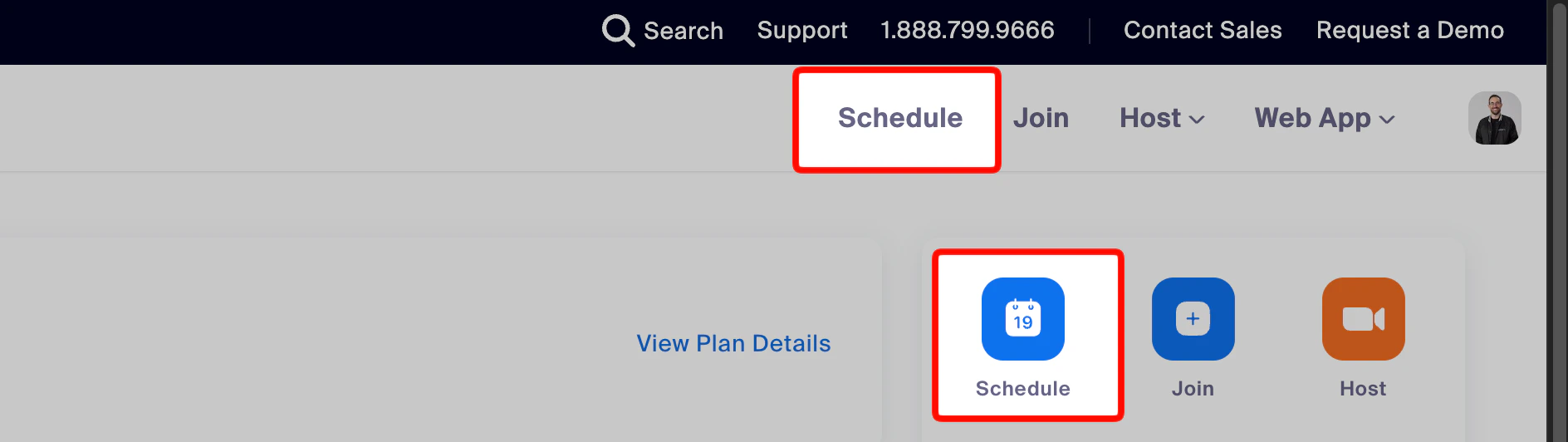
Zoom Schedule button highlighted
Fill In Meeting Details
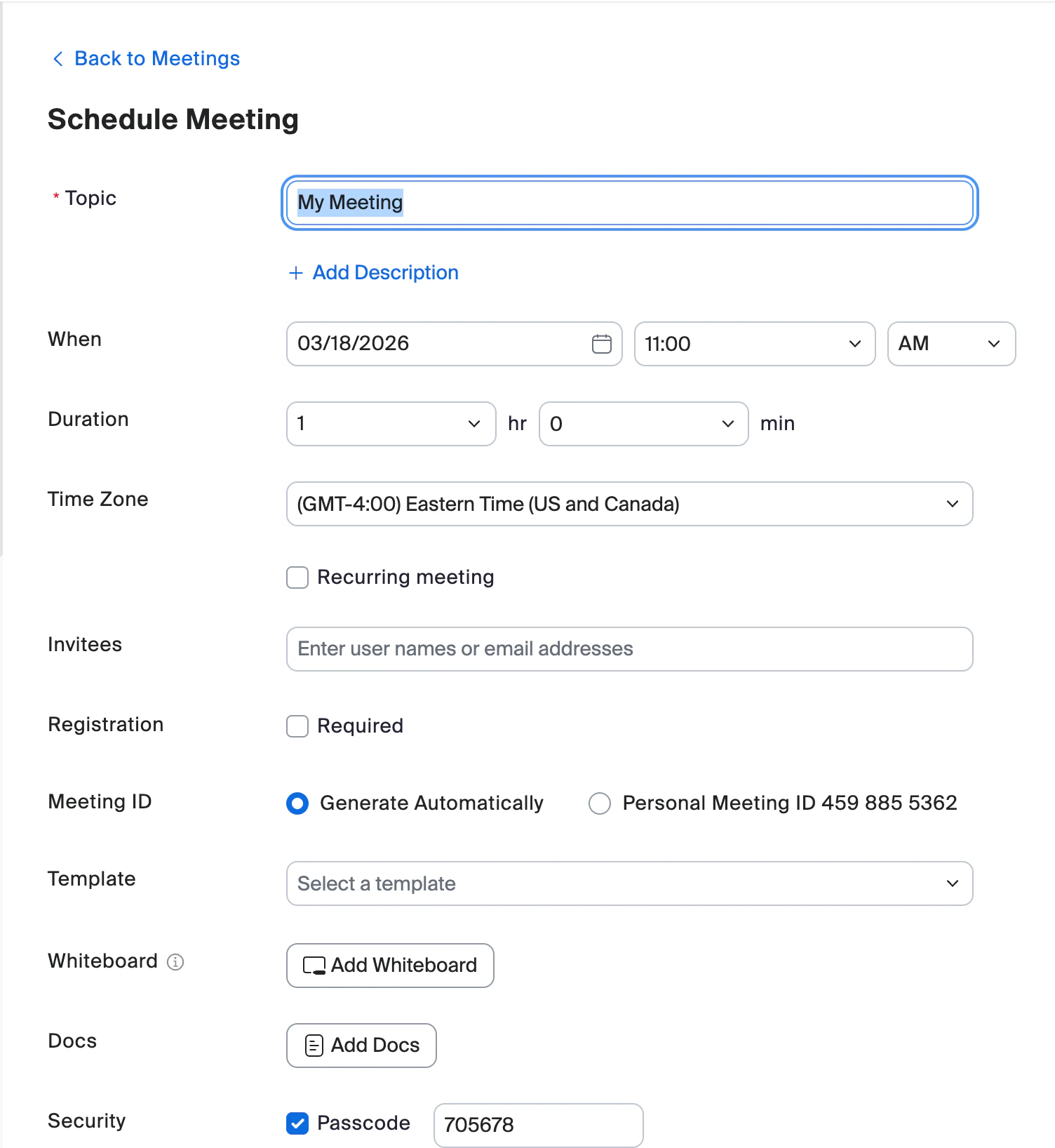
Schedule Meeting form
Configure Registration
Set the Meeting ID
Select Your Template
Save the Meeting
Next Steps
Each of these builds on what you’ve set up in this guide. Tackle them in order, or jump to whichever is most relevant for your next event.Create a Post-Meeting Survey
Create a Post-Meeting Survey
Design a Custom Meeting Wallpaper
Design a Custom Meeting Wallpaper
Connect Your Event to Tightknit
Connect Your Event to Tightknit
- One-click registration from Slack, no forms, no friction
- Automatic sync of registrations to your Zoom meeting
- Event reminders sent to registered attendees in Slack
- A central place to post recordings and follow-ups in the event thread
Run a Test Event
Run a Test Event