> ## Documentation Index
> Fetch the complete documentation index at: https://docs.tightknit.ai/llms.txt
> Use this file to discover all available pages before exploring further.
# Troubleshooting
> Find solutions to common issues you might encounter.
## Troubleshooting Issues
### 🌐 Community Site
#### My Slack message didn't sync to the community site
First, confirm that the [sync settings on the Feed](/channels-and-feeds/create-feed#feed-settings) match your expectations. If you want all messages automatically synced, ensure the auto-sync setting is checked.
Second, try using the Tightknit [message shortcut](/slack/shortcuts-and-commands/message-shortcuts) to post the message to the community site. It is safe to remove and post messages to the site using the message shortcut multiple times.
If you are still experiencing issues, check if your situation falls into any of these categories:
* Are you trying to sync a message from a bot or app? Make sure that app is not on your [**Blocked Bots**](/profiles/blocked-bots) list.
* Are you using an app that posts on your users' behalf (e.g. Pylon, Channeled, Intercom)? Make sure that app is not on your [**Blocked Bots**](/profiles/blocked-bots) list.
* Are you trying to sync a message in a Slack Connect channel or a message sent by a user in an external workspace? Tightknit currently does not support Slack Connect or external users.
* Was the Tightknit app uninstalled / re-installed during this time? See [Slack App troubleshooting](#i-had-to-uninstall-%2F-re-install-the-tightknit-app).
#### The Tightknit app message didn't sync to the community site
There is a limitation where messages sent by the Tightknit bot on behalf of your community are not synced automatically to the community site, so they won't show up in the feed. This limitation applies to Event announcements, recaps, anonymous posts, and other messages sent by the Tightknit bot.
As a workaround, use the [**Post to site**](/slack/shortcuts-and-commands/message-shortcuts#tightknit-shortcuts) message shortcut to manually sync the message to the community site.
#### My custom Slack emojis are missing on the community site
If your Slack custom emojis are not displaying images or are appearing in text format on the community site, like `:my-emoji:`, you may need to re-sync your emojis with Tightknit. To do this, simply [re-install the Tightknit app](/getting-started#reinstalling-the-slack-app).
### 📱 Slack App
#### Installing Tightknit when Marketplace-only apps are enforced
If you see this error when trying to install Tightknit:
> "Apologies, but Tightknit can't be installed. This app isn't listed in the Slack Marketplace, so only workspace owners can install it."
Your Slack workspace has the **"Only allow apps from the Slack Marketplace"** restriction enabled. Because Tightknit is not yet listed in the Slack Marketplace, a workspace owner must disable this setting before installation.
Go to your Slack workspace and navigate to **Settings & administration** > **Manage apps** > **App management settings**.
You can also visit the [Slack app management settings](https://slack.com/help/articles/1500009181142-Manage-app-settings-and-permissions) page directly.
Under **App installation permissions**, uncheck **"Only allow apps from the Slack Marketplace"**.
Return to [https://tightknit.ai/start](https://tightknit.ai/start) and complete the installation.
This setting can only be changed by a Slack workspace owner.
#### I had to uninstall / re-install the Tightknit app
Currently, Tightknit has limited support for uninstalling and re-installing the app, and resuming previous functionality. Messages and activity from Slack that occurred while the app was uninstalled will *not* be retroactively synced automatically. We recommend using the Tightknit [message shortcut](/slack/shortcuts-and-commands/message-shortcuts) to manually post important messages to the community site.
**Known Gap**
When the Tightknit app is removed from Slack, it loses access to all channels it was originally a part of. The app does *not* get automatically re-invited to these channels when it is reinstalled. To resume Tightknit operations within your channels and Feeds, please make sure to invite the Tightknit app to each channel by typing `/invite @Tightknit` in the chat.
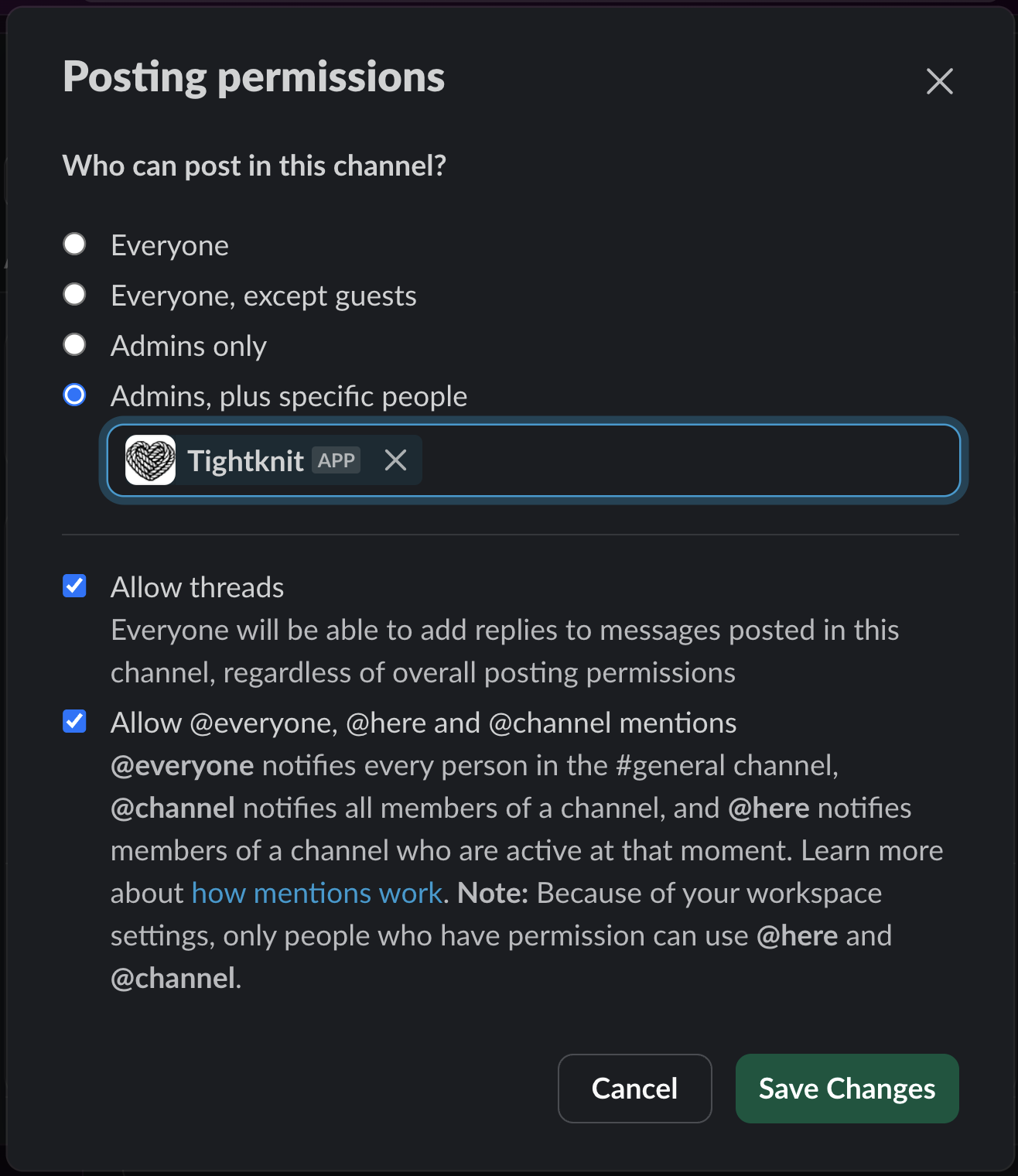
#### The Tightknit bot didn't use `@everyone`, `@channel`, or `@here` correctly in its message
This commonly occurs in the #general channel (you may have renamed it), which is the Slack channel all members are required to join. This channel has special permissions for who can post and who can use `@everyone`, `@channel`, or `@here` mentions ([read more↗](https://slack.com/help/articles/360004635551-Manage-channel-posting-permissions#manage-who-can-notify-a-channel)).
Ensure that the **Tightknit** app is allowed to post in this channel, with the mentions enabled. You can find these settings by clicking on the channel name, selecting the **Settings** tab, and editing **Posting permissions**. Under the **Admins, plus specific people** option, add the Tightknit app, and check the box to "*Allow @everyone, @here and @channel mentions
@everyone*". Click **Save Changes**.
 #### Tightknit failed to create / switch the Hub channel
This can occur during Community creation onboarding or when trying to switch the Tightknit Hub Channel. Please see [Tightknit Hub Channel troubleshooting](/slack/notification-settings#troubleshooting) for details.
### ✉️ Emails & Sign-in
#### Not receiving emails from Tightknit
If Tightknit emails aren't arriving — **sign-in emails** or **notifications** — it's almost always one of two things: they're being caught by spam or email-security filters, or your community has a different email address on file for you.
**Make sure our emails can reach you.** Add our senders to your safe-senders list — or allowlist the whole `tightknit.ai` domain:
* Sign-in emails come from `login@verify.tightknit.ai`
* Notifications come from `community@notify.tightknit.ai`
* If your community uses a custom email domain, some emails may come from that domain instead.
Then check your **Spam**, **Junk**, and (in Gmail) **Promotions** folders, and mark any Tightknit message **Not Spam**. At a workplace the allowlist is often controlled by IT — ask them to "allowlist the `tightknit.ai` domain." Sign-in emails are only valid for about **10 minutes**, so request a fresh one if yours expired.
**Still nothing?** Your community may have the wrong email on file. Sign in with the exact email you were added with (often your work email), and ask your admin to verify it. Admins can check and correct a member's email in **[Studio → Members](https://studio.tightknit.ai/-/members)** — note that adding a member does not send them an email automatically.
For sign-in specifically, one-click options like **Continue with Google / Microsoft / Slack** skip email entirely and avoid delivery problems. See [Authentication](/community-site/authentication).
## Contacting Support
If you are experiencing difficulties, please contact [Support](mailto:support@tightknit.ai). You may also try posting in our [Community ↗](https://community.tightknit.ai), which typically has faster response times.
## Related topics
- [Salesforce](/integrations/salesforce.md)
- [Invite and activate members](/guides/invite-and-activate-members.md)
- [Launch Your Community Site](/guides/launch-your-site.md)
- [Navigating Studio Analytics](/guides/navigating-studio-analytics.md)
- [Automated Onboarding Journeys](/guides/set-up-automated-onboarding-journeys.md)
#### Tightknit failed to create / switch the Hub channel
This can occur during Community creation onboarding or when trying to switch the Tightknit Hub Channel. Please see [Tightknit Hub Channel troubleshooting](/slack/notification-settings#troubleshooting) for details.
### ✉️ Emails & Sign-in
#### Not receiving emails from Tightknit
If Tightknit emails aren't arriving — **sign-in emails** or **notifications** — it's almost always one of two things: they're being caught by spam or email-security filters, or your community has a different email address on file for you.
**Make sure our emails can reach you.** Add our senders to your safe-senders list — or allowlist the whole `tightknit.ai` domain:
* Sign-in emails come from `login@verify.tightknit.ai`
* Notifications come from `community@notify.tightknit.ai`
* If your community uses a custom email domain, some emails may come from that domain instead.
Then check your **Spam**, **Junk**, and (in Gmail) **Promotions** folders, and mark any Tightknit message **Not Spam**. At a workplace the allowlist is often controlled by IT — ask them to "allowlist the `tightknit.ai` domain." Sign-in emails are only valid for about **10 minutes**, so request a fresh one if yours expired.
**Still nothing?** Your community may have the wrong email on file. Sign in with the exact email you were added with (often your work email), and ask your admin to verify it. Admins can check and correct a member's email in **[Studio → Members](https://studio.tightknit.ai/-/members)** — note that adding a member does not send them an email automatically.
For sign-in specifically, one-click options like **Continue with Google / Microsoft / Slack** skip email entirely and avoid delivery problems. See [Authentication](/community-site/authentication).
## Contacting Support
If you are experiencing difficulties, please contact [Support](mailto:support@tightknit.ai). You may also try posting in our [Community ↗](https://community.tightknit.ai), which typically has faster response times.
## Related topics
- [Salesforce](/integrations/salesforce.md)
- [Invite and activate members](/guides/invite-and-activate-members.md)
- [Launch Your Community Site](/guides/launch-your-site.md)
- [Navigating Studio Analytics](/guides/navigating-studio-analytics.md)
- [Automated Onboarding Journeys](/guides/set-up-automated-onboarding-journeys.md)