> ## Documentation Index
> Fetch the complete documentation index at: https://docs.tightknit.ai/llms.txt
> Use this file to discover all available pages before exploring further.
# Access the Studio
> Learn how to access the Studio
## Accessing the Studio
To access the Studio, click the `Open Studio` button from the [Slack app home](/slack/getting-started) or visit [https://studio.tightknit.ai](https://studio.tightknit.ai).
### Requirements
* The Tightknit app must be installed in your workspace
* You must be on an active Tightknit plan
* You must be an admin of your Slack workspace or be invited to the Studio by an admin
### Getting Access
Users may be added to their organization's Studio workspace in one of the following ways:
1. The user that first installs the Tightknit app into the Slack workspace is automatically added to the Studio workspace, as long as they are an admin and meet the requirements above.
2. When admin users visit the Tightknit app home in Slack, they are automatically added to the Studio workspace.
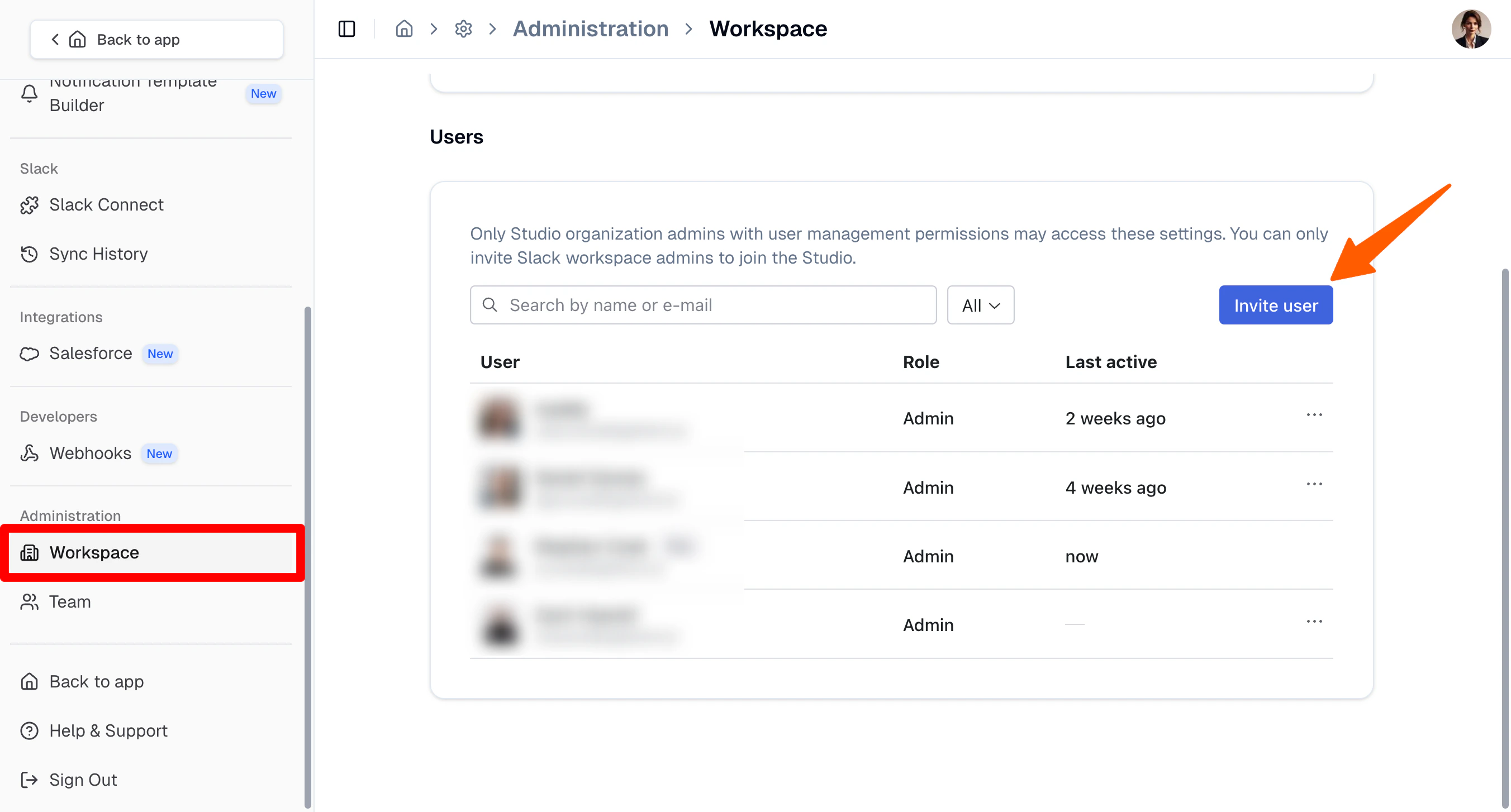
3. In the **[Workspace > Users](https://studio.tightknit.ai/-/workspace#users)**, the organization admin may **invite users** to join the workspace via email.
When inviting new admins to the Studio, the email used for the invitation must
exactly match the email associated with their Slack profile. If you use the
wrong email, the user will be unable to log in.
If your community is connected to a Slack workspace, invited users must also be members of that Slack workspace in order to access the Studio. Adding a user via the Workspace > Users page alone is not sufficient. They will need to join the connected Slack workspace first.
 ### Roles
Admins can assign roles to Studio users, granting them access to specific pages and operations within the Studio. Each role defines what a user can see and do, allowing admins to control permissions at a granular level.
To manage Studio users and their roles, navigate to **[Workspace > Users](https://studio.tightknit.ai/-/workspace#users)**.
| Role | Description |
| ------------------------- | ------------------------------------------------------------------------------------------------------------------------------------------------------------------- |
| **Admin** | Access to all pages and can manage all available resources. |
| **Content Manager** | Can only view, access, and manage Content-related objects from the Studio, including Content Collections, Content Resources, and Tags. |
| **Community Data Viewer** | Has view-only access to Community data / analytics pages only in the Studio (e.g. Overview, Members, Discussions, Website, Activities). |
| **Overview-only Viewer** | Can only view the Overview page (analytics dashboard) in the Studio. |
| **Integrations Manager** | Can manage settings for integrations (e.g. Salesforce), webhooks, and API keys. |
| **Site Designer** | Can manage settings related to the appearance of the Companion Forums Site. |
| **Site Editor** | Can only view, access, and manage Companion Site-related settings from the Studio, including the including the authentication, banner, branding, display info, etc. |
### Roles
Admins can assign roles to Studio users, granting them access to specific pages and operations within the Studio. Each role defines what a user can see and do, allowing admins to control permissions at a granular level.
To manage Studio users and their roles, navigate to **[Workspace > Users](https://studio.tightknit.ai/-/workspace#users)**.
| Role | Description |
| ------------------------- | ------------------------------------------------------------------------------------------------------------------------------------------------------------------- |
| **Admin** | Access to all pages and can manage all available resources. |
| **Content Manager** | Can only view, access, and manage Content-related objects from the Studio, including Content Collections, Content Resources, and Tags. |
| **Community Data Viewer** | Has view-only access to Community data / analytics pages only in the Studio (e.g. Overview, Members, Discussions, Website, Activities). |
| **Overview-only Viewer** | Can only view the Overview page (analytics dashboard) in the Studio. |
| **Integrations Manager** | Can manage settings for integrations (e.g. Salesforce), webhooks, and API keys. |
| **Site Designer** | Can manage settings related to the appearance of the Companion Forums Site. |
| **Site Editor** | Can only view, access, and manage Companion Site-related settings from the Studio, including the including the authentication, banner, branding, display info, etc. |