> ## Documentation Index
> Fetch the complete documentation index at: https://docs.tightknit.ai/llms.txt
> Use this file to discover all available pages before exploring further.
# Team Notifications
> Manage administrative notifications from Tightknit.
Admins can access Team Notification settings by clicking the `Team Notifications` button under the **Community** module.
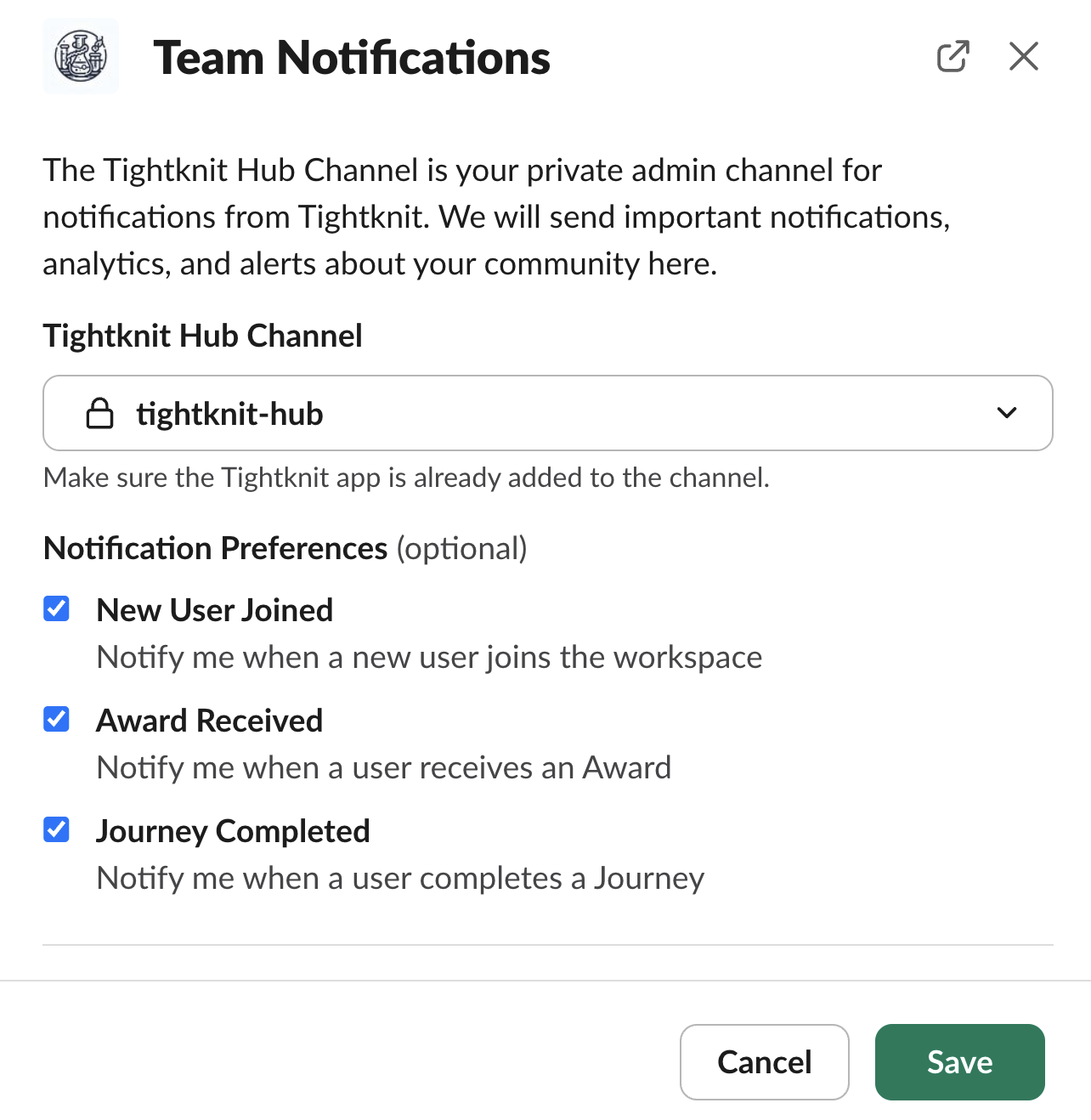 ## Tightknit Hub Channel
The **Tightknit Hub Channel** is where Tightknit sends important notifications, analytics, and alerts about your community. You can switch this to any private channel, and Tightknit will start sending updates to that channel instead. The selected channel cannot have a Tightknit Feed connected to it.
### Troubleshooting
During the onboarding process, Tightknit will attempt to create a new private channel called `#tightknit-hub`. This operation, and attempting to switch the Hub channel, can fail for several reasons depending on your workspace settings:
* Users are restricted from creating public / private channels
* The Tightknit app is not inside the private channel
To resolve this, you can manually configure the Tightknit Hub be a channel of your choice:
1. Create a new private channel. We recommend calling it `#tightknit-hub`, but any name will do!
2. Invite the Tightknit app to the channel by typing `/invite @Tightknit` in the chat.
3. In the app home settings, click the `Team Notifications` and set the Tightknit Hub channel to the channel you created.
## Notification Preferences
Admins may subscribe their Tightknit Hub channel to any of the following notifications:
### New User Joined
Each time a new user joins your workspace, Tightknit can send a notification to the Hub channel.
## Tightknit Hub Channel
The **Tightknit Hub Channel** is where Tightknit sends important notifications, analytics, and alerts about your community. You can switch this to any private channel, and Tightknit will start sending updates to that channel instead. The selected channel cannot have a Tightknit Feed connected to it.
### Troubleshooting
During the onboarding process, Tightknit will attempt to create a new private channel called `#tightknit-hub`. This operation, and attempting to switch the Hub channel, can fail for several reasons depending on your workspace settings:
* Users are restricted from creating public / private channels
* The Tightknit app is not inside the private channel
To resolve this, you can manually configure the Tightknit Hub be a channel of your choice:
1. Create a new private channel. We recommend calling it `#tightknit-hub`, but any name will do!
2. Invite the Tightknit app to the channel by typing `/invite @Tightknit` in the chat.
3. In the app home settings, click the `Team Notifications` and set the Tightknit Hub channel to the channel you created.
## Notification Preferences
Admins may subscribe their Tightknit Hub channel to any of the following notifications:
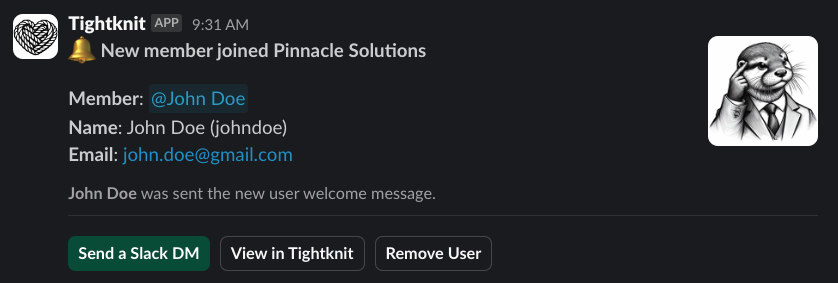
### New User Joined
Each time a new user joins your workspace, Tightknit can send a notification to the Hub channel.
 ### Award Received
When a user receives an Award (e.g. given by another user, completing a Journey, being added to a Group, etc.), Tightknit can send a notification to the Hub channel.
### Journey Completed
When a user completes a Journey, Tightknit can send a notification to the Hub channel.
## Related topics
- [Overview](/community-site/overview.md)
- [Community Settings](/slack/community-settings.md)
- [Notifications](/community-site/notifications.md)
- [Slack Scopes & Permissions](/security/slack-scopes.md)
- [Tutorial: Make Webhook → Slack notification](/events/tutorials/webhook-make-slack.md)
### Award Received
When a user receives an Award (e.g. given by another user, completing a Journey, being added to a Group, etc.), Tightknit can send a notification to the Hub channel.
### Journey Completed
When a user completes a Journey, Tightknit can send a notification to the Hub channel.
## Related topics
- [Overview](/community-site/overview.md)
- [Community Settings](/slack/community-settings.md)
- [Notifications](/community-site/notifications.md)
- [Slack Scopes & Permissions](/security/slack-scopes.md)
- [Tutorial: Make Webhook → Slack notification](/events/tutorials/webhook-make-slack.md)