> ## Documentation Index
> Fetch the complete documentation index at: https://docs.tightknit.ai/llms.txt
> Use this file to discover all available pages before exploring further.
# Getting Started
> Learn how to manage your Tightknit community from within Slack
Our philosophy is to meet users where they are. That includes you, the Slack community admin! No, you don't have to leave Slack and learn a new platform in order to work with Tightknit. You can manage your community *entirely from within Slack!*
## Finding Tightknit in Slack
To get started, click on **Tightknit** under the Apps section in the Slack sidebar, or search "Tightknit" in the search bar.
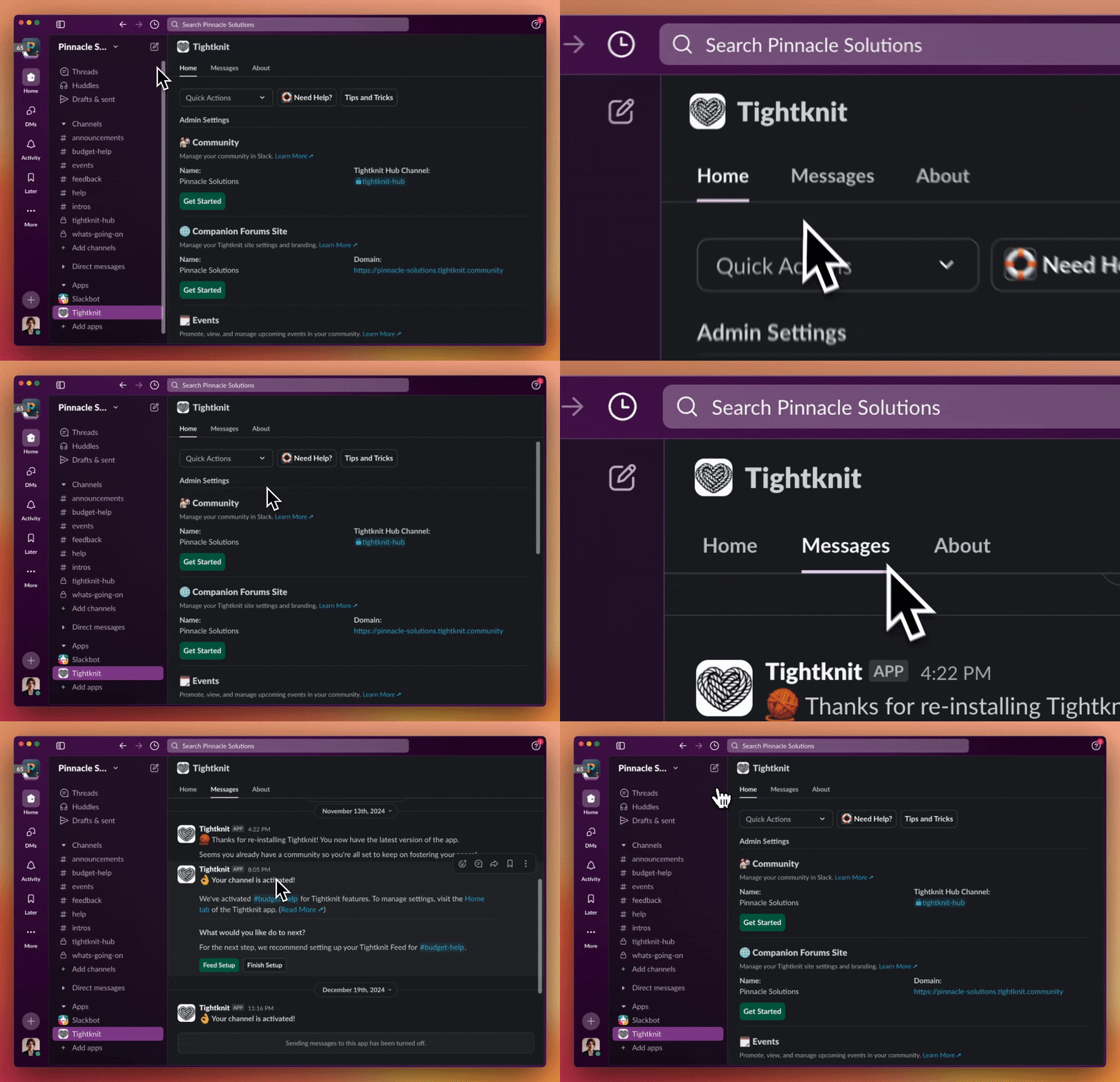
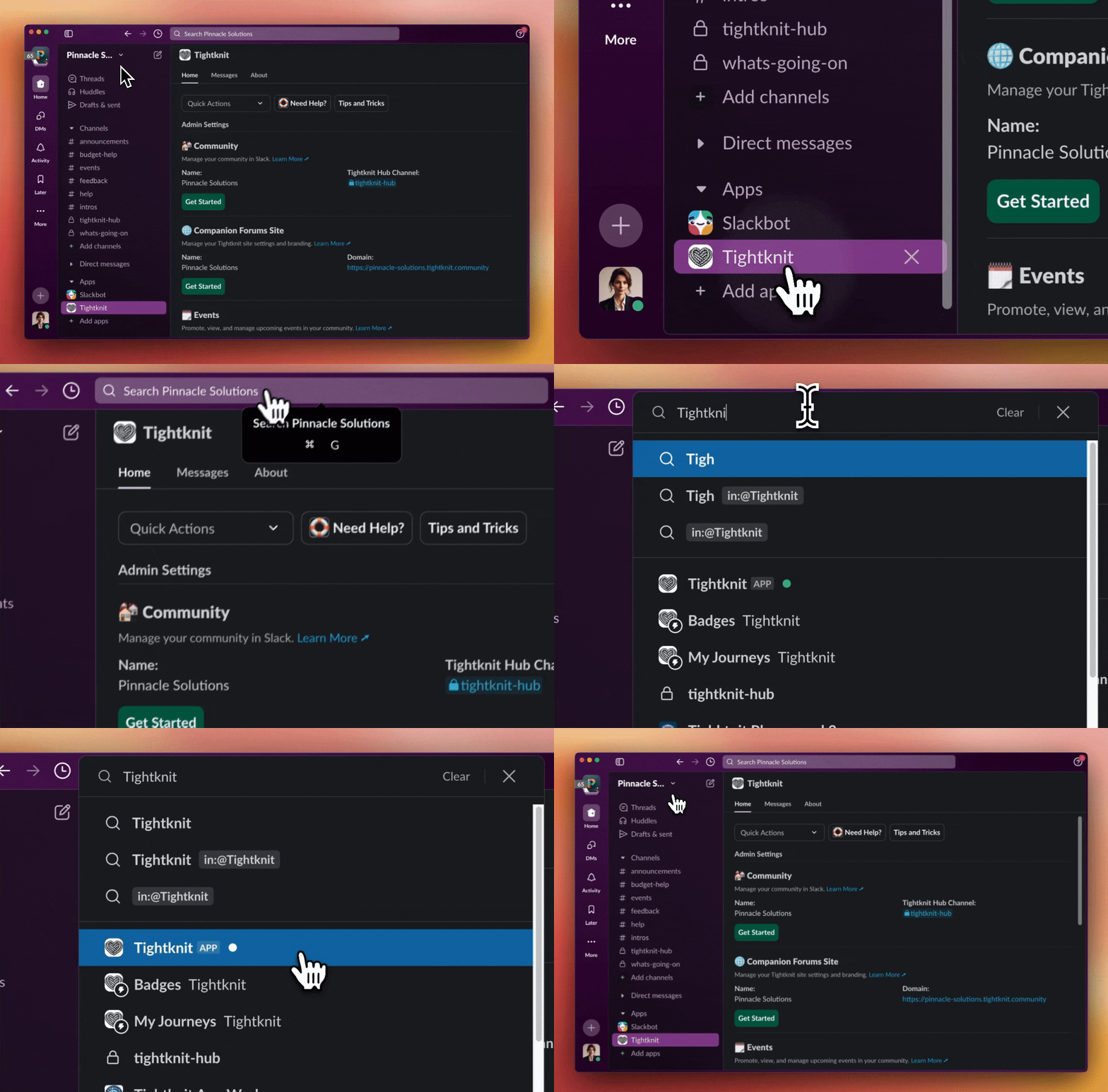 The Tightknit app has three tabs: **Home**, **Messages**, and **About**. The **Home** tab contains the app settings and is where you'll spend most of your time.
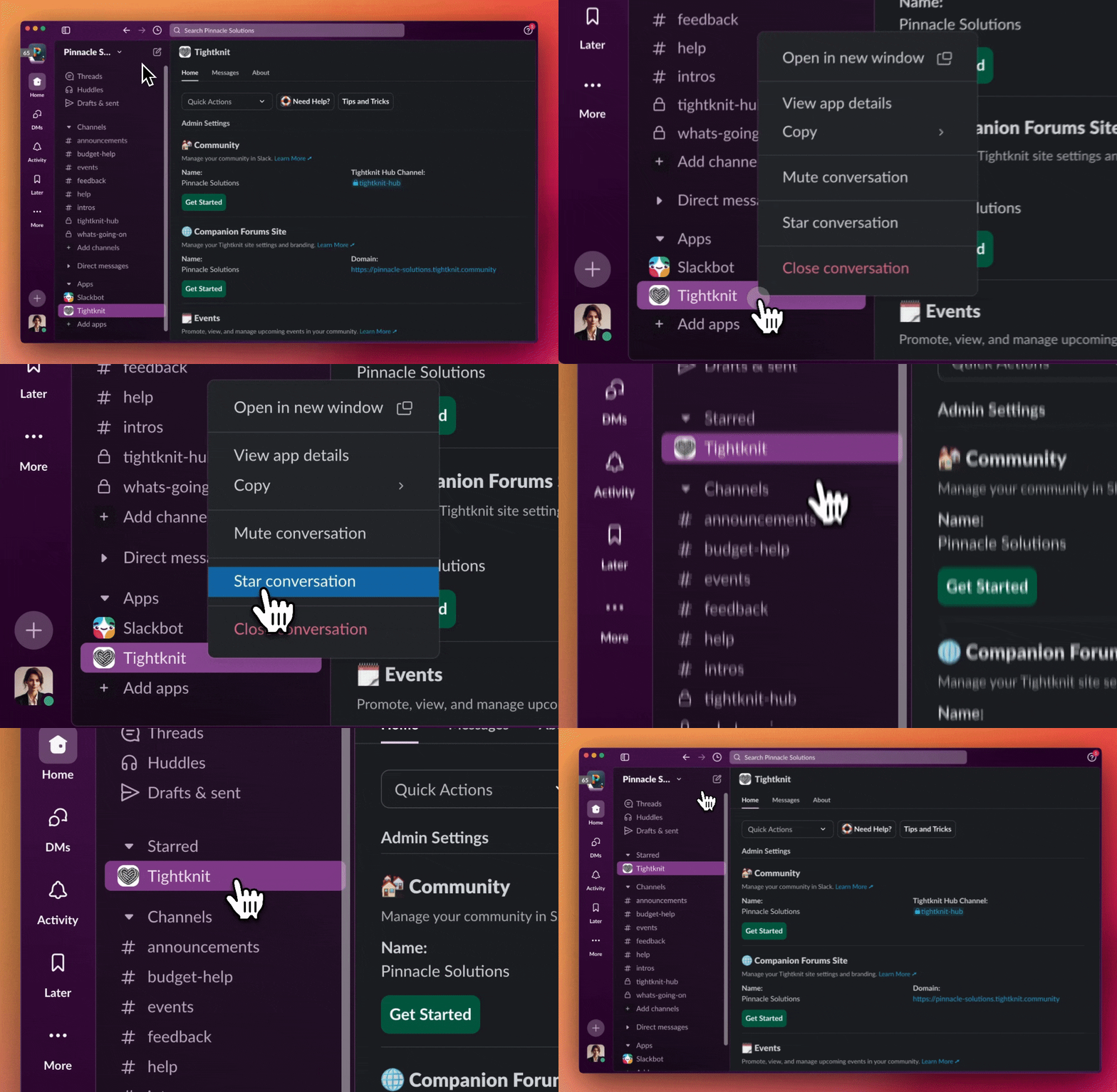
 We recommend starring the Tightknit app to make it easier to find in the future.
 ## App Home
Welcome to the Tightknit app Home! This is where admins can manage and configure everything related to your Tightknit community. The app home is divided into sections called "modules". Each module has different features and settings.
## App Home
Welcome to the Tightknit app Home! This is where admins can manage and configure everything related to your Tightknit community. The app home is divided into sections called "modules". Each module has different features and settings.
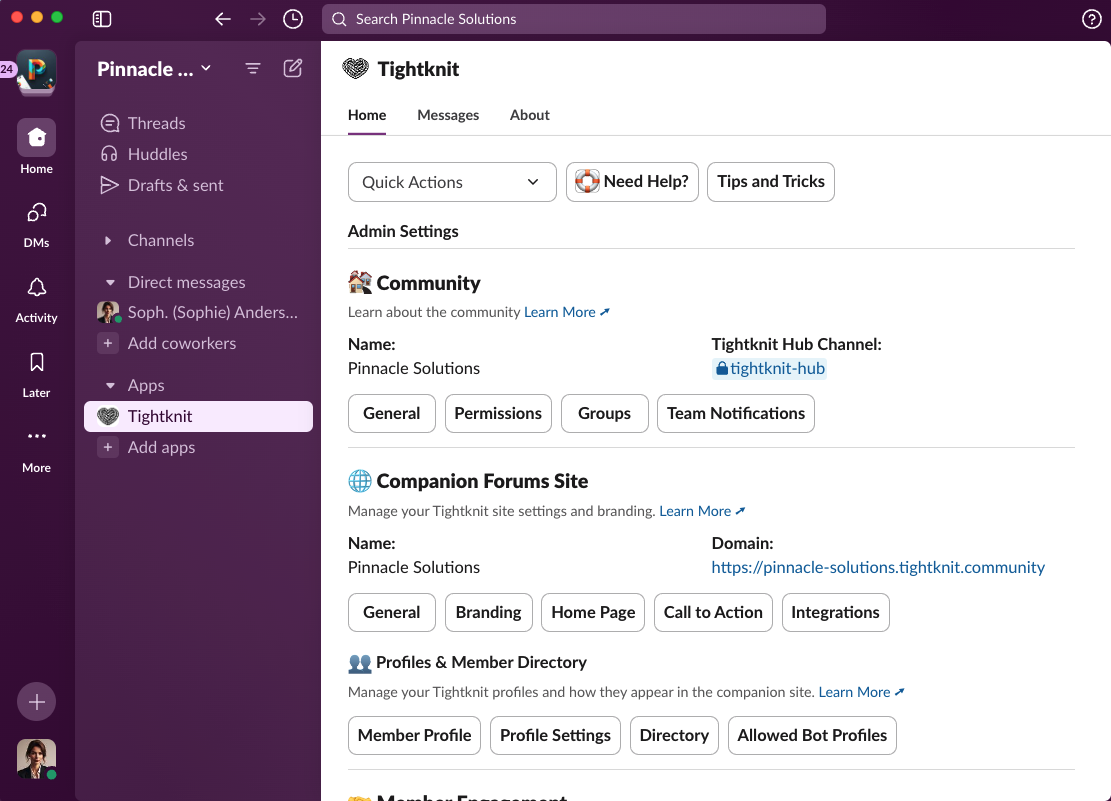 **Don't Get Lost!**
Notice that there are three tabs at the top of this screen: **Home**,
**Messages**, and **About**. If you ever need to return to these settings,
click on the Tightknit app and make sure you've selected the **Home** tab.
### Quick actions
Once you're a Tightknit power user 💪, check out the **Quick Actions** menu at the top of App Home. This menu lets you get to important actions faster (and it is searchable)!
 ## Rename the Tightknit Slack bot
When sending messages on behalf of your community, the Tighktnit bot adopts the name and icon configured in [Community general settings](/community/general#community-details). However, when the Tightknit bot sends notifications to admins, is tagged in a message, or is listed in Slack workspace management views, it will appear as the default "Tightknit" app; for these scenarios, you can customize the bot name using the following method:
1. Navigate to the Slack marketplace [Tightknit app page](https://slack.com/marketplace/A05QUGA17PH-tightknit?settings=1\&tab=settings).
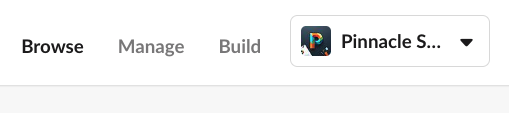
2. Select your Slack workspace where Tightknit is installed using the top-right dropdown.
## Rename the Tightknit Slack bot
When sending messages on behalf of your community, the Tighktnit bot adopts the name and icon configured in [Community general settings](/community/general#community-details). However, when the Tightknit bot sends notifications to admins, is tagged in a message, or is listed in Slack workspace management views, it will appear as the default "Tightknit" app; for these scenarios, you can customize the bot name using the following method:
1. Navigate to the Slack marketplace [Tightknit app page](https://slack.com/marketplace/A05QUGA17PH-tightknit?settings=1\&tab=settings).
2. Select your Slack workspace where Tightknit is installed using the top-right dropdown.
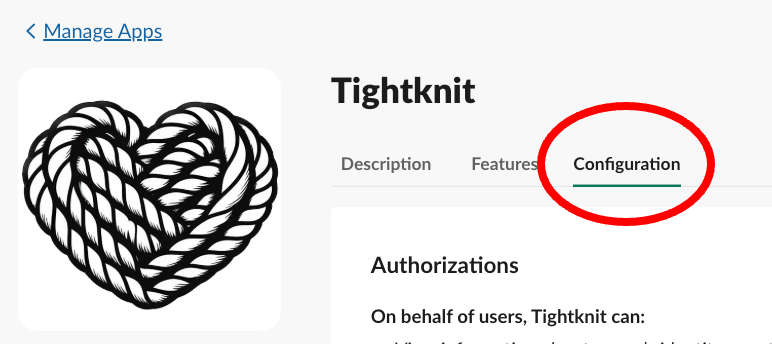
 3. Click the **Configuration** tab.
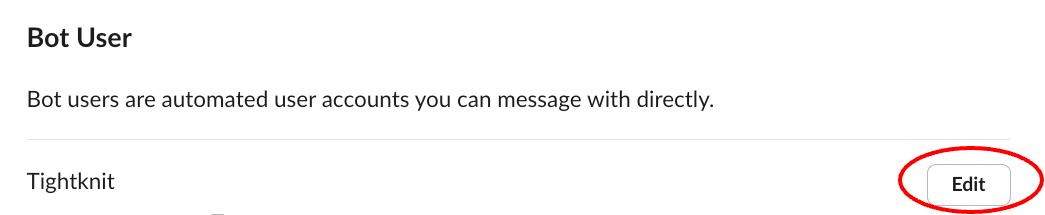
 4. In the **Bot User** section, click "Edit" to rename the Tightknit bot.
 ## Related topics
- [Getting Started](/profiles/getting-started.md)
## Related topics
- [Getting Started](/profiles/getting-started.md)