> ## Documentation Index
> Fetch the complete documentation index at: https://docs.tightknit.ai/llms.txt
> Use this file to discover all available pages before exploring further.
# Community Settings
> Learn the basics of your Tightknit community.
The "Community" is the primary Tightknit object that is associated with your Slack workspace. It is an umbrella over other Tightknit modules which you may enable and disable for your Community.
If you are new to Tightknit, follow the [guided setup flow](/getting-started#create-the-community) to configure your Community! Admins can access the Community settings under the **Community** section in the Tightknit app Home.
## The Community Module
You can access settings related to the Community for under the **Community** section in the Tightknit App Home.
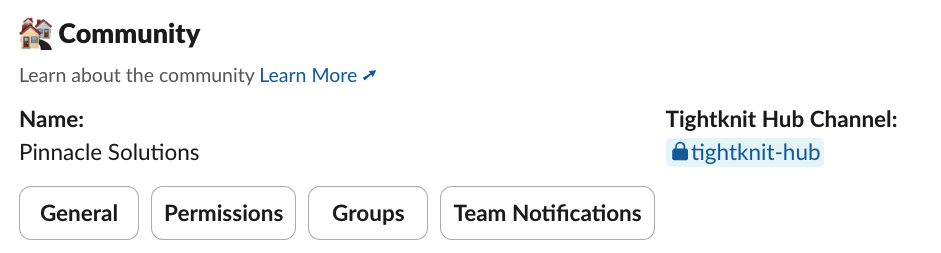 ## Tightknit Hub Channel
When you first set up your Tightknit community, we will create a private channel that will serve as your Tightknit notifications hub. We will send important analytics, updates, and alerts about your community here. This is a private channel that should only include select admins.
By default, the channel is named **`tightknit-hub`**, but you are free to rename it to anything you like in [Team Notifications](/slack/notification-settings)!
We may be unable to create the Tightknit Hub channel, especially if your
workspace does not allow non-admin users to create private channels. To fix
this, you can either [modify that
permission](https://slack.com/help/articles/360052445454-Manage-permissions-for-channel-management-tools)
for your Slack workspace and try again, or set the Tightknit Hub to a channel
of your own choice in the [Notification
Settings](/slack/notification-settings).
## Related topics
- [MCP Server](/integrations/mcp.md)
- [General Settings](/community-site/general.md)
- [Profile Settings](/profiles/profile-settings.md)
- [Gamification Settings](/gamification/settings.md)
- [Agent Settings](/channels-and-feeds/agent-settings.md)
## Tightknit Hub Channel
When you first set up your Tightknit community, we will create a private channel that will serve as your Tightknit notifications hub. We will send important analytics, updates, and alerts about your community here. This is a private channel that should only include select admins.
By default, the channel is named **`tightknit-hub`**, but you are free to rename it to anything you like in [Team Notifications](/slack/notification-settings)!
We may be unable to create the Tightknit Hub channel, especially if your
workspace does not allow non-admin users to create private channels. To fix
this, you can either [modify that
permission](https://slack.com/help/articles/360052445454-Manage-permissions-for-channel-management-tools)
for your Slack workspace and try again, or set the Tightknit Hub to a channel
of your own choice in the [Notification
Settings](/slack/notification-settings).
## Related topics
- [MCP Server](/integrations/mcp.md)
- [General Settings](/community-site/general.md)
- [Profile Settings](/profiles/profile-settings.md)
- [Gamification Settings](/gamification/settings.md)
- [Agent Settings](/channels-and-feeds/agent-settings.md)