> ## Documentation Index
> Fetch the complete documentation index at: https://docs.tightknit.ai/llms.txt
> Use this file to discover all available pages before exploring further.
# Member Profile
> Learn how to configure the settings for profile fields.
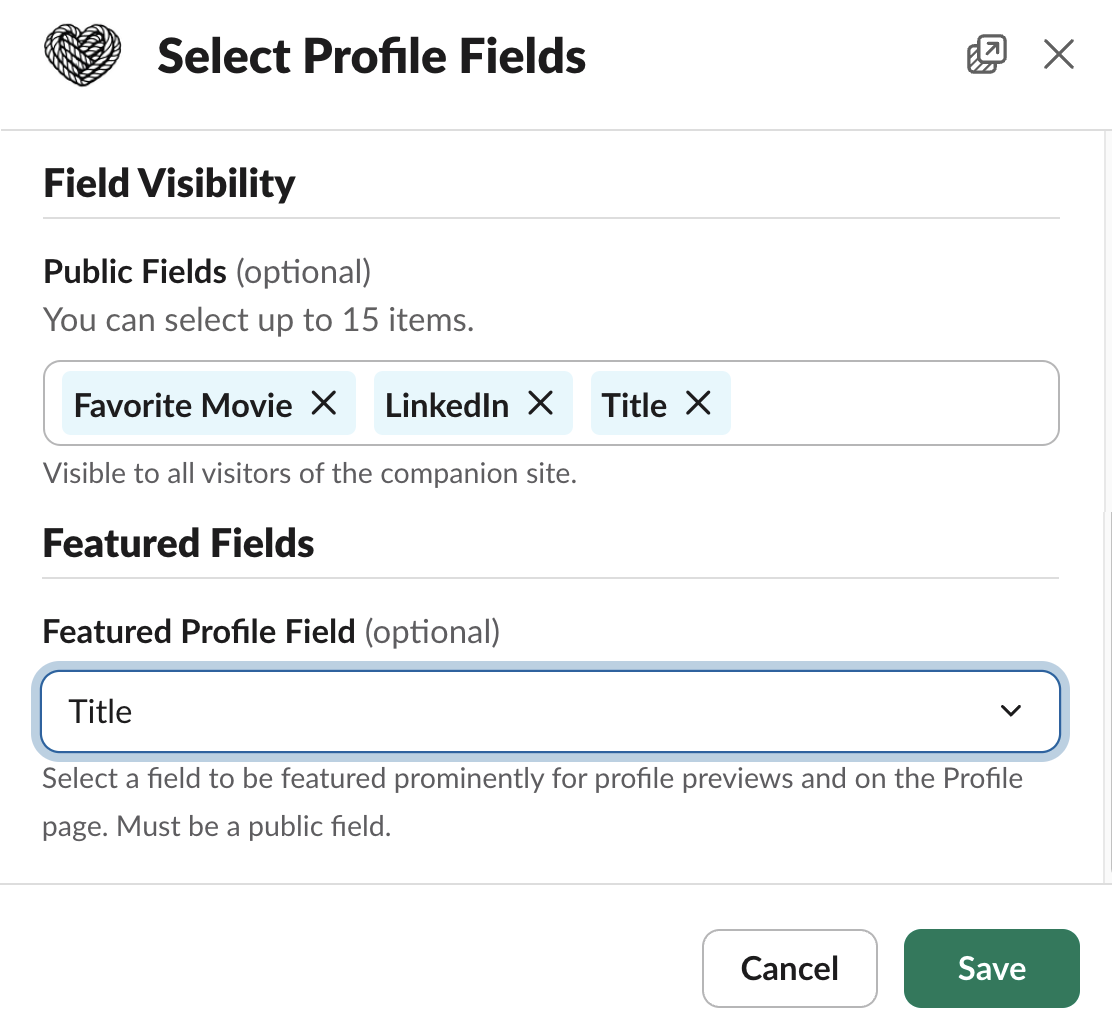
Within the `Profile Fields` modal, you can configure visibility and privacy for fields displayed on the [member profile page](/community-site/pages#profile), including:
* **Public Fields** - fields that are visible to all visitors of the community site.
* **Featured Profile Field** - field featured in the header of the profile page and on certain profile-related components. Also featured on the profile card image that is generated when you share the profile URL on social media. Must be a public field.
There cannot be overlapping fields between the Public and Restricted field sets.
 These profile fields are populated from the profile fields that are configured in the Slack workspace.
Only active Slack profile fields are shown as options for Tightknit.
You can configure these fields in the Slack workspace by going to `Customize Workspace` > `Profiles`.
[Click here](https://slack.com/help/articles/212281478-Customize-member-profiles) to learn more.
**Known Limitation**: Tightknit currently supports Text, Link, and Date
profile field types.
## Related topics
- [Manage Member Profiles](/profiles/manage-profiles.md)
- [Members](/studio/members.md)
- [Single & Multi-Channel Guests](/slack/guests.md)
- [Salesforce](/integrations/salesforce.md)
- [Groups](/community/groups.md)
These profile fields are populated from the profile fields that are configured in the Slack workspace.
Only active Slack profile fields are shown as options for Tightknit.
You can configure these fields in the Slack workspace by going to `Customize Workspace` > `Profiles`.
[Click here](https://slack.com/help/articles/212281478-Customize-member-profiles) to learn more.
**Known Limitation**: Tightknit currently supports Text, Link, and Date
profile field types.
## Related topics
- [Manage Member Profiles](/profiles/manage-profiles.md)
- [Members](/studio/members.md)
- [Single & Multi-Channel Guests](/slack/guests.md)
- [Salesforce](/integrations/salesforce.md)
- [Groups](/community/groups.md)