> ## Documentation Index
> Fetch the complete documentation index at: https://docs.tightknit.ai/llms.txt
> Use this file to discover all available pages before exploring further.
# Community Guidelines
> Set up and manage your community's guidelines, including AI-powered generation and community site display.
# Community Guidelines
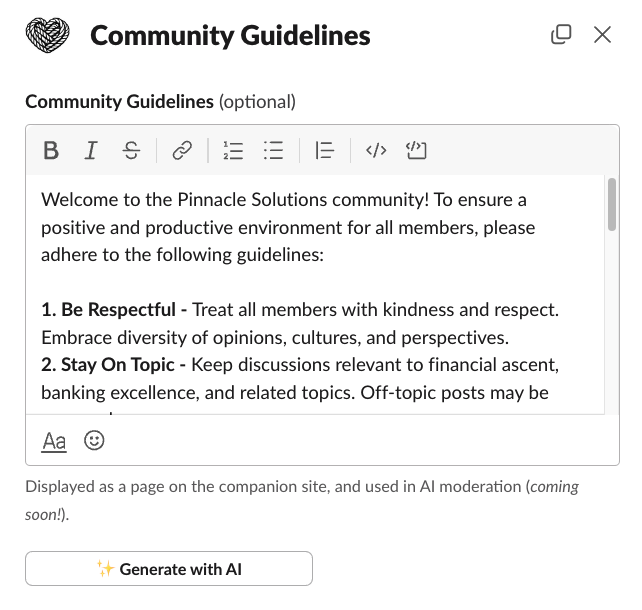
You can access the your Community Guidelines settings by clicking the `Community Guidelines` button under the **Moderation** module in your Tightknit app home. Community Guidelines saved in Tightknit are displayed on the `/community-guidelines` [page of the Community Site](/community-site/pages#community-guidelines).
The Community Guidelines can also be used in AI moderation (*coming soon*!).
## Navigation Emoji Icon
You can set a custom emoji icon that appears next to the Community Guidelines link in the community site navigation sidebar. This helps visually distinguish the guidelines in your site's navigation.
💡 Need inspiration? Try clicking the `✨Generate with AI` button to generate
a sample set of guidelines.
 ## Related topics
- [Pages](/community-site/pages.md)
- [New Member Onboarding](/member-engagement/onboarding.md)
- [AI at Tightknit](/ai/overview.md)
- [Community Settings](/slack/community-settings.md)
- [Launch Your Community Site](/guides/launch-your-site.md)
## Related topics
- [Pages](/community-site/pages.md)
- [New Member Onboarding](/member-engagement/onboarding.md)
- [AI at Tightknit](/ai/overview.md)
- [Community Settings](/slack/community-settings.md)
- [Launch Your Community Site](/guides/launch-your-site.md)