# Activity Logs
Source: https://docs.tightknit.ai/activity-logs/getting-started
Tightknit captures every community interaction — posts, edits, deletions, auth events, and more — as a structured, versioned activity stream.
Activity logs capture every meaningful community interaction — posts, edits,
deletions, auth events, and more — as a structured, chronological stream.
Every activity consists of a **type** (what happened), a **version**
(describing the schema of its payload), an **initiator** (who performed the
action), sometimes a **recipient** (who was the target of the action,
e.g. the member who received an award), and a **metadata payload** of
the public IDs of related records and point-in-time info (like a post title or
feed label as it was when the event occurred).
> [!TIP]
>
> **Did you know you can ask our [MCP server](/integrations/mcp) this too?** Try asking: *"What happened in the community yesterday?"*
## Reading the activity log in Studio
Studio's **Activity** page is the chronological record of everything that has happened in your community. Use it to answer "what happened, and when?" for a specific member or a specific day.
It is not listed in the Studio sidebar. Reach it with Cmd+K and type `activity`, click **View all activity** on the **Recent Activity** card at the bottom of the [Overview dashboard](/studio/analytics), or go straight to **[Activity](https://studio.tightknit.ai/-/activities)**.

The Activity page in Studio
### Searching and filtering
Search matches on activity content and on the member who performed it. Three filters narrow the feed:
* **Activity** - the activity type. Every type listed under [Activity types](#activity-types) below can be filtered for. **Best Answers** shows every best answer: answers promoted to best (`answer.marked_best`) and replies marked straight to best (`answer.selected` with `is_best`).
* **Team** - include all members, only your teammates, or exclude your teammates.
* **Type** - humans only, all including bots, or bots only.
Sort by newest or oldest.
> [!TIP]
>
> Filtering to **Posts Deleted** and **Comments Deleted** gives you a deletion audit trail, which is the fastest way to confirm whether content was removed by its author or by a moderator.
### A single member's activity
To see one member's history instead of the whole community, open their profile from [Members](/studio/members) and use the activity tab there. It carries the same activity-type filter.
> [!NOTE]
>
> Viewing activity requires community data access. See [Access and roles](/studio/access).
## Activity types
Each event is tagged with an activity type that identifies what happened.
| Type | Description |
| - | - |
| `answer.marked_best` | A reply already marked as an answer on a post was promoted to its best answer. |
| `answer.selected` | A reply was marked as an answer on a post, by the post's author, a community admin or a Studio Discussions Manager. |
| `answer.unselected` | A reply was unmarked as an answer on a post. |
| `award.given` | An award was given to a member. |
| `badge.given` | A badge was given to a member. |
| `calendar_event.user_registered` | A member registered for a calendar event, or an admin [registered them](/events/manage-events#participants). The metadata's `registered_by_profile_id` names that admin, and is absent when members registered themselves. |
| `calendar_event.user_unregistered` | A member unregistered from a calendar event. |
| `comment.created` | A member commented on a post. |
| `comment.deleted` | A comment was deleted. |
| `comment.edited` | A comment was edited. |
| `journey.completed` | A member completed a journey. |
| `milestone.completed` | A member completed a milestone. |
| `poll.created` | A poll was created. |
| `poll.vote_added` | A member voted on a poll. |
| `post.created` | A member created a new post. |
| `post.deleted` | A post was deleted. |
| `post.edited` | A post was edited. |
| `site.auth.login_failure` | An authentication attempt on the community site failed. |
| `site.auth.login_success` | A member successfully authenticated on the community site. |
| `slack_channel.member_joined` | A member joined a specific Slack channel. |
| `slack_message.created` | A top-level Slack message was posted in a community channel. |
| `slack_message.threaded_reply.created` | A threaded reply was posted in a community channel. |
| `slack_reaction.added` | An emoji reaction was added to a Slack message. |
| `slack_reaction.removed` | An emoji reaction was removed from a Slack message. |
| `slack_profile.photo.updated` | A member updated their Slack profile photo to a custom (non-default) image. |
| `workspace.user_joined` | A user joined the Slack workspace. |
## Metadata versioning
Every activity event carries a version number that describes the shape of
its payload. When we add new fields or event types, we bump the version and
publish the change on the [Versions](/activity-logs/versions) page.
# Activity Log Metadata Versions
Source: https://docs.tightknit.ai/activity-logs/versions
Version changelog for the activity log metadata schema, listing payload changes to reference when building integrations that consume activity data.
Each activity log event is tagged with a metadata version that describes the
shape of its payload. This page contains the version changelog. Reference it when
building Salesforce components, webhook handlers, or other integrations that
consume activity data.
| Version | Released | Summary |
| - | - | - |
| 0.01 | 2024-11-02 | Initial schema. |
| 0.02 | 2026-03-11 | Added `post.deleted` and `comment.deleted` activity types. |
| 0.03 | 2026-03-21 | Added `site.auth.login_success` and `site.auth.login_failure` activity types. |
| 0.04 | 2026-04-10 | Widened `post.edited` and `comment.edited` `source` to include `'slack'`. |
| 0.05 | 2026-04-18 | Added optional `message_id` to `post.created`, `post.edited`, `post.deleted`, `comment.created`, `comment.edited`, and `comment.deleted`. |
| 0.06 | 2026-06-11 | `message_id` values were regenerated and are **not continuous** with 0.05 (same `msg_` format, new values). Use `post_id` / `comment_id` for cross-version correlation. |
| 0.07 | 2026-07-17 | Added the `slack_profile.photo.updated` activity type. |
| 0.08 | 2026-09-18 | Added the `answer.selected`, `answer.unselected` and `answer.marked_best` activity types. |
| 0.09 | 2026-09-22 | Added the `slack_channel.member_joined` activity type. |
| 0.10 | 2026-09-28 | Added optional `registered_by_profile_id` to `calendar_event.user_registered`: present only when an admin registered the member on their behalf, naming that admin. Absent when the member registered themselves. |
## IDs in the payload
Every `*_id` in an activity's metadata is the public ID of the record it names, such as `feed_A1b2C3d4E5f6` for a feed or `prof_9f2b8c1d4e5a` for a member. Where the Admin API or MCP server returns that record, it returns the same ID. A Slack channel keeps Slack's own ID (for example `C0123ABCD`), and so does a Slack user. An ID is `null` when the record it names no longer exists, or when it belongs to a member who has been erased.
`post_id` and `comment_id` carry the public ID of the message that holds the post or comment (for example `msg_A1b2C3d4E5f6`). From 0.06 on it equals `message_id`, and on every version it is the ID to correlate post and comment activity by.
This applies to every version above, because IDs are translated when the activity is read, not when it is recorded. Salesforce records synced by earlier integrations carried internal IDs (UUIDs) in these fields. They are rewritten to public IDs when the integration's record keys move to public IDs.
# AI at Tightknit
Source: https://docs.tightknit.ai/ai/overview
The AI-powered features in Tightknit, the models behind them, and how to control them.
Tightknit uses AI to surface the knowledge already inside your community. AI reads the content that syncs from Slack and your community site, then helps members find related conversations, get answers to repeated questions, and land on posts with clear, searchable titles.
This page lists the AI-powered features, the models behind them, and how to turn each one on or off. Every feature follows the controls described in [Data Security & Privacy](/security/data#ai-privacy): customer data is never used to train models. Personal information is also scrubbed before content is sent to a model, except in the two cases listed under [Privacy and data handling](#privacy-and-data-handling).
## What AI enables
> **[Related Discussions](/channels-and-feeds/agent-settings#related-discussions-agent)**
>
> Finds earlier conversations related to a new message and replies with links to them.
> **[AI Answers](/channels-and-feeds/agent-settings)**
>
> Answers repeated questions using prior discussions in your community as grounding.
> **[AI post titles](/channels-and-feeds/create-feed)**
>
> Generates a concise, SEO-friendly title for posts synced to the community site.
> **[Semantic search](/community-site/overview)**
>
> Ranks community site search results by meaning, not just keyword matches.
### Related Discussions
When a new message is posted in a channel, Tightknit compares it against earlier messages in the same channel and replies with links to the most closely related discussions. Matches are ranked by meaning rather than exact wording, so members find prior context even when they phrase things differently.
The agent only returns results when the community has an active community site and the related messages have posts on that site. See [Agent Settings](/channels-and-feeds/agent-settings#related-discussions-agent) to enable and customize it.
### AI Answers
When a member asks a question that the community has answered before, the AI Answers agent drafts a reply grounded in those prior discussions and posts it in the thread. Answers are constrained to the surrounding community content, so responses stay specific to your community instead of drawing on general knowledge.
> [!NOTE]
>
> AI Answers is available to pilot participants only and is off by default. Contact [Support](mailto:support@tightknit.ai) if you'd like to join the pilot.
### AI post titles
When Slack content syncs to the community site as a post, Tightknit generates a short, descriptive title so the post reads well and ranks better in search, plus a meta description for search results and social unfurls. If a message already has a header, that header is used as the title instead. AI title generation is enabled per feed and can be turned off in the [Feed settings](/channels-and-feeds/create-feed#feed-settings).
On the Enterprise plan you can also write your own guidance for how the titles and descriptions should read, per feed — see [Custom AI prompts](/channels-and-feeds/create-feed#custom-ai-prompts).
### Semantic search
Community site search combines traditional keyword matching with semantic matching, so results reflect what a query means and not only the words it contains. Semantic matching applies to posts and comments. Content resource library items use keyword matching on every plan, and on plans without semantic search all community site search uses keyword matching only.
### Studio AI Assistant
The [AI Assistant](/studio/ai-assistant) answers questions about your community in plain language inside Studio, using the same data you can already see there. It is in beta and off by default. Contact your Tightknit representative to enable it for your community. Email addresses in the community data the assistant looks up are replaced with `[REDACTED_EMAIL]` before it reaches OpenAI. Other personal information, such as names and message content, and anything you type into the chat is sent without redaction, including for communities with AI data redaction enabled.
## Connect AI agents (MCP)
Beyond the built-in features above, you can connect an external AI agent like Claude, ChatGPT, or Cursor directly to your community with the hosted [Tightknit MCP server](/integrations/mcp). Agents sign in with your Tightknit account and work within your Studio permissions to read feeds, post and moderate discussions, run polls, manage members, and more.
> **[MCP server](/integrations/mcp)**
>
> Connect Claude, ChatGPT, Cursor, and other AI agents to help you manage your community over the hosted MCP server.
## Models
Tightknit runs AI features on third-party models from OpenAI, accessed under agreements that prohibit training on customer data, and on Meta Llama models run on Cloudflare Workers AI.
| Capability | What it powers | Model |
| - | - | - |
| Text generation | AI post titles | OpenAI GPT-6 Luna |
| Text generation | AI Answers, AI post meta descriptions, generated community guidelines | OpenAI GPT-4.1 family |
| Studio AI Assistant | Answers to plain-language questions about your community in Studio | OpenAI GPT-4.1 |
| Thread titles | Short titles for conversations with the Tightknit assistant in Slack | Meta Llama 4 Scout (`llama-4-scout-17b-16e-instruct`) on Cloudflare Workers AI |
| Text embeddings | Related Discussions, semantic search | OpenAI `text-embedding-3-large` (1536 dimensions) |
## Controlling AI features
You decide which AI features run in your community. The agents are opt-in and off by default, while AI post titles are on by default and can be turned off per feed.
| Feature | Default | Where to change it |
| - | - | - |
| Related Discussions | Off | [Agent Settings](/channels-and-feeds/agent-settings) per channel |
| AI Answers | Off | Pilot only — contact [Support](mailto:support@tightknit.ai) |
| AI post titles | On | [Feed settings](/channels-and-feeds/create-feed#feed-settings) per feed |
| Studio AI Assistant | Off | Beta: contact your Tightknit representative |
New agentic features are introduced as opt-in, so they never act in your community until you turn them on.
## Privacy and data handling
AI features follow the same controls as the rest of the platform:
* Customer data is never used to train, fine-tune, or adapt any model.
* Personal information is scrubbed from content before it is sent to a model, with two exceptions that are not redacted today, including for communities with AI data redaction enabled:
* Studio AI Assistant conversations, sent to OpenAI. Only email addresses in looked-up community data are redacted.
* Slack assistant thread titles: the member's question and the titles of related discussions are sent to Meta Llama on Cloudflare Workers AI to generate the title.
* Third-party models are accessed under inference-only, training-disabled agreements.
For the full policy, see [Data Security & Privacy](/security/data#ai-privacy).
# Branding Guide
Source: https://docs.tightknit.ai/branding
Configure and customize your community's branding assets and visual identity
Your one-stop shop for all branding information, conveniently gathered here for easy handoff to your branding team.
> [!TIP]
>
> **Did you know you can build one with our [MCP server](/integrations/mcp) too?** Try asking your agent: *"Create a dark branding set using our brand colors, but don't apply it yet."*
## Image Assets

Site images on Site > Branding in Studio
> [!NOTE]
>
> Export at the recommended dimensions. They are deliberately larger than the
> space the image appears in, because images are scaled down to fit their frame
> but never scaled up. A smaller file looks soft on high-density (Retina)
> displays, and the detail cannot be recovered afterwards.
| Image Asset | Details | Setting Location |
| :- | :- | :- |
| Slack Community Home Banner | Displayed at the top of the Home tab of the Tightknit Slack app, aka Community Home, for members of your community. Recommended size is dimensions 1280 x 320 px or larger (4:1). Max 4 MB file size, 2000 x 2000 px resolution. [Create with Canva template →](https://www.canva.com/design/DAGryMy9U28/Ngt10mndlcRkNLWJAluKmg/view?mode=preview) | Slack: `General` under **Community** module |
| Slack Community Icon (bot icon) | Used as the icon of the Tightknit bot user in Slack when it sends Slack messages to community members. Recommended dimensions 256 x 256 px. Max 2 MB file size, 1500 x 1500 px resolution. By default, it is the Slack workspace icon. Can also be configured as the profile photo for bot users. [Create with Canva template →](https://www.canva.com/design/DAGreMnCVYM/GmC6Lw4QAF-Mmc7-REdZXA/view?mode=preview) | Slack: `General` under **Community** module |
| Site Horizontal Logo | Appears in the top navigation bar of the community site. Recommended to use a combination logo image containing the brand logo and/or title. Recommended dimensions 240 x 70 px. Max 2 MB file size, 1500 x 1500 px resolution. [Create with Canva template →](https://www.canva.com/design/DAGq0MuoqZI/ymPRI7OEUW829YOTT6GFtw/view?mode=preview) | Studio: **Site** section |
| Site Icon | Appears in the top navigation bar of the community site alongside the site name, only if there is no **Site Horizontal Logo**. Recommended dimensions 256 x 256 px. Max 2 MB file size, 1500 x 1500 px resolution. By default, it is the Slack workspace icon. Can also be configured as the profile photo for bot users. [Create with Canva template →](https://www.canva.com/design/DAGreMnCVYM/GmC6Lw4QAF-Mmc7-REdZXA/view?mode=preview) | Studio: **Site** section |
| Favicon | Appears next to the community site title in your browser tab. Recommended dimensions 256 x 256 px. Max 4 MB file size, 2000 x 2000 px resolution. [Create with Canva template →](https://www.canva.com/design/DAGreMnCVYM/GmC6Lw4QAF-Mmc7-REdZXA/view?mode=preview) | Studio: **Site** section |
| Social Media Image | Appears when a link to the community site is shared on social media. All other pages will use this by default, unless overridden. Recommended dimensions 1200 x 627 px. Max 4 MB file size, 2000 x 2000 px resolution. [Create with Canva template →](https://www.canva.com/design/DAGY7Q0XnU4/dcgaDcghf39gMv4rsn63Pg/view?mode=preview) | Studio: **Site** section |
| Login panel media | Featured image or GIF displayed on the login page side panel. Recommended dimensions 1280 x 720 px (16:9). Max file size follows your plan's upload limit, 2000 x 2000 px resolution. | Studio: [Site > Authentication > Login Marketing Panel](https://studio.tightknit.ai/-/website/authentication#login-marketing-panel) |
| Login panel background | Fills the login page side panel behind the text, replacing the solid branding color. It is scaled to cover the full panel — a tall half-viewport column — so dimensions are advisory; 1280 x 720 px or larger avoids upscaling. Max file size follows your plan's upload limit, 2000 x 2000 px resolution. | Studio: [Site > Authentication > Login Marketing Panel](https://studio.tightknit.ai/-/website/authentication#login-marketing-panel) |
| Home page banner | Displayed at the top of the Home page of the community site. Recommended dimensions 2560 x 640 px (4:1). Other ratios are cropped from the center to fill the 4:1 frame. Max 4 MB file size, 4000 x 4000 px resolution. [Create with Canva template →](https://canva.link/kz7a48hejpv519r) | Studio: **Site > Home page** |
| Events page banner | Displayed at the top of the Events page of the community site. Recommended dimensions 2560 x 640 px (4:1). Other ratios are cropped from the center to fill the 4:1 frame. Max 4 MB file size, 4000 x 4000 px resolution. [Create with Canva template →](https://canva.link/kz7a48hejpv519r) | Slack: `Settings` under **Events** module |
| Groups page banner | Displayed at the top of the Groups page of the community site. Recommended dimensions 2560 x 640 px (4:1). Other ratios are cropped from the center to fill the 4:1 frame. Max 4 MB file size, 4000 x 4000 px resolution. [Create with Canva template →](https://canva.link/kz7a48hejpv519r) | Slack: `Settings` in the Groups list modal, under **Community** module |
| Content Library page banner | Displayed at the top of the Resources page of the community site. Recommended dimensions 2560 x 640 px (4:1). Other ratios are cropped from the center to fill the 4:1 frame. Max 4 MB file size, 4000 x 4000 px resolution. [Create with Canva template →](https://canva.link/kz7a48hejpv519r) | Studio: Content Library settings |
| Feed banners | Recommended dimensions 2560 x 640 px (4:1). Other ratios are cropped from the center to fill the 4:1 frame. Max 4 MB file size, 4000 x 4000 px resolution. [Create with Canva template →](https://canva.link/kz7a48hejpv519r) | Slack: Feed create/update panel, accessible by the `•••` menu next to feeds |
| Event cover images | The shape follows your community's **Event cover shape** setting (see [Global Event Settings](/events/global-event-settings)). **Square** (default): 1080 x 1080 px (1:1). **Wide**: 1280 x 720 px (16:9). [Create with Canva template →](https://www.canva.com/design/DAGsO6Q-rNk/DzJdvK4fbdyfFaMcgME2HQ/view?mode=preview) Max 4 MB file size, 2000 x 2000 px resolution. Other ratios are centered within the shape you pick. | Slack: Event create/update panel, accessible by the `•••` menu next to the event in the [Events List modal](/events/getting-started#accessing-events) |
| Content Resource cover images | Recommended 16:9 aspect ratio with dimensions of 1280 x 720 px. | Studio: Resource create/update panel within a Content Collection |
| Blog post cover images | Recommended 16:9 aspect ratio with dimensions of 1280 x 720 px. | Slack: The first image attachment of a Slack message synced to the community site as a Blog-type post |
| Badge images (Awards) | Recommended dimensions 500 x 500 px. Max 2 MB file size, 1500 x 1500 px resolution. [Create with Canva template →](https://www.canva.com/design/DAGq0BwSHkA/7TBDlHSLGuCibQlmdbb_MQ/view?mode=preview) | Slack: [Award create/update panel](/gamification/awards) |
| Profile frame images (Awards) | Used as profile photo overlays for users that earn an Award. Use a square PNG image with transparency. Recommended dimensions 512 x 512 px. Max 2 MB file size, 1500 x 1500 px resolution. We recommend making all your Badge frames the same size and shape so that users can easily generate new frames repeatedly on top of their profile photos. [Create with Canva template →](https://www.canva.com/design/DAGq0It5Z9c/iNSkz1J4ovoOaXuro1MY7w/view?mode=preview) | Slack: [Award create/update panel](/gamification/awards) |
| Certificate template (Awards) | Used as the background template when generating credentials / certificates for users that have earned an Award. Required dimensions 1500 x 1125 px. Max 2 MB file size. [Create with Canva template →](https://www.canva.com/design/DAGq0A1weoA/bVMjsyTTKXdyczE3aV4k4A/view?mode=preview) | Slack: [Award create/update panel](/gamification/awards) |
## Branding Sets
Branding sets live at **[Site > Branding](https://studio.tightknit.ai/-/website/branding)** in Studio. Click **[Create branding set](https://studio.tightknit.ai/-/website/branding/new)** to add one, or click an existing set to edit its colors, fonts, and shapes.
A *branding set* is a collection of branding token values that work with our design system on the community site. You can access your branding sets in Studio under **Site > Branding**. You can have up to 4 branding sets, with only one configured as the active branding set for your community site.
> [!NOTE]
>
> The *Default Branding Set* cannot be deleted.
### Colors
| Name | Description | Visual Guide |
| :- | :- | - |
| Paragraph Text Color | The color of all non-header text |  |
| Headline Text Color | The color of headline text, including: • the site name • section headers • card headers • post titles |  |
| Link Text Color | The color of certain anchor link text, including: • author profile links • event links |  |
| Brand Color - Primary | The default color for primary buttons and certain other page elements, including • certain accent colors • profile badges • profile page backdrop |   |
| Brand Foreground Color - Primary | The color of text within primary buttons and certain other page elements affected by *Brand Color - Primary* |  |
| Brand Color - Secondary | The default color for secondary buttons and certain other page elements, including • pills |  |
| Brand Foreground Color - Secondary | The color of text within primary buttons and certain other page elements affected by *Brand Color - Secondary* |  |
| Accent & Focus Color | The highlight ring drawn around whichever control is focused — the search box, form fields, buttons reached by keyboard. Leave it unset to follow *Brand Color - Primary*; set it when you want the focus state louder than your buttons. | Focus a field on your site (click into site search, or press Tab) and the ring around it is this color |
| Background Color | The background color of the pages |  |
| Header Background Color | The background color of the top header bar containing site search and account actions |  |
| Card Background Color | The background color of card sections, including: • info sections • feed posts • post detail pages • profile / event / feed list cards |  |
| Navigation Sidebar Background Color | The background color of the left navigation sidebar |  |
| Navigation Sidebar Text Color | The color of non-active nav item labels in the navigation sidebar |  |
| Navigation Sidebar Active Item Background Color | The background color of the currently selected nav item in the sidebar. Also determines the hover color for nav items. |  |
| Navigation Sidebar Active Item Text Color | The text color of the currently selected nav item in the sidebar |  |
> [!NOTE]
>
> Color values must be a valid hex code in the format `#RRGGBBB`.
#### Colors you don't set
Borders, separators, control outlines, hover fills, and secondary text are not
in the list above, because they are **derived from the colors that are**. Each
one is calculated from your card background or your paragraph color, so a
monochrome palette produces monochrome chrome and a warm palette produces warm
chrome, with no extra work.
Two of them are adjusted automatically to stay legible:
* The **focus ring** is lightened or darkened where needed so it stays visible
against the surface behind it. A near-white accent on a white card would
otherwise be invisible.
* **Secondary text** is held at a readable contrast against its background,
even when de-emphasized.
Status colors — red for destructive actions, green for success — are also fixed,
since a member needs to recognize a delete confirmation as a warning regardless
of your palette.
### Fonts
Each branding set picks two fonts: one for **headings** and one for **body text**. The heading font appears on page titles, post titles, card headers, and any element styled as a heading. The body font is used everywhere else.
There are two sources to pick from, depending on your plan:
| Source | Plan | What it is |
| :- | :- | :- |
| **Default (Inter)** | All plans | The Tightknit default. Fast, neutral, no upload required. |
| **Default catalog** | Momentum and above | A curated selection of well-licensed Google Fonts (Inter, Lora, Open Sans, Playfair Display, Poppins, Red Hat Display, Roboto, Source Serif, Space Grotesk). One click to pick, served by Google Fonts CDN, italic variants included automatically when the font has them. |
| **Upload your own** | Enterprise | Drop your own `.woff` / `.woff2` files into Studio. Each face is hosted on our R2 bucket and served by `cdn.tightknit.ai`. |
#### Picking a font
In Studio, open `Site` → `Branding`, click into a branding set, and use the **Header** and **Body** dropdowns to pick the family for each. Each dropdown is set independently — the header defaults to `Default (Inter)` and can be changed to any catalog or custom family.
When you pick from the default catalog, the font loads automatically the next time the community site is requested. There is nothing else to configure.
#### Uploading custom fonts (Enterprise)
Custom font families are managed at **[Site > Branding > Fonts](https://studio.tightknit.ai/-/website/branding/fonts)**.
In the same dropdown, choose `Upload a new font...`. Drop one or more `.woff` or `.woff2` files into the dialog. Each file gets a row showing a specimen rendered in the font itself, plus its weight (Regular, Bold, Light...) and style (normal or italic). A file with no Latin characters, such as a Cyrillic-only subset, shows no specimen and says why. The family name is read from the font file's embedded metadata and pre-filled for you.
Every value the dialog fills in is a starting point you can change. Each row says where its weight and style came from: `Weight & style auto-detected` from the file's embedded metadata, `Weight & style inferred from filename` when that metadata couldn't be read, or `Weight & style set by you` once you change it yourself.
Turn on the license confirmation (you must own a license to embed the font on your site), then click `Save font`. The new family is immediately available in both the Header and Body dropdowns of the branding set you opened the dialog from.
#### What weights and styles should you upload?
Upload only the weights you actually want available. Browsers can fake bolder or lighter text by stretching the regular weight, but the result is visibly worse than a real font face for that weight.
| Coverage level | Weights to upload | Italics |
| :- | :- | :- |
| **Minimum** (just enough to render) | 400 (Regular) | None |
| **Recommended** (covers Tailwind UI) | 300, 400, 500, 600, 700 | At least 400 italic |
| **Full coverage** | 300, 400, 500, 600, 700 | Italics for every weight you use in headings or quotes |
The recommended set covers the weights our community site themes use for buttons, post titles, navigation, and body copy. Without 700, bold text falls back to a synthetic-bold of the regular face, which usually looks too heavy or jagged. Without an italic at the matching weight, `` text and styled quotes render as a synthetic skew of the upright glyphs, which doesn't match a real italic design.
> [!WARNING]
>
> **Upload full font files, not subsets.** Services like Fontsource and google-webfonts-helper split a font into one file per alphabet, named `inter-latin-400-normal.woff2`, `inter-cyrillic-400-normal.woff2` and so on. We only support full font files. A family holds one file per weight and style, so only one of those subsets can be saved and the rest are rejected as duplicates. Download the complete file for each weight you need instead.
> [!NOTE]
>
> A family can only hold one file per weight and style. If more than one file lands on the same pair, the dialog flags every one of them and blocks saving until you change or remove the duplicates. The usual causes are alphabet subsets of the same font, or a variable font uploaded alongside a static face of the same weight.
> [!NOTE]
>
> Detection reads the weight from the font's embedded metadata, which we accept only in whole steps of 100. A variable font, or one with unusual metadata, can come back with the wrong weight — check each row before saving and change it if it looks off. Setting a row to `Italic` does not create an italic; upload the foundry's italic file for that.
#### Frequently asked
> **I uploaded a font but the site still shows the old one**
>
> Community site pages are cached. The new font may take a minute to appear on already-loaded pages. A hard refresh (`Cmd-Shift-R` on macOS, `Ctrl-Shift-F5` on Windows) bypasses the cache immediately.
> **Italic in my dropdown is locked. How do I make text italic?**
>
> The dropdown is locked because we read what your font file actually contains. If the file's metadata says Regular (not italic), selecting Italic in the UI wouldn't make text render in italic, it would just label the file incorrectly. To get true italic rendering, upload a separate file that is the italic variant of your font (for example, `MyFont-Italic.woff2`), and the dialog will accept it as the italic face.
> **What's the per-file size limit?**
>
> 2 MB per file. WOFF2 files for a single weight are typically well under that. If your file is larger, your foundry probably ships an unsubsetted version with full Unicode coverage. Most Latin-only websites can use a Latin-subset WOFF2 from your foundry's site.
> **Can I have different fonts for different branding sets?**
>
> Yes. Each branding set has its own Header and Body picks. You can keep the default branding set on Inter, and a second branding set on a custom upload, then switch which is active depending on context.
> **What if my font isn't on Google Fonts and we don't own the file?**
>
> You'll need to source a licensed copy of the font files from your foundry, then upload them as a custom font (Enterprise plan). We can't link to or embed third-party hosted fonts directly.
### Shapes
Each branding set includes two shape controls that theme the entire community site. Both are configured in Studio under **Site > Branding** by clicking into a branding set. The event cover shape is not one of them: it is a community-wide event setting, documented under [Global Event Settings](/events/global-event-settings).
#### Corner roundedness
Controls how rounded buttons, cards, search inputs, and other UI surfaces appear across the site. Three presets are available:
| Preset | Effect |
| :- | :- |
| **Square** | Fully angular corners on all elements, including pills and tags |
| **Rounded** (default) | Moderate rounding that balances softness with structure |
| **Pill** | Maximal rounding: buttons and controls approach a capsule shape, cards become heavily rounded |
The corner style cascades to every UI element on the community site. Changing it in one place updates buttons, cards, search bars, tabs, and all other surfaces at once.
#### Avatar shape
Controls the shape of member avatars across the site. Avatar shape is independent of the corner style, so you can pair any avatar shape with any corner preset.
| Preset | Effect |
| :- | :- |
| **Square** | Sharp, flat-cornered avatars |
| **Rounded** (default) | Soft-cornered avatars (the historical Tightknit look) |
| **Circle** | Fully circular avatars |
> [!TIP]
>
> Combine corner style and avatar shape to create distinct visual identities. For example, use Square corners with Circle avatars for a modern, editorial feel, or Pill corners with Rounded avatars for a friendly, approachable look.
# Activate a Channel for Tightknit
Source: https://docs.tightknit.ai/channels-and-feeds/activate-channel
Activate a Slack channel for Tightknit to unlock community management features, check channel states in Studio, and connect the channel to a Feed.
To give the app permissions to add features to your Slack channel, you must first **activate the channel for Tightknit**. This will unlock community management features for the channel, as well as allow you to connect a **[Feed](/channels-and-feeds/create-feed)**.
> [!TIP]
>
> **Did you know you can ask our [MCP server](/integrations/mcp) this too?** Try asking: *"Which Slack channels aren't activated for Tightknit yet?"*
## The Slack channels list in Studio
Studio's **Slack channels** page is the full directory of channels in your connected Slack workspace, with each channel's Tightknit state alongside it. It answers "is this channel activated?" and "where does its content end up?" at a glance.
It is not in the Studio sidebar. Reach it with Cmd+K and type `channels`, or go straight to **[Slack channels](https://studio.tightknit.ai/-/slack-channels)**.

The Slack channels page in Studio
| Column | Description |
| - | - |
| **Members** | How many people are in the Slack channel. |
| **Enabled for Tightknit** | Whether the channel is activated. Only activated channels sync messages and appear in analytics. |
| **Feed** | The [feed](/channels-and-feeds/create-feed) the channel is connected to, if any. |
| **Status** | The channel's state in Slack: active, archived, or deleted. |
| **Created** | When the channel was created in Slack. |
Use the **View** dropdown to show or hide columns, and click a channel to open its detail page with its synced messages and Tightknit configuration.
The **Enabled for Tightknit** and **Feed** columns together tell you which of the three [channel states](#understanding-channel-states) a channel is in.
> [!TIP]
>
> If a channel's activity is missing from the [Overview dashboard](/studio/analytics), check the **Enabled for Tightknit** column here first. An unactivated channel is invisible to every analytics surface in Studio.
> [!NOTE]
>
> Viewing Slack channels requires community data access. See [Access and roles](/studio/access).
Creating a Slack channel feed in Studio activates its channel as part of the same flow. See [Create a feed](/channels-and-feeds/create-feed).
## Understanding Channel States
Slack channels in your workspace can exist in three different states with Tightknit:
### 1. Non-Activated Channel (Default State)
When the Tightknit app is added to your Slack workspace, all channels start in this state:
* Tightknit is **not aware** of the channel
* No data ingestion or message tracking occurs
* Slack-related features (polls, anonymous posting, etc.) are **not available**
* The channel does **not appear** in the Tightknit dashboard
### 2. Activated Channel (No Feed)
When you activate a channel for Tightknit (as described below):
* Tightknit **begins ingesting data** from the channel, including messages and replies
* Channel activity appears in the **Analytics Studio** for insights and reporting
* Slack-related features become **available** (polls, anonymous posting, thread engagement reminders, etc.)
* The channel **appears** in your Tightknit dashboard under **Channels & Feeds**
* Messages are **not synced** to the community site unless a Feed is connected
* A **disclosure message** is posted in the Slack channel informing members that messages are synced to Tightknit (see [Sync disclosure](#sync-disclosure) below)
### 3. Activated Channel with Feed
When you create a Feed for an activated channel:
* Everything from the activated state (above) remains active
* Messages are **synced to the community site** according to the Feed's sync settings
* Posts become publicly accessible on your community site (subject to Feed visibility settings)
* When the Feed is set to **Public** visibility and the community site is active, a second disclosure message is posted in the channel letting members know their messages can appear publicly on the community site
> [!TIP]
>
> Think of activation as "turning on" Tightknit's features for a channel, and
> creating a Feed as "publishing" that channel's content to your community site.
### When a channel is deleted in Slack
When a public or private channel is deleted in Slack:
* A Feed connected to the channel is preserved along with its posts and comments on the community site. Tightknit posts a notice in your Tightknit Hub channel, and you can [archive the Feed](/channels-and-feeds/manage-feeds#archive-feed) if you no longer want it shown.
> [!WARNING]
>
> Activating a channel ingests its messages into the [Studio](/studio/overview),
> even for **private** Slack channels. Studio
> visibility is governed by [Studio user roles](/studio/access#roles), not by
> Slack channel privacy or [Feed visibility](/channels-and-feeds/create-feed#feed-visibility):
> any Studio user whose role grants access to a page that surfaces messages (for
> example, **Discussions** or **Activities**) can view content from an activated
> private channel. Only activate channels whose content is appropriate for your
> Studio team to see, and control access with Studio user roles.
## Activate a Channel in Slack
To activate one of your Slack channels to work with Tightknit, click the `Activate Channel` button within the **Channels & Feeds** settings section.

Activate Channel button
> [!NOTE]
>
> The Tightknit app must be within the Slack channel to sync posts to the Feed.
> You must add the app to private channels. You can do this either by tagging it
> in a message with an @mention, or through channel settings:
> \
> 1\. Open the Slack channel \
> 2\. Click on the channel name at the
> top of the page to open the channel details \
> 3\. Click on the
> `Integrations` tab
> \
> 4\. In the Apps section, click `Add apps` \
> 5\. Add the Tightknit
> app
Once you have activated a channel, it will appear under the `Channels & Feeds` section. At the end of the row will be an overflow menu button `•••` with three dots, used to access the channel and Feed settings:

Channel row with overflow menu
### Deactivate Tightknit within Channel
> [!TIP]
>
> If the Slack channel is connected to an active Feed, you must first archive
> the Feed before deactivating the channel.
To deactivate the Tightknit app within one of your activated Slack channels, select the `Deactivate Channel` option within the `•••` dropdown menu for the channel. The app will no longer be integrated in this channel, and Tightknit features will not be available. Deactivation is solely related to Tightknit and has no other effect on the functioning of the Slack channel itself.
To re-activate a channel, simply repeat the steps above to [activate the channel for Tightknit](/channels-and-feeds/activate-channel).
## Sync Disclosure
Tightknit automatically posts disclosure messages in the Slack channel so members know their messages are being synced. The activation and public-visibility disclosures are posted as the Tightknit bot and appear as regular channel messages visible to all members. The member-join disclosure is ephemeral, visible only to the joining member.
| Event | What is posted | Visibility |
| - | - | - |
| **Channel is activated** | A message informing members that messages in the channel are synced to Tightknit, where community admins can view and manage them. | Channel (all members) |
| **Feed becomes public** | A follow-up message letting members know that messages can also appear publicly on the community site, with a link to the Feed. Only posted when the community site is active. | Channel (all members) |
| **Member joins a synced channel** | A summary of the current sync state of the channel. | Ephemeral (joining member only) |
> [!NOTE]
>
> Each disclosure is posted once per transition. Deactivating a channel and re-activating it posts the activation disclosure again, because the channel transitions back to the enabled state. A Feed that is already public does not re-announce when its settings are saved without a visibility change.
# AI & Agent Settings
Source: https://docs.tightknit.ai/channels-and-feeds/agent-settings
Customize how AI writes content for a feed, and configure the Tightknit agents that respond in its connected Slack channel.
## AI & Agent Settings in Studio
Go to **[Feeds](https://studio.tightknit.ai/-/feeds)**, open a feed, and choose **AI & Agent Settings**.
The AI settings steer how AI writes the feed's posts:
* **AI title guidance** - Your own style guidance for AI-generated post titles. See [Custom AI prompts](/channels-and-feeds/create-feed#custom-ai-prompts).
* **AI SEO description guidance** - The same, for the meta description used in search results and social unfurls.
The agent settings configure which agents act on messages in the feed's Slack channel:
* **New Post Notification Agent** - Replies to new top-level messages in the channel.
* **Related Discussions Agent** - Responds with related discussions from the channel.
* **Related Discussions Results Message Preface** - The text shown above the list of related discussions.
> [!NOTE]
>
> Both agents act on messages synced from the channel, so they apply to a feed's Slack channel rather than to a standalone feed.
## Accessing Agent Settings in Slack
To access the Agent settings for a channel, select the `Agent Settings` option in the dropdown menu of the channel settings.

Agent Settings menu option
## Agents
The following Agents are available for each channel:
* New Post Notification Agent
* Related Discussions Agent \[✨AI]
* AI Answers Agent \[✨AI] (*coming soon!*)
### New Post Notification Agent
When a message is synced to the Community Site as a post, the **New Post Notification Agent** adds a reply to the thread with a link to the post and a reminder that all further replies are synced to the site.

New Post Notification Agent message in Slack
### Related Discussions Agent
Each time a message is sent, our Tightknit AI finds other related messages within the same channel, and the **Related Discussions Agent** replies with links to the discussions. At this time, the agent only returns results if the community has an active Community Site and the message has an associated post on the site.
You can customize the text of the message sent by the agent that precedes the results. In the example below, the preface text is "*▶︎ Related Discussions*".

Related Discussions Agent message in Slack
# Create a Feed
Source: https://docs.tightknit.ai/channels-and-feeds/create-feed
Create a Feed in Tightknit Studio or Slack to monitor a Slack channel and control when and how its messages are posted to your community site.
> [!NOTE]
>
> The Tightknit community site is required to create Feeds.
**[Feeds](/community-site/pages#feed)** are the backbone of all posts in your community site.
Each Feed is configured to monitor your Slack channel and control when and how messages are posted to the site. Feeds can be managed from the app settings under the `Channels & Feeds` section.
When you [activate a Slack channel](/channels-and-feeds/activate-channel#understanding-channel-states), Tightknit automatically creates a Feed for it. By default this Feed is disabled and is not exposed to your community site. In most cases you don't create a Feed from scratch. Instead, you configure an existing Feed's settings to control how (and whether) its messages sync to your community site.
> [!TIP]
>
> **Did you know you can create one with our [MCP server](/integrations/mcp) too?** Try asking your agent: *"Create a standalone Announcements feed on our site."* or *"Create a new #product-updates Slack channel and connect a feed to it."*
## Creating a Feed in Studio
Go to **[Feeds](https://studio.tightknit.ai/-/feeds)** under **Engagement** and click **Create feed**. Choose a kind:
* **Existing Slack channel** - Connected to a channel you already have, so messages sync into it. Creating the feed [activates the channel](/channels-and-feeds/activate-channel) for Tightknit. Private channels appear only once @Tightknit has been invited to them.
* **New Slack channel** - Creates the channel in Slack first, then connects the feed to it. Adds both your user and the Tightknit bot as members of the channel.
> [!WARNING]
>
> The connected channel cannot be changed after a feed is created. Private channels are greyed out unless your plan allows connecting them.
Then set:
* **Name** - What members see.
* **Slug** - Used in URLs. Lowercase letters, numbers, `-` and `_` only.
* **Message sync strategy** - **Manual**, where admins sync individual messages with the Slack shortcut or from Studio, or **Automatic**, where every new message in the channel syncs. Switching applies to new messages only.
* **Community site access** - Who can see the feed on your site. A feed on a private Slack channel cannot be exposed publicly.
* **List display** - How items look in the feed: **Card**, **Snippet**, **Compact**, or **Changelog**.
* **Post display** - How each post's page looks: **Discussion** or **Blog**.
* **Navigation sidebar emoji** - Shown at the top of the feed on your site.

The Feeds page in Studio
## Creating a Feed in Slack
> [!NOTE]
>
> You must first [activate Tightknit in a Slack
> channel](/channels-and-feeds/activate-channel) before a Feed is available.
A Feed is created automatically when you activate a channel, including during the guided setup to [activate a channel](/channels-and-feeds/activate-channel#activate-a-channel-in-slack), and you're offered a **Publish Feed** button for it. Publishing makes the Feed **Public** on your community site and adds it to the site's navigation menu in one click; click **Customize** instead to choose the settings yourself. A Feed on a private channel always goes to its settings instead, so you choose who can see it. If an activated channel doesn't yet have a Feed, you can create one manually by clicking the `Create Tightknit Feed` option within the dropdown menu of the channel settings.

Create Feed option in channel dropdown menu
## Feed Settings
These are the same fields the Studio create form uses, described under [Creating a Feed in Studio](#creating-a-feed-in-studio). The steps below show the Slack modal.
In the Feed creation modal you can configure the following settings:
* **Selected Channel** - The channel that this Feed will listen to for new messages.
* **Feed Name** - The name of the Feed.
* **Feed Slug** - The URL path for the Feed. Keep this short and simple (only use lowercase letters, numbers, or the following characters: `-` and `_`). Try not to change this often as it would break users' existing links and bookmarks.
* **Preset** - The Tightknit community site UI display preset for the Feed. This is used during Feed creation to determine default values for display settings such as List View Display and Post Detail Display. The display values can be overridden in the optional settings below.
* **Message Sync Settings** - By default, Tightknit will sync all incoming new Slack messages and replies to the Feed, including messages from bots, starting from the time that this setting is enabled. If you do *not* want to auto-sync messages (e.g., you prefer to manually sync select posts using the [shortcut](/slack/shortcuts-and-commands/message-shortcuts#tightknit-shortcuts)), uncheck this option.
* **Disallowed Bots** - Messages from all bot users sync into Feeds by default. If you don't want certain bots to appear in this Feed, add them to the Disallowed Bots list. Only messages from bots on this list will be excluded from syncing.
> [!NOTE]
>
> A Slack app that posts without a bot user is an exception: its messages never
> sync, whether or not it appears on the Disallowed Bots list. This affects
> Slack's older built-in integrations, such as the RSS app, rather than apps
> installed from the Slack Marketplace. See [Messages from a Slack app without a
> bot
> user](/support/troubleshooting#messages-from-a-slack-app-without-a-bot-user-never-sync).
Additional optional settings:
* **List View Display** - The default display setting for posts in the Feed list view, such as Snippet, Compact, Card, or Changelog. [Read more](/community-site/pages#display-settings).
* **Post Detail Display** - The default display setting for the detail page of posts in this Feed, such as Discussion or Blog. [Read more](/community-site/pages#display-settings-1).
* **Navigation Sidebar Emoji Icon** - The emoji icon, such as 📡, that is displayed next to the Feed name in the Tightknit community site sidebar using the [Noto Emoji Google font](https://fonts.google.com/noto/specimen/Noto+Emoji). If none is set, the sidebar displays a default icon.
> [!WARNING]
>
> The Noto Emoji Google font has limited support across browsers. We highly
> recommend testing your choice of emoji in the [Noto Emoji Type
> tester](https://fonts.google.com/noto/specimen/Noto+Emoji/tester) within the
> major browsers.
* **Show Pinned Posts** - Toggle to show or hide the [pinned posts carousel](/community-site/pages#pinned-posts) at the top of the Feed page on the community site. When enabled, messages that are pinned in the connected Slack channel appear in a carousel above the main post list. New Feeds have this enabled by default.
* **AI-Generated Post Titles** - Toggle to enable or disable AI-generated titles for posts synced to this Feed. When enabled, Tightknit uses AI to automatically generate a title and URL slug for each post. [Read more](/slack/posts-and-comments/create-post-or-comment#title-and-slug).
* **Navigation Sidebar** - Toggle to show or hide the Feed from navigation menus, including the sidebar on the community site.
* **Community site access** - Controls who can view the Feed's content on the community site. See [Feed Visibility](#feed-visibility) below.
* **Post from Site** - Toggle to allow authenticated users to create new posts and comments directly from the community site for this Feed. Requires [Interactivity](/community-site/overview#interactivity) to be enabled.
* **Unlisted** - Toggle to hide the Feed from search engines, sitemaps, and feed listings. Unlisted Feeds are left out of sitemaps. Their pages, posts, and RSS feeds tell search engines not to index them (`noindex`), embedded views are not crawlable, and `robots.txt` asks other crawlers, such as AI crawlers, not to crawl them. They remain reachable by direct link.
Once you have entered the details of your new Feed, click the `Create` button to create the Feed.

Feed creation modal
> [!NOTE]
>
> In order to comply with privacy requirements, Tightknit will notify users
> whose messages may get synced to a Feed on the community site. When a Feed is
> connected to a channel, Tightknit sends a public message in the channel once.
>
> 
>
> Public notification when a Feed is connected to a channel
>
> When a user joins a channel that has already been connected to a Feed,
> Tightknit sends a private notification to the user.
>
> 
>
> Private notification when joining a channel with a Feed
> [!NOTE]
>
> The number of Feeds you can create is determined by your
> [plan](https://tightknit.ai/pricing). If you need more Feeds, please contact
> [Support](mailto:support@tightknit.ai).
### Custom AI prompts
By default, AI titles use sentence case and follow the author's own wording and tone, and AI descriptions are tuned for search results. Two optional fields let you steer each one per Feed:
* **AI title guidance** - how post titles should read.
* **AI SEO description guidance** - how the meta description used in search results and social unfurls should read.
Write plain instructions, for example *"Title Case. Lead with the product name when a post is about one."* Leave a field blank to use Tightknit's default voice.
Guidance steers tone, voice, casing, and phrasing. It cannot change the length or plain-text rules that keep titles usable on the site, so an instruction to write Markdown or a 500-character title is ignored. Each field holds up to 1,000 characters.
Set this after the Feed exists, in Studio under **Feeds → (your Feed) → AI & Agent Settings**, or over [MCP](/integrations/mcp) with `update_feed`. The guidance only applies while the Feed's **AI titles** setting is on; if you turn AI titles off, the guidance stays saved but is not used.
## Feed Visibility
Feed visibility controls who can view the Feed's posts on the community site. You can configure visibility in the **Community site access** setting when creating or editing a Feed.
| Visibility Level | Who Can View |
| - | - |
| **Disabled** | No one. The Feed is not exposed on the community site. A Feed that Tightknit creates automatically when you activate a channel starts here. |
| **Public** | Anyone visiting the site, including anonymous visitors. |
| **Authenticated only** | Only logged-in members of the community. |
| **Feed members** | Only members who belong to the Feed (mirrored from the connected Slack channel's membership). |
A Feed on a **private** Slack channel can only be **Disabled** or **Feed members**. **Public** and **Authenticated only** are never offered for it, because a private channel's posts must stay restricted to its members.
> [!NOTE]
>
> The Home feed respects feed visibility. Logged-in members see posts from all feeds they have access to, while anonymous visitors only see posts from public feeds.
> [!WARNING]
>
> Feed visibility only applies to your **community site**. It does **not**
> restrict who can see this content in the [Studio](/studio/overview). Any Studio
> user whose [role](/studio/access#roles) grants access to a page that surfaces
> messages (for example, **Discussions**, **Activities**, or **Members**) can
> view content from activated channels regardless of Feed visibility, including
> messages from private Slack channels and from Feeds restricted to their
> members. Control who can see this content in the Studio by managing [Studio
> user roles](/studio/access#roles), not Feed visibility.
Feed member lists are automatically synced from the connected Slack channel's membership. When a user joins or leaves the Slack channel, their access to the community site Feed is updated accordingly.
Admins can also manage a private Feed's member list directly from Studio. See [Managing Feed members](/channels-and-feeds/manage-feeds#managing-feed-members) for details.
# Engagement Settings
Source: https://docs.tightknit.ai/channels-and-feeds/engagement-settings
Configure Anonymous Posting and Thread Engagement Reminder features for a feed's Slack channel from Tightknit Studio or the Slack settings menu.
## Engagement Settings in Studio
Go to **[Feeds](https://studio.tightknit.ai/-/feeds)**, open a feed, and choose **Engagement settings** to configure engagement features for the feed's Slack channel:
* **Anonymous Posting** - Lets members post anonymously in the channel. See [Anonymous posting](/member-engagement/anonymous-posting).
* **Thread Engagement Reminder** - Reminds members to reply in threads. See [Thread responder](/member-engagement/thread-responder).
## Accessing Engagement Settings in Slack
To access the Engagement settings for a channel, select the `Engagement Settings` option in the dropdown menu of the channel settings.

Engagement Settings menu option
## Features
Both features are configured per feed. In Studio, open the feed and choose **Engagement settings**; in Slack, use the Engagement settings modal.
The following Engagement features are available for each channel:
* [Anonymous Posting](/member-engagement/anonymous-posting)
* [Thread Responder](/member-engagement/thread-responder)

Engagement settings modal
# Getting Started with Channels & Feeds
Source: https://docs.tightknit.ai/channels-and-feeds/getting-started
Understand channel states, activate Slack channels for Tightknit, and connect them to Feeds that sync content to your community site.
Manage channel-level features and connect your Slack channels to feeds in the Community Site. To give the app permissions to view and manage your Slack channels, you must first **activate the channel for Tightknit**. This will unlock community management features for the channel, as well as allow you to connect a Feed.
> [!WARNING]
>
> **Tightknit only sees channels it has been added to.** Add the Tightknit app to
> every channel you want analytics and message history for, even ones you never
> publish to your community site. From the channel, type `/invite` and pick the
> Tightknit app.
> [!NOTE]
>
> Channels can exist in three states: **non-activated** (default), **activated**
> (with data ingestion and Slack features enabled), and **activated with a Feed**
> (syncing content to your community site). Learn more about [channel
> states](/channels-and-feeds/activate-channel#understanding-channel-states).
## Where to manage this
**In Studio**
Go to **[Feeds](https://studio.tightknit.ai/-/feeds)** under **Engagement** for feed settings, and **[Slack channels](https://studio.tightknit.ai/-/slack-channels)** for the full channel directory and each channel's activation state. See [Activate a channel](/channels-and-feeds/activate-channel).

The Feeds page in Studio
**In Slack**
The **Channels** module in the app home activates and deactivates channels, and shows which ones Tightknit is syncing. Feed settings live in Studio; the module links straight there.

Channels module in the App Home
# Manage Feeds
Source: https://docs.tightknit.ai/channels-and-feeds/manage-feeds
Update an existing Feed's settings, manage feed members, and archive Feeds from Tightknit Studio or the Feed Settings menu in Slack.
> [!TIP]
>
> **Did you know you can manage feeds with our [MCP server](/integrations/mcp) too?** Try asking your agent: *"Archive the #random feed."*
## Update an Existing Feed
**In Studio**
Go to **[Feeds](https://studio.tightknit.ai/-/feeds)** under **Engagement**, open the feed, and click **Edit**. The form carries the same fields as [feed creation](/channels-and-feeds/create-feed).
The feed's page also has **AI & Agent Settings** and **Engagement settings**, which configure the [AI prompts and agents](/channels-and-feeds/agent-settings) and [engagement features](/channels-and-feeds/engagement-settings) on its Slack channel.
To jump to a different feed, click the feed's name in the page header and pick one from the searchable list.
**In Slack**
Click the `Feed Settings` option within the `•••` dropdown menu.

Feed Settings option in the overflow menu
In the Update Feed modal, you'll be able to edit the same values as the [Feed creation settings](/channels-and-feeds/create-feed).
> [!WARNING]
>
> Updating a Feed's slug will change the URL of the Feed. This will break any
> links to the Feed that have been shared and may negatively impact SEO.

Update Feed modal
## Managing Feed members

A feed detail page in Studio
Feeds with [Feed members visibility](/channels-and-feeds/create-feed#feed-visibility) restrict access to a specific set of members. By default, this member list mirrors the connected Slack channel's membership and stays in sync automatically as people join or leave the channel.
Admins can also manage a Feed's member list directly from Studio, which is useful for adding site-only members who are not in Slack or for fine-tuning access without changing the Slack channel.
### Viewing Feed members
Open a Feed's detail page in Studio by clicking its name in the [Channels & Feeds list](https://studio.tightknit.ai/-/feeds). The **Members** card shows the current member list for the Feed.
### Adding members
1. Click **Add Members** on the Feed's Members card.
2. Search for community members by name or email.
3. Select the members you want to add and confirm.
Members added through Studio gain access to the Feed on the community site immediately.
### Removing members
Use the overflow menu on a member row in the Members card to remove them from the Feed.
> [!WARNING]
>
> If a member is still in the connected Slack channel, you cannot remove them from the Feed in Studio. Remove them from the Slack channel first, and Tightknit updates the Feed membership automatically.
## Archive Feed
Archived Feeds are no longer active and stop syncing content from Slack to the community site. They do not count towards your active Feeds limit. You can only unarchive a Feed if you are within that limit.
**In Studio**
Go to **[Feeds](https://studio.tightknit.ai/-/feeds)**, open the feed, and choose **Archive feed** from its actions menu. Archived feeds offer **Unarchive feed** in the same place.
**In Slack**
Select the `Archive Feed` option within the `•••` dropdown menu for an active Feed, or `Unarchive Feed` for an archived one.
> [!NOTE]
>
> The archive/unarchive activity of a Slack channel does not affect the
> connected Tightknit Feed. Deleting the Slack channel does not remove the Feed
> either: its posts and comments stay on the community site until you archive
> it. See [When a channel is deleted in Slack](/channels-and-feeds/activate-channel#when-a-channel-is-deleted-in-slack).
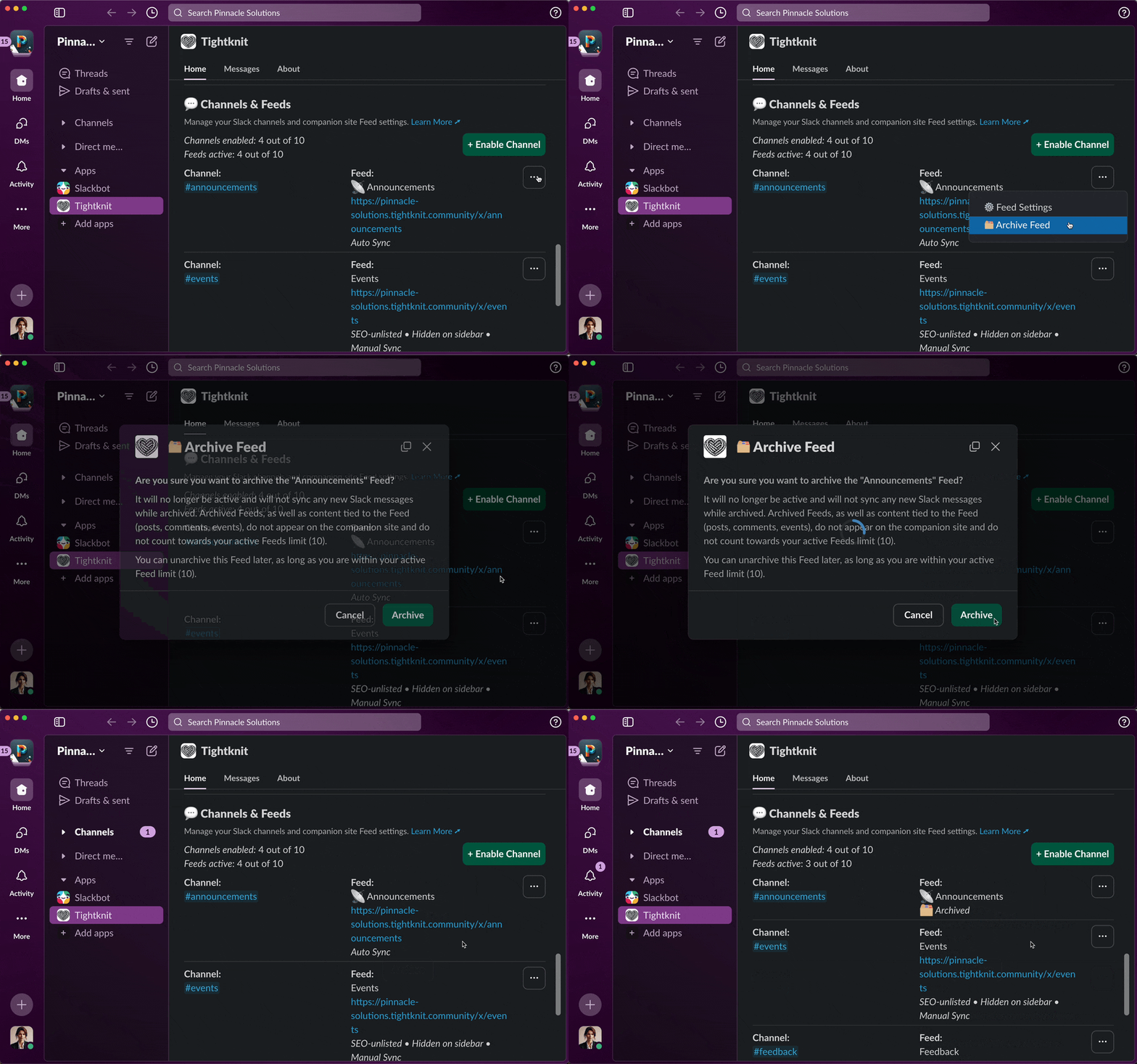
Archiving a Feed
> [!TIP]
>
> Need to deactivate Tightknit within a Slack channel? Follow
> [these](/channels-and-feeds/activate-channel#deactivate-tightknit-within-channel)
> steps.
# Community Site Analytics
Source: https://docs.tightknit.ai/community-site/analytics
Track visitors, pageviews, and traffic sources for your public community site.
Site analytics measures **web traffic** to your public community site: how many people visit, which pages they land on, and where they came from. It is cookie-free and privacy-preserving, so it does not require a cookie consent banner.
Open it at **[Site > Analytics](https://studio.tightknit.ai/-/website/analytics)** in Studio.
> [!NOTE]
>
> Site analytics counts **web visitors**, including people who never join your Slack workspace. For member activity inside your community, use the [Overview dashboard](/studio/analytics).
## Requirements
Two things must be true before the dashboard renders:
1. Your community site has a **custom domain**, for example `community.your-domain.com`. Analytics are not available on `.tightknit.community` subdomains. See [Domain and URL](/community-site/custom-domain).
2. Your plan includes site analytics.
If either is missing, the page explains which one and how to resolve it. [Contact support](/support/contact) to set up a custom domain and enable analytics.
## What you can see
The dashboard reports visitor counts, pageviews, the pages drawing the most traffic, referral sources, and how those numbers trend over time.
> [!TIP]
>
> Cross-reference this with [SEO and metadata](/community-site/seo-metadata). If search traffic is flat, confirm search engine discoverability is switched on before looking for other causes.
## Related pages
* **[Google Tag Manager](/community-site/integrations)** - add your own analytics or marketing tags alongside Plausible.
* **[SEO and metadata](/community-site/seo-metadata)** - control whether search engines index your site.
* **[Overview dashboard](/studio/analytics)** - member and engagement analytics.
# Announcement Banner
Source: https://docs.tightknit.ai/community-site/announcement-banner
Show a site-wide announcement banner on your community site, and control its placement, dismissibility, and color.
The **announcement banner** is a site-wide message that appears on every page of your community site. Use it for anything every visitor needs to see at once: an upcoming event, a maintenance window, a product launch, or a call to join your Slack workspace.
Configure it at **[Site > Banner](https://studio.tightknit.ai/-/website/banner)** in Studio.
> [!NOTE]
>
> The announcement banner is a bar of text shown site-wide. It is not the same as your **page banners**, which are the images at the top of individual pages. Page banner images are set under [Site > Overview](/community-site/general).

Announcement banner settings in Studio
## Settings
Studio splits these across two sections: **Announcement Banner** holds the text, and **Banner Options** holds the rest.
* **Banner text** - The message itself. Keep it to one line where you can, since the banner appears on every page. Format it with bold, italic, underline, strikethrough and emoji, and select text and click the link button to link it to a page, such as a blog post or a group. Links must start with `http://` or `https://`. The text holds up to 180 characters, counting a link's text but not its address. Click **Save** to publish a change to the text.
* **Placement** - Choose **Above the header** or **Below the header**. Above the header is the more prominent of the two.
* **Users can dismiss** - When enabled, visitors get a close button and the banner stays hidden for them afterwards. Enable this for informational messages, and leave it off for anything a visitor must see on every visit.
* **Color theme** - Choose **Primary**, **Secondary**, or **Muted**. Each maps to a color from your active [branding set](/branding#branding-sets), so the banner stays on-brand automatically. Use Primary to draw attention and Muted for background information.
The other settings save automatically.
> [!TIP]
>
> Clear the banner text to remove the banner from your site. There is no separate on/off toggle.
## Related pages
* **[Call to action](/community-site/call-to-action)** - a persistent prompt to join your Slack community, rather than a temporary announcement.
* **[Branding](/branding)** - the colors the banner themes are drawn from.
* **[Home page](/community-site/general)** - page banner images.
# Authentication
Source: https://docs.tightknit.ai/community-site/authentication
Choose between Public Access and Restricted Access for your community site, and configure user login independently of site privacy.
The Tightknit community site supports two access modes: **Public Access** and **Restricted Access**. Site privacy and user login are configured independently. You can enable login on a public site so users can access personalized features, or restrict access entirely so only authenticated users can view content.
Member login is available on every plan. Posting, commenting, and the other [interactivity](#enabling-interactivity) features that need a signed-in member require the Enterprise plan.
## Access Control Options

Authentication settings in Studio
### Public Access
* All pages are publicly accessible to anyone on the internet
* No login required to view content
* Content is discoverable by search engines
* Perfect for public communities and open knowledge sharing
* Users can optionally sign in for personalized features
### Restricted Access
* All pages require authentication
* Only authenticated users can access the site
* Content is private and not indexed by search engines
* Ideal for internal teams and private communities
* Certain public-facing actions are automatically hidden (see [below](#restricted-access-behavior))
## Enabling Authentication
You can configure site access and authentication settings from the [Community Site settings](/community-site/general) in Studio or from the Slack app home:
1. Go to the [Tightknit app home](/slack/getting-started) in Slack
2. Navigate to the **Community Site** module
3. Click **General** to open the site settings
4. Under **Site Access Control**, select **🔒 Restricted Access - login required**
5. Save your changes

Site access control settings modal
> [!NOTE]
>
> Site privacy (public vs. restricted) is managed separately from which login methods are enabled. You can enable login providers on a public site to allow users to sign in for personalized features, without requiring login to view content.
## Supported Login Methods
Tightknit supports a variety of login methods for your community site. You can customize which authentication providers appear on your login page from the [community site authentication settings](https://studio.tightknit.ai/-/website/authentication) in Studio.
### OAuth Providers
Sign in with third-party accounts using industry-standard OAuth 2.0:
* **Google** - Sign in with any Google account
* **Microsoft** - Sign in with a Microsoft account
* **GitHub** - Sign in with a GitHub account
* **Slack** - Sign in with a Slack account that's a member of your workspace
### Email Sign-in Code
* **Email Sign-in Code** - Users enter their email address and receive a one-time 6-digit verification code. They enter the code on the site to sign in. No password required.
> [!NOTE]
>
> Sign-in emails can be blocked, quarantined, or filtered as spam by strict corporate email security, and members sometimes sign in with a different email than the one on their profile. For member-friendly guidance (including how to allowlist our senders), see [Not receiving emails from Tightknit](/support/troubleshooting#not-receiving-emails-from-tightknit).
### Single Sign-On (SSO)
* **Enterprise SSO** - Integrate with your organization's identity provider using OIDC, SAML 2.0, or token-based JWT. [Learn more about SSO](/community-site/sso).
> [!TIP]
>
> All login methods use secure, industry-standard authentication protocols.
## Who can sign in
Tightknit matches the email from the sign-in method to a member profile in your community. The profile must be active. For a first-time OAuth sign-in, the provider must verify the profile's email address.
| Scenario | What happens |
| - | - |
| The member has an active profile and uses a verified email address | Sign-in succeeds. |
| The Slack invitation is pending, or was accepted but still appears pending | The invitation status does not block sign-in. Normal profile and email-verification rules still apply. |
| The Slack invitation was canceled before the person otherwise became a member | Sign-in is blocked. Send a new Slack invitation or add the person as a member in Studio. |
| The member profile is deactivated or was permanently erased | Sign-in is blocked. An admin can reactivate a deactivated member. An erased profile cannot be restored. |
| No profile matches the email address | Sign-in is blocked. Add the person as a member or confirm that they are using the email address on their profile. |
| A provider cannot verify the email during the member's first OAuth sign-in | Sign-in is blocked. The member can use an email sign-in code or another provider that verifies the same address. |
| The member uses Token-based JWT SSO | Tightknit checks the asserted email against an active profile. The member may need to verify their email before sign-in completes. |
### Why some sign-in errors are generic
After an OAuth provider verifies the member's email address, Tightknit can explain that the profile is deactivated or no longer available. Sign-ins with an unverified OAuth email and Token-based JWT SSO use a generic profile error. Legacy magic links and Email Sign-in Code requests also do not reveal whether an active profile matches the email. These safeguards prevent visitors from testing email addresses to discover member records.
Admins can investigate sign-in failures in the [community-wide authentication audit in Studio](https://studio.tightknit.ai/-/workspace/audit).
### Customize the login error message
When a person signs in with an account that does not match an active member profile, you can replace the default **Unable to sign in** message with guidance specific to your community. For example, link to an application form or explain who to contact for access.
In Studio, open **[Site > Authentication > Access](https://studio.tightknit.ai/-/website/authentication#access)** and edit **Login error message**. The message supports bold, italic, underline, strikethrough, lists, quotes, code, emoji, and HTTPS links. It can contain up to 200 visible characters.
The custom message applies to the `member_not_found` error.
## Connected accounts
Members who sign in with one method can link additional sign-in methods under **Settings > Account** on the community site. For example, a member who first signed in with an email code can later connect their Slack or Google account so they can use either method going forward.
Linking works by verifying ownership: the member is already signed in, and the provider they connect confirms a second identity belongs to them. No admin action is required.
### Managing connected accounts
Members open **Settings** from the profile menu, select the **Account** tab, and manage their linked methods under **Sign-in methods**:
* **Link a provider** — Click **Connect** next to an available provider (Slack, Google, or GitHub). A sign-in window opens to verify the account, and the provider is added as a linked sign-in method.
* **Unlink a provider** — Click **Disconnect** next to a linked provider to remove it. Tightknit blocks the disconnect if it would leave the member with no way to sign in to one of their communities.
These settings belong to the member's global Tightknit account, not to a single community. If a member belongs to several Tightknit communities, connecting or disconnecting a method applies everywhere, across all of them. A method the member has connected can be unusable in a community that does not enable that provider.
> [!NOTE]
>
> A provider is offered as linkable only when both conditions hold: it is one of the providers Tightknit supports for linking (Slack, Google, and GitHub), and it is enabled in your community's [authentication settings](https://studio.tightknit.ai/-/website/authentication). Microsoft can be offered as a login method but is never linkable (see the tip below). If you disable a provider, members can no longer sign in with it or link new accounts to it. Members who previously linked a disabled provider still see it listed, marked as not enabled in the current community, so they can disconnect it.
> [!TIP]
>
> Connected accounts give members flexibility without requiring admin intervention. A member who joined via SSO can link their Google account as a backup sign-in method, or a member who signed in with Slack can connect their GitHub account as an alternative way to sign in.
> [!WARNING]
>
> Linking is only offered for providers that prove the member owns the email address they return. Microsoft does not provide a verified email claim that Tightknit can rely on, so it is never offered as a connectable method, even in communities that enable it for sign-in. Members can still sign in with Microsoft, and a member who already has it linked can still disconnect it.
>
> The same email-verification requirement governs *automatic* linking at sign-in, which is where a custom SSO integration can be affected. A [Token-based JWT](/community-site/sso) issuer that does not assert an `email_verified` claim leaves the account's email unverified, so a later Google or Slack sign-in with the same address will not merge into that account. The member ends up with two separate accounts. If you run a custom SSO integration and want sign-ins to converge on one account, have your issuer send `email_verified` and contact Tightknit to enable email-based linking for it. OIDC and SAML SSO are not affected: Tightknit trusts the email address those providers assert.
## Authentication audit trail
Studio provides two views for monitoring authentication activity across your community:
* **Per-member** — Open a member's detail page in [Studio Members](https://studio.tightknit.ai/-/members) and select the **Authentication** tab to see that member's sign-in history and connected accounts. See [Member detail page](/studio/members#member-detail-page) for details.
* **Community-wide** — Go to **[Settings > Audit](https://studio.tightknit.ai/-/workspace/audit)** in Studio and open the **Authentication** section to browse all authentication events across every member, with search and filtering.
Both views show successful sign-ins, failed attempts, and account linking activity. Use them to investigate sign-in issues, monitor for unusual patterns, or verify that members are using the expected login methods.
## Allowing members to log in
Member login is available on every plan. Turn it on to let members sign in to your community site, including a site with [Public Access](#public-access). A site with [Restricted Access](#restricted-access) always requires login.
Configure these settings in Studio under **[Site > Authentication](https://studio.tightknit.ai/-/website/authentication)**:
**1. Allow members to log in**
Under **Access**, turn on **Allow members to log in**. If your site uses [Restricted Access](#access-control-options), login is required and this setting is enabled automatically.
**2. Enable at least one login method**
Give members a way to sign in by enabling one or more methods:
* **Methods** — Email Sign-in Code (passwordless email sign-in via one-time code)
* **Providers** — Slack, Google, Microsoft, or GitHub
* **Single Sign-On** — your organization's [SSO provider](/community-site/sso) (Enterprise plan)
## Enabling interactivity
[Interactivity](/community-site/overview#interactivity) lets signed-in members do more than read content. With it, members can create posts and leave comments that sync back to your Slack workspace, follow members, Feeds, and posts, get site notifications, and register for events from the site. On plans without interactivity, members can still log in, but they cannot do any of these things on the site.
To enable interactivity:
**1. Allow members to log in**
Turn on member login and enable at least one login method. See [Allowing members to log in](#allowing-members-to-log-in).
**2. Allow posting on your Feeds**
To let members create posts and comments from the site, enable **Post from Site** on each Feed where you want it. See [Feed settings](/channels-and-feeds/create-feed#feed-settings).
> [!NOTE]
>
> Posting and commenting are controlled per Feed. Members can only create posts or comments on Feeds that have **Post from Site** turned on.
## Limitations
### Google Groups and Aliases
Google Sign-in does not support **email aliases**, **Google Groups**, or other **distribution list emails**. OAuth authentication requires individual user accounts, not shared or group email addresses.
> [!WARNING]
>
> If a user attempts to sign in with a Google Group email (e.g.,
> [team@company.com](mailto:team@company.com)) or a distribution list, the authentication will fail. Users
> must sign in with their personal Google account.
**Examples of unsupported email types:**
* Google Groups (e.g., [team@company.com](mailto:team@company.com), [support@company.com](mailto:support@company.com))
* Email distribution lists
* Shared mailboxes
* Service accounts
## Restricted access behavior
When your site is set to **Restricted Access**, several public-facing actions are automatically hidden across the site since all visitors are already authenticated members:
* **Share** — The Share button and Share overflow menu are hidden on all pages, including feeds, posts, events, members, and resources.
* **Embed** — Embed options are hidden since content is not publicly accessible.
* **Follow (RSS)** — The Follow/RSS button is hidden on feed pages.
* **Ask AI** — The Ask AI button is hidden on feed pages.
These elements remain visible on public sites where they serve their intended purpose of helping visitors share and discover content.
## Login page customization

Login page settings in Studio
You can customize the appearance of the login page's side marketing panel from Studio under **[Site > Authentication > Login Marketing Panel](https://studio.tightknit.ai/-/website/authentication#login-marketing-panel)**. The following options are available:
* **Enabled** — Toggle the marketing panel on or off.
* **Color theme** — Choose a color theme for the panel.
* **Background color** — Set a solid background color (hex) that overrides the default branding gradient.
* **Background image** — Upload an image to use as a full-cover background on the side panel. When set, the background image takes precedence over the background color.
* **Title and description** — Customize the marketing copy shown on the panel.
* **Media image** — Upload a featured image to display on the panel.
> [!TIP]
>
> The background color and background image options give you full control over the panel's appearance. Use a background image for a branded visual, or a solid color for a clean, minimal look.
### Legal links
You can configure legal links that appear in the footer of the login form. These links are displayed as a consent line (e.g., "By continuing, you agree to our User Agreement and Privacy Policy").
To manage legal links, go to **[Site > Authentication > Legal Links](https://studio.tightknit.ai/-/website/authentication#legal-terms)** in Studio. You can add up to 5 links, reorder them via drag-and-drop, and customize each link's label and URL.
#### User Agreement
The **Tightknit User Agreement** is a required legal link that appears on every community site login page. It cannot be removed because it establishes the legal relationship between your community members and the Tightknit platform.
The User Agreement is required because:
* **User consent** — When members sign in to your community site, they are creating an account on Tightknit's platform. The User Agreement ensures they understand and consent to how their data is collected, stored, and processed.
* **Community standards** — The agreement sets baseline expectations for acceptable behavior and content on your community, protecting both you and your members.
* **Legal compliance** — Displaying the User Agreement at sign-in satisfies regulatory requirements for informed consent, including GDPR and CCPA obligations around data processing transparency.
> [!NOTE]
>
> The User Agreement URL is required and cannot be modified.
#### Adding custom legal links
In addition to the required User Agreement, you can add your own legal links such as a Privacy Policy or Terms of Service. Each link requires a label and a valid HTTPS URL. All configured links appear together in the login form consent line.
## Session Management
Once signed in, users remain authenticated for **7 days**. After this period, they'll need to sign in again to access restricted content.
Sessions are automatically refreshed when users are active on the site. If a user accesses the site within 24 hours of their last activity, their session is extended for another 7 days. This means active users won't be logged out unexpectedly during normal use.
## Security Features
* **Secure Cookies** - All authentication cookies are encrypted and secure
* **HTTPS Only** - Authentication only works over secure connections
* **Session Timeout** - Automatic logout after 7 days of inactivity
* **OAuth 2.0** - Industry-standard authentication protocol
* **Token Encryption** - OAuth access tokens and refresh tokens are encrypted at rest in the database to protect against unauthorized access if the database is compromised
## Login error codes
When authentication fails, the login page displays an error message based on an error code in the URL query parameter. These codes help identify the specific failure reason.
| Code | Description |
| - | - |
| `user_not_found` | No account found with the provided credentials. |
| `member_not_found` | An account exists but no active member profile was found in this community. |
| `account_deactivated` | The member's account has been deactivated by an administrator. |
| `account_forgotten` | The member's account has been removed through a GDPR data erasure request. |
| `authentication_failed` | Authentication failed due to invalid or expired credentials. |
| `sso_assertion_invalid` | The identity provider's SSO response could not be verified: a missing assertion, a bad signature, or a certificate mismatch. Sign-in stops before any membership check, so this points at the IdP's configuration rather than the member's account. |
| `sso_access_denied` | The identity provider refused the sign-in and sent the member back with an `access_denied` error, usually because the member is not assigned to the identity provider's application or declined its consent prompt. The fix is in the identity provider. See [The identity provider blocks the member before they reach Tightknit](/community-site/sso#the-identity-provider-blocks-the-member-before-they-reach-tightknit). |
| `tenant_mismatch` | The user is not authorized to access this community (SSO tenant mismatch). |
| `email_not_found` | The login provider did not return an email address for the account. |
| `email_otp_invalid` | The sign-in code is invalid, has already been used, or does not exist. |
| `email_otp_expired` | The sign-in code has expired. Request a new one. |
| `email_otp_too_many_attempts` | Too many incorrect attempts. The code has been invalidated; request a new one. |
| `magic_link_invalid` | The magic link is invalid or has already been used. (Legacy) |
| `magic_link_expired` | The magic link has expired. Request a new one. (Legacy) |
| `service_unavailable` | An upstream service was temporarily unavailable during authentication. Try again. |
| `verify_link_email_sent` | The SSO email already has a Tightknit account, so a confirmation link was emailed to it. See [Connecting SSO to an existing account](/community-site/sso#connecting-sso-to-an-existing-account). |
| `verify_link_confirmed` | The member confirmed the connection. They can sign in with the identity provider again. |
| `verify_link_invalid` | The confirmation link is invalid, already used, or expired. Sign in with the identity provider again to get a new one. |
> [!TIP]
>
> If you use an external identity provider (such as Auth0) with a post-login action that checks membership via the Tightknit API, you can redirect rejected users to your login page with these error codes to display a meaningful message. For example: `https://your-community.tightknit.ai/login?error=member_not_found`
## Troubleshooting
### Users Can't Sign In
* Ensure the user is using a supported browser
* Check that they have a valid account for one of the enabled login methods
* Verify the user is a member of your Slack workspace (for Slack login)
* If using Email Sign-in Code, check that the verification code email was not caught by a spam filter
* If an SSO member is told to check their email, they are being asked to confirm connecting SSO to an account that already exists — see [Connecting SSO to an existing account](/community-site/sso#connecting-sso-to-an-existing-account)
### Session Issues
* Clear browser cookies and try again
* Check that the site is using HTTPS
* Ensure cookies are enabled in the browser
### Access Denied
* Confirm the user is a member of your Slack workspace (if using Slack login)
* Check that the site access control is set to "Restricted Access"
* Verify the user completed the full authentication flow
# Call to Action
Source: https://docs.tightknit.ai/community-site/call-to-action
Configure the call-to-action button text and URL that invites community site visitors to join your Slack workspace, from Studio or Slack.
The call to action is the button shown across your community site that invites visitors to join your Slack workspace.
## Where to configure this
**In Studio**
Go to **[Site > Overview](https://studio.tightknit.ai/-/website/overview)** and edit the call-to-action text and URL.

Site > Overview in Studio, which holds the call-to-action fields
**In Slack**
The call-to-action text and URL are managed in Studio only. Open the Tightknit app home and click **Community Site ➚** under the **Community** module to jump straight there.
You can still update your [Static Join Link](#static-join-link) from Slack: open the Tightknit app home and click **Static Join Link** under the **Community** module.
> [!TIP]
>
> **Did you know you can change this with our [MCP server](/integrations/mcp) too?** Try asking your agent: *"Change our site's call-to-action button to say Join us on Slack."*
## Settings
You can configure the following:
* **Call-to-Action Text** - This is the text that is present on the Call-to-Action button [across the Tightknit community site experience](/community-site/pages#navbar-header). If you do not wish to show this button, leave this field empty.
* **Call-to-Action URL** - This is the URL that the button will link to when clicked. By default, it is the `/join` URL of your site. [Read More↗](#static-join-link)
## Advanced Settings
### Static Join Link
Each Community Site has a `/join` URL that is inactive unless you have registered a Static Join Link with Tightknit. Once you have provided a join link, for example `https://www.how-to-join-my-community.com`, then users that visit the `/join` URL on your site will now be redirected to `https://www.how-to-join-my-community.com`.
What's the purpose of this? Well, the method to join your community could change over time. One day you may use a Slack invite link to let users directly join the workspace; but later, you may instead want to lead users to an initial sign-up form. Regardless, the `/join` URL of your Community Site stays the same (*and looks nice!*). This way, you can always give the `/join` URL to prospective community members, such as in outbound emails, and safely change the redirect URL behind the scenes at any point in the future. Tightknit will also track the number of visitors to the `/join` URL.

Join link redirect flow diagram
#### Slack Invite Link
To let users join your workspace directly, we recommend using your Slack invite link. You can find your invite link [here](https://slack.com/help/articles/201330256-Invite-new-members-to-your-workspace#share-an-invitation-link).
> [!NOTE]
>
> Each admin user in the workspace can generate their own unique shared invite
> link. You can register any of those links with Tightknit.
> [!WARNING]
>
> A Slack invitation link expires after it is used for 400 successful sign-ups.
> You must then [generate a new link](#static-join-link) and register
> it again with Tightknit.
#### Generating a new Slack invite link
Is your link expired or expiring? Go into your Slack workspace admin settings. Select the "Invitations" page under the administration menu, i.e., the URL is at `/admin/invites`. Click on the "Invite Links" tab. Find the user whose link was registered with Tightknit and click "Deactivate."
Now, simply [repeat the process to generate an invite link](https://slack.com/help/articles/201330256-Invite-new-members-to-your-workspace#share-an-invitation-link). Don't forget to register it again with Tightknit! Paste it into **Static Join Link** under the **Community** module of the Tightknit app home, or into the **Static join link** field on **[Site > Overview](https://studio.tightknit.ai/-/website/overview)** in Studio.
# Domain and URL
Source: https://docs.tightknit.ai/community-site/custom-domain
Change your community site subdomain or set up a custom domain such as community.your-domain.com.
Your community site is reachable at a Tightknit subdomain by default, and can be moved to a domain you own.
Both settings live at **[Site > Domain & URL](https://studio.tightknit.ai/-/website/domain)** in Studio.

Domain and URL settings in Studio
## Subdomain
Your **community site subdomain** determines your default URL: `your-subdomain.tightknit.community`. Edit it in Studio and it saves automatically.
A subdomain can be up to 63 characters long, may only contain lowercase letters, numbers, hyphens, and underscores, and must start and end with a letter or number. A subdomain that another community already uses, or a reserved word such as `tightknit`, is not allowed.
> [!WARNING]
>
> If you are not on a custom domain, changing the subdomain changes the URL of **every page on your site**. Links you have already shared will break, and search engines will need to re-index the new URLs. Change it early, or not at all.
## Custom domain
A custom domain hosts your community site on a domain you own, for example `community.your-domain.com`.
A custom domain is worth setting up for three reasons:
* **Brand continuity.** Members stay on your domain rather than being sent to a third-party URL.
* **SEO.** Search authority accrues to your own domain instead of `tightknit.community`.
* **[Site analytics](/community-site/analytics).** Traffic analytics are only available on custom domains.
> [!NOTE]
>
> Custom domains are configured by Tightknit. [Contact support](/support/contact) to set one up or to change an existing one. Once configured, your current custom domain is shown on the Domain & URL page.
When a custom domain is active, the subdomain is no longer used for your site's public URLs.
### Corporate networks and URL filtering
A new custom domain has no browsing history, so corporate web filters such as Palo Alto Networks URL Filtering classify it from whatever their crawler can see. A community site that redirects straight to a sign-in page shows the crawler nothing but a login wall, and the domain can be filed under a category that IT policies block outright. For example, if a custom domain is classified as "Web-based-Email", members on a corporate network may be blocked from opening the site until their IT adds an exception.
Before you invite members who work behind a corporate firewall, ask their IT team to allowlist:
* Your custom domain, for example `community.your-domain.com`. For a bare domain, include both `your-domain.com` and `*.your-domain.com`.
* `api.tightknit.ai`
* `cdn.tightknit.ai`
* `assets.tightknit.ai`
If a member reports a "Website blocked" page, see [The community site is blocked by a corporate firewall](/support/troubleshooting#the-community-site-is-blocked-by-a-corporate-firewall).
## Custom email domain
A custom **email** domain is a separate setting from your site domain. It controls the address that notification and sign-in emails are sent from. See [Custom email domain](/community-site/notifications#custom-email-domain) and the [DNS setup guide](/guides/custom-email-domain).
## Related pages
* **[SEO and metadata](/community-site/seo-metadata)** - search engine discoverability.
* **[Authentication](/community-site/authentication)** - who can reach your site.
* **[Launch your site](/guides/launch-your-site)** - the full launch checklist.
# Site Overview Settings
Source: https://docs.tightknit.ai/community-site/general
Set your community site name, description, page banners, video embed behavior, and site images.
**Site Overview** is where your community site's identity lives: what it is called, how it describes itself, and the images and banners it presents.
## Where to configure this
**In Studio**
Go to **[Site > Overview](https://studio.tightknit.ai/-/website/overview)**. Studio combines site identity and home-page settings on one page, and every field saves automatically.

Site Overview settings in Studio
**In Slack**
This is now managed in Studio only. Open the Tightknit app home and click **Community Site ➚** under the **Community** module to jump straight there.
> [!TIP]
>
> **Did you know you can change these with our [MCP server](/integrations/mcp) too?** Try asking your agent: *"Change our site description and turn on the members page."*
## Site Identity
* **Site Name** - The name of your site. It is used as the title in your community site header and in SEO metadata.
* **Site Description** - The description shown on your [Home page](/community-site/pages#home) and used when pages are shared.
## Page Banners
Set the banner image shown at the top of each of your site's main pages: the **Home page**, **Members page**, **Groups page**, **Content library**, and **Events page**.
For the best results, use an image with dimensions of 2560 x 640 px (4:1). Other ratios are cropped from the center to fill the 4:1 frame.
> [!NOTE]
>
> Page banners are images at the top of individual pages. They are not the same as the site-wide [announcement banner](/community-site/announcement-banner), which is a bar of text shown on every page.
## Enabled Components
Enable or disable the components displayed on the Home page. See [Home page](/community-site/home-page) for the full list.
**Feed member count** shows or hides the [member count](/community-site/pages#member-count) on every Feed page, separately from **Community member count** on the Home page.
## Video Embeds
The **Autoload Video Embeds** setting controls whether third-party video players (such as YouTube and Vimeo) load automatically when a visitor opens a page. By default, videos autoload for all sites.
Enterprise customers can disable autoloading under **Site > Overview > Video Embeds**. When disabled, embedded videos display a placeholder with a link to the video instead of loading the player. This is useful for communities that use a Consent Management Platform (CMP), where third-party iframes must wait for visitor consent before loading.
## Site Images
You can also configure the following images associated with your community site:
* Site Horizontal Logo
* Site Icon
* Favicon
* Social Media Image
For specs and recommendations, see the [Branding Guide](/branding#image-assets).
## Settings that moved
Several settings that used to live in the Site Settings modal now have their own pages in Studio:
| Setting | Where it is now |
| - | - |
| Site Subdomain and custom domain | [Domain and URL](/community-site/custom-domain) |
| Search Engine Discoverability | [SEO and metadata](/community-site/seo-metadata) |
| Site Access Control | [Authentication](/community-site/authentication#access-control-options) |
| Deactivating the site | **Site > Advanced** (see below) |
## Creating the Community Site
If your community doesn't have a site yet, go to **[Site > Advanced](https://studio.tightknit.ai/-/website/advanced)** and click **Create community site**. Branding and the rest of the settings can be customized afterwards.
In Slack, click **+ Create Community Site** in the **Community** module of the Tightknit App Home. Tightknit suggests a site name and URL from your workspace name; click **Create Site** to accept them, or **Customize in Studio** to pick your own.
## Deactivating the Community Site
Deactivating takes your site offline. Visitors can no longer see your content and receive a 404 Not Found response.
**In Studio**
Go to **[Site > Advanced](https://studio.tightknit.ai/-/website/advanced)** and use the **Site Status** controls to deactivate or reactivate your site.

Site status under Site > Advanced
**In Slack**
This is now managed in Studio only. Open the Tightknit app home and click **Community Site ➚** under the **Community** module to jump straight there.
> [!WARNING]
>
> Deactivating does not delete your content. Everything is restored when you reactivate.
# Getting Started with the Community Site
Source: https://docs.tightknit.ai/community-site/getting-started
How the Tightknit community site turns your Slack content into a searchable website, and how to create a site from the Slack App Home.
The Tightknit community site is a website that hosts the content created within your Slack workspace and transforms it into a beautiful format for the searchable web.

Slack content syncing to the community site
The benefits of having a community site include:
* SEO boost for your brand
* Landing page which drives traffic to your Slack community
* Unlocking community knowledge to search engines
* Retain messages indefinitely
* Pages to share on social media
* Embeddable components
* Search (*alpha*)
*Coming Soon*:
* Portals with bi-directional activity sync between the site and the Slack workspace
## Access from the Slack App Home
You can access settings related to the Community Site under the **Community Site** section in the Tightknit App Home. If you have not created a community site yet, click the `+ Create Community Site` button in the **Community** module to create one in a couple of clicks.

Community site module in the Slack app home
# Home Page
Source: https://docs.tightknit.ai/community-site/home-page
Customize your community site's Home page description, banner image, and components from Studio's Site Overview page or the Slack app home.
The Home page is the front door to your community site. These settings control its description, banner image, and which components appear on it.
## Where to configure this
**In Studio**
Go to **[Site > Overview](https://studio.tightknit.ai/-/website/overview)**. Home page settings are combined with your site identity settings on this page. Every field saves automatically.

Site > Overview in Studio, which holds the home page settings
**In Slack**
This is now managed in Studio only. Open the Tightknit app home and click **Community Site ➚** under the **Community** module to jump straight there.
## Settings
You can configure the experience of the [Home page](/community-site/pages#home) of your site, including:
* **Site Description** - This is the site description listed on the Home page.
* **Banner Image** - The image banner at the top of the Home page. For the best results, please use an image with dimensions of 2560 x 640 px (4:1). Other ratios are cropped from the center to fill the 4:1 frame.
* **Enabled Components** - Enable or disable the components displayed on the Home page, including:
* Feeds Tile Menu - displays tiles for each of your community's feeds
* Upcoming Events List - displays a list of upcoming community events
* Community Member Count - displays the total number of community members on the Home page only, including anyone with a pending Slack invitation. Members you add are counted once they [join](/studio/members#invited-members). Feed pages show their own [member count](/community-site/pages#member-count), controlled by the separate **Feed member count** toggle.
* Discussions Count - displays the total number of unique discussion threads synced to the site
# Integrations
Source: https://docs.tightknit.ai/community-site/integrations
Manage integrations with your community site, including Google Tag Manager and Google Analytics.
Connect third-party tools to your community site. Today this means Google Tag Manager, which lets you load your own analytics and marketing tags on every page.
## Where to configure this
**In Studio**
Go to **[Site > SEO & metadata](https://studio.tightknit.ai/-/website/seo)** and enter your Google Tag Manager Container ID. See [SEO and metadata](/community-site/seo-metadata).

Site > SEO & metadata in Studio, which holds the Container ID
**In Slack**
This is now managed in Studio only. Open the Tightknit app home and click **Community Site ➚** under the **Community** module to jump straight there.
You can configure Google Tag Manager, a free tool that allows you to manage and deploy marketing tags (snippets of code or tracking pixels) on your website without having to modify the code.
## Google Tag Manager
You can connect your Google Tag Manager to the Tightknit community site. All you need is your GTM ID. Below is a detailed guide on how to connect Tightknit to Google Tag Manager and Google Analytics, including how you can track custom Tightknit [events](#events).
### Connect Google Tag Manager
**1. Create a Google Tag Manager account and container**
Visit [Google Tag Manager](https://tagmanager.google.com/).
1. If you don't have one already, create an account for your company and a container for the Tightknit community site.
2. In the Workspace view, locate your Google Tag Manager ID (GTM-XXXXXX) in the navigation header
3. Open the Tightknit app in Slack and open the `Integrations` settings under the **Community Site** module
4. Enter your GTM ID and click Update.

In Slack: Integrations settings modal with GTM ID field
**2. \[Optional] Connect Google Analytics**
Visit [Google Analytics](https://analytics.google.com/analytics/web).
1. Create a "Property" for the Tightknit site:
1. Click the `⚙ Admin` Button in the bottom left corner
2. Click the `+Create` button and select Property
3. Copy the Measurement ID (*G-XXXXXXXXXX*)
Now, we'll return back to [Google Tag Manager](https://tagmanager.google.com) to add the Google Analytics Property to our container. This will forward all activity on all page views to GA.
2. Create a new GTM Tag:
1. In the Workspace view, navigate to Tags on the left hand navigation
2. Click the `New` button
3. Click the Tag Configuration section and select Google Analytics > Google Tag
4. Paste the Measurement ID from above (*G-XXXXXXXXXX*) into the Tag ID field
5. Click the Triggering section, select Trigger Configuration, and then 'Initialization - All Pages'
6. Click Save
3. Submit the GTM changes and publish
**3. \[Optional] Track Tightknit Events**
In order to track the [custom events](#events) from Tightknit, you must configure tags and variables.
1. Open your [Google Tag Manager](https://tagmanager.google.com) container workspace.
2. Create a Trigger for the event
1. Navigate to Triggers in the sidebar and click the `New` button
2. Select the Trigger Configuration section
3. Select “Custom Event” for the trigger type
4. Give an Event name such as “Tightknit CTA button click”
5. Fire the trigger on “Some Custom Events”
6. Reference the Tightknit Event in the [table](#events) below. Set the trigger condition to equal the Event. For example: Event equals `tk-cta-button-click`
7. Click Save
3. Create a Variable to capture the event's variables
1. Navigate to Variables in the sidebar and click the `New` button under the User-Defined Variables section
2. Select the Variable Configuration section
3. For the Variable Type, select "Data Layer Variable"
4. For the Data Layer Variable Name, enter the name exactly as the variable appears in the [Events table data layer variables](#events). For example, use `location` for the location variable.
5. Leave the remaining fields with their default values
6. Click Save
> [!TIP]
>
> You can reuse the same Variable object across multiple events if the Data Layer variable name is exactly the same. For example, `location` is the same across several events.
4. Create a Tag for the event
1. Navigate to Tags in the sidebar and click the `New` button
2. Select the Tag Configuration section
3. For Tag Type, select “Google Analytics: GA4 Event”
4. For Tag ID, enter the GA measurement ID from the earlier step (*G-XXXXXXXXXX*)
5. Under Event Parameters, add a new parameter. For the Event Parameter, use the name of the data layer variable, e.g. `location`. For the Value, click the lego variable button and select the Variable created from the previous step.
6. Select the Triggering section
7. Under Firing Triggers, add a new item and select the name of the Custom Event trigger you created in the first step
8. Click Save
5. Submit the GTM changes and publish
From this point onwards, the events and variables will be pushed to Google Analytics. However, you must still configure a custom dimension for the variables to appear in reporting.
6. Open your [Google Analytics](https://analytics.google.com/analytics/web) container workspace.
7. Create a new Custom Definition
1. Click the `⚙ Admin` Button in the bottom left corner
2. Navigate to Property Settings > Data display > Custom definitions, in the sidebar
3. Click `Create custom dimension`
4. Enter a descriptive name for the Dimension name. Select "Event" for the Scope. Enter the exact data layer variable name for the Event Parameter, e.g. `location`.
5. Click Save
8. To verify your setup:
1. Trigger a real event on your Tightknit site, e.g. click the Call to Action button.
2. Go to Reports > Engagement > Events.
3. Ensure the time window (top-right) is appropriate, e.g. last 24 hours.
4. You should see some recent events, including the Tightknit events. If you click on the event item, you should see an event-specific dashboard and the ability to filter by the data layer variables we configured earlier!
### Events
The following custom events are pushed to GTM via the data layer when certain activity occurs on your Tightknit community site.
| **Event** | **Description** | **Data Layer variables** |
| :- | :- | - |
| **`tk-cta-button-click`** | [Call to Action button](/community-site/call-to-action) is clicked | `text`: *the text of the button element* `location`: *the location of the button on the site* |
| **`tk-slack-permalink-click`** | Slack permalink, which links to the original item in Slack, is clicked | `permalink`: *the Slack URL permalink* `location`: *the location of the link on the site* |
# Navigation & Routes
Source: https://docs.tightknit.ai/community-site/navigation
Control which pages appear on your community site and add custom sidebar links from Site Navigation in Studio or the Slack app home.
Navigation settings control which pages appear on your community site and what custom links you add to its sidebar.
## Where to configure this
**In Studio**
Go to **[Site > Navigation](https://studio.tightknit.ai/-/website/navigation)**.

Navigation settings in Studio
**In Slack**
This is now managed in Studio only. Open the Tightknit app home and click **Community Site ➚** under the **Community** module to jump straight there.
> [!TIP]
>
> **Did you know you can change this with our [MCP server](/integrations/mcp) too?** Try asking your agent: *"Publish the groups page on our site."*
## Enabled Pages
You can configure which pages and routes are enabled on your community site. When disabled, the routes are not accessible and do not display any data.
* [Groups list page](/community-site/pages#groups-list) - enables the Groups list and Group detail pages
* [Members list page](/community-site/pages#members-list) - enables the Members list page. The Member profile page is not affected by this setting and is *always* accessible.
* [Events list page](/community-site/pages#events-list) - enables the Events list and Event detail pages
## Navigation Sidebar Custom Links
> [!NOTE]
>
> This feature is currently in beta.
You can configure up to 3 custom links that will appear in the [navigation sidebar](/community-site/pages#sidebar) of the community site. Each item can either be an external link or an internal link to an embedded page.
In Studio, each link is its own row: enter a name and a URL, then set **Type** to **Embedded page** and fill in the page URL to serve it as an embedded page instead of an outbound link.
In the Slack app, each navigation item is a line of text following the format below:
```text theme={null}
Terms of Service | https://tightknit.ai/legal/terms-of-service | terms-of-service
Knowledge Base | https://example.com
Download the App | https://example.com
```
### Navigation Item Types
#### External Link
An external link is a simple URL that will be opened in a new tab when the navigation item is clicked. The navigation item configuration must follow the format: `Name | URL`.
For example, the following configuration will create a navigation item with the label "Knowledge Base" that will open the URL "[https://example.com](https://example.com)" in a new tab when clicked:
```text theme={null}
Knowledge Base | https://example.com
```
#### Internal Link (Embedded Page)
> [!WARNING]
>
> Internal embeds are an advanced feature. In order to allow certain domains within
> the iframe for the page to function properly, you may need to configure
> certain site security protocols.
An internal link points to an embedded page within the community site. In Studio, set the row's **Type** to **Embedded Page** and enter its page URL; in the Slack app, the line must follow the format `Name | URL | slug`. When an internal link is configured, the embedded page is added to the community site at the URL: `https:///p/`.
For example, the following configuration will create a navigation item with the label "Terms of Service" that will open the embedded page at the URL: `https:///p/terms-of-service`. This page will contain an embedded iframe with the contents of the URL `https://example.com`.
```text theme={null}
Terms of Service | https://example.com | terms-of-service
```

Internal embedded page on the community site
> [!NOTE]
>
> Embedded pages are useful for displaying content from external sources within
> your community site. For example, you can embed your community's calendar or
> other content from external sources. For best practices, make sure the
> embedded URL is the same domain as the community site (see [Site
> Details](/community-site/general#site-identity)).
#### Content Security Policy
The URLs for internal embeds must meet certain criteria before they can be successfully embedded in an iframe.
**1. The Target URL Must Allow Itself to be Embedded**
First, the target URL must allow itself to be embedded by the community site's domain. This is accomplished by a combination of the [`X-Frame-Options`](https://developer.mozilla.org/en-US/docs/Web/HTTP/Headers/X-Frame-Options) header and/or the [`frame-ancestors`](https://developer.mozilla.org/en-US/docs/Web/HTTP/Headers/Content-Security-Policy/frame-ancestors) directive in the [`Content-Security-Policy`](https://developer.mozilla.org/en-US/docs/Web/HTTP/Headers/Content-Security-Policy) header. For modern browsers, it is recommended to use the `Content-Security-Policy` and include the community site domain in `frame-ancestors` directive.
For example, you could configure your third-party site to use the following `Content-Security-Policy` header to allow it to be embedded within the community site:
```
Content-Security-Policy: frame-ancestors 'self' https://my-site.tightknit.community
```
Check with your site administrator to see which security settings are appropriate for your case.
**2. The Domains Within the Embedded Page Must be Allowlisted**
Second, you must register the domain(s) of any resource that could appear within the embedded experience. For example: if you have links to pages that could take the user to another domain, images that are hosted on another domain, etc., these domains must be registered with Tightknit in the *Additional Allowed iframe Sources*, or else they will fail to load within the iframe.
The *Additional Allowed iframe Sources* will be used in the `frame-src` directive of the `Content-Security-Policy` header on the community site. The value must be a space-separated list of domains. Tightknit automatically includes `'self'` and the domain of the navigation item URL.
You may use a wildcard within a domain (e.g. `https://*.my-site.com`) or by itself `*` to allow *all* domains.
> [!WARNING]
>
> Using the `*` wildcard to allow all domains should be used with caution. This
> may lead to security vulnerabilities if not properly configured.
# Notification Email Templates
Source: https://docs.tightknit.ai/community-site/notification-templates
Customize the email templates Tightknit sends to your members, block by block, with a live preview.
> [!NOTE]
>
> Custom notification templates are a **pilot** feature. [Contact us](https://tightknit.ai/contact) to request access.
By default, Tightknit sends member notification emails using a standard Tightknit template. Custom templates let you rebuild those emails to match your brand: your logo, your copy, your colors.
Open them at **[Site > Notifications > Templates](https://studio.tightknit.ai/-/website/notifications/templates)** in Studio.

Notification templates in Studio
## The templates list
Each notification workflow gets a card showing its name, what it sends, and a badge:
* **Default** - the workflow uses Tightknit's standard template.
* **Custom** - you have customized this workflow's template, and the card shows when it was last edited.
Click a workflow to open its editor.
## Editing a template
Each template has a **subject line**, a body built from blocks, and a **footer**. Add, reorder, and remove blocks to compose the body:
| Block | Purpose |
| - | - |
| **Heading** | A prominent title line. |
| **Text** | A paragraph of body copy. |
| **Image** | Your community logo, the Tightknit logo, or a custom image. Choose **Center** or **Full width**. |
| **Button** | A call to action linking members back into your community. |
| **Divider** | A horizontal rule to separate sections. |
An **Email preview** panel renders the template as you edit, so you can see the result without sending yourself a test.
> [!TIP]
>
> For the image block, choose **Use your community logo** to keep the email in sync with your branding automatically. If no community logo is configured, the editor tells you. Set one under [Community settings](/slack/community-settings#community-images).
## Variables
Text fields support **workflow variables**, which are replaced with real values when the email is sent, for example the recipient's name or the post that triggered the notification.
Type `{` in any text field to open the autocomplete list of variables available for that workflow. Each workflow exposes a different set, because a new-post notification has different data available than a mention notification.
> [!WARNING]
>
> A variable that does not exist for a workflow renders as empty text in the sent email. Pick variables from the autocomplete list rather than typing them from memory.
## Reverting to the default
Click **Reset to Default** in the editor to discard your customizations and return the workflow to Tightknit's default template. The badge on the templates list goes back to **Default**.
## Related pages
* **[Notifications](/community-site/notifications)** - turning member notifications on or off, and email digests.
* **[Custom email domain](/community-site/notifications#custom-email-domain)** - sending from your own domain.
* **[Branding](/branding)** - the colors and logos to match.
# Notifications
Source: https://docs.tightknit.ai/community-site/notifications
Manage member notifications, email domain, and notification template settings for your community site under Site Notifications in Studio.
All notification settings live under **[Site > Notifications](https://studio.tightknit.ai/-/website/notifications)** in Studio, which holds General, Email Domain, and [Templates](/community-site/notification-templates).
## Member Notifications

Notification settings in Studio
The **Member Notifications** toggle controls whether your members receive in-app notifications and emails from Tightknit. When disabled, no member-facing notifications (in-app or email) will be sent for activity in your community.
To manage this setting:
1. Navigate to **[Site > Notifications > General](https://studio.tightknit.ai/-/website/notifications/general)** in the Tightknit Admin Studio.
2. Toggle **Enable member notifications** on or off. Changes save automatically.
> [!WARNING]
>
> Turning member notifications off will silence all member-facing in-app notifications and emails community-wide. Admin-facing Tightknit Hub channel notifications in Slack are unaffected.
## Email Digests
> [!NOTE]
>
> Email digests are not yet available. Until they are, each notification email is sent individually. The rest of this section describes how digests will work.
When email digests are enabled for your community, Tightknit groups multiple notification events into a single digest email instead of sending each one individually. This reduces inbox clutter while keeping members informed of community activity.
Digests work on a cooldown model: after a notification event occurs, Tightknit waits for a quiet period before sending the digest. If new events keep arriving, they are added to the same batch. A maximum wait cap ensures the digest is always delivered within a reasonable window, even during sustained activity.
> [!NOTE]
>
> In-app notifications are always delivered instantly, regardless of whether email digests are enabled.
## Custom Email Domain

Custom email domain settings in Studio
You can configure a custom email domain so that authentication emails (like magic link logins) are sent from your own domain instead of the default Tightknit domain. This helps with brand recognition and email deliverability.
To set up a custom email domain:
1. Navigate to **[Site > Notifications > Email Domain](https://studio.tightknit.ai/-/website/notifications/domain)** in the Tightknit Admin Studio
2. Click **Configure**
3. Enter your desired email domain (e.g., `notify.yourdomain.com`)
4. Add the required DNS records to your domain provider (see the [DNS setup guide](/guides/custom-email-domain) for detailed instructions)
5. Click **Verify** to confirm the DNS records are set up correctly
Once verified, authentication emails will be sent from your custom domain (e.g., `community@notify.yourdomain.com`).
> [!WARNING]
>
> DNS record propagation can take up to 48 hours. If verification fails, wait and try again later.
# Community Site Overview
Source: https://docs.tightknit.ai/community-site/overview
What the Tightknit community site is: a website that hosts your Slack workspace content for the searchable web, with interactivity for members.
The Tightknit community site is a website that hosts the content created within your Slack workspace and transforms it into a beautiful format for the searchable web.

Slack content syncing to the community site
The benefits of having a community site include:
* SEO boost for your brand
* Landing page which drives traffic to your Slack community
* Unlocking community knowledge to search engines
* Retain messages indefinitely
* Pages to share on social media
* Embeddable components
* Search (*alpha*)
## Interactivity
Signed-in members can interact with your community site beyond just reading content. When interactivity is enabled, members can create posts and leave comments, all of which sync with your connected Slack workspace.
### Logging In
Users can sign in to the community site if they are a member of the community. Member login is available on every plan, with or without interactivity. See [Allowing members to log in](/community-site/authentication#allowing-members-to-log-in) for more details.
### Making Posts
Authenticated users can create new posts directly from the community site. Users select a Feed to post to, compose their content, and publish. The post is automatically synced to the associated Slack channel, appearing as a new message.
> [!NOTE]
>
> Posting and commenting from the site must be enabled on a per-Feed basis in
> the [Feed settings](/channels-and-feeds/create-feed#feed-settings).
#### Slack message length
A post or comment written on the site has to fit in a single Slack message. When the content syncs to Slack, the editor enforces a length limit:
* A post in a Feed connected to a Slack channel can be up to **48 blocks**.
* A comment can be up to **50 blocks**.
Each paragraph, blank line, heading, list, image, and link preview counts as one block. A link preview inside a list item adds a block of its own after the list, and each paragraph inside a quote counts separately. The same limit applies when editing a post or comment that already has a Slack message.
### Editing Posts
Post authors can edit their own posts directly on the community site. From the post detail page, click the actions menu and select **Edit** to modify the title and body of the post. Edits are automatically synced back to the associated Slack message.
> [!NOTE]
>
> Only posts that were originally created on the community site can be edited on
> the site. Posts originating from Slack should be [edited in
> Slack](/slack/posts-and-comments/edit-post-or-comment).
### Making Comments
Authenticated users can leave comments on posts directly from the community site. Comments are synced to the associated Slack channel as thread replies on the original message.
> [!NOTE]
>
> Posting and commenting from the site must be enabled on a per-Feed basis in
> the [Feed settings](/channels-and-feeds/create-feed#feed-settings).
### Editing Comments
Comment authors can edit their own comments inline on the community site. Click the actions menu on a comment and select **Edit** to modify the comment body. Edits are automatically synced back to the associated Slack thread reply.
> [!NOTE]
>
> Only comments that were originally created on the community site can be edited
> on the site. Comments originating from Slack should be [edited in
> Slack](/slack/posts-and-comments/edit-post-or-comment).
### Deleting Posts and Comments
Authors can delete their own site-created posts and comments directly from the community site. Deletions are synced back to Slack, and the corresponding message or thread reply is also removed. See [Delete a Post or Comment](/slack/posts-and-comments/delete-post-or-comment#deleting-from-the-community-site) for details.
> [!NOTE]
>
> Posts and comments that originated from Slack cannot be deleted from the
> community site. You will be redirected to Slack to delete the content there
> instead. Deleting in Slack will cascade the deletion to the community site as
> well.
### Notifications
When interactivity is enabled, users can receive notifications about activity on their posts and comments. Admins can also configure [Team Notifications](/slack/notification-settings) to receive alerts in a designated Slack channel for events like new users joining and awards received.
## Where to manage your site
**In Studio**
The **Site** section in the Studio sidebar holds every site setting: [Overview](/community-site/general), [Analytics](/community-site/analytics), [Branding](/branding), [Announcement banner](/community-site/announcement-banner), [Authentication](/community-site/authentication), [Notifications](/community-site/notifications), [Navigation](/community-site/navigation), [Domain & URL](/community-site/custom-domain), [SEO & metadata](/community-site/seo-metadata), [Profiles](/profiles/getting-started), and Advanced.
If you have not created a community site yet, the sidebar shows a single **Site** action that opens the create-site wizard.

Site settings in Studio
**In Slack**
Access settings related to the Community Site under the **Community Site** section in the Tightknit app home. If you have not created a community site yet, click the `+ Create Community Site` button in the **Community** module to create one in a couple of clicks.

In Slack: Community site module in the Slack app home
# Pages
Source: https://docs.tightknit.ai/community-site/pages
The page structure of a Tightknit community site, covering home, feed, post, events, groups, members, resources, tags, and search pages.
The pages within your Tightknit community site are organized as follows:
```
📁 pages/
├── / (home)
├── /events/
│ └── //
├── /groups/
│ └── /
├── /members/
│ └── /
├── /resources/
│ └── /
├── /tags/
│ └── /
├── /x/
│ └── //
│ ├── /pinned
│ └── //
├── /search
└── /community-guidelines
```
Some of these pages may or may not be present depending on your Community Site configuration.
## Which pages are enabled
Which of these pages appear on your site is controlled in Studio under **[Site > Navigation](https://studio.tightknit.ai/-/website/navigation)**, in the **Routes** section. See [Navigation and routes](/community-site/navigation).
## Navigation
### Navbar Header
The navbar header will contain your site logo and the call-to-action button. The logo will be the [Site Horizontal Logo](/branding), if configured, otherwise the Site Icon alongside the name of the site.

Site navbar header with logo and call-to-action
#### Call-to-Action Button

Call-to-action button
The Call-to-action button is featured not just in the navbar but across the website experience, especially in places where interactivity is not allowed unless the user joins the Slack workspace.
The Call-to-action button is typically a link to join your Slack community. See how to configure it [here](/community-site/call-to-action).
### Sidebar
The navigation sidebar contains links to all [Feeds](#feed), except hidden Feeds, as well as the following items:
* [Home](#home)
* [Events](#events-list)
* [Groups](#groups-list)
* [Members](#members-list)
* [Community Guidelines](#community-guidelines)
* [Custom links](/community-site/navigation)

Navigation sidebar with feeds and page links
The Feed navigation items will display the emoji icon using the [Noto Emoji Google font](https://fonts.google.com/noto/specimen/Noto+Emoji), if any are configured for the Feed ([instructions](/channels-and-feeds/manage-feeds)), or falls back to a default icon.
> [!WARNING]
>
> The Noto Emoji Google font has limited support across browsers. We highly
> recommend testing your choice of emoji in the [Noto Emoji Type
> tester](https://fonts.google.com/noto/specimen/Noto+Emoji/tester) within the
> major browsers.
## Home
The **Home page** of your site encapsulates what your community is about and why users should join while directing them immediately to relevant content, featuring:
* Welcome message and community description
* Banner image
* Stats of the community: number of posts and number of members
* Upcoming events
* Feeds Tile Menu list

Community site home page
> [!NOTE]
>
> **Early Stage Communities** \\
>
> Brand new communities don't need to worry about displaying a potentially underwhelming
> post count on the Home page. Under 10 posts, we'll skip it. The member count always
> shows; turn off **Community member count** under **Enabled Components** if you'd rather hide it
> for now. We've all got to start somewhere after all. Happy growing! 📈
## Feed
The **Feed detail page** displays the sorted posts within a Feed. A Feed is connected to a channel in your Slack workspace.
Feed pages are found at the URL path `/x/`.

Feed page with sorted posts
### Pinned Posts
If [Show Pinned Posts](/channels-and-feeds/create-feed#feed-settings) is enabled for a Feed, a **Pinned Posts** carousel appears at the top of the Feed page, highlighting important posts that have been pinned by admins.
### Description and Topic
Describes the purpose and topic of your Feed. This section is linked to the `Description` and `Topic`, respectively, of your Slack channels
and will be updated automatically [when the channel is updated](/slack/sync-guide).

Feed description and topic section
If either of these sections are empty, they are not shown on the page.
### Member Count
The number of members in the Feed, shown below its description and topic. It counts the Feed's members the same way the [Home page](#home) counts your community. It includes anyone with a pending Slack invitation. It excludes bots, deactivated members, revoked invitations, and [members you added who have not joined yet](/studio/members#invited-members). A Feed with no members shows no count.
To hide it on every Feed page, turn off **Feed member count** under **Enabled Components** in Studio's **[Site > Overview](https://studio.tightknit.ai/-/website/overview)**.
### Sorting
Use the Feed sort select menu to choose the order the Feed posts are displayed.

Feed sort options menu
Depending on the Feed type, you may see the following options:
* **Most Recent Activity** - the posts with the most recent comments are displayed first
* **Newest** - the posts created most recently are displayed first
* **Oldest** - the oldest posts are displayed first
User sorting preferences are remembered on a per-Feed basis.
### Display Settings
The **default list view display setting** is determined by the ["List View Display" setting in the admin Feed settings](/channels-and-feeds/manage-feeds).
Users can also use the Feed post display select menu to choose the format in which Feed posts are displayed. User display setting preferences are remembered on a per-Feed basis.
#### Snippet
Includes the body of the post, up to a certain length, and attachments.

Snippet display view with post body preview
#### Compact
Displays only the title and some activity stats.

Compact display view with titles only
#### Card
Displays the post in a blog-like style, including a cover image and reading time. The cover image is the first image file attachment on the associated Slack message, if any.

Card display view with cover images
#### Changelog
Displays posts in a chronological timeline grouped by date, ideal for product updates and release notes. Each entry shows the full post body, author profile, and date.
### Share
Click the `Share` button to bring up the Share modal.

Share button on a feed page
Share the current Feed to your favorite socials, and let the world know about your latest activity! 😎

Share modal with social sharing options
### Follow (RSS)
Click the `Follow` button to bring up the RSS modal.

Follow button on a feed page
Use your favorite RSS reader to keep up-to-date with the latest posts in the Feed.

RSS subscription modal
#### Subscribing in Slack
Slack has a nifty tool to subscribe to RSS updates within a channel!
**Step 1**
### Slack `feed` Command
Simply start typing a message in your channel and type `/feed `,
where the RSS link is replaced with the link shown in the Tightknit RSS modal.

Using the Slack /feed command to subscribe
**Step 2**
### Subscribe
Once the command is entered, your Slack channel will
now be notified every time there is a new post made in the Tightknit Feed.

RSS notification received in Slack
Slack is feeding into Tightknit feeding into Slack! 🤯
### Embed (Beta)
Click the `Embed` tab within the Share/Follow modal to get the iframe code you can put in another website and embed the Tightknit Feed. The Embed Preview shows an example of what the iframe would look like with the provided parameters.

Embed tab with iframe code for a feed
## Post
The **Post detail page** displays a post and comments from a community Feed.
Posts are sourced from messages in Slack and are updated automatically [when the original message changes](/slack/sync-guide).
Post detail pages are found at the URL path `/x///`.
Users will be redirected to this canonical URL if the post slug in the URL is omitted or incorrect.
The Post detail page generally includes:
* An auto-generated title
* The author
* The posted date (respects the original Slack message send date)
* A permalink back to the original Slack message
* Emoji reactions from the original Slack message
* All synced comments on the post, with the above info on each comment
### Display Settings
The **post detail display type** is determined by the ["Post Detail Display" setting in the admin Feed settings](/channels-and-feeds/manage-feeds).
#### Discussion
The Discussion display is best suited for chats, FAQs, and threaded discussions.

Post detail page in discussion display
#### Blog
The Blog display is best suited for blog posts, where the cover image should take front and center. The cover image is the first image file attachment on the associated Slack message, if any, and is not included in the attachments section if there are additional files.

Post detail page in blog display
##### Related Posts
Related posts are displayed in a section at the bottom of the page.

Related posts section on a blog post
> [!NOTE]
>
> Related posts is currently in beta. Please reach out to
> [Support](mailto:support@tightknit.ai) if you are interested in this feature.
### Share
Click the `Share` button to bring up the Share modal.

Share button on a post detail page
Share the current Feed to your favorite socials, and let the world know about this awesome post! 😎

Share modal for a post
### Embed (Beta)
Click the `Embed` tab within the Share modal to get the iframe code you can put in another website and embed the Tightknit post. The Embed Preview shows an example of what the iframe would look like with the provided parameters.

Embed tab with iframe code for a post
### Post Creation
Authenticated users can create new posts directly from the community site at `/post/new`. Users can select a Feed to post to, compose their content, and publish. The post will be synced to the associated Slack channel.
#### Image Uploads
When composing a post, you can attach images directly in the editor. Images are embedded inline in the post body and also sync to the Slack message as image blocks.
* Up to **10 images** per post
* Supported formats: JPEG, PNG, GIF, WebP
* Maximum file size per image is determined by your plan settings
#### Link Previews
When composing a post, pasting a URL on its own line automatically generates an inline **link preview card** showing the page's title, description, and image (sourced from the page's Open Graph metadata). The preview is saved with the post and renders on both the community site and in Slack (via Slack's native unfurl).
Link previews only appear when a URL is pasted on its own line. URLs included inline within a sentence remain as regular links.
#### Post Length
A post in a Feed synced to a Slack channel must fit in one Slack message. Each paragraph (blank lines included), heading, list, quoted paragraph, code block, divider, image, and link preview counts as one block. A post can have up to **48** blocks and a comment up to **50**. The editor shows an error as soon as a post or comment is over the limit.
### Post Editing
Post authors can edit their own site-created posts by clicking the actions menu on the post detail page and selecting **Edit**. You can modify both the title and body of the post. Edits are automatically synced back to the associated Slack message.
### Comment Editing
Comment authors can edit their own site-created comments inline by clicking the actions menu on a comment and selecting **Edit**. Edits are automatically synced back to the associated Slack thread reply.
## Events List
The **Events List page** displays the events in the community. Users can discover events and navigate to individual [Event detail pages](#event).
The page has three tabs for filtering events by time:
* **All** (default): Shows all events in a unified stream, with currently happening first, then upcoming in chronological order, then past in reverse-chronological order.
* **Upcoming**: Shows only future events in chronological order.
* **Past**: Shows only past events in reverse-chronological order.
## Event
The **Event detail page** displays information about a specific event, including:
* Cover image
* Event details
* Call-to-action
* **Register** button, shown for events that have not ended yet when the event has the registration button enabled.
* **Add to Calendar** button, shown for events that have not ended yet when the [Add to Calendar Button](/events/global-event-settings#settings) setting is enabled. See [Add to Calendar Button](/events/event-registration#add-to-calendar-button).
* Recap and video recording

Event detail page
## Groups List
The **Groups List page** displays the public user groups of the community.
Group visibility can be configured in the [Groups settings](/community/groups).

Groups list page
## Group
The **Group detail page** displays information about a specific featured member [Group](/community/groups), including the group members.

Group detail page with member list
## Members List
The **Members List page** lists the members of the community in a directory.

Members list directory page
## Profile
The **Profile detail page** shows the user's info and activity within the community.
Profile detail pages are found at the URL path `/members/`, where the id is the member's *Tightknit* profile ID (`prof_…`), not their Slack ID.
Older links that use the profile's previous ID redirect to this URL.
Admin users have an `ADMIN` badge next to their name.
Users connected to Slack bots or apps will have an `APP` badge next to their name.

User profile detail page
> [!NOTE]
>
> By default, the Tightknit community site shows the full name from the user's
> Slack profile. Please contact [Support](mailto:support@tightknit.ai) if you
> need a different name display style.
> [!NOTE]
>
> Profiles of bot users always display the full bot name and image from Slack.
> If you prefer that bot profile images instead reflect your community logo,
> please contact [Support](mailto:support@tightknit.ai).
### Profile Tabs
#### Overview
The **Overview** tab contains a Feed of the user's combined post and comment activity in all Feeds,
except unlisted Feeds. It also displays certain [profile fields](/profiles/profile-fields), which may be synced from the user's Slack profile.
The sidebar shows the user's [Awards & Badges](/gamification/awards), any [public groups](/community/groups) the user belongs to, and their About section with profile fields.
> [!NOTE]
>
> Want to know when a user's profile info is synced from Slack to the community
> site? See the [Community Site Sync Guide](/slack/sync-guide).
#### Posts
The **Posts** tab contains a count of the user's authored posts and a Feed containing the user's post activity in all Feeds.
#### Comments
The **Comments** tab contains a count of the user's authored comments and a Feed containing the user's comment activity in all Feeds.
## Resources
The **Resources List page** displays content collections for the community. Each collection can contain curated resources organized by topic.
Resource collection pages are found at the URL path `/resources/`.
## Tag Detail
The **Tag detail page** displays all content associated with a specific [tag](/tags/getting-started). Tag detail pages are found at the URL path `/tags/`.
The page shows the tag's label and description, along with all content associated with that tag.
Tag detail pages are linked from tag badges that appear on event cards, resource cards, and other content throughout the site.
## Search
> [!NOTE]
>
> Search is currently in alpha. Please reach out to
> [Support](mailto:support@tightknit.ai) if you are interested in this feature.
Users can search your community site through the Search Box in the navigation bar. The Search Results page will display relevant matching content within the site's Posts, Comments, and more.
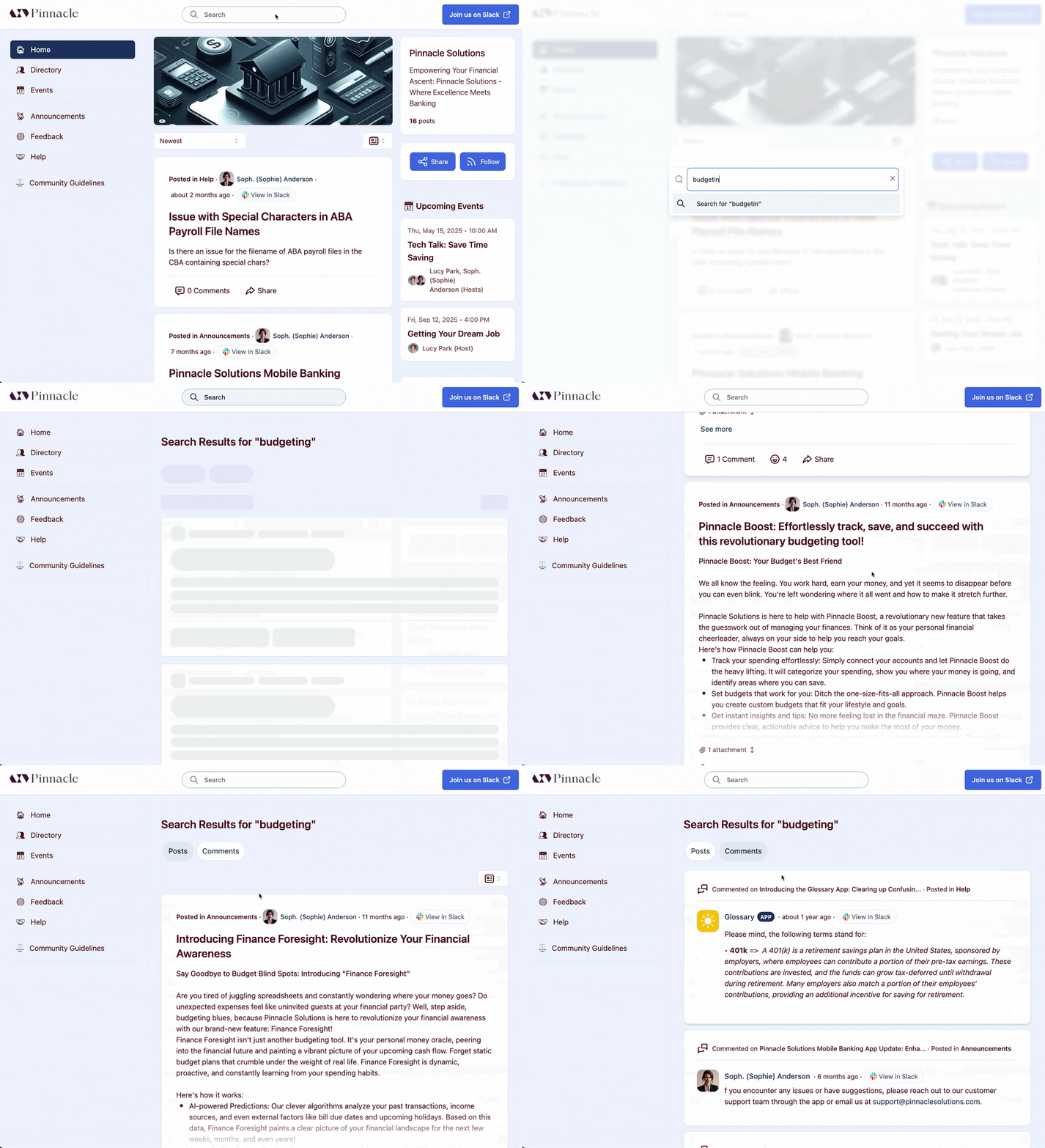
Search results on the community site
## Community Guidelines
The **Community Guidelines page** displays the community guidelines, if you have [configured guidelines in Tightknit settings](/moderation/community-guidelines).

Community guidelines page
# SEO and Metadata
Source: https://docs.tightknit.ai/community-site/seo-metadata
Control whether search engines index your community site, and add a Google Tag Manager container.
One of the main reasons to run a community site is that it makes conversations in Slack findable on the web. These settings control whether that happens.
Both live at **[Site > SEO & metadata](https://studio.tightknit.ai/-/website/seo)** in Studio.
> [!TIP]
>
> **Did you know you can change this with our [MCP server](/integrations/mcp) too?** Try asking your agent: *"Turn on search engine indexing for our site."*

SEO and metadata settings in Studio
## Search engine discoverability
The **Discoverability** setting opts your site in or out of being indexed by search engines.
* **Enabled** (the default) - search engines can crawl and index your site's public pages. Your sitemap at `/sitemap.xml` helps them discover content that is eligible to appear in search results.
* **Disabled** - your site has no sitemap, every public page tells search engines not to index it (a `noindex` robots header), and `robots.txt` asks other crawlers, such as AI crawlers, not to crawl the site. Search engines may still revisit public pages to read `noindex`; existing results disappear as they recrawl.
> [!WARNING]
>
> Turning discoverability off is the right choice while you are still building the site, and the wrong choice once you have launched. A site excluded from sitemaps earns no search traffic, which removes most of the reason to have one.
> [!NOTE]
>
> Discoverability is separate from [access control](/community-site/authentication#access-control-options). A site set to **Restricted access** requires login regardless of this setting, so search engines cannot index its content either way.
## What appears in your sitemap
`/sitemap.xml` is the main sitemap for your community site. Depending on the sections you have enabled, it helps search engines discover:
* Standard site pages
* Listed Feeds and their public posts
* Active member profiles that have public activity
* Events and Groups
* Resource collections and Tags
Unlisted Feeds and their posts are not included. Bot profiles, deactivated members, and member profiles without public posts or replies are also left out. Those member pages remain available by direct link when your site's access settings allow it, but they tell search engines not to index them.
Tightknit refreshes sitemap data when public content changes. It also notifies supported search engines when a public post is created, updated, unpublished, or deleted. Search engines decide when to recrawl your site, so changes may not appear in search results immediately.
## Page titles and metadata
Your **site name** is used as the title in your site header and in SEO metadata, and your **site description** and **social media image** are used when pages are shared. Set all three under [Site > Overview](/community-site/general).
## Google Tag Manager
Add a **Container ID** in the format `GTM-XXXXXXX` to load your Google Tag Manager container on every page of your community site. Leave it blank to disable.
Tag Manager lets you add your own analytics, advertising, and marketing tags without touching Tightknit. For the full setup walkthrough, including the events Tightknit emits that you can build triggers on, see [Integrations](/community-site/integrations).
## Related pages
* **[Domain and URL](/community-site/custom-domain)** - a custom domain keeps search authority on your own domain.
* **[Site analytics](/community-site/analytics)** - measuring the traffic these settings earn you.
* **[Integrations](/community-site/integrations)** - Google Tag Manager in depth.
# Single sign-on (SSO)
Source: https://docs.tightknit.ai/community-site/sso
Set up enterprise Single Sign-On for your community site with OIDC, SAML 2.0, or token-based JWT, using SP-initiated or IdP-initiated flows.
Tightknit supports enterprise Single Sign-On (SSO) to integrate with your organization's identity provider and authenticate community members through OIDC, SAML, or a custom JWT flow.
## Supported Protocols
Tightknit supports the following industry-standard SSO protocols:
* **OIDC (OpenID Connect)** - Modern authentication protocol built on OAuth 2.0
* **SAML 2.0** - Enterprise-grade XML-based authentication standard
* **Token-based JWT** - Custom integrations for IdP-initiated flows
## Supported Authentication Flows
### SP-Initiated Flow
Users start at your Tightknit community and are redirected to your identity provider to authenticate. After successful authentication, they are returned to Tightknit and logged in automatically.
```mermaid theme={null}
sequenceDiagram
autonumber
actor Member
participant Site as Tightknit community site
participant IdP as Your identity provider
Member->>Site: Visit site and choose SSO login
Site->>IdP: Redirect with authentication request
(OIDC or SAML)
IdP->>Member: Prompt to authenticate
(or reuse an existing session)
Member->>IdP: Authenticate
IdP->>Site: Redirect back with signed assertion
Site->>Member: Session created, member is signed in
```
### IdP-Initiated Flow
Users start at your identity provider portal and can access your Tightknit community directly from there. They land on Tightknit already authenticated without needing to sign in again.
```mermaid theme={null}
sequenceDiagram
autonumber
actor Member
participant IdP as Your identity provider portal
participant Site as Tightknit community site
Member->>IdP: Sign in to the IdP portal
Member->>IdP: Open the Tightknit tile
IdP->>Site: Redirect with signed JWT
Site->>Site: Validate token and match the member
Site->>Member: Session created, member is signed in
```
> [!NOTE]
>
> IdP-initiated SSO requires a custom token (JWT) provider. See [Set up a
> custom token (JWT) provider](#set-up-a-custom-token-jwt-provider).
## Supported Identity Providers
Tightknit works with major enterprise identity providers, including:
* Google Workspace
* Microsoft Azure AD / Entra ID
* Okta
* Auth0
* OneLogin
* And other OIDC/SAML-compliant providers
## Where to configure this
In Studio, go to **[Site > Authentication](https://studio.tightknit.ai/-/website/authentication)** and use the **Single Sign-On** section to add and manage providers.
## Set up an OIDC or SAML provider
You can configure up to five providers from Studio. A new provider starts disabled so you can review the configuration before making it available to members.
**1. Open authentication settings**
In Studio, go to **[Site > Authentication](https://studio.tightknit.ai/-/website/authentication)** and find **Single Sign-On**.
**2. Choose the connection type**
Select **Add provider**, then choose OIDC or SAML. Tightknit suggests a provider ID based on your community and protocol. The provider ID must be globally unique and cannot be changed after creation.
**3. Configure your identity provider**
Copy the callback URL shown by Tightknit into your identity provider. SAML setups also receive an ACS URL and entity ID. Use **Provider help** for concise Auth0, Okta, Microsoft Entra ID, or Google Workspace instructions.
**4. Enter the provider configuration**
For OIDC, enter the issuer, client credentials, endpoints, and scopes. For SAML, paste the IdP metadata XML or enter the sign-on URL and the **IdP signing certificate**. Paste the certificate as PEM text with real line breaks; a certificate copied as a single line with literal `\n` characters is rejected.
**5. Create and test the provider**
Save the provider while it is disabled, then enable it immediately before a controlled test with an existing community member. Review **[Settings > Audit](https://studio.tightknit.ai/-/workspace/audit)** under **Authentication** after the test. If the test fails, you can correct the configuration without disabling the provider first; see [Editing a live provider](#editing-a-live-provider).
For an end-to-end provider example, see [Set up Auth0 SSO](/guides/sso-auth0).
## Set up a custom token (JWT) provider
Use a custom token provider when your own application signs members in and should send them straight to your community, for example from a **Community** link inside your product. Your application signs a short-lived JSON Web Token (JWT) for the member and posts it to Tightknit, which verifies it and signs the member in. Standard identity providers such as Okta or Microsoft Entra ID should use OIDC or SAML instead.
**1. Choose the connection type**
In **[Site > Authentication](https://studio.tightknit.ai/-/website/authentication)**, select **Add provider**, choose **Custom token (JWT)**, and enter a display name.
**2. Send tokens to the callback URL**
Copy the **Token callback URL** from the **Connect** step. Your application posts each signed token to it as a form field named `token`. Each token must:
* be signed with RS256 or ES256
* carry `iss` and `aud` claims that exactly match the issuer and audience you enter in the next step
* carry the member's `email`, `iat`, `exp`, a stable `sub`, and a unique `jti`
* be posted within 60 seconds of its `iat`, so sign it when the member clicks rather than when the page loads. Each token can be used once.
**3. Enter the verification details**
Enter the issuer, audience, and signing algorithm, then add the key Tightknit verifies tokens with. A **JWKS URL** lets you rotate signing keys without editing the provider; a **Public key** must be the PEM-encoded public half of your signing key, at least 2048 bits for RS256. A public key can no longer be replaced once members have linked existing accounts, so use a JWKS URL if you rotate keys. Never paste a private key.
**4. Create and test the provider**
Save the provider while it is disabled, enable it, and sign in through your application with an existing community member. Review **[Settings > Audit](https://studio.tightknit.ai/-/workspace/audit)** under **Authentication** after the test.
A custom token provider can also have a **Login URL**. With one, the community site login page shows a button that sends members to that URL; your application signs them in and posts the token back. Without one, members can only start sign-in from your application.
Tightknit opens the login URL with two query parameters:
* `redirect_uri`: the token callback URL, including the page the member started from. Post the token here rather than to the plain callback URL, so members land back where they were.
* `client`: always `tightknit`.
Members who already have a Tightknit account confirm their email the first time they sign in through a new token provider. See [Connecting SSO to an existing account](#connecting-sso-to-an-existing-account).
## Hide a custom token provider from the community site login page
Custom token providers have a **Show on community site login page** setting in the **Configuration** step. When it is on, the community site login page shows a sign-in button that takes members to your login URL. Turn it off if members only ever start from your application; they can still sign in from there either way, as long as the provider is enabled.
The setting needs a login URL. Without one, the provider is always hidden and members can only sign in from your application. Hidden providers are labeled **Hidden from the community site login page** in the **Single Sign-On** section.
OIDC and SAML providers are always shown on the community site login page while enabled, because members start those sign-ins from their button. To stop sign-ins through one, disable it instead.
## Reviewing a provider's connection details
Each provider row you can manage in the **Single Sign-On** section has an info button that reopens the setup wizard on the **Connect** step. Use it to copy the callback URL, ACS URL, entity ID, or token callback URL again when your identity provider or application needs them, without changing anything on the provider. Providers the Tightknit team set up with more than one configuration do not have this button; contact support for their connection details.
## Editing a live provider
Providers you set up yourself can be edited while they are enabled, using the same rows that offer the info button above. Because the change applies immediately, Studio asks you to confirm before saving: choose **Save live changes** to apply, or cancel to keep the current configuration. A configuration that no longer matches your identity provider interrupts member sign-ins until you correct it, so review each step of the wizard before confirming.
When editing a SAML provider, the stored signing certificate is masked. Leave the **IdP signing certificate** field blank to keep the current certificate, or paste a new one to replace it. Custom token providers work the same way for a stored public key.
After members have linked existing accounts through a provider (by signing in with OIDC or SAML, or by confirming their email for a custom token provider), its identity settings (such as the issuer, audience, signing key, or client ID) can no longer be changed, because those links depend on them. Create a new provider instead. For some custom token providers that Tightknit set up for you, only Tightknit support can change the identity settings.
## Connecting SSO to an existing account
When a member signs in with SSO using an email address that already has a Tightknit account created another way — an email sign-in code, or a Google, GitHub, or Slack login — Tightknit does not merge the two automatically. Trusting the identity provider's word alone would let a misconfigured or compromised IdP claim someone else's account.
Instead, the member is sent a confirmation email:
1. They sign in with your identity provider as usual.
2. The login page tells them to check their email, and Tightknit emails the asserted address a confirmation link naming your community and the identity provider.
3. Opening the link shows a confirmation page. Nothing changes until they select **Connect** — simply opening the email is not enough.
4. After confirming, they return to the login page and sign in with SSO again, which now succeeds.
This happens once per member, per identity provider. Afterwards, SSO sign-in works normally.
The confirmation email is always required when the asserted address belongs to someone who is not yet an established member of your community. An invitation on its own is never enough for your identity provider's claim to attach to an existing Tightknit account. A Tightknit account can belong to several communities, so only the person who can open that mailbox may connect it to yours.
> [!NOTE]
>
> Confirmation links are single-use and expire after 10 minutes. If a member misses the window, they can start again by signing in with SSO — a new link is sent. A member who never confirms keeps their existing sign-in methods and loses no access.
Administrators can see this activity in **[Settings > Audit](https://studio.tightknit.ai/-/workspace/audit)** under the **Authentication** section: `SSO link confirmation sent`, `SSO link confirmed`, `SSO link expired`, and `SSO link rate-limited`.
## Troubleshooting
> **The identity provider rejects the callback URL**
>
> Use the info button on the OIDC or SAML provider row to reopen the **Connect** step and copy the callback or ACS URL again. It must match exactly, including the protocol, path, provider ID, and trailing slash behavior.
> **The provider does not appear on the community site login page**
>
> Confirm the provider is enabled and **Allow members to log in** is enabled under **Access**. A disabled provider remains hidden while you configure it. For a custom token provider, also confirm it has a login URL and **Show on community site login page** is on.
> **Authentication succeeds but access is denied**
>
> SSO verifies identity. Unless **Automatically provision accounts** is enabled for the provider, it does not create community access: confirm the user's email address belongs to an existing, active community member. When automatic provisioning is enabled, a first sign-in with no matching profile creates the member instead, provided the email address matches the provider's **Email domain** if one is set. If access is still denied, check that the user's address is on that domain.
> **OIDC authentication fails**
>
> Confirm the issuer and every endpoint use HTTPS, the client secret is current, and the application allows the `openid`, `profile`, and `email` scopes. Review the Authentication audit log for the recorded provider error.
> **SAML authentication fails**
>
> Confirm the IdP sends the member email as `email` or NameID, the assertion is signed when required, and the IdP metadata or certificate is current.
> **Custom token sign-in fails**
>
> Confirm the token's `iss` and `aud` exactly match the provider's issuer and audience, it is signed with the configured algorithm and key, it has not expired, and it carries a `jti` that has not been used before. Review the Authentication audit log for the recorded reason.
> **The identity provider blocks the member before they reach Tightknit**
>
> The member sees an error on your identity provider's own page instead of returning to the community. Because the sign-in never comes back to Tightknit, the Authentication audit log records no failed attempt for it. When a member reports an SSO error and the audit log shows nothing, investigate in your identity provider.
>
> Some identity providers send the member back to the community instead of showing their own error page. The login page then tells the member that their company's single sign-on didn't let them in, and the Authentication audit log records the failed attempt with the error code `sso_access_denied`. The cause and the fix are the same.
>
> The most common cause is an application that only admits assigned users. In Microsoft Entra ID the error is `AADSTS50105`, and the enterprise application has **Assignment required** turned on. To fix it, open **Enterprise applications**, select the application that signs members in to Tightknit, go to **Users and groups**, and assign the member or a group they belong to. Okta and other providers have the same per-application assignment. The error page usually shows a request ID and a correlation ID, which your identity provider admin can use to find the attempt in the provider's sign-in logs.
>
> If one identity provider sits in front of another, such as Auth0 federating to your organization's Entra ID, make the assignment in the provider that showed the error.
>
> Until the assignment is fixed, the member can sign in with any other method your community enables, such as Slack. If they already have a Tightknit account, their first successful SSO sign-in sends a one-time confirmation email. See [Connecting SSO to an existing account](#connecting-sso-to-an-existing-account).
If the audit log does not identify the problem, contact [support@tightknit.ai](mailto:support@tightknit.ai) with the provider type, provider ID, error message, and a redacted screenshot. Never send a client secret or private key by email.
# Groups
Source: https://docs.tightknit.ai/community/groups
Create and manage Groups of community members for bulk management and assignments, in Slack, in Studio via CSV import, or through the API.
A Group is a collection of community members. Groups are useful for managing large numbers of users at once, mass DMs (*coming soon*), assignments to other areas of the Tightknit platform, and more!
> [!NOTE]
>
> Groups support up to 100 members when managed through the Slack app, and up
> to 1,000 members when imported from CSV in the Studio or managed through the
> API.
> [!NOTE]
>
> **Terminology**: Note that Tightknit Groups are distinct from Slack's ["user
> groups"](https://slack.com/help/articles/212906697-Create-a-user-group) (a
> feature only on paid Slack Pro plans). For the purposes of this article, every
> time we mention "Group" we are referring to the Tightknit feature.
> [!TIP]
>
> **Did you know you can manage group membership with our [MCP server](/integrations/mcp) too?** Try asking your agent: *"Add everyone with an acme.com email address to the Customers group."*
## Managing Groups
Admins can manage groups from either the Admin Studio or directly in Slack. The two experiences differ in capability and scale, so pick the tab that matches where you're working.
**Studio**
Navigate to the **Groups** page in the [Admin Studio](https://studio.tightknit.ai) to view, search, and manage all of your community's groups. The groups list displays each group's name, slug, visibility, member count, Slack channel sync status, and creation date.

Groups page in the Admin Studio
From this page you can:
* **Search** groups by name or slug
* **Create** new groups (empty or from CSV)
* **Click** any group to view its detail page with the full member roster
### Create a Group
Click the **Create Group** button on the Groups page. You have two options:
**Empty Group**
Create a group and configure it manually. Provide the following:
* **Name** (required) — the display name for the group
* **Slug** (optional) — a URL-friendly identifier; auto-generated from the name if not provided
* **Community Site Visibility** — **Public** groups appear on the [Groups page](/community-site/pages#groups-list) and member profile pages. **Private** groups are hidden from the community site.
After creation you'll be taken to the group detail page where you can add members, assign a permission set, and configure an award.

Create group modal in the Admin Studio

The Groups page in Studio
**From CSV**
Bulk-create a group from a list of email addresses. Prepare a single-column CSV with email addresses (up to 1,000 rows), then either paste the contents or drag-and-drop the file into the upload area.
After submitting, Tightknit processes each email (finding existing member profiles or creating new ones) and displays a report showing which emails succeeded and which failed. Click **View group** to navigate to the newly created group.
> [!NOTE]
>
> CSV import creates member profiles for email addresses that don't yet exist in your community. This requires the **Create Standalone Members** feature to be enabled on your plan.
### Group Detail Page
Click any group in the list to open its detail page. Here you can:
* View group metadata (name, slug, visibility, Slack sync status)
* Browse the full member roster with profile information and join dates
* **Edit** the group — update name, slug, visibility, membership award, and notification preferences
* **Add members** individually or remove existing members
* **Export** the current members as a CSV
* **Delete** the group
### Group Settings
When editing a group, you can configure:
* **Name** — the name associated with the group
* **Slug** — the URL route for the group on the community site
* **Banner Image** — an optional hero image displayed at the top of the group's detail page on the community site. Upload a banner when creating or editing a group in the Studio. For the best results, use an image with dimensions of 2560 x 640 px (4:1).
* **Community Site Visibility** — controls whether the group is visible on the community site
* **Permission Set** — assign a [Permission Set](/community/permission-sets) to the group; all members inherit the permissions
* **Membership Award** — assign an [Award](/gamification/awards) to the group. All members automatically receive the award and only retain it while they are a member. When you add or remove members, the award is automatically given or revoked, respectively.
* **Notify New Members** — when enabled, new members added to the group receive a private notification DM informing them of their membership and any inherited permissions

Group membership notification DM
### Import Members from CSV
You can also bulk-add members to an existing group. Open the **Import Members** dialog from the group detail page or via the **Cmd+K** command palette (**Import Members from CSV**). Select the target group, then paste or upload a CSV of email addresses (up to 1,000 rows). A results report shows which imports succeeded or failed, and you can check the **Import History** page for past import jobs.
### Export Members as CSV
To download a group's current members, open the group's actions menu (**⋯**) on its detail page and choose **Export members as CSV**. You can also press **Cmd+K**, run **Export Group Members as CSV**, and pick the group.
The file has one row per member with their name, first and last name, email, Slack user ID, status (Active, Invited, or Deactivated), and the date they joined the group. Members who were removed from the group are not included.
**Slack**
Admins can manage Groups from the Slack app by clicking the `Groups` button under the **Community** module.

Groups list panel
From the Groups List panel, admins can view, manage, and create groups with up to 100 members. For larger groups, CSV imports, membership awards, and notification preferences, use the Studio tab.
> [!NOTE]
>
> Within the Slack app, you can only add or remove Slack users in a group. To manage non-Slack members, use the [Studio Groups page](https://studio.tightknit.ai/-/groups).
### Groups Page Settings
Click the `Settings` button in the Groups List panel to configure:
* **Groups Page Banner Image** — displayed at the top of the Groups page on the community site. Only available when your community has a community site. For the best results, use an image with dimensions of 2560 x 640 px (4:1). Other ratios are cropped from the center to fill the 4:1 frame. [Create with Canva template →](https://canva.link/kz7a48hejpv519r)
> [!NOTE]
>
> Groups Page Settings are not yet available in the Studio.
## Flair
Flair is a short label badge that displays next to a member's name on posts, comments, and profile pages. It lets communities highlight group membership (e.g. "MVP", "Staff", "Expert") directly in the feed without visitors needing to click into a profile.
Flair is **per-group, opt-in, and off by default**. Admins make a group eligible for flair, and members choose which group's flair to display.
### Setting up flair (admins)
When creating or editing a group in the Studio, configure two settings:
* **Flair label** — a short label up to 7 characters (e.g. "MVP", "Staff"). This is the text that appears in the badge.
* **Show flair in feed** — a toggle that controls whether the flair appears on posts and comments. Both the label and the toggle must be set for the flair to display.
> [!NOTE]
>
> Private groups cannot show flair. If a group's visibility is set to **Private**, the flair toggle is disabled. Change the group to **Public** visibility first if you want to use flair.
### Choosing flair (members)
Members select which group's flair to display from **Settings > Profile** on the community site. A member shows **at most one flair** at a time. If a member belongs to multiple flair-eligible groups, they pick which one to display.
The selection is self-healing: if the group later loses flair eligibility (label cleared, toggle turned off, group made private, or the member leaves the group), the flair stops displaying automatically.
## Changing the Membership Award on a Group
When you add, swap, or clear the Membership Award on a Group, Tightknit automatically updates every current member:
* **Add an award** (*none → Award A*): every member receives Award A, along with a Slack DM, activity log entry, and outbound webhook event.
* **Swap the award** (*Award A → Award B*): Award A is revoked from every member and Award B is assigned. Only the Award B assignment triggers a DM. The Award A revocation is silent to avoid a confusing "you lost an award" notification.
* **Clear the award** (*Award A → none*): Award A is silently revoked from every member. No DMs are sent.
Slack DMs are only sent to members with a connected Slack user.
# Permission Sets
Source: https://docs.tightknit.ai/community/permission-sets
Create Permission Sets that grant event, award, and poll permissions, and assign them to Groups to give privileges to community members.
A **Permission Set** is a collection of permissions and privileges that can be granted to a user (*coming soon*) or a Group.
A user's permissions are calculated as the superset of all Permission Sets assigned to them or assigned to Groups that they are a member of. For example, to have event-related permissions, a user must be a member of at least one Group with an assigned Permission Set containing event permissions.
## How to Access
Admins can access Permission Sets settings by clicking the `Permission Sets` button under the **Community** module.

Permission Sets list panel
From the Permission Sets List panel, admins are able to view, manage, and create Permission Sets.
## Create a Permission Set
To create a new Permission Set, click the `Create Permission Set` button. Within the Permission Set creation modal, you can configure the following:
* **Name** - the name associated with your Permission Set
* **Permissions** - list of permissions enabled for this set
* **Manage & Draft Events** - the user can draft new events, submit them for admin approval, and edit or delete their own events. They can also access `Events` from the app home.
* **Manage & Publish Events** - the user can publish events directly without admin approval, and edit or delete their own events. This permission is a superset of **Manage & Draft Events**: selecting it grants drafting capability automatically, and the **Manage & Draft Events** checkbox is hidden when this is enabled.
* **Give Awards** - the user has the ability to [give Awards](/gamification/awards#send-an-award) to members of the Community.
* **Create Polls** - the user has the ability to [create Polls](/member-engagement/polls).

Create Permission Set modal
> [!NOTE]
>
> More permissions coming soon!
# Getting Started with Content Resource Libraries
Source: https://docs.tightknit.ai/content-resource-library/getting-started
Curate themed collections of links and event recordings with Content Resource Libraries, tag resources, and surface them on your community site.
> [!NOTE]
>
> Content Resource Libraries is currently a pilot feature. [Contact us](https://tightknit.ai/contact) to learn more and request access.
Content Resource Libraries allow you to curate and organize collections of links and event recordings for your community. With Content Resource Libraries, you can:
* 📚 Create themed collections to organize resources (e.g., "Getting Started", "Best Practices")
* 🔗 Add links to external content like articles, videos, and tools
* 📅 Link past calendar events and recordings as resources
* 🏷️ Tag resources for easy filtering and discovery
* 🌐 Surface resource libraries on your community site for members to browse and search
> [!TIP]
>
> **Did you know you can add resources with our [MCP server](/integrations/mcp) too?** Try asking your agent: *"Add this blog post to our Best Practices collection."*
## Key Concepts
Content Resource Libraries use a two-level hierarchy:
* **Collection** — A named group of related resources. Each collection has a name, slug, optional description, and optional cover image. Collections are displayed as cards and can be reordered.
* **Resource** — An individual content item within a collection. Each resource has a title, optional description, and optional cover image. Resources can be of the following types:
* **External Link** — A link to external content (articles, videos, documentation, tools, etc.)
* **Event** — A reference to a past [Tightknit event](/events/getting-started), useful for linking recordings and recaps.
⏰ ***Coming soon:***
* **Pages** - internal pages within the community site
* **Embedded external pages** - external pages embedded within the community site
Resources can be organized with [Tags](/tags/getting-started) for filtering and categorization.
## Managing Collections in the Studio
Go to **[Content Library](https://studio.tightknit.ai/-/collections)** under **Content & Site** in the Studio sidebar.

The Content Library in Studio
### Viewing Collections
Navigate to the **[Content Collections page](https://studio.tightknit.ai/~/collections)** in the Studio. You'll see a list of all your content collections, each displaying its cover image, name, description, slug, and resource count.

Content collections in the Studio
### Creating a Collection
Click the **Create Collection** button to open the creation dialog. Fill in the following fields:
* **Name** (required) — The display name for the collection (max 100 characters).
* **Slug** (optional) — A URL-friendly identifier for the collection. If not provided, one is auto-generated from the name. Must be unique and lowercase.
* **Description** (optional) — A brief summary of what the collection contains (max 500 characters).
* **Cover Image** (optional) — An image displayed on the collection card. You can upload an image file via drag-and-drop or paste an image URL. Recommended 16:9 aspect ratio with dimensions of 1280 x 720 px.
* **Tag Groups** (optional) — Select which [tag groups](/tags/getting-started) are available for tagging resources in this collection (max 5 tag groups per collection).
### Reordering Collections
When every collection is shown on the page, drag and drop the cards to rearrange their display order on the community site.
For longer lists, click **Reorder**. It opens the **Reorder collections** sheet, which lists your collections as compact rows. Drag rows into place or click **Sort A–Z** to alphabetize, then click **Save order**. A list too long to reorder in one pass says so instead of showing the rows.
## Managing Resources
### Viewing Resources
Click on a collection card to open its detail page. Here you'll see all resources within the collection, along with collection metadata like its slug, cover image, and associated tag groups. Click any resource title or the info icon to open its dedicated detail page.

Resources within a collection in the Studio
### Creating a Resource
Click the **Create Resource** button within a collection to add a new resource. You can also create a resource from anywhere in the Studio via the Cmd+K global action, which lets you pick the target collection from a dropdown. Choose the resource type:
**External Link**
* **URL** (required) — The link to the external content.
* **Title** (required) — A display title for the resource (max 200 characters).
* **Description** (optional) — A brief summary (max 500 characters).
* **Cover Image** (optional) — An image displayed on the resource card. You can upload an image file via drag-and-drop or paste an image URL. Recommended 16:9 aspect ratio with dimensions of 1280 x 720 px.
* **Tags** (optional) — Select tags from the collection's associated tag groups.
**Event**
* **Event** (required) — Select a past event from the event picker.
* **Tags** (optional) — Select tags from the collection's associated tag groups. Tags from the event may be pre-populated if they belong to an applicable tag group.
The title and cover image for Event resources are pulled directly from the linked event.
### Resource Detail Page
Each resource has its own detail page at `/~/resources/{resourceId}` showing the type, URL or event date, cover image, tags, parent collection, and authorship metadata. You can edit or delete the resource directly from this page.
### Editing & Deleting Resources
Click the edit button on any resource card to update its details, or the delete button to remove it. For Event resources, you can change the linked event. Deleting a collection detaches any resources in it rather than deleting them. Detached (orphan) resources remain accessible via their detail page and can be reassigned later.
### Reordering Resources
When a collection fits on one page (up to 25 resources), drag and drop resources to rearrange their display order within the collection.
Larger collections are paginated, so in-place dragging is turned off and the page shows how many resources are visible out of the total. Click **Reorder** to open the **Reorder resources** sheet, which is not limited to the page you were viewing. Drag rows into place or click **Sort A–Z** to alphabetize, then click **Save order**. A collection too long to reorder in one pass says so instead of showing the rows.
## Community Site Display
To manage the visibility of Content Collections on the community site, click the **Content Settings** button on the Content Collections page in the Studio. In the Content Settings dialog, you can configure:
* **Show on community site** — toggle to enable or disable the Resources and Collections routes on the community site
* **Resource library banner** — an image displayed at the top of the Resources page on the community site. Only available when your community has a community site. For the best results, use an image with dimensions of 2560 x 640 px (4:1). Other ratios are cropped from the center to fill the 4:1 frame. [Create with Canva template →](https://canva.link/kz7a48hejpv519r)
### Resources Page
The Resources page (`/resources`) is a unified page that shows two sections:
1. **Collections carousel** — A horizontal carousel of collection cards at the top of the page, ordered by position. A **View All** link in the top-right always navigates to the full collections list at `/collections`.
2. **All Resources** — Below the carousel, all resources across every collection are displayed alphabetically in an infinite-scrolling feed. Members can toggle between a **list view** and a **grid view** from the top-right; the preference is persisted across visits.
Tag filter dropdowns are available on the all-resources section, allowing members to filter across all tag groups associated with your content resources. Selected filters are reflected in the URL query parameters, making filtered views easy to share. Content resources also appear in the community site's global search.
### Collections Page
The collections page (`/collections`) displays all collections as a responsive grid of cards. Each card shows the collection's cover image, name, description, and resource count. Clicking a card opens the collection detail page.

Collections page on the community site
### Collection Detail Page
The collection detail page (`/collections/{slug}`) shows all resources in the collection as an infinite-scrolling grid of cards. Each resource card displays:

Collection detail page on the community site
* Cover image (falls back to your community site logo if none is set)
* Title and description
* Tag badges
* For Event resources: the event date and a link to the event page
* For External Link resources: an external link icon. Clicking opens the URL in a new tab
### Filtering by Tags
Tag filter dropdowns appear on both the Resources page (all resources section) and on individual collection detail pages when tag groups are configured. Members can filter resources by selecting one or more tags:
* **Within a tag group**: filters use OR logic (matching any selected tag)
* **Across tag groups**: filters use AND logic (must match selections from all groups)
Selected tag filters are persisted in the URL, making filtered views easy to share.
# Create a New Event
Source: https://docs.tightknit.ai/events/create-event
Create and publish events from Tightknit Studio or Slack, and let non-Admins draft or publish events through Groups and Permission Sets.
Creating an event is a great way to engage your community and share important information.
Events can be published on the community site and in select Slack channels.
> [!TIP]
>
> By default, only Admins can create events. If you would like to allow
> non-Admins to create events, you can do so by adding users to a
> [Group](/community/groups) which is assigned a [Permission
> Set](/community/permission-sets) with **Manage & Draft Events** (drafts go
> through admin approval) or **Manage & Publish Events** (publish directly
> without approval) enabled.
## Creating an Event in Studio
Go to **[Events](https://studio.tightknit.ai/-/events)** under **Engagement**. The table shows every event with its status, date, and registration count.

The Events page in Studio
Click **Create event**. The wizard has four steps, and you can move back and forth between them before creating the event.

The Details step of the create-event wizard in Studio
**1. Details**
* **Title** - The event name. Required.
* **Description** - What the event is about, the agenda, and who should come.
* **Location** - Where it happens, for in-person or hybrid events.
* **Event link** - The join URL, such as a Zoom or Meet link.
* **Cover image** - Shown on the event announcement and on your site. JPEG, PNG, or GIF, max 4 MB and 2000px. The recommended size follows your community's [event cover shape](/events/global-event-settings) setting: 1080 × 1080 px (1:1) for square, or 1280 × 720 px (16:9) for wide. A Canva template is linked from the field.
* **Tags** - Categorize the event so members can filter for it. See [Tags](/tags/getting-started).
**2. Schedule**
* **Starts** / **Ends** - Times are in your local timezone.
* **Show end time** - Display the end time on the event announcement.
* **Reminders** - Remind registrants before the event starts. Choose any of 2 minutes, 10 minutes, 1 hour, 1 day, and 1 week before.
When you edit an event, Tightknit preserves its existing reminders unless you explicitly replace or remove them. If an event has a custom reminder time that is not one of the choices above, Studio shows that time and lets you keep it or replace it with supported choices.

The Schedule step of the create-event wizard in Studio
**3. People**
* **Hosts** - Members hosting this event.
* **Speakers** - Members speaking at this event.
* **External speakers** - Speakers who aren't in your Slack workspace, entered as free text.
**4. Sharing**
* **Announce in Slack channels** - Select up to 10 channels for the event announcement. Editing other event details preserves every selected channel. Remove a channel only when you also want to remove its announcement.
* **Unlisted** - Only members with the link, or in the selected channel, can see the event.
* **Publish to site** - Show the event on your [community site](/community-site/pages#events-list).
* **Registration button** - Let members register for the event.
* **Use event link for registration** - Send members to the event link instead of registering in-app. See [Event registration](/events/event-registration).
* **Public guest list** - Let members see who else has registered.
* **Enable webhooks** - Send event payloads (registrations, event ended) to your subscribed [webhooks](/integrations/webhooks).
* **Webhook custom metadata** - Included in event webhook payloads when webhooks are enabled. Typically the event's ID in a third-party system, which is how you match a Tightknit event to a Zoom or Luma one.
Editing an event works the same way: open it from the Events table and the same four steps appear. Changes to a published event update its Slack announcements automatically, as described under [Manage Events](/events/manage-events).
## Creating an Event in Slack
**1. Go to the Events Modal**

In Slack: Events list panel
Use the global shortcut `/events` to open the Events modal. The shortcut option will appear as you type `/events` into any conversation message.

Using the /events shortcut in Slack
From here, press the `+ Create New Event` button.
> [!NOTE]
>
> If you do not see the `+ Create New Event` button, you may not have the proper
> permissions to create events. Please contact your admin for more information.
**2. Add Event Details**

In Slack: Create event form
This is where you will add the details of your event.
* **Title**: The title of the event.
* **Hosts**: The host(s) of the event.
* **Speakers**: The speaker(s) of the event (internal Slack users).
* **External Speakers**: The speaker(s) of the event that are external to Slack.
* **Start Date**: The start date and time of the event.
* **End Date**: The end date and time of the event.
* **Link**: A relevant link for the event. Must be a proper `https://` URL. If the Link is not provided, you must provide the Location instead.
* **Location**: The location or address of the event. If the Location is not provided, you must provide the Link instead.
* **Description** (optional): A brief description of the event.
**3. Upload Event Image**
You can upload a cover image for the event that will be displayed in the announcement message and in the event lists. The recommended dimensions depend on your community's [event cover shape](/events/global-event-settings) setting: 1080 × 1080 px (1:1) for square, or 1280 × 720 px (16:9) for wide. Other ratios are centered within the shape you pick.
**4. Registration Settings**
If guests are allowed to register for your event, you can configure the settings here. For a more in-depth guide to these settings, see [Event Registration](/events/event-registration).
**5. Publish Settings**
Within the Publish Settings, you will designate the privacy and audience settings of the event. The *Privacy Level* determines which users in the Slack workspace can discover or access the event:
* **Public**: accessible by all users in the workspace, via the [Events List panel](/events/getting-started#events-list-panel)
* **Unlisted**: accessible only by members of the selected channel(s). Certain users will still see unlisted events in the Events List panel ([read more](/events/getting-started#views)).
You will select the Slack channel(s) that will receive the [event announcement](#published-event-announcement). You may select up to 10 channels.
You may also choose to make the event publicly shared on the community site. The event will appear in the Events list as well as on the Feed page for any Feeds that are connected to your selected Slack channels.
Here is an example event on the community site:

Events list page on the community site

Event detail page on the community site
**6. Save Draft and Preview**
When you have completed the event information, press the "Save and Preview". A draft of your event will automatically be saved, and it is safe to close the modal.

In Slack: Draft preview panel
#### Submitting from Draft Preview
You'll also have the option to submit your event at this time, if you choose. The submit button you see depends on your permissions:
* Admins and users with **Manage & Publish Events** see "Publish Event", which immediately publishes the event.
* Users with **Manage & Draft Events** see "Submit for Approval", which sends the event to admins for review.
#### Save For Later
You can always come back to work on this event later if you exit the modal. Once you are ready to publish your event, open the Events panel and navigate to `My Drafts`.
On the overflow menu, you'll see the option to submit your event.
* If you are an admin or have the **Manage & Publish Events** permission, you'll see the option to "Publish Event".
* If you have the **Manage & Draft Events** permission (without publish), you will see a "Submit for Approval" option.
**7. Approve Event (Admin Only)**
If you only have the **Manage & Draft Events** permission, you will first need an admin to approve your event before it is published. Once approved, the event will be published to the channels you selected.
If you are an admin, you will see the events awaiting approval under the "Needs Approval" dropdown selection. If you go to the overflow menu, you can approve the event which will publish it immediately.
You will also receive notifications for the approval requests in your [Tightknit Hub channel](/slack/community-settings#tightknit-hub-channel), from which you can directly approve and publish the event, edit the event, or DM the event creator for clarifications.
## Published Event Announcement
Your event will be announced on the channel(s) you selected. Congrats! 🎉

Published event announcement in a Slack channel
Need to make updates? No worries! Any further edits you make to the event details will be automatically reflected on *all* of the announcement messages.
## Integrations
### Luma
When you provide a [Luma](https://lu.ma/) URL, like `https://lu.ma/event/evt-XYZ123`, for the **Event Link** of a Tightknit event, we provide an integrated 1-click registration experience within the Event Page on the community site.

Luma integration on the event page
# Event Recaps & Recordings
Source: https://docs.tightknit.ai/events/event-recap
Add a recap message and recording link to completed events from Studio or Slack, shared in the channels the event was published to.
When an event completes, admins can add a recap and a recording link. Tightknit also sends a private notification to the event creator as a reminder.
Recaps are added to all of the channels the event was originally published to, and you can return at any time to update one. If every field is left blank, the recap messages are deleted.
## Adding a Recap in Studio
Go to **[Events](https://studio.tightknit.ai/-/events)** under **Engagement** and open the event. From the actions menu next to **Edit**, choose **Add recap** (or **Edit recap** if the event already has one).
The dialog has three fields:
* **Recap message** - The body of the recap. Enter key takeaways, highlights, summaries, links, and so on.
* **Event recording link** - A video link (YouTube, Vimeo, and similar) shown alongside the recap. It must start with `https://`.
* **Broadcast recap to channel** - Post the recap as a reply on the event's Slack announcement.
Click **Save recap**.

The Events page in Studio
## Adding a Recap in Slack
Once an event has passed, you can add a recap from the Events List panel.

Add Recap option in the event menu
In the Events List panel, find your event under **Past** events, and select the `⏪ Add Recap` option from the dropdown menu.

Event recap form
In the Event Recap panel you can configure:
* **Recap Message** - the body of the recap message
* **Event Recording Link** - a link to a video recording of the event
* **Broadcast Recap Message to Channel** - whether the broadcast message is additionally broadcasted as a new message to the entire channel (*see [Recap structure in Slack](#recap-structure-in-slack)*)
## Recap Structure in Slack
When you add a recap to an event, it is added as a reply on the original event announcement Slack message. This is helpful for users following the announcement thread. You may optionally choose to broadcast the recap message to the entire channel so that all its users will see the recap update.
The image below is an example of a broadcasted recap added to the `Pinnacle Solution's 10th Anniversary!` event:

Recap added to the event announcement in Slack
Tightknit will also remove any registration-related buttons and add a `View Recording` button (if a recording link is provided).

Recap shown in the events list
## Recap Structure on Community Site
If your event is configured to publish to the community site, the recap and recording will be included as well.

Recap and recording on the community site
# Event Registration
Source: https://docs.tightknit.ai/events/event-registration
Configure event registration settings, including the registration button, external event links, and public guest lists and guest counts.
When you create or edit an event, you can configure registration settings from Slack or from Studio.
## Event Settings
When you create or edit an event, you can configure registration settings for that event under the **Registration Settings** section (in Slack) or the **Sharing** step of the event form (in Studio).
* **Show registration button for event** - enables users to register for the event
* **Use Event Link for registration button** - when enabled, the registration button will redirect users to the URL provided in the *Link* field. The link will no longer be shown in the event body. You must have the registration button enabled and a URL defined in the event *Link* field.
* **Make guest list and guest count public** - when enabled, all users are able to see the number of attendees and the guest list for published events
* **Enable Webhooks** - when enabled, actions related to this Event are emitted to all subscribed [webhooks](/integrations/webhooks)
* **Webhook Custom Metadata** - this value is included as a string in the `custom_metadata` field of the payload sent to the events registration webhook. Can be used to configure [one-click registration](#one-click-registration) by including metadata from a third-party event system.
* **Event Reminders** - select one or more times before the event start to send reminders to attendees. You can set multiple reminders for a single event (e.g. 1 day before and 1 hour before). All scheduled reminders are reset when an event is modified. Reminders scheduled in the past are ignored. If you are using [personal join links](#personal-join-links), you *must* configure reminders to ensure attendees can access their link through the notification message.

Event registration settings in the create/edit form
> [!TIP]
>
> **Recommendation**: If your event is hosted entirely through Tightknit in
> Slack and you want your community site to direct users into Slack for
> registration, we recommend copying the link of the event
> announcement message in Slack and using it as the event link in Tightknit. You
> can find message links in Slack by hovering over the message, clicking the `⋮`
> menu, and selecting `Copy link`.
## Events Webhook
Each time a user registers or unregisters for a Tightknit event, in Slack or on your community site, or an admin [registers them](/events/manage-events#participants) from Studio or MCP, we send information about the registration action to your subscribed webhooks. The payload's `source.platform` is `slack`, `site` or `admin` accordingly. [Read More↗](/integrations/webhooks#webhook-types)
## Personal Join Links
Calendar event attendee records can be updated via the [REST API](/api-reference) to include a personal join link to the event, such as a Zoom webinar link that is unique to each user. Join links are included in the private reminder sent to each registrant before the event starts.

Personal join link button in the event reminder
## Add to Calendar Button
An **Add to Calendar** button lets members save an event to their personal calendar, with the event's title, time, location, and description filled in.
### In Slack
The button is automatically displayed on:
* Event announcement messages in channels (*only for events that do not have the registration button enabled*)
* The confirmation message shown after a member registers for an event
* Event reminders sent via direct message, when the event has [reminders configured](#event-settings)
* The Events List panel actions dropdown menu
Clicking the button opens a modal with one button per supported calendar service: **Google Calendar**, **Apple Calendar**, **Outlook**, **Outlook.com**, and **Microsoft 365**. Each button opens the event directly in that calendar service.
### On the community site
The button is displayed on the [Event detail page](/community-site/pages#event) for events that have not ended yet. Clicking it opens a page where the member picks their calendar service, with the event details already filled in.
> [!NOTE]
>
> Formatting in the event description, such as bold text and links, is kept in calendar apps that support rich text. Other calendar apps receive a plain-text version.
To hide the button everywhere, in Slack and on the community site, turn off the **Add to Calendar Button** setting in [Global Event Settings](/events/global-event-settings#settings).
## One-click Registration
Prevent your users from having to make redundant registrations in multiple places! If your event registration info lives on a third-party platform (e.g., Zoom, Luma, Google Calendar, etc), you can configure one-click registration for your Tightknit events by taking advantage of the webhook feature. In other words, when a user clicks "Register" in Slack or on your community site, their registration information is forwarded to another system like Zoom.
The registration data flows from Tightknit to your third-party platform through a webhook workflow:
```mermaid theme={null}
sequenceDiagram
autonumber
actor Member
participant TK as Tightknit
(Slack or community site)
participant WH as Webhook app
(Zapier, Make)
participant EXT as Third-party platform
(Zoom, Luma, ...)
Member->>TK: Click Register on the event
TK->>WH: Registration webhook payload
(attendee info + custom_metadata)
WH->>EXT: Match the event using custom_metadata
and forward the registration
EXT-->>Member: Registration confirmed
on the third-party platform
```
This is a high-level guide of the steps you might take:
**1. Create webhook endpoint**
In a webhook application of your choice (e.g., [Zapier](https://zapier.com/features/webhooks), [Make](https://www.make.com/en/integrations/gateway)), create a webhook endpoint that will listen for Tightknit events. Copy the URL of the endpoint. For example, a webhook URL from Zapier might look like this: `https://hooks.zapier.com/hooks/catch/123456/abcd1234`
**2. Register the webhook in Tightknit**
In the [Tightknit webhooks admin settings](/integrations/webhooks), register the webhook URL from the previous step as a new webhook.
**3. Find relevant metadata for event on third-party platform**
Determine what information is required to match the event from Tightknit with the event on your third-party platform. Typically, this is a unique identifier (ID) for the event. For example, a Zoom webinar might have an ID like this: `88333096148`.
**4. Configure Tightknit event webhook custom metadata**
To edit your event in Tightknit, use the `/events` command in Slack (find your event in the list and select `Edit Event`) or open the event in Studio. Under the [**Registration Settings**](#event-settings) section (in Slack) or the **Sharing** step (in Studio), configure the following:
1. Turn on **Enable Webhooks** so registration events are sent to your subscribed webhooks
2. Enter the metadata from Step 3 in the **Webhook Custom Metadata** field
Each time a user clicks the registration button in Slack or on your community site, or an admin registers them, Tightknit will send a payload to your webhook URL that contains the custom metadata. You can use this custom metadata to connect the registration information in the third-party platform.
**5. Set up webhook application workflow**
In the webhook application of your choice from Step 1, configure a workflow to take in the [event registration data from Tightknit](#events-webhook). Forward this data to the third-party platform, and connect it to the correct record on that platform by matching on the custom metadata from Step 4.
For more specific examples, explore the following tutorials:
> **[⚡ Zapier Webhook → Zoom Webinar](/events/tutorials/webhook-zapier-zoom)**
> **[⚡ Make Webhook → Zoom](/events/tutorials/webhook-make-zoom)**
> **[⚡ Make Webhook → Slack notification](/events/tutorials/webhook-make-slack)**
# Getting Started with Events
Source: https://docs.tightknit.ai/events/getting-started
Create, share, and manage community events from Slack with Tightknit, including RSVPs, reminders, approval flows, recaps, and recordings.
Tightknit is an incredibly powerful tool for engaging your community with new events.
With Tightknit, you can:
* 📝 Create, edit, and delete events directly from Slack
* 🎁 Share events with your community across multiple channels
* 🎫 Enable members to RSVP to events directly from Slack
* 🏆 Allow champions to create events with an integrated approval flow
* ⚡ Automatically update Slack event announcements across all channels
* 📅 Remind members of upcoming events
* ⏪ Recaps and recordings
> [!TIP]
>
> **Did you know you can create one with our [MCP server](/integrations/mcp) too?** Try asking your agent: *"Create an Office Hours event next Thursday at 2pm with registration turned on."*
## Accessing Events
Use the global shortcut `/events` to open the Events modal. The shortcut option will appear as you type `/events` into the search bar or any conversation message.

Using the /events shortcut in Slack
Alternatively, go to **[Events](https://studio.tightknit.ai/-/events)** under **Engagement** in Studio, which lists every event with its status, date, and registration count. In Slack, click the `Events` button in the Tightknit app home under the **Events** module.

Events module in the Tightknit app home
> [!NOTE]
>
> For non-admin users, the Events List modal displays all events published to
> any channel in the workspace.
## Events List Panel
To see your community's upcoming events within a Slack workspace, any user in the workspace may use the [global shortcut](/events/getting-started#accessing-events) to show events to all users within a workspace.
The easiest way to access this shortcut is to type `/events` in any message input box.
This will display a list of all public events that are currently scheduled.

Events list panel showing upcoming events
### Views

Admin filter menu in the events panel
From this panel, members can select a view to filter the listed events depending on their permissions.
| **Filter** | **Standard User** | **Events Managers** | **Admin** |
| :- | :- | :- | - |
| Upcoming | Public upcoming events | Public upcoming events + unlisted events owned by the user | All upcoming events (public and unlisted) |
| Past | Public past events | Public past events + unlisted events owned by the user | All past events (public and unlisted) |
| My Drafts | -- | Events owned by the user in draft state | Events owned by the user in draft state |
| Needs Approval | -- | Events owned by the user awaiting admin approval | All events awaiting admin approval |
### Actions
From the panel, admin users and designated [events managers](/community/permission-sets#create-a-permission-set) can:
* Create new event drafts
* Submit drafts for admin approval (with the **Manage & Draft Events** permission) or publish events directly without admin approval (with the **Manage & Publish Events** permission)
* Edit and delete events
> [!NOTE]
>
> Events managers may only edit an event if they are the owner or were marked
> as the Host of the event. **Manage & Publish Events** is a superset of
> **Manage & Draft Events** and grants both publish and draft capabilities.
# Global Event Settings
Source: https://docs.tightknit.ai/events/global-event-settings
Configure community-wide event settings that apply to every event, from the Events page in Tightknit Studio or the Slack app home.
Global event settings apply to every event in your community, rather than to one event at a time.
## Where to configure this
**In Studio**
Go to **[Events](https://studio.tightknit.ai/-/events)** under **Engagement**, then click **Settings** in the toolbar above the events table.

The Events page in Studio
**In Slack**
Open the Tightknit app home, then click **Settings** under the **Events** module.

In Slack: Global event settings panel
## Settings
You can configure the following:
* **Events List Page** - if disabled, the Events List route will not be present or accessible in the community site, including in the navigation sidebar
* **Registration Button Text** - the text shown within registration buttons for registration-enabled events
* **Event Unregistration** - when enabled, users will receive an option to remove themselves (unregister) from an event once they have registered. When disabled, users will not see this option.
* **Add to Calendar Button** - controls whether the "Add to Calendar" button appears on events. When enabled (the default), an "Add to Calendar" button is shown on event announcements, registration confirmation messages, event reminders, the events list menu, and the event page on the community site, allowing members to save the event to their personal calendar. When disabled, the button is hidden across all event surfaces, in Slack and on the community site. See [Add to Calendar Button](/events/event-registration#add-to-calendar-button).
* **Event Cover Shape** - the shape event cover images render at across your community site, including event cards, the timeline view, and event detail pages. This is community-wide: every event shares one cover shape.
| Preset | Recommended dimensions | Effect |
| :- | :- | :- |
| **Square** (default) | 1080 x 1080 px (1:1) | Square covers, ideal for communities sourcing event art from platforms like Luma where square is the native shape |
| **Wide** | 1280 x 720 px (16:9) | Rectangular covers |
Square is the default. Communities created before this became a global event setting keep Wide until they change it here.
Switching between the two shapes is safe and reversible and simply changes how the image may be cropped when it is displayed. Uploads accept any aspect ratio and are centered within the shape you pick.
* **Events Page Banner Image** - displayed at the top of the Events page on the community site. Only available when your community has a community site. For the best results, use an image with dimensions of 2560 x 640 px (4:1). Other ratios are cropped from the center to fill the 4:1 frame. [Create with Canva template →](https://canva.link/kz7a48hejpv519r)
# Manage Events
Source: https://docs.tightknit.ai/events/manage-events
Review an event's overview, recap, and details on the Studio event detail page, and see hosts, speakers, and registrants under Participants.
## Event detail page
Click an event's title in the Studio events list to open its detail page. The
page is split into two tabs:
### Overview
The Overview tab shows the event's core information:
* **Cover image** and **description** (rendered from Slack Block Kit)
* **Recap** card with the recording link, if one has been added
* **Details panel** on the right: status, start/end time, location, external
event link, registrant count, visibility (Public or Unlisted), whether the
event is published to the community site, the Slack channels it was announced
in, and any tags applied to the event
### Participants
The Participants tab lists everyone involved in the event:
* **Hosts and speakers** at the top, with links to their member profiles.
External speakers (people who are not community members) are shown by name.
* **Registrants table** below, listing members who registered through
Tightknit. The table is searchable by name, paginated, and shows when each
person first joined the event (as a registrant, host, or speaker, whichever
came first). Members who are also a host or speaker are badged accordingly.
To register members on their behalf, click **Add registrants** above the
registrants table and pick up to 100 members. Leave **Notify them in Slack** on
to send each one a Slack DM (not sent once the event has ended). They're then
treated like any other registrant, including toward a **Register for an event**
[journey milestone](/gamification/journeys), and the
[activity log](/activity-logs/getting-started) records which admin added them.
Only published events can take new registrants.
To remove a registrant, hover over their row in the registrants table and click
the trash icon. They're unregistered as if they had done it themselves, but
aren't notified. A host or speaker keeps that role, and a **Register for an
event** milestone they already earned is kept.
## Modifying Events
> [!NOTE]
>
> In order to edit an event, the user must either be the creator of the event or
> an admin user.
**In Studio**
Go to **[Events](https://studio.tightknit.ai/-/events)** under **Engagement**, open the event, and click **Edit**.

The Events page in Studio
**In Slack**
Open the Events List panel, click the `•••` menu button, and select the `Edit` option.

In Slack: Edit option in the event menu
Tightknit makes event management a breeze. If you need to edit the details of an event that has already been published and announced, Tightknit will automatically update *all* of the announcement messages in Slack. 🙌

Published event announcement in a Slack channel
Accidentally published the event to the wrong channel? No problem! You can modify the publish settings of an existing event too, even if it is published! If you add a new channel for a published event, we will immediately post a new announcement message in that channel. If you remove a channel for a published event, we will delete the announcement message from that channel.
## Event actions in Studio
Open an event from **[Events](https://studio.tightknit.ai/-/events)**. Its page carries a **Participants** tab listing everyone who has registered, with search. See [Event registration](/events/event-registration).

An event detail page in Studio
Alongside **Edit**, the actions menu offers:
* **View guest list** - Opens a dialog listing registrants, hosts, and speakers.
* **Make a copy** - Opens the create dialog filled in with the event's details, which is the quickest way to run a recurring event again. Change the date, or anything else, then create it.
* **Add recap** / **Edit recap** - Writes the post-event recap and recording link. See [Event recaps](/events/event-recap).
* **Approve & publish** / **Decline** - Shown only while an event is awaiting approval. Approving publishes it; declining sends it back to draft. Drafts arrive here when a non-admin with the **Manage & Draft Events** permission creates one, as described in [Create an event](/events/create-event).
* **Delete** - Permanently deletes the event and its registrations. Confirmed via a dialog.
> [!WARNING]
>
> Deleting an event also removes its registrations and, if it is still published, its Slack announcements. There is no undo. To take an event down without losing it, set it back to draft instead.
# Tutorial: Simultaneous Events Across Multiple Zoom Accounts
Source: https://docs.tightknit.ai/events/tutorials/multiple-zoom-accounts
Auto-route event registrations across multiple Zoom accounts while keeping the native Tightknit registration experience.
In this tutorial, we will use Tightknit webhooks and the Admin API to automatically detect which Zoom account is free, create the meeting on that account, and deliver each registrant a personalized join link — all through the native Tightknit experience.
Two automations run in the background:
* **Automation 1 — On event publish:** Checks each connected Zoom account for scheduling conflicts, creates a meeting on the first free account, and stores the join URL.
* **Automation 2 — On registration:** Retrieves the stored join URL and calls the Tightknit API to set a `personal_join_link` on the attendee. Members then see a native **"Join Event"** button in their event reminders and events list.
**1. Create two webhook endpoints in Tightknit**
In the Tightknit [webhooks](/integrations/webhooks) admin portal, create two endpoints:
| Endpoint | Event types to subscribe |
| - | - |
| Endpoint 1 (Automation 1) | `calendar_event.published` |
| Endpoint 2 (Automation 2) | `calendar_event.user_registered` |
You'll fill in the URLs from your automation tool in the next steps.
**2. Enable webhooks on each event**
When creating or editing a Tightknit event, open **Registration Settings** and check **Enable Webhooks**. No other configuration is needed — the automation detects the right Zoom account automatically.
**3. Build Automation 1 — Auto-detect a free Zoom account and create the meeting**
This automation fires when a Tightknit event is published. It checks each Zoom account for a scheduling conflict, creates a meeting on the first free account, and stores the join URL.
**Zapier**
Create a new Zap with a **Webhooks by Zapier > Catch Hook** trigger. Copy the URL and paste it into Endpoint 1 in Tightknit.
Click **Test trigger**, then publish a test event to capture sample data. Confirm you can see `event.id`, `event.start_date`, and `event.end_date`.
Add a **Webhooks by Zapier > GET** action to call `https://api.zoom.us/v2/users/me/meetings?type=scheduled` connected to **Account A**, then add a **Code by Zapier** step to check for conflicts:
```js theme={null}
const eventStart = new Date(inputData.event_start).getTime();
const eventEnd = new Date(inputData.event_end).getTime();
const meetings = JSON.parse(inputData.meetings || '[]');
const hasConflict = meetings.some(m => {
const mStart = new Date(m.start_time).getTime();
const mEnd = mStart + (m.duration * 60 * 1000);
return mStart < eventEnd && mEnd > eventStart;
});
output = [{ has_conflict: hasConflict ? 'true' : 'false' }];
```
Add a **Paths** step to route based on the result:
* **Path A:** `Has Conflict` exactly matches `false` → create meeting on **Account A**
* **Path B:** `Has Conflict` exactly matches `true` → create meeting on **Account B**
Inside each path, add a **Zoom > Create Meeting** action (map `Event Title`, `Event Start Date`, and duration from the trigger). Then add a **Storage by Zapier > Set Value** action:
* **Key:** `zoom_meeting_{{event.id}}`
* **Value:** `Join URL` from the Create Meeting step
Turn the Zap on.
> [!NOTE]
>
> To support three or more accounts, add a second conflict check inside Path B before creating the meeting, following the same pattern.
**Make**
Create a new scenario with a **Webhooks > Custom webhook** trigger. Copy the URL and paste it into Endpoint 1 in Tightknit.
Click **Run once**, then publish a test event to capture sample data. Confirm the payload includes `event.id`, `event.start_date`, and `event.end_date`.
Add an **HTTP > Make a request** module for Account A (`GET https://api.zoom.us/v2/users/me/meetings?type=scheduled&page_size=300`), then add a **Tools > Set variable** module to compare each meeting's `start_time` and `start_time + duration` against the event window. Set `account_a_free` to `true` if no overlap exists.
Add a **Flow control > Router** with two branches:
* **Branch A:** `account_a_free` equal to `true` → create meeting on **Account A**
* **Branch B:** `account_a_free` equal to `false` → create meeting on **Account B**
On each branch, add a **Zoom > Create a Meeting** module (map `event.title`, `event.start_date`, and duration). Then add a **Data Stores > Add/Replace a Record** module:
* **Key:** `{{event.id}}`
* **zoom\_join\_url:** `join_url` from the Zoom module
Save and toggle the scenario on.
> [!NOTE]
>
> To support three or more accounts, add a second HTTP + conflict check on Branch B before creating the meeting, following the same pattern.
**4. Build Automation 2 — Deliver the join link on registration**
This automation fires when a member registers. It retrieves the stored join URL and sets it on the attendee record so they receive a native "Join Event" button.
**Zapier**
Create a new Zap with a **Webhooks by Zapier > Catch Hook** trigger. Copy the URL and paste it into Endpoint 2 in Tightknit.
Click **Test trigger**, then register for the test event in Slack. Confirm the payload includes `event.id` and `user.slack_user_id`.
Add a **Storage by Zapier > Get Value** action with **Key:** `zoom_meeting_{{event.id}}`.
Add a **Webhooks by Zapier > POST** action:
* **URL:** `https://api.tightknit.ai/admin/v0/calendar_events/{{event.id}}/attendees`
* **Payload Type:** JSON
* **Data:**
```json theme={null}
{
"user": { "slack_user_id": "{{user.slack_user_id}}" },
"personal_join_link": "{{retrieved_join_url}}"
}
```
* **Headers:** `Authorization: Bearer YOUR_TIGHTKNIT_API_KEY`
Turn the Zap on.
**Make**
Create a new scenario with a **Webhooks > Custom webhook** trigger. Copy the URL and paste it into Endpoint 2 in Tightknit.
Click **Run once** and register for the test event in Slack. Confirm the payload includes `event.id` and `user.slack_user_id`.
Add a **Data Stores > Search Records** module. Search by key `{{event.id}}` and map `zoom_join_url` from the result.
Add an **HTTP > Make a request** module:
* **URL:** `https://api.tightknit.ai/admin/v0/calendar_events/{{event.id}}/attendees`
* **Method:** PATCH
* **Headers:** `Authorization: Bearer YOUR_TIGHTKNIT_API_KEY`, `Content-Type: application/json`
* **Body:**
```json theme={null}
{
"user": { "slack_user_id": "{{user.slack_user_id}}" },
"personal_join_link": "{{zoom_join_url}}"
}
```
Save and toggle the scenario on.
> [!NOTE]
>
> You can create a Tightknit API key in your [API settings](/integrations/api-keys).
**5. Test end to end**
1. Create a test event in Tightknit with **Enable Webhooks** checked.
2. Publish the event. Confirm Automation 1 ran — check your storage for a join URL and verify the meeting was created on the expected Zoom account.
3. Publish a second event at the same time. Confirm it was assigned to a different Zoom account.
4. Register for one of the events in Slack as a test user.
5. Confirm Automation 2 ran — the member should see a **"Join Event"** button in their Tightknit event reminder.
## Related Resources
> **[⚡ Zapier Webhook → Zoom Webinar](/events/tutorials/webhook-zapier-zoom)**
> **[⚡ Make Webhook → Zoom](/events/tutorials/webhook-make-zoom)**
> **[Event Registration](/events/event-registration)**
> **[Webhooks](/integrations/webhooks)**
# Tutorial: Make Webhook → Slack notification
Source: https://docs.tightknit.ai/events/tutorials/webhook-make-slack
Learn how to use **Make** to connect Tightknit event registration to Slack notifications.
In this tutorial, we will use [Make](https://www.make.com) with Tightknit's one-click event registration so that you get a notification in Slack each time a new user registers or unregisters for your event.
**1. Create a new Scenario**
To get started, open the scenario editor in Make and create a new scenario ([instructions](https://www.make.com/en/help/scenarios/scenario-editors)).
**2. Add the Webhook trigger**
Add the initial trigger module and search for "Webhooks". Select "Custom webhook".

Select the Custom webhook trigger
Click the `Create a webhook` button. Give the webhook a name such as "Webhook for Tightknit Events" and click Save.
**3. Copy the Webhook URL**
Locate the URL for your webhook and copy it. You can also click the `Copy address to clipboard` button.

Copy the webhook URL
**4. Register the Webhook URL with Tightknit**
In the Tightknit [webhooks](/integrations/webhooks) admin portal, create a new endpoint using the webhook URL from the previous step.
**5. Use the Webhook with your Tightknit Event**
We need to update your event to use this new webhook. Open the Tightknit events list in Slack by clicking the `Events` button in the app home or by typing the `\events` command. Click the `•••` menu next to your event and select `Edit`.

Edit event from the menu
Under the **Registration Settings** section, check the checkbox to **Enable Webhooks**. Click Save.
Tightknit is now configured to send registration data to your webhook endpoint.
**6. Test the Tightknit Webhook**
It's easier to work with sample data, so let's do a test run. In the scenario editor, click the `Run once` button.

Click the Run once button

Make is listening for webhook data
Make will be listening for incoming webhook data.
Now, back in Slack, register for your own Tightknit event. You can do this by clicking the `•••` menu next to your event and selecting the registration option.

Select the registration option
> [!NOTE]
>
> The exact label of the registration option may differ depending on your
> community's configuration.
**7. Verify Data Received by Make**
In the scenario editor, you should see that the scenario run was completed. Click the `1` bubble above the webhook module. This will show you the data that the webhook received from Tightknit.

Webhook data received from Tightknit
This sample data will give us useful visual aids in Make when selecting fields from the webhook data.
> [!NOTE]
>
> The shape of Tightknit's webhook data may change. Please check the [API
> docs](/events/event-registration#events-webhook) for the latest.
**8. Add Slack module to scenario**
In the scenario editor, click the `+` action by hovering over the side of the webhook module. Search for "Slack" and select the "Create a Message" action.

Add the Slack Create a Message action
**9. Configure Slack notification**
Log into your Slack account to authenticate the Make connection. This will require you to use the Integromat app in your Slack workspace.
Configure the Slack module as follows:
* **Connection** - specify which user/connection that will be the sender of the Slack message, such as your own Slack user
* **Channel ID or name** - Select from the list
* **Public/Private channel** - select the channel you want the notification message to be sent to
* **Text** - here you can format the body of the notification message however you want! You'll have access to variables from the webhook data which you can insert into the message. See below for an example notification body that makes use of the registrant user info and event info.

Slack module configuration with webhook variables
> [!NOTE]
>
> The **Text** field uses [Slack
> markup](https://slack.com/help/articles/202288908-Format-your-messages#markup)
> formatting.
> [!TIP]
>
> Keep in mind Tightknit will also send along any [custom profile
> fields](https://slack.com/help/articles/212281478-Customize-member-profiles)
> configured for Slack profiles in the workspace
> ([example](../event-registration#events-webhook)). Consider adding some
> profile fields if they would serve as helpful user registration info.
**10. Save and Enable**
Click the 💾 save button and switch on the toggle to enable your scenario.

Save the scenario
Your Make scenario is now live and listening for incoming Tightknit events! Registration changes will now send notifications to your Slack channel.

Slack notification for a new registration
# Tutorial: Make Webhook → Zoom
Source: https://docs.tightknit.ai/events/tutorials/webhook-make-zoom
Learn how to use **Make** to connect Tightknit event registration to Zoom.
In this tutorial, we will use [Make](https://www.make.com) with Tightknit's one-click event registration so that you can forward registrations into Zoom. In other words, when a user clicks the register button in Slack, they will be marked as an attendee in the Tightknit system *and* automatically get registered for your Zoom webinar.
**1. Create a new Scenario**
To get started, open the scenario editor in Make and create a new scenario ([instructions](https://www.make.com/en/help/scenarios/scenario-editors)).
Give it a name such as "Tightknit Events to Zoom".
**2. Add the Webhook trigger**
Add the initial trigger module and search for "Webhooks". Select "Custom webhook".

Select the Custom webhook trigger
Click the `Create a webhook` button. Give the webhook a name such as "Webhook for Tightknit Events" and click Save.
**3. Copy the Webhook URL**
Locate the URL for your webhook and copy it. You can also click the `Copy address to clipboard` button.

Copy the webhook URL
**4. Register the Webhook URL with Tightknit**
In the Tightknit [webhooks](/integrations/webhooks) admin portal, create a new endpoint using the webhook URL from the previous step.
**5. Get Zoom Meeting ID**
Log in to the Zoom online portal and navigate to your Meetings/Webinars. To work with Zoom's registration APIs, we simply need the ID of the meeting/webinar, which you can find in the details of the event.
**Important:** Copy the Meeting ID as a continuous number **without spaces**. For example, if Zoom displays `883 3309 6147`, you should copy it as `88333096147`.

Zoom Meeting ID in the event details
**6. Register the Zoom ID with your Tightknit Event Webhook**
We need to include the Zoom ID in the data sent to the Make scenario so that Make knows which specific Zoom event the user registered for.
Open the Tightknit events list in Slack by clicking the `Events` button in the app home or by typing the `\events` command. Click the `•••` menu next to your event and select `Edit`.

Edit event from the menu
Under the **Registration Settings** section, configure the following:
1. Check the checkbox to **Enable Webhooks**.
2. Paste the Zoom meeting ID into the **Webhook Custom Metadata** field, without spaces.
Click Save.
Tightknit is now configured to send registration data to your webhook endpoint, including the Zoom ID.
**7. Test the Tightknit Webhook**
It's easier to work with sample data, so let's do a test run. In the scenario editor, click the `Run once` button.

Click the Run once button

Make is listening for webhook data
Make will be listening for incoming webhook data.
Now, back in Slack, register for your own Tightknit event. You can do this by clicking the `•••` menu next to your event and selecting the registration option.

Select the registration option
> [!NOTE]
>
> The exact label of the registration option may differ depending on your
> community's configuration.
**8. Verify Data Received by Make**
In the scenario editor, you should see that the scenario run was completed. Click the `1` bubble above the webhook module. This will show you the data that the webhook received from Tightknit.

Webhook data received from Tightknit
This sample data will give us useful visual aids in Make when selecting fields from the webhook data.
> [!NOTE]
>
> The shape of Tightknit's webhook data may change. Please check the [API
> docs](/events/event-registration#events-webhook) for the latest.
**9. Add Zoom Module to Scenario**
In the scenario editor, click the `+` action by hovering over the side of the webhook module. Search for "Zoom" and select the "Add a Meeting Registrant" or "Add a Webinar Registrant" action, depending on your event type.

Add the Zoom registrant action
**10. Configure Zoom Module**
Under **Connection**, log into your Zoom account to authenticate the Make connection.
Configure the Zoom module as follows:
* **User ID** - Select your user id from the list
* **Meeting/Webinar ID** - this will be the ID of the Zoom meeting/webinar, which we've configured Tightknit to send in the *Custom Metadata* field of the webhook data. Select the `custom_metadata` option associated with the webhook trigger sample data.
* **Email** - select `user: email`.
* **First Name** - select `user: first_name`.

Zoom module configuration with webhook fields
> [!WARNING]
>
> Do NOT hardcode the Zoom action input values. It's an easy mistake to set the
> **Meeting/Webinar ID** to a specific Zoom id. If you accidentally do this,
> users that register for *any* event in Slack will always be forwarded to that
> one particular Zoom meeting, even if they were trying to register for a
> different event.
> [!NOTE]
>
> Keep in mind Tightknit will also send along any [custom profile
> fields](https://slack.com/help/articles/212281478-Customize-member-profiles)
> configured for Slack profiles in the workspace
> ([example](../event-registration#events-webhook)). Consider adding some
> profile fields if they would serve as helpful user registration info.
**11. Save and Enable**
Click the 💾 save button and switch on the toggle to enable your scenario.

Save the scenario
Your Make scenario is now live and ready to forward your Tightknit event registrations to Zoom! 🎉
**12. BONUS: Add Branching Logic for Register vs. Unregister**
Right now, our scenario assumes that every time data is sent to the webhook it means a new user has registered for an event. Technically this is not true! Tightknit sends other kinds of data too, such as a user *unregistering* for an event.
Let's assume you want to take some sort of action, or simply ignore, an *unregister* event. We'll need to add branching logic in the scenario in order to differentiate based on the incoming data. In this case, we'll create a branch based on the `status` field of the [Tightknit webhook data](../event-registration#events-webhook).
Click on the wrench icon in between the Webhook and the Zoom actions. Select the **Add a router** option. In order to add a new branch to the flow, click the Router module itself. On each of the branches, click on the wrench icon and select **Set up a filter**.
* Name the first branch "Registered". Create a condition that will continue if `type` is equal to "calendar\_event.user\_registered".
* Name the second branch "Unregistered". Create a condition that will continue if `type` is equal to "calendar\_event.user\_unregistered".
When you're finished, the scenario should look something like this:

Scenario with router branching for register and unregister
If you'd rather just completely ignore *unregister* events, instead of using the Router you can simply add a filter on the path to the Zoom module with the condition the flow will continue if `status` is equal to "registered".
> [!NOTE]
>
> Don't forget to save the scenario!
## Troubleshooting
### Meeting ID Error
If you encounter an error message like `[3001] Meeting does not exist: 875 6077 1520.` with spaces in the Meeting ID, this indicates that the Meeting ID was copied with spaces instead of as a continuous number.
**Solution:** Ensure you copy the Meeting ID without spaces. For example, `875 6077 1520` should be entered as `87560771520`.
# Tutorial: Zapier Webhook → Zoom
Source: https://docs.tightknit.ai/events/tutorials/webhook-zapier-zoom
Learn how to use **Zapier** to connect Tightknit event registration to Zoom.
In this tutorial, we will use Zapier to connect Tightknit's one-click event registration to a Zoom webinar. When a user clicks the register button in Slack, they will be marked as an attendee in the Tightknit system *and* automatically get registered for the Zoom webinar.
**1. Create a new Zap**
To get started, open the [Zapier zap editor](https://zapier.com/app/zaps) and create a new zap ([instructions](https://help.zapier.com/hc/en-us/articles/8496309697421-Create-Zaps)). Alternatively, you can clone our pre-made [zap template](https://zapier.com/shared/tightknit-events-webhook-zoom-webinar/b57cd610b355ef5d83e8299cd9b1f487b5d25481).
**2. Add the 'Webhooks' trigger**
Add the initial trigger for your zap and search for the "Webhooks by Zapier" action.

Select the Webhooks by Zapier trigger
> [!NOTE]
>
> The [Webhooks by Zapier](https://zapier.com/features/webhooks) action requires
> a Premium Zapier account.
**3. Configure the Webhook**
Click on the action to open the webhook settings.
1. Under the "App & Event" tab, keep the *Event* as *Catch Hook*. Click Continue.
2. Under the "Trigger" tab, keep the settings. Click Continue.
3. Under the "Test" tab, find your webhook URL and copy it.

Copy the webhook URL from the Test tab
Zapier is now listening for applications sending data to this URL. We'll leave the Zap here for the moment and come back to it in a later step.
**4. Register the Webhook URL with Tightknit**
In the Tightknit [webhooks](/integrations/webhooks) admin portal, create a new endpoint using the webhook URL from the previous step.
**5. Get Zoom Meeting ID**
Log in to the Zoom online portal and navigate to your Meetings/Webinars. To work with Zoom's registration APIs, we simply need the ID of the meeting/webinar, which you can find in the details of the event.
**Important:** Copy the Meeting ID as a continuous number **without spaces**. For example, if Zoom displays `883 3309 6147`, you should copy it as `88333096147`.

Zoom Meeting ID in the event details
**6. Register the Zoom ID with your Tightknit Event Webhook**
We need to include the Zoom ID in the data sent to the Zap so that Zapier knows which specific Zoom event the user registered for.
Open the Tightknit events list in Slack by clicking the `Events` button in the app home or by typing the `\events` command. Click the `•••` menu next to your event and select `Edit`.

Edit event from the menu
Under the **Registration Settings** section, configure the following:
1. Check the checkbox to **Enable Webhooks**
2. Paste the Zoom meeting ID into the **Webhook Custom Metadata** field, without spaces.
Click Save.
Tightknit is now configured to send registration data to your webhook endpoint, including the Zoom ID.
**7. Test the Tightknit Webhook**
It's easier to work with sample data, so let's do a test run. Register for your own Tightknit event in Slack. You can do this by clicking the `•••` menu next to your event and selecting the registration option.

Select the registration option
> [!NOTE]
>
> The exact label of the registration option may differ depending on your
> community's configuration.
**8. Verify Data Received by Zap**
Jump back to the Zap editor from earlier. Under the "Test" tab, click the `Find new records` button. You should see at least one record of your registration test run in the previous step. Select the record and click `Continue with selected record`.

Select a test record from the webhook data
This sample data will give us useful visual aids in Zapier when selecting fields from the webhook data.
> [!NOTE]
>
> The shape of Tightknit's webhook data may change. Please check the [API
> docs](/events/event-registration#events-webhook) for the latest.
**9. Add Zoom Action to Zap**
In the Zap editor, click the `+` to add a new action. Search for the "Zoom" action.

Add the Zoom action to the Zap
**10. Configure Zoom Action**
Click on the Zoom action to open the settings. We will instruct Zoom on how to register a new user based on the incoming data Tightknit sends to Zapier.
1. Under the "App & Event" tab, select *Create Webinar Registrant* or *Create Meeting Registrant*, depending on your Zoom event type. Click Continue.
2. Under the "Account" tab, login to your Zoom account. Click Continue.
3. Under the "Action" tab, configure the following fields:
* **Upcoming Webinar** - this will be the ID of the Zoom meeting/webinar, which we've configured Tightknit to send in the *Custom Metadata* field of the webhook data. Select the *Custom* tab, search for "Custom Metadata", and select the "Custom Metadata" option associated with the webhook trigger.
* **Email** - select the "User Email" field from the webhook trigger.
* **First Name** - select the "User First Name" field from the webhook trigger.

Zoom action configuration with webhook fields
> [!NOTE]
>
> You're free to fill in any additional fields as you like. Keep in mind
> Tightknit will also send along any [custom profile
> fields](https://slack.com/help/articles/212281478-Customize-member-profiles)
> configured for Slack profiles in the workspace
> ([example](../event-registration#events-webhook)). Consider adding some
> profile fields if they would serve as helpful user registration info.
> [!WARNING]
>
> Do NOT hardcode the Zoom action input values. It's an easy mistake to set the
> **Upcoming Webinar** to a specific Zoom meeting in the dropdown list. If you
> accidentally do this, users that register for *any* event in Slack will
> always be forwarded to that one particular Zoom meeting, even if they were
> trying to register for a different event.
**11. Test Zoom Action**
Let's make sure Zapier can find the correct Zoom meeting/webinar with a test run.
Under the "Test" tab, you can click the `Test step` button. If you own the Zoom event, you will be met with an error. Don't worry - that's expected! Zoom does not allow the owner to register for their own event. This is proof you've successfully connected to your Zoom event!
Click `Continue` or `Skip`.
**12. Publish and Enable the Zap**
Click the `Publish` button in the top toolbar to save your changes.

Click Publish to save the Zap
Next, click the On/Off toggle in the top-left of the toolbar to enable your Zap. It should show a green `On`.

Toggle the Zap on
Your Zap is now live and ready to forward your Tightknit event registrations to Zoom! 🎉
**13. BONUS: Add Branching Logic for Register vs. Unregister**
Right now, our zap assumes every time data is sent to the webhook it means a new user has registered for an event. Technically this is not true! Tightknit sends other kinds of data too, such as a user *unregistering* for an event.
Let's assume you want to take some sort of action, or simply ignore, an *unregister* event. We'll need to add branching logic in the zap in order to differentiate based on the incoming data. In this case, we'll create a branch based on the `status` field of the [Tightknit webhook data](../event-registration#events-webhook).
Add a zap action in between the Webhook and the Zoom actions. Select the **Paths by Zapier** action, and configure each branch as follows:
* Name the left-side branch "Registered". Choose a custom rule that will continue if `Status` exactly matches "registered".
* Name the right-side branch "Unregistered". Choose a custom rule that will continue if `Status` exactly matches "unregistered".
> [!WARNING]
>
> **Zapier Limitation** \\
>
> Zaps that contain the **Paths** action cannot be copied or converted into a template.
Move the Zoom action under the left-side branch. When you're finished, your zap should look something like this:

Zap with branching paths for register and unregister
You must add some action under the right-hand side too before you can publish the Zap. If you'd rather just completely ignore *unregister* events, you can use the **Filter** Zapier action instead of **Paths**, and only continue if `Status` exactly matches "registered".
> [!TIP]
>
> Don't forget to republish the Zap!
## Troubleshooting
### Meeting ID Error
If you encounter an error message like `[3001] Meeting does not exist: 875 6077 1520.` with spaces in the Meeting ID, this indicates that the Meeting ID was copied with spaces instead of as a continuous number.
**Solution:** Ensure you copy the Meeting ID without spaces. For example, `875 6077 1520` should be entered as `87560771520`.
# Awards
Source: https://docs.tightknit.ai/gamification/awards
Customize and give out awards to recognize member achievements and contributions
> [!TIP]
>
> **Did you know you can give awards with our [MCP server](/integrations/mcp) too?** Try asking your agent: *"Give the Community Champion award to Priya."*
## Award Components
An **Award** is a vehicle for recognition in your community and can consist of one or more customizable gifts, including a badge, an overlay profile photo frame, and a credential / certificate.
### Badge
A Badge is a visual marker or icon awarded to users to recognize quality, mark achievements ([*e.g. completing a Journey*](/gamification/journeys)) or indicate exclusive reputation ([*e.g. membership in a Group*](/community/groups)).
### Profile Photo Frame
A profile photo frame is a great way for your members to show off their achievements within the community and to their own network. Recipients of the award can use the frame to generate a new profile photo.

Profile photo frame overlay
### Credential / Certificate
Members can earn credentials and generate certificates to recognize an achievement. Simply provide Tightknit with the appropriate [background template image](/branding), and we will generate the certificate with the user's name and granted award date.

Awarded certificate
Admin users can manage their Awards and Award settings from Slack or from the Studio.
**Slack**
## Administration
Admin users can manage their Awards and Award settings under the **Gamification** section in the Tightknit app home.
### Create a New Award
Click the `Awards` button in the Gamification module to access the **Manage Awards** panel, which contains all Awards available in the community.

Manage Awards panel
Click `Create Award` button to access the Award creation modal, where you can configure the following:
* **Name** - the name of the Award
* **Award Description** - the description of the Award, such as its purpose and under which conditions it is awarded to a user
* **Default Award Message** - the default message included when the Award notification is sent to a user; this can be overridden when manually giving out an Award
* **Can be given by non-admins** - when this setting is enabled, members with the "Give Award" permission from an assigned [Permission Set](/community/permission-sets) and admins may give this Award to other members. If disabled, only admins may give this Award.
* **LinkedIn Sharing** - when this setting is enabled, the `Add to LinkedIn` button is included in the Award notification message to the user, which opens a pre-filled form to add a new [License & certification](https://www.linkedin.com/help/linkedin/answer/a567169) entry to their profile. The framed profile photo message also includes instructions on how to share the award in a LinkedIn post.
> [!NOTE]
>
> Don't forget to set your LinkedIn organization ID under [**Gamification
> settings**](/gamification/settings) so your LinkedIn company is pre-filled for the user.
* **Award URL Route (Slug)** - used as the URL route for the achievements page on the community site; if left blank, generated automatically based on the Name
* **Badge**
* **Badge Image** - the image of the Badge (see [Branding Guide](/branding))
* **Profile Photo Frame**
* **Profile Photo Frame Image** - the overlay image used to generate a framed profile photo for users that have earned the Award. Recommended format is 512 x 512 px PNG. The frame visual should be a square border with a transparent center (see [Branding Guide](/branding))
* **Credential**
* **Certificate Template Image** - the background template when generating credentials / certificates for users that have earned an Award (see [Branding Guide](/branding))
* **Certificate font** - the font family to apply to the generated text on the certificate (e.g. name and date). Available fonts: Domine, Helvetica Neue, Host Grotesk, Instrument Sans, and Inter (default).
* **Certificate Elements** - control which visual elements are applied or omitted from the certificate, such as the award date.
> [!TIP]
>
> Use our [Canva certificate template](https://www.canva.com/design/DAGq0A1weoA/bVMjsyTTKXdyczE3aV4k4A/view?mode=preview) to quickly create a certificate background image with the required dimensions (1500 x 1125 px); a template of any other size is rejected when uploaded.

Create Award configuration modal
> [!NOTE]
>
> For information on associating an Award with Group membership, see [Groups](/community/groups#create-a-group).
### Send an Award
To give an Award to a member of the community, locate the Award you want to give in the Manage Awards panel, click the menu button `•••`, and select the `Give award` option.

Give award menu option
From here you will be able to select the user(s) receiving the Award and the message sent with the award notification.

Give Award modal
#### Send a Test Award
Want to try out what it's like to receive an Award yourself? No problem! In the Manage Awards panel, click the menu button `•••`, and select the `Send test award to myself` option.

Send test award to myself option
## Awards
### Viewing My Awards
Use the global shortcut `/awards` to open to the **My Awards** modal. The shortcut option will appear as you type `/awards` into the search bar or any conversation message.
Alternatively, non-admin users can view the awards they have earned under the **My Awards** section in the Tightknit app home.

My Awards section in the app home
Users can access certain actions related to any of their previously earned awards, including [generating a framed profile photo](#generate-a-framed-profile-photo).
### Receiving an Award
When a user receives an Award, they get a private notification message containing:
* the user that sent the Award (unless sent anonymously)
* the Award message
* the badge image (if any)
* the Award description
* action buttons, including a **Download Award** button for saving the badge image

Award notification message
> [!TIP]
>
> If you have a community site, the user's award will also be present under Awards on their profile page.
#### Generate a Framed Profile Photo
Recipients of an Award with a profile photo frame will have the option to generate a framed photo. When a user clicks the `Generate Profile Photo`, we generate a new profile picture using their current photo overlaid with the Profile Photo Frame image.

Generated framed profile photo
##### Fixing Duplicate Framed Profile Photos
We recommend making sure you have a fresh profile photo before generating a new one with an award frame. Otherwise, you could overlay one framed photo on top of another in a way that doesn't look very good! Don't worry - it's easy to fix.
Follow this [guide](https://slack.com/help/articles/204092246-Edit-your-profile) to edit your Profile and upload a new profile photo using your original photo with no frame. Then try generating the photo again!
#### Generate a Certificate
Recipients of an Award with a credential certificate will have the option to generate a certificate. When a user clicks the `Generate Certificate`, we prompt the user for the name that will appear on the certificate. The user's input name and the award granted date are used in conjunction with the [Certificate Template Image](#create-a-new-award) to generate the certificate image.

Award certificate notification
Members will also have the option to conveniently add the credential to the license/certification section of their LinkedIn. In order to auto-fill your company's LinkedIn profile as the issuing organization, configure the LinkedIn ID in the [Gamification settings](/gamification/settings).
> [!TIP]
>
> If you have a community site, the user's most recent certificate will appear on the user's profile achievements page.
**Studio**
## Managing Awards in Studio
Go to **[Awards](https://studio.tightknit.ai/-/awards)** under **Engagement** in the sidebar. The awards table lists every award in your community with its type and how many times it has been given.
### Create an Award
Click **Create award**. The wizard has three steps.

The Details step of the create-award wizard in Studio
**1. Details**
* **Name** - What members see.
* **Slug** - Used in URLs. Lowercase letters, numbers, `-` and `_` only.
* **Description** - What this award means and how it's earned.
* **Default message** - Included in the award notification when no custom message is given.
* **Announcement channel** - Post earned achievements to this Slack channel, or choose **Don't announce**.
* **Givable by members** - Let non-admin members give this award to each other.
* **Requires approval** - Member-given awards need admin approval first.
**2. Type**
Add any combination of a **Badge**, a **Profile photo frame** (overlaid on a recipient's profile photo), and a **Certificate** (which recipients can download and share). A certificate also carries a **Certificate font**, a **Text color**, and a **Show date on certificate** toggle.
**3. LinkedIn**
* **Show 'Share to LinkedIn' button** - Let recipients share a LinkedIn post about this award.
* **LinkedIn post prefill text** - Pre-fills the recipient's post. Leave blank for none.
* **Show 'Add Certification' button** - Let recipients add this award to their LinkedIn profile.
Certifications are attributed to your community name unless you set a LinkedIn organization ID in [Gamification settings](/gamification/settings).
> [!TIP]
>
> Use **Send test award to self** from the award's actions menu to preview exactly what a recipient sees before giving it for real.
### Give an Award
Open an award's actions menu and choose **Give award to member**, then select recipients and customize the notification message.
### Award detail page
Clicking an award opens its detail page, which lists every assignment: who received it, who gave it, and when. This is the record to check when a member says they never got an award they earned.
## Export Awards History
Studio admins can export the full awards history as a CSV file for reporting, compliance, or offline analysis.
**1. Open the export**
Press **Cmd+K** in the Studio and search for "Export Awards" to run the export action.
**2. Download the file**
The CSV file downloads automatically. It includes one row per award assignment.

The Awards page in Studio
# Getting Started with Gamification
Source: https://docs.tightknit.ai/gamification/getting-started
An introduction to Tightknit gamification and how it helps you build a culture of reward and recognition in your community.
Ready to build a culture of reward and recognition in your community? With the Gamification module, you can:
* 🎖️ Create and give out customized Badges
* 🖼️ Generate framed award profile photos for your users
* 🎯 Set up Milestones
* 🚩 Create Journeys as collections of Milestones
* 🪪 Create awards with Credentials and certificates
* 🏆 Leaderboards (*coming soon*)
## Where to manage this
**In Studio**
**[Awards](https://studio.tightknit.ai/-/awards)** and **[Journeys](https://studio.tightknit.ai/-/journeys)** are separate pages under **Engagement** in the sidebar.

The Journeys page in Studio
**In Slack**
Admin users can access the **Gamification** module in the Tightknit app home.

Gamification module in the app home
# Journeys
Source: https://docs.tightknit.ai/gamification/journeys
Create Journeys that guide community members through a series of milestones toward the engagement goals you set for your community.
A **Journey** is a collection of [Milestones](#milestones). Members of the community must complete each Milestone in the Journey, in any order, to receive a reward. Each Journey's availability to the community can be controlled by the Journey's **activation** status and **completion window**.
> [!TIP]
>
> **Did you know you can create one with our [MCP server](/integrations/mcp) too?** Try asking your agent: *"Create a New Member journey with milestones for posting an intro, replying in a thread, and registering for an event."*
## Journey settings
Every journey carries the same settings, whichever surface you create it on.
* **Name** - What members see. Up to 100 characters.
* **Completion window** - The interval during which members' actions count towards this journey. Members can only complete milestones inside it.
* **Start** - When actions begin counting. It defaults to the moment you create the journey, so earlier activity does not count. To include earlier activity, set the start back to the point where you want counting to begin.
* **End** - When actions stop counting. A journey is set to inactive once it ends. Leave it blank to keep the window open indefinitely.
* **Completion award** - The [award](/gamification/awards) granted automatically when a member completes every milestone. Optional.
* **Active** - The journey's publication status. Members can only make progress when the journey is active **and** the action falls inside the completion window.
> [!NOTE]
>
> You can create up to 3 journeys. More depend on your plan.
## Creating a Journey in Studio
Go to **[Journeys](https://studio.tightknit.ai/-/journeys)** under **Engagement**. The table lists every journey in your community.

The Journeys page in Studio
Click **Create journey**. The wizard has two steps.

The Details step of the create-journey wizard in Studio
**1. Details**
Set the [journey settings](#journey-settings) above. **Starts** and **Ends** are shown in your local timezone, and **Completion award** offers **No award** if you don't want one.
**2. Milestones**
Add the steps members complete on this journey. This step is optional: you can add or change milestones at any time from the journey's own page.
Click **Add milestone**, then **Create journey** when you are done.

The Milestones step of the create-journey wizard in Studio
### Milestone fields
Each milestone is defined by:
* **Name** - What members see for this step.
* **Action** - The activity that counts. See the action types below.
* **Goal count** - How many times the action must happen. Only shown for actions that can be counted.
* **Scope to channel** - Limit the milestone to one Slack channel, or leave it as any channel. **Join a specific Slack channel** always needs one.
* **Scope to emoji** - Limit a reaction milestone to a specific emoji.
### Milestone action types
Actions are grouped in the picker:
| Group | Actions |
| - | - |
| **Onboarding** | Join the Slack workspace · Add a custom profile picture · Log in to the community site |
| **Messages** | Send a top-level message in a channel · Reply to another member's message · Send a message to someone else in a channel · Have a reply marked as an answer |
| **Reactions** | Give reactions to others · Have your messages reacted to · Receive reactions from others |
| **Events** | Register for a [calendar event](/events/getting-started) |
| **Polls** | Vote in a non-anonymous [poll](/member-engagement/polls) |
| **Channels** | Join a specific Slack channel |
> [!NOTE]
>
> Counting rules differ per action: logging in counts per successful login, registering counts once per unique event, replying counts once per unique thread, and voting counts once per poll. Reaction, message, and answer actions never count activity directed at yourself.
### Editing a journey in Studio
Click a journey in the list to open its detail page. From there you can edit its details, add, edit, reorder, and delete milestones, and read its [progress analytics](#journey-progress-analytics).
## Creating a Journey in Slack
Open the Tightknit app home, then click **Journeys** under the **Gamification** module.
### Journeys list and create form
To create a new Journey, click the `Journeys` button in the Gamification module to access the **Journeys List** panel.

In Slack: Journeys list panel
Click `+ Create Journey` to open the Journey creation modal, then set the [journey settings](#journey-settings).

In Slack: Create Journey modal
### Manage milestones
Next, you can manage the Milestones that make up the Journey. Click the `•••` menu next to the Journey and select the `🚩 Manage Milestones` action.

Manage Milestones menu action

In Slack: Milestones list for a Journey
> [!WARNING]
>
> Modifying the Milestones of an active Journey can have unintended consequences for members who are mid-progress. See [Modifying Milestones of an Active Journey](#modifying-milestones-of-an-active-journey) for details.
### Reorder Milestones
You can customize the display order of Milestones within a Journey. From the Milestone list, click the `•••` menu next to a Milestone and use the **Move Up** or **Move Down** actions to rearrange the order. The updated order is reflected everywhere Milestones are displayed, including the member-facing "My Journeys" panel. This is purely a visual change and has no effect on the order in which milestones are achieved.
## Milestones
In Studio, milestones are managed from the journey's own page. See [Milestone fields](#milestone-fields) and [Milestone action types](#milestone-action-types) above. The rest of this section covers the Slack flow.
A **Milestone** is a certain goal or criteria that a member of the community can meet in order to receive a reward. Each Milestone is associated with a single parent Journey.
You can create up to 10 Milestones per Journey.
### Create a milestone in Slack
To access Milestones for a Journey, click the [Manage Milestones](#manage-milestones) menu option from the **Journeys List** panel. Click `+ Create Milestone` button to access Milestone creation, where you can configure the following:
* **Name** - the name of the Milestone
* **Action** - the [action type](#action-types) of the Milestone
* **Count Threshold** - for supported action types, the Count Threshold is the number of actions the member must perform in order to complete the Milestone. For example, for the *"Post in channel"* Milestone, setting the Count Threshold to 10 would mean the member must post 10 times in the channel to complete the Milestone. See [action types](#action-types).
* **Scope to: Slack Channel** - for supported action types, the actions can be scoped to a specific Slack channel (only [activated channels](/channels-and-feeds/activate-channel) may be used). Actions must occur by a member in this channel to count towards completion of the Milestone. If left blank, actions across *all* [activated channels](/channels-and-feeds/activate-channel) will count towards completion of the Milestone. The *"Join a specific Slack channel"* action cannot be left blank.
* **Scope to: Emoji** - for supported action types, the actions can be scoped to a specific emoji. Actions must use this emoji to count towards completion of the Milestone. If left blank, any emoji will count towards completion of the Milestone.

In Slack: Create Milestone modal
> [!WARNING]
>
> You cannot edit the **Action** of a Milestone after it has been created.
#### Action Types
| **Action Type** | **Description** | **Count Method** | **When Progress Is Checked** |
| :- | :- | :- | :- |
| **Join the workspace** | A user first joins the Slack workspace | | When a member joins the Slack workspace |
| **Add a Slack profile picture** | A user sets a custom (non-default) Slack profile photo, or joins the workspace already having one. | Counted when a user joins the Slack workspace with a custom profile photo, and each time the user updates their profile photo to a custom image | When a member updates their Slack profile photo, or joins the Slack workspace |
| **Log in to the site** | A user successfully logs in to the [community site](/community-site/overview). Requires an active community site with authentication configured. | Counted per successful login | When a member logs in to the community site |
| **Send top-level message in channel** | Top-level messages sent by a user, in a channel in which [Tightknit is activated](/channels-and-feeds/activate-channel). | Counted per message | When a member sends a top-level message in any activated channel |
| **Send threaded reply in channel (not to self)** | Threaded replies sent by a user to another user, in a channel in which [Tightknit is activated](/channels-and-feeds/activate-channel). | Counted per unique thread (i.e. additional replies in the *same* thread do not count towards the Milestone) | When a member sends a threaded reply in any activated channel |
| **Send any message in channel (not to self)** | Messages sent by a user to another user, in a channel in which [Tightknit is activated](/channels-and-feeds/activate-channel). | Counted per message | When a member sends a top-level message or a threaded reply in any activated channel |
| **Have a reply marked as an answer (not from self)** | A user's reply is marked as an answer by someone else (the post author, a community admin or a Studio Discussions Manager) on one of their posts. | Counted per unique reply (i.e. marking it as the best answer, or unmarking and re-marking it, does not count again) | When a reply is marked as an answer, from the community site, Slack, Studio or the API |
| **Give reactions (not to self)** | Reactions added by a user to another user's message, in a channel in which [Tightknit is activated](/channels-and-feeds/activate-channel). | Counted per number of reactions given | When a member adds a reaction in any activated channel |
| **Give reactions to unique messages (not to self)** | A user adds at least 1 reaction to another user's message, in a channel in which [Tightknit is activated](/channels-and-feeds/activate-channel). | Counted per number of unique messages reacted to (i.e. additional reactions on the *same* message do not count towards the Milestone) | When a member adds a reaction in any activated channel |
| **Receive reactions (not from self)** | Reactions received on a user's message by another user, in a channel in which [Tightknit is activated](/channels-and-feeds/activate-channel). | Counted per number of reactions received | When a reaction is added to a member's message in any activated channel |
| **Register for an event** | A user registers for a [Calendar Event](/events/getting-started) through Tightknit | Counted per unique Event (i.e. registering multiple times for the *same* Event only counts once towards the Milestone) | When a member registers for a Calendar Event |
| **Vote in a poll** | A user participates in a Tightknit [poll](/member-engagement/polls) by voting at least once. Excludes anonymous polls. | Counted per unique poll (i.e. voting multiple times for the *same* poll only counts once towards the Milestone) | When a member votes in a poll |
| **Join a specific Slack channel** | A user joins the selected [activated channel](/channels-and-feeds/activate-channel) after the Milestone is created. Existing members are not awarded. | | When a member joins the channel; members added by a bulk invite are awarded within a few minutes |
> [!NOTE]
>
> Milestone progress is checked in response to member activity, not on a schedule. The check is not limited to the channel a Milestone is scoped to: when a member performs one of the actions above, Tightknit re-checks their progress on every Milestone that uses that action, counting all of their qualifying activity within the Journey's start and end dates.
>
> This means a Milestone can be completed retroactively, but only for activity that falls inside the parent Journey's completion window. *Join a specific Slack channel* is the exception: only joins after the Milestone is created count. For example, let's say a member named Ozzy made a post in your welcome channel last week, and today you want to create a Journey with a Milestone for posting in that same channel. If you set the Journey's start date to *prior* to last week, then Ozzy's post will count towards the Milestone. If you set the Journey's start date to today, Ozzy's post from last week does *not* count and they would need to post in the welcome channel again to complete the Milestone.
> [!NOTE]
>
> The "**Join the workspace**" Milestone action type is always considered completed if it is part of a Journey, since it is implied that every user in the workspace has achieved this. This is the one action type that ignores the completion window: members who joined before the Journey's Start Date still have it counted as complete.
> [!WARNING]
>
> Slack Connect channels have limited support with Milestones and Journeys at this time. Activity on threads which were started by users from external workspaces will *not* count towards your own users' milestone progress.
### Completing Milestones
When a member meets the conditions required to complete a Milestone in the community, they will receive a private notification along with the Award, if any award is configured.

Milestone achieved notification
### Adding or Removing Milestones of an Active Journey
**Adding a new Milestone** to an active Journey adds a new requirement for all members who have not yet completed the Journey. Members who are in progress will now need to complete the new Milestone in addition to any remaining ones. Members who previously completed the Journey keep their Journey achievement. The new Milestone will appear as not yet achieved in their "My Journeys" panel, but a note will indicate that their completion is not affected.
**Removing a Milestone** from an active Journey removes that requirement for all members. Members who were working towards the removed Milestone will lose their progress on it. Removing a Milestone does not automatically complete the Journey for members who have now achieved all remaining Milestones. Journey completion is only evaluated when a member achieves a new Milestone within that Journey. If a member has already achieved all remaining Milestones, there is no trigger to re-evaluate their Journey completion.
> [!WARNING]
>
> Removing a Milestone permanently deletes all achievement records for that Milestone. See [Deleting a Milestone or Journey](#deleting-a-milestone-or-journey) for details.
### Modifying Milestones of an Active Journey
When you edit a Milestone that belongs to an active Journey, the change takes effect immediately for all future progress checks. However, the impact depends on each member's current status with that Milestone.
**Members who have already completed the Milestone**
Completed Milestones are stored as achievement records. These records are **not affected** by changes to the Milestone's criteria. If a member has already completed the Milestone and received credit, they keep that achievement regardless of any edits you make.
*Example: A Milestone requires 1 post in `#introductions`. Alice has already completed it. You change the Milestone to require a post in `#general` instead. Alice keeps her achievement. She does not need to post in `#general`.*
**Members with partial progress towards the Milestone**
Members who are actively working towards a Milestone but haven't completed it yet are the most affected by changes. Because progress is calculated dynamically against the **current** Milestone criteria, any prior activity that no longer matches the updated criteria will **stop counting** towards their progress.
*Example: A Milestone requires 5 posts in `#introductions`. Bob has posted 3 times in `#introductions`. You change the Milestone's channel to `#general`. Bob's 3 posts in `#introductions` no longer count. His progress resets to 0, and he now needs 5 posts in `#general`.*
*Example: A Milestone requires 3 reactions given in any channel. Carol has given 2 reactions. You increase the count threshold from 3 to 5. Carol still has her 2 reactions counted (the action type and channel didn't change), but she now needs 3 more instead of 1 more.*
**New members who haven't started**
New members are unaffected. They will see and work towards the updated Milestone criteria from the start.
#### Deleting a Milestone or Journey
> [!WARNING]
>
> Deleting a Milestone **permanently removes** all achievement records for that Milestone. Members who previously completed it will lose that achievement, and if the Milestone was the final one needed to complete a Journey, the Journey completion is also affected.
If you want to retire a Milestone without losing member achievements, edit the Journey instead. You can deactivate the Journey to hide it from new members while preserving all existing progress and achievements.
Deleting an entire Journey removes all of its Milestones and their associated achievement records. If you want to stop new members from starting a Journey while keeping historical data intact, **deactivate** the Journey rather than deleting it.
## Progressing Through Journeys in Slack
### The "My Journeys" panel in Slack
Members can use the `My Journeys` [global shortcut](/slack/shortcuts-and-commands/global-shortcuts) to view the Journeys available in the community and check their personal progress for each one.

In Slack: My Journeys modal
Members can click the `View Details` button to see the detailed description of the Milestones that comprise the Journey and how to achieve each of them.

In Slack: Journey details and milestones
### Progress Report
When a member completes a Milestone that is a part of a Journey in the community, they will receive a private notification indicating their new progress towards completing the Journey.

Journey progress notification
### Completing a Journey
When a member completes all Milestones in a Journey, they will receive a private notification along with the Award, if any award is configured.

Journey completion notification
## Journey Progress Analytics
Admins can track how the community is progressing through a journey in Studio. Go to **[Journeys](https://studio.tightknit.ai/-/journeys)** under **Engagement** and click a journey's name to open its detail page, then select the **Analytics** tab.
### Summary cards

The Analytics tab on a journey in Studio
Three cards summarize the journey's progress:
* **Completion rate** — the percentage of active members who have completed every milestone in the journey.
* **Members completed** — the count of active members who have finished the journey.
* **Avg milestones completed** — the average number of milestones completed per active member.
Tightknit measures all rates against **active, non-bot members** who have joined. [Invited members](/studio/members#invited-members) count once they sign in or join Slack. The toolbar filters for team members and member type apply here, so you can view progress for specific segments.
### Completion by milestone
A horizontal bar chart shows the share of active members who have completed each milestone. Use this to identify which milestones are easy wins and which are bottlenecks.
### Member progress table
A table lists every active member who has joined, with their progress through the journey's milestones, sorted by furthest along first. Members who have not started appear at the bottom. You can search by name or email and paginate through the results.
## Limitations
* Milestone types cannot be modified once a Milestone is created.
* A Milestone added to a Journey after that Journey's completion window has closed can never be completed. Progress is only checked in response to member activity that falls inside the window, so no later activity will trigger the check.
* Slack Connect channels have limited support with Milestones and Journeys at this time. Activity on threads which were started by users from external workspaces will *not* count towards your own users' Milestone progress.
* If a custom emoji which is connected to a Milestone is removed from the Slack workspace, it will no longer be possible for users to make progress towards that Milestone. Update the emoji or remove the Milestone.
* Emoji activity that uses emoji aliases does not count towards Milestones connected to the original emoji.
* Message-based activity is only tracked on messages which were sent while the Tightknit app was present. This may exclude non-[activated channels](/channels-and-feeds/activate-channel) and older messages sent before Tightknit was installed or activated in the channel. For older messages, you can use the [message shortcut](/slack/shortcuts-and-commands/message-shortcuts) to sync the message manually.
# Gamification Settings
Source: https://docs.tightknit.ai/gamification/settings
Configure the community-wide settings that control how gamification features behave across your Tightknit community.
**In Studio**
Go to **[Awards](https://studio.tightknit.ai/-/awards)** under **Engagement** and click **Settings** in the toolbar above the table.
**In Slack**
Open the Tightknit app home, then click **Settings** under the **Gamification** module.
## Settings
You can configure the following:
* **LinkedIn Organization ID** - used when recommending users add their credential / certificate to LinkedIn and connect the item to your company's page. You can find your LinkedIn organization ID in the URL of your company's management page (e.g. `https://www.linkedin.com/company/123456789`).
# Quickstart
Source: https://docs.tightknit.ai/getting-started
Go from zero to a live Slack community with Tightknit in about 10 minutes
This guide takes you from nothing to a live community: a Slack workspace set up the right way, Tightknit installed, and your first members invited. Budget about 10 minutes.
> [!NOTE]
>
> Already have a Slack workspace with a few channels? Skip to [Install Tightknit](#part-2-install-tightknit).
## The 10-Minute Checklist
Everything you'll do on this page, at a glance:
**Set up Slack**
* [ ] Create a dedicated community workspace
* [ ] Pick a clean, memorable workspace URL
* [ ] Make the workspace invite-only
* [ ] Create 3 to 7 starter channels (with an admin-only `#announcements`)
**Install Tightknit**
* [ ] Install the app from [tightknit.ai/start](https://tightknit.ai/start)
* [ ] Star Tightknit in your Slack sidebar
* [ ] Open the App Home and start the guided setup
* [ ] Create your community site and activate a channel
* [ ] Apply your logo and branding
**Invite your first members**
* [ ] Write a welcome message
* [ ] Set up a founding-member Journey
* [ ] Personally invite your first 10 people
## Part 1: Set Up Your Slack Workspace
If you don't have a dedicated community workspace yet, create one now. Keep it separate from your internal team Slack. See [Where to Install Tightknit](/guides/where-to-install-tightknit).
**1. Create the workspace**
Go to [slack.com](https://slack.com) and select `Create a new workspace`. Sign in with your work email. That account becomes the workspace owner.
**2. Pick a clean URL**
Choose a memorable workspace URL (for example `yourcompany-community.slack.com`). It is hard to change later, so get it right the first time.
**3. Make it invite-only**
Under `Settings & administration → Workspace settings → Invitations`, require admin approval for new members. Don't leave joining open to anyone.
**4. Create 3 to 7 starter channels**
Start small. A common starting set:
* `#announcements` for admin-only posts
* `#introductions` for new members to say hello
* `#help` or `#support` for questions
* `#random` for off-topic chat
> [!TIP]
>
> Set your admin-only `#announcements` channel up early. Some Slack plans limit how many channels can be restricted to admin-only posting, so configure it before you fill the workspace.
Don't over-build. Add channels only when members ask for them.
## Part 2: Install Tightknit
> [!NOTE]
>
> You must be a Slack admin or an authorized user to install apps in a workspace. If you can't install, ask a workspace owner to install Tightknit or grant you permission.
**1. Install the app**
Visit [tightknit.ai/start](https://tightknit.ai/start). Make sure the correct workspace is selected in the top-right dropdown, review the permissions, and click `Allow`.

Selecting your Slack workspace
If you don't have this link, [reach out to the team](https://calendly.com/tightknitai/introductory-call).
**2. Star Tightknit in your sidebar**
Find Tightknit under `Apps` in the left sidebar, then right-click it and select `Star` so it stays within easy reach.
**3. Open the App Home and get your welcome message**
Open Tightknit and select the `Home` tab, then click `Get Started`. Tightknit DMs you a welcome message with a link to Studio, the slash commands you can use from Slack, and where to set up the [MCP server](/integrations/mcp).

Tightknit App Home in Slack
**4. Create your community site**
In Studio, go to **Site** and click `Create community site` to set up your public-facing [community site](/community-site/getting-started). Choose your site URL, then [activate](/channels-and-feeds/activate-channel) the channels you want to sync and connect each one to a [Feed](/channels-and-feeds/create-feed). From Slack you can jump there with **Community Site ➚** in the **Community** module.

Tightknit community site
> [!TIP]
>
> **Smoke test:** send a message in an activated channel and confirm it appears on your site. Only messages sent *after* a Feed is created sync automatically.
**5. Apply your branding**
Add your logo and colors so the site and Slack Home match your brand. See the [Branding Guide](/branding) for every asset, recommended size, and where to set it.
## Part 3: Invite Your First Members
**1. Write a welcome message**
In the **Member Engagement** module, open `Onboarding` and write a message that greets new members and points them to your key channels. To send it from your own account instead of the Tightknit bot, authenticate when prompted. For small communities, a personal welcome drives more engagement. See [New Member Onboarding](/member-engagement/onboarding).

Onboarding in the Member Engagement module
**2. Set up a founding-member Journey**
In the **Gamification** module, open `Journeys` and create a short onboarding path with a few Milestones, such as:
* Join the workspace
* Post an intro
* Reply to a few threads
* Register for an event
Attach an [Award](/gamification/awards) so members earn a badge when they finish. Set a completion window so only early joiners can earn the founding-member badge. See [Journeys](/gamification/journeys).
**3. Invite your first 10 people**
Start with your warmest contacts: customers, early users, or close colleagues. DM them personally before sending the Slack invite link. A heads-up dramatically improves join rates. Aim for around 10 members to start rather than opening the floodgates.
## You're Live. What's Next?
* Post an easy question every day or two to seed engagement.
* DM key members to prompt replies on specific threads.
* Plan your first community [event](/events/getting-started), even a simple office-hours session.
> **[Community Site](/community-site/getting-started)**
>
> Turn Slack conversations into a searchable public site.
> **[Branding Guide](/branding)**
>
> Every logo, color, and image asset in one place.
> **[Journeys](/gamification/journeys)**
>
> Reward members for completing onboarding milestones.
> **[Reinstalling the App](#reinstalling-the-slack-app)**
>
> Get the latest features safely, without touching your data.
## Reinstalling the Slack App
To get the latest features from Tightknit, you may occasionally need to reinstall the app. This is safe to do at any time and does not affect your community data. Tightknit warns you in the Slack App Home and in Studio when the app is out of date.
Reinstall from the App Home warning, or visit [slackapp.tightknit.ai/slack/install](https://slackapp.tightknit.ai/slack/install).

Re-install link in the App Home
# Glossary
Source: https://docs.tightknit.ai/glossary
How the parts of your Slack workspace map to the features of your Tightknit community, and the key terms used across these docs.
Tightknit creates an intuitive mapping of the information in your Slack workspace to the features of your Tightknit community and community site.
First, let's review some [Slack message terminology](https://api.slack.com/messaging/managing#threading):
> • Before a message has any replies, we call it an **unthreaded message**.\
>
> • Once a message has replies, it becomes a **parent message**.\
>
> • Any child messages of that parent message are called **threaded replies**.\
>
> • The whole bundle of the parent message and replies is referred to as a **thread**.\
>
> • Each of the messages within a thread, whether parent or reply, is a **threaded message**.\
>
We like to call the concepts on the Slack side of things, such as messages and channels, **Slack-isms**.
So how do we create community features from Slack-isms? Check out this table:
| **Slack-ism** | **Tightknit Community Feature** |
| :- | :- |
| Workspace | Community |
| Channel | Feed |
| Message (*parent*) | Post |
| Threaded reply | Comment |
# API Keys
Source: https://docs.tightknit.ai/integrations/api-keys
Create and manage API keys that give your scripts and integrations secure, scoped access to the Tightknit API.
## Accessing API Keys

The API Keys page in Studio
Admins can view and generate the Tightknit API keys from **[Integrations > API Keys](https://studio.tightknit.ai/-/integrations/api-keys)** in the Studio.

API Keys settings page
## Creating a New API Key
Click the `Create API key` button to generate a new API key. Give your key a descriptive name and choose its access to each API: **No access**, **Read only**, or **Read & write**. A key needs access to at least one API, and its permissions can't be changed after it's created, so create a new key if you need different access.
Keys don't expire by default. To set an expiration, choose **Edit expiration** from the key's menu after creating it.

Create API key dialog
Your key secret will be displayed once and will be in the format `sk_*`.
> [!TIP]
>
> You will only be shown the key secret once, so make sure to save it somewhere
> safe such as a password manager.
## API Key Introspection
You can inspect the current API key's details by calling `GET /admin/v0/api_key/me`. This returns the key's type, associated community, and granted permissions. This is useful for verifying that your key has the required permissions before making other API calls.
If your API key is missing a permission required by an endpoint, the API returns a `403` response with an `INSUFFICIENT_SCOPE` error code and a hint listing the permission that was required and the permissions your key currently has.
See the [API Reference](/api-reference/introduction) for full endpoint details.
## Legacy API Keys
Legacy API keys with the `tk-*` format are deprecated and will be removed in a future release. Please create new API keys and migrate your integrations.
# Luma
Source: https://docs.tightknit.ai/integrations/luma
Embed Luma event registration directly into your Tightknit community site.
Tightknit integrates with [Luma](https://lu.ma/) to provide a seamless event registration experience on your community site. When you link a Luma event to a Tightknit event, visitors can register directly from your event page without being redirected away.
## How It Works
When you provide a Luma URL (e.g., `https://lu.ma/event/evt-XYZ123` or `https://luma.com/event/evt-XYZ123`) as the **Event Link** for a Tightknit event, Tightknit automatically detects it and enables an embedded checkout experience on your community site's event page.
Instead of navigating away to Luma, visitors see a **Register** button that opens the Luma checkout flow inline, keeping them on your site while completing registration through Luma.
## Setup
No separate configuration or authentication is required. The integration activates automatically based on the event link you provide.
**1. Create or edit an event**
Use the `/events` command in Slack, or open the **Events** section from the Tightknit app's **Home** tab, to manage your events. Create a new event or edit an existing one.

The Events section on the Tightknit app's Home tab in Slack
**2. Add a Luma URL as the Event Link**
You need the full Luma event URL, which includes the `evt-` event ID. To find it, open your event in Luma and go to the **More** tab.

Open your event in Luma and select the More tab
Copy the event URL from the `href` in the generated HTML snippet.

Copy the event URL from the href in the Embed as Button snippet
Back in the Tightknit event editor, paste the URL into the **Link** field.

Paste the Luma event URL into the Link field
> [!NOTE]
>
> The URL must include the full event path with the `evt-` identifier (e.g., `https://lu.ma/event/evt-XYZ123` or `https://luma.com/event/evt-XYZ123`). Both `lu.ma` and `luma.com` domains are supported. Short or vanity Luma URLs like `https://lu.ma/my-event` are not supported.
**3. Publish to your community site**
In the Publish Settings, enable **Publish to community site**. Once published, the event page on your community site displays a **Register** button that opens the Luma checkout inline — visitors complete registration without leaving your site.

The Luma registration flow opening inline on a published community site event page
> [!TIP]
>
> This integration works alongside all other Tightknit event features, including event announcements in Slack, event reminders, and the events list on your community site.
> **[Create a New Event](/events/create-event)**
>
> Learn more about creating and publishing events in Tightknit.
# MCP Server
Source: https://docs.tightknit.ai/integrations/mcp
Connect Tightknit to Claude, ChatGPT, Cursor, and other AI agents with the hosted MCP server so they can help you manage your community.
The Tightknit MCP server lets AI agents work inside your community on your behalf. It implements the [Model Context Protocol](https://modelcontextprotocol.io/), an open standard that connects AI apps to external tools, so an agent like Claude, ChatGPT, or Cursor can read your feeds, post and moderate discussions, run polls, manage members, and more, all through natural language.
This is a **remote, hosted** server: there is nothing to install and no API key to manage. You add one URL to your agent and sign in with your Tightknit account.
## Let your agent set it up for you
The fastest way to get started is to hand this page to your agent and let it walk you through the setup. Paste the following prompt into Claude, ChatGPT, Cursor, or the agent of your choice:
```text Copy this into your agent theme={null}
I want you to help manage my Tightknit community. Read the contents of this
page https://docs.tightknit.ai/integrations/mcp and recommend the best way to
get started, then help me connect the Tightknit MCP server. Once it's
connected, list the communities I can access so we can confirm it works.
```
Your agent will read this guide, add the server to its configuration, and prompt you to sign in. If you'd rather set it up by hand, follow the steps below.
## Connection details
Your connection details live at **[Integrations > MCP](https://studio.tightknit.ai/-/integrations/mcp)** in Studio.

The MCP page in Studio
> [!NOTE]
>
> Access requires the **MCP User** role (admins have full access). If you can't sign in, ask an admin of your community to grant you the role.
| Setting | Value |
| - | - |
| Server URL | `https://mcp.tightknit.ai/mcp` |
| Transport | Streamable HTTP |
| Authentication | OAuth 2.1. Sign in with your Tightknit account when prompted. |
| Access | Admins, and roles granted **MCP User** |
You never paste a token or secret. On first connect, your agent opens a browser window where you sign in, and the communities you can access are scoped to that account automatically.
## Connect your agent
**Claude Code**
Add the server from the terminal:
```bash theme={null}
claude mcp add --transport http tightknit https://mcp.tightknit.ai/mcp
```
Then run `/mcp` inside Claude Code and choose **Authenticate** to sign in through your browser. Once connected, `/mcp` lists the Tightknit tools as available.
**Claude Desktop & claude.ai**
Add Tightknit as a custom connector:
**1. Open Connectors settings**
Go to **Settings > Connectors** in Claude Desktop or on [claude.ai](https://claude.ai).
**2. Add a custom connector**
Click **Add custom connector**, name it `Tightknit`, and paste `https://mcp.tightknit.ai/mcp` as the URL.
**3. Connect and sign in**
Save the connector, click **Connect**, and sign in with your Tightknit account. Tightknit's tools then appear in the tools menu.
> [!NOTE]
>
> Custom connectors are available on Claude plans that support them. If you don't see **Add custom connector**, check your plan or workspace settings.
**Cursor**
Add the server to `.cursor/mcp.json` in your project (or `~/.cursor/mcp.json` for every project):
```json .cursor/mcp.json theme={null}
{
"mcpServers": {
"tightknit": {
"url": "https://mcp.tightknit.ai/mcp"
}
}
}
```
Open **Cursor Settings > MCP**, then click the Tightknit server and authenticate when prompted.
**VS Code**
Add the server to `.vscode/mcp.json` in your workspace:
```json .vscode/mcp.json theme={null}
{
"servers": {
"tightknit": {
"type": "http",
"url": "https://mcp.tightknit.ai/mcp"
}
}
}
```
Start the server from the `mcp.json` editor and sign in when the browser opens. The tools become available to Copilot in agent mode.
**ChatGPT & Codex**
ChatGPT supports custom MCP servers, but the tools available depend on your plan. Business, Enterprise, and Edu plans support read and write tools; Pro is limited to read-only tools, and support on other plans varies. The Tightknit server includes write and destructive tools, so use a plan that supports full connectors to get the complete tool set.
**ChatGPT and Codex desktop apps**
**1. Open the MCP settings**
Go to **Settings > Plugins** and select **MCPs**.
**2. Add the server**
Click **+ Add server**, enter `Tightknit` as the name, choose **Streamable HTTP** as the type, paste `https://mcp.tightknit.ai/mcp` as the URL, then click **Save**.
**3. Sign in**
Click **Authenticate** next to Tightknit in the server list and complete the sign-in with your Tightknit account.
**ChatGPT on the web**
**1. Open browser plugins**
Go to **Settings > Plugins > Browser plugins** and click **+** to add a new plugin.
**2. Name the plugin**
Enter a name and description, for example `Tightknit`.
**3. Point it at the server**
Set **Connection type** to **Server URL** and enter `https://mcp.tightknit.ai/mcp`. This is the server itself, not the address of this documentation page.
**4. Choose authentication**
Set **Authentication** to **OAuth** and leave every field under **Advanced OAuth settings** empty. ChatGPT discovers the Auth URL, Token URL, and registration endpoint from the server. There is no client ID or client secret to enter.
**5. Create and sign in**
Tick the custom-server acknowledgement, click **Create**, then complete the Tightknit sign-in when prompted.
> [!NOTE]
>
> ChatGPT's connector support and plan requirements change often. See [OpenAI's developer mode documentation](https://help.openai.com/en/articles/12584461-developer-mode-and-mcp-apps-in-chatgpt) for current details.
**Any MCP client**
Point any client that supports remote MCP servers over Streamable HTTP with OAuth at the server URL. Most clients use this shape:
```json theme={null}
{
"mcpServers": {
"tightknit": {
"type": "http",
"url": "https://mcp.tightknit.ai/mcp"
}
}
}
```
The client handles the OAuth sign-in on first use. No API key is required.
## How access works
The MCP server never holds your password and issues no long-lived key. Your agent completes a standard OAuth 2.1 sign-in, and every request is authorized against your role and permissions in the Studio.
```mermaid theme={null}
sequenceDiagram
autonumber
participant Agent as Your AI agent
participant MCP as Tightknit MCP server
participant Auth as Tightknit sign-in
Agent->>MCP: Connect to the server URL
MCP-->>Agent: Sign-in required
Agent->>Auth: Open browser to authenticate
Auth-->>Agent: Access token for your account
Agent->>MCP: Request tools with access token
MCP-->>Agent: Tools your role can use, per community
```
A few things follow from this:
* **Role-based** — Admins have full access. Everyone else needs the **MCP User** role, which grants the `mcp:access` permission to connect. Without it, you can't reach the server.
* **Tools follow your Studio permissions** — Beyond connecting, each tool checks your [Studio role and permissions](/studio/access#roles), so an agent only sees the tools your roles allow. For example, pairing **MCP User** with Events Manager exposes the events tools but not the polls, members, or site tools. Admins can use every tool.
* **Scoped to your communities** — The agent only acts on communities where your role has access. If you can reach more than one, ask the agent to run `list_tenants` first, then reference the community you want by the `tenant_id` it returns.
## Available tools
Each tool is annotated so your agent understands the impact of an action before it runs one:
* **Read** — Fetches data. Never changes anything.
* **Write** — Creates or updates content in your community.
* **Destructive** — Deletes content. Cannot be undone.
Tools for features your plan doesn't include won't appear in your agent's tool list, and a few fields on the tools you do see (such as group flair, award certificates, and uploading a custom font file) are only accepted with the matching feature.
Every destructive tool also takes a `confirm` parameter the agent must set to `true`. It makes a delete an explicit act rather than an incidental one, but the agent supplies it, so it is not a substitute for your own approval: keep a human in the loop for deletes.
Destructive here means the row is gone, not hidden: there is no trash and nothing to restore from. Where a reversible option exists, the tool's description points at it — an event can go back to `draft` instead of being deleted, a journey can be disabled, a feed can be archived, and a post or comment can be unpublished.
> [!WARNING]
>
> Agents can create, edit, publish, and delete real content in your community. Review what your agent proposes before you approve write actions, and keep a human in the loop for moderation and member changes.
### Communities
| Tool | What it does | Access |
| - | - | - |
| `list_tenants` | List the communities you can access | Read |
### Events
| Tool | What it does | Access |
| - | - | - |
| `list_events` | List the community's calendar events, optionally filtered by tag | Read |
| `get_event` | Get one event with hosts, speakers, tags, registrant count, recap, and reminders | Read |
| `list_event_attendees` | List an event's guest list of hosts, speakers, and registered members | Read |
| `add_event_registrants` | Register members for a published event on their behalf, optionally sending them a Slack DM | Write |
| `remove_event_registrants` | Unregister members from an event on their behalf, without notifying them | Destructive |
| `create_event` | Create a calendar event, with hosts, speakers, tags, registration and webhook settings, and reminders | Write |
| `edit_event` | Update an event's details, hosts, speakers, tags, registration and webhook settings, post-event recap, and reminders | Write |
| `delete_event` | Permanently delete an event and its registrations, and its Slack announcements if it is still published | Destructive |
| `get_event_settings` | Read the community-wide event settings that apply to every event | Read |
| `edit_event_settings` | Change the community-wide event settings: cover image shape, unregistration, the Add to Calendar button, and the registration button label | Write |
### Activity
| Tool | What it does | Access |
| - | - | - |
| `list_activities` | Read the activity log (posts, comments, reactions, joins, votes, and more) | Read |
### Slack
| Tool | What it does | Access |
| - | - | - |
| `list_slack_channels` | List Slack channels, activated for Tightknit or not | Read |
| `create_slack_channel` | Create a new Slack channel in the workspace | Write |
| `activate_slack_channel` | Activate a channel for Tightknit and connect a feed to it, hidden from the site until published | Write |
| `edit_slack_channel` | Set a Slack channel's description and topic, which also appear on the community site when its feed is visible there | Write |
| `list_bot_profiles` | List the workspace's Slack bots and whether each is blocked | Read |
| `set_bot_sync_blocked` | Block or unblock a bot from syncing its messages into the community | Write |
### Analytics
| Tool | What it does | Access |
| - | - | - |
| `get_community_analytics` | Read message, active member, and engagement totals for a date range | Read |
### Polls
| Tool | What it does | Access |
| - | - | - |
| `list_polls` | List polls, newest first | Read |
| `get_poll` | Get a poll's question, options, and results | Read |
| `create_poll` | Create a poll and post or schedule it to Slack | Write |
| `update_poll` | Edit, reschedule, open, or close a poll | Write |
| `delete_poll` | Permanently delete a poll, every response to it, and its Slack message | Destructive |
### Members
`list_members`, `get_member`, `create_member`, and `set_member_teammate` return each member's `url`, a link to their [profile page](/community-site/pages#profile) on your community site. It is `null` when there is no page to open: your community has no active site, the member has opted out of a public profile, or they were invited to Slack and have not joined yet.
| Tool | What it does | Access |
| - | - | - |
| `list_members` | List members, including deactivated ones and invited members who have not joined yet, with optional search by name or email | Read |
| `get_member` | Get one member's profile and Slack workspace details, optionally with their custom profile fields, groups, and signup risk history; connected sign-in methods are admins only | Read |
| `list_profile_fields` | List the community's profile fields and their site visibility settings | Read |
| `edit_profile_field` | Edit a profile field's visibility and featured status | Write |
| `create_member` | Add a member from an email address, optionally inviting them to Slack | Write |
| `set_member_teammate` | Mark or unmark a member as a teammate | Write |
| `deactivate_member` | Deactivate a member Slack does not manage | Write |
| `activate_member` | Reactivate a deactivated member | Write |
### Posts and comments
| Tool | What it does | Access |
| - | - | - |
| `list_posts` | List posts across feeds | Read |
| `list_pinned_posts` | List a feed's pinned posts | Read |
| `get_post` | Get one post with its body and engagement counts | Read |
| `get_post_comments` | List the comments on a post | Read |
| `set_selected_answer` | Mark a reply as an answer on a thread, optionally the best one | Write |
| `remove_selected_answer` | Unmark a reply as an answer on a thread | Write |
| `edit_post_content` | Edit a post's title, slug, and SEO description | Write |
| `set_post_published` | Publish or unpublish a post | Write |
| `publish_slack_message_to_site` | Publish a Slack thread to the site as a post | Write |
| `set_comment_published` | Publish or unpublish a comment | Write |
| `set_slack_message_pin` | Pin or unpin a Slack message in its channel, whether or not it has a site post | Write |
### Search
| Tool | What it does | Access |
| - | - | - |
| `search_posts` | Full-text search across posts | Read |
| `search_comments` | Full-text search across comments | Read |
### Feeds
| Tool | What it does | Access |
| - | - | - |
| `list_feeds` | List feeds, including archived and unlisted ones | Read |
| `get_feed` | Get one feed's full settings | Read |
| `create_feed` | Create a standalone feed that lives only on the community site | Write |
| `update_feed` | Update a feed's settings | Write |
| `archive_feed` | Archive a feed, hiding its posts from the community site | Write |
| `unarchive_feed` | Restore an archived feed and its posts to the community site | Write |
| `list_feed_members` | List a feed's members | Read |
| `add_feed_members` | Add members to a feed | Write |
| `remove_feed_member` | Remove one member's access to a feed | Destructive |
### Groups
| Tool | What it does | Access |
| - | - | - |
| `list_groups` | List member groups with their member counts | Read |
| `get_group` | Get a group and a page of its members | Read |
| `list_group_memberships` | List who belongs to which group, filtered by group, by member, or both | Read |
| `create_group` | Create a member group | Write |
| `edit_group` | Update a group's settings | Write |
| `add_group_members` | Add members to a group | Write |
| `remove_group_members` | Remove members from a group, dropping any award and abilities the group gave them | Destructive |
| `delete_group` | Permanently delete a group, its memberships, and any award given for belonging to it | Destructive |
### Site
| Tool | What it does | Access |
| - | - | - |
| `get_site` | Get the community's site settings, including its canonical site URL and which pages are published | Read |
| `create_site` | Create the community's site when it doesn't have one yet | Write |
| `edit_site` | Update the community's site settings | Write |
| `edit_site_pages` | Publish or unpublish site pages, such as the content library or the members page, and choose which blocks the home page shows | Write |
| `get_site_banner` | Get the announcement banner shown on the community site | Read |
| `manage_site_banner` | Create or update the announcement banner shown on the community site | Write |
| `get_site_navigation_custom_links` | Get the custom navigation links and the iframe allowlist configured on the community site | Read |
| `edit_site_navigation_custom_links` | Replace the custom navigation links or the iframe allowlist on the community site | Write |
| `get_login_marketing_panel` | Get the marketing panel shown on the community site's login page | Read |
| `manage_login_marketing_panel` | Create or update the marketing panel shown on the community site's login page | Write |
| `deactivate_site` | Take the community site offline, so every page returns 404 for every visitor, members included | Write |
| `activate_site` | Bring a deactivated community site back online, restoring its pages and its URL | Write |
### Slack community settings
| Tool | What it does | Access |
| - | - | - |
| `get_slack_community_settings` | Get the Slack community settings, including the Member Home shown to non-admin members in Slack | Read |
| `edit_slack_community_settings` | Update the Slack community settings, including the Member Home shown to non-admin members in Slack | Write |
### Message blaster
| Tool | What it does | Access |
| - | - | - |
| `get_slack_message_send_options` | List the identities a message can be sent as, and the channels it can be sent to | Read |
| `send_slack_message` | Send a message to a Slack channel, as the Tightknit app, the community, or yourself | Write |
### Onboarding
| Tool | What it does | Access |
| - | - | - |
| `get_community_onboarding_settings` | Get the welcome message new members are sent and the Community Guidelines shown on your site | Read |
| `edit_community_onboarding_settings` | Update the welcome message and the Community Guidelines | Write |
### Team email domains
| Tool | What it does | Access |
| - | - | - |
| `get_teammate_email_domains` | Get the email domains that auto-identify new teammates | Read |
| `set_teammate_email_domains` | Set the email domains that auto-identify new teammates | Write |
### Journeys
| Tool | What it does | Access |
| - | - | - |
| `list_journeys` | List journeys, including the milestones, completion award, and completion count for each | Read |
| `get_journey` | Get a journey, its ordered milestones, its completion award, and its completion count | Read |
| `get_member_journey_progress` | Get how far members have progressed through one journey, milestone by milestone | Read |
| `list_journey_achievements` | List journey completions, by journey or by member | Read |
| `create_journey` | Create a journey, optionally with the award members earn on completing it | Write |
| `add_milestone` | Add a milestone to a journey | Write |
| `edit_journey` | Update a journey's settings, including its completion award and the order of its milestones | Write |
| `edit_milestone` | Replace a milestone's definition | Write |
| `delete_milestone` | Permanently delete one milestone and the achievements for it | Destructive |
| `delete_journey` | Permanently delete a journey, its milestones, and member progress | Destructive |
### Awards
| Tool | What it does | Access |
| - | - | - |
| `list_awards` | List the community's awards | Read |
| `list_award_assignments` | List awards assigned to members, one result per instance an award was given | Read |
| `create_award` | Create a reusable award (badge, profile frame, or certificate) | Write |
| `edit_award` | Update an award | Write |
| `give_award` | Give an award to one or more community members | Write |
| `delete_award` | Permanently delete an award, including every record of members having received it | Destructive |
### Content library
| Tool | What it does | Access |
| - | - | - |
| `list_content_collections` | List content-library collections | Read |
| `create_content_collection` | Create a content collection | Write |
| `edit_content_collection` | Update a content collection | Write |
| `set_content_collection_tag_groups` | Replace the tag groups linked to a collection | Write |
| `reorder_content_collections` | Set the order collections appear in on the content library | Write |
| `delete_content_collection` | Permanently delete a collection, leaving its resources without one | Destructive |
| `list_content_resources` | List the resources in a collection | Read |
| `create_content_resource` | Add a resource (link, video, or event reference) | Write |
| `edit_content_resource` | Update a content resource | Write |
| `set_content_resource_tags` | Replace the tags on a content resource | Write |
| `reorder_content_resources` | Set the order resources appear in within a collection | Write |
| `delete_content_resource` | Permanently delete one content resource, leaving its collection intact | Destructive |
### Tags
| Tool | What it does | Access |
| - | - | - |
| `list_tags` | List the community's tags, grouped by tag group | Read |
| `create_tag_group` | Create a tag group, optionally with its first tags | Write |
| `edit_tag_group` | Update a tag group's label, slug, description, emoji, or the object types it applies to | Write |
| `delete_tag_group` | Permanently delete a tag group and every tag inside it | Destructive |
| `create_tag` | Add a tag to an existing tag group | Write |
| `edit_tag` | Update a tag's label, slug, description, or section | Write |
| `move_tag` | Move a tag into a different tag group, keeping it applied where it is | Write |
| `delete_tag` | Permanently delete a tag, removing it from everything it was on | Destructive |
### Custom fonts
Available on plans that include custom fonts. A font family is created empty, then one font file is attached to it per weight and style you want the site to render in — the same two steps as uploading a font in Studio.
Deleting a face or a family deletes the font files behind it. Anything the site rendered in a deleted family reverts to the default typeface.
| Tool | What it does | Access |
| - | - | - |
| `list_custom_font_families` | List the community's custom font families and the faces in each | Read |
| `create_custom_font_family` | Create an empty custom font family | Write |
| `add_custom_font_face` | Attach an uploaded font file to a family as one weight and style | Write |
| `delete_custom_font_face` | Remove one weight and style from a family | Destructive |
| `delete_custom_font_family` | Delete a family, its faces, and their font files | Destructive |
### Branding
A branding set is a named collection of style tokens for your site, including its colors, typefaces, and corner roundness. Your site has one active branding set at a time which is applied. The rest are saved alternatives, so an agent can prepare a look and you apply it when you're ready.
| Tool | What it does | Access |
| - | - | - |
| `list_branding_sets` | List the community's branding sets, including an indicator of the live branding set on the community site | Read |
| `create_branding_set` | Create a branding set, defaulting anything you don't specify | Write |
| `edit_branding_set` | Change a branding set's colors, fonts, shapes, or name | Write |
| `set_active_site_branding_set` | Apply a branding set to the site | Write |
| `delete_branding_set` | Delete a saved branding set that isn't the active one | Destructive |
### Files
Several tools can attach an image you hold as a local file, such as an event cover, an award badge, a site logo, a group banner, or a content cover. The agent uploads the file with `prepare_file_upload` first, then passes the returned file id to the tool that uses it. Custom font files (`.woff2` and `.woff`) go through the same two steps, then attach with `add_custom_font_face`.
On the edit tools, every image parameter takes `null` to remove the image that is currently set. Omitting the parameter leaves the existing image alone. The same holds for optional text such as a description or a link: pass `null` to clear it, omit it to leave it as it is.
Uploads are capped both by what the file is used for and by your community's upload limit, whichever is lower. `prepare_file_upload` states the cap it applied when it turns a file down.
| Tool | What it does | Access |
| - | - | - |
| `prepare_file_upload` | Start an upload for a local image or font file and return an id to attach it with | Write |
#### Let the agent reach the upload domain
The agent sends the file bytes itself, from its own sandbox, so that sandbox needs network access to `mcp.tightknit.ai`. This is a separate setting from the connector you already approved, and most clients restrict it by default.
**Claude desktop and claude.ai:** unless your Domain allowlist is set to `All domains`, uploads fail until you add the Tightknit domain. Go to Settings > Capabilities, enter `*.tightknit.ai` under Additional allowed domains, and select Add.
**ChatGPT web and desktop:** sandbox internet access is all or nothing rather than per domain. Turn on Allow public internet access under Settings > Data controls > Work network access. While it is off, the sandbox reaches only OpenAI's own managed allowlist and uploads fail. This setting may be controlled by your workspace admin.
Every other tool reaches Tightknit through the connector itself, so only file uploads need this.
### Feedback
Tell us what's working and what isn't. Ask your agent to submit feedback to the Tightknit team for a feature request, for a tool that failed, for an idea for the product, or for something that worked well.
| Tool | What it does | Access |
| - | - | - |
| `submit_feedback` | Send feedback to the Tightknit team | Write |
| `get_more_tools` | Tell the Tightknit team about a tool your agent needed but couldn't find | Read |
## Rate limits
Tool calls are limited per minute, per person, so one busy agent can't slow things down for everyone else. Each tool draws on one of three budgets:
| Budget | Per minute | Tools |
| - | - | - |
| Read | 120 | Fetching data, apart from the searches and activity log below |
| Write | 60 | Creating, updating, and deleting content, apart from the tools listed below |
| Expensive | 20 | `search_posts`, `search_comments`, `list_activities`, `get_community_analytics`, `give_award`, `add_group_members`, `add_event_registrants`, `remove_event_registrants`, `prepare_file_upload`, `delete_group`, `delete_journey`, `delete_event`, `delete_award`, `remove_group_members`, `set_teammate_email_domains` |
Budgets are separate, so a run of searches never eats into what's left for writes. A budget covers all the communities you administer rather than each one separately. There is also an overall cap of 300 requests a minute per connected agent. Limits are counted per region, so an agent spread across regions may get more than the figures above, never less.
If your agent goes over a tool budget, the tool returns a message saying which one was exhausted. Going over the overall 300 cap instead fails at the connection level with an HTTP 429, which most clients report as a request error rather than a tool result. Either way, ask the agent to wait a minute and continue.
A further ceiling of 3,000 requests a minute applies per source IP address, before your token is checked. It exists to bound credential brute-force attempts. At ten times the per-agent cap, a single agent cannot reach it, and it only comes into play when more than ten separate agents run behind one outbound IP, such as a shared corporate gateway. Requests carrying an invalid token count toward it.
Connection-level refusals carry `Retry-After` and `RateLimit-Limit` headers so a client can pace its retries. `RateLimit-Remaining` is always `0`, because the headers are sent only when a request is refused.
Tools that take a list, such as `give_award` and `add_group_members`, cost one call no matter how many members you pass. Batching is cheaper against these limits than looping, but it does more at once, so keep the batches to what you actually intend to happen.
## Troubleshooting
> **Sign-in fails or the agent sees no tools**
>
> Access requires the **MCP User** role (or Admin). Confirm you're signing in with the right account, and ask an admin of your community to grant you the role if you don't have it. If you have the role and still can't connect, contact [Support](mailto:support@tightknit.ai).
>
> If sign-in completes and the client still reports a generic error with no tools, remove the connector and add it again. Some clients cache a failed handshake and keep replaying it.
> **The agent asks which community to use**
>
> If you can access more than one community, tools need to know which one to target. Ask the agent to run `list_tenants` and then reference the community by the `tenant_id` it returns.
> **The agent says it hit a rate limit**
>
> Each budget refills every minute. Ask the agent to wait and retry, or to batch its work: passing a list of members to `give_award` or `add_group_members` costs one call rather than one per member. See [Rate limits](#rate-limits) for the budgets.
> **A file upload fails or times out**
>
> The agent uploads file bytes from its own sandbox, which needs network access to `mcp.tightknit.ai`. In Claude, add `*.tightknit.ai` under Settings > Capabilities > Additional allowed domains. In ChatGPT, turn on Allow public internet access under Settings > Data controls > Work network access. See [Files](#files) for the full steps.
> **My client won't connect**
>
> The server uses the Streamable HTTP transport with OAuth. Make sure your client supports remote MCP servers (not only local stdio servers) and that you entered `https://mcp.tightknit.ai/mcp` exactly, including the `/mcp` path.
> **My client asks for an Auth URL, Token URL, or client secret**
>
> It doesn't need them. Enter `https://mcp.tightknit.ai/mcp` and leave the OAuth fields blank: the server publishes its own metadata, and clients register themselves automatically, so there is no client ID or client secret to issue.
>
> If your client requires the values manually:
>
> | Field | Value |
> | - | - |
> | Authorization URL | `https://signin.tightknit.ai/oauth2/authorize` |
> | Token URL | `https://signin.tightknit.ai/oauth2/token` |
> | Registration URL | `https://signin.tightknit.ai/oauth2/register` |
> | Authorization server base | `https://signin.tightknit.ai` |
> | OIDC configuration URL | `https://signin.tightknit.ai/.well-known/openid-configuration` |
## Related
> **[API Keys](/integrations/api-keys)**
>
> Generate keys for direct access to the Tightknit Admin API.
# Salesforce
Source: https://docs.tightknit.ai/integrations/salesforce
Connect community engagement data to Salesforce to track activity alongside your deals and accounts.
Tightknit's Salesforce integration connects community activity directly to the deal cycle. Track your contacts' engagement in your community, sync new community activity, and measure how involved your Accounts are in your customer workspaces, all from Salesforce.
[Tightknit Salesforce Integration](https://www.youtube.com/embed/s9Opwo1BdVk?si=5f5PsYaz0VIDj54C)
> **[Overview](#overview)**
>
> What the integration does, how syncing works, and the Salesforce data model.
> **[Setup guide](#setup)**
>
> Install the managed package and connect your org, step by step.
> **[Customization](#additional-customization)**
>
> Add Lightning components to your record pages and manage permission sets.
> **[Troubleshooting](#troubleshooting)**
>
> Diagnose and fix common setup, connection, and sync errors.
## Overview
### Key capabilities
> **For Account Executives & CSMs**
>
> * **See engagement for any Contact or Lead.** View the communities they've joined and how active they are.
> * **Analyze engagement by Account.** Aggregate activity across every associated Contact, and report on it by deal value.
> **For Community Managers**
>
> * **Prove the community's impact.** Compare deal performance across engagement levels to show how community drives revenue.
### How it works
The integration consists of two parts: a **Salesforce Managed Package** installed in your Salesforce org, and a connection configured in the **Tightknit Admin Studio**.
Once the integration is enabled, Tightknit pushes community and member profile data to Salesforce, populating custom **Tightknit Community** and **Community Member** records. It also begins a periodic sync of all new community activity, creating **Community Activity** records in Salesforce.
* Records are pushed using the **Bulk API 2.0**.
* **Activity syncs run every 5 minutes**, batching all new activity within that interval.
* **Members are linked to Contacts and Leads by email matching.** Linking is not affected by the creation setting below: the sync links every member it can match on either object. Lead linking additionally requires managed package **v1.13+** and Lead **Read** for the integration user. You can manually override any incorrect links.
* **Members with no match can get a new record created for them.** The [Create Contacts or Leads](#start-the-sync) setting controls whether the sync creates nothing, a new Contact, or a new Lead. Contact and Lead are handled independently, so a member who already matches a Contact still gets a Lead when the setting is **Leads**.
* **Members whose email is longer than 80 characters aren't synced.** Salesforce email fields hold at most 80 characters, so these members and their activity are skipped, and the sync job shows a warning with how many.
* An initial **backfill sync** imports your existing historical data when you first enable the integration.
### Data model
The managed package includes three custom objects in a simple parent-child hierarchy, plus configurable lookups that link each member to a standard Salesforce Contact or Lead:
```mermaid theme={null}
graph TD
C["Tightknit Community
(Community__c)"] -->|has many| M["Community Member
(Member__c)"]
M -->|has many| A["Community Activity
(Activity__c)"]
M -.->|matched by email| CT["Contact
(standard object)"]
M -.->|matched by email| LD["Lead
(standard object)"]
classDef tk fill:#0ea5e9,stroke:#0369a1,color:#fff;
classDef std fill:#64748b,stroke:#334155,color:#fff,stroke-dasharray:4 3;
class C,M,A tk;
class CT,LD std;
```
| Object | API name | Description |
| - | - | - |
| **Tightknit Community** | `Community__c` | Represents a Tightknit community (e.g., a Slack workspace). Stores the community name, Slack workspace info, and logo. |
| **Community Member** | `Member__c` | A member of a community. Includes profile details like name, email, and Slack user ID. Each member belongs to a Tightknit Community and can optionally be linked to a Salesforce Contact, a Lead, or both. Lead linking requires package v1.13+ and Lead Read access, not a particular creation setting. |
| **Community Activity** | `Activity__c` | An activity event performed by a member, such as sending a message or adding a reaction. Includes the activity type, timestamp, and related members. |
> [!NOTE]
>
> Once the managed package is installed, these objects carry the package namespace prefix. For example, `Community__c` appears as `tightknit__Community__c` in reports, list views, and SOQL.
Each record is keyed by the public ID of the Tightknit record it mirrors, the same ID the [Admin API](/api-reference/introduction) and [MCP server](/integrations/mcp) return, so you can match Salesforce records to data you pull from either:
| Object | External ID field | Example value |
| - | - | - |
| **Tightknit Community** | `TenantId__c` | `tnnt_4h2o89z6qlpw` |
| **Community Member** | `ProfileId__c` | `prof_9f2b8c1d4e5a` |
| **Community Activity** | `ActivityLogId__c` | `alog_7Hk2mQ9xLp4s` |
An activity's `Metadata__c` also refers to the records it involved by public ID (for example `feed_id: "feed_A1b2C3d4E5f6"`). See [Activity log metadata versions](/activity-logs/versions) for the payload.
> [!NOTE]
>
> Integrations connected before public IDs were introduced keyed their records by internal IDs (UUIDs). Tightknit rewrites those keys to public IDs in place, at the start of a sync, so the records keep their Salesforce IDs, lookups, and history. Only the external ID values change, so update any report filter, Flow, or external integration that matches on them. Until the rewrite finishes, those records still carry UUIDs and nothing new syncs. A record whose Tightknit counterpart has been deleted keeps its UUID.
The managed package also includes pre-built Lightning Web Components (LWCs) that surface this data on Salesforce record pages, plus permission sets that control who can see it. See [LWC components](#lwc-components) and [Permission sets](#permission-sets) below.
## Setup
Complete these steps once, in order, to install the managed package, connect your Salesforce org to Tightknit, and start syncing community data.
### Before you begin
**Plan who will do the setup, and how they will connect.** Completing the connection requires a real, interactive Salesforce login, which determines who can do it and which configurations are supported:
* The user setting up the connection within the Tightknit Studio must be able to log into Salesforce using the integration user's real credentials. Salesforce's **"Login As"** feature does **not** work for this. OAuth authorization is blocked inside an impersonation session and fails with **Insufficient Privileges**.
* **The integration user needs a UI-login-capable license.** The free **Salesforce Integration** license is API-Only (no UI login) and **cannot complete the connection**. Use a **Salesforce Platform** license or a standard Sales/Service Cloud seat, kept least-privilege with the Tightknit permission sets.
* **Connect a production org, not a sandbox.** Sandbox orgs are not supported.
### Install the managed package
> [!WARNING]
>
> Salesforce sandbox orgs are not supported. The OAuth flow from the Tightknit Studio does not work with sandbox orgs. Connect a production org instead. See [Known issues](#known-issues).
| Property | Value |
| - | - |
| **Package** | Tightknit Analytics |
| **Namespace** | `tightknit` |
| **Subscriber Package Version Id** | `04tdM000000d1aXQAQ` |
| **Version** | 1.13.0.2 |
| **API Version** | 65.0 |
| **Installation Password** | None (no installation key required) |
| **Installation URL** | [Install Link](https://login.salesforce.com/packaging/installPackage.apexp?p0=04tdM000000d1aXQAQ) |
Install the Tightknit Analytics managed package using one of the following methods:
**Installation Link**
Open the [installation link](https://login.salesforce.com/packaging/installPackage.apexp?p0=04tdM000000d1aXQAQ) and follow the prompts. We recommend installing the package for **Admins only**.
[Install](https://login.salesforce.com/packaging/installPackage.apexp?p0=04tdM000000d1aXQAQ)
**Salesforce CLI**
```bash theme={null}
sf package install --package 04tdM000000d1aXQAQ --target-org --wait 10
```

> [!TIP]
>
> We recommend choosing **Install for Admins Only**. It is the safest option and the Salesforce-recommended default, since it limits initial access to system administrators while you finish configuring the integration. Once setup is complete, you can grant access to other users by assigning them the Tightknit permission sets.
> [!NOTE]
>
> If your org uses a custom domain, use this URL format instead: `https://.my.salesforce.com/packaging/installPackage.apexp?p0=04tdM000000d1aXQAQ`
### Prepare Salesforce
> [!NOTE]
>
> **New to Salesforce administration? Read this first.** The steps below lean on a few Salesforce terms. Here is what each one means in plain language:
>
> * **Integration user** — a dedicated Salesforce user account that Tightknit signs in with to sync data, instead of using a real person's account. Think of it as a robot account.
> * **Permission set** — a switchable bundle of permissions you assign to a user. Salesforce starts locked down, and permission sets are how you hand out exactly the access something needs. Tightknit ships ready-made ones, so you assign rather than build them.
> * **License** — the type of seat a user occupies. It caps what that user can do, and a permission set can only switch on access the license already allows.
> * **External Client App** — the pre-built component that lets Tightknit sign in to your org securely (the OAuth handshake).
>
> You do all of this once, during setup. The steps below walk through each piece in order.
**1. Assign yourself the Tightknit Admin permission set**
Right after installing, you may not see the **Tightknit** app in Salesforce yet, not even as an administrator. That's expected. Salesforce keeps an installed package's apps hidden until you give your own user the package's **Tightknit Admin** permission set. (This is a Salesforce rule: an installed package can only reveal its apps through a permission set, so everyone, admins included, has to assign it. There is no way around it from the admin profile.)
To assign it to yourself:
1. In Salesforce, go to **Setup**. In the **Quick Find** search box, type `Permission Sets` and click it.
2. Click **Tightknit Admin** in the list.
3. Click **Manage Assignments**, then **Add Assignment**.
4. Check the box next to your own user, click **Next**, then click **Assign**.
Now refresh the App Launcher (or sign out and back in) so the new access takes effect.
**2. Open the Setup tab in the Tightknit app**
Launch the **Tightknit** app from the Salesforce App Launcher, then open the **Tightknit Setup** tab in its navigation bar.

Search for Tightknit in the App Launcher and select the Tightknit app. Setup lives on its Tightknit Setup tab.
> [!NOTE]
>
> On earlier package versions, Setup and Health Check live in a separate **Tightknit Setup** app in the App Launcher instead of a tab. Upgrading to the latest package version moves them into the main Tightknit app.
**3. Run the setup wizard to create your integration user**
On the **Tightknit Setup** tab, the wizard walks you through picking the Salesforce user that the sync will run as and assigning it the **Tightknit Integration User** permission set. We recommend creating a brand-new, **dedicated Salesforce user** for Tightknit rather than reusing a real person's account. A dedicated user keeps the sync running no matter who joins or leaves your team, and makes its activity easy to spot in your logs.
**No spare license, or cannot create a user?** Use your own user. Assign the **Tightknit Integration User** permission set to yourself in the wizard and the sync runs as you. The trade-off is that the sync depends on your account staying active, so if you leave the team or your access changes, syncing stops until someone assigns the permission set to another user.
The wizard's later steps cover granting Contact and Lead access and giving the rest of your team access with the **Tightknit Admin**, **Tightknit Read Only**, and **Tightknit Users** permission sets.
> [!TIP]
>
> **Which license should the integration user have?** Use a **Salesforce Platform license** or a standard **Sales Cloud** or **Service Cloud** seat.
>
> Avoid the free **Salesforce Integration** license for this user. It is API-only and blocks UI login, which can cause the OAuth sign-in to fail when you connect the user from the Tightknit Studio. That license is built for a server-to-server (client-credentials) flow that this integration does not use; supporting a server-to-server connection with no interactive login is a known gap we are tracking as a future improvement.
**4. Grant the integration user access to Contacts and Leads**
The Tightknit sync matches your community members to existing Salesforce **Contacts** and **Leads** by email, so the integration user needs permission to read both objects. Lead matching requires managed package **v1.13+**. The **Tightknit Integration User** permission set does **not** include this access, and it can't: Salesforce blocks any installed package from handing out access to standard objects like Contact, Account, and Lead, or system permissions like **API Enabled**. So this one is on you to grant separately.
Give the integration user **Read** on **Contact** and **Lead**. Lead Read lets the sync link members to existing Leads whatever the creation setting. Add **Create** on Contact only if you set [Create Contacts or Leads](#start-the-sync) to **Contacts**, or add **Create** on Lead only for **Leads**. If the integration user's profile doesn't include **API Enabled** (restricted profiles like **Minimum Access - Salesforce** don't), grant that too: the sync can't call Salesforce without it. Pick whichever way fits how your org is set up:
If Tightknit creates Contacts or Leads, the integration user must also see **every** record of the object it creates: grant **View All Records** on Contact (for **Contacts**) or Lead (for **Leads**), or make that object's org-wide default Public Read Only. The sync looks for an existing record by email before creating one, but only among the records the integration user can see, so a record hidden by sharing would be created again as a duplicate. Also grant **View Setup and Configuration**: Tightknit reads your org's sharing settings to check this, and Salesforce only shows them to users with that permission.
Tightknit checks this before it creates anything, and treats "can't tell" as "no":
* **The object's org-wide default is Public Read Only or wider.** The integration user sees every record, so creation is allowed.
* **The default is private.** Tightknit also reads the integration user's permission assignments to confirm **View All Records** (or **View All Data**). If it can't, it can't rule out hidden records, and creation stays off.
* **Salesforce refuses to show the org's sharing settings.** The integration user lacks **View Setup and Configuration**. Creation stays off until you grant it.
* **Salesforce doesn't return the sharing settings because of a temporary error**, such as a rate limit. Tightknit creates nothing that time: Studio asks you to try again, and the sync tries again on its next run.
Tightknit Studio runs this check before it enables a creation option, and each sync runs it again before creating anything. If sharing later hides records, or you reconnect as a user with less access, the sync creates nothing and reports why in [Sync History](#monitor-sync-history). Your members keep syncing in the meantime: each is still linked to any record it already matches, and the rest sync unlinked. Once the access is fixed, the sync creates their records within about a day, or right away if you use **Run backfill again** in Studio.
1. **Add a minimal extra permission set** *(recommended)*. Create a new permission set, grant the object access described above, and assign it to the integration user alongside the Tightknit one. This is the cleanest option because it adds access without touching anything else, and survives package upgrades.
2. **Edit the integration user's profile.** Open the profile the integration user is on and grant the same object access there.
> [!WARNING]
>
> Don't assume the integration user already has Contact access and skip this. Whether it does depends on the user's license and profile, and a dedicated integration user often has neither. If Contact access is missing, the sync fails until you grant it. You don't have to check by hand, though: the **Health Check** on the Tightknit Setup tab and Tightknit Studio's connection test both flag missing Contact access before you start the sync.
**5. Configure the External Client App OAuth policies**
The package ships an **External Client App** named **Tightknit Salesforce** that handles the secure OAuth sign-in. Set its policies before connecting:
1. Go to **Setup**, and in **Quick Find** open **External Client App Manager**.
2. Click **Tightknit Salesforce**, open the **Policies** tab, and click **Edit**.
3. Under **OAuth Policies**:
* **Permitted Users:** **"Admin approved users are pre-authorized"** (recommended), so only users you authorize can connect. You can choose **"All users may self-authorize"** instead, but it is less restrictive.
* **Refresh Token Policy:** **"Refresh token is valid until revoked"**, so the connection doesn't expire on its own.
* **IP Relaxation:** **"Relax IP restrictions"** unless your security team requires otherwise.
4. Click **Manage Permission Sets** and add **Tightknit Integration User** (plus **Tightknit Admin** if the integration user is also an admin). This authorizes the integration user under the "Admin approved" policy. Skipping it is the most common setup mistake and causes the connection to fail (`OAUTH_APP_ACCESS_DENIED`, "user is not admin approved to access this app", or `OAUTH_APPROVAL_ERROR_GENERIC`).
5. Save.
**6. Assign the Tightknit Users permission set group to end users (optional)**
If you want other users in your org to see the Tightknit Lightning Web Components on Contact, Account, and other record pages, assign them the **Tightknit Users** permission set group. This group contains **Tightknit Read Only** and is the recommended way to grant end-user access. See [Permission set group](#permission-set-group) for details.
You can do this now or after the sync is running. Without this assignment, the components render an empty state for users who lack the necessary object access.
**7. Run the Health Check (optional but recommended)**
On the **Tightknit Setup** tab, open **Health Check**. It verifies that the managed package's Org-Wide Default sharing settings let everyone in your org see synced data, with a "Fix in Setup" deep link for any check that needs attention.

The Health Check on the Tightknit Setup tab flags any Org-Wide Default sharing setting that would hide synced data from other users in the org. Each finding has a Fix in Setup button that opens the relevant Sharing Settings page in a new tab.
Click **Fix in Setup** on any flagged row to open the relevant Sharing Settings page in a new browser tab, apply the recommended setting, then click **Refresh** on the Health Check to re-verify. The Health Check is non-blocking: you can connect Tightknit and start syncing without resolving every finding, but unresolved findings may mean some users in your org won't see the synced data.
### Grant Studio access
If your Salesforce administrator is not already a Studio user, you need to invite them and assign the **Integrations Manager** role so they can manage the Salesforce connection.
**1. Invite the user**
Navigate to **[Settings > Workspace](https://studio.tightknit.ai/-/workspace#users)** and invite your IT admin via their email address.
> [!WARNING]
>
> The email used for the invitation must exactly match the email associated with their Slack profile. If the emails don't match, the user will be unable to log in.
**2. Assign the Integrations Manager role**
Once the user has been added, assign them the **Integrations Manager** role. This grants access to manage integration settings (including Salesforce), webhooks, and API keys, without exposing other administrative areas of the Studio.
> [!TIP]
>
> For more details on Studio access and available roles, see [Access the Studio](/studio/access).
### Connect in Tightknit
**1. Open the Salesforce integration settings**
Navigate to **[Integrations > Salesforce](https://studio.tightknit.ai/-/integrations/salesforce)** in the Tightknit Admin Studio.

Salesforce integration settings page with the Connect button.
**2. Connect to Salesforce from the Tightknit App**
**Connect to your Salesforce org.** In a separate browser tab, log in to Salesforce **with the integration user's own credentials** (a real login, not "Login As"; see [Before you begin](#before-you-begin)). Then return here and click **Connect** to authorize. The Salesforce user that is logged in when the connection is authorized will be treated as the integration user for the Tightknit sync going forward.
**Verify the managed package.** Click the **Verify Managed Package** button to confirm the package is correctly installed in Salesforce.
### Start the sync
After connecting your Salesforce org, the settings page presents a three-step timeline wizard: **Connect**, **Configure**, and **Backfill**. You can adjust every sync option before starting the sync for the first time.
**1. Connect**
Complete the Salesforce OAuth connection as described above. Once connected, this step is marked complete and the **Configure** step becomes active.
**2. Configure sync settings**
Set your preferred sync options before starting the sync. Available settings include:
* **Create Contacts or Leads** — whether Tightknit creates a Salesforce record for members who don't have one yet. It never affects **linking**: every sync links members to any Contact that matches their email, and to any unconverted Lead once the managed package is on **v1.13** and the integration user can read Leads, whichever option you pick. The setting only decides what gets created when there's no match, and on which object.
The setting applies to all members, not just new ones. Members who were already in your community are worked through a few hundred per sync, so a large community can take several syncs to finish. To do it all at once, use **Run backfill again** on the **Initial backfill** step in Studio.
* **None** — Tightknit creates no Contacts or Leads. Members with no match sync unlinked, and members that match a Contact or unconverted Lead are still linked.
* **Contacts** — Tightknit creates a Contact for each member whose email doesn't match an existing Contact. Requires **Create** on Contact for the integration user.
* **Leads** — Tightknit creates a Lead for each member whose email doesn't match an unconverted Lead, even if the member already has a Contact. Leads have looser validation than Contacts, so this suits orgs whose validation rules block Contact creation, and it lets you clean up the data before converting a Lead to a Contact. Requires managed package **v1.13+** and **Read** and **Create** on Lead for the integration user.
* Members that already match an unconverted Lead are linked to it instead of getting a duplicate.
* A member whose only Lead was already converted gets no new Lead and no Lead link, since their live record is the Contact.
* Salesforce requires a Company on every Lead and Tightknit profiles don't have one, so created Leads use `[not provided]`.
> [!WARNING]
>
> Members who already have a Contact still get a Lead, so a duplicate rule set to **Block** Leads that match an existing Contact will reject those Leads. The sync still completes, and those members sync without a Lead link. The rejections appear in the sync job's failure log and aren't retried by later incremental syncs. After you relax the rule, use **Run backfill again** in Studio to retry them.
> [!NOTE]
>
> **Switching options later keeps what you already have.** Records Tightknit created stay in Salesforce, and existing links stay in place, because every sync matches against both objects whichever option is selected. Moving from **Leads** to **Contacts** doesn't unlink anyone's Lead, and moving to **None** leaves every link in place. Moving from **Contacts** to **Leads** gives a new Lead to every member without one, including members who already have a Contact, so those people end up with both a Contact and a Lead. Only what gets created changes, and the new option works through existing members over the following syncs, as described above.
* **Lead source** — an optional value Tightknit puts in the standard Lead Source field of every Lead it creates. Studio asks for it when you choose **Leads**, starting from any value you saved before, so even the first Leads get it. You can change it later in the field under the setting; a change applies only to Leads created afterward. Use one of your Lead Source options in Salesforce. If your org only accepts the options on its list (a restricted picklist), any other value would get every Lead rejected, so Studio checks the value before saving it.
* **Member matching field** — how Tightknit finds a member's Contact or Lead. It's always Email, and read-only.
* **Activity Metadata** — include additional metadata fields on synced Activity records.
* **Sync interval** — how frequently incremental syncs run (for example, every 5 minutes).
> [!TIP]
>
> You can change these settings at any time, even after the initial sync is running.
**3. Review and start the sync**
Click **Start Sync** to open the review dialog. The dialog displays your chosen configuration and asks you to verify the Managed Package installation. Once verified, confirm to activate the integration and begin the initial backfill in a single step.
The backfill imports your existing historical data and may take several minutes depending on the size of your community. Progress is displayed on the page and refreshes automatically.
Once the backfill completes, the incremental sync runs automatically at your configured interval. All three steps are marked complete, and a **pause/resume** toggle appears so you can temporarily suspend syncing without disconnecting.
> [!TIP]
>
> To view your Salesforce sync history, click the **Sync History** tab at the top of the Salesforce integration settings page.
## Manage the integration

The Salesforce integration page in Studio
### Monitor sync history
The **Sync History** tab shows a log of every sync job (backfill and incremental) with explicit counts of succeeded and failed records. Expand any row to see a summary of that sync run.
**Investigating failed sync jobs.** When a sync job has failures, the expanded row shows an **Investigate** button. Clicking it opens a detail page with:
* A summary of the sync job (status, timing, record counts).
* A breakdown of the underlying Salesforce Bulk API jobs, showing per-object totals for processed, succeeded, and failed records.
* Record failures, such as Contacts or Leads Salesforce refused to create, each linked to the member it belongs to.
Use this view to identify which objects or records failed and why. The most common causes are permission gaps on the integration user (see [Troubleshooting](#troubleshooting) below) and Salesforce validation rules rejecting specific records. With Lead creation enabled, also watch for Lead duplicate rules and a restricted Lead Source picklist rejecting the configured [Lead source](#start-the-sync) value.
### Disconnect
Disconnecting requires two separate actions in the Studio: one to tear down the integration connection, and one to revoke the underlying Salesforce OAuth account.
**1. Disconnect the integration connection**
Navigate to **[Integrations > Salesforce](https://studio.tightknit.ai/-/integrations/salesforce#connection)** and scroll to the **Connection** section. Click the **···** overflow menu to the right of **Connection** and select **Disconnect**. This reveals the connection widget below.

Overflow menu next to the Connection heading: select Disconnect.
**2. Disconnect the Salesforce account**
On the newly revealed connection widget, click the **···** overflow menu next to the connection status and select **Disconnect account**. This revokes the OAuth authorization to your Salesforce org.

Overflow menu on the connection widget: select Disconnect account.
**3. Refresh the page**
Click the **refresh** button next to the connection widget to confirm the disconnection and update the page state.
## Additional customization
### LWC components
The managed package includes custom Lightning Web Components that surface community data on your Salesforce records.
**On the Tightknit objects, this is already done.** The Tightknit Community, Community Member, and Community Activity record pages ship configured, so those components appear as soon as the package is installed.
**On Account, Contact, and Lead, you add them yourself.** Salesforce does not let an installed package change your Account, Contact, and Lead pages, so those are up to you. Open a record, choose **Setup menu › Edit Page**, drag the component from the left-hand list onto the layout, then **Save** and **Activation**. The package also ships sample Account, Contact, and Lead pages you can copy from.
We recommend exploring the following components:
| Component | LWC Name | Target Page | Description |
| - | - | - | - |
| **Account Community Activity Summary** | `tightknitAccountCommunityActivitySummary` | Account Record Detail Page | Displays a summary of community activity for contacts associated with an Account. |
| **Activity Info** | `tightknitCommunityActivityInfo` | Activity Record Detail Page | Displays detailed information about a single Activity record including related members and community. |
| **Community Activity Summary** | `tightknitCommunityActivitySummary` | Community Record Detail Page | Displays a summary of member activity for a single Community. |
| **Community Profile** | `tightknitCommunityProfile` | Contact or Lead Record Detail Page | Displays Tightknit community profile information based on the contact's or lead's email. |
| **Contact Member Activity Log** | `tightknitContactMemberActivityLog` | Contact or Lead Record Detail Page | Displays a list of recent Tightknit activities for a Contact or Lead by matching their email to Member records. |
| **Member Activity Log** | `tightknitMemberActivityLog` | Member Record Detail Page | Displays a list of recent Tightknit activities for a Member record. |
| **View in Tightknit** | `tightknitViewInStudioButton` | Member, Contact, or Lead Record Detail Page | Button to open the member's profile page in the Tightknit Admin Studio. |
#### Component previews
Select a component to see it in action. Click any image to view it at full size.
**Account Community Activity Summary**

Community activity for contacts associated with an Account, with per-contact activity counts.
**Activity Info**

Details for a single Activity record, including metadata, initiator, and community.
**Community Activity Summary**

Members of a Community ranked by activity count, with activity sparklines.
**Community Profile**

The contact's Tightknit community profile, matched by email.
**Contact Member Activity Log**

Recent Tightknit activities for a Contact, organized by community.
**Member Activity Log**

Recent Tightknit activities for a Member record, with links to view each activity.
> [!NOTE]
>
> **Permissions required to view LWC components.** Object Read alone is not enough: the components call Apex controllers that enforce field-level security, so a viewing user needs Apex class access, field-level read, and record visibility together. Assign the **Tightknit Users** permission set group (which contains **Tightknit Read Only**) to any user who should see the components. See [Permission sets](#permission-sets) below.
### Permission sets
The Tightknit package ships three permission sets, each aimed at a different kind of user. Each bundles the full access that user needs, so you don't have to assign individual permissions.
To assign any of them: go to **Setup → Permission Sets**, click the set, click **Manage Assignments → Add Assignment**, pick the users, and click **Assign**.
Here's who gets which one:
| Permission set | Grants | Assign to |
| - | - | - |
| **Tightknit Read Only** | Read-only access to Tightknit data and the LWC controllers. No create/edit/delete, no Setup tab, no admin permissions. | Any user who should **view** the Tightknit components on Contact, Lead, Account, Community, Member, and Activity pages. Safe to assign broadly. |
| **Tightknit Admin** | Full access to the Tightknit objects plus the **Tightknit** app including its admin-only **Tightknit Setup** tab (Setup, Guides, About, and Health Check) and admin-only features. | Admins who configure or manage the integration. |
| **Tightknit Integration User** | Full CRUD on the Tightknit objects for the sync. No Setup tab. It can't include **API Enabled** or Contact and Lead access, because Salesforce won't let a package grant them; see [Prepare Salesforce](#prepare-salesforce). | The dedicated [integration user](#prepare-salesforce) that runs the sync. |
> [!NOTE]
>
> These permission sets grant access only to Tightknit's own objects and components. They do **not** grant access to your Contacts, Accounts, or Leads. The components show only the contacts and accounts a user can already see through their own profile and your org's sharing settings, so assigning **Tightknit Read Only** never widens a user's access to your CRM data.
#### Permission set group
The package also ships a **Tightknit Users** permission set group. A permission set group bundles permission sets into a single assignable unit: you assign the *group* to a user and they receive the combined access of every set inside it.
**Tightknit Users** currently contains **Tightknit Read Only**, and it is the recommended way to grant end-user access. Assign the group instead of the underlying permission set: when future versions add new end-user capabilities to the group, everyone already assigned picks them up automatically, with no re-assignment needed.
> [!TIP]
>
> **Giving all users access.** To let everyone in your org see the components, assign the **Tightknit Users** permission set group to all users. You can multi-select on the **Manage Assignments** screen, bulk-assign with Data Loader, or auto-assign new users with a record-triggered Flow on the User object. Avoid assigning **Tightknit Admin** broadly; it grants Setup access that most users don't need.
#### Building your own integration user permission set (advanced)
> [!NOTE]
>
> **Most people can skip this section.** The ready-made **Tightknit Integration User** permission set, plus the standard access from [Prepare Salesforce](#prepare-salesforce), is all the sync needs, and the permission set picks up new Tightknit fields automatically every time you upgrade the package. Only keep reading if you have a specific reason to build a custom permission set yourself.
You might build your own permission set if, for example, you want to combine the access for several integrations into one set, or match your org's naming conventions. If so, the rest of this section lists exactly the access the sync requires. The easiest approach is to open the packaged **Tightknit Integration User** permission set as a reference and copy its grants into yours.
**System permissions**
* `ApiEnabled` — the OAuth token can't make API calls without it. Grant it in your permission set unless the integration user's profile already has it (restricted profiles like **Minimum Access - Salesforce** don't). The packaged **Tightknit Integration User** permission set can't supply it, because Salesforce removes system permissions from permission sets in installed packages.
**Standard object access**
* **`Contact`: Read** — the sync queries Contacts by email to link Tightknit members to existing CRM Contacts, and the `Member__c.Contact__c` lookup field needs the target object to be readable in the user's schema.
* **`Contact`: Create** — also required if you set **Create Contacts or Leads** to **Contacts** in [Start the sync](#start-the-sync). Without that, Read alone is sufficient.
* **`Lead`: Read** — required to link members to existing Leads at all, in every creation mode. It lets the sync match unconverted Leads by email and resolve the `Member__c.Lead__c` lookup (package v1.13+). Without it, Lead linking is silently skipped.
* **`Lead`: Create** — also required when **Create Contacts or Leads** is set to **Leads**. Without that, Read alone is sufficient.
* **`Contact` or `Lead`: View All Records** — required on the object a creation option creates, unless its org-wide default is Public Read Only. Email matching only sees records the integration user can see, so records hidden by sharing would be created again.
* **View Setup and Configuration**: required whenever a creation option is on. Tightknit reads your org's sharing settings, and on a private object the user's permission assignments, to confirm the integration user sees every record. Without it, Tightknit creates no Contacts or Leads.
**Tightknit custom object access**
On each of `Community__c`, `Member__c`, and `Activity__c`, grant: **Create**, **Read**, **Edit**, **Delete**, **View All Records**, and **Modify All Records**.
Standard CRUD lets the sync upsert records. **Modify All Records** is required because Bulk V2 upserts return `INSUFFICIENT_ACCESS_OR_READONLY` in orgs with Private OWDs or when record ownership has been reassigned away from the integration user. It is the easiest grant to overlook and the most common cause of sync failures on a hand-rolled permset.
**Field-level security on the Tightknit custom objects**
Grant **Read + Edit** on every field the sync writes across the three Tightknit objects.
The cleanest approach is to grant Read + Edit on **all custom fields on `Community__c`, `Member__c`, and `Activity__c`**. That keeps your permset correct across package upgrades without per-version edits.
> [!WARNING]
>
> **The easiest fields to miss: `Member__c.Contact__c` and `Member__c.Lead__c`.** These are lookup fields pointing at standard objects, and admins commonly skip over them when granting field-level security, partly because lookups feel like they should be governed by the target object's access alone. They aren't: each lookup field on `Member__c` needs its own FLS grant. Missing one produces a `Field name not found` Bulk V2 error that looks like a missing field rather than a permissions gap. (`Lead__c` exists only on package v1.13+; the sync detects the field automatically and includes it whenever your org has it, in every creation mode.)
## Troubleshooting
> **The Tightknit app doesn't appear in the App Launcher**
>
> Assign the **Tightknit Admin** permission set to your user (**Setup → Permission Sets → Tightknit Admin → Manage Assignments**), then refresh the App Launcher or sign out and back in. Managed packages can only grant Lightning app visibility through permission sets, so even system administrators need this assignment.
> **Member sync fails with 'Field name not found: tightknit\_\_Contact\_\_c' (or tightknit\_\_Lead\_\_c)**
>
> For `tightknit__Contact__c`: the integration user can't see the standard **Contact** object, so the `Member__c.Contact__c` lookup is unresolvable. The Tightknit permission set **cannot** grant access to standard objects (a Salesforce platform limitation), so this must be granted separately. Grant the integration user **Read** on Contact (see [Grant the integration user access to Contacts and Leads](#prepare-salesforce)). Add **Create** as well if you set **Create Contacts or Leads** to **Contacts**.
>
> For `tightknit__Lead__c`: the sync detects this field before each run and omits the column when the org lacks it, so an older package or missing Lead access does not produce this error; it turns Lead linking off instead. The error means access was removed **after** a successful check, inside the hour that result is cached. Restore field-level **Read** and **Edit** on `Member__c.Lead__c` (and **Read** on Lead) for the integration user; the sync recovers on its own once the cached check expires, within an hour.
> **Leads aren't being created, or Lead creation fails for some members**
>
> Open the sync job's **Investigate** view in [Sync History](#monitor-sync-history) to see the per-record errors. The common causes:
>
> * **Missing Lead access.** The integration user needs **Read** and **Create** on the Lead object, including the Email, Name, and Company fields. Studio won't let you choose **Leads** until this is granted, but access can regress afterwards.
> * **Lead validation or duplicate rules.** Org validation rules and duplicate rules apply to Leads the sync creates. A common case is a duplicate rule set to **Block** Leads matching an existing Contact, which rejects every member who already has a Contact. The failed records appear in the sync job's failure log with the Salesforce error; the affected members still sync, just without a Lead link. Rejected members are not retried on later incremental syncs; once the rule is relaxed, use **Run backfill again** in Studio. Failures Salesforce does not attribute to a rule, such as an error in your own automation, are retried automatically about once a day.
> * **Restricted Lead Source picklist.** Studio checks the configured [Lead source](#start-the-sync) against the picklist when you save it. If the picklist changes afterwards so the value is no longer active, the sync stops before creating any Lead and the sync job says so. Change the value in Studio or add it to the picklist.
> **Studio won't turn on Contact or Lead creation: it can't confirm visibility**
>
> Before creating any records, Tightknit has to confirm the integration user can see every record of that object, and it couldn't. Studio's message says which of these it hit:
>
> * **Salesforce won't show your org's sharing settings.** The integration user needs **View Setup and Configuration**. Grant it, plus **View All Records** on the object if its org-wide default is private, then choose the option again.
> * **The org-wide default is private and Tightknit can't confirm View All.** Tightknit reads the user's permission assignments to find **View All Records** or **View All Data**, which also needs View Setup and Configuration. Grant both, or make the object's org-wide default Public Read Only, then choose the option again.
> * **Salesforce didn't return your org's sharing settings.** That is a temporary Salesforce error, such as a rate limit. Try again in a few minutes.
>
> The same check runs on every sync. If it fails there for either of the first two reasons, the sync still links and uploads your members but creates no records, and reports the reason in [Sync History](#monitor-sync-history). A temporary error just makes the sync try again on its next run. See the **Grant the integration user access to Contacts and Leads** step in [Prepare Salesforce](#prepare-salesforce).
> **The connection test reports missing object or field access**
>
> The integration user is missing object CRUD or field-level security on the Tightknit objects. Assign the **Tightknit Integration User** permission set, or, if you use your own, grant the equivalent access from [Building your own integration user permission set](#building-your-own-integration-user-permission-set-advanced). The two most common gaps are **Modify All Records** on the three Tightknit objects and **field-level security on `Member__c.Contact__c`**.
> **Object describes fail even with the permission set assigned**
>
> This typically means the integration user is on the free, API-only **Salesforce Integration** license, which we recommend against (see [Run the setup wizard](#prepare-salesforce)). The most reliable fix is to move the user to a UI-capable license such as **Salesforce Platform**. If you must stay on the Salesforce Integration license, you also have to assign the **Salesforce API Integration** permission set license (PSL): **Setup → Users → \[integration user] → Permission Set License Assignments → Edit Assignments**. Without it, the license doesn't grant entitlement to managed-package custom objects, and object describes fail even with the Tightknit Integration User permission set assigned.
> **A field or object looks accessible in Setup, but the sync still fails on it**
>
> The user's **license** may be capping access above the permission set. A permission set can only grant what the license permits. A restrictive license (some Platform licenses, or a Salesforce Integration license that doesn't include Contact) leaves the grant visible in Setup but nullified at runtime. Use a license that includes the object (Contact requires a CRM-capable license), or confirm effective access with the connection test in Tightknit Studio, which checks as the integration user.
> **Connecting in Studio fails with 'Something went wrong' / 'We couldn't complete the connection'**
>
> During **Connect**, the OAuth popup closes with a generic "Something went wrong. We couldn't complete the connection." message. Tightknit Studio only knows the Salesforce authorization didn't complete; the specific reason is on the Salesforce side. Check **Setup → Login History** in Salesforce (filter to the time of your attempt) to see the real error. The two most common causes:
>
> * **`OAUTH_APP_ACCESS_DENIED` ("user is not admin approved to access this app").** Your org requires admin approval for the **Tightknit Salesforce** External Client App, and the user completing the connection isn't authorized for it. Fix it in **Setup → External Client App Manager → Tightknit Salesforce → Policies → OAuth Policies → Permitted Users**: either set **"All users may self-authorize"**, or keep **"Admin approved users are pre-authorized"** and click **Manage Permission Sets** to add a permission set the connecting user holds (for example **Tightknit Integration User** or **Tightknit Admin**). See [Configure the External Client App OAuth Policies](#prepare-salesforce), then retry the connection in Studio. The related `OAUTH_APPROVAL_ERROR_GENERIC` error has the same cause and fix.
> * **Connecting a sandbox org.** Sandbox orgs aren't supported and fail the OAuth the same way, so connect a production org instead. See [Known issues](#known-issues).
> * **The integration user can't log in (Salesforce Integration / API-Only license).** If you connect as a user on the **Salesforce Integration** license or **API Only** profile, the interactive OAuth login is blocked and Login History shows a login failure. Connect as a **UI-login-capable** user instead (see the license note in [Run the setup wizard](#prepare-salesforce)).
> **The backfill shows 'Failed', or some records didn't sync**
>
> Resolve the underlying cause first (most often the integration user's Contact access, see above), then click **Retry** on the backfill in Tightknit Studio. Re-running is safe: records are matched by ID and updated in place, so it re-attempts the failed records **without creating duplicates** (though it will overwrite manual edits made to already-synced records).
> **Activities fail with 'Foreign key external ID … not found'**
>
> Members must sync before their Activities. When the member sync fails (commonly the Contact-access issue above), activities that reference those members can't resolve the lookup and fail too. Fix the member sync first, then re-run the backfill. The activity errors clear once the members exist in Salesforce.
> **I'm not seeing any records in the Tightknit object list views, or no data shows up in the components**
>
> The signed-in user is missing read access to the Tightknit objects. Assign the **Tightknit Users** permission set group (which grants the packaged **Tightknit Read Only** access) via **Setup → Permission Set Groups → Tightknit Users → Manage Assignments → Add Assignment**, then refresh. Without it, the components show an empty state even when the data has synced correctly, because the records are there but the user can't read them. To grant access org-wide, see [Permission set group](#permission-set-group).
> **Synced records aren't visible to other users in Salesforce**
>
> This is an Org-Wide Default sharing setting, not a sync problem. Open **Health Check** on the **Tightknit Setup** tab of the Tightknit app and use **Fix in Setup** on any flagged object to adjust its sharing settings.
## Reference
### Known issues
* **Salesforce sandbox orgs are not supported.** You can install the managed package in a sandbox and explore the Lightning Web Components (LWCs) by populating Community, Member, and Activity records manually. However, connecting a sandbox org to Tightknit is not supported yet (this is a work-in-progress feature). To run the full integration, connect a production org instead.
* **Salesforce configuration is shown per Studio user, not tenant-wide.** The Studio currently scopes the Salesforce integration settings to the Studio user who configured them, instead of sharing them across the tenant. Other Studio admins on the same tenant cannot see or collaborate on the same connection. We're working on making this configuration tenant-wide.
### Planned features
* Pre-built report templates
* `Create Member` quick action button on Contact detail page
* Support for Parent Accounts
* More sync interval options
* Custom configuration for linking Tightknit Members to Contacts (beyond email matching)
### Security
Tightknit does not store your Salesforce username or password. Instead, the integration uses **WorkOS Pipes**, an enterprise-grade authentication infrastructure, to perform a secure OAuth handshake.
This process generates a secure, revocable access token that allows Tightknit to interact with Salesforce on your behalf. This token is **encrypted at rest** and stored securely by WorkOS, a **SOC 2 Type 2** and **ISO 27001** compliant vendor.
You can **revoke Tightknit's access at any time** directly from your Salesforce settings.
> **[Security Overview](/security/overview)**
>
> Learn more about Tightknit's security practices and compliance certifications.
# Slack Integration Settings
Source: https://docs.tightknit.ai/integrations/slack
Manage the Slack connection from Studio: community identity, bot profiles, Slack Connect workspaces, team notifications, and sync history.
The **Slack** page in Studio is the control panel for your Slack connection. It brings settings that used to live across several app home modals into one place.
Open it at **[Integrations > Slack](https://studio.tightknit.ai/-/integrations/slack)**.

Slack integration settings in Studio
> [!NOTE]
>
> This page requires the **Integrations Manager** role or admin access. Some sections are additionally gated on your plan. See [Access and roles](/studio/access).
## Community
Your community's name and icon. The Tightknit bot uses these when it posts in public channels, so your messages carry your branding instead of Tightknit's.
Full detail, including image specs, is in [Community settings](/slack/community-settings).
## Bot Profiles
Every bot Tightknit has seen in your Slack workspace, each with a toggle.
Turning a bot off blocks its Slack activity from syncing as community content. This keeps automated noise, such as a CI bot or a status-page bot, out of [Discussions](/studio/discussions), your [community site feeds](/channels-and-feeds/create-feed), and your [analytics](/studio/analytics).
See [Blocked bots](/profiles/blocked-bots) for how blocking interacts with existing content.
## External Workspaces
Manage the [Slack Connect](/slack/slack-connect) shared channels your community participates in. Tightknit can sync content from channels shared with external workspaces, which is how partner and customer channels become part of your community.
> [!NOTE]
>
> Slack Connect support depends on your plan. Where it is unavailable, the section shows an upgrade prompt instead. See [Slack Connect limitations](/slack/slack-connect#limitations).
## Team Notifications
Choose your **Tightknit Hub Channel**, the private Slack channel where Tightknit posts admin alerts, and pick which notifications go to it.
Notifications are grouped by topic so you can switch off the categories your team does not need. For the full list and troubleshooting, see [Notification settings](/slack/notification-settings).
## Slack Community Home
The app home that non-admin members see when they open Tightknit in Slack. Set the **Community Home banner** shown at the top of it.
For what members see there, see [Community Home](/slack/community-home).
## Slack Admin Operations
> [!NOTE]
>
> Slack Admin Operations is an **Enterprise add-on** and requires a Slack Enterprise Grid workspace. [Contact sales](/support/contact) to enable it.
Register an admin user to let Tightknit perform Slack admin actions on your behalf, such as inviting new members to your Slack workspace directly from Tightknit.
The registered admin's permissions are what Tightknit uses to carry out those actions, so the account you register determines what is possible. See [Tightknit Enterprise Slack app](/slack/tightknit-enterprise-slack-app) and the [enablement runbook](/slack/tightknit-enterprise-slack-app) for setup.
## Connect and reconnect
If Tightknit is not yet connected to a Slack workspace, this page offers the install flow. To reinstall after a permissions change, see [Reinstalling the Slack app](/getting-started#reinstalling-the-slack-app).
## Sync history
**[Sync history](https://studio.tightknit.ai/-/integrations/slack/sync-history)** lists the sync jobs between Slack and Tightknit, including backfills, with their status and results. Use it to confirm a backfill completed before concluding that messages are missing.
The same history, alongside Salesforce sync jobs and member imports, is available under [Audit](/studio/audit).
## Related pages
* **[Slack sync guide](/slack/sync-guide)** - what syncs, and when.
* **[Data sync reliability](/slack/data-sync-reliability)** - how Tightknit handles gaps and retries.
* **[Slack scopes](/security/slack-scopes)** - the permissions Tightknit requests and why.
# Webhooks
Source: https://docs.tightknit.ai/integrations/webhooks
Send real-time event notifications from Tightknit to external services.
Tightknit supports webhooks to notify external services when events occur in your community, such as a member joining, an award being given, an event being published, or a member registering for an event. Webhooks send a POST request to any URL you specify, making it easy to connect Tightknit to tools like Zapier, Make, or your own API.
## Accessing the Webhooks Portal

The Webhooks page in Studio
Admins can view and register endpoints in the webhooks portal from **[Integrations > Webhooks](https://studio.tightknit.ai/-/integrations/webhooks)** in the Studio.
## Webhook Types
Explore the [webhooks API reference](/api-reference/webhooks/) for the different types of webhooks available and the shape of the payload for each event.
> **[Webhooks API Reference](/api-reference/webhooks)**
>
> View the full webhooks documentation, including setup, event types, and testing.
# Introduction
Source: https://docs.tightknit.ai/introduction
🧶 Tightknit helps businesses grow, manage, and service their customer communities with Slack and AI.
Slack content syncing to the community site
While Slack is one of the absolute best tools for building a community, it's not without its challenges. Tightknit is your trusted Slack Community CRM that keeps your workspace healthy, growing, and engaged.
Use our suite of Slack community tools to help community managers handle events, promote champions programs, and generate content to keep your members engaged, *all without ever leaving Slack!* Ready to take your community to the next level? Spin up a beautiful community site that unlocks the treasure trove of your conversations to the searchable web, gives you that SEO boost, and drives traffic to your workspace.

Tightknit community site
A shortlist of some of our most popular features includes:
* 🪄 SEO powered by AI
* ⏲️ Retain messages indefinitely
* 🌐 Landing page
* 😎 Customer profiles
* 🎨 Branding
* 🧵 RSS feeds
* 🔲 Embedded components
* 📅 Events promotion platform
* 🏆 Gamification and Awards
* 🚩 Milestones & Journeys
* 🗳️ Polls
* 🕵️♂️ Anonymous Posting
* 🔎 Search
* 📚 Content Resource Libraries
* 🏷️ Tags
* ✨ \[AI] Related discussions
* ✨ \[AI] AI-generated answers
Ready to learn more? We're excited to take you on the Tightknit journey!
## Next Steps
> **[Getting Started](/getting-started)**
>
> Set up your Tightknit community in less than 5 minutes
> **[Learn the Basics](/glossary)**
>
> Understand the core concepts
# Anonymous Posting
Source: https://docs.tightknit.ai/member-engagement/anonymous-posting
Enable anonymous messaging in your Slack channels to encourage open communication.
Let your members send anonymous messages in specified channels. In the chat or search bar, any user can type the `/anonymous` command to get started. You may optionally include a message after the command, such as `/anonymous Your message goes here`, and then press Enter.
> [!NOTE]
>
> Tightknit does NOT store or expose the author's identity anywhere.

Using the /anonymous slash command
## Where to enable this
Anonymous posting is enabled per feed, on the feed's Slack channel.
**In Studio**
Go to **[Feeds](https://studio.tightknit.ai/-/feeds)** under **Engagement**, open the feed, and choose **Engagement settings**. Turn on **Anonymous Posting**.
**In Slack**
Open the Engagement settings for the channel from the **Channels & Feeds** module.
## Sending an anonymous message
> [!NOTE]
>
> Members may only send anonymous messages within Slack channels that have
> anonymous posting enabled.
Users can type the `/anonymous` command into the chat to access the **Anonymous Message** panel, which allows them to format and send their message to any channel with anonymous posting enabled.

Anonymous message composition panel
The resulting message will be posted in the channel as the Tightknit app in "anonymous" mode.

An anonymous message posted in a channel
## Sending an anonymous reply
> [!NOTE]
>
> Members may only send anonymous replies within Slack channels that have
> anonymous posting enabled.
Users can add an anonymous reply to a thread by using the **Reply Anonymously** [message shortcut](/slack/shortcuts-and-commands/message-shortcuts#tightknit-shortcuts). You can find this shortcut by clicking on the `⠇` menu of the top-level message and selecting the **Reply Anonymously** option.

Reply Anonymously message shortcut
## Enabling channels for anonymous messages
To enable anonymous posting in a Slack channel, see [Configuring Channel Engagement Settings](/channels-and-feeds/engagement-settings). Anonymous Posting is disabled for channels by default.
# Getting Started with Member Engagement
Source: https://docs.tightknit.ai/member-engagement/getting-started
An overview of the Tightknit tools that help you keep members engaged and active in your community.
👀 Grab your members' attention and keep them engaged with our various engagement tools, including:
* 👋 Onboarding messages
* 🗳️ Polls
* 🕵️♂️ Anonymous Posting
## Where to manage this
**In Studio**
The **Engagement** group in the sidebar holds [Discussions](https://studio.tightknit.ai/-/discussions), [Feeds](https://studio.tightknit.ai/-/feeds), [Events](https://studio.tightknit.ai/-/events), [Polls](https://studio.tightknit.ai/-/polls), [Awards](https://studio.tightknit.ai/-/awards), and [Journeys](https://studio.tightknit.ai/-/journeys). New member onboarding lives under **Community > [Onboarding](https://studio.tightknit.ai/-/onboarding)**.

Polls, one of the Engagement pages in Studio
**In Slack**
Admin users can access the **Engagement** module in the Tightknit app home.

Engagement module in the Tightknit App Home
# New Member Onboarding
Source: https://docs.tightknit.ai/member-engagement/onboarding
Customize the experience for new members joining your Slack community.
When someone new joins your Slack workspace, Tightknit can send them a customized welcome message introducing them to your community.
## Where to configure this
**In Studio**
Go to **[Onboarding](https://studio.tightknit.ai/-/onboarding)** under **Community** in the sidebar. Settings save automatically as you edit them, and your [community guidelines](/moderation/community-guidelines) are edited on the same page.

Onboarding settings in Studio
**In Slack**
Open the Tightknit app home, then click **Onboarding** under the **Member Engagement** module. [Community guidelines](/moderation/community-guidelines) are edited from the same modal.

In Slack: New member onboarding settings modal
> [!TIP]
>
> **Did you know you can update this with our [MCP server](/integrations/mcp) too?** Try asking your agent: *"Update our welcome message to point new members at #introductions."*
## Settings
You can configure the following:
* **Send message as** - Select the user profile that Tightknit sends the message on behalf of. By default, it is sent by the Tightknit app itself. In order to send it from your own account, you must authenticate into Slack to grant the app permissions and then re-open the modal. For privacy reasons, you cannot change this setting to another user aside from yourself.
* **Wait before sending** - Select an optional delay after the user joins before the welcome message is sent. You can select a delay of up to 1 day.
* **Welcome Message** - When new users join your workspace, Tightknit can send them a customized welcome message introducing them to your community's guidelines, your workspace's most important channels, or general tips for getting started. Not sure what your message will look like? Try it out safely, and send a test message to yourself!
* **Community Guidelines Link** - A link to your community guidelines, included as a button attached to the end of your onboarding welcome message. We recommend using the URL of the [Community Guidelines page](/community-site/pages#community-guidelines) on your community site, if you have configured one.
> [!TIP]
>
> Want to promote a [Journey](/gamification/journeys) during onboarding? Simply
> ensure your Journey contains a Milestone for ["Join the
> workspace"](/gamification/journeys#action-types), and the user will
> also receive a notification when they join.
## Send Test Message
Click the `Send test message to myself` button in order to simulate for your user what a new member would see when they first join the workspace.
> [!NOTE]
>
> In order to respect user privacy, we do not send test messages as other users.

Example onboarding welcome message
# Polls
Source: https://docs.tightknit.ai/member-engagement/polls
Create polls to gather feedback and opinions from your community members, and choose how votes and responses are shared.
Create quick and easy polls for your community members to engage in. Polls can be created and managed from Slack or from the Studio.
> [!TIP]
>
> **Did you know you can post one with our [MCP server](/integrations/mcp) too?** Try asking your agent: *"Post a poll in #general asking which day works best for our next meetup."*
**Slack**
## Creating a Poll
In the chat or search bar, type the `/poll` command to get started.

Using the /poll slash command

Poll creation modal
In the Poll creation modal you can configure the following settings:
* **Selected Channel** — The channel that the Poll will be posted in (only [activated channels](/channels-and-feeds/activate-channel) may be used).
* **Poll Question** — The primary question or topic for the Poll that users will be voting on.
* **Poll Choices** — The different options or choices that users will be able to vote on. Each option should be on a separate line. Max 25 options.
* **Schedule** — Optionally schedule the poll to be posted at a future date and time instead of immediately. The scheduled time must be at least 1 minute in the future.
* **Votes per user** — Determines how many times each user can vote in the poll
* **Single vote** — Each user can only vote once. Voters can switch their single vote to another option, or click the same option again to remove their vote.
* **Multiple votes** — Each user can vote for multiple options. Voters can remove their vote for a specific option by clicking the same option again.
* **Voter Responses** — Determines if and how the names/identities of the voters are displayed.
* **Public** — The names of the users that have voted are displayed publicly with the results.
* **Anonymous** — The names of the users are not displayed anywhere.
* **Confidential** — The names of the users are only displayed to the poll creator.
* **Poll Results** — Determines how the results of the poll (i.e. the vote count) are displayed. Note that the poll creator may privately view the poll results at all times, regardless of the setting.
* **Real-time** — The poll results are displayed alongside the poll and updated in real-time.
* **After poll closed** — The poll results are displayed publicly alongside the poll only when the poll is closed. The poll creator may privately view the poll results at all times. Voters are notified of a successful vote via a private ephemeral message.
* **Not shown to participants** — The poll results are never shown publicly to participants. Only the poll creator may privately view the poll results. Voters are notified of a successful vote via a private ephemeral message.
* **Slack data visualization** — How the poll results render in the Slack message: a classic bar, a Slack bar chart, or a Slack pie chart. See [Slack Results Visualization](#slack-results-visualization).
## Polls List
Access the Polls List from the **Polls** button in the Tightknit app settings in the Slack App Home.
The list displays each poll's question, status, creator, channel, and voting configuration. You can filter polls by status using the dropdown at the top:
* **All Active** — Shows all non-closed polls (open and scheduled). This is the default view.
* **Open** — Shows only polls that are currently live and accepting votes.
* **Scheduled** — Shows only polls scheduled to be posted at a future date and time.
* **Closed** — Shows only polls that have been closed.
From the Polls List, you can create a new poll using the **+ Create Poll** button, or use the overflow menu on any poll to:
* **View Results** — View the current voting results.
* **View in Channel** — Jump to the poll message in Slack.
* **Edit** — Edit the poll question or reschedule a scheduled poll.
* **Close Poll** — Close the poll so no more votes can be cast.
* **Reopen Poll** — Reopen a previously closed poll.
* **Delete** — Permanently delete the poll and its results.
> [!NOTE]
>
> The Polls List in Slack is available to admins only.
## Managing Polls
You can manage an individual poll in two ways from Slack:
1. **From the Polls List** — Use the overflow menu on any poll in the Polls List.
2. **From the message** — Use the [**Manage Content** message shortcut](/slack/shortcuts-and-commands/message-shortcuts#manage-content-shortcut) on a poll message in a channel.
### Edit Poll
Once a poll has been created, only the Poll Question, Description, and Slack data visualization may be updated. For scheduled polls, you can also update the scheduled posting time.
### Close Poll
Once a poll has been closed, no more votes may be cast. The option buttons will no longer be displayed. The poll results and responses may be displayed, depending on the **Poll Results** and **Voter Responses** settings.
The poll creator may re-open a closed poll, for example, if they forgot to include someone's vote.
> [!NOTE]
>
> Polls can only be closed manually. We do not support scheduled close dates at
> this time.
### Delete Poll
The poll and the voting results will be permanently deleted. This action cannot be undone.
### View Results
The results of a poll, i.e. the number of votes for each choice, can be viewed through the `•••` dropdown menu next to the poll, or from the Polls List.

Poll overflow menu with view results option
The behavior of this action depends on the current user and the configuration of the poll settings:
1. The poll creator can always view the voting results of the poll at any time.
2. For all other users, the results will be displayed appropriately based on the **Poll Results** setting.
> [!NOTE]
>
> The names of voters are only visible in the results if the **Voter Responses**
> setting is set to *Public* (visible to all users) or *Confidential* (visible
> only to the poll creator).

What the user sees if they are not allowed to view results
**Studio**
## Creating a Poll
Navigate to the **Polls** page in the [Admin Studio](https://studio.tightknit.ai/-/polls) and click **Create Poll**. Configure the following:
* **Channel** — The Slack channel the poll will be posted in (only [activated channels](/channels-and-feeds/activate-channel) may be used).
* **Poll Question** — The question or topic for the poll (3 to 350 characters).
* **Description** (optional) — Additional context for the poll (up to 1,000 characters).
* **Poll Choices** — The options voters can choose from. You can add between 2 and 25 options (each up to 150 characters).
* **Multiple Choice** — Toggle to allow voters to select more than one option. When off, voters can only select a single option.
* **Results Visibility** — Controls when vote counts are shown:
* **Real-time** — Results are visible alongside the poll and update as votes come in.
* **After poll closed** — Results are shown publicly only after the poll is closed.
* **Hidden** — Results are never shown publicly. Only the poll creator can view them.
* **Voter Identity** — Controls whether voter names are visible:
* **Public** — Voter names are shown to everyone.
* **Confidential** — Voter names are only visible to the poll creator.
* **Anonymous** — Voter names are not shown to anyone.
* **Slack data visualization** — How the poll results render in the Slack message: a classic bar, a Slack bar chart, or a Slack pie chart. A preview of the selected style appears beneath the setting. See [Slack Results Visualization](#slack-results-visualization).
* **Schedule** (optional) — Schedule the poll to be posted at a future date and time instead of immediately.
> [!NOTE]
>
> Creating polls from the Studio requires the **Manage Polls** permission.
## Polls List
Navigate to the **Polls** page in the [Admin Studio](https://studio.tightknit.ai/-/polls) to view all polls in a searchable, sortable table.
The table displays each poll's status, question, channel, creator, vote count, number of options, results visibility, voter identity setting, and creation date. You can search polls by question and filter by status:
* **All** — Shows all polls regardless of status.
* **Open** — Shows only polls that are currently live and accepting votes.
* **Scheduled** — Shows only polls scheduled to be posted at a future date and time.
* **Closed** — Shows only polls that have been closed.
Click any poll row to open its detail page.
> [!NOTE]
>
> Viewing the Polls page requires the **View Community Data Pages** permission. Creating, editing, closing, reopening, and deleting polls requires the **Manage Polls** permission.
## Poll Detail Page
Click any poll in the Studio Polls list to open its detail page. The detail page displays:
* **Poll status**, vote count, question, and optional description
* **Results breakdown** with a bar graph showing each option's vote count and percentage, along with inline voter avatars (when visible)
* **Voter table** view that you can toggle to see individual votes with voter name, selected option, and vote date
* **Metadata sidebar** with created/updated by, scheduled date (if applicable), close date, option count, voting type, and visibility settings
From the detail page overflow menu, you can edit, close, reopen, or delete the poll.
> [!NOTE]
>
> Voter identities are displayed based on the poll's **Voter Identity** setting. Anonymous polls never reveal voter names, even on the detail page.
## Managing Polls
You can manage an individual poll from the Studio Polls list overflow menu or from the poll's detail page.
### Edit Poll
Once a poll has been created, only the Poll Question, Description, and Slack data visualization may be updated. For scheduled polls, you can also update the scheduled posting time.
### Close Poll
Once a poll has been closed, no more votes may be cast. The option buttons will no longer be displayed in Slack. The poll results and responses may be displayed, depending on the **Results Visibility** and **Voter Identity** settings.
The poll creator may re-open a closed poll, for example, if they forgot to include someone's vote.
> [!NOTE]
>
> Polls can only be closed manually. We do not support scheduled close dates at
> this time.
### Delete Poll
The poll and the voting results will be permanently deleted. This action cannot be undone.
### View Results
Click any poll in the Polls list to open its detail page, where the full results, voter breakdown, and metadata are shown.
The visibility of voter identities depends on the poll's **Voter Identity** setting. Anonymous polls never reveal voter names, even on the detail page.

The Polls page in Studio
### Export Responses
Choose **Export responses as CSV** from a poll's actions menu to download one row per response. Useful for reporting, or for analyzing an open-ended poll outside Tightknit.

The create-poll dialog in Studio
## Scheduled Polls
A scheduled poll is posted to its channel at its scheduled time. If Slack refuses the post (for example, because the channel was archived), or posting keeps failing for about an hour, the poll stays **Scheduled** and Tightknit alerts your [Tightknit Hub channel](/slack/notification-settings#scheduled-poll-failed). Reschedule the poll to try again, or delete it.
## Slack Results Visualization
The **Slack data visualization** setting controls how a poll's results render in the Slack message. You can set it when creating a poll from Slack or the [Admin Studio](https://studio.tightknit.ai/-/polls), and change it later by editing the poll. In the Studio, a preview of the selected style appears beneath the setting.
> [!NOTE]
>
> The Slack bar and pie chart options are available on plans that include Slack charts. If your plan does not include them, the setting is hidden and polls use the classic bar.
### Classic bar
The default. Each option shows a text bar with its vote percentage and count, followed by the voter names when the **Voter Identity** setting allows.

Poll results as a classic bar
### Slack bar chart
Results render as a native Slack bar chart, with the vote count and voter names for each option listed beneath it.

Poll results as a Slack bar chart
### Slack pie chart
Results render as a native Slack pie chart, with the vote count and voter names for each option listed beneath it.

Poll results as a Slack pie chart
> [!NOTE]
>
> Slack charts require up to 12 distinct options, each up to 20 characters long. A poll that does not meet these limits renders as a classic bar.
# Thread Engagement Reminder
Source: https://docs.tightknit.ai/member-engagement/thread-responder
Enable automatic nudges to encourage thread-first behavior and keep channels tidy.
## Where to enable this
The thread engagement reminder is enabled per feed, on the feed's Slack channel.
**In Studio**
Go to **[Feeds](https://studio.tightknit.ai/-/feeds)** under **Engagement**, open the feed, and choose **Engagement settings**. Turn on **Thread Engagement Reminder**.
**In Slack**
Open the Engagement settings for the channel from the **Channels & Feeds** module.
## Overview
The Thread Engagement Reminder agent helps you keep conversations tidy by replying to a message with a friendly, action-oriented reminder to use threads.
It encourages thread-first habits while minimizing channel noise in your community.
## Setup
**1. Open the Tightknit App Home**
In Slack, open the Tightknit app Home tab.
**2. Go to Channels & Feeds**
Navigate to the Channels & Feeds section.

Channel list in Channels & Feeds
**3. Open Engagement Settings**
For the desired channel, open the overflow menu (•••) and select Engagement Settings.

Channel overflow menu
**4. Enable Engagement Reminder and Save**
Toggle Engagement Reminder on, then click Save.

Engagement settings with reminder toggle
> [!NOTE]
>
> You can review all engagement features on the Engagement Settings page.
> See also: [Engagement Settings](/channels-and-feeds/engagement-settings).
## How it works (and what people will see)
When enabled, the Thread Engagement Reminder posts a short, friendly reply in a thread to nudge thread-first conversation, but only in a specific scenario.
It will show up when:
* The same person posts again in the same channel within 60 seconds of their previous message, and the follow-up is not a threaded reply
What it does:
* Posts a concise, helpful message as a reply under the original message's thread
* Encourages continuing the conversation in that thread to keep the channel tidy
* Never blocks messages; it only nudges
It will not show up when:
* The follow-up is posted as a thread reply
* More than 60 seconds have passed since the person's previous message in that channel
Example response (actual text may vary):

Example thread engagement reminder reply
> 🧵 To keep this conversation tidy, we've replied here in a thread. Follow along or reply here to keep context together. If you need broader attention, you can still share a summary in the main channel.
# Community Guidelines
Source: https://docs.tightknit.ai/moderation/community-guidelines
Set up and manage your community's guidelines, including AI-powered generation and community site display.
Community Guidelines set the expectations for behavior in your community. Guidelines saved in Tightknit are displayed on the `/community-guidelines` [page of the Community Site](/community-site/pages#community-guidelines), and are linked from the welcome message new members receive.
## Where to configure this
**In Studio**
Go to **[Onboarding](https://studio.tightknit.ai/-/onboarding)** under **Community** in the sidebar. Community guidelines are edited alongside your welcome message, because that is where most members first encounter them.

Community guidelines in Studio
**In Slack**
Open the Tightknit app home, click **Onboarding** under the **Engagement** module, then open the guidelines editor from the **Community Guidelines** section. As in Studio, they sit alongside the welcome message that links to them.

In Slack: Community Guidelines modal
> [!TIP]
>
> **Did you know you can update these with our [MCP server](/integrations/mcp) too?** Try asking your agent: *"Rewrite our community guidelines to add a section on self-promotion."*
The Community Guidelines can also be used in AI moderation (*coming soon*!).
## Navigation Emoji Icon
You can set a custom emoji icon that appears next to the Community Guidelines link in the community site navigation sidebar. This helps visually distinguish the guidelines in your site's navigation.
> [!NOTE]
>
> 💡 Need inspiration? Try clicking the `✨Generate with AI` button to generate
> a sample set of guidelines.
# Getting Started with Moderation
Source: https://docs.tightknit.ai/moderation/getting-started
Where to find Tightknit's moderation tools for managing community content, members, and community guidelines.
*More info coming soon!*
## Where to manage this
**In Studio**
Moderation actions are spread across the pages they apply to: publish and unpublish content from **[Discussions](https://studio.tightknit.ai/-/discussions)**, manage members from **[Members](https://studio.tightknit.ai/-/members)**, and edit community guidelines from **[Onboarding](https://studio.tightknit.ai/-/onboarding)**.

Discussions in Studio, where posts are published and unpublished
**In Slack**
Community guidelines are edited from **Engagement > Onboarding** in the Tightknit app home, alongside the welcome message that links to them. Everything else lives in Studio.
# Blocked Bot Profiles
Source: https://docs.tightknit.ai/profiles/blocked-bots
Learn how to block specific bots from posting to the Tightknit community site.
By default, all bots are allowed to post to the Tightknit community site. You can block specific bots from having visible profiles on the community site by adding them to the `Blocked Bot Profiles` modal, found under the **Profiles** module.
> [!NOTE]
>
> Blocked Bot Profiles controls whether a bot has a visible profile on the community site. To control whether a bot's *messages* sync to a Feed, use the [**Disallowed Bots**](/channels-and-feeds/create-feed#feed-settings) setting on the Feed.

Blocked Bot Profiles modal
> [!NOTE]
>
> Only include bots you want to block from posting. All real members and bots not on this list are allowed to post.
Additionally, you may configure:
* **Bot Profile Photo Override** - when enabled, the user profile photos for bots are replaced on the Community Site with your [Community Site Icon](/community-site/general#site-images). However, if a Slack message sent by a bot uses an explicit [icon or username override](https://api.slack.com/methods/chat.postMessage#authorship) to change the author user's appearance, this override will take precedence and will be preserved in the Community Site.
## Where to manage this
**In Studio**
Go to **[Integrations > Slack](https://studio.tightknit.ai/-/integrations/slack)** and use the **Bot Profiles** section. Turning a bot off blocks its Slack activity from syncing as community content.
**In Slack**
This is now managed in Studio only. Open the Tightknit app home and click **Community Site ➚** under the **Community** module to jump straight there.
## Limitations
* The [Slackbot](https://slack.com/help/articles/202026038-An-introduction-to-Slackbot) (i.e. user with id `USLACKBOT`) is not supported in any user dropdown inputs in the Tightknit app or user-related fields in Tightknit APIs.
* In order to sync messages sent by the Tightknit bot, the [**Post to site**](/slack/shortcuts-and-commands/message-shortcuts#tightknit-shortcuts) message shortcut must be used to manually post the message to the community site.
# Getting Started with Profiles
Source: https://docs.tightknit.ai/profiles/getting-started
Configure profile fields, display settings, and blocked bots for your community members.
Tightknit gives you granular control over how the members of your community are managed and displayed.
## Where to manage this
**In Studio**
Go to **[Site > Profiles](https://studio.tightknit.ai/-/website/profiles)** for [profile fields](/profiles/profile-fields), [display settings](/profiles/profile-settings), and [blocked bots](/profiles/blocked-bots).
To browse, search, and manage individual members, use **[Members](https://studio.tightknit.ai/-/members)** under **Community**. See [Members](/studio/members).

Profile settings in Studio
**In Slack**
This is now managed in Studio only. Open the Tightknit app home and click **Community Site ➚** under the **Community** module to jump straight there.
## What you can configure
* **[Profile fields](/profiles/profile-fields)** - the custom fields members can fill in on their profile.
* **[Profile settings](/profiles/profile-settings)** - display names, featured fields, and what appears publicly.
* **[Manage profiles](/profiles/manage-profiles)** - editing an individual member's profile.
* **[Blocked bots](/profiles/blocked-bots)** - keeping automated accounts out of your community content.
## Search engine visibility
When [search engine discoverability](/community-site/seo-metadata#search-engine-discoverability) is enabled, Tightknit includes a member profile in your sitemap only when the member is active and has public activity. Public activity means a published post or reply in a public, listed Feed.
Bot profiles, deactivated members, and members without public activity are not included in the sitemap. Their profile, Group, Achievement, and Award pages remain available by direct link when your site's access settings allow it, but they tell search engines not to index them.
# Manage Member Profiles
Source: https://docs.tightknit.ai/profiles/manage-profiles
How Tightknit keeps member profiles in sync with Slack, and how to add, deactivate, and remove members from your community.
## Where to manage this
In Studio, go to **[Members](https://studio.tightknit.ai/-/members)** under **Community** and click a member to open their detail page. See [Members](/studio/members).
## Creating Members
You can create new members directly in Studio. See [Studio Members](/studio/members#creating-members) for details.
## Removing Members
### Slack Sync
Tightknit respects the membership status of users in Slack and mirrors user-level privacy changes to maintain GDPR/CCPA compliance. When a user is deactivated in Slack, their profile is also deactivated in Tightknit. When a user is reactivated in Slack, their profile is also reactivated in Tightknit.
When a user is permanently deleted from Slack (aka "forgotten"), their personal information is permanently wiped and replaced with placeholder data. Their message history will still be visible under an anonymized user. Tightknit performs a similar anonymization process and wipes the personal data for deleted users.
> [!TIP]
>
> Check out the following Slack guides on managing members in your workspace:
> \
> •
> [https://slack.com/help/articles/115001342407-View-and-edit-member-profiles](https://slack.com/help/articles/115001342407-View-and-edit-member-profiles)
> \
> •
> [https://slack.com/help/articles/204475027-Deactivate-a-members-account](https://slack.com/help/articles/204475027-Deactivate-a-members-account)
> \
> •
> [https://slack.com/help/articles/360000360443-Delete-profile-information-from-Slack](https://slack.com/help/articles/360000360443-Delete-profile-information-from-Slack)
### Tightknit API
You can deactivate members of your Tightknit community using the Deactivate Member API endpoint:
```
POST /admin/v0/members/{member_id}/deactivate
```
This sets the member's profile to a deactivated state. The endpoint is idempotent: calling it on an already-deactivated member returns success. Members with linked Slack profiles cannot be deactivated through the API; they should be deactivated through Slack instead (see [Slack Sync](#slack-sync) above).
Deactivation has no effect on the Slack user within the Slack workspace and only affects Tightknit's view of your community. The deactivated member will no longer have the ability to participate in Tightknit-specific features, and no longer counts toward your billed member count.
See the [API Reference](/api-reference/introduction) for full endpoint details and authentication requirements.
# Member Profile
Source: https://docs.tightknit.ai/profiles/profile-fields
Choose which member profile fields from Slack appear on your community site, and how they're highlighted to visitors.
Configure visibility and privacy for fields displayed on the [member profile page](/community-site/pages#profile).
In Studio, go to **[Site > Profiles](https://studio.tightknit.ai/-/website/profiles)** and find **Custom Profile Fields**. Before your first sync, the section shows only a **Sync from Slack** button. The field list and its settings appear after you sync.
For each field, you can set:
* **Shown on site** - fields shown on [member profile pages](/community-site/pages#profile) and in the member directory. Who can view them depends on your community site's access settings.
* **Featured** - a field shown prominently in profile previews and on the profile page. It also appears on the profile card image generated when you share a profile URL on social media. Only one field can be featured at a time, so featuring a field clears whichever was featured before. Choose **No featured field** to have none.
The featured profile field must be active and shown on the site.
A field is inactive when it is hidden in Slack, or when its type is one the site can't show yet (see
**Known Limitation** below). Inactive fields stay hidden from the community site. You can still
change their site visibility settings or remove them as a **Featured** field while they are
inactive. Visibility settings apply when the field becomes active.
These settings are yours, not Slack's: syncing never changes them.
## Syncing fields from Slack
Profile fields come from the member profiles configured in your Slack workspace. To add, rename, or remove a field, go to `Customize Workspace` > `Profiles` in Slack. See [Customize member profiles](https://slack.com/help/articles/212281478-Customize-member-profiles) in the Slack Help Center.
Slack does not tell Tightknit when these fields change. After each change, click **Sync from Slack** in **[Site > Profiles](https://studio.tightknit.ai/-/website/profiles)**:
* A new field appears with **Shown on site** and **Featured** turned off.
* A renamed field takes its new name and keeps its settings.
* A field removed from Slack becomes deactivated. It is no longer displayed on the site or in profile fields lists.
The section header shows when you last synced. If the list is empty after a sync, your Slack workspace has no custom profile fields yet.
Values for a new field fill in as each member's profile next syncs from Slack.
> [!WARNING]
>
> **Known Limitation**: Tightknit currently supports Text (including Text with
> selectable options), Link, and Date profile field types.
# Profile Settings
Source: https://docs.tightknit.ai/profiles/profile-settings
Choose how member names are displayed to visitors and members across your Tightknit community site.
Configure global settings related to user profiles on the community site.
In Studio, go to **[Site > Profiles](https://studio.tightknit.ai/-/website/profiles)**. In Slack, open the `Profile Settings` modal under the **Community Site** module.
You can configure:
* **Profile Name Display** - Control how your users' names are displayed on the community site

Profile Settings modal
## Profile Name Display
* Display Name - the user's display name in Slack (e.g. Johnny Nickname)

Display Name example
* First Name, Last Initial - the user's first name and last initial in Slack (e.g. John D.)

First Name, Last Initial example
* Real Name - the user's full name in Slack (e.g. John Doe)

Real Name example
Generally speaking, if the user has not set that particular name field (e.g., they have no Display Name in Slack), then the community site mirrors Slack behavior. The display name falls back to the user's real name.
> [!NOTE]
>
> Updating the display name for all users can take several minutes for large
> communities.
# Tightknit Infrastructure & Application Security
Source: https://docs.tightknit.ai/security/application
How Tightknit secures its infrastructure and application, from hosting and access controls to vulnerability management and monitoring.
## Application Infrastructure
Tightknit utilizes best-in-class cloud infrastructure vendors to provide the Tightknit service. Tightknit's infrastructure is primarily managed through **Cloudflare, Supabase, and Vercel**, and is complemented by additional specialized services to support advanced functionalities.
### Primary Infrastructure
Tightknit's platform operates primarily on **Cloudflare Workers, Supabase Postgres, and Vercel**, ensuring high availability, security, and compliance.
Cloudflare's network security capabilities provide robust DDoS protection, while Supabase offers managed, scalable database services with strong encryption practices. Vercel powers our frontend deployment, offering performance optimizations and automatic scaling. Cloudflare Workers support our application and allow us to protect ourselves with isolated serverless executions.
Cloudflare, Supabase, and Vercel maintain certifications including **ISO 27001, SOC 2, and PCI DSS**, ensuring adherence to industry security standards.
## Access Controls
All Tightknit employees have limited access to Tightknit infrastructure and systems, and access is always provisioned on a minimum-necessary, least-privilege basis.
Access is only granted on a need-to-use basis, based on the responsibilities and duties of the employee. **Role-Based Access Controls (RBAC)** restrict data access to authorized personnel.
### Data Obfuscation
To enhance security, Tightknit employs **database role-based access control** to obscure customer data. In rare cases where support teams require visibility, written customer approval is mandatory, and access is granted temporarily.
### Authentication
Every Tightknit employee has unique authentication details that identify them when accessing infrastructure systems, assets, and applications. Multi-factor authentication is enforced and Google Workspace SAML is used whenever available.
### Physical controls
Tightknit utilizes Supabase which utilizes Amazon Web Services as the principal database infrastructure. Amazon Web Services data centers feature a layered security model, including extensive safeguards such as:
* custom-designed electronic access cards
* motion alarms and sensors
* video surveillance
* perimeter fencing
* metal detectors
* biometrics
Tightknit employees do not have physical access to Amazon Web Services data centers, servers, network equipment, or storage.
## Vulnerability Management
Tightknit has vulnerability management policies and procedures in place to describe how we monitor for new vulnerabilities, enforce timelines and processes for remediation.
### Scanning and detection
Tightknit utilizes services like [Snyk](https://snyk.io/) to perform internal vulnerability scanning and package monitoring on a continuous basis.
### Security advisories
Tightknit subscribes to [GitHub's security alerts program](https://help.github.com/en/github/managing-security-vulnerabilities/about-security-alerts-for-vulnerable-dependencies). If GitHub detects a vulnerability from the [GitHub Advisory Database](https://github.com/advisories) or [WhiteSource](https://www.whitesourcesoftware.com/vulnerability-database) in one of the web application's dependencies, the engineering team is notified.
## Severity and timing
Tightknit defines the severity of an issue via industry-recognized [Common Vulnerability Scoring System (CVSS)](https://www.first.org/cvss/) scores, which all modern scanning and continuous monitoring systems utilize. The CVSS provides a way to capture the characteristics of a vulnerability and produce a numerical score reflecting its severity. The numerical score can then be translated into a qualitative representation (such as low, medium, high, and critical) to help organizations properly assess and prioritize their vulnerability management processes.
### Low Severity - 0.1 - 3.9
Low severity vulnerabilities are likely to have very little impact on the business, perhaps because they require local system access.
### Medium Severity - 4.0 - 6.9
Medium severity vulnerabilities usually require the same local network or user privileges to be exploited.
### High Severity - 7.0 - 8.9
High severity vulnerabilities are typically difficult to exploit but could result in escalated privileges, significant data loss, and/or downtime.
### Critical Severity - 9.0 - 10.0
Critical severity vulnerabilities likely lead to root level compromise of servers, applications, and other infrastructure components. If a critical vulnerability cannot be addressed within timelines as defined, an incident response ticket will be opened, documenting what interim remediation has been made.
## Remediation process
When a vulnerability is detected and verified, the engineering team will remediate vulnerabilities within the SLA depending on the severity. Compliance of vulnerability SLAs is enforced and tracked using [Linear](https://linear.app/).
## Vulnerability disclosure
This policy governs how security researchers should raise security concerns with us, and how we will respond.
Data security is a top priority for Tightknit, and we believe that working with skilled security researchers can identify weaknesses in any technology.
If you believe you’ve found a security vulnerability in our service, please notify us; we will work with you to resolve the issue promptly.
### Disclosing a weakness
* If you believe you’ve discovered a potential vulnerability, please let us know by emailing us at [security@tightknit.ai](mailto:security@tightknit.ai). We will acknowledge your email within ten business days.
* Provide us with a reasonable amount of time to resolve the issue before disclosing it to the public or a third party. We aim to resolve critical issues within one week of disclosure.
* Make a good faith effort to avoid violating privacy, destroying data, or interrupting or degrading the Tightknit service. Please only interact with accounts you own or for which you have explicit permission from the account holder.
### Exclusions
While researching, we’d like you to refrain from:
* Distributed Denial of Service (DDoS).
* Spamming.
* Automated penetration tests or vulnerability scans.
* Social engineering or phishing of Tightknit employees or contractors.
* Any attacks against Tightknit's physical property or data centers.
## Logging and monitoring
Tightknit application and infrastructure use industry-standard tooling and multiple logging layers to monitor the application health and alert the engineering team when something is not working as expected.
### Application logging
Tightknit utilizes [Sentry](https://sentry.io/), [Cloudflare Logs](https://developers.cloudflare.com/logs/), and [Axiom](https://axiom.co/) for application logging and monitoring to help diagnose and fix issues within Tightknit. Application error logs are stored in Sentry for 30 days and are used to help investigate issues raised from automatic alarms raised via Sentry.
### Infrastructure logging
Tightknit utilizes [Grafana](https://grafana.com/) to log, monitor, and alert on resource allocation and operational performance of the infrastructure of the Tightknit database.
### Audit logging
Tightknit utilizes [Cloudflare Audit Logs](https://developers.cloudflare.com/logs/reference/log-fields/account/audit_logs/) to enable governance, compliance, and operational risk auditing of operations and actions taken on Cloudflare infrastructure and services. Audit logs are stored indefinitely.
## Firewall
Tightknit employs industry-standard techniques for detecting and preventing possible intrusions. Detected intrusions can result in escalation through incident response procedures.
### Web Application Firewall
Tightknit is protected by Cloudflare's [web application firewall](https://www.cloudflare.com/application-services/products/waf/) (WAF) and assists in blocking common web exploits and attack patterns. Tightknit manages a number of firewall rules, including rules that address issues like the [OWASP Top 10 security risks](https://owasp.org/www-project-top-ten/).
# Security at Tightknit
Source: https://docs.tightknit.ai/security/overview
An overview of how Tightknit protects your community's data, including the security features, compliance programs, and policies we maintain.
## What is Tightknit?
Tightknit is a platform designed to help Slack communities thrive. We provide tools for community engagement, event management, content discovery, and gamification, all while ensuring user data remains secure. Our mission is to help organizations build stronger, safer communities directly within Slack.
## What data does Tightknit store?
When users create an account, we collect personal information such as **email address**, **full name**, and a **profile photo** (if provided via Slack authentication).
While using the services, authorized users can view community data including Slack messages, events, user interactions, and engagement metrics. Messages may include uploaded content such as text, images, videos, or files shared within Tightknit-powered community spaces.
## What are Tightknit's security features?
### Authentication & SSO
Tightknit offers multiple authentication options:
* **OAuth-based authentication** via Slack
* **SSO support** for Enterprise customers
* **Custom authentication settings** for Enterprise organizations requiring specific login requirements
### Sharing & Access Controls
Tightknit provides granular role-based access controls (RBAC) to manage permissions within your community. You can:
* Assign user roles with different levels of access
* Restrict content visibility based on permissions
* Limit external access through domain allow-listing
### Embedding
Tightknit protects your site from unauthorized internal embeds by forcing restricted frame sources to strictly the navigation URLs admins provide.
## Compliance & Certifications
Security, reliability, privacy, and compliance are at the heart of everything we do at Tightknit. Ensuring the safety and privacy of your data is baked into everyday processes throughout our organization.
### SOC 2
Tightknit undergoes annual SOC 2 audits to ensure security, availability, confidentiality, and privacy controls meet industry standards.
Tightknit has received a SOC 2 report demonstrating that Tightknit has the appropriate controls in place to mitigate the risks related to security, availability, confidentiality, and privacy.
A SOC 2 report is designed to meet the needs of customers who need assurance about the effectiveness of controls of a software vendor, like Tightknit. The report is the outcome of an audit performed by an independent third-party firm certified by the [American Institute of CPAs (AICPA)](https://www.aicpa.org/). The engagement was performed by [Accorp Partners](https://www.accorppartners.com/).
Tightknit was assessed against the AICPA's Trust Service Criteria of:
* Security (also known as Common Criteria)
* Availability
* Confidentiality
* Privacy
Tightknit is committed to carrying out an annual SOC 2 audit.
### Penetration Testing
The testing follows a consistent and structured approach, and represents a point in time assessment of the nature and extent of potential or existing exposures that may lead to a compromise of the environment.
Testing is based on best practice methodologies, such as the [Open Web Application Security Project (OWASP)](https://owasp.org/) guides and [CWE/SANS Top 25 Most Dangerous Software Errors](https://www.sans.org/top25-software-errors/), in combination with other in-house developed processes and methodologies.
Tightknit has engaged [Riversys Technologies Pvt Ltd](https://www.scrut.io/) cybersecurity consultants to perform web application penetration testing on an ongoing basis. Testing in 2026 also included a penetration test by Fencer in July 2026.
### PCI DSS Compliance
All payments made to Tightknit are securely processed via [Stripe](https://stripe.com/). Stripe has been audited by an independent PCI Qualified Security Assessor (QSA) and is [certified as a PCI Level 1 Service Provider](https://www.visa.com/splisting/searchGrsp.do?companyNameCriteria=stripe,%20inc). This is the most stringent level of certification available in the payments industry.
## Where does Tightknit store data?
Tightknit is powered by **Cloudflare and Supabase**, ensuring high availability and performance. Workspace data is stored in the **United States** (Supabase infrastructure). Tightknit does not offer data residency in other regions.
> **Can I change the region that my workspace’s data is stored in?**
>
> No. All workspace data is stored in the United States, and other regions are not available.
## Will my data be secure if I use Tightknit's AI features?
We understand messaging data can contain a lot of personal information or commercially sensitive information, and participants trust you to keep it safe. That’s why we are committed to keeping this data secure and confidential.
We employ a number of technical and organizational measures to protect your data when you use Tightknit, and your use of our AI features is no exception. For example, we limit the number of sub-processors we use, and **many of our AI features are powered by tailored AI infrastructure on top of Cloudflare.**
## Do you fill out security assessments?
We understand that many organizations have vendor risk management processes in place, and we want to be transparent in how we operate, secure, and manage our services at Tightknit.
This is why we have published detailed information on topics such as product security features, infrastructure and network security, data security and privacy, business continuity and disaster recovery, corporate security, compliance, and more.
We have provided this information to assist organizations in conducting their own due diligence on the security and operation of the Tightknit service, without delay or the need for your teams to work through our lengthy questionnaire responses.
### Custom questionnaires
If your organization has non-standard, bespoke requirements or custom questionnaires that you want us to complete, please note that we only offer this service for those purchasing an Enterprise workspace. Please contact [security@tightknit.ai](mailto:security@tightknit.ai) if you would like to learn more.
# Community Home
Source: https://docs.tightknit.ai/slack/community-home
The hub for community members to explore events, achievements, journeys, and more
The Community Home is the experience that non-admin users see when they visit the Tightknit app in Slack. It serves as the central hub for community members to stay informed and engaged with everything happening in your community.

The Community Home in the Tightknit app
## Configuring the Community Home
Go to **[Integrations > Slack](https://studio.tightknit.ai/-/integrations/slack)** in Studio and open the **Slack Community Home** section, or in Slack click **Member Community Home** under the **Community** module:
* **Community Home banner** - The image displayed at the top of the Community Home.
* **Community Home intro** - A welcome message shown to members above everything else.
## What's Included
### Community Info
At the top, members see a **Visit Community Site** button that opens your community site. The button only shows when your community site is active. Below it, a welcome banner shows your community name, a brief description, and a link to view your [Community Guidelines](/moderation/community-guidelines).
### Upcoming Events
A list of upcoming community [events](/events/getting-started), including the event title, date, time, location, and hosts. Members can click **View Event Details** to learn more about each event, or **See All Upcoming Events** to browse the full list.
### My Achievements
Members can view [achievements](/gamification/awards) they have earned in the community. Each achievement displays the name, date earned, and a description of how it was earned. Click **View Award Details** for more information, or **See All Your Achievements** to browse all earned awards.
### My Journeys
A personalized view of the member's progress through community [journeys](/gamification/journeys). Each journey shows the current milestone progress and completion status. Members can click **View Journey Details** to see the full journey breakdown, or **See All Your Journeys** to browse all available journeys.
> [!TIP]
>
> Admins see the [admin settings](/slack/community-settings) view by default.
> To preview the Community Home as a member would see it, click the **View as
> Member** button in the admin home.
# Community Settings
Source: https://docs.tightknit.ai/slack/community-settings
Set your community name, icon, and logo, and configure the Tightknit Hub channel.
The "Community" is the primary Tightknit object that is associated with your Slack workspace. It is an umbrella over other Tightknit modules which you may enable and disable for your Community.
If you are new to Tightknit, follow the [guided setup flow](/getting-started#part-2-install-tightknit) to configure your Community.
## Where to configure community settings
**In Studio**
Go to **[Integrations > Slack](https://studio.tightknit.ai/-/integrations/slack)** and open the **Community** section. Every field saves automatically as you edit it.

Slack integration settings in Studio
**In Slack**
Open the Tightknit app home, then use the **Community** module:
* **Community Bot** sets the name and icon the Tightknit bot uses when it posts in your workspace.
* **Member Community Home** sets what members see on the app's Home tab. See [Community Home](/slack/community-home).
* **Static Join Link** sets where your community site's `/join` URL redirects, such as your Slack invite link or a sign-up form. See [Static Join Link](/community-site/call-to-action#static-join-link).

In Slack: Community settings in the Tightknit app home
## Community Details
* **Community Name** - This is the name of your community. When the Tightknit bot sends a message in public channels, it overrides its appearance to match the name and icon of the community. In other words, you can maintain your community branding without distracting your users with a "Tightknit" bot.
> [!NOTE]
>
> When Tightknit sends private messages to individual users in a DM, it appears as the Tightknit bot. These messages can be found under the **Messages** tab of the app home.
## Community Images
You can configure the following images associated with your community's brand in the Slack workspace:
* **Community Icon** - Square logo used as the community avatar, and as the user icon when the Tightknit app sends public Slack messages to members of the community. Set it in Slack under **Community > Community Bot**, or in Studio under **[Integrations > Slack](https://studio.tightknit.ai/-/integrations/slack)**.
For specs and recommendations, see the [Branding Guide](/branding#image-assets). The horizontal logo in your community site's header is the **Site Horizontal Logo**, set on the site in Studio.
Here's an example of the **New Post Notification Agent** replying in a public thread while using the branded name and icon of the community "Pinnacle Solutions".

New Post Notification Agent using branded name and icon
## Tightknit Hub Channel
When you first set up your Tightknit community, we will create a private channel that will serve as your Tightknit notifications hub. We will send important analytics, updates, and alerts about your community here. This is a private channel that should only include select admins.
By default, the channel is named **`tightknit-hub`**, but you are free to rename it to anything you like in [Team Notifications](/slack/notification-settings).
> [!NOTE]
>
> We may be unable to create the Tightknit Hub channel, especially if your
> workspace does not allow non-admin users to create private channels. To fix
> this, you can either [modify that
> permission](https://slack.com/help/articles/360052445454-Manage-permissions-for-channel-management-tools)
> for your Slack workspace and try again, or set the Tightknit Hub to a channel
> of your own choice in the [Notification
> Settings](/slack/notification-settings).
# Data sync reliability
Source: https://docs.tightknit.ai/slack/data-sync-reliability
Learn how Slack event-delivery limits can affect data synced to Tightknit.
## Checking a sync in Studio
When you suspect a gap, check **[Integrations > Slack > Sync history](https://studio.tightknit.ai/-/integrations/slack/sync-history)** in Studio to confirm whether a sync or backfill ran and completed before concluding that messages are missing.
## Slack event-delivery limits
Tightknit receives Slack activity through the Events API, for which Slack applies event-delivery limits at the workspace level. A surge from any app or bulk action in your workspace, such as many channel membership changes, can exhaust that limit. This can happen even when mass activity does not originate from Tightknit. When Slack rate-limits event delivery for a workspace, it drops events before they reach Tightknit. If your workspace uses another app that causes surge events and rate limits for the workspace, Tightknit cannot guarantee recovery of data from that window, including messages, reactions, and other activity that Slack did not deliver.
If you believe an important Slack activity did not sync, contact [Tightknit Support](/support/contact).
# Getting Started with the Tightknit Slack App
Source: https://docs.tightknit.ai/slack/getting-started
Find the Tightknit app in Slack and use it to manage your community without leaving your Slack workspace.
Our philosophy is to meet users where they are. That includes you, the Slack community admin! No, you don't have to leave Slack and learn a new platform in order to work with Tightknit. You can manage your community *entirely from within Slack!*
## Studio
The app home covers the most common settings without leaving Slack. Everything, plus the data pages that exist nowhere else, lives in [Tightknit Studio](/studio/overview) at [studio.tightknit.ai](https://studio.tightknit.ai/-/overview).
## Finding Tightknit in Slack
To get started, click on **Tightknit** under the Apps section in the Slack sidebar, or search "Tightknit" in the search bar.
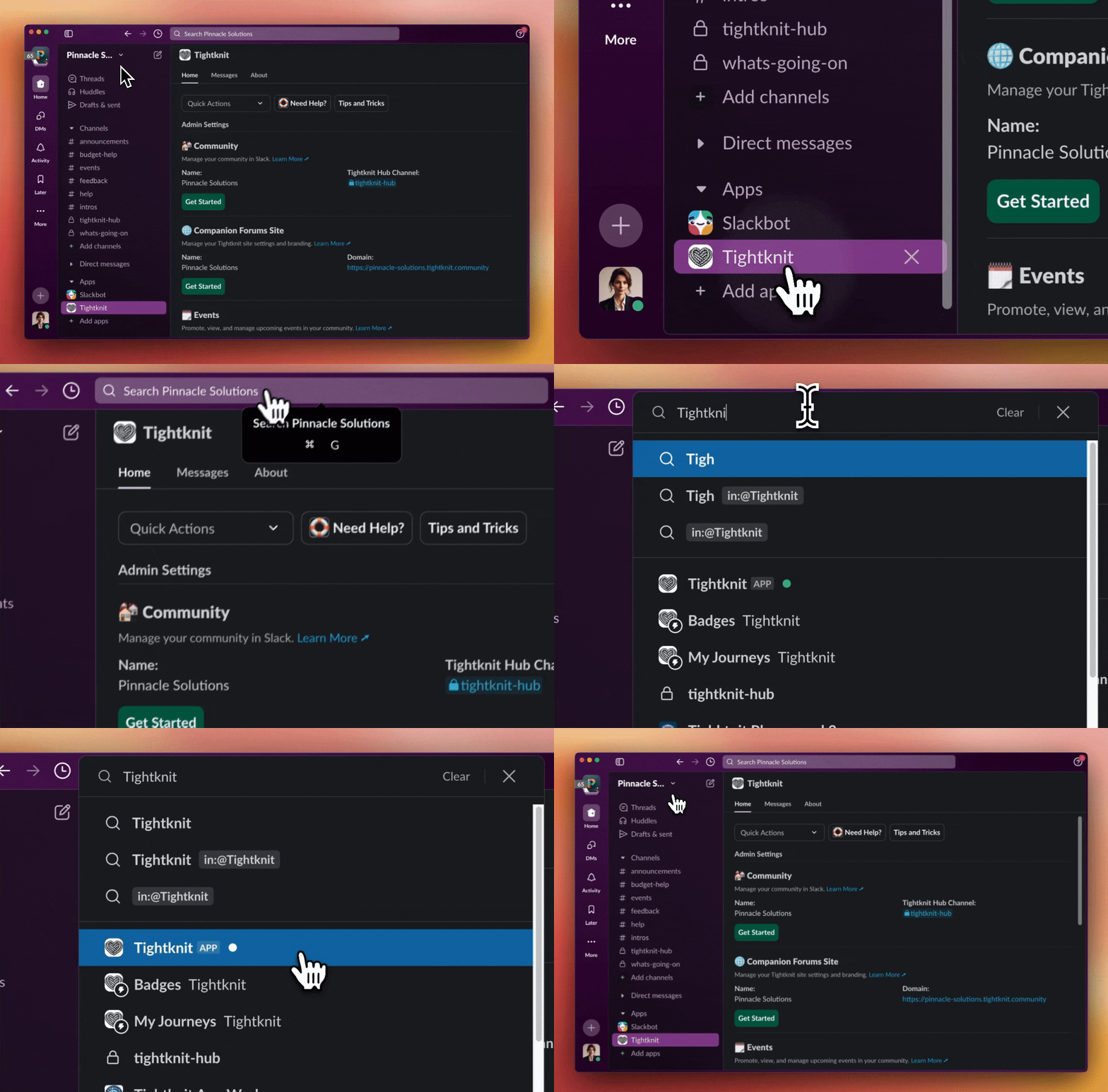
Finding the Tightknit app in Slack
The Tightknit app has three tabs: **Home**, **Messages**, and **About**. The **Home** tab contains the app settings and is where you'll spend most of your time.
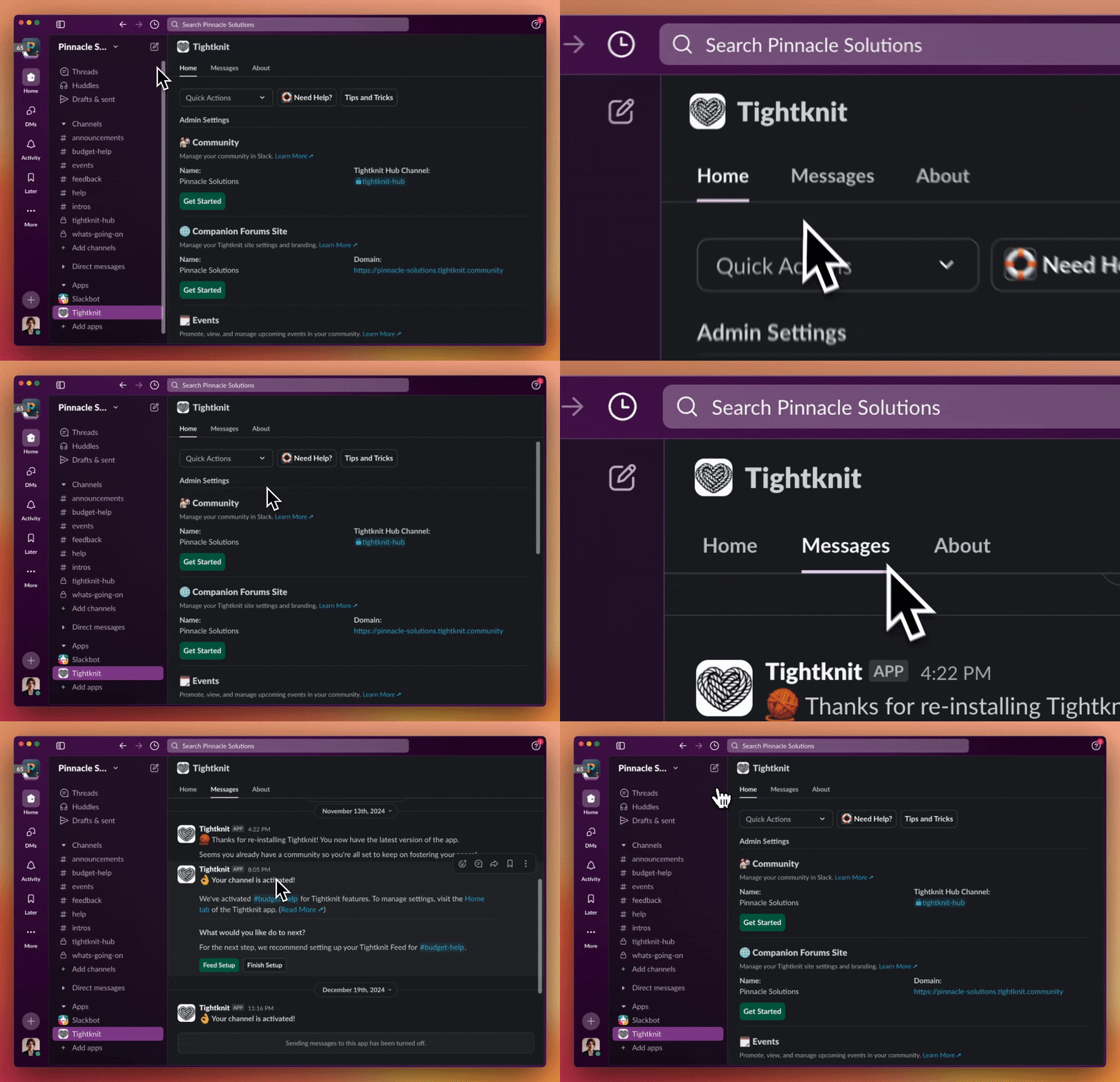
The Home, Messages, and About tabs
We recommend starring the Tightknit app to make it easier to find in the future.
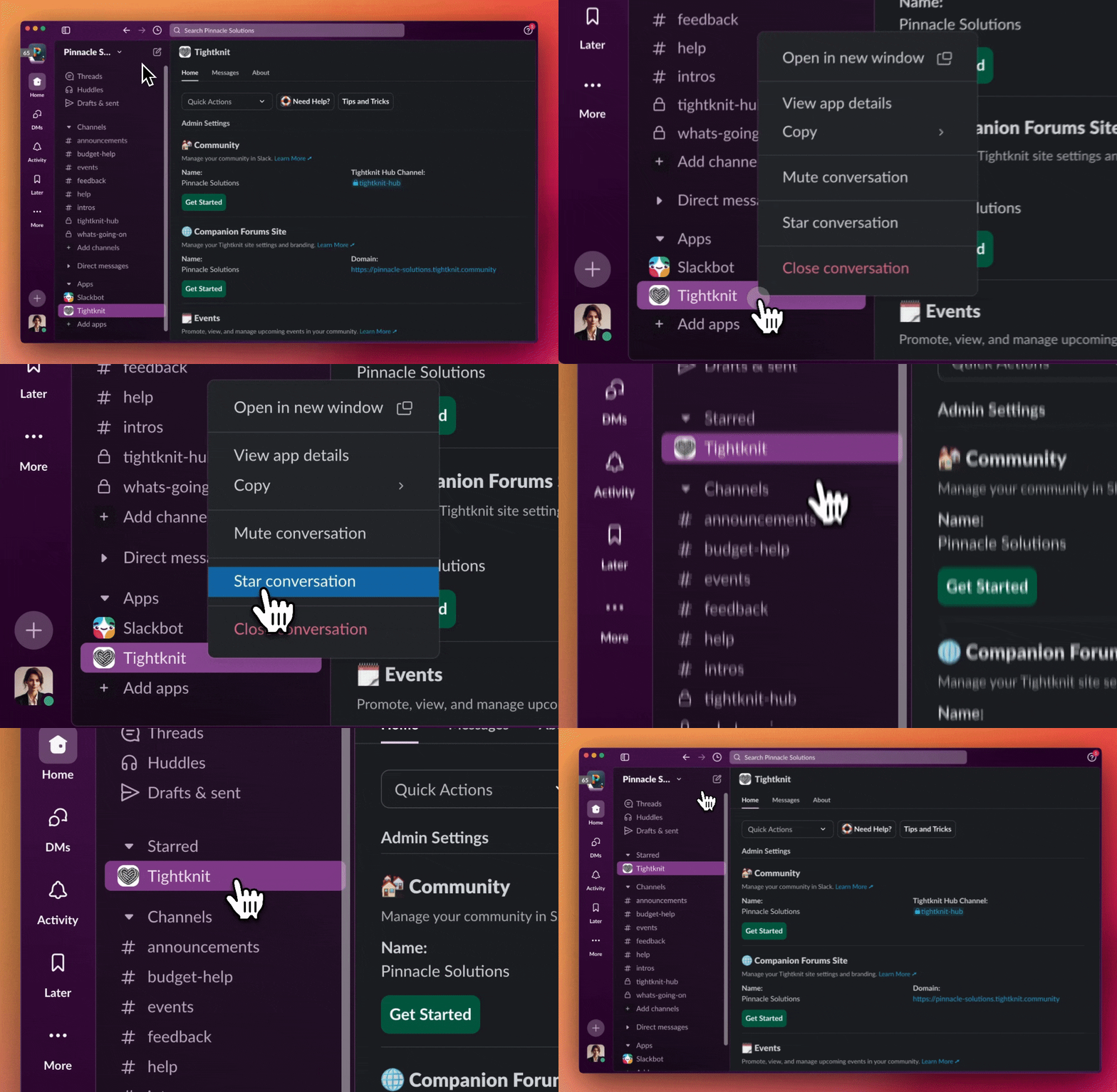
Starring the Tightknit app for quick access
## App Home
Welcome to the Tightknit app Home! This is where admins can manage and configure everything related to your Tightknit community. The app home is divided into sections called "modules". Each module has different features and settings.

The Tightknit App Home dashboard
> [!TIP]
>
> **Don't Get Lost!** \\
>
> Notice that there are three tabs at the top of this screen: **Home**,
> **Messages**, and **About**. If you ever need to return to these settings,
> click on the Tightknit app and make sure you've selected the **Home** tab.
### Documentation and tips
The header of App Home links straight to these docs, plus a **Tips and Tricks** reference for every shortcut and slash command the app provides.
## Rename the Tightknit Slack bot
When sending messages on behalf of your community, the Tightknit bot adopts the name and icon configured in [Community settings](/slack/community-settings#community-details). However, when the Tightknit bot sends notifications to admins, is tagged in a message, or is listed in Slack workspace management views, it will appear as the default "Tightknit" app; for these scenarios, you can customize the bot name using the following method:
1. Navigate to the Slack marketplace [Tightknit app page](https://slack.com/marketplace/A05QUGA17PH-tightknit?settings=1\&tab=settings).
2. Select your Slack workspace where Tightknit is installed using the top-right dropdown.

Selecting your Slack workspace
3. Click the **Configuration** tab.

The Configuration tab in Slack app settings
4. In the **Bot User** section, click "Edit" to rename the Tightknit bot.

Editing the bot user name
# Single & Multi-Channel Guests
Source: https://docs.tightknit.ai/slack/guests
How Slack single-channel and multi-channel guests are synced to Tightknit and how they access your community site
Slack lets workspaces invite **guests** with limited access instead of full members. Tightknit supports both guest types: they sync automatically and can access your community site without any manual invitation.
## Guest Account Types
Slack offers two kinds of guest accounts, both available on Slack's paid plans. For details on inviting and managing guests, see [Slack's documentation on guest accounts](https://slack.com/help/articles/202518103-Multi-Channel-and-Single-Channel-Guests).
| Guest type | Access in Slack |
| :- | :- |
| **Multi-channel guest** | Can be added to multiple specific channels you choose. |
| **Single-channel guest** | Has access to a single channel only. |
> [!NOTE]
>
> Guests belong to your own Slack workspace. They are different from external
> users in [Slack Connect](/slack/slack-connect) channels, who belong to a
> separate workspace and are handled differently.
## Do Guests Get Access Automatically?
**Yes. Guests are added automatically, with no manual invitation step.** Single-channel and multi-channel guests are treated the same as full members:
1. Tightknit's profile sync regularly pulls every user in your Slack workspace, including guests, and creates a member profile for each one.
2. Because a guest has a member profile, they can sign in to your community site with Slack right away.
You do not need to invite guests to the community site separately. As long as a guest is part of your Slack workspace, they are part of your Tightknit community.
## What Guests Can Do on the Community Site
Once a guest has a profile, Tightknit treats them like any other member:
* **Profiles sync** the same way as full members. A guest's profile is created or updated when they join, author a synced message, or are @mentioned in a synced message. See the [Sync Guide](/slack/sync-guide) for the full list of triggers.
* **Posts and comments sync** when a guest sends a message in a channel that is connected to a Tightknit Feed.
* **Guests count toward your community member count**, the same as any other member.
> [!NOTE]
>
> A guest's limited channel access in Slack does **not** carry over as a
> restriction on the community site. Guests browse the community site like any
> other member, subject to the same Feed visibility settings that apply to
> everyone. A guest does not need Slack access to a channel in order to view the
> Feed connected to it on the community site.
A guest only *contributes* content from the channels they can access in Slack. If a guest has access to a channel that is not connected to a Tightknit Feed, their activity in that channel does not sync.
## Guests vs. Slack Connect Users
It is easy to confuse guests with external users in Slack Connect channels. The difference determines whether Tightknit syncs them:
* **Guests** are members of your workspace with restricted channel access. Tightknit syncs them automatically, like any other member.
* **Slack Connect users** belong to a different workspace entirely. Tightknit ignores their messages and profiles unless you configure Slack Connect support. See [Slack Connect](/slack/slack-connect) for details.
# Team Notifications
Source: https://docs.tightknit.ai/slack/notification-settings
Choose where Tightknit sends admin notifications in Slack, and which community activity your team is alerted about.
Admins can access these settings by clicking the `Team Notifications` button under the **Community** module in Slack, or the **Team Notifications** section of **[Integrations > Slack](https://studio.tightknit.ai/-/integrations/slack)** in Studio.

Team Notification Settings
## Tightknit Hub Channel
The **Tightknit Hub Channel** is where Tightknit sends important notifications, analytics, and alerts about your community. You can switch this to any private channel, and Tightknit will start sending updates to that channel instead. The selected channel cannot have a Tightknit Feed connected to it.
### Troubleshooting
During the onboarding process, Tightknit will attempt to create a new private channel called `#tightknit-hub`. This operation, and attempting to switch the Hub channel, can fail for several reasons depending on your workspace settings:
* Users are restricted from creating public / private channels
* The Tightknit app is not inside the private channel
To resolve this, you can manually configure the Tightknit Hub to be a channel of your choice:
1. Create a new private channel. We recommend calling it `#tightknit-hub`, but any name will do!
2. Invite the Tightknit app to the channel by typing `/invite @Tightknit` in the chat.
3. Set the Tightknit Hub channel to the channel you created. In Studio, go to **[Integrations > Slack](https://studio.tightknit.ai/-/integrations/slack)** and use the **Team Notifications** section. In Slack, click `Team Notifications` in the app home settings.
## Notification Preferences
Admins may subscribe their Tightknit Hub channel to any of the following notifications:
### New User Joined
Each time a new user joins your workspace, Tightknit can send a notification to the Hub channel.

New user joined notification
### Award Received
When a user receives an Award (e.g. given by another user, completing a Journey, being added to a Group, etc.), Tightknit can send a notification to the Hub channel.
### Journey Completed
When a user completes a Journey, Tightknit can send a notification to the Hub channel.
### Scheduled Poll Failed
When a [scheduled poll](/member-engagement/polls#scheduled-polls) can't be posted to its channel, Tightknit can send an alert to the Hub channel naming the poll, its channel, and why it wasn't posted. The poll stays scheduled until you reschedule or delete it.
# Create a Post or Comment
Source: https://docs.tightknit.ai/slack/posts-and-comments/create-post-or-comment
How messages sent in connected Slack channels become posts and comments on your Tightknit community site.
Creating new content in your Tightknit community site is as simple as sending messages in Slack!
## Posts
Once a Slack channel has been connected to a Tightknit Feed, all new messages sent within that channel
are synced to the Tightknit community site as **[posts](/community-site/pages#post)**.
> [!NOTE]
>
> You can enable the **New Post Notification Agent** in a Slack channel [Agent
> Settings](/channels-and-feeds/agent-settings) in order to automatically get
> reminders when each message is synced to the site (*featured below*).

A new message in Slack

The synced post on the community site
The Tightknit community site post will respect the posted date of the original Slack message. All posts contain a permalink back to the original Slack message.
### Title and Slug
The post title and URL slug are automatically generated using AI.
If you prefer a different title or slug, you can edit it using the [message shortcut](/slack/shortcuts-and-commands/message-shortcuts#tightknit-shortcuts).
## Comments
Any replies on a synced Slack message are synced to the Tightknit community site as **comments** on the post.

A reply in a Slack thread

The synced comment on the community site
The Tightknit community site comment will respect the posted date of the original Slack message. All comments contain a permalink back to the original Slack message.
> [!NOTE]
>
> Tightknit treats all top-level Slack messages as posts in the Tightknit
> community site and all replies as comments. When responding to someone in a
> Slack channel, it is recommended to always reply in the message thread.
> Otherwise, consecutive top-level messages will each create distinct posts in
> the Tightknit community site without context of each other.
## Message Shortcut: Sync a Message to the Tightknit Community Site
Let's say you have a Slack message that is not synced to the Tightknit community site. Perhaps it is a message sent prior
to your Tightknit installation date, or maybe it was previously synced but a user removed it from the Tightknit community site using the message shortcut.
You can simply re-sync it to the Tightknit community site using the Tightknit [message shortcut](/slack/shortcuts-and-commands/message-shortcuts#tightknit-shortcuts).
> [!NOTE]
>
> Using the message shortcut will sync the entire message thread at once,
> including the post, comments, file attachments, emoji reactions, etc.
## @Mentions and Tags
Tightknit will convert most @mentions and tags within the body of a message to the equivalent name and link within the Tightknit community site.
| **Slack @mention** | **Tightknit display text** | **Tightknit link** |
| :- | :- | :- |
| @User | By default, uses the Slack profile full name. Please contact [Support](mailto:support@tightknit.ai) if you need a different name display style. | User profile page |
| #Channel | • If channel has connected Feed: Feed name • If no connected Feed: channel name (text only, no link) • If private channel: `🔒[private feed]` (text only, no link) | Feed page |
| @User group | Name of group (text only, no link) | |
| @here, @channel, @everyone | Text only, no link | |
User and Channel tags in Tightknit community site content will be dynamically updated if the associated name changes in Slack.
| Slack Message | Tightknit Post |
| :-: | :-: |
|  |  |
## Messages from Bot Users
Posts and comments by bot users are synced to the Tightknit community site by default. If you want to prevent a specific bot from posting, you can add it to the [Blocked Bots](/profiles/blocked-bots) list.
# Delete a Post or Comment
Source: https://docs.tightknit.ai/slack/posts-and-comments/delete-post-or-comment
How to delete posts and comments, and how deletions sync between Slack and your Tightknit community site.
Posts and comments can be deleted from Slack or directly from the community site. Deletions sync across both platforms automatically.
## Deleting from Slack
When you delete your Slack message using the [Delete action](https://slack.com/help/articles/202395258-Edit-or-delete-messages#delete-a-message), your post or comment will
automatically be removed from the Tightknit community site.

Deleting a message in Slack
### Posts
Deleting a top-level Slack message will remove the corresponding post *and* its comments from the Tightknit community site.
### Comments
Deleting a message reply in Slack will remove only that comment from the Tightknit community site. The post and the remainder of the comments will be preserved.
> [!NOTE]
>
> Deleting the **New Post Notification Agent** reply is another way to trigger
> the removal of the post, and any of its comments, from the Tightknit community
> site. This reply is only applicable in channels where the agent has been
> enabled in [Agent Settings](/channels-and-feeds/agent-settings).
## Deleting from the community site
If [interactivity](/community-site/overview#interactivity) is enabled, authors can delete their own site-created posts and comments directly from the community site. From the post detail page, open the actions menu and select **Delete**. A confirmation dialog will appear before the deletion is finalized.
* **Posts**: Deleting a post removes the post from the community site. The corresponding Slack message is also deleted.
* **Comments**: Deleting a comment removes only that comment. The corresponding Slack thread reply is also deleted.
> [!NOTE]
>
> Only posts and comments that were originally created on the community site can
> be deleted from the site. Content originating from Slack must be [deleted in
> Slack](#deleting-from-slack). If you attempt to delete Slack-sourced content from the site, you will see a prompt directing you to delete it in Slack instead.
## Message shortcut: remove from Tightknit community site only
If you want to preserve your message in Slack and remove it only from the Tightknit community site, you can use the Tightknit [message shortcut](/slack/shortcuts-and-commands/message-shortcuts#tightknit-shortcuts).
# Edit a Post or Comment
Source: https://docs.tightknit.ai/slack/posts-and-comments/edit-post-or-comment
How to edit posts and comments, and how edits sync between Slack and your Tightknit community site.
Edit your messages in Slack, and we'll update them in the Tightknit community site automatically.
## Slack Action
When you edit your Slack message body using the [Edit action](https://slack.com/help/articles/202395258-Edit-or-delete-messages#edit-a-message), your post or comment will
automatically be updated to reflect those changes in the Tightknit community site.

Editing a message in Slack
## Message Shortcut: Edit Post Title and Slug
You can also update the post title and slug using the Tightknit [message shortcut](/slack/shortcuts-and-commands/message-shortcuts#tightknit-shortcuts).
## Editing from the community site
If [interactivity](/community-site/overview#interactivity) is enabled, authors can also edit their own posts and comments directly on the community site. From the post detail page, use the actions menu to select **Edit**.
* **Posts**: You can modify the title and body. Edits sync back to the original Slack message.
* **Comments**: You can modify the comment body inline. Edits sync back to the Slack thread reply.
> [!NOTE]
>
> Only posts and comments that were originally created on the community site can
> be edited on the site. Content originating from Slack must be edited in Slack.
# Emoji Reactions
Source: https://docs.tightknit.ai/slack/posts-and-comments/emoji-reactions
Learn how emoji reactions are synced between Slack and your community site
When an emoji reaction is added to or removed from a Slack message synced by Tightknit, it will automatically sync emoji reactions, including custom emojis, to the corresponding post or comment in the Tightknit community site.

Emoji reactions synced between Slack and the community site
## Mark answers with reactions
In a feed with **Selected answers** turned on, the thread's author or a community admin can mark a reply in a Slack thread as an answer by reacting to it. Reactions from other members don't change answers.
* **✅ (`:white_check_mark:`)** marks the reply as an answer.
* **⭐ (`:star:`)** marks the reply as the thread's best answer.
Removing a ✅ unmarks the reply once neither the thread's author nor an admin still has a ✅ on it. Removing a ⭐ works the same way, but the reply stays an answer and is just no longer the best one. Each time your reaction changes an answer, you get a confirmation in the thread that only you can see.
Removing a ✅ from the best answer changes nothing. To unmark the best answer, remove the ⭐ first, then the ✅. If the ✅ is already gone, add it and remove it again.
A thread can have up to 5 answers. To turn on **Selected answers**, go to **[Feeds](https://studio.tightknit.ai/-/feeds)** in Studio, open the feed, and click **Edit**.
# Global Shortcuts
Source: https://docs.tightknit.ai/slack/shortcuts-and-commands/global-shortcuts
Learn to use [global shortcuts](https://slack.com/help/articles/360057554553-Use-shortcuts-to-take-actions-in-Slack) in Slack.
## How to Access Shortcuts in Slack
Global shortcuts can be accessed by searching for the shortcut name either in the top search bar, or by typing slash `/` followed by the shortcut name in any chat.
## Tightknit Shortcuts
| **Name** | **Description** | **Who can use it?** |
| :- | :- | :- |
| Events | Opens the Events List modal, where they can view and interact with upcoming and past [events](/events/getting-started) in the community. | Anyone |
| Awards | Opens the user's Awards Log modal, where they can view the [Awards](/gamification/awards) they have received and Awards they have given to others. Admin users can also view all Award activity in the entire community. | Anyone |
| My Journeys | Opens the user's My Journeys modal, where they can view all the [Journeys](/gamification/journeys) available in the community and their progress for each Journey. | Anyone |
# Message Shortcuts
Source: https://docs.tightknit.ai/slack/shortcuts-and-commands/message-shortcuts
Learn to use [Message Shortcuts](https://slack.com/help/articles/360057554553-Use-shortcuts-to-take-actions-in-Slack) in Slack.
## How to Access Shortcuts in Slack
**1. Open Message Menu**
**Desktop**: Hover over the message, and click the three dots icon `⋮`.

Hovering over a message to reveal the shortcuts menu
**Mobile**: Tap and hold the message
**2. Find Tightknit Shortcuts**
The app shortcuts will be at the bottom of the menu. Find the options that have the Tightknit name and logo.

Tightknit shortcuts in the message menu
If you don't see any Tightknit options, click `More message shortcuts...` and then search for "Tightknit" or the [name of the shortcut](#tightknit-shortcuts).

Searching for Tightknit shortcuts
> [!NOTE]
>
> You cannot use shortcuts on ephemeral messages.
## Tightknit Shortcuts
| **Name** | **Description** | **Where can I use it?** | **Who can use it?** |
| :- | :- | :- | :- |
| Post to site | Syncs a message to the Tightknit community site. When used on a **top-level message**, syncs the entire thread including the post, any comments, file attachments, emojis, etc. When used on a **reply**, syncs that comment to the site (if the parent post is already published). Has no effect on already synced content. | Slack message (Post or Reply) | Admin |
| [Manage Content](#manage-content-shortcut) | Multi-purpose [menu](#manage-content-shortcut) for managing Tightknit content associated with the Slack message. | Slack message | *Dependent on the content* |
| Reply Anonymously | Sends an anonymous reply to a thread. | Any Slack message in a channel with [anonymous messages enabled](/member-engagement/anonymous-posting#enabling-channels-for-anonymous-messages) | All users |
| Admin Experimental | Launches a menu of actions for an admin user to run a localized test. These actions are often a chance for admins to test out new Tightknit features in private, such as using AI to find related discussions. The results will only be visible to you. | Any Slack message in a channel with Tightknit | Admin, the Event creator, or an Event host with the [permission](/community/permission-sets) to manage events |
### Manage Content Shortcut
The `Manage Content` shortcut menu is a context-dependent menu that provides different actions based on the type of content associated with the Slack message.

The Manage Content shortcut menu
| **Content Type** | **Actions** | **Who can use it?** |
| :- | :- | :- |
| Post | • Sync thread to the site • Remove thread from site • Edit post title and slug \[!WARNING] Modifying the slug will change the URL for the post and break any existing links or bookmarks to the page. | Admin, or the author of the post |
| Comment | • Sync thread to the site • Publish comment to site • Remove comment from site • Remove thread from site • Edit post title and slug | Admin, or the author of the comment |
| Event (announcement message) | • Opens the [Edit Event](/events/manage-events) modal | Admin, or owner of the event |
| Poll | • Edit the poll • Close the poll • Delete the poll | Admin, or owner of the poll |
# Slash Commands
Source: https://docs.tightknit.ai/slack/shortcuts-and-commands/slash-commands
Learn to use [Slash Commands](https://slack.com/help/articles/360057554553-Use-shortcuts-to-take-actions-in-Slack) in Slack.
## How to Access Slash Commands in Slack
As the name suggests, slash commands can be accessed simply by typing slash `/` in the chat, followed by the name of the command and the command inputs (if applicable).
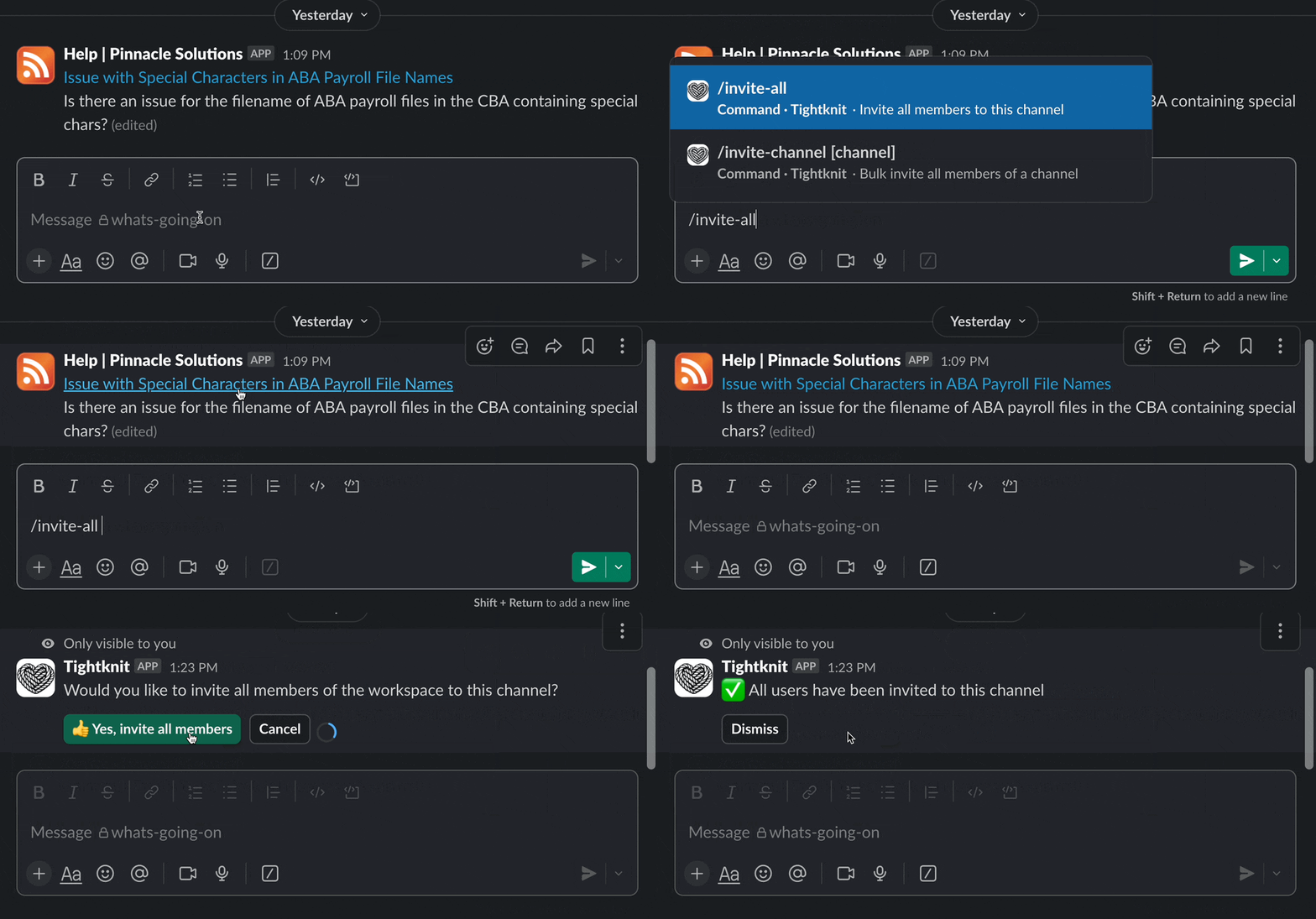
Using a slash command in Slack
> [!TIP]
>
> The channel in which you type the command is often relevant to the action, so
> take note of where you're typing!
## Tightknit Commands
| **Command** | **Inputs** | **Description** | **Who can use it?** |
| :- | :- | :- | - |
| `/invite-all` | | Launches the *Channel Inviter* wizard to invite all members in the entire Slack workspace to the current channel. Excludes bot users. You will be asked for confirmation before the bulk invites are sent. | Admins only |
| `/invite-channel` | (*optional*) the Slack channel, e.g. `#general` | Launches the *Channel Inviter* wizard to invite all members of another Slack channel to the current channel. Excludes bot users. You will be asked for confirmation before the bulk invites are sent. | Admins only |
| `/anonymous` | (*optional*) the message text | Allows users to send an anonymous message to any channel [with Anonymous Posting enabled](/member-engagement/anonymous-posting#enabling-channels-for-anonymous-messages). | All users |
| `/poll` or `/tightknit-poll` | (*optional*) the poll question | Creates a [poll](/member-engagement/polls). | Admins only |
# Slack Connect
Source: https://docs.tightknit.ai/slack/slack-connect
Configure Slack Connect channels to sync messages from external workspaces
Slack Connect allows you to collaborate with people from other Slack workspaces in shared channels. This enables organizations to work together seamlessly across workspace boundaries.
> [!NOTE]
>
> Slack Connect is a feature available on Slack's **paid plans**. For more
> information, see [Slack's documentation on Slack
> Connect](https://slack.com/connect).
## Tightknit Support for Slack Connect
Tightknit has **limited support** for Slack Connect setups. You must reach out to [Tightknit support](/support/contact) to activate Slack Connect channels for your workspace.
> [!NOTE]
>
> **Common use case**: A community workspace where Tightknit is installed shares
> a Slack Connect channel with an internal support workspace. The shared
> channels are used for support so that team members from the internal workspace
> can help community members.
By default, Tightknit ignores messages from external users other than the workspace in which it is installed. To sync messages from external workspaces, you must configure which external workspaces are allowed to be ingested by Tightknit.
## Configuration
To configure Slack Connect in Tightknit:
1. Navigate to **[Integrations > Slack](https://studio.tightknit.ai/-/integrations/slack)** in the Tightknit Admin Studio
2. Input the **workspace ID** of the external workspace whose messages you want synced
3. Once configured, Tightknit will start ingesting new messages from that external workspace, and they will appear on the community site
> [!NOTE]
>
> This setting does **not** apply retroactively to historical messages.
> Tightknit will only start ingesting new messages from a workspace once the
> external workspace ID is configured.
### Finding a Workspace ID
To find a workspace ID, see [Slack's documentation on discovering your workspace ID](https://slack.com/help/articles/221769328-Locate-your-Slack-URL-or-ID#find-your-workspace-or-org-id). The workspace ID typically looks like `T01234567` or `T0ABC1234`.
> [!TIP]
>
> Remember, you want to find the workspace ID of the **external** workspace, not
> the workspace Tightknit is installed in.
## Limitations
Tightknit's Slack Connect support has the following limitations:
* **Limited support for external user attribution**: Post and comment authors will display the external user's name, but all author links will point to the Tightknit bot user instead of the external user's profile
* **@user mentions**: Mentions of external users are not displayed. Instead, they will show as `🔒[private user]`
# Slack Sync Guide
Source: https://docs.tightknit.ai/slack/sync-guide
How content from Slack syncs to your Tightknit community site, including what syncs, when it syncs, and how to control it.
## Checking a sync in Studio
Go to **[Integrations > Slack > Sync history](https://studio.tightknit.ai/-/integrations/slack/sync-history)** to see sync jobs and backfills with their status and results. The same history sits alongside Salesforce sync and member imports under [Audit](/studio/audit).
## When does a Slack message sync to the site?
Whether a message or reply becomes a post or comment on your community site depends on the channel's Feed connection and its Feed settings:
Slack can also rate-limit event delivery for a workspace during activity surges. Learn about the impact on synced data in [Data sync reliability](/slack/data-sync-reliability).
```mermaid theme={null}
%%{init: {"flowchart": {"defaultRenderer": "elk", "curve": "linear"}, "elk": {"mergeEdges": true}}}%%
flowchart TD
A[Message or reply sent
in a Slack channel] --> B{Channel connected
to a Tightknit Feed?}
B -- No --> X[Not synced]
B -- Yes --> C{Automatic sync enabled
in the Feed settings?}
C -- No --> S[Author or admin syncs it manually
with the Tightknit message shortcut]
C -- Yes --> D{Sent by a bot listed in
the Feed's Disallowed Bots?}
D -- Yes --> X
D -- No --> E[Synced to the Feed
as a post or comment]
S --> E
E --> F[Edits to the Slack message
sync automatically]
classDef synced fill:#0ea5e9,stroke:#0369a1,color:#fff;
classDef skipped fill:#64748b,stroke:#334155,color:#fff,stroke-dasharray:4 3;
class E,F synced;
class X skipped;
```
## What syncs, and when
The following table outlines the process of how and when information from your Slack workspace syncs to your Tightknit community and community site.
| Item | How / When it is Synced from Slack |
| :- | :- |
| Community Logo, Site logo | Pulled from the Slack workspace logo only once when the Community Site is created. You can update your site logo in the [site images settings](/community-site/general#site-images). |
| Community member count, Feed member count | Counted from your members in Tightknit (for a feed, from the feed's members) and refreshed every few hours. Includes everyone with a pending Slack invitation; excludes bots, deactivated members, revoked invitations, and members you added who have not joined yet |
| Emoji reactions | Synced when an emoji reaction is added/removed on a Slack message or reply |
| Feed description (*aka "About"*), Feed topic | Synced when the channel's Topic or Description is updated ([see how](https://slack.com/help/articles/201654083-Set-a-conversation-topic-or-channel-description)) |
| Posts, Comments | Synced when: • A user or bot sends a message or reply in a channel connected to a Tightknit Feed ([see how](./posts-and-comments/create-post-or-comment)). Bot messages sync by default. To exclude specific bots, use the [Disallowed Bots](/channels-and-feeds/create-feed#feed-settings) Feed setting. *This is disabled if the admin has disabled the [automatic sync Feed setting](/channels-and-feeds/create-feed#feed-settings)*. • The author of a message, or an admin, uses the Tightknit message shortcut to create a post in a channel that is connected to a Tightknit Feed ([see how](/slack/shortcuts-and-commands/message-shortcuts#tightknit-shortcuts)) • A synced Slack message is edited ([see how](./posts-and-comments/edit-post-or-comment)) |
| User profile (*name, picture, profile fields*) | A user's profile is created or updated when any of the following events occur: • A new user joins the workspace • The user authors a Slack message or reply that is synced to the Tightknit community site • The user is @mentioned in a Slack message or reply that is synced to the Tightknit community site • The user is @mentioned in the Topic or Description of a channel that is connected to a Tightknit Feed • The user is deactivated and deleted from the workspace |
> [!WARNING]
>
> Slack Connect channels sync as Feeds only after Tightknit support enables
> Slack Connect for your workspace, and messages from external workspaces sync
> only from workspaces you allow. See [Slack Connect](/slack/slack-connect) for
> setup and limitations.
# Tightknit Enterprise Slack App
Source: https://docs.tightknit.ai/slack/tightknit-enterprise-slack-app
Install the Tightknit Enterprise Slack app to enable Slack admin operations
The Tightknit Enterprise Slack app enables Tightknit to perform approved Slack admin operations on behalf of your community. It is a separate app from the main Tightknit Slack app and stores the organization-level permission used for these operations.
Tightknit currently uses the Enterprise app to invite new members to your Slack workspace from Studio or the Admin API.
> [!WARNING]
>
> Your Slack workspace must belong to a [Slack Enterprise Grid
> organization](https://slack.com/resources/why-use-slack/slack-enterprise-grid).
> The Tightknit Enterprise app is not available to workspaces on other Slack
> plans.
## Before you begin
You need:
* The Tightknit Enterprise Add-on plan. Contact [Tightknit support](/support/contact) to enable the add-on for your community.
* A [Slack Enterprise Grid](https://slack.com/enterprise) org
* A Slack Org Owner or Org Admin to install the Tightknit Enterprise app
* A Slack workspace or org admin or owner to register their account in Tightknit
## Install the Tightknit Enterprise Slack app
**1. Open Slack settings in Studio**
Go to **[Integrations > Slack](https://studio.tightknit.ai/-/integrations/slack)** and find **Slack Admin Operations**.
**2. Install the Tightknit Enterprise Slack app**
Select **[Install Tightknit Enterprise
app](https://slackapp-enterprise.tightknit.ai/slack/install)**. On Slack's
consent screen, select your **organization**, not an individual workspace.
Under **Request workspaces to grant this app access to**, select your
community's workspace. Slack labels this step as optional, but Tightknit
cannot perform admin actions in the workspace without it.
Only a Slack Org Owner or Org Admin can complete this installation.
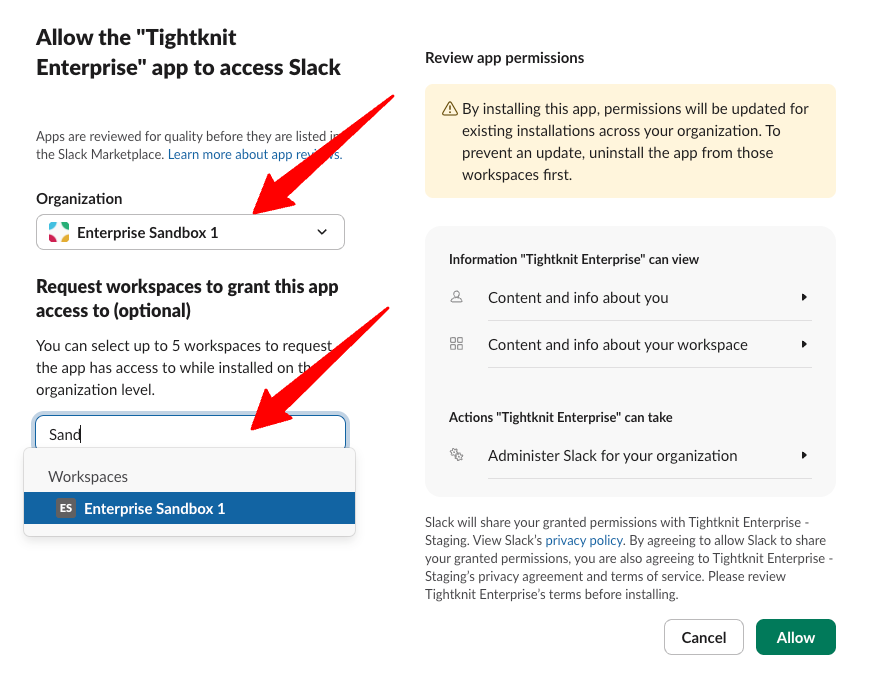
Granting the Tightknit Enterprise app access to a Slack workspace
**3. Register your Slack admin account**
Return to Studio and refresh the page. Under **Registered admin**, select your
account and confirm the registration.
You can register only your own account. It must be a Slack workspace or org
admin or owner.
**4. Configure invitation defaults (optional)**
Choose **Default invite channels** or add an **Invitation message** if you want
invitations to inherit them. Each invitation must use at least one channel,
either from these defaults or from the invitation itself.
Private channels can be used only when the registered Slack admin is a member
of them.
## Use Slack admin operations
After installing the Enterprise app and registering an admin, Tightknit can perform the following Slack admin operation.
### Invite a member to Slack
In Studio, open **Members**, select **Create Member**, and choose **Invite user to the Slack workspace**. You can override the default invite channels and message before creating the member.
API clients can also invite a member by using the `invite_to_slack` option when creating a member through the Admin API.
## Troubleshooting
### The Slack Admin Operations section is missing
Confirm that your Slack workspace belongs to an Enterprise Grid organization and that your Studio role can manage Slack admin operations.
### The Tightknit Enterprise app is installed, but setup is incomplete
The app may be installed on the organization without access to your community's workspace. Install the app again and select the workspace under **Request workspaces to grant this app access to**.
If your Slack organization requires app approval, check **Integrations > Requests** in the Slack organization console.
### Your account cannot be registered
Confirm that you are registering your own account and that it is a Slack workspace or org admin or owner. If the authorization was revoked, install the Tightknit Enterprise app again before registering.
# Working With File Attachments
Source: https://docs.tightknit.ai/slack/working-with-file-attachments
How files attached to Slack messages sync to your Tightknit community site, and how they're managed and removed.
## Upload a File
Files attached to Slack messages are synced to the Tightknit community site, up to your plan's per-file size limit.
They will appear as attachments on the corresponding post or comment.
| Plan | Maximum file size |
| - | - |
| Growth | 5 MB |
| Momentum | 10 MB |
| Enterprise | 50 MB |

File attachments synced from Slack to the community site
> [!NOTE]
>
> Please contact [Support](mailto:support@tightknit.ai) if you need to upload
> files larger than your plan's limit.
> [!NOTE]
>
> Tightknit communities are limited to 50GB of total file storage per workspace.
### Blog Cover Images
For Feeds that are configured to [display posts as "Blogs,"](/community-site/pages#blog) the cover image used is the first image file attachment on the Slack message, if any.
Images added through Block Kit cannot be used as a cover image. See [Images in Block Kit messages](#images-in-block-kit-messages).
## Delete a File
If a file is attached to a message and the message is deleted in Slack, or the post/comment is removed from the Tightknit site using the message shortcut, the file is also deleted.
You may also use the `Delete file` action in Slack. This action will only delete the file in Slack and in the Tightknit community site, and the post/comment will be preserved.

Deleting a file attachment in Slack
## Limitations
The following files or attachments are currently unsupported and will not be ingested by Tightknit:
* Snippets
* Slack Connect files
* Unfurled attachments, such as Google Drive files or Google Docs
* Files larger than your plan's maximum file size
* Forwarded or shared Slack messages
* Files or images sent as `blocks` using Block Kit UI (see [Images in Block Kit messages](#images-in-block-kit-messages))
### Images in Block Kit messages
A message built with Block Kit can reference an image stored in Slack instead of attaching it to the message. This is common in messages sent from [Slack Workflow Builder](https://slack.com/help/articles/17542172840595-Guide-to-Workflow-Builder) and from custom Slack apps.
Slack serves those images only to signed-in members of your Slack workspace, so they cannot be shown to community site visitors. Tightknit hides the image rather than displaying a broken one, and the rest of the message renders as normal. The image is also unavailable as a [blog cover image](#blog-cover-images).
To have an image appear on the community site, attach it to the Slack message as a file rather than adding it through Block Kit.
# Access the Studio
Source: https://docs.tightknit.ai/studio/access
Who can sign in to Tightknit Studio, and how to invite teammates and manage the roles that control their access.
## Accessing the Studio
To access the Studio, click the `Open Studio` button from the [Slack app home](/slack/getting-started) or visit [https://studio.tightknit.ai](https://studio.tightknit.ai).
### Requirements
* The Tightknit app must be installed in your workspace
* You must be on an active Tightknit plan
* You must be an admin of your Slack workspace or be invited to the Studio by an admin
### Getting Access
Users may be added to their organization's Studio workspace in one of the following ways:
1. The user that first installs the Tightknit app into the Slack workspace is automatically added to the Studio workspace, as long as they are an admin and meet the requirements above.
2. When admin users visit the Tightknit app home in Slack, they are automatically added to the Studio workspace.
3. Slack workspace admins can sign in to the Studio directly, using the email address their Slack account uses. Tightknit confirms with Slack that they are still an admin and adds them to the Studio workspace. If an admin belongs to more than one Tightknit workspace, they may choose which one to open.
4. In the **[Settings > Workspace](https://studio.tightknit.ai/-/workspace/admin#users)**, the organization admin may **invite users** to join the workspace via email.
> [!WARNING]
>
> When inviting new admins to the Studio, the email used for the invitation must
> exactly match the email associated with their Slack profile. If you use the
> wrong email, the user will be unable to log in.
> [!NOTE]
>
> If your community is connected to a Slack workspace, invited users must also be members of that Slack workspace in order to access the Studio. Adding a user via the Settings > Workspace page alone is not sufficient. They will need to join the connected Slack workspace first.

Workspace Users settings for managing Studio access
### Roles
Admins can assign roles to Studio users, granting them access to specific pages and operations within the Studio. Each role defines what a user can see and do, allowing admins to control permissions at a granular level.
To manage Studio users and their roles, navigate to **[Settings > Workspace](https://studio.tightknit.ai/-/workspace/admin#users)**.
| Role | Description |
| - | - |
| **Admin** | Access to all pages and can manage all available resources. |
| **Content Manager** | Can only view, access, and manage Content-related objects from the Studio, including Content Collections, Content Resources, and Tags. |
| **Studio Analytics View** | Can only view the Overview page (analytics dashboard) in the Studio. |
| **Integrations Manager** | Can manage settings for integrations (e.g. Salesforce), webhooks, and API keys. |
| **Site Editor** | Can only view, access, and manage Community Site-related settings from the Studio, including the authentication, banner, branding, display info, etc. |
| **Discussions Manager** | Can view, access, and manage Discussions in the Studio, including publishing posts and comments to and from the community site. |
| **Feeds Manager** | Can view, access, and manage Feeds in the Studio. |
| **Events Manager** | Can view, access, and manage Events in the Studio. |
| **Polls Manager** | Can view, access, and manage Polls in the Studio, including exporting poll responses. |
| **Awards Manager** | Can view, access, and manage Awards in the Studio, including giving and exporting awards. |
| **Journeys Manager** | Can view, access, and manage Journeys in the Studio. |
| **MCP User** | Grants access to the [remote MCP server](/integrations/mcp) for connecting AI agents to the community. Which tools the agent can use is further restricted by the user's [role and permissions in the Studio](#roles) (e.g. users with the Events Manager role may use events-related MCP tools). |
## Managing Your Account
Your **[Account](https://studio.tightknit.ai/-/account)** page shows how you appear in the community and where you manage how you sign in to the Studio. To open it, click your avatar in the top-right corner of the Studio and select **Account**.
* **Profile** — Your name and avatar as they appear in the community.
* **Slack Profile** — The Slack account linked to your profile: its display name, full name, email, Slack user ID, and whether you are a Slack workspace admin. This section only appears when a Slack account is linked.
* **Security** — Manage how you sign in to the Studio: set or change your password, and turn on [multi-factor authentication](#multi-factor-authentication).
* **Sessions** — See the browsers and devices signed in to your account, and sign out of any of them. Only users with the **Admin** role see this section.
### Multi-factor authentication
Multi-factor authentication (MFA) adds a second step when you sign in to the Studio: a 6-digit code from an authenticator app, such as 1Password, Google Authenticator, Microsoft Authenticator, or Authy. MFA is optional, and each person turns it on for their own account.
**1. Open the Security section**
Go to your **[Account](https://studio.tightknit.ai/-/account)** page and find the **Security** section.
**2. Add your authenticator app**
Choose to set up multi-factor authentication, then scan the QR code with your authenticator app.
**3. Confirm the code**
Enter the 6-digit code your app shows to finish setting it up.
From then on, enter the code from your authenticator app when the Studio asks for it at sign-in. Signing in with a passkey skips the code, because a passkey already counts as both steps. You can remove the authenticator from the same **Security** section to turn MFA off.
> [!NOTE]
>
> If you lose access to your authenticator app and cannot log in, please contact [Tightknit support](/support/contact).
# AI Assistant
Source: https://docs.tightknit.ai/studio/ai-assistant
Ask questions about your community in plain language, right inside Studio
> [!NOTE]
>
> The AI Assistant is in **beta**. It is off by default — contact your Tightknit
> representative to enable it for your community.
The AI Assistant answers questions about your community without you having to build a
filter or export a report. Ask it in plain language, and it looks up the answer using the
same data you can already see in Studio.
It knows which community you're in and which page you're looking at, so you can ask about
"these members" or "this event" without spelling out what you mean.
## Opening the assistant
There are two ways in, and both open the same panel on the right side of Studio:
* Click the **sparkles icon** in the Studio header, next to your profile menu.
* Press Cmd+K (Ctrl+K on Windows) and choose
**Ask AI Assistant**.
The panel stays open as you move around Studio, and your conversation is kept while you
navigate or reload the page. Press Esc to close it, and use the
**New conversation** button (the pencil icon) in the panel header to start a fresh
conversation.
## What it can do
The assistant can read anything you already have permission to see, including:
* **Members and groups** — find members, check group membership, look up profiles
* **Posts, comments, and discussions** — search content, read threads, check what was published
* **Events** — list events, check attendees and RSVPs
* **Journeys, awards, and milestones** — check progress and assignments
* **Feeds, channels, and tags** — see how content is organized
* **Site, branding, and content collections** — check configuration
* **Activity history** — see what has happened in your community
* **Tightknit documentation** — answer questions about how a feature works, with a link
to the relevant page
When an answer draws on the documentation, a **Sources** list appears beneath it with the
pages the assistant read. That list is built from what it actually looked up, not from
what it wrote — so if you ask how a feature works and no Sources appear, it answered from
memory rather than checking, and is worth verifying.
Good questions to start with:
* "Which members joined this week?"
* "What were the most active discussions last month?"
* "Who hasn't completed the onboarding journey?"
* "How do I set up custom fonts?"
## Getting you where you're going
As well as answering, the assistant can move you around Studio:
* **Open a page.** Ask it to "open the members page" or "show me that event" and it takes
you there, rather than giving you a link to click.
* **Open a create dialog.** Ask it to "create an event" and it opens the same Create Event
dialog you'd get from Cmd+K, ready for you to fill in.
It only offers pages and dialogs your own role can already open: the list is exactly what
your sidebar and command menu show you. It does one of these per reply, so it can't send
you somewhere unexpected mid-answer.
## Making changes
The assistant can make changes for you. It always shows you the change first, and makes it
only after you approve it.
When the assistant wants to make a change, a card appears in the conversation showing the
details, with **Approve** and **Decline** buttons:
* **Approve** makes the change, and the card shows the result.
* **Decline** cancels it. Nothing changes, and the assistant won't try to make the change
another way unless you ask it to.
The card names each record the change touches, as the assistant looked it up in this
conversation, so check those names before you approve. A record marked **Not looked up in
this conversation** shows only its ID: ask the assistant to look it up, or check the record
in Studio first.
Deleting something can't be undone, so a delete's card is red and says so.
A change you don't approve within 30 minutes expires, and its card is marked **Expired**.
The records it named may have changed since it was proposed, so the assistant won't make
it. Ask again if you still want the change.
It only offers changes your role already has permission to make. Tightknit keeps an audit
record of every change the assistant makes, including who approved it.
If you'd rather fill in the details yourself, ask it to open the create dialog instead.
## Saved conversations
The assistant saves your conversations, so you can close the panel or reload Studio
without losing them. A conversation is saved once you send its first message.
When you start a new conversation, your five most recent saved conversations are listed
under the suggested prompts. Click one to pick up where you left off, or click **View all
history** to see the rest.
Click the **Conversation history** button (the clock icon) at the top of the panel to see
all your saved conversations in this community. From there:
* **Reopen a conversation** — click it to pick up where you left off.
* **Rename a conversation** — open its **⋯** menu and choose **Rename**. Until you rename
it, a conversation is named after your first message.
* **Delete a conversation** — open its **⋯** menu and choose **Delete**. A deleted
conversation can't be recovered.
What is kept, and for how long:
* **Only you can see your conversations.** Other admins in your community can't list or
open them.
* **Each community keeps its own.** Conversations you have in one community don't appear
in another.
* **Your 25 most recent are kept.** Starting another conversation in a community that
already has 25 deletes your oldest one there.
* **A conversation is deleted 30 days after its last message.** Sending a new message
restarts the 30 days. Opening or renaming it doesn't.
### When a conversation gets long
A conversation can only hold so much. As it gets close, a notice above the message box
says it's **almost full**, and the assistant's replies may be shorter from then on. Once
it's full, you can still read it in your history, but you'll need to start a new
conversation to keep going.
## What it can't do
> [!WARNING]
>
> The assistant can't make any change you haven't approved, deletes included. The dialogs
> it opens for you stay yours to fill in and save.
Other current limitations:
* **One community at a time.** The assistant only sees the community you're currently in,
and a conversation stays in the community it started in.
* **Long conversations fill up.** A very long conversation, or one with several large
lookups, eventually stops accepting new messages. Start a new conversation to keep
going. See [When a conversation gets long](#when-a-conversation-gets-long).
* **No images or files.** The assistant can't upload an image or file, so change a logo,
banner, or cover image on its Studio page.
* **It can be wrong.** Like any AI assistant, it can misread a question or summarize
imprecisely. For anything you're going to act on, check the underlying Studio page.
* **Usage is rate limited** to protect your community's performance.
## Who can use it
Access requires two things:
1. The feature must be **enabled for your community**.
2. Your Studio role must include the **`studio:assistant:use`** permission. Admins have it
automatically; other roles need it granted. See [Access & Roles](/studio/access).
If either is missing, the sparkles icon and the Cmd+K entry don't appear. The assistant
also becomes unavailable if a workspace's billing is suspended.
Everything the assistant does is checked against **your** permissions, not a shared
service account. If your role can't see a section of Studio, the assistant can't see it
for you either — a member manager gets member data, but not billing.
## How your data is handled
> [!WARNING]
>
> Answering your questions involves sending community data to **OpenAI**, our AI provider,
> through Tightknit's account. The details below describe exactly what is and isn't sent.
**Email addresses are redacted.** Before any community data reaches the AI provider, email
addresses are replaced with `[REDACTED_EMAIL]`. This means the assistant cannot tell you a
member's email address — you can still find it on the member's page in Studio.
**Record IDs are sent as-is.** Identifiers like `prfl_Ab3dEf6hIj9k` are not redacted,
because the assistant needs them to follow one lookup with another — finding a member and
then checking their group membership, for example. These IDs are meaningless outside your
community and are not personal information on their own.
**Other community content is sent as needed.** When you ask about posts, discussions, or
profiles, the relevant content is sent so the assistant can answer. It only ever retrieves
data you already have permission to view.
**Community data is treated as information, not instructions.** Content written by your
members is clearly separated from the assistant's instructions, so a message containing
something like "ignore your instructions" is read as text to report, not a command to
follow.
**Nothing is sent until you ask.** The assistant is idle until you send a message; it does
not read your community in the background.
**Conversations are stored for 30 days after their last message.** Tightknit stores your
conversations, including the community data the assistant looked up while answering, so
you can come back to them. Each one is deleted 30 days after its last message, when you
delete it, or when it falls outside your 25 most recent. See
[Saved conversations](#saved-conversations).
If your organization has specific requirements about what may be sent to an AI provider,
talk to your Tightknit representative before enabling the assistant.
## Giving feedback
The assistant is in beta and we're actively improving it. If it gets something wrong,
misses data you expected, or you'd like it to do something it can't yet, let your
Tightknit representative know — including the question you asked helps us a lot.
# Community Analytics Dashboard
Source: https://docs.tightknit.ai/studio/analytics
Read the Studio Overview dashboard: member growth, engagement rate, response times, and the members whose activity is rising or falling.
The **Overview** page is the analytics dashboard for your community. It answers the questions you would otherwise have to export a report to answer: how many members you have, how many of them are active, what they are talking about, how quickly questions get answered, and who is getting more or less engaged.
Open it at **[Overview](https://studio.tightknit.ai/-/overview)**, the first item in the Studio sidebar.
> [!NOTE]
>
> You need the **Studio Analytics View** or a role with community data access to see the dashboard. Without either, the Overview page shows a welcome screen linking to the sections you can reach. See [Access and roles](/studio/access).
## Set the time range first
Every card on the page reads from the toolbar at the top, so set the time range before you interpret anything below it.
The date range selector offers **Today**, **Yesterday**, **Last 7 days**, **Last 4 weeks**, **Last 3 months**, **Last 12 months**, **Month to date**, **Quarter to date**, **Year to date**, and **All time**, plus a custom range. Beneath the selector, Studio shows the previous period it is comparing against, which is what drives every percentage change on the page. **All time** starts at Slack's launch on August 14, 2013, so it has no previous period and the page shows no comparisons. The same goes for a custom range that starts on or before that day.
Two filters sit next to the date range:
* **Team** - Choose **All members**, **Only my teammates**, or **Exclude my teammates**. Excluding teammates is the honest way to measure community health, because it strips out your own staff's activity. Teammates are defined under [Settings > Team filter](/studio/settings#team-filter).
* **Type** - Choose **Humans only** (the default), **All (including bots)**, or **Bots only**. Because the default excludes bots, a bot-heavy channel can look quieter here than it does in Slack.
Your date range and filter choices persist between visits.
To compare against Slack's own numbers, such as direct-message activity, click **Slack analytics** to view your workspace's analytics page.
## Headline metrics
The four cards across the top are the summary of the selected period. Each shows the change against the previous period.
| Card | What it counts |
| - | - |
| **Total Members** | All members in your community, with and without a Slack profile. Excludes deactivated and deleted members, and [invited members](/studio/members#invited-members) who have not joined yet. |
| **Active Members** | Members with at least one activity (message, reaction, or reply) in the selected period. |
| **Total Discussions** | Top-level messages across all activated channels. Replies are not counted here. |
| **Engagement Rate** | Percentage of members that have performed any activity during the selected period, such as posts, replies, reactions, logins, etc. Bots and teammates are excluded by default. |
> [!NOTE]
>
> Only [activated channels](/channels-and-feeds/activate-channel) contribute to these numbers. A busy channel that has never been activated for Tightknit is invisible to analytics.
## Trend charts
* **Engagement** plots discussion volume and member activity over time, so you can see whether a spike was a one-off or the start of a pattern.
* **Member Growth** tracks member count over time. It excludes inactive members, so a flat line during a period of churn means joins and departures cancelled out. It counts an invited member from the day they join.
## Where engagement comes from
* **Total Engagement** breaks the period's engagement into **Reactions**, **Replies**, and **Discussions**. A community that is almost entirely reactions is being consumed rather than discussed, which is a different problem from a quiet community.
* **Top Channels** ranks your activated channels by activity, which tells you where to spend moderation effort.
## Member cards
* **Most Active Members** ranks members by activity in the period.
* **Rising Stars** lists members whose activity increased the most compared with the previous period. These are the people worth recognising with an [award](/gamification/awards) while the momentum is fresh.
* **Falling Stars** lists members whose activity dropped the most. Treat this as an early churn signal rather than a scoreboard.
> [!TIP]
>
> Rising and Falling Stars are both relative to the previous period, so they change meaning with your date range. A member can be a Falling Star over 7 days and a Rising Star over 3 months. They are not available for **All time** or a custom range that starts on or before August 14, 2013.
## Response quality
These two cards measure how well your community answers people, which is usually the metric that predicts whether members come back.
* **Time to First Response** shows how long a top-level message waits before its first reply. Only channels with at least one applicable top-level message are included.
* **Response Rate** shows the percentage of top-level messages that received at least one reply. Only channels with at least one top-level message sent are included.
## Recent Activity
The last card is a live feed of what has just happened in your community. Click through to the full [Activity feed](/activity-logs/getting-started) for search, filtering, and history.
## Related analytics
* **[Community site analytics](/community-site/analytics)** measures web traffic to your public site: visitors, pageviews, and the pages they land on.
* **[Feed analytics](/channels-and-feeds/manage-feeds)** breaks the same engagement metrics down per feed.
For a walkthrough of turning these numbers into action, see the [Navigating Studio Analytics guide](/guides/navigating-studio-analytics).
## Troubleshooting
> **A channel's activity is missing**
>
> Analytics only counts [activated channels](/channels-and-feeds/activate-channel). Check the channel's state on the [Slack channels](/channels-and-feeds/activate-channel) page.
> **Numbers look lower than Slack's own analytics**
>
> The **Type** filter defaults to **Humans only**, so bot messages are excluded. Switch it to **All (including bots)** to compare like for like.
> **Member join dates look wrong**
>
> Members who joined before Tightknit was installed may show the installation date as their join date. See [Limitations](/support/limitations).
# Audit
Source: https://docs.tightknit.ai/studio/audit
Review member import history, Slack and Salesforce sync jobs, and community-wide authentication events.
The **Audit** page collects the history that lets you answer "did that actually work?" and "who signed in, and when?" It sits under **[Settings > Audit](https://studio.tightknit.ai/-/workspace/audit)** in Studio.
The page is organised into tabs. You only see the tabs your role grants, so a teammate may see fewer tabs than you do.

The Audit page in Studio
## Member imports
Every bulk member import you have run, with its status and results. Use it to confirm a CSV import finished, and to see which rows were skipped and why.
> [!NOTE]
>
> This tab requires member management access and the CSV import capability. If your plan does not include bulk imports, the tab does not appear. See [Creating members](/studio/members#creating-members).
## Slack sync
The history of sync jobs between your Slack workspace and Tightknit, including backfills. When a channel's older messages are missing from [Discussions](/studio/discussions), this is where you confirm whether the backfill ran and whether it completed.
For what Tightknit syncs and how reliably, see the [sync guide](/slack/sync-guide) and [data sync reliability](/slack/data-sync-reliability).
## Salesforce sync
Sync jobs for the [Salesforce integration](/integrations/salesforce), with per-job detail. Click into a job to see its records processed and any errors.
## Authentication
The community-wide record of every sign-in attempt against your [community site](/community-site/authentication).
| Column | Description |
| - | - |
| **Timestamp** | When the attempt happened. |
| **ID** | The event's unique identifier, useful when contacting support. |
| **Event** | The kind of authentication event, such as a sign-in or an account link. |
| **Source** | Which authentication method was used. |
| **Outcome** | Whether the attempt succeeded or failed. |
| **Email** | The address the attempt was made with. |
| **Data** | Additional event detail. |
> [!WARNING]
>
> The Authentication tab is **admin only**. No other role grants it, because it exposes the email address used in every sign-in attempt, including attempts by people who are not members of your community. Granting a teammate a management role does not give them this tab.
> [!TIP]
>
> To investigate one member rather than the whole community, open their profile in [Members](/studio/members#authentication-tab). The Authentication tab there shows that member's connected accounts and their own auth event history.
## Related pages
* **[Activity feed](/activity-logs/getting-started)** - community interactions rather than jobs and sign-ins.
* **[Authentication](/community-site/authentication)** - configuring how members sign in.
* **[Troubleshooting](/support/troubleshooting)** - common sign-in and sync failures.
# Billing
Source: https://docs.tightknit.ai/studio/billing
Manage your Tightknit subscription and payment method, and understand what happens when a payment fails.
Manage your subscription, payment method, and invoices from **[Settings > Billing](https://studio.tightknit.ai/-/workspace/billing)** in Studio. Tightknit processes payments through Stripe.
## Plans
Tightknit offers three plans: **Growth**, **Momentum**, and **Enterprise**. See [Tightknit pricing](https://tightknit.ai/pricing/) for what each plan includes. Your plan determines which features and usage limits are available to your community, and individual feature pages note the plan that each capability requires.
To compare plans or move to a different one, see [pricing](https://tightknit.ai/pricing/), open the billing portal (below), or [contact us](/support/contact).
## Managing Your Subscription
> [!NOTE]
>
> Only Studio admins can view and manage billing. See [Access & roles](/studio/access).
From **[Settings > Billing](https://studio.tightknit.ai/-/workspace/billing)** you can:
* View your current plan and subscription status.
* Choose **Manage Billing** to open the billing portal, where you can update your payment method, download invoices, or change your plan.
* Start a subscription if your workspace does not have an active one.
The billing portal is hosted by Stripe. Changes you make there, such as updating a card, apply to your Tightknit subscription right away.
When your subscription is **past due**, **unpaid**, or **paused**, Studio also shows **Update Payment Method**. This opens Stripe directly on the card form and returns you to the Studio billing page when you finish. **Manage Billing** remains available for invoices, plan changes, and other subscription settings.
## What Happens if a Payment Fails
If a payment does not go through, your subscription moves through the stages below. You can restore full access at any stage by updating your payment method in the billing portal.
The diagram summarizes the path from a failed payment to cancellation, and the ways back to an active subscription.
```mermaid theme={null}
%%{init: {"flowchart": {"defaultRenderer": "elk", "curve": "linear"}, "elk": {"mergeEdges": true}}}%%
flowchart TD
fail[Payment fails] --> pastdue[Past due: payment retried, full access kept]
pastdue -->|Payment succeeds| active[Active: full access]
pastdue -->|Retries exhausted| paused[Paused: community site offline, Studio locked to billing]
paused -->|Update payment method| active
paused -->|Unpaid about 30 days| canceled[Canceled]
canceled -->|Start new subscription| active
class active,pastdue tk
class paused,canceled blocked
classDef tk fill:#0ea5e9,stroke:#0369a1,color:#fff
classDef blocked fill:#64748b,stroke:#334155,color:#fff,stroke-dasharray:4 3
```
### Past Due
When a charge fails, your subscription becomes **past due**. Tightknit retries the payment automatically over a short grace period. During this time your community keeps full access, and we post a notice to your Tightknit Hub channel in Slack with a button to update your billing.
In the Slack billing view, choose **Update Payment Method** to open Stripe directly on the card form. Choose **Manage Subscription** instead when you need invoices, plan changes, or other billing settings. Tightknit creates a fresh, single-use Stripe link each time you choose an action. If Slack cannot open the link view, it sends the link to you in a direct message.
### Paused
If the retries do not succeed, your subscription is **paused**. This also happens when a free trial ends without a payment method on file. While your subscription is paused:
* Your **community site goes offline** and members cannot reach it.
* **API requests** are rejected.
* The **Slack app** stops responding to most actions.
* **Studio is locked to the billing page.** Admins are redirected to Settings > Billing so they can restore the subscription. Other Studio pages stay unavailable until billing is resolved.
We send a series of reminders to your Tightknit Hub channel over roughly the following month.
### Canceled
If the balance stays unpaid for about 30 days after your subscription is paused, the subscription is **canceled**. You can start a new subscription at any time from the billing page.
### Reactivation
As soon as a payment succeeds, or you start a new subscription, access is restored automatically. Your community site comes back online, API and Slack access resume, and Studio unlocks. You do not need to contact support to reactivate.
> [!NOTE]
>
> Billing notifications are posted to your Tightknit Hub channel in Slack, with a fallback direct message to the community creator. Keep that channel accessible so billing reminders are not missed.
## Troubleshooting
> **Studio keeps redirecting me to the billing page**
>
> Your subscription is paused because a payment could not be collected, or a trial ended without a payment method. Choose **Update Payment Method** on the billing page to open Stripe's card form. After you update the card, Stripe returns you to Studio and Tightknit restores access when the payment succeeds.
> **My community site is offline**
>
> A paused subscription takes the community site offline. Check your subscription status on the billing page. Once payment succeeds, the site is brought back online automatically.
> **I updated my card but access has not returned**
>
> Reactivation happens automatically once the payment clears, which can take a few moments. If access does not return shortly after a successful payment, [contact us](/support/contact).
# Calendar
Source: https://docs.tightknit.ai/studio/calendar
See your events, journeys, and scheduled polls on one calendar, create them on a day, and reschedule them by dragging them to another day.
**Calendar** shows your community's events, journeys, and scheduled polls together, in your own time zone. Use it to see what is coming up, spot two things planned for the same morning, and move one of them to a quieter day without opening each item's page.
Open it at **[Calendar](https://studio.tightknit.ai/-/calendar)** in the Studio sidebar.

The month view of Calendar in Studio
> [!NOTE]
>
> Calendar shows the kinds of item your role can manage. The **Events Manager** role sees events, **Journeys Manager** sees journeys, and **Polls Manager** sees scheduled polls. Admins see all three. See [Access and roles](/studio/access).
## Views and navigation
Choose **Month**, **Week**, **3 days**, or **Day** in the top right. **Today** returns to the current date, and the arrows move back or forward one month, week, three days, or day. Click the month name to jump straight to any month.
The view and date are part of the page URL, so you can bookmark a week or share it with a teammate. Times are shown in your browser's time zone, which is named next to the date.
Use the **Events**, **Journeys**, and **Polls** buttons to show or hide each kind of item.
## What the calendar shows
| Item | How it appears |
| - | - |
| **Events** | On their dates, at their start time. An event that spans several days runs as a bar across them. Drafts and events awaiting approval have a dashed outline, and cancelled events are struck through. |
| **Journeys** | As a bar from their start date to their end date. A journey with no end date appears on its start date. |
| **Scheduled polls** | At the time they post, with their status. Polls that were posted straight away, without a schedule, don't appear. |
When a day has more items than fit, the extra ones fold into **+N more**. Click it to see the whole day.
Click any item to see its details: when it happens, where it's published, and how many members registered, completed, or voted. **Open event**, **Open journey**, or **Open poll** takes you to its page.
## Create an item on a day
Click an empty part of a day, then choose **Create event**, **Schedule poll**, or **Create journey**. A dashed **New item** outline shows where the item will sit while you choose. The create dialog opens with that day filled in:
* **Events** start at 9 AM and run for an hour. On today's date, they start at the next full hour.
* **Polls** are scheduled to post at 9 AM, or at the next full hour today. A poll can't be scheduled on a day that has passed.
* **Journeys** start at midnight, or at the current hour today.
You can change the time in the dialog before you save. The menu offers only the kinds of item your role can manage.
### Create across several days
To create an item that spans days, click an empty part of the first day and drag across to the last, then choose what to create. The outline stretches across the days as you drag and stays while you choose, and pressing **Esc** during the drag cancels it.
* **Events** start on the first day as above, and end on the last day an hour after their start time.
* **Journeys** start on the first day as above, and end at 11:59 PM on the last day.
* **Polls** post once, so they use only the first day.
## Reschedule an item
### Drag it to another day
Drag an event or a scheduled poll to a different day. It keeps its time of day, and an event keeps its length. The calendar shows the move straight away, and the message that confirms it has an **Undo** button.
Dragging a published event asks you to confirm first, because its Slack announcement and reminders move to the new date. Tightknit doesn't notify tools connected through [webhooks](/integrations/webhooks) about the new date.
You can't drag these items to a new day:
* **Journeys** — change a journey's dates on its page.
* **Cancelled events** — they stay on their original dates.
* **Started events** — a published event, or one awaiting approval, can't move once it has started, or into the past. A draft can move to any day.
* **Posted polls** — once a poll is open, its time is part of its history.
* **Polls about to post** — a poll can't move within a minute of its posting time, or while it shows as **Overdue**.
### Edit or copy it
Click an item, then:
* **Edit** — opens the same edit dialog as the event or poll page, so you can change the time, or anything else, without leaving the calendar.
* **Make a copy** — available for events. Opens the create dialog filled in with the event's details, so you can change the date, or anything else, before you create it. Nothing is created until you do.
## Scheduled poll statuses
| Status | What it means |
| - | - |
| **Scheduled** | Waiting to post at its time. |
| **Overdue** | Its time has passed and it hasn't posted yet. Tightknit keeps retrying for about an hour, so it may still post. It can't be moved during this time. |
| **Didn't post** | Slack refused the post, or the retries ran out. Tightknit notifies your team's triage channel. Drag it to another day or edit it to reschedule. |
| **Open** and **Closed** | The poll has posted. |
## Related pages
* **[Manage events](/events/manage-events)** - editing, publishing, and cancelling events.
* **[Journeys](/gamification/journeys)** - setting a journey's dates and milestones.
* **[Polls](/member-engagement/polls)** - creating and scheduling polls.
* **[Access and roles](/studio/access)** - the roles that decide what Calendar shows.
# Discussions
Source: https://docs.tightknit.ai/studio/discussions
Browse every Slack message synced to Tightknit, read full threads, and publish or unpublish posts to your community site.
**Discussions** is the searchable record of every message synced from your [activated Slack channels](/channels-and-feeds/activate-channel). Use it to find a conversation without scrolling Slack, to read a thread with its engagement in one view, and to control which threads appear on your public [community site](/community-site/overview).
Open it at **[Discussions](https://studio.tightknit.ai/-/discussions)** in the Studio sidebar.

The Discussions list in Studio
> [!NOTE]
>
> Discussions requires community data access. The **Discussions Manager** role grants viewing plus publishing and marking answers. See [Access and roles](/studio/access).
> [!TIP]
>
> **Did you know you can publish posts with our [MCP server](/integrations/mcp) too?** Try asking your agent: *"Publish the thread about last week's release to our community site."*
## The Discussions list
Each row is a top-level message. The table shows:
| Column | Description |
| - | - |
| **Content** | The message text. Search matches on this and on the author. |
| **Author** | The member who posted. Click through to their [member profile](/studio/members). |
| **Channel** | The activated Slack channel the message came from. |
| **Feed** | The [feed](/channels-and-feeds/create-feed) the channel is connected to, if any. |
| **Source** | Whether the message originated in Slack or on the community site. |
| **Reactions** | Emoji reaction count. |
| **Replies** | Thread reply count. |
| **Date** | When the message was sent. |
Search by content or author, filter by team membership and member type, and sort by date, reactions, or replies. Sorting by replies is the fastest way to find the conversations worth promoting to your site.
## Reading a thread
Click any message to open its detail page. You get the full thread in order, plus a details panel showing the **Source**, **Sent at**, **Edited at**, **Deleted at**, **Synced to site at**, and **Latest activity at** timestamps.
**Synced to site at** is the one to check when a member reports that a thread is missing from your site: if it is empty, the thread was never published.
## Publishing to your community site
Publishing is how a Slack conversation becomes a public page. Open the actions menu on any message and choose **Publish to site** or **Unpublish from site**.
> [!WARNING]
>
> Publishing a post cascades to its entire thread. Publishing makes the post **and every reply in it** visible to members on your community site. Unpublishing hides the whole thread until you publish it again.
Comments can be published and unpublished individually. Unpublishing a single comment hides just that comment from the post page, leaving the rest of the thread intact. This is the tool to reach for when one reply in an otherwise useful thread should not be public.
Studio asks you to confirm before either action, and tells you which cascade applies.
> [!TIP]
>
> To control whether new messages in a channel are published automatically rather than one at a time, use the feed's [display settings](/channels-and-feeds/manage-feeds) instead.
## Marking answers
In a feed with **Selected answers** turned on, open the actions menu on a reply and choose **Mark as answer** or **Mark as best answer**. A thread holds up to 5 answers, and one of them can be the best.
**Unmark as best answer** keeps the reply an answer without the star. **Unmark as answer** removes it. You can mark answers on any thread, not just your own.
## Related pages
* **[Slack channels](/channels-and-feeds/activate-channel)** - which channels are activated and feeding Discussions.
* **[Moderation](/moderation/getting-started)** - removing content rather than unpublishing it.
* **[Activity feed](/activity-logs/getting-started)** - the chronological record of edits, deletions, and reactions.
# Set Up Tightknit Studio
Source: https://docs.tightknit.ai/studio/getting-started
What happens the first time you open Studio: installing Tightknit in Slack, workspace provisioning, and the first three things to configure.
The first time you sign in to Studio for a new community, Tightknit runs a short setup wizard. This page explains what each step does and what to do when one of them stalls.
If your community is already set up and you just need to get in, see [Access the Studio](/studio/access) instead.
## Step 1: Install Slack
Studio is created from your Slack workspace, so the first step installs the Tightknit app into the workspace where your community lives.
**1. Choose the workspace**
Install Tightknit in the Slack workspace that hosts your community. If you belong to several workspaces, check the workspace name in Slack's install screen before approving.
**2. Approve the permissions**
Slack shows the permissions Tightknit needs. For what each one is used for, see [Slack scopes](/security/slack-scopes).
> [!WARNING]
>
> Install into the workspace you actually want to manage. Tightknit provisions your Studio workspace from the Slack workspace you pick, so installing into the wrong one means starting over.
## Step 2: Set up workspace
After you approve the install, Tightknit creates your Studio workspace and connects your admin account. You can keep the tab open while this finishes, and Studio tells you when your admin membership is active.
Most workspaces are ready in under a minute.
> **Setup is taking longer than a minute**
>
> Slack's handoff occasionally lags. Leave the tab open. Studio keeps checking and moves on by itself once your membership appears.
> **Setup timed out**
>
> If the wizard gives up, the usual cause is that the Slack install did not complete, for example because an approval was required and is still pending with a workspace admin. Confirm Tightknit appears in your Slack workspace's app list, then reload the wizard.
> **I am not an admin of the Slack workspace**
>
> Tightknit's install requires a Slack workspace admin. Ask an admin to install it, and have them invite you afterwards from [Settings > Workspace](/studio/access#getting-access).
## Step 3: Next steps
Once your workspace exists, Studio recommends the three things worth doing before you invite anyone else:
**1. Activate your first Slack channel**
Nothing syncs until a channel is activated. Until you do this, [Discussions](/studio/discussions) and the [analytics dashboard](/studio/analytics) stay empty. See [Activate a channel](/channels-and-feeds/activate-channel).
**2. Create a feed**
A feed connects an activated channel to a page on your community site, which is what turns Slack conversations into public, searchable content. See [Create a feed](/channels-and-feeds/create-feed).
**3. Make the community yours**
Add your branding before inviting the rest of your team. See the [Branding guide](/branding).
Click **Load Studio** to mark setup complete and land on your Overview dashboard. The wizard does not appear again.
## What to do next
With setup complete, the natural next moves are:
* **[Invite your team](/studio/access#getting-access)** and give each person the right [role](/studio/access#roles).
* **[Launch your community site](/guides/launch-your-site)** if you want a public presence.
* **[Set up onboarding](/member-engagement/onboarding)** so new members get a welcome message automatically.
* **[Invite and activate members](/guides/invite-and-activate-members)**.
# Members
Source: https://docs.tightknit.ai/studio/members
Find, review, and manage your community members from the Members page in Tightknit Studio.
Use Members to search, filter, and manage your community members. You can find members by name or email, filter by role (Admin, Member, Bot, Non-bot), and sort by name, last name, role, member since, or last active. Click a member's name to see more details and access their profiles on web and Slack.
A member who has not joined yet has an **Invited** status. The default
**Active** view shows only members who have joined, so set the **Status** filter
to **Invited** or **All** to see them. See [Invited members](#invited-members).
To tell members with a pending Slack invitation apart from members you added,
turn on the **Pending Slack Invite** column in the column visibility menu.
Invited members also appear in CSV exports of those views and in the MCP
[`list_members`](/integrations/mcp#members) tool results.

Members page with search, filters, and role management
> [!TIP]
>
> **Did you know you can ask our [MCP server](/integrations/mcp) this too?** Try asking: *"Which members joined in the last week?"*
## Member Since and Signed Up dates
Two date columns show when a member arrived. Both are hidden by default, so turn them on in the column visibility menu:
* **Member Since** — When they joined your community, either by joining your Slack workspace or by first signing in to your community site, whichever came first. The **Member since** filter and sorting by this column use it. Invited members have no date until they join, and members who joined before Tightknit was installed may show the install date instead.
* **Signed Up** — When they first signed in to your community site. It stays blank for members who have never signed in, such as members who only use Slack.
Hover the info icon next to a column's header to see what it shows. The member detail page and CSV exports show the same two dates.
## Creating Members

The Members page in Studio
Admins can create new members directly in Studio without requiring a Slack connection. This is useful for adding members who may not be in your Slack workspace yet or for seeding your community with member data.
### Single Member Creation
To create a single member:
1. Navigate to **Members** in Studio
2. Click **Create Member**
3. Fill in the member's details (name, email, etc.)
4. Click **Create** to add the member
A member who has not joined yet lands under the **Invited** status, not the default **Active** view. Click **View** in the confirmation to open the **Invited** view.
### Bulk Member Import via CSV
To import multiple members at once:
1. Navigate to **Members** in Studio
2. Click **Create Member** and select the bulk import option
3. Upload a CSV file containing member data. You can download a [template CSV](https://assets.tightknit.ai/files/member-import-template.csv) to get started.
The CSV file supports the following columns: `full_name`, `email`, and `avatar_url`. The `avatar_url` column is optional.
> [!TIP]
>
> [Download the CSV template](https://assets.tightknit.ai/files/member-import-template.csv) to see the expected format and column headers.
> [!WARNING]
>
> Bulk import supports a maximum of 3,000 members per import.
> [!NOTE]
>
> Members created through Studio are independent of Slack. They will not have a connected Slack profile unless they are already a member of your Slack workspace. They may also join the workspace at a later date, and Tightknit will link their Slack account.
## Invited members
A member is **Invited** until they join your community. There are two kinds of invited member, and the **Pending Slack Invite** column tells them apart:
| | Added by you | Pending Slack invitation |
| - | - | - |
| How they get there | You add them in Studio, by CSV import, through the API, or with the MCP server, and they are not in your Slack workspace yet | They have an invitation to your Slack workspace that they have not accepted |
| How they join | They sign in to your community site or join Slack | They accept the Slack invitation |
| Community site member count | Not counted until they join | Counted, as Slack's own count does |
| Profile page | Works, so links to them (for example as an event host) keep working | None until they join |
| Groups and feeds | You can add them ahead of time, so they have the right access when they first sign in | You can add them once they join |
| **Pending Slack Invite** column | No | Yes |
If you add someone who is already in your Slack workspace, they are **Active** right away.
While a member of either kind is invited:
* **Total Members** and **Member Growth** on the [analytics](/studio/analytics) page leave them out, and so does the member count your plan bills on.
* Your community site's member directory leaves them out, and so do the member avatars on each group's card.
* [Journey](/gamification/journeys) progress leaves them out.
* They have no join date. The **Member Since** column shows no date for them, sorting by it lists them last, and the **Member since** filter never matches them.
* Group member lists in Studio and group CSV exports include them, with an **Invited** status in the export.
When they join, they become **Active** and start counting, and their **Member Since** date is the day they joined, not the day of the invitation.
The **Status** filter's options do not overlap: **Active** (members who have joined, the default), **Invited**, and **Deactivated**, plus **All** for every member. **Invited** shows the members who have not joined yet. A deactivated invitee, including one with a cancelled Slack invitation, shows under **Deactivated** instead.
## Member detail page
Click a member's name in the Members list to open their detail page. Its tabs are:
| Tab | What it shows |
| - | - |
| **Overview** | The member's activity feed, searchable and filterable by activity type. |
| **Profile Fields** | The member's answer to each of your [custom profile fields](/profiles/profile-fields), including fields deactivated in Slack and fields hidden from your site, which show a crossed-out eye. Fields the member hasn't filled in show as **Incomplete**. Shown when your community has custom profile fields. |
| **Groups** | The [groups](/community/groups) this member belongs to. |
| **Journeys** | How far the member has got through each active [journey](/gamification/journeys). |
| **Authentication** | Linked sign-in methods and authentication history. Admins only. |
A **Profile Details** panel sits alongside the tabs with the member's email, their role, and their **Member Since** and **Signed Up** dates. **View profile**, next to the panel's title, opens their profile on your site. **Message Member** opens a Slack DM with them. Below it, **My notes** holds what you want to remember about the member. See [My notes](#my-notes).

A member's detail page in Studio
### Journeys tab
Lists each of the community's **active** journeys with the member's status, milestones achieved, and completion date. Inactive journeys are left out, matching what the member sees in Slack. Each row links through to the journey.
This is the reverse of the [journey analytics tab](/gamification/journeys#journey-progress-analytics): the journey page shows every member's progress on one journey, this shows one member's progress across every journey.
### Authentication tab
> [!NOTE]
>
> The Authentication tab is visible to admins only.
The **Authentication** tab shows the member's linked sign-in methods (connected accounts) and their authentication event history.
* **Connected accounts** displays each sign-in provider the member has linked (Slack, Google, GitHub, email, SSO), along with its status. This is a read-only view for admins. Members manage their own connected accounts from the [Account settings](/community-site/authentication#connected-accounts) on the community site.
* **Auth events** lists the member's authentication history, including successful sign-ins, failed attempts, and account linking activity. Use this to investigate sign-in issues or review a member's recent authentication activity.
> [!TIP]
>
> To view authentication events across all members at once, go to **[Settings > Audit](https://studio.tightknit.ai/-/workspace/audit)** in Studio. The **Authentication** section shows a community-wide view of all auth events, with search and filtering.
### My notes
Keep notes about a member on their detail page: who would be a good fit for a beta, what they shared on a call, or who introduced you. Notes are private to you. Nobody else can see them, including other admins, the member, and Tightknit support.
To add a note:
1. Open the member's detail page in **Members**.
2. In **My notes**, click **Add a note**.
3. Write your note. You can use bold, italics, links, lists, quotes, code, and emoji.
4. Click **Save note**, or press **Cmd+Enter** (**Ctrl+Enter** on Windows).
Your newest notes are listed first. To edit or delete one, hover over it and open its **⋯** menu.
Who can keep notes, and what happens to them:
* **Access** — Studio users whose role has the **Members** management permission can keep notes. Admins can always keep notes. Each person only ever sees their own.
* **Support sessions** — When Tightknit support views your Studio to help you, your notes stay hidden.
* **Privacy Mode** — Notes are hidden behind a placeholder until you reveal them, so you can share your screen.
* **Data exports** — Notes are not included in community data exports.
* **Deleted members** — When a member is permanently deleted (forgotten), every note about them is deleted too.
## Deactivating and Reactivating Members
Admins can deactivate a member to revoke their access to the community. Deactivated members cannot sign in and are visually marked as inactive (grayscale avatar with an "Inactive" badge) on their profile page.
To deactivate or reactivate a member, navigate to their member detail page in Studio.
**Site-only members**
For members without a linked Slack account, you can manage their status directly in Studio:
1. Open the member's detail page in **Members**.
2. Click the **Deactivate** (or **Reactivate**) action in the page header.
3. Confirm the action in the dialog.
**Slack-linked members**
Members with a linked Slack account are managed through your Slack workspace settings. Deactivating a user in Slack automatically deactivates them in Tightknit.
Follow Slack's guide on [deactivating a member's account](https://slack.com/help/articles/204475027-Deactivate-a-members-account) to deactivate or reactivate the user in Slack. The change cascades to Tightknit automatically.
> [!NOTE]
>
> Deactivating a member does not delete their profile or content. You can reactivate them at any time to restore access.
# Tightknit Studio
Source: https://docs.tightknit.ai/studio/overview
The admin dashboard for your community: what every section of the Studio sidebar does, and where to go for each job.
Tightknit Studio is where you manage, measure, and grow your community. This page maps the Studio sidebar so you can find the right page for the job at hand.

Studio dashboard overview
New to Studio? Start with [Set up Tightknit Studio](/studio/getting-started), then [Access the Studio](/studio/access) to invite your team.
## Studio sections
The sidebar groups pages into **Community**, **Engagement**, **Content & Site**, and **Integrations**, with **Settings** pinned at the bottom. You only see the pages your role grants, so your sidebar may be shorter than what follows. See [Access and roles](/studio/access#roles).
### Community
Who your members are and how the community is doing overall.
* **[Overview](/studio/analytics)** - the analytics dashboard: member growth, engagement rate, response times, and the members whose activity is rising or falling.
* **[Members](/studio/members)** - search, filter, create, and manage member profiles.
* **[Groups](/community/groups)** - collections of members used for permissions, assignments, and targeting.
* **[Onboarding](/member-engagement/onboarding)** - the automatic welcome message new members receive.
* **[Calendar](/studio/calendar)** - events, journeys, and scheduled polls on one calendar, where you can reschedule them by dragging.
* **[Activity](/activity-logs/getting-started)** - the chronological record of every community interaction. Not in the sidebar; reach it with Cmd+K.
### Engagement
The programming you run for your community.
* **[Discussions](/studio/discussions)** - every synced message, with full threads, and publish controls for your community site.
* **[Feeds](/channels-and-feeds/manage-feeds)** - the connections between Slack channels and pages on your site.
* **[Events](/events/getting-started)** - create, publish, and manage events and registrations.
* **[Polls](/member-engagement/polls)** - create polls and read per-option results and voter breakdowns.
* **[Awards](/gamification/awards)** - badges, credentials, and profile frames you give to members.
* **[Journeys](/gamification/journeys)** - multi-milestone paths that guide members from joining to contributing.
* **[Slack channels](/channels-and-feeds/activate-channel)** - the full channel directory and each channel's Tightknit state. Not in the sidebar; reach it with Cmd+K.
### Content & Site
Everything that configures or measures your public community site, plus your content library.
**Site** expands into its own set of pages:
| Page | What it configures |
| - | - |
| [Overview](/community-site/general) | Site name, description, page banners, and enabled components. |
| [Analytics](/community-site/analytics) | Web traffic: visitors, pageviews, and referrers. |
| [Branding](/branding) | Colors, fonts, shapes, and branding sets. |
| [Announcement banner](/community-site/announcement-banner) | The site-wide message bar. |
| [Authentication](/community-site/authentication) | Who can access the site, how they sign in, and the [login page](/community-site/authentication#login-page-customization) they see. |
| [Notifications](/community-site/notifications) | Member notifications, email domain, and [templates](/community-site/notification-templates). |
| [Navigation](/community-site/navigation) | Enabled pages and custom sidebar links. |
| [Domain & URL](/community-site/custom-domain) | Your subdomain or custom domain. |
| [SEO & metadata](/community-site/seo-metadata) | Search engine discoverability and Google Tag Manager. |
| [Profiles](/profiles/getting-started) | Profile fields, display names, and blocked bots. |
| Advanced | Creating, activating, and deactivating the site. |
Alongside Site:
* **[Content Library](/content-resource-library/getting-started)** - curated collections of links and recordings.
* **[Tags](/tags/getting-started)** - tag groups and tags for organizing content.
### Integrations
* **[Slack](/integrations/slack)** - connection status, bot profiles, Slack Connect, team notifications, and sync history.
* **[Salesforce](/integrations/salesforce)** - sync community data to your CRM.
* **[API Keys](/integrations/api-keys)** - keys for the Tightknit API.
* **[Webhooks](/integrations/webhooks)** - endpoints for event notifications.
* **[MCP](/integrations/mcp)** - connect AI agents such as Claude, ChatGPT, and Cursor to your community.
### Settings
Pinned to the bottom of the sidebar.
* **[Workspace](/studio/settings#workspace)** - workspace configuration and Studio user access.
* **[Billing](/studio/billing)** - subscription, payment method, and invoices.
* **[Team filter](/studio/settings#team-filter)** - identify teammates so you can exclude them from analytics.
* **[Audit](/studio/audit)** - member imports, sync jobs, and community-wide authentication events.
## Studio, Slack, and your AI agent
Most community management tasks can be done in three places, and they stay in sync:
* **Studio** is the full surface. Everything is available here, and data pages such as Discussions, Members, and Analytics only exist here.
* **The Slack app home** offers the most common settings and actions without leaving Slack, organized into modules. See the [Slack app guide](/slack/getting-started).
* **An AI agent** connected through the [Tightknit MCP server](/integrations/mcp) can read your community and make changes on your behalf, from Claude, ChatGPT, or Cursor.
Feature pages in these docs show each path that applies, and where your agent can do the job too, a tip gives you a prompt to start from.
## Finding things fast
Press Cmd+K (Ctrl+K on Windows) to open the command menu from anywhere in Studio. Use the sidebar search box to search your community's posts, comments, and resources. See [Search in Studio](/studio/search).
## Limitations
* The **Member Since** date of members who joined the community *before* Tightknit was installed may not be accurate. In these cases it may show the date Tightknit was installed.
* Analytics and Discussions only cover [activated channels](/channels-and-feeds/activate-channel).
See [Limitations](/support/limitations) for the full list.
# Search in Studio
Source: https://docs.tightknit.ai/studio/search
Find posts, comments, and content resources across your whole community from one search box, and jump to any Studio page with Cmd+K.
Studio has two ways to find things: **search** for community content, and the **command menu** for Studio pages.
> [!TIP]
>
> **Did you know you can run these searches through our [MCP server](/integrations/mcp) too?** Try asking: *"Search our posts and comments for anything about onboarding."*
## Global search
The search box at the top of the Studio sidebar searches your community's content. Results are grouped into three tabs:
* **Posts** - top-level messages from your activated channels and community site.
* **Comments** - replies within threads.
* **Resources** - items in your [content library](/content-resource-library/getting-started).
Results are paginated and can be sorted by **relevance** (the default) or **newest**. Click any result to open it in the relevant Studio page.
> [!NOTE]
>
> Search covers content that has been synced to Tightknit, which means [activated channels](/channels-and-feeds/activate-channel) only. Messages in channels that were never activated are not indexed.
## The command menu (Cmd+K)
Press Cmd+K (Ctrl+K on Windows) from anywhere in Studio to open the command menu.
The command menu takes you to any Studio page you have permission to open, including pages that are hidden from the sidebar such as [Slack channels](/channels-and-feeds/activate-channel) and the [Activity feed](/activity-logs/getting-started). It matches on keywords as well as page names, so typing `theme` finds Branding and typing `invoice` finds Billing.
From the command menu you can also:
* Search for a member and jump straight to their profile.
* Start an action, such as creating an event or a content resource.
> [!TIP]
>
> The command menu only lists pages your role can reach. If a teammate cannot find a page you told them about, check their role under [Access and roles](/studio/access) before assuming the page is broken.
# Studio Settings
Source: https://docs.tightknit.ai/studio/settings
Manage your Tightknit Studio workspace configuration, team access, and other workspace-level settings.
Settings holds the configuration that applies to your Studio workspace rather than to your community: who can get in, how analytics treats your own staff, and your subscription.
Workspace and team configuration is located under **Settings**, pinned to the bottom of the Studio sidebar.
## Workspace

Workspace settings in Studio
Navigate to **[Settings > Workspace](https://studio.tightknit.ai/-/workspace/admin)** to configure workspace settings and manage user access.
### General
Configure basic workspace settings including the workspace slug and theme preferences.
* **Workspace Slug**: Your workspace identifier used in Studio URLs.
* **Theme**: Choose between light, dark, or system theme personal preferences.
### Users
Manage which users can access the Tightknit Studio.
You can invite Slack workspace admins to join the Studio. Search users by name or email to find specific team members.
> [!NOTE]
>
> Only Studio organization admins with user management permissions can access
> these settings.
## Team filter

Team filter settings in Studio
Navigate to **[Settings > Team filter](https://studio.tightknit.ai/-/workspace/team-filter)** to identify which users are considered teammates (aka colleagues or co-workers), for filtering your analytics.
### Domains
Add email domains to automatically identify teammates, under **Auto-identify New Teammates**. New members whose email matches one of these domains are marked as teammates when they join.
Existing members are not affected automatically: use domain verification to preview who matches, then bulk-add them.
> [!NOTE]
>
> Auto-identification is not retroactive. Adding a domain marks future joiners only, so bulk-add the members who already match.
> [!TIP]
>
> Removing an email domain does not automatically remove existing teammates who
> were added via that domain. Once members are added as teammates, they remain
> in your team unless manually removed, regardless of domain configuration
> changes.
### Teammates
View and manage your team members. Search for members by name or email to add them individually, or remove existing teammates from the list.
## Billing
Navigate to **[Settings > Billing](https://studio.tightknit.ai/-/workspace/billing)** for your subscription, payment method, and invoices. See [Billing](/studio/billing).
## Audit
Navigate to **[Settings > Audit](https://studio.tightknit.ai/-/workspace/audit)** for member import history, Slack and Salesforce sync jobs, and community-wide authentication events. See [Audit](/studio/audit).
# Contact Us
Source: https://docs.tightknit.ai/support/contact
The ways to get help with Tightknit, from self-serve resources to reaching our support team directly.
Below are the best ways to get assistance with Tightknit.
## 1. Read the documentation
Our documentation covers common questions and setup instructions. Check it first for answers and best practices.
## 2. Join the community
Connect with other users and the Tightknit team in our Slack community at [community.tightknit.ai](https://community.tightknit.ai). It's a great place to share ideas and get quick help.
## 3. Email support
Reach us directly at [support@tightknit.ai](mailto:support@tightknit.ai) if you have questions that aren't answered in the docs or community.
## 4. Schedule a call
Set up time with a team member [here](https://cal.com/zhawtof/intro) for in‑depth conversations or onboarding help.
# Known Issues
Source: https://docs.tightknit.ai/support/known-issues
Current known issues in Tightknit, which parts of your community they affect, and any available workarounds.
### Shortcuts Rate Limited
*First reported:* May 29, 2025
For customers that installed the Tightknit app on or after May 29, 2025, the following limitations apply:
* The **[Post to site](/slack/shortcuts-and-commands/message-shortcuts#tightknit-shortcuts)** message shortcut is limited to 1 use per minute across all admin users in the workspace
* The same limitation applies to the **Post to site** action within the **[Manage Content](/slack/shortcuts-and-commands/message-shortcuts#tightknit-shortcuts)** message shortcut
* The **[Post to site](/slack/shortcuts-and-commands/message-shortcuts#tightknit-shortcuts)** message shortcut will include up to a maximum of 15 replies in the thread as comments on the post
* The "Find related discussions" action of the **[Admin Experimental](/slack/shortcuts-and-commands/message-shortcuts#tightknit-shortcuts)** shortcut will analyze up to a maximum of 15 replies in a thread and is limited to 1 user per minute across all admin users in the workspace
> [!NOTE]
>
> **Why is this happening?** \\
>
> Slack has implemented rate limits for apps distributed outside of the Marketplace. To read more, visit: [https://api.slack.com/changelog/2025-05-terms-rate-limit-update-and-faq](https://api.slack.com/changelog/2025-05-terms-rate-limit-update-and-faq).
### Miscellaneous
* If the [New Post Notification Agent](/channels-and-feeds/agent-settings#new-post-notification-agent) is enabled in a channel, Tightknit may fail to clean up and remove the agent's message if the parent Slack message is deleted or removed from the community site.
* If a user has the feed open in their browser when a new post comes in, the references within the post body (e.g., user mentions, channel links) may not get initially populated. Instead they may see placeholders such as `[private user]`. Refreshing the page will resolve the issue. Users that arrive on the page after the post has been made will not experience this issue.
# Limitations
Source: https://docs.tightknit.ai/support/limitations
Platform limits and compatibility requirements to keep in mind when planning and running your Tightknit community.
## Platform
* A workspace can have up to 100 channels [activated with Tightknit](/channels-and-feeds/activate-channel)
* If the [workspace permission for message editing and deletion](https://slack.com/help/articles/115004868646) is **disabled**, the Tightknit app is not guaranteed to function as expected. The Tightknit Slack app is designed for responsive interaction based on the ability to edit and delete its own bot posts.
* You may not use Slackbot (i.e. user with id `USLACKBOT`) as a user within any user select UI in the Slack app or any user ID inputs in the APIs. Slackbot is a special user that exists across all Slack workspaces and is not guaranteed to work correctly with any user-related Tightknit features.
* Tightknit cannot track changes within the Slack workspace that may have occurred if the app was uninstalled and reinstalled at a later date.
### Browser Compatibility
Tightknit community sites and Slack app features are supported on **the latest two versions** of:
* Google Chrome (Desktop & mobile)
* Mozilla Firefox (Desktop & mobile)
* Safari (iOS & macOS)
* Microsoft Edge
> [!NOTE]
>
> Additionally, most other modern **Chromium-based browsers** are supported, such as:
>
> * **Brave**
>
> * **Opera**
>
> * **Arc**
⚠️ **Internet Explorer is not supported.**
Users with older browsers may encounter visual glitches, emoji rendering issues, or fail to load interactive widgets. Update to a modern browser for full functionality.
# Troubleshooting
Source: https://docs.tightknit.ai/support/troubleshooting
Solutions to common problems you might run into with Tightknit, and what to try before contacting support.
## Troubleshooting Issues
### 🌐 Community Site
#### My Slack message didn't sync to the community site
First, confirm that the [sync settings on the Feed](/channels-and-feeds/create-feed#feed-settings) match your expectations. If you want all messages automatically synced, ensure the auto-sync setting is checked.
Second, try using the Tightknit [message shortcut](/slack/shortcuts-and-commands/message-shortcuts) to post the message to the community site. It is safe to remove and post messages to the site using the message shortcut multiple times.
If you are still experiencing issues, check if your situation falls into any of these categories:
* Are you trying to sync a message from a bot or app? Make sure that app is not on your [**Blocked Bots**](/profiles/blocked-bots) list. If the app posts without a bot user, such as Slack's built-in RSS app, its messages cannot sync at all. See [Messages from a Slack app without a bot user never sync](#messages-from-a-slack-app-without-a-bot-user-never-sync).
* Are you using an app that posts on your users' behalf (e.g. Pylon, Channeled, Intercom)? Make sure that app is not on your [**Blocked Bots**](/profiles/blocked-bots) list.
* Are you trying to sync a message in a Slack Connect channel or a message sent by a user in an external workspace? Messages in Slack Connect channels sync only after Tightknit support enables Slack Connect for your workspace, and messages from external users sync only when their workspace is on your allowed list. See [Slack Connect](/slack/slack-connect).
* Was the Tightknit app uninstalled / re-installed during this time? See [Slack App troubleshooting](#i-had-to-uninstall-%2F-re-install-the-tightknit-app).
* Was Slack rate-limiting event delivery for your workspace? See [Data sync reliability](/slack/data-sync-reliability) for its effect on data recovery.
#### The Tightknit app message didn't sync to the community site
There is a limitation where messages sent by the Tightknit bot on behalf of your community are not synced automatically to the community site, so they won't show up in the feed. This limitation applies to Event announcements, recaps, anonymous posts, and other messages sent by the Tightknit bot.
As a workaround, use the [**Post to site**](/slack/shortcuts-and-commands/message-shortcuts#tightknit-shortcuts) message shortcut to manually sync the message to the community site.
#### Messages from a Slack app without a bot user never sync
Most Slack apps post as a bot user, and Tightknit records that bot user as the author of the synced post. Some apps post without one, and Tightknit cannot sync their messages at all. Every post on the community site must have an author, and these apps provide no identity to attribute the post to.
This affects Slack's older built-in integrations rather than apps you install from the Slack Marketplace. The confirmed case is Slack's built-in **RSS** app, which posts feed items into a channel with no bot user behind them.
Two things that look like fixes but are not:
* The [**Post to site**](/slack/shortcuts-and-commands/message-shortcuts#tightknit-shortcuts) message shortcut does not work for these messages. Manually syncing runs the same author lookup and stops at the same point.
* The [**Blocked Bots**](/profiles/blocked-bots) list is unrelated. Removing the app from that list does not change the outcome, and the app will not appear there.
#### My custom Slack emojis are missing on the community site
If your Slack custom emojis are not displaying images or are appearing in text format on the community site, like `:my-emoji:`, you may need to re-sync your emojis with Tightknit. To do this, simply [re-install the Tightknit app](/getting-started#reinstalling-the-slack-app).
#### The community site is blocked by a corporate firewall
A member on a corporate network opens the community site and sees a "Website blocked" page from their company's web filter instead of the site. On Palo Alto Networks firewalls the page lists the URL category that triggered the block, such as `web-based-email`.
Web filters sort every domain into a category, and IT policies block whole categories. A new custom domain has no browsing history, so the filter classifies it from what its crawler can see. A site that redirects straight to a sign-in page shows the crawler only a login wall, which is how a community site can end up in a category like "Web-based-Email" that most corporate policies block. The site itself is not the problem.
Ask the member's IT team to:
1. **Allowlist the site's domains.** Your custom domain (for a bare domain, both `your-domain.com` and `*.your-domain.com`), plus `api.tightknit.ai`, `cdn.tightknit.ai`, and `assets.tightknit.ai`. This unblocks members immediately.
2. **Request a category change from the firewall.** On Palo Alto Networks firewalls, for example, open the blocked entry under **Monitor > URL Filtering** and choose **Request Categorization Change**. Suggest **Business-and-Economy** or **Computer-and-Internet-Info**. After the category changes, the firewall keeps serving the old one until its cached entry expires or IT clears the URL cache, so keep the allowlist entries in place.
You can also submit the change request yourself at Palo Alto Networks' [Test A Site](https://urlfiltering.paloaltonetworks.com/query/): search for your domain and select **Request URL Category Change**. An automated crawler checks the request first, a person reviews it if the crawler cannot confirm the category, and the result arrives by email. [Contact support](/support/contact) if you would like Tightknit to submit it for you.
### 📱 Slack App
#### Installing Tightknit when Marketplace-only apps are enforced
If you see this error when trying to install Tightknit:
> "Apologies, but Tightknit can't be installed. This app isn't listed in the Slack Marketplace, so only workspace owners can install it."
Your Slack workspace has the **"Only allow apps from the Slack Marketplace"** restriction enabled. Because Tightknit is not yet listed in the Slack Marketplace, a workspace owner must disable this setting before installation.
**1. Open your Slack workspace settings**
Go to your Slack workspace and navigate to **Settings & administration** > **Manage apps** > **App management settings**.
You can also visit the [Slack app management settings](https://slack.com/help/articles/1500009181142-Manage-app-settings-and-permissions) page directly.
**2. Disable the Marketplace-only restriction**
Under **App installation permissions**, uncheck **"Only allow apps from the Slack Marketplace"**.
**3. Retry the Tightknit installation**
Return to [https://tightknit.ai/start](https://tightknit.ai/start) and complete the installation.
> [!NOTE]
>
> This setting can only be changed by a Slack workspace owner.
#### I had to uninstall / re-install the Tightknit app
Currently, Tightknit has limited support for uninstalling and re-installing the app, and resuming previous functionality. Messages and activity from Slack that occurred while the app was uninstalled will *not* be retroactively synced automatically. We recommend using the Tightknit [message shortcut](/slack/shortcuts-and-commands/message-shortcuts) to manually post important messages to the community site.
> [!WARNING]
>
> **Known Gap**
>
> When the Tightknit app is removed from Slack, it loses access to all channels it was originally a part of. The app does *not* get automatically re-invited to these channels when it is reinstalled. To resume Tightknit operations within your channels and Feeds, please make sure to invite the Tightknit app to each channel by typing `/invite @Tightknit` in the chat.
#### The Tightknit bot didn't use `@everyone`, `@channel`, or `@here` correctly in its message
This commonly occurs in the #general channel (you may have renamed it), which is the Slack channel all members are required to join. This channel has special permissions for who can post and who can use `@everyone`, `@channel`, or `@here` mentions ([read more↗](https://slack.com/help/articles/360004635551-Manage-channel-posting-permissions#manage-who-can-notify-a-channel)).
Ensure that the **Tightknit** app is allowed to post in this channel, with the mentions enabled. You can find these settings by clicking on the channel name, selecting the **Settings** tab, and editing **Posting permissions**. Under the **Admins, plus specific people** option, add the Tightknit app, and check the box to "*Allow @everyone, @here and @channel mentions*". Click **Save Changes**.

Channel posting permissions settings
#### Tightknit failed to create / switch the Hub channel
This can occur during Community creation onboarding or when trying to switch the Tightknit Hub Channel. Please see [Tightknit Hub Channel troubleshooting](/slack/notification-settings#troubleshooting) for details.
### ✉️ Emails & Sign-in
#### Not receiving emails from Tightknit
If Tightknit emails aren't arriving — **sign-in emails** or **notifications** — it's almost always one of two things: they're being caught by spam or email-security filters, or your community has a different email address on file for you.
**Make sure our emails can reach you.** Add our senders to your safe-senders list — or allowlist the whole `tightknit.ai` domain:
* Sign-in emails come from `login@verify.tightknit.ai`
* Notifications come from `community@notify.tightknit.ai`
* If your community uses a custom email domain, some emails may come from that domain instead.
Then check your **Spam**, **Junk**, and (in Gmail) **Promotions** folders, and mark any Tightknit message **Not Spam**. At a workplace the allowlist is often controlled by IT — ask them to "allowlist the `tightknit.ai` domain." Sign-in emails are only valid for about **10 minutes**, so request a fresh one if yours expired.
**Still nothing?** Your community may have the wrong email on file. Sign in with the exact email you were added with (often your work email), and ask your admin to verify it. Admins can check and correct a member's email in **[Studio → Members](https://studio.tightknit.ai/-/members)** — note that adding a member does not send them an email automatically.
> [!TIP]
>
> For sign-in specifically, one-click options like **Continue with Google / Microsoft / Slack** skip email entirely and avoid delivery problems. See [Authentication](/community-site/authentication).
#### SSO sign-in stops on my company's login page
You chose your company's single sign-on (SSO) and got an error from your company's login page, such as a Microsoft error, instead of returning to the community. Your company's identity provider stopped the sign-in before it reached Tightknit, so the fix is on its side. Usually your IT team needs to give you access to the application your company uses to sign in to the community. Send them the full error message, including any request ID or correlation ID it shows.
Until then, sign in with another method your community offers, such as Slack. Community admins can find the details in [SSO troubleshooting](/community-site/sso#the-identity-provider-blocks-the-member-before-they-reach-tightknit).
## Contacting Support
If you are experiencing difficulties, please contact [Support](mailto:support@tightknit.ai). You may also try posting in our [Community ↗](https://community.tightknit.ai), which typically has faster response times.
# Getting Started with Tags
Source: https://docs.tightknit.ai/tags/getting-started
Use tags to organize your community's content so members can filter and discover what's most relevant to them.
Tags let you organize and categorize your community content. By creating **tag groups** and individual **tags**, you give your members a way to filter and discover content that matters to them.
* 🏷️ Create tag groups to define categories for your content
* 📚 Apply tags to **Events**, **Content Resources**, and more for easy filtering and discovery
* 🔍 Enable tag-based filtering on your community site
> [!TIP]
>
> **Did you know you can create these with our [MCP server](/integrations/mcp) too?** Try asking your agent: *"Create a Topics tag group with tags for Product, Support, and Events."*
## How Tags Work
Tags are organized into **tag groups**. A tag group is a named category (e.g., "Topic", "Region", "Skill Level") that contains individual tags (e.g., "Engineering", "Marketing", "Design").
Each tag group can be configured to apply to specific content types:
* **Events** — Tags appear as filters on the events listing page and display on individual event pages.
* **Content Collections** — Tag groups can be linked to specific content collections, enabling tag-based filtering within that collection.
In other words, you get to pick which object(s) are taggable using the tags in this group. Then for each individual record, you will be able to apply one or more tags from the tag group.
## Managing Tags
Go to **[Tags](https://studio.tightknit.ai/-/tag-groups)** under **Content & Site** in the Studio sidebar.

Tag groups in Studio
Tags are managed in the **[Tags page](https://studio.tightknit.ai/~/tags)** of the Studio. From here you can create and manage tag groups and their tags.

Tags page in the Studio
### Tag Groups
A tag group has the following properties:
* **Name** — A display label for the group (max 25 characters). You can optionally add an emoji icon.
* **Slug** — A URL-safe identifier, auto-generated from the name if not provided.
* **Emoji Icon** — An optional emoji icon to display next to the group name.
* **Description** — An optional description of the group (max 150 characters).
* **Applies to** — Controls which content types this tag group applies to (e.g., Calendar Events). Content Collection tagging is managed instead from the [Content Collection page](/content-resource-library/getting-started).
To create a tag group, click `Create` and select `Tag Group` from the **Tags** section.
### Tags
Each tag within a group has the following properties:
* **Label** — The display name (max 25 characters). Must be unique across all tag groups in your community.
* **Slug** — A URL-safe identifier, auto-generated from the label.
* **Description** — An optional description (max 150 characters).
* **Section** — An optional section name used to visually sub-group tags within a tag group (see [Sections](#sections) below).
To add a tag to a group, open the tag group and click `Add Tag`.
To move a tag into a different group, choose **Move Tag** from the tag's actions menu and pick the destination **Tag Group**. The tag keeps every place it has already been applied.
### Sections
Sections let you visually sub-group tags inside a single tag group. This is useful when a tag group has many tags that naturally fall into sub-categories (for example, a "Region" tag group with tags grouped under "Asia-Pacific", "North America", and "Europe").
To use sections:
1. Open or create a tag inside a tag group.
2. Set the **Section** field to the name of the section the tag belongs to (e.g., `Asia-Pacific`). Tags that share the same section name will be grouped together.
3. Leave the section field blank for tags that should appear ungrouped at the top of the list.
Sections are display-only. They affect how tags are rendered in the Studio tag group view and in community site filter dropdowns, but tags from different sections still belong to the same tag group and behave identically when applied to content.
## Applying Tags to Events
Tags can be applied to events in two ways:
* **From Slack** — When creating or editing an event using the Tightknit event modal, select up to 5 tags from the available tag groups.
* **From the Studio** — *coming soon!*
> [!TIP]
>
> Only tag groups configured to apply to **Calendar Events** will appear as options when tagging events.
## Applying Tags to Content Resources
To use tags with content resources, link one or more tag groups to a content collection in the collection's settings. Once linked, those tag groups' tags become available when creating or editing content resources in that collection.
## Tags on the Community Site
Tags appear on your community site in two ways:
### Filtering
Tags power dropdown filters on list pages:
* **Events list page** — Each tag group applied to events appears as its own filter dropdown. Visitors can select tags from each group to filter the events list.
* **Content collection pages** — Tag groups linked to a collection appear as filter dropdowns for browsing resources.
### Tag detail pages
Each tag has its own detail page at `/tags/` on the community site. The tag detail page displays all content associated with that tag, including tagged calendar events and tagged content resources. Visitors can navigate to a tag detail page by clicking on a tag badge anywhere it appears on the site.
## Limits
| Resource | Limit |
| - | - |
| Tag groups per object type | 5 |
| Tags per tag group | Varies by plan |
| Tag groups per community | Varies by plan |
# Introspect current API key
Source: https://docs.tightknit.ai/api-reference/api-keys/introspect-current-api-key
https://api.tightknit.ai/doc-mintlify get /admin/v0/api_key/me
Returns information about the authenticated API key, including its type, associated community, and granted permissions.
# Assign award to user
Source: https://docs.tightknit.ai/api-reference/award/assign-award-to-user
https://api.tightknit.ai/doc-mintlify post /admin/v0/awards/{award_id}/assign
Assigns an award to a user and sends a Slack notification.
# Create calendar event
Source: https://docs.tightknit.ai/api-reference/calendar-events/create-calendar-event
https://api.tightknit.ai/doc-mintlify post /admin/v0/calendar_events
Creates a new calendar event.
# Delete calendar event
Source: https://docs.tightknit.ai/api-reference/calendar-events/delete-calendar-event
https://api.tightknit.ai/doc-mintlify delete /admin/v0/calendar_events/{calendar_event_id}
Deletes a calendar event by ID.
# List calendar events
Source: https://docs.tightknit.ai/api-reference/calendar-events/list-calendar-events
https://api.tightknit.ai/doc-mintlify get /admin/v0/calendar_events
Returns a paginated list of calendar events.
# Retrieve calendar event
Source: https://docs.tightknit.ai/api-reference/calendar-events/retrieve-calendar-event
https://api.tightknit.ai/doc-mintlify get /admin/v0/calendar_events/{calendar_event_id}
Retrieves a calendar event by ID.
# Update calendar event attendee
Source: https://docs.tightknit.ai/api-reference/calendar-events/update-calendar-event-attendee
https://api.tightknit.ai/doc-mintlify patch /admin/v0/calendar_events/{calendar_event_id}/attendees
Updates a calendar event attendee record.
# List feeds
Source: https://docs.tightknit.ai/api-reference/feeds/list-feeds
https://api.tightknit.ai/doc-mintlify get /admin/v0/feeds
Returns a paginated list of feeds.
# List posts in a feed
Source: https://docs.tightknit.ai/api-reference/feeds/list-posts-in-a-feed
https://api.tightknit.ai/doc-mintlify get /admin/v0/feeds/{feed_id}/posts
Returns a paginated list of posts in a feed.
# Retrieve feed
Source: https://docs.tightknit.ai/api-reference/feeds/retrieve-feed
https://api.tightknit.ai/doc-mintlify get /admin/v0/feeds/{feed_id}
Retrieves a feed by ID.
# Upload file
Source: https://docs.tightknit.ai/api-reference/files/upload-file
https://api.tightknit.ai/doc-mintlify post /admin/v0/files
Uploads and creates a new public file in Tightknit storage.
# Add user to group
Source: https://docs.tightknit.ai/api-reference/groups/add-user-to-group
https://api.tightknit.ai/doc-mintlify post /admin/v0/groups/{group_id}/members
Adds a user as a group member. The user must not already be a member of the group.
# Tightknit Admin API Introduction
Source: https://docs.tightknit.ai/api-reference/introduction
Authenticate against the Tightknit Admin API and make your first request.
The Tightknit API follows designs of REST, using clear, resource-based URLs. It supports form-encoded request bodies, returns responses in JSON format, and uses standard HTTP methods, response codes, and authentication practices.
# Endpoint
Tightknit's REST API endpoint is:
```
https://api.tightknit.ai
```
# Authentication
## API Keys
To understand how to create and manage your API keys, see [API Keys](/integrations/api-keys).
To authenticate your requests, you need to pass the API key with header: `Authorization: `
```bash theme={null}
curl https://api.tightknit.ai/admin/v0/... \
--request POST \
--header 'Content-Type: application/json' \
--header "Authorization: Bearer " \
--data '{ ... }'
```
# Plan Requirements
Some endpoints require a higher plan than the API itself. Endpoints with plan restrictions note the minimum required plan in their description. If you call a plan-restricted endpoint without the required plan, the API returns `403 Forbidden`.
# Rate Limits
When authenticated using developer API keys, requests may not exceed **50 requests per second** across all APIs.
## Search Rate Limits
Search endpoints have additional per-caller rate limits:
| Surface | Limit | Scope |
| - | - | - |
| Community site (anonymous) | 60 requests per 60 seconds | Per IP address |
| Admin API / MCP | 30 requests per 60 seconds | Per API key |
Requests that exceed these limits receive a `429 Too Many Requests` response.
## Abuse Protection
A separate ceiling applies per source IP address, before your API key is
validated. It exists to bound credential brute-force attempts, and it sits well
above the published 50 requests per second, so normal integrations never reach
it. You only need to account for it if you route an unusually large number of
API keys through a single outbound IP (for example, an iPaaS platform serving
many workspaces from a shared egress pool).
Unauthenticated requests count toward this ceiling, so a client looping on an
invalid key is throttled even though it never authenticates.
## Rate Limit Response Headers
A throttled request returns `429 Too Many Requests` with these headers:
| Header | Meaning |
| - | - |
| `Retry-After` | Seconds to wait before retrying. |
| `X-RateLimit-Limit` | Requests allowed in the window that refused this request. |
| `X-RateLimit-Remaining` | Always `0`, since the header set only accompanies a refusal. |
These headers are sent only on a `429`. Successful responses do not carry them,
because the limiter does not report a running count that we could publish
accurately. Pace your retries with `Retry-After` rather than tracking a
remaining budget.
> [!WARNING]
>
> `Retry-After` reflects the window of the limit you actually hit, which differs
> by surface. Read the value rather than assuming a fixed backoff.
# Add member
Source: https://docs.tightknit.ai/api-reference/members/add-member
https://api.tightknit.ai/doc-mintlify post /admin/v0/members
**Requires Enterprise plan or higher.**
Creates a Tightknit member for the community. Links the member to a Slack profile when the email matches. Optionally invites the member to the community's Slack workspace (requires Enterprise Slack admin set up).
# Check membership
Source: https://docs.tightknit.ai/api-reference/members/check-membership
https://api.tightknit.ai/doc-mintlify post /admin/v0/members/check
Checks whether a member with the given email exists in the community. Useful for gating access in external auth flows (e.g. Auth0 custom actions).
# Deactivate member
Source: https://docs.tightknit.ai/api-reference/members/deactivate-member
https://api.tightknit.ai/doc-mintlify post /admin/v0/members/{member_id}/deactivate
**Requires Enterprise plan or higher.**
Deactivates a member from the community. Cannot be used on members with a linked Slack profile.
# Send Slack message
Source: https://docs.tightknit.ai/api-reference/messages/send-slack-message
https://api.tightknit.ai/doc-mintlify post /admin/v0/messages
Sends a Slack message to a channel or user. By default, messages are sent by the Tightknit app branded as the community, using your customized icon and name.
# Retrieve post
Source: https://docs.tightknit.ai/api-reference/posts/retrieve-post
https://api.tightknit.ai/doc-mintlify get /admin/v0/posts/{post_id}
Retrieves a post by ID. Accepts the canonical `msg_…` message ID or the deprecated legacy post ID.
# Search documents
Source: https://docs.tightknit.ai/api-reference/search/search-documents
https://api.tightknit.ai/doc-mintlify get /admin/v0/search
Searches documents using a query string and returns relevant results.
# Webhooks
Source: https://docs.tightknit.ai/api-reference/webhooks
Subscribe to Tightknit webhooks: add and test endpoints, choose event types, verify signatures, and troubleshoot deliveries and retries.
## Introduction
Webhooks are how services notify each other of events. At its core, a webhook is simply a POST request to a pre-determined endpoint. The endpoint can be any URL you want, such as a Zapier webhook trigger or your own API.
You can use Tightknit's webhooks to inform another service that something has happened, such as a user registering for a Calendar Event, in order to trigger an external process.
Webhooks can be managed through the webhooks portal in the [Tightknit Studio](/integrations/webhooks).
## Adding an Endpoint
Adding an endpoint is as simple as providing a URL that you control and selecting the event types that you want to listen to. If you don't specify any event types, by default, your endpoint will receive all events, regardless of type. While this is helpful for getting started and for testing, we recommend changing this later on to the minimum required subset of events in order to avoid receiving extraneous messages.
If you don't have an endpoint ready yet, you can press the *"with Svix Play"* button to have a unique testing URL generated for you. You'll be able to view and inspect webhooks sent to your Svix Play URL, making it effortless to get started.
> [!TIP]
>
> It's important to disable CSRF protection for your endpoint if the framework
> you use enables them by default.
## Testing endpoints
Once you've added an endpoint, you'll want to make sure it's working.
The "Testing" tab lets you send test events to your endpoint.
After sending an example event, you can click into the message to view the message payload, all of the message attempts, and whether it succeeded or failed.
> [!NOTE]
>
> If successful, the endpoint is expected to respond with a 2xx (status
> code 200-299) response within a reasonable time-frame (15s).
## Verifying Webhooks
Webhook signatures let you verify that webhook messages are actually sent by Tightknit and not a malicious actor.
For a more detailed explanation, check out this article on [why you should verify webhooks](https://docs.svix.com/receiving/verifying-payloads/why).
Our webhook partner Svix offers a set of useful guides that make verifying webhooks very simple. Check it out here: [https://docs.svix.com/receiving/verifying-payloads/how](https://docs.svix.com/receiving/verifying-payloads/how)
## Retries
If a webhook message delivery results in failure, messages are sent based on a retry schedule with exponential backoff.
Each message is attempted based on the following schedule, where each period is started following the failure of the preceding attempt:
* Immediately
* 5 seconds
* 5 minutes
* 30 minutes
* 2 hours
* 5 hours
* 10 hours
* 10 hours (in addition to the previous)
If an endpoint is removed or disabled, delivery attempts to the endpoint will be disabled as well.
For example, an attempt that fails three times before eventually succeeding will be delivered roughly 35 minutes and 5 seconds following the first attempt.
> [!TIP]
>
> **Manual Retries** \
> You can also use the webhooks portal to manually
> retry each message at any time, or automatically retry ("Recover") all failed
> messages starting from a given date.
## Troubleshooting
Below are some common reasons why your webhook endpoint may be failing.
**Not using the raw payload body**
This is the most common issue. When generating the signed content, we use the raw string body of the message payload.
If you convert JSON payloads into strings using methods like stringify, different implementations may produce different string representations of the JSON object, which can lead to discrepancies when verifying the signature. It's crucial to verify the payload exactly as it was sent, byte-for-byte or string-for-string, to ensure accurate verification.
**Sending the wrong response codes**
When we receive a response with a 2xx HTTP status code, we interpret that as a successful delivery even if you indicate a failure in the response payload. Make sure to use the right response status codes so we know when messages are supposed to succeed vs fail.
**Responses timing out**
We will consider any message that fails to send a response within a timely manner a failed message. If your endpoint is also processing complicated workflows, it may timeout and result in failed messages.
We suggest having your endpoint simply receive the message and add it to a queue to be processed asynchronously so you can respond promptly and avoid getting timed out.
# Triggered when a calendar event ends
Source: https://docs.tightknit.ai/api-reference/webhooks/triggered-when-a-calendar-event-ends
https://api.tightknit.ai/doc-mintlify webhook calendar_event.ended
Triggered when a calendar event ends
# Triggered when a calendar event is published
Source: https://docs.tightknit.ai/api-reference/webhooks/triggered-when-a-calendar-event-is-published
https://api.tightknit.ai/doc-mintlify webhook calendar_event.published
Triggered when a calendar event is published
# Triggered when a member joins a community
Source: https://docs.tightknit.ai/api-reference/webhooks/triggered-when-a-member-joins-a-community
https://api.tightknit.ai/doc-mintlify webhook member.joined
Triggered when a member joins a community: by joining the Slack workspace, by signing in to the community site or the Studio for the first time, or by being added one at a time by an admin (Admin API, Studio add member, or MCP). Bulk member imports do not trigger it. Each of these is its own event, so a member who is provisioned by a sign-in or added by an admin and later joins the Slack workspace triggers it again with a different `joined_via`; `user.profile_id` is stable across them.
# Triggered when a user registers for a calendar event
Source: https://docs.tightknit.ai/api-reference/webhooks/triggered-when-a-user-registers-for-a-calendar-event
https://api.tightknit.ai/doc-mintlify webhook calendar_event.user_registered
Triggered when a user registers for a calendar event
# Triggered when a user unregisters for a calendar event
Source: https://docs.tightknit.ai/api-reference/webhooks/triggered-when-a-user-unregisters-for-a-calendar-event
https://api.tightknit.ai/doc-mintlify webhook calendar_event.user_unregistered
Triggered when a user unregisters for a calendar event
# Triggered when an award is given
Source: https://docs.tightknit.ai/api-reference/webhooks/triggered-when-an-award-is-given
https://api.tightknit.ai/doc-mintlify webhook award.given
Triggered when an award is given
# CCPA Compliance
Source: https://docs.tightknit.ai/security/ccpa
Overview of Tightknit CCPA compliance and California consumer privacy rights
# CCPA Compliance
Tightknit honors the obligations of the California Consumer Privacy Act (CCPA). We are committed to protecting the privacy rights of California residents and providing transparency about how we collect, use, and share personal information.
## What is CCPA?
The California Consumer Privacy Act (CCPA) is a state statute that enhances privacy rights and consumer protection for residents of California. It provides California consumers with several rights regarding their personal information, including:
* Right to know what personal information is collected
* Right to know if personal information is sold or disclosed
* Right to say no to the sale of personal information
* Right to access personal information
* Right to request deletion of personal information
* Right to equal service and price
## Exercising Your Rights
California residents can exercise their CCPA rights by:
1. Contacting us at [privacy@tightknit.ai](mailto:privacy@tightknit.ai)
We will respond to your request within 45 days of receipt. If we need more time, we will notify you of the extension period.
## Verification Process
To protect your privacy and security, we may need to verify your identity before processing your request. This may include:
* Confirming your email address
* Requesting additional information to verify your identity
* Requiring you to log into your account
## No Discrimination
We will not discriminate against you for exercising your CCPA rights. This means we will not:
* Deny you goods or services
* Charge you different prices or rates
* Provide you with a different level or quality of goods or services
* Suggest that you may receive a different price or rate for goods or services or a different level or quality of goods or services
# Tightknit Data Security & Privacy
Source: https://docs.tightknit.ai/security/data
How Tightknit encrypts, retains, and deletes customer data, and how we protect your privacy when you use AI features.
# Tightknit Data Security & Privacy
At Tightknit, we take data security and privacy seriously. We implement industry-standard encryption, retention policies, and access controls to ensure customer data remains secure at all times.
## Data Encryption
Tightknit follows best practices for encrypting data at rest and in transit, ensuring sensitive information is protected against unauthorized access.
### **Encryption at Rest**
* All stored data, including backups, is encrypted using **AES-256 encryption**, the industry standard for secure data storage. [See Supabase security](https://supabase.com/security).
### **Encryption in Transit**
* Data transmitted between clients and our servers is encrypted using **TLS 1.2 or higher** to protect against interception. Connections using older protocol versions are refused.
* SSL certificates are managed through **Cloudflare** and **Vercel**.
## Data Retention & Deletion
Tightknit provides flexible data retention policies to ensure customers maintain control over their information.
### **Deleting Data**
Users with the appropriate permissions can delete content within Tightknit.
### **Deleting Workspaces**
To delete an entire workspace, including all associated data, contact [Tightknit Support](mailto:support@tightknit.ai). Workspace deletion is not available as a self-serve control in Studio. Full deletion, including backups, is completed within **30 days**.
### **Subscription Cancellation**
Customers have **30 days** to export their data after subscription cancellation. After this period, Tightknit is not obligated to retain customer data and may delete all related records.
## AI Privacy
Tightknit takes a security- and privacy-first approach to integrating AI into our platform. We apply rigorous controls and transparency around how AI models interact with customer data, ensuring all AI usage aligns with our broader privacy and security policies.
### **Model Infrastructure**
Tightknit uses third-party and open-source AI models, and an AI redaction service:
* **OpenAI** models for text generation, embeddings, and the Studio AI Assistant.
* **Meta Llama** models, run on **Cloudflare Workers AI**.
* **Concentrate**, a redaction service that removes personal information from content before it reaches a model, for communities with AI data redaction enabled. Redaction does not currently apply to Slack assistant thread titles, or to the Studio AI Assistant beyond its own replacement of email addresses; see [AI at Tightknit](/ai/overview#privacy-and-data-handling).
See [AI at Tightknit](/ai/overview#models) for which model powers each feature.
### **Third-Party AI Models**
We leverage select third-party models under contractual agreements that explicitly prohibit training on customer data. These models are accessed in a way that enforces inference-only behavior, and we work exclusively with providers who offer training-disabled APIs or compute isolation to preserve privacy.
### **Open Source AI Models**
Open-source models run on Cloudflare Workers AI, the same cloud platform that hosts Tightknit's backend services, rather than on a model vendor's own API.
### **No Model Training on Customer Data**
Tightknit does not use customer data to train, fine-tune, or adapt AI models, whether proprietary, open source, or third-party. Your data is not used to improve models for other users or for future model development by Tightknit or our partners.
## Subprocessors
To ensure seamless service delivery, Tightknit engages select subprocessors for specific functionalities. A complete list of subprocessors is available in our [Trust Center](https://trust.tightknit.ai/), where users can sign up for updates regarding any changes.
## Data Breach Disclosure
Data breaches are an unfortunate reality that can threaten organizations.
As a result, Tightknit is committed to taking all commercially reasonable measures to secure your customer data. This is why we are overwhelmingly transparent about our security practices to give you the confidence in our infrastructure, processes, tooling, and policies to safeguard your data.
Tightknit has not had an identified data breach since commencing operations. In the unlikely event of a data breach, Tightknit is prepared to take steps to limit the effects of any data breach and to assist any customers potentially affected by a data breach with meeting their obligations under law.
### Data breach definition
Tightknit defines a data breach as any accidental or unlawful destruction, loss, alteration or unauthorized disclosure of access to customer data.
### **Notification Process**
Tightknit will notify customers without undue delay after becoming aware of a data breach. Customers will be contacted by email, Slack (when available), and phone (when provided), and followed by multiple periodic updates throughout each day addressing progress and impact.
### **Compliance with Global Privacy Laws**
* As a global company, Tightknit complies with relevant privacy laws, including **GDPR and CCPA**.
* Customers will be informed if a breach impacts compliance obligations.
## Logical Separation & Multi-Tenancy
Tightknit utilizes a multi-tenant architecture where all customers share the same computing resources. Logical separation of data between customers and correct access is enforced through PostgreSQL Row Level Security (RLS). Transaction-scoped configuration variables are leveraged in RLS policies to ensure the correct access permissions.
## Software Development Life Cycle (SDLC)
Tightknit maintains documented Software Development Life Cycle (SDLC) policies and procedures to guide developers in implementing and documenting application and infrastructure changes.
### **Development Environments**
All code is deployed and tested in a staging (development) environment that is functionally equivalent to production environments. Tightknit performs testing and quality assurance procedures in this staging environment before releasing to the production environment that is used by customers. No customer data is ever used or accessible from staging or local development environments.
### Version control
Tightknit employs [Git version control](https://en.wikipedia.org/wiki/Git) to maintain source code versions and manage the migration of source code through the development process through to release. Using a decentralized version control allows multiple developers to work simultaneously on features, bug fixes, and new releases; it also allows each developer to work on their own local code branches in a local environment. Git maintains a history of code changes, supports rollback capabilities and tracks changes to individually identifiable developers.
All code is written, tested, and saved in a local repository before being synced to the origin repository. Writing code locally decouples the developer from the production version of the Tightknit code base and insulates Tightknit from accidental code changes that could affect users. Any changes involving the persistence layer (database) are performed locally when developing new code, where errors or bugs can be spotted before the change is deployed to users.
### Code review
Code changes are managed and reviewed through [Git pull requests](https://help.github.com/en/github/collaborating-with-issues-and-pull-requests/about-pull-requests). Every pull request is manually reviewed and approved by two developers before it can be merged. Automatic and integrated testing is also performed with each pull request, and all tests must pass before a code change can be merged.
Developers are trained in evaluating code for security defects as part of code review, and automatic testing is employed to test against common security defects.
### Security bugs
Security bugs represent key issues and should be resolved quickly to maintain the security, confidentiality, privacy, processing integrity, and availability of the Tightknit service. Tightknit has SLAs in place to enforce compliance with resolving security bugs within reasonable timelines.
# GDPR Compliance
Source: https://docs.tightknit.ai/security/gdpr
How Tightknit complies with the GDPR, including how we handle EU personal data and how to submit data protection requests.
# GDPR Compliance
Tightknit is GDPR compliant and we have made it a priority to protect your data.
## What is GDPR?
The General Data Protection Regulation (GDPR) is a data privacy law introduced by the European Union. It grants EU residents rights over their personal data such as:
* Right to be informed
* Right of access
* Right to rectification
* Right to erasure
* Right to restriction of processing
* Right to data portability
* Right to object
## Why is GDPR Necessary?
Many of the communities using Tightknit operate within the EU or have members there. Adhering to the GDPR allows us and our customers to meet these legal obligations without compromising privacy.
## Our GDPR Compliance
### Self-Assessment and Monitoring
GDPR is a law rather than a certification, so Tightknit self-assesses its compliance and monitors GDPR controls with industry-standard tooling.
### Data Storage and Transfers
Customer data is hosted in the United States. Our Data Processing Addendum (DPA) includes Standard Contractual Clauses covering data transfers from the EU to the US.
### EU and UK Representatives
Tightknit, Inc. is established in the United States. As required by Article 27 of the EU GDPR and of the UK GDPR, we have appointed representatives in the European Union and in the United Kingdom. Data subjects and supervisory authorities in either jurisdiction can contact them directly on any matter relating to our processing of personal data.
**EU Representative** — Euverify Ltd (Ireland), Unit 3D North Point House, North Point Business Park, New Mallow Road, Cork, T23 AT2P, Ireland. Email: [gdpr@euverify.com](mailto:gdpr@euverify.com)
**UK Representative** — Euverify Ltd (UK), 3rd Floor, 86-90 Paul Street, London, EC2A 4NE, United Kingdom. Email: [gdpr@euverify.com](mailto:gdpr@euverify.com)
Data subject access requests, deletion requests and other GDPR enquiries can also be submitted through our representative's [secure portal](https://gdpr.euverify.com/verify/1a6b0269-7d3c-49e6-baf8-940f9c908bbd), where they are logged and tracked. Contacting our representative does not affect your right to contact us directly at [privacy@tightknit.ai](mailto:privacy@tightknit.ai), or to lodge a complaint with your local supervisory authority.
### Protecting Personal Data
Tightknit follows security best practices to safeguard personally identifiable information. See our DPA for details on our technical and organizational measures.
### Processor Obligations
We have implemented the procedures required to comply with GDPR. Our DPA outlines our processor obligations and our Terms of Service and Privacy Policy incorporate these requirements.
## GDPR Resources
* [View our DPA](mailto:privacy@tightknit.ai?subject=GDPR%20DPA\&body=I%20would%20like%20to%20request%20a%20copy%20of%20the%20DPA,%20your%20name%20and%20company%20name,%20and%20the%20reason%20for%20your%20request.)
* [View our privacy policy](https://tightknit.ai/legal/privacy-policy)
* [View our subprocessors](https://tightknit.ai/legal/subprocessors)
* [View our cookie policy](https://tightknit.ai/legal/cookies)
## GDPR Questionnaires
If you have a GDPR questionnaire, please contact us at [privacy@tightknit.ai](mailto:privacy@tightknit.ai). Requests to modify our DPA or other legal documents require an Enterprise Plan.
# ISO 27001 Compliance
Source: https://docs.tightknit.ai/security/iso-27001
Overview of Tightknit ISO 27001 compliance and information security management
# ISO 27001 Compliance
Our primary infrastructure providers hold ISO 27001 certifications. Tightknit aligns its internal security program with the ISO 27001 framework and continually works to meet its rigorous information security management requirements.
## What is ISO 27001?
ISO 27001 is an international standard for information security management systems (ISMS). It provides a framework for organizations to establish, implement, maintain, and continually improve their information security management.
## Our ISO 27001 Alignment
While our infrastructure providers maintain ISO 27001 certification, Tightknit implements and maintains an information security management system that aligns with ISO 27001 requirements, including:
* Risk assessment and treatment
* Security policies and procedures
* Asset management
* Access control
* Cryptography
* Physical and environmental security
* Operations security
* Communications security
* System acquisition, development, and maintenance
* Supplier relationships
* Incident management
* Business continuity
* Compliance
## Infrastructure Providers
Our primary infrastructure providers, including Cloudflare, Supabase, and Vercel, maintain ISO 27001 certifications, ensuring that our platform is built on a secure foundation.
## Continuous Improvement
Tightknit is committed to maintaining and improving our information security management system in alignment with ISO 27001 standards. We regularly review and update our security controls to address emerging threats and maintain compliance with industry best practices.
# Slack Scopes & Permissions
Source: https://docs.tightknit.ai/security/slack-scopes
The Slack permissions the Tightknit app requests, and why Tightknit needs each one to power your community.
## Bot Token Scopes
The [Bot token scopes](https://docs.slack.dev/reference/scopes/?token_types=Bot) are granted to the Tightknit bot user when the app is installed to the Slack workspace. The scopes are required for the bot's ability to perform actions within the workspace.
| OAuth Scope | Reason |
| - | - |
| `channels:history` | Required to create the content for posts and comments on the Tightknit site. |
| `channels:join` | When admins enable a selected channel with Tightknit features, we must add Tightknit to the channel in order to participate or react to activity in the channel. |
| `channels:manage` | Admins can create a new public Slack channel from Tightknit (for example through the MCP server) to back a new Feed, and set a public channel's description and topic from Tightknit. |
| `channels:read` | Tightknit reads the channel description, topic, and metadata for creating Tightknit Feeds. |
| `channels:write.invites` | Tightknit offers channel invitation tools such as "invite all members to a channel" and "invite all members of one channel to another channel". |
| `chat:write` | Tightknit sends messages for anonymous posting, polls, event announcements, event recaps, community site-related reminders, gamification notifications, and onboarding messages. Tightknit sends ephemeral messages to individual users for notifications and reminders. |
| `chat:write.customize` | Customers can white-label the experience to their community's brand so that the Tightknit bot's public messages reflect the name and image of their company, business, etc. |
| `chat:write.public` | Allows Tightknit to send messages to public channels the bot has not been explicitly added to. Used for one-off notifications, announcements, and scheduled posts where requiring admins to first invite the bot to every target channel would create unnecessary friction. |
| `commands` | Offers customers various ways to access Tightknit features, including: accessing an upcoming Events listing, accessing their earned gamification awards, discovering gamification offerings within the community, updating content from the Tightknit site, sending anonymous messages, creating polls, using channel invitation tools. |
| `emoji:read` | Required to reflect custom emoji reactions on messages within the Tightknit site. |
| `files:read` | Required to reflect the current status of public files the customer has posted to the Tightknit site. Tightknit respects updates/deletions to the Slack file. |
| `files:write` | Customers may use Tightknit to generate framed profile photos and certificate award images which are uploaded as files for the user. |
| `groups:history` | Tightknit only interacts with private channels which the customer admins have explicitly configured. Certain customers may have private Feeds enabled with Tightknit. Tightknit reads the channel description, topic, and metadata to create the Feed. The admin may use message shortcuts to manually select threads to appear on the Tightknit site. Tightknit must process the messages of the thread to convert to posts and comments. |
| `groups:read` | Tightknit only interacts with private channels which the customer admins have explicitly configured. Required for posts and comments to the Tightknit site. |
| `groups:write` | Tightknit creates a private "Tightknit Hub" channel, intended for admins of the workspace to receive important notifications, alerts, news, and other updates from the Tightknit app. Admins can also set a private channel's description and topic from Tightknit. |
| `im:history` | Tightknit writes and updates messages sent in direct message conversations between Tightknit and members of the community. This is primarily used for sending private notifications. |
| `im:read` | Tightknit writes and updates messages sent in direct message conversations between Tightknit and members of the community. This is primarily used for sending private notifications. |
| `im:write` | Tightknit writes and updates messages sent in direct message conversations between Tightknit and members of the community. This is primarily used for sending private notifications. |
| `links.embed:write` | We include tutorial and guidance videos during the onboarding flows and in our Help modals. |
| `links:read` | We include tutorial and guidance videos during the onboarding flows and in our Help modals. |
| `pins:read` | Allows Tightknit to read pinned items within a Slack channel to sync as pinned posts on the feeds of the community site. |
| `pins:write` | Allows Tightknit to pin and unpin messages within a Slack channel when an admin manages a feed's pinned posts from Tightknit, so the pins stay in sync with the community site. |
| `reactions:read` | Tightknit retrieves the reactions on Slack messages to share on posts and comments in the Tightknit site. |
| `team.billing:read` | Tightknit retrieves the Slack workspace billing plan to understand which features and API access are available. This helps determine capabilities like message history lookback (e.g., 90 days for free plans vs. unlimited for paid plans). |
| `team:read` | The workspace information is used for creating the initial space when an admin first logs in. It is used to seed the default values for the customer's Tightknit community, including the workspace name, domain, and icon. |
| `users.profile:read` | Allows us to create member directories where they can search for other similar members. |
| `users:read` | Allows us to create member directories where they can search for other similar members. |
| `users:read.email` | Connects user profiles to their associated users on the site. We use email to associate. Email also allows customers to register for events on the platform. We DO NOT send the customer any emails without their consent. |
## User Token Scopes
The [User token scopes](https://docs.slack.dev/reference/scopes/?token_types=User) grant the Tightknit app the ability to perform actions on behalf of individual users. The user scopes are requested when:
1. The Tightknit app is installed by an admin user
2. The user uses [Sign in with Slack](https://docs.slack.dev/authentication/sign-in-with-slack) to log into the Tightknit service using their Slack profile.
> [!NOTE]
>
> For example, to use the *[Send message as](/member-engagement/onboarding)*
> feature for the onboarding welcome message, you must use Sign in With Slack in
> order for Tightknit to post on behalf of your user profile.
| OAuth Scope | Reason |
| - | - |
| `chat:write` | Used to send the automated onboarding welcome message on behalf of the admin. |
| `email` | Required for Sign in with Slack with Tightknit Auth. This allows community members to log into their portal. |
| `groups:write` | Required to create the Tightknit Hub private channel on behalf of the admin user so the admin can be the owner of the channel. |
| `im:write` | Used to initiate the DM conversation for onboarding welcome message sent on behalf of the admin. |
| `openid` | Required for Sign in with Slack with Tightknit Auth. This allows community members to log into their portal. |
| `profile` | Required for Sign in with Slack with Tightknit Auth. This allows community members to log into their portal. |
# SOC 2 Compliance
Source: https://docs.tightknit.ai/security/soc-2
How Tightknit maintains SOC 2 compliance through independent audits, and how to request a copy of our latest SOC 2 report.
# SOC 2 Compliance
Tightknit undergoes annual SOC 2 Type II audits performed by an independent third party. The resulting report demonstrates that we have effective controls in place for security, availability, confidentiality, and privacy.
## What is SOC 2?
SOC 2 (Service Organization Control 2) is a framework developed by the American Institute of CPAs (AICPA) that defines criteria for managing customer data based on five trust service principles:
* Security
* Availability
* Processing Integrity
* Confidentiality
* Privacy
## Our SOC 2 Certification
Tightknit has received a SOC 2 Type II report demonstrating that we have the appropriate controls in place to mitigate risks related to:
* Security (also known as Common Criteria)
* Availability
* Confidentiality
* Privacy
The audit is performed by [Accorp Partners](https://www.accorppartners.com/), an independent third-party firm certified by the [American Institute of CPAs (AICPA)](https://www.aicpa.org/).
## Accessing Our SOC 2 Report
Copies of our most recent SOC 2 report are available upon request under a non-disclosure agreement. Please contact [security@tightknit.ai](mailto:security@tightknit.ai) to request a copy.
## Annual Commitment
Tightknit is committed to carrying out an annual SOC 2 audit to maintain our certification and demonstrate our ongoing commitment to security and compliance.
# Vulnerability Disclosure Policy
Source: https://docs.tightknit.ai/security/vulnerability-disclosure
How to responsibly report a security vulnerability to Tightknit, what the policy covers, and what to expect after you report it.
This policy governs how security researchers should raise security concerns with us and how we respond.
Data security is a top priority for Tightknit, and we believe that working with skilled security researchers can identify weaknesses in any technology.
If you believe you’ve found a security vulnerability in our service, please notify us and we will work with you to resolve the issue promptly.
### Disclosing a weakness
* If you believe you’ve discovered a potential vulnerability, please email us at [security@tightknit.ai](mailto:security@tightknit.ai). We will acknowledge your email within three business days and send status updates at least every 14 days while we investigate.
* Provide us with a reasonable amount of time to resolve the issue before disclosing it to the public or a third party. We aim to resolve critical issues within one week of disclosure.
* Make a good faith effort to avoid violating privacy, destroying data, or interrupting or degrading the Tightknit service. Please only interact with accounts you own or for which you have explicit permission.
### In scope
* [https://tightknit.ai](https://tightknit.ai)
* [https://api.tightknit.ai](https://api.tightknit.ai)
* [https://mcp.tightknit.ai](https://mcp.tightknit.ai)
* any Tightknit community website
* the Tightknit Slack app
### Exclusions
While researching, please refrain from:
* Distributed Denial of Service (DDoS)
* Spamming
* Automated penetration tests or vulnerability scans
* Social engineering or phishing of Tightknit employees or contractors
* Any attacks against Tightknit's physical property or data centers
* Password brute force
* Clickjacking on pages with no sensitive actions
* Missing security headers (unless you can prove exploitability)
* Security issues only reproducible under highly unlikely conditions (using outdated or exotic web browsers, operating systems, or insecure internet connections)
# Award and Journey Templates
Source: https://docs.tightknit.ai/guides/award-and-journey-templates
Ready-to-use Journey designs and Award copy you can paste straight into Tightknit.
Each Journey below is a complete milestone set, and each Award includes copy you can paste into the Create Award form. Adjust channel names and tone to match your community.
## 1. New member → Confident participant
The most important Journey for any community. Turns a passive new join into someone who has contributed, connected, and experienced value.
* **Best for:** All communities. Run this one first before any others.
* **Completion window:** 30 days. Leave End Date blank if members join on a rolling basis.
| Milestone name | Action | Channel | Count threshold |
| - | - | - | - |
| Say hello | Post in channel | #welcome-start-here | 1 |
| Ask or share | Post in channel | #general or #help | 1 |
| Help someone out | Reply in thread | Any channel | 1 |
**Completion Award:** Community Welcome Badge *(see Awards section below)*
**Launch tips:**
* Mention this Journey in your automated welcome message so members know about it on day 1
* Pin a note in `#welcome-start-here`: *"Complete these 4 steps to earn your Community Welcome Badge"*
* Send yourself a test award to preview the member experience before going live
## 2. Active member → Community champion
Recognizes members who have gone beyond participating by helping others, sharing knowledge, and contributing in ways that benefit the whole community.
* **Best for:** Communities with 3+ months of activity and a visible group of regular contributors.
* **Completion window:** 90 days.
| Milestone name | Action | Channel | Count threshold |
| - | - | - | - |
| Answer questions | Reply in thread | #help or support channel | 3 |
| Share a resource | Post in channel | #resources or #tips | 3 |
| Spark a discussion | Post in channel | Any channel (3+ replies) | 2 |
**Completion Award:** Community Champion *(see Awards section below)*
**Launch tips:**
* Announce this Journey in `#announcements` and name any members close to qualifying to create visible momentum
* Enable **Can be given by non-admins** on the Champion Award so peers can nominate each other
* Review the Awards Log monthly and personally DM each new Champion. Automated recognition plus a personal message is more powerful than either alone
> Champions become your most reliable source of content, answers, and referrals. Formalizing their status also reduces churn. Recognized contributors rarely leave quietly.
## 3. Prospect → Customer → Advocate
Tracks the full arc from early evaluation through to active advocacy. Designed for communities where member activity maps directly to business outcomes.
* **Best for:** Customer communities, SaaS communities, and any community where members are also buyers or users of your product.
* **Completion window:** Open-ended.
| Milestone name | Action | Channel | Count threshold |
| - | - | - | - |
| Ask an evaluation question | Post in channel | Public product or Q\&A channel | 1 |
| Share a use case | Post in channel | Any channel | 1 |
| Join the inner circle | Join channel or attend event | Customer-only channel | 1 |
| Tell your story | *(Manual: admin gives Award)* | - | - |
**Completion Award:** Community Advocate *(see Awards section below)*
**Launch tips:**
* The final Milestone (Tell your story) is intentionally manual. Give the Award when a member participates in a case study, testimonial, or referral
* Customize channel names to match your actual channels
* Consider running Journey 1 and Journey 3 in parallel so new members flow naturally from welcome into advocacy
> Members who complete this Journey are your highest-value source of case studies, referrals, and expansion conversations. Connect it to your CRM or customer success workflow.
## Award templates
Each template below includes copy you can paste directly into Tightknit's Create Award form. Adjust the language to match your community's tone.
### How to use these templates
Every Award entry includes:
* **Name** — What members see
* **Description** — Shown in the Award notification
* **Default message** — What the member receives (write it like you're talking to them directly, not like a system notification)
* **Award type** — Badge, profile frame, credential, or combination
* **LinkedIn sharing** — Whether to enable it
* **Journey pairing** — Which Journey to attach it to, or whether to give it manually
### On-ramp Awards
For newer members. Designed to be easy to earn. The goal is a quick win that signals belonging and encourages the next action.
Keep thresholds low for on-ramp Awards. A first post is worth celebrating even if it's short. Recognition at the beginning of someone's journey has an outsized effect on whether they come back.
**Community Welcome Badge** *(Journey 1 completion award)*
* **Name:** Community Welcome Badge
* **Description:** Earned by completing the New Member Journey: posting, helping, and attending a first event. You've made your mark.
* **Default message:** You've completed every step of the New Member Journey. You introduced yourself, contributed, and showed up.
* **Award type:** Badge + optional profile frame
* **Journey pairing:** Journey 1 completion award
### Consistency Awards
For members who show up regularly. These Awards recognize reliability over time.
**Steady Contributor**
* **Description:** Awarded for consistent participation over 90 days
* **Default message:** You've been here, month after month, making this community better. This one's for consistency, and we appreciate every post.
* **Award type:** Badge
### Impact Awards
For members whose contributions make the community more valuable for everyone else: quality over quantity.
**Product Pioneer**
* **Description:** Awarded to members who engage deeply with new features, share feedback, and help shape the product direction.
* **Default message:** You've been one of the first to try new things, share honest feedback, and push us to build better. Pioneer is the right word.
* **Award type:** Badge + credential
### Community Awards
For members who strengthen relationships, model your values, and make the community a better place to be.
Consider enabling **Can be given by non-admins** for Community Awards. Peer-to-peer recognition for these behaviors often feels more meaningful than admin-given recognition.
**Community Champion**
* **Description:** Earned by completing the Champion Journey: answering questions, sharing resources, hosting events, and sparking discussions. This is our highest recognition for sustained contribution.
* **Default message:** You've answered questions, shared what you know, and shown up consistently. Community Champion is the highest recognition we give, and you've earned it.
* **Award type:** Badge + credential
### **Connector**
* **Description:** Given to members who introduce people, spark collaborations, and bring others into conversations.
* **Default message:** You have a gift for knowing who should know who. The introductions you make and the doors you open make this community more valuable for everyone.
* **Award type:** Badge
## Building your library
**Start with 3–4 Awards.** A short, clear Award library is more effective than a long one members can't parse. Start with one on-ramp Award, one consistency or impact Award, and one top-tier completion Award. Add more only once members are actively engaging with what you've launched.
**Pair every Award with a visible path.** Members should be able to answer *"How do I earn this?"* without asking an admin. Either attach the Award to a Journey with clear Milestones, or post an explanation in `#announcements` when you introduce a manually given Award.
**Write the default message like you're talking to them.** The default message is the first thing a member reads when they receive an Award. First person, specific, warm, not a system notification.
# Create Channels and Feeds
Source: https://docs.tightknit.ai/guides/create-your-core-channels
Plan and create the Slack channels for your community, then connect them to Tightknit so their conversations appear on your community site.
> [!NOTE]
>
> **Slack plan:** Works on any plan, including Free.
## Create channels in Slack
**1. Create a new channel**
* In your Slack sidebar, click the **+** icon next to **Channels**
* Name your channel using lowercase letters, numbers, and hyphens (e.g. `welcome-start-here`, `general`, `help`)
* Choose privacy:
* **Public:** Anyone in the workspace can find and join
* **Private:** Only invited members can access. Private channels can have a Tightknit feed, but its posts stay restricted to the feed's members. See [Private channels and feeds](#private-channels-and-feeds)
* Click **Create**, then **Done**

Creating a new Slack channel
**2. Set posting permissions**
* Open the channel and click the channel name at the top
* Go to the **Settings** tab
* Under **Posting permissions**, choose:
* **Everyone:** All members can post (default)
* **Admins only:** Restrict posting to admins and owners
**3. Add a description and topic**
* Open the channel and click the channel name at the top
* Click **Edit** next to the description field
* Add:
* **Description:** Permanent explanation (appears in channel browser)
* **Topic:** Dynamic updates or current focus (appears below channel name)

Channel description and topic fields
**4. Set up default channels**
New members are automatically added to default channels when they join. Set these now so every member lands in the right place from day one.
In Workspace settings, find **Default Channels** and click **Expand**.

Default channels settings
**Not sure which channels to create?** Start with these four:
* `#welcome-start-here` — onboarding, community norms, first post
* `#announcements` — admin-only updates
* `#general` — open conversation
* `#help` — questions and support
### Description template
> **Purpose:** \[One sentence explaining what this channel is for]
> **Post here:** \[Types of content that belong]
> **Don't post here:** \[What to avoid or where to go instead]
>
> Example — `#welcome-start-here`:
> **Purpose:** Your first stop in this community.
> **Post here:** Introduce yourself, ask how things work.
> **Don't post here:** Support questions (use `#help`).
## Activate channels and create feeds
**Activating a channel** enables Tightknit to track activity, provide analytics, and use Slack features (polls, anonymous posting, etc.) in that channel. The channel content stays in Slack only.
**Creating a feed** connects an activated channel to your community site, syncing messages to the web where members can view and engage outside of Slack.
**1. Activate a channel**
* Open the **Tightknit** app in Slack
* Go to the **Home** tab and scroll to **Feed Setup** or **Channels**
* Click **+ Add Channel** and select your channel
* Click **Submit**

Activating a channel in Tightknit
**2. Create a feed**
Connect your channel to the community site:
* In the Tightknit app Home tab, scroll to **Feed Setup**
* Click **Create Feed** and select an activated channel
* Name your feed (this appears in your site's navigation)
* Configure settings:
* **Community site access:** Who can view the feed on your site. A feed that Tightknit created for you starts at **Disabled**, so nothing reaches the site until you change it. See [Feed visibility](/channels-and-feeds/create-feed#feed-visibility)
* **Message sync:** Sync all messages or manually select
* **Display mode:** Blog view or discussion view
* **Posting permissions:** Enable posting from site if needed
* Click **Continue** and verify the feed on your community site

Feed setup configuration
> [!NOTE]
>
> **Important notes**
>
> * **Private channels** can be activated and can have feeds. Their posts are only ever visible to the feed's members, never publicly. See [Private channels and feeds](#private-channels-and-feeds)
> * **Announcements channels:** Set posting permissions to "admins only" before activating
> * **You must activate a channel before creating a feed for it**
> * Feeds appear in your site's navigation sidebar using the feed name you chose
### Quick reference
| Action | Result |
| - | - |
| Activate channel only | Analytics tracking, Slack features enabled, no web sync |
| Activate channel + create feed | Everything above + messages sync to community site |
| Activate private channel + set feed to **Feed members** | Messages sync to the community site, readable only by the feed's members |
| Enable "Allow posting from site" | Members can post from web (syncs back to Slack) |
## Private channels and feeds
A private channel can have a feed. The difference from a public channel is who can read the feed's posts on your community site: only the feed's members, never anonymous visitors and never every logged-in member.
**1. Add the Tightknit app to the channel**
Tightknit cannot sync a private channel it has not been added to. @mention the app in the channel, or add it from the channel's **Integrations** tab.
**2. Activate the channel**
Activate it the same way as a public channel. Tightknit creates a feed for the channel automatically.
**3. Set the feed to Feed members**
Open the feed's settings and set **Community site access** to **Feed members**. Until you do, the feed stays **Disabled** and none of its posts appear on your site.
**Feed members** is the only setting that puts a private channel's posts on your site. **Public** and **Authenticated only** are never offered for a private channel's feed.
A feed's member list mirrors the Slack channel and stays in sync as people join and leave it. To give access to someone who is not in the Slack channel, such as a site-only member, add them to the feed from Studio. See [Managing feed members](/channels-and-feeds/manage-feeds#managing-feed-members).
> [!NOTE]
>
> If **Feed members** is not offered when you edit the feed, the advanced access options are not switched on for your community yet. Contact [support@tightknit.ai](mailto:support@tightknit.ai).
> [!WARNING]
>
> Activating a channel ingests its messages into the [Studio](/studio/overview), including for private channels. Studio access is governed by [Studio user roles](/studio/access#roles), not by Slack channel privacy or the feed's community site access. Only activate private channels whose content is appropriate for your Studio team to see.
# Create Your Slack Workspace
Source: https://docs.tightknit.ai/guides/create-your-slack-workspace
Set up a new Slack workspace and configure it so it's ready to host your community with Tightknit.
> [!NOTE]
>
> **Slack plan:** Works on any plan, including Free.
Set up a Slack workspace that is ready to host your community. This guide covers workspace creation, essential settings, and how to prepare for Tightknit.
> [!NOTE]
>
> Skip this guide if you already have a Slack workspace. If you are not sure which of your workspaces Tightknit belongs in, start with [Where to Install Tightknit](/guides/where-to-install-tightknit).
**1. Create your Slack workspace**
* Click the **+** at the bottom of Slack's left sidebar
* Select **Create a new workspace**
* Use your work email and name it (e.g. `Ozzy's Workspace`)

Naming your new Slack workspace
**2. Set your workspace name and URL**
* Click your workspace name in the top-left corner
* Select **Tools & settings > Workspace settings**
* Under Workspace name and URL, set a clean, memorable URL. This becomes part of your Slack invite link

Editing workspace name and URL
**3. Set default channels**
New members are automatically added to default channels when they join. Set these now so every member lands in the right place from day one.
In Workspace settings, find **Default Channels** and click **Expand**.

Default channels settings
Add each of the four core channels:
* **#welcome-start-here** — onboarding and community norms
* **#announcements** — admin-only updates
* **#general** — already set as default, no action needed
* **#help** — questions and support
**4. Control who can invite members**
* Go to **Tools & settings > Workspace settings > Invitations**
* Choose who can send invitations:
* **All members** — good for open communities
* **Admins only** — good for invite-only or private communities

Invitation permission settings
**5. Set message retention**
On Slack's free plan, message history is limited. If you're on a paid plan, consider setting retention policies for channels that will capture support content. Tightknit's community site will make this content searchable, so long retention is valuable.

Message retention settings
**6. Add yourself as Workspace Owner**
If you created the workspace, you're already the Owner. If someone else created it, make sure you have Owner or Admin access before installing Tightknit.
* Go to **Tools & settings > Manage members**
* Find your name and confirm your role shows as Owner or Admin
# Custom Email Domain DNS Setup
Source: https://docs.tightknit.ai/guides/custom-email-domain
Step-by-step guide to configuring SPF, DKIM, and MX records for your custom email domain
## Overview
When you set up a custom email domain in Tightknit, you need to add DNS records so that email
providers (Gmail, Outlook, etc.) can verify that messages sent from your domain are legitimate.
Without these records, your emails may land in spam or be rejected entirely.
Once verified, your custom email domain is used for all outgoing emails from Tightknit, including
member notification emails and magic link login emails. For example, if you configure `mail.example.com`,
your members will receive login emails from `login@mail.example.com` instead of the default
Tightknit sender address.
This guide explains what each record type does and walks you through adding them at popular DNS
providers.
## Understanding the DNS records
> **SPF (TXT record)**
>
> **Sender Policy Framework** tells receiving mail servers which IP addresses are allowed to send
> email on behalf of your domain. It prevents others from spoofing your address.
> **DKIM (CNAME record)**
>
> **DomainKeys Identified Mail** adds a cryptographic signature to every outgoing message so
> receivers can verify the email was not altered in transit.
> **MX record**
>
> **Mail Exchange** records specify which servers handle incoming email for the domain. They are
> required for proper email routing and bounce handling.
## General setup steps
**1. Copy the DNS records from Tightknit**
In the [Email Domain settings](https://studio.tightknit.ai/-/website/notifications/domain),
each required record is displayed with its **Type**, **Host / Name**, **Value**, and **TTL**.
Use the copy button next to each value.
**2. Log in to your DNS provider**
Open the dashboard for the service where your domain's nameservers are managed (e.g.,
Cloudflare, GoDaddy, or Namecheap).
**3. Navigate to DNS management**
Find the DNS records section for the domain or subdomain you are configuring.
**4. Add each record**
Create a new record for each entry shown in Tightknit. Make sure the **Type**, **Name**, and
**Value** match exactly. See the provider-specific instructions below.
**5. Verify in Tightknit**
Return to the Email Domain settings page and click **"I've added the records"** to trigger
verification.
## Provider-specific instructions
**Cloudflare**
1. Log in to the **Cloudflare dashboard** and select the domain you are configuring.
2. Go to **DNS > Records**.
3. Click **Add record**.
4. Select the correct **Type** (TXT, CNAME, or MX) from the dropdown.
5. In the **Name** field, enter the value from the "Host / Name" column.
6. In the **Content** (or Target) field, paste the value from the "Value" column.
7. For MX records, enter the **Priority** value if one is provided.
8. Set the **Proxy status** to **DNS only** (grey cloud). Mail records must not be proxied.
9. Click **Save** and repeat for each record.
> [!WARNING]
>
> CNAME records used for DKIM must have the proxy toggled off (DNS only). Cloudflare proxying
> rewrites responses and will break DKIM verification.
**GoDaddy**
1. Log in to your **GoDaddy account** and navigate to **My Products > DNS** for the domain.
2. Scroll down to the **Records** section and click **Add**.
3. Choose the record **Type** from the dropdown (TXT, CNAME, or MX).
4. In the **Name** (or Host) field, enter the value from the "Host / Name" column. GoDaddy
automatically appends the root domain, so enter only the subdomain portion.
5. In the **Value** field, paste the value from the "Value" column.
6. For MX records, set the **Priority** field to the value shown.
7. Set the **TTL** to the recommended value or leave the default.
8. Click **Save** and repeat for each record.
> [!TIP]
>
> GoDaddy automatically appends your domain to the Name field. If the full record name is
> `resend._domainkey.mail.example.com`, enter only `resend._domainkey.mail` in the Name field.
**Namecheap**
1. Log in to your **Namecheap account** and go to **Domain List > Manage > Advanced DNS**.
2. Under **Host Records**, click **Add New Record**.
3. Select the record **Type** (TXT Record, CNAME Record, or MX Record).
4. In the **Host** field, enter the subdomain portion of the name. Namecheap appends the root
domain automatically.
5. In the **Value** (or Target) field, paste the value from the "Value" column.
6. For MX records, enter the **Priority** value in the dedicated field.
7. Set **TTL** to "Automatic" or a low value like 5 minutes while setting up.
8. Click the green checkmark to save, then repeat for each record.
> [!TIP]
>
> If you are using Namecheap BasicDNS, the MX record priority is set in a separate "Priority"
> column next to the Value field.
## Send a test email
After your domain is verified, you can confirm end-to-end deliverability by sending a test email
directly from the settings page.
**1. Navigate to Email Domain settings**
Go to **Site > Notifications > Email Domain** in the
[Admin Studio](https://studio.tightknit.ai/-/website/notifications/domain).
**2. Click Send test email**
Below the verified domain card, click the **"Send test email"** button. A test message will be
sent from your custom domain to the email address associated with your admin account.
**3. Check your inbox**
Verify that the test email arrives in your inbox (check spam/junk if needed). The email is
clearly labeled as a test and shows the sender address from your custom domain.
> [!TIP]
>
> There is a short cooldown after sending a test email. Wait 30 seconds before sending another.
## DNS propagation
After adding or updating DNS records, it can take time for the changes to propagate across the
internet. Propagation times depend on your provider and the TTL (Time To Live) values.
* **Typical wait:** 5 minutes to 1 hour for most providers.
* **Maximum:** Up to 48 hours in rare cases.
* **TTL tip:** If your provider lets you set a TTL, use a low value like `300` (5 minutes) while
you are setting up. You can increase it later.
## Troubleshooting
> **Records not verifying after 48 hours**
>
> Double-check that each record's type, name, and value match exactly what is shown in the
> settings page. Even an extra space or trailing period can cause verification to fail.
> **Wrong record type selected**
>
> Make sure you select the correct type (TXT, CNAME, or MX) as shown in the "Type" column. Some
> DNS providers default to type A, which will not work.
> **Extra spaces or quotes in the value**
>
> Some DNS dashboards add surrounding quotes automatically. If yours does not, paste the value
> exactly as provided. Do not add quotes yourself.
> **Conflicting existing records**
>
> If there is already an SPF record for the domain, you may need to merge the new value into the
> existing record rather than creating a duplicate. Multiple SPF records for the same domain can
> cause delivery failures.
> **How to check your records**
>
> You can verify that records are published by using free online DNS lookup tools. Search for "DNS
> TXT lookup" or "DNS CNAME lookup" and enter your domain to see what is currently published.
# Tightknit Community Setup Guides
Source: https://docs.tightknit.ai/guides/index
Step-by-step guides for setting up, launching, and running your Tightknit community, from preparing Slack to inviting members.
The guides in this section walk you through the key workflows that turn a Slack workspace into a thriving, high-impact community. Whether you're setting up Tightknit for the first time or looking to deepen engagement with existing members, these tutorials give you a clear path forward.
## Slack Setup
Get your Slack workspace ready to host the community.
> **[Where to Install Tightknit](/guides/where-to-install-tightknit)**
>
> Pick the right Slack workspace, handle Enterprise Grid, and recover from a wrong install.
> **[Create Your Slack Workspace](/guides/create-your-slack-workspace)**
>
> Create a workspace, set default channels, tune permissions, and retention so Slack is ready for Tightknit.
> **[Create Channels and Feeds](/guides/create-your-core-channels)**
>
> Structure Slack channels, activate them in Tightknit, and connect feeds to your community site.
> **[Slack SSO with Auth0](/guides/slack-sso-external-idp)**
>
> Connect Slack SAML SSO to Auth0 and optionally verify Tightknit community membership before granting access.
## Tightknit Setup
Install Tightknit, activate members, and build the engagement loops.
> **[Launch Your Community Site](/guides/launch-your-site)**
>
> Install Tightknit, connect your Slack workspace, and publish your community site in under 10 minutes.
> **[Invite and Activate Members](/guides/invite-and-activate-members)**
>
> Add members, configure permissions, and promote early admins.
> **[Navigating Studio Analytics](/guides/navigating-studio-analytics)**
>
> Use Tightknit Studio to understand engagement trends, inspect activity, and evaluate your experiments.
> **[Automated Onboarding Journeys](/guides/set-up-automated-onboarding-journeys)**
>
> Create journeys, milestones, and awards that reinforce the behaviors you want to see.
> **[Set Up Auth0 SSO](/guides/sso-auth0)**
>
> Connect an Auth0 application to Tightknit with OIDC or SAML, then test the provider safely.
## External Tools
Workflows that involve a third-party product alongside Tightknit.
> **[Zoom Meeting Templates](/guides/zoom-meeting-template-guide)**
>
> Create a reusable Zoom admin meeting template so every community event starts with the right settings.
# Invite and activate members
Source: https://docs.tightknit.ai/guides/invite-and-activate-members
Invite people to your community's Slack workspace, and give trusted members the admin roles and permissions they need to help you run it.
## 1. Invite members to Slack
Go to **Slackbot** and click **Invite New Members**

Invite new members from Slackbot
Choose your method:
* **Email:** Enter addresses separated by commas
* **Invite link:** Generate a shareable link
* **Domain allowlist:** Auto-approve specific email domains
Click **Send Invitations** or **Copy Link**

Invitation methods: email, link, or domain allowlist
> [!NOTE]
>
> Until they accept, people you invite to Slack show as **Invited** on the Studio [Members](/studio/members#invited-members) page.
## 2. Add community admins
Admins help with moderation, welcoming members, and distributing decision-making.
* Go to **Members** in your Slack dashboard
* Click on a member's name to open their profile
* Click **Edit Role** → select **Workspace Admin**
* Confirm the role change

Changing a member's account type
## 3. Configure admin permissions
Go to **Settings** → **Roles & Permissions** to define what admins can do:
* Click **Account Types**
* Edit permissions by clicking the three dots next to each item

Editing admin permissions
## Troubleshooting
> **Members aren't receiving invitation emails**
>
> * Check email addresses for typos
> * Ask members to check spam folders
> * Try using an invite link instead
> **New members can't see certain channels**
>
> Go to **Settings** → **Channels** and verify channel permissions allow new members.
> **Admin can't access certain features**
>
> Go to **Settings** → **Admin Roles** and ensure the permission is enabled. Some features may be owner-only.
> **Invite link isn't working**
>
> * Set the link to never expire
> * Check if maximum uses has been reached
> * Verify new sign-ups are allowed
***
> [!TIP]
>
> **Start small:** Begin with 10-20 engaged members to test your onboarding, set the culture, and identify early champions before scaling.
# Launch Your Community Site
Source: https://docs.tightknit.ai/guides/launch-your-site
Install Tightknit, create your community site, and connect your first Slack channel so your community's conversations appear on the web.
## 1. Install Tightknit
* Visit [tightknit.ai](https://tightknit.ai) and click **Add to Slack**
* Select your workspace and grant the requested permissions
* Click **Allow**, then **Open Slack**

Installing Tightknit to your Slack workspace
## 2. Open Tightknit inside Slack
* Find the Tightknit app in your sidebar (or search for it)
* On the Home tab, click **Tightknit Settings** → **Getting started**
* Star the app to keep it pinned in your sidebar
## 3. Create the community site
* On the Tightknit Home tab, scroll to **Community Site**
* Click **Create Community Site** and follow the wizard

Creating your community site
## 4. Connect a Slack channel to Tightknit
* In the setup flow, scroll to **Channel Setup**
* Choose a channel to connect (e.g., `#help` or `#general`)
* Click **Submit** to activate.
## 5. Connect a Feed to the Community Site
* In the setup flow, scroll to **Feed Setup**
* Choose the same channel you just activated
* Click **Submit** to activate.

Feed setup for your channel
## 6. Post your first message
Post a message (80+ characters) in the connected channel, it will automatically sync to your site.

Posting your first message in a connected channel
## 7. Verify your site
* On the Tightknit Home tab under **Community Site**, click your domain link
* Confirm your post appears on the site

Message synced to the community site
## 8. Lock down access (optional)
For private communities:
* On the Tightknit Home tab, click **General** under **Community Site**
* Scroll to **Site access control** and select **Beta restricted access-Slack login required**
* Click **Update**

Site access control settings
***
## Troubleshooting
> **I don't see the Tightknit app in Slack**
>
> * Make sure you clicked **Open Slack** after the Add to Slack flow
> * Click **Browse apps** in the Apps section of your sidebar and search for "Tightknit"
> **The community site isn't being created**
>
> * Ensure you're on the Tightknit **Home** tab, not Messages
> * Close and reopen Slack, then retry the flow
> **My Slack post isn't showing on the site**
>
> * Check that the message is at least 80 characters
> * Confirm you posted in the connected channel
> * Wait 1–2 minutes and refresh
***
# Navigating Studio Analytics
Source: https://docs.tightknit.ai/guides/navigating-studio-analytics
How to use Tightknit Studio to track engagement, analyze member behavior, and turn insights into action.
## 1. Open Tightknit Studio
* Navigate to your Tightknit Home dashboard
* In the top right corner, click the green button that says **Tightknit Studio**
* The button will redirect you to a new window
* Log in using the **same email and account** that is connected to your Slack workspace
## 2. Get oriented: Studio sections
The Studio interface is organized into the following sections:
* **Overview:** High-level analytics and charts about your community's performance and engagement
* **Members:** Search, filter, and understand who is in your community and how they participate
* **Discussions:** Explore Slack discussions and threads across your activated channels
* **Activities:** A chronological activity feed showing what is happening in your community
* **Site:** Traffic and performance for your community site (if enabled)
Use this mental model:
* **Overview** = "How healthy is the community overall?"
* **Members** = "Who is here and how are they behaving?"
* **Discussions & Activities** = "What conversations and actions are driving engagement?"
* **Site** = "How is my community site contributing to reach and engagement?"
### 2.1 Members
Use **Members** to search, filter, and manage your community members.
You can:
* Find members by **name** or **email**
* Filter by **role** (Admin, Member, Bot, Non-bot)
* Sort by **name**, **role**, **member since**, or **last active**
Click a member's name to:
* View more details about their activity
* Access their profiles on the web and in Slack
Use this view when you want to:
* Identify rising champions or lurkers
* Check whether specific cohorts (for example, new signups from a campaign) are activating
* Prepare for outreach, office hours, or champion programs
### 2.2 Discussions
Use **Discussions** to view and monitor Slack messages from your activated channels.
You can:
* Search messages by **content** or **author**
* Filter by specific **channels**
* Sort by **newest** or **oldest** messages
Click a message to:
* View the full discussion thread
* See participant details and insights
Use this view when you want to:
* Understand which topics consistently drive replies
* Review how product launches, announcements, or events landed
* Pull examples for customer stories or community-led content
### 2.3 Activities
Use **Activities** to track all community interactions in a chronological feed.
You can:
* Search activities by **content** or **participant**
* Filter by **activity type** (for example, messages, joins, reactions)
* Sort by **newest** or **oldest**
Click any activity to:
* Open the related discussion
* See who was involved and how they interacted
Use this view when you want to:
* Get a quick sense of "what happened lately"
* Monitor whether new experiments (prompts, events, programs) are creating visible activity
* Spot patterns in when your community tends to be most active
### 2.4 Site
If you use a community site, the **Site** section helps you monitor its traffic and performance.
You can see:
* Visitor counts and pageviews
* Bounce rates and time on site
* Geographic data and device types
* Traffic sources and top-performing pages
Use this view when you want to:
* Understand which channels or pages are driving the most site traffic
* See whether SEO or content experiments are working
* Connect on-site behavior back to Slack discussions and programs
## 3. Set your time range
Once you are oriented, set your **date range** in Studio:
* **Last 7 days**
* **Last 30 days**
* A **custom range** that matches a launch, event, or campaign
## 4. Review core engagement metrics (Overview)
Start in **Overview** to understand community health at a glance.
Look at **message activity**:
* **Total messages** sent in the time range
* **Replies and comments**, which show how much conversation is happening versus broadcast messages
Then review **member activity**:
* Compare **active members** to total members for that period
* Check **new members added** in the time range
* Look at patterns over time (for example, are active members trending up, flat, or down?)
Use this view to answer:
* "Is the community more or less active than last week or last month?"
* "Are we getting more people talking, or just more people joining?"
## 5. Drill into specific channels or groups
Next, zoom in on where engagement is actually happening.
* Use filters to focus on a specific **channel** or **group** (for example, main community channel vs. a cohort channel or program space)
* For each important channel, look at:
* **Message volume** over the selected period
* Number of **unique participants** posting or replying
* **Trends over time**: is engagement rising, flat, or dropping?
Use this to:
* Identify channels that are **high-leverage** and should be protected or amplified
* Spot channels that might be **duplicative** or confusing for members
* Make decisions about where to run prompts, events, or experiments
### Feed analytics
You can also view analytics for an individual feed. In Studio, go to **Feeds** under **Engagement**, then click a feed's name to open its detail page. The **Analytics** tab shows engagement metrics scoped to that feed's channel:
* **Scorecard** with messages, active members, engagement rate, and feed members for the selected period, each with a comparison to the previous period (except for **All time** and custom ranges that start on or before August 14, 2013). Engagement rate here is the percentage of members that have performed any activity within the feed during the selected period, such as posts, replies, or reactions. Bots and teammates are excluded by default
* **Engagement trend** chart showing activity over time
* **Response metrics** including time to first response and response rate
* **Top active members** for the channel during the selected period
> [!TIP]
>
> Feed analytics shares the same date range and toolbar filters (team members, member type) as the Overview dashboard, so you can compare a single channel's metrics against the community-wide numbers.
### Group analytics
Groups have the same drill-in. In Studio, go to **Groups** under **Community**, click a group's name, then open the **Analytics** tab. Where feed analytics answers "what happened in this channel", group analytics answers "what did the members of this group do, across every channel they're in":
* **Scorecard** with group members, active members, messages, and engagement rate. Engagement rate here is the percentage of group members that have performed any activity during the selected period. Bots and teammates are excluded by default
* **Engagement trend** chart for the cohort's own activity
* **Top channels** — the channels the group posts in most, each with the group's share of that channel's traffic
* **Engagement spread** — how many of the group's members were active, and how much of the activity came from its busiest few
* **Most active members** and **recent activity**, both scoped to the group
> [!NOTE]
>
> Group members is the group's size at the end of the selected period, including members removed since. Someone removed and later re-added is counted for the time in between. The other cards count the activity of the group's current members.
## 6. Spot patterns and seasonality
Zoom out to look across weeks or months.
Scan the **activity graph** to identify:
* Regular cycles (for example, more activity mid-week)
* Expected dips (for example, major holidays, common vacation periods)
* Flag any **unexpected drops or spikes**:
* Sudden drop → may indicate content fatigue, timing issues, or a confusing channel structure
* Sudden spike → may highlight an event, announcement, or experiment that landed especially well
Use this to:
* Normalize expectations around holiday dips
* Document what tends to work (for example, recurring events, formats, or themes)
* Build a simple "community calendar" anchored to what you see in the data
## 7. Turn insights into actions
Use what you see in Studio to drive concrete experiments.
For channels with **low or declining engagement**, consider:
* Scheduling a **prompt**, **AMA**, office hours, or a **live event** in that space
* Doing **targeted outreach** to key members to restart conversation
* Clarifying the **channel purpose** in the description and pinned messages
* Simplifying or **archiving low-value channels** so activity is less fragmented
## 8. Re-check after you run experiments
Treat Studio as your experiment scorecard.
1. Define a clear **experiment**: for example, a 4-week event series, new weekly prompts, or a focused cohort channel
2. Let it run for **1–2 weeks** (or a full program cycle)
3. Return to Tightknit Studio and:
* Compare **engagement before vs. after** the experiment window
* Look in **Overview** for big shifts and in **Discussions/Activities** for specific threads and behaviors
* Decide whether to **keep**, **tweak**, or **drop** that tactic
## Troubleshooting
> **Overall engagement looks flat and you are not sure what to try**
>
> Start by focusing on **one priority channel** and one metric (for example, messages per week). Launch a simple weekly prompt or AMA in that channel and measure only that change for 1–2 weeks.
> **A key channel is slowly declining over time**
>
> Check whether the **channel purpose is still clear** in the description and pinned messages. Try consolidating related channels so conversations have fewer places to fragment.
> **You see a spike but do not know what caused it**
>
> Cross-reference the spike dates with **events, announcements, or product changes** you shipped that week. Look at the specific channel(s) that spiked to see which posts or threads drove the lift.
> **New members are joining but not becoming active**
>
> Filter for the period after new member cohorts joined and check how many posted within their first 7–14 days. Pair this with onboarding experiments (welcome posts, intro prompts, first-win activities) and track whether activation improves.
> **Data feels overwhelming or noisy**
>
> Pick a small set of **north-star metrics** to watch weekly (for example, active members, replies per active member, and messages in your main channel). Review deeper charts only when those core metrics change meaningfully.
> **You can't access Tightknit Studio**
>
> Users may be added to their organization's Studio workspace in one of the following ways:
>
> * The user that first installs the Tightknit app into the Slack workspace is automatically added to the Studio workspace, as long as they are an admin and meet the requirements above
> * When admin users visit the Tightknit app home in Slack, they are automatically added to the Studio workspace
> * Slack workspace admins can sign in to the Studio directly with the email address their Slack account uses, and are added once Tightknit confirms their admin status with Slack
> * In Studio > Workspace > Admin, the organization admin may manually invite users to join the workspace via email
> [!TIP]
>
> **Make Studio part of a weekly ritual**
>
> Schedule a short, recurring review of Tightknit Studio (for example, 15 minutes every Monday). Look at the same small set of metrics, note one win and one concern, and choose **one experiment** for the week.
>
> This rhythm keeps analytics lightweight but actionable, and ensures your community strategy is guided by real behavior instead of guesses.
# Automated Onboarding Journeys
Source: https://docs.tightknit.ai/guides/set-up-automated-onboarding-journeys
Design member journeys, celebrate milestones, and recognize contributors using Tightknit's gamification features.
Use Tightknit's gamification features to design clear member journeys, celebrate meaningful milestones, and recognize contributors in ways that support your community and business goals.
## Overview
Tightknit's **Gamification** module lets you:
* Map **Journeys** that reflect how members progress in your community
* Define **Milestones** that track specific behaviors along those journeys
* Create **Awards** (badges, framed profile photos, and credentials) that recognize and celebrate completion
## 1. Access gamification in Tightknit
* Open the **Tightknit app** from your Slack sidebar.
* In the Tightknit Home view, navigate to the **Gamification** section.

Gamification section in Tightknit Home
## 2. Create member journeys
**Journeys** represent the paths you want members to take in your community (for example: "New member → Confident participant").
A Journey is a collection of [Milestones](/gamification/journeys#milestones). Members must complete each Milestone in the Journey, in any order, to receive the Journey's reward.
### Access the journeys list
In the Gamification module, click the **Journeys** button. This opens the **Journeys List** panel, where you can:
* Create new Journeys
* Edit existing Journeys
* Manage Milestones within each Journey

Journeys list panel
### Configure a journey
When you create or edit a Journey, you can configure:
* **Name** — The name of the Journey as members and admins will see it.
* **Completion Window** — The time period during which members' actions count toward this Journey.
* **Start Date** — When actions begin counting toward Milestones in the Journey.
* **End Date** — When actions stop counting. Once a Journey passes its End Date, it is set to **Inactive**. If you leave End Date blank, the Journey stays open indefinitely.
* **Award (optional)** — The [Award](/gamification/awards) a member receives when they complete all Milestones in this Journey.
* **Activation** — The publication status of the Journey:
* **Active**: visible and available to members.
* **Inactive**: hidden from members and not trackable.
Members can only complete Milestones for a Journey if:
* The Journey is **activated**, and
* Their actions occur **within the Journey's completion window**.

Journey configuration form
> [!TIP]
>
> For each Journey, decide:
>
> * Which **steps you want to encourage automatically** with Milestones and Awards
> * Which steps should trigger **manual recognition** (personal thank-you, spotlight post, DM)
> * Which steps map to **business outcomes** such as activation, retention, or advocacy
## 3. Define milestones for each journey
A **Milestone** is a specific goal or behavior a member must achieve as part of a Journey. Each Milestone belongs to exactly one parent Journey.
### Manage milestones for a journey
* In the **Journeys List** panel, find a Journey.
* Click the menu next to that Journey.
* Select **Manage Milestones**.

Manage Milestones menu option
### Create a new milestone
From the **Manage Milestones** view:
* Click the **Create Milestone** button.
* Configure the Milestone:
* **Name** — The label for this Milestone (for example, "Introduce Yourself").
* **Action** — The [action type](/gamification/journeys#action-types) that will count toward this Milestone, such as "Post in channel" or "Reply in thread".
* **Count Threshold** — For supported action types, the number of actions required to complete the Milestone. Example: for a "Post in channel" Milestone with Count Threshold = 1, a member must post 1 time in that channel to complete the Milestone.

Milestone creation form
Use Milestones to reflect the **behaviors you want more of**, such as:
* Posting helpful questions or updates in key channels
* Replying with thoughtful answers in support or discussion threads
* Participating in events (RSVPs, live chat, follow-up threads)
### Completing a journey
When a member completes **all Milestones** in a Journey:
* They receive a **private notification**.
* If an **Award** is configured for that Journey, it is automatically given at completion.
This keeps recognition tightly connected to the specific behaviors you care about.
## 4. Set up awards and recognition
An **Award** is the core recognition object in Tightknit gamification. It can include one or more of:
* A **badge**
* A **profile photo frame**
* A **credential / certificate**
You can connect Awards directly to Journeys, or give them manually for special contributions.
### Badge
A **Badge** is a visual marker or icon that:
* Recognizes specific achievements (for example, completing a [Journey](/gamification/journeys))
* Indicates exclusive status (for example, membership in a [Group](/community/groups))
### Profile photo frame
A **profile photo frame** lets recipients generate a framed version of their profile photo:
* Members can show off achievements clearly within the community.
* Framed photos can also be used externally (for example, on social profiles).
* Helps other members quickly identify contributors and experts
### Credential / Certificate
Awards can include credential-style elements that:
* Support **LinkedIn sharing**
* Provide a more "official" artifact of the achievement
### Create an award
In the Awards section of the Gamification module, click **Create Award**.

Create Award button in the Awards section
**Configure the Award:**
* **Name**
* **Award Description** — What this Award represents and under which conditions it is given.
* **Default Award Message** — The default message sent to the member when they receive this Award. This can be overridden when giving an Award manually.
* **Can be given by non-admins** — If enabled, members with the "Give Award" permission via a [Permission Set](/community/permission-sets) and admins can give this Award. If disabled, only admins may give this Award.
* **LinkedIn Sharing** — If enabled, the notification includes an **Add to LinkedIn** button. This opens a pre-filled form to add a new [License & certification](https://www.linkedin.com/help/linkedin/answer/a567169) entry to the member's profile. The framed profile photo message also includes instructions for sharing the award in a LinkedIn post.

Award configuration form
You can also:
* Upload a **badge image** or frame for the Award [(see branding guide for badge templates).](https://docs.tightknit.ai/branding)
### Receiving an award
When a member receives an Award, they get a private notification that includes:
* Who sent the Award (unless it was sent anonymously)
* The Award message
* The badge image (if configured)
* The Award description
* Action buttons (for example, add to LinkedIn, view profile, etc.)
This turns recognition into a concrete moment of celebration and sharing!

Send yourself a test award to see the user experience.
Award notification sent to a member
## 5. Connect gamification to real community goals
To avoid "points for points' sake," always tie Journeys, Milestones, and Awards back to real goals.
* Double-check that every **rewardable action** supports a real outcome, such as:
* **Better support quality** — More accurate answers in support or security channels.
* **Deeper product adoption** — Members sharing use cases, playbooks, or best practices.
* **Stronger cohort engagement** — Participation in premium or programmatic channels, events, or cohorts.
* Decide how you will **celebrate milestones**, beyond the automated Award:
* Shout-outs in `#celebrations` or recap posts.
* Access to special channels, cohorts, or events.
## 6. Monitor impact in Tightknit Studio
Use **Tightknit Studio** to see whether gamification is driving the right behavior.
* Open **Tightknit Studio** in your browser.
* Select a **time range** that starts before you launched gamification and extends at least 1–2 weeks after.
* Track changes in:
* **Total messages** and **replies**
* **Active members** vs. total members
* Activity in **channels tied to your Journeys and Milestones**
* Qualitatively assess whether:
* The **quality of conversation** is improving
* New contributors are participating, not just existing power users
## Troubleshooting
> **Only a small group of power users are earning all the recognition**
>
> * Add **on-ramp rewards** for early milestones (First Post, First Answer, first event attended) to give newer members quick wins.
> * Create a **"Most Improved"** or participation-based badge that highlights growth, not just top volume.
> **Gamification feels confusing to members**
>
> * Share a short explanation post in a main channel outlining **what is rewarded and why**.
> * Keep the number of Journeys, Milestones, and Awards **small at first** so members can understand how to participate.
> **You are not seeing any impact in the metrics**
>
> * Confirm that your Journeys and Milestones target **high-traffic channels** and are linked to visible Awards or shout-outs.
> * Run a **time-boxed experiment** (for example, a 2-week challenge) and promote it more actively to test whether visibility, not incentives, is the bottleneck.
> [!TIP]
>
> **Reward quality, not just quantity**
>
> Design your gamification so the highest rewards go to behaviors that genuinely help the community: clear answers, thoughtful posts, and consistent support.
>
> Keep the number of active Journeys, Milestones, and Awards small at first so members understand what to aim for, then expand once the basics are working.
# Slack SSO with Auth0
Source: https://docs.tightknit.ai/guides/slack-sso-external-idp
Connect Slack workspace SSO to Auth0 as your SAML identity provider, with optional Tightknit membership verification.
> [!NOTE]
>
> **Slack plan:** Business+ or Enterprise Grid required.
> [!NOTE]
>
> **Prefer a managed solution?** Tightknit offers a hosted SSO integration that handles identity provider configuration, membership verification, and error handling out of the box, no Auth0 or third-party IDP required. Contact [support@tightknit.ai](mailto:support@tightknit.ai) to learn more.
This guide walks through setting up Slack SAML SSO with an external identity provider like Auth0. If you use a social connection (Google, Microsoft) as your login method, you can optionally add a post-login action to verify Tightknit community membership before granting access.
## Prerequisites
* A Slack workspace on the **Business+** or **Enterprise** plan
* An [Auth0](https://auth0.com) tenant (free tier works)
> [!NOTE]
>
> This guide uses Auth0 as the identity provider. The same pattern applies to other IDPs that support SAML 2.0.
## Setting up Slack SSO
### In Auth0
Auth0 provides a pre-built Slack SSO integration that handles the SAML configuration for you.
**1. Open SSO Integrations**
In the Auth0 Dashboard, go to **Applications > SSO Integrations**.

Auth0 sidebar: Applications > SSO Integrations
**2. Create a new SSO integration**
Click **Create SSO Integration**.

SSO Integrations page
**3. Select Slack Single Sign On**
Search for **Slack** and select **Slack Single Sign On**.

Search for the Slack SSO integration
**4. Name it and save**
Enter a **Name** (e.g. `Slack`) and your **Slack Team Name**, then click **Save**:
* **Business+**: your workspace URL slug, e.g. `your-workspace` (from `your-workspace.slack.com`)
* **Enterprise Grid**: your Grid org slug with the `.enterprise` suffix, e.g. `your-workspace.enterprise`

Configure the Slack SSO integration
After saving, Auth0 generates the SAML endpoint URL, issuer URI, and signing certificate you need for the next section.
### In Slack
**1. Open Slack SSO Settings**
In Slack, go to **Settings & administration > Workspace settings > Authentication > SSO Settings** (or your Org-level SSO page on Enterprise Grid).
**2. Fill in the SAML fields**
Click **Configure**. In the SSO dialog that opens, fill in the SAML fields at the top using values from your Auth0 SSO integration:
| Slack field | Auth0 value |
| - | - |
| **SSO Name** | A label for the sign-in button, e.g. `Auth0` |
| **SAML 2.0 Endpoint URL** | The Auth0 SAML endpoint, e.g. `https://your-tenant.us.auth0.com/samlp/...` |
| **Identity Provider Issuer URL** | The Auth0 issuer URN, e.g. `urn:dev-xxxxx.us.auth0.com` |
| **Service Provider Issuer URL** | `https://slack.com` (default) |
| **Public (X.509) Certificate** | Copy the full certificate from Auth0 |

Slack Configure SSO dialog with Auth0 values filled in
**3. Set signing and authentication context**
Scroll down in the same dialog and set:
* **AuthnContextClassRef**: Leave as the default (`urn:oasis:names:tc:SAML:2.0:ac:classes:PasswordProtectedTransport`)
* **SAML Request Signing**: Leave unchecked unless your IDP requires signed requests
* **SAML Response Signing**: Check **Sign the Assertion** (at least one signing option is required)

SAML signing options
**4. Test the configuration**
Click **Test Configuration** to verify the connection.

Test Configuration button
**5. Apply the configuration**
If the test passes, review the configuration and click **Apply**.

SSO configuration test passed
### Signing the SAML response (optional)
> [!NOTE]
>
> **Signing the assertion alone is secure for most deployments.** The assertion is the part of the SAML payload that carries the user's identity and authentication claims, so signing it protects the data Slack actually trusts. Signing the outer response adds a second signature over envelope metadata (issuer, destination, `InResponseTo`) and is defense-in-depth, not a prerequisite — the default Auth0 Slack SSO integration signs only the assertion for this reason.
>
> Follow the steps below only if your security team explicitly requires `signResponse` (for example, to satisfy an internal SAML hardening policy or a compliance control). Doing so requires replacing the pre-built SSO integration with a custom SAML application.
To sign the full SAML response:
**1. Create a custom SAML application**
In Auth0, go to **Applications > Applications** and create a **Regular Web Application**.
**2. Enable the SAML2 Web App addon**
Open the application, go to the **Addons** tab, and enable the **SAML2 Web App** addon.

Auth0 Application Addons tab with SAML2 Web App
**3. Set signResponse to true**
In the addon settings, find the `signResponse` property and set it to `true`.

Set signResponse to true in the SAML2 addon settings
**4. Use the new endpoint in Slack**
Use the SAML endpoint URL and certificate from this custom application (instead of the SSO integration) when filling in the Slack SSO dialog in the [In Slack](#in-slack) section above.
At this point, Slack SSO is fully configured. Users can sign in to your Slack workspace through Auth0. The remaining steps are optional and cover adding Tightknit membership verification to the login flow.
## Verifying Tightknit community membership (optional)
If you use a social connection (Google, Microsoft, etc.) as the login method in Auth0, anyone with a valid social account can authenticate, even if they are not a member of your community. The steps below add a post-login check that verifies membership via the Tightknit API before granting access.
The full login flow with the membership check in place:
```mermaid theme={null}
sequenceDiagram
autonumber
actor User
participant Slack
participant Auth0
participant TK as Tightknit API
User->>Slack: Sign in with SSO
Slack->>Auth0: SAML authentication request
Auth0->>User: Social login prompt (Google, Microsoft, ...)
User->>Auth0: Authenticate
Auth0->>TK: POST /admin/v0/members/check
(post-login action)
TK-->>Auth0: is_member, is_deactivated, is_forgotten
alt Active member
Auth0->>Slack: Signed SAML response
Slack->>User: Signed in to the workspace
else Non-member, deactivated, or forgotten
Auth0->>User: Redirect to your community login page
with an error code
end
```
### Additional prerequisites
* A Google (or other) social connection enabled in Auth0
* A [Tightknit API key](/integrations/api-keys) for your community
### In Tightknit Studio
**1. Get your Tightknit API key**
Open [Tightknit Studio](https://studio.tightknit.ai/-/integrations/api-keys), go to **Integrations > API Keys**, and create or copy an existing key.

Tightknit Studio API Keys page
This key authenticates requests to the Tightknit membership check endpoint. Customer API keys are scoped to your community, so no additional headers are needed.
### In Auth0
> [!NOTE]
>
> **Why is this needed?** If your Auth0 tenant uses a social connection (Google, Microsoft, etc.) as the login method for your SAML application, anyone with a valid social account can authenticate, even if they are not a member of your community. IDPs cannot reject users before the social login completes, so a post-login check is required to verify membership. Without it, non-members see a broken Slack authentication failure instead of a clear error message.
**1. Create the post-login action**
In the Auth0 Dashboard, go to **Actions > Library > Build Custom**. Name it **Tightknit Membership Check**, select the **Login / Post Login** trigger, and paste the code below.

Auth0 Action editor with secrets panel
```javascript Auth0 Action theme={null}
// Replace with your community's login page URL
const LOGIN_PAGE_URL = "https://your-community.tightknit.ai/login";
exports.onExecutePostLogin = async (event, api) => {
// ---------------------------------------------------------------
// Check membership via the Tightknit API.
// The endpoint returns is_member, is_deactivated, and is_forgotten
// for the given email address.
// ---------------------------------------------------------------
const response = await fetch("https://api.tightknit.ai/admin/v0/members/check", {
method: "POST",
headers: {
"Content-Type": "application/json",
// Customer API key, scoped to your community (no tenant header needed)
"Authorization": `Bearer ${event.secrets.TIGHTKNIT_API_KEY}`,
},
body: JSON.stringify({ email: event.user.email }),
});
// ---------------------------------------------------------------
// Fail closed: if the API is unreachable, block the login.
// ---------------------------------------------------------------
if (!response.ok) {
console.log(`Member check failed with status ${response.status}`);
api.redirect.sendUserTo(LOGIN_PAGE_URL, {
query: { error: "service_unavailable" },
});
return;
}
const result = await response.json();
const isMember = result.data?.is_member === true;
const isDeactivated = result.data?.is_deactivated === true;
const isForgotten = result.data?.is_forgotten === true;
// ---------------------------------------------------------------
// Not a member: redirect to error page.
// We use api.redirect.sendUserTo() instead of api.access.deny()
// because deny() produces a broken SAML response that Slack
// can't display cleanly. The redirect gives the user a clear,
// branded error message on the community login page.
// ---------------------------------------------------------------
if (!isMember) {
api.redirect.sendUserTo(LOGIN_PAGE_URL, {
query: { error: "member_not_found" },
});
// Clean up the Auth0 user if it was just auto-created.
// logins_count === 0 means this is their first attempt.
if (event.stats.logins_count === 0) {
try {
const ManagementClient = require("auth0").ManagementClient;
const management = new ManagementClient({
domain: event.secrets.domain,
clientId: event.secrets.clientId,
clientSecret: event.secrets.clientSecret,
});
await management.users.delete({ id: event.user.user_id });
} catch (e) {
console.log(`Failed to delete non-member user: ${e.message}`);
}
}
return;
}
// ---------------------------------------------------------------
// Member exists but account is deactivated or forgotten (GDPR).
// ---------------------------------------------------------------
if (isDeactivated) {
api.redirect.sendUserTo(LOGIN_PAGE_URL, {
query: { error: "account_deactivated" },
});
return;
}
if (isForgotten) {
api.redirect.sendUserTo(LOGIN_PAGE_URL, {
query: { error: "account_forgotten" },
});
return;
}
// ---------------------------------------------------------------
// Active member: allow the login to complete.
// Auth0 sends the SAML response to Slack and the user is logged in.
// ---------------------------------------------------------------
};
```
**2. Add secrets to the action**
In the action editor, click the **lock icon** (Secrets) and add:
| Secret | Value |
| - | - |
| `TIGHTKNIT_API_KEY` | Your Tightknit API key from the previous section |
| `domain` | Your Auth0 tenant domain, e.g. `your-tenant.us.auth0.com` |
| `clientId` | Client ID of an Auth0 M2M app authorized for the Management API |
| `clientSecret` | Client secret of that M2M app |
> [!WARNING]
>
> The `clientId` and `clientSecret` are for a Machine-to-Machine application authorized to call the Auth0 Management API. These are used to clean up orphaned user records, not for the SAML application.
**3. Deploy and attach to the Login flow**
* Click **Deploy** in the action editor
* Go to **Actions > Flows > Login**
* Drag **Tightknit Membership Check** into the flow after the default login step
* Click **Apply**

Auth0 Triggers page: select the post-login trigger

Auth0 Login Flow with the membership check action attached
### Force account selection (optional)
By default, Auth0 may skip the login page using a cached session, and Google may auto-select the last used account. To force users to choose every time, run these one-time Management API calls.
Get a Management API token from **Applications > APIs > Auth0 Management API > API Explorer**.
**1. Disable Auth0 session reuse**
```bash theme={null}
curl -X PATCH \
https://your-tenant.us.auth0.com/api/v2/clients/YOUR_SAML_APP_CLIENT_ID \
-H "Authorization: Bearer YOUR_MGMT_TOKEN" \
-H "Content-Type: application/json" \
-d '{"sso_disabled": true}'
```
**2. Force the Google account picker**
```bash theme={null}
# Get your Google connection ID
curl https://your-tenant.us.auth0.com/api/v2/connections?strategy=google-oauth2 \
-H "Authorization: Bearer YOUR_MGMT_TOKEN"
# Update the connection
curl -X PATCH \
https://your-tenant.us.auth0.com/api/v2/connections/GOOGLE_CONNECTION_ID \
-H "Authorization: Bearer YOUR_MGMT_TOKEN" \
-H "Content-Type: application/json" \
-d '{"options": {"upstream_params": {"prompt": {"value": "select_account"}}}}'
```

Google account picker with select\_account prompt
### Test
**1. Sign in as a member**
Use Slack SSO with an email that belongs to an active community member. You should be logged into Slack.

Slack SSO sign-in page

Auth0 login screen with Google sign-in
**2. Sign in as a non-member**
Use an email that is not in your community. You should be redirected to your login page with the message "An account with this email address does not exist."
**3. Check logs**
In Auth0, go to **Monitoring > Logs** to verify the action ran. Look for `console.log` output in the event details.
## Error codes
When the action redirects to your login page, the `error` query parameter tells the page which message to display.
| Code | Message |
| - | - |
| `member_not_found` | An account with this email address does not exist. |
| `account_deactivated` | Your account has been deactivated. Please contact your administrator. |
| `account_forgotten` | Your account is no longer available. Please contact your administrator. |
| `service_unavailable` | Unable to verify your account at this time. Please try again later. |
See [login error codes](/community-site/authentication#login-error-codes) for the full list.
## Troubleshooting
### Slack shows a broken error page
Verify the action uses `api.redirect.sendUserTo()` and not `api.access.deny()`. The `deny()` method sends a failed SAML response that Slack cannot display.
### Users are auto-logged in without choosing an account
Run the `sso_disabled` and `upstream_params` commands from [Force account selection](#force-account-selection).
### Member check returns 401 or 403
Verify the `TIGHTKNIT_API_KEY` secret is correct. Generate a new key from [Studio > Integrations > API Keys](/integrations/api-keys) if needed.
### Action does not run
Confirm the action is deployed and attached to the Login flow in **Actions > Flows > Login**.
### SAML response signing fails
If Slack rejects the SAML response, check that the certificate in Slack matches the one from Auth0. If you need a signed response (not just a signed assertion), follow the [custom SAML application steps](#sign-saml-response).
# Set up Auth0 SSO
Source: https://docs.tightknit.ai/guides/sso-auth0
Configure an Auth0 application for Tightknit OIDC or SAML single sign-on from Studio.
This guide connects an Auth0 application to your Tightknit community. Use OIDC unless your organization specifically requires SAML.
## Prerequisites
* A Tightknit Enterprise community with SSO enabled
* Permission to manage **Site > Authentication** in Tightknit Studio
* Permission to create applications in your Auth0 tenant
* An existing Tightknit member account for testing
> [!WARNING]
>
> Create the provider disabled and enable it immediately before a controlled test. You can correct an enabled provider in place; Studio asks you to confirm because changes apply to member sign-ins immediately. See [Editing a live provider](/community-site/sso#editing-a-live-provider).
## Configure Auth0 with OIDC
**1. Start the provider in Tightknit**
Open **[Site > Authentication](https://studio.tightknit.ai/-/website/authentication)**, select **Add provider**, and choose **OIDC**.
Keep the suggested provider ID or enter another globally unique ID. You cannot change it after creating the provider.
**2. Create the Auth0 application**
In the Auth0 Dashboard, go to **Applications > Applications**, select **Create Application**, and choose **Regular Web Applications**.
**3. Add the callback URL**
In Tightknit, continue to **Connect** and copy the callback URL. In Auth0, paste it into **Allowed Callback URLs**, then save the application settings.
**4. Copy the OIDC values**
In Auth0, copy the **Domain**, **Client ID**, and **Client Secret**. If your Auth0 domain is `example.us.auth0.com`, enter these values in Tightknit:
Tightknit requires the JWKS endpoint so it can validate signed ID tokens without performing discovery during a member's sign-in.
| Tightknit field | Auth0 value |
| - | - |
| Issuer URL | `https://example.us.auth0.com/` |
| Client ID | Auth0 **Client ID** |
| Client secret | Auth0 **Client Secret** |
| Authorization endpoint | `https://example.us.auth0.com/authorize` |
| Token endpoint | `https://example.us.auth0.com/oauth/token` |
| Discovery endpoint | `https://example.us.auth0.com/.well-known/openid-configuration` |
| JWKS endpoint | `https://example.us.auth0.com/.well-known/jwks.json` |
| UserInfo endpoint | `https://example.us.auth0.com/userinfo` |
| Scopes | `openid profile email` |
**5. Create and test the provider**
Create the provider while **Enabled** is off. Open your community sign-in page in a private browser window, enable the provider, and sign in with the test member.
Review **[Settings > Audit](https://studio.tightknit.ai/-/workspace/audit)** under **Authentication** after the test. If it failed, edit the provider and confirm **Save live changes**, or disable it first if you would rather members not see it while you investigate.
## Configure Auth0 with SAML
**1. Start the provider in Tightknit**
Open **[Site > Authentication](https://studio.tightknit.ai/-/website/authentication)**, select **Add provider**, and choose **SAML 2.0**.
**2. Create the Auth0 application**
In the Auth0 Dashboard, create a **Regular Web Application**. Open its **Addons** tab and enable **SAML2 Web App**.
**3. Configure the Auth0 SAML addon**
In Tightknit, continue to **Connect**. Copy the **ACS URL** into Auth0's **Application Callback URL** and copy the **Entity ID** into the SAML audience setting.
Open the addon's **Settings** tab and use this configuration, replacing the example values with the ACS URL and Entity ID from Tightknit:
```json theme={null}
{
"audience": "https://api.tightknit.ai/api/auth/sso/saml2/sp/metadata",
"recipient": "https://api.tightknit.ai/auth/sso/saml2/callback/relevance-ai-saml",
"destination": "https://api.tightknit.ai/auth/sso/saml2/callback/relevance-ai-saml",
"mappings": {
"email": "email",
"name": "name"
},
"nameIdentifierProbes": ["email"],
"nameIdentifierFormat": "urn:oasis:names:tc:SAML:1.1:nameid-format:emailAddress"
}
```
Select **Debug**, verify the assertion contains the member's email as `email` and as NameID, then select **Save**.
**4. Copy the Auth0 metadata**
Open the SAML2 Web App addon's **Usage** tab and download the identity provider metadata. In Tightknit, choose **IdP metadata XML** and paste the complete XML document.
Copy the metadata root element's `entityID` value into Tightknit's required **IdP issuer** field.
You can instead choose **Sign-on URL and certificate** and copy those values from Auth0, but do not use both configuration methods.
**5. Create and test the provider**
Create the provider while it is disabled. Enable it for a controlled test with an existing community member, then review the Authentication audit log. A failed configuration can be corrected while the provider stays enabled; when you edit the certificate, paste it with real line breaks or leave the field blank to keep the stored one.
## Custom token (JWT)
Auth0 can also issue custom JWTs for an IdP-initiated integration, such as a link inside your own product that signs members straight in to your community. In Tightknit, choose **Custom token (JWT)** and enter your issuer, audience, signing algorithm, and Auth0's public JWKS URL (`https://example.us.auth0.com/.well-known/jwks.json`). See [Set up a custom token (JWT) provider](/community-site/sso#set-up-a-custom-token-jwt-provider). Never share signing secrets.
## Troubleshooting
> **Auth0 reports an invalid callback URL**
>
> Copy the callback or ACS URL from Tightknit again and replace the Auth0 value. The URLs must match exactly.
> **OIDC reports an invalid client**
>
> Confirm you copied the Client ID and Client Secret from the same Auth0 application. If you rotated the secret, edit the Tightknit provider and enter the new value.
> **SAML does not return an email address**
>
> Update the Auth0 SAML mapping so the assertion includes the member email as `email` or NameID. Tightknit cannot match a member without an email address.
> **A connection is missing from the Auth0 login page**
>
> Auth0 enables each connection per application, so a connection that appears on another application's login page can be missing from the one Tightknit uses. In the Auth0 Dashboard, open the connection, go to its **Applications** tab, and turn on the application you created for Tightknit.
>
> For an enterprise connection, also confirm **Display connection as a button** is checked on the connection's **Login Experience** tab. Without it, Universal Login shows no button for the connection.
> **Microsoft shows an error after the member chooses SSO**
>
> When Auth0 federates to your organization's Microsoft Entra ID, Entra can reject the member before Auth0 or Tightknit sees the sign-in. See [The identity provider blocks the member before they reach Tightknit](/community-site/sso#the-identity-provider-blocks-the-member-before-they-reach-tightknit).
> **Tightknit denies access after Auth0 succeeds**
>
> Confirm the Auth0 email exactly matches an active member in your Tightknit community. SSO authentication does not provision new community members.
# Where to Install Tightknit
Source: https://docs.tightknit.ai/guides/where-to-install-tightknit
Install Tightknit in the Slack workspace your community lives in, not your internal employee workspace.
Install Tightknit in your **customer community workspace**: the one customers, partners, and users join. Not the internal workspace your employees work in.
## Why
Tightknit treats the workspace it is installed in as the community:
* **The workspace roster is the member roster.** Every user who joins gets a member profile, and community site sign-in is matched against those profiles. Install internally and your member directory is your staff directory, while customers outside that workspace cannot sign in until an admin adds them as members. See [Who can sign in](/community-site/authentication#who-can-sign-in).
* **Channels are wired for publishing.** [Activating a channel](/channels-and-feeds/activate-channel) and connecting a [Feed](/channels-and-feeds/create-feed) puts its messages on your community site, which can be public and indexed. Internally, `#revenue` sits in the same channel picker as everything else.
* **Member count sets your pricing tier.** Tightknit meters the workspace's active member count, so an internal install bills against your headcount.
* **Analytics stop working.** [Studio analytics](/studio/analytics) separate staff from members using the [team filter](/studio/settings#team-filter). Internally, everyone is a teammate.
## How to tell which is which
| | Community workspace | Internal employee workspace |
| :- | :- | :- |
| Who is in it | Customers, partners, developers. Staff participate. | Employees and contractors. |
| How people join | Signup, invite link, or approved request. | HR or IT provisioning, often SSO. |
| What channels are for | Conversation the whole community can see. | Roadmaps, deals, incidents, staff. |
| What the data is | Publishable. | Confidential by default. |
| Who administers it | Community, developer relations, or support. | IT or workplace operations. |
A workspace that scores in both columns is an internal workspace with a few customers in it. Create a separate one.
## Enterprise Grid
Both workspaces usually sit under one organization. Install per workspace: an org-wide install does not create a community.
**1. Install into the community workspace**
Go to [slackapp.tightknit.ai/slack/install](https://slackapp.tightknit.ai/slack/install), select your community workspace in the top-right dropdown, and select **Allow**. Do not select the organization.
**2. Approve the request if your org requires it**
An Org Owner or Org Admin approves it under **Integrations > Requests**. Approve Tightknit for the community workspace, not for all workspaces.
**3. Verify**
Open the Tightknit App Home in that workspace. Setup modules mean it worked. "Tightknit isn't set up for this workspace" means the install landed elsewhere.
> [!WARNING]
>
> An org-wide install makes Tightknit available across your workspaces but creates no community: feeds, posts, events, and member management stay unavailable. If no workspace in your organization has Tightknit yet, the installing admin should also receive a DM with a link to the workspace-level install. Either way, the steps above are what create the community.
> [!NOTE]
>
> The [Tightknit Enterprise Slack app](/slack/tightknit-enterprise-slack-app) is a separate, org-level app for Slack admin operations. It does not replace the workspace install.
## Installed in the wrong workspace
A community is bound to one Slack workspace and cannot be repointed. Installing elsewhere creates a second, separate community.
| Item | Carries over |
| :- | :- |
| Posts, comments, reactions, member profiles | No. Synced content is tied to the original workspace's Slack IDs. |
| Branding, pages, feeds, journeys, awards, tags | Not automatically. Ask us before rebuilding by hand. |
| Your subscription | No. [Contact us](/support/contact) so you are not billed for two. |
| The original community's data | Stays. Removing the Slack app does not delete it. |
**1. Contact us before you change anything**
[Tell us](/support/contact) which workspace you installed into, which you meant, and what you configured. That is what lets us say which parts can be moved.
**2. Install into the right workspace**
This creates a new community. The original is untouched.
**3. Set up the new community**
Work through [Quickstart](/getting-started).
**4. Remove the app from the wrong workspace**
**Tools & settings > Manage apps > Tightknit > Remove App**. Do this last.
If you caught it immediately and configured nothing, skip step one: install into the right workspace and remove the app from the wrong one.
## Internal pilots
Pilot in the community workspace with the doors closed, not in your internal workspace. Then there is nothing to migrate at launch.
**1. Create the community workspace**
[Create Your Slack Workspace](/guides/create-your-slack-workspace). Name and URL as though you were launching today: avoid `pilot` or `test`, since the URL becomes part of your invite link.
**2. Restrict invitations to admins**
**Tools & settings > Workspace settings > Invitations**. This keeps the pilot closed.
**3. Install Tightknit and set it up**
Work through [Quickstart](/getting-started). What you configure now is what members see at launch.
**4. Mark your team as teammates**
Add your company email domains under [Settings > Team filter](/studio/settings#team-filter). Not retroactive, so add anyone already in the workspace by hand.
**5. Open the doors**
Keep the site on **Restricted Access** while testing, then switch to **Public Access**, relax invitations, and [invite members](/guides/invite-and-activate-members).
## No community workspace yet
Create it first with [Create Your Slack Workspace](/guides/create-your-slack-workspace). Settle these before inviting anyone, because each is awkward to change later:
* **Workspace name and URL** — it becomes part of your invite link.
* **Who can invite members** — admins only, or all members for an open community.
* **Default channels** — new members join these automatically.
* **Three to seven starter channels** — including an admin-only `#announcements`. Some Slack plans cap admin-only channels, so set it early.
* **Message retention** — Tightknit makes synced conversation searchable, so longer retention keeps more of it useful.
## Related pages
* [Quickstart](/getting-started) - install Tightknit and publish your site.
* [Slack sync guide](/slack/sync-guide) - what syncs from Slack, and when.
* [Tightknit Enterprise Slack app](/slack/tightknit-enterprise-slack-app) - the org-level admin-operations app.
# Zoom Meeting Templates
Source: https://docs.tightknit.ai/guides/zoom-meeting-template-guide
A step-by-step guide for community managers to create and configure Zoom meeting templates for community events.
This guide walks you through creating a Zoom **admin meeting template**, a reusable set of meeting settings that you can apply every time you schedule a community event. Instead of configuring dozens of settings each time, you set it once and reuse it.
We'll use our own **Tightknit Tuesdays** template as the example, but the same approach works for any recurring community meeting.
> [!NOTE]
>
> You need a Zoom **Business**, **Education**, or **Enterprise** account with admin privileges to create admin meeting templates. If you only have a free or Pro account, you can still create personal templates, but they won't be available to other hosts in your organization.
## Prerequisites
Before you start, make sure you have:
* A Zoom Business, Education, or Enterprise account
* Account owner or admin privileges
* Meeting Templates enabled in your account settings ([Zoom's guide on enabling templates](https://support.zoom.com/hc/en/article?id=zm_kb\&sysparm_article=KB0065854))
## Creating Your Template
**1. Navigate to Meeting Templates**
1. Sign in to the [Zoom web portal](https://zoom.us/signin) as an admin.
2. In the left sidebar under **Admin**, expand **Account Management** and click **Account Settings**.
3. Click the **Meeting** tab.
4. In the left sub-navigation, click **Schedule Meeting** and find **Meeting Templates**.
5. Click **Manage Templates** then **+ Add Template**.

Zoom admin sidebar showing Account Management expanded with Account Settings visible
**2. Name Your Template**
Give your template a clear, descriptive name that tells hosts exactly what it's for.
| Field | What to enter |
| - | - |
| **Template Name** | The name of your recurring event (e.g., "Tightknit Tuesdays") |
| **Template Description** | A brief note on when to use this template (e.g., "This scheduled meeting template is used for our Tightknit Tuesdays recurring meetings") |

Add Template dialog showing the template name and description fields
> [!TIP]
>
> If you run multiple event types like office hours, workshops, or AMAs, create a separate template for each. The settings that work for a 200-person webinar are very different from a 15-person workshop.
**3. Configure AI Companion & Summary**
These settings control Zoom's built-in AI features for catching up and summarizing.
### AI Companion Questions
**Recommendation: On, auto-start, all participants can ask from when they join**
If someone joins late, they can ask Zoom's AI companion what they missed. This is especially helpful for community events where people drop in at different times.

AI Companion settings with auto-start and participant access configured
### Meeting Summary (AI Companion)
**Recommendation: On, auto-start when the meeting starts**
This generates an automatic summary of the meeting. Configure it to:
* **Auto-start when meeting starts**: Yes
* **Send an email notification when sharing to participants**: Yes
* **Include summary text in the email**: Yes, makes it easy for attendees to get the recap without logging into Zoom
* **Automatically share with**: All meeting invitees including those outside of our organization
* **Include meeting participants (not invited before the meeting)**: Yes

Meeting summary with AI Companion settings showing full sharing configuration
> [!TIP]
>
> Start with full transparency and dial it back if needed. Sharing the summary broadly means fewer "what did I miss?" questions later.
**4. Configure the Waiting Room**
**Recommendation: It depends**
The waiting room holds participants in a lobby until the host lets them in.
| Scenario | Recommendation |
| - | - |
| You have a co-host who can manage admissions | Turn it **on**, adds a layer of control |
| You're running the event solo | Turn it **off**, you won't have bandwidth to admit people while presenting |

Waiting room toggle set to off under Security settings
> [!WARNING]
>
> If you leave the waiting room off, anyone with the meeting link can join immediately. Make sure you're comfortable with that for your event type.
**5. Configure Video & Audio Defaults**
These settings control what happens the moment someone joins your meeting.
### Host Video
**Recommendation: On**
As the host, your camera should almost always be on. You're the face of the event, and being visible builds trust with your community.
### Participant Video
**Recommendation: On (or Off depending on event type)**
For community events where you want to build intimacy and connection, leaving participant video on encourages face-to-face interaction. For larger webinar-style events, consider turning it off so participants aren't caught off guard.
### Mute Participants on Join
**Recommendation: On**
This is critical for any event with more than a handful of people. Without it, someone will inevitably join with background noise that disrupts the entire meeting. Participants can unmute themselves when they want to speak.

Video and audio settings showing host video on, participant video on, and mute on join enabled
> [!NOTE]
>
> This is a meeting template, not a webinar. Participants *can* unmute and turn on video. If you need stricter control, consider Zoom's webinar product instead (that's a separate guide).
**6. Configure Recording**
Recording your community events creates replay content, clips for social, and a reference for attendees who couldn't make it.
### Auto-Record
**Recommendation: On, record to the cloud**
Cloud recording is more reliable than local recording. If your internet hiccups or your laptop crashes, the cloud recording continues from Zoom's servers. It also makes sharing easier since the recording lives in Zoom's cloud rather than on your hard drive.

Automatic recording toggle on with Record in the cloud selected
> [!TIP]
>
> If you have a co-host, ask them to also record locally as a backup. Individual Zoom accounts can only select one default (cloud or local), so having a co-host record locally gives you a safety net.
### Cloud Recording Settings
Configure these for maximum flexibility when editing and repurposing content later:
| Setting | Recommendation | Why |
| - | - | - |
| **Record active speaker with shared screen** | On | The default combined view, good baseline |
| **Record gallery view with shared screen** | On | Captures the full room alongside any presentation |
| **Record active speaker, gallery view, and shared screen separately** | On | Gives you separate video files for higher-quality editing |
| **Record audio-only files** | On | Both combined and separate per-participant |
| **Record the Interpretation** | Off | Only needed for multilingual events with hired interpreters |
| **Save chat messages** | On | Captures links and resources shared during the event |

Cloud recording settings showing all recording options enabled except interpretation
> [!WARNING]
>
> Separate video files means more post-production work. If you don't plan to edit recordings, you can leave the "separately" options off and let Zoom handle the combined view automatically.
### Advanced Cloud Recording Settings
| Setting | Recommendation | Why |
| - | - | - |
| **Add timestamp** | Off | Adds unnecessary clutter, doesn't look professional |
| **Display participant names** | On | Helps viewers identify speakers |
| **Record thumbnails when sharing screen** | On | Shows who's presenting alongside shared content |
| **Optimize for third-party video editor** | Off (or On if you edit) | Larger files but better for tools like Premiere, Final Cut, or Descript |
| **Create audio transcript** | On | Generates a searchable text transcript |
| **Save panelist chat to recording** | Off (or On if needed) | Captures chat in the recording file itself |
| **Save poll results** | Off (or On if needed) | Useful for follow-ups |
| **Save closed caption as a VTT file** | On | Creates subtitle files for publishing |
| **Participants can request recording** | On | Lets attendees nudge you if you forget |

Advanced cloud recording settings
**7. Configure In-Meeting Chat**
Chat settings control how participants communicate during the event.
### Chat Permissions
**Recommendation: Everyone and anyone directly (or Host only for large events)**
For community events where interaction is the goal, allowing everyone to chat creates a more engaging experience. For very large or formal events, restrict to host-only.

Meeting chat settings showing the chat permission dropdown and copy/save options
### Continuous Meeting Chat
**Recommendation: On for recurring meetings, Off for one-offs**
Continuous meeting chat lets the conversation persist before, during, and after the meeting in Zoom's Team Chat.

Continuous meeting chat settings
### Other Chat Settings
| Setting | Recommendation | Why |
| - | - | - |
| **Allow direct messages** | On (for community events) | Lets participants connect, great for networking |
| **Meeting chat auto-save** | Off | Cloud recording saves chat separately |
| **Sound notification when someone joins or leaves** | Off | Avoids constant disruptions |
| **Send files via meeting chat** | On | Lets participants share resources |

Chat DM, auto-save, join/leave sound, and file sharing settings
**8. Configure Feedback, Polls & Surveys**
### Feedback to Zoom
**Recommendation: On (low impact)**
Zoom's own satisfaction prompt. Unobtrusive, leave it on or off, it won't affect your attendees.
### Co-host
**Recommendation: On**
Always leave co-host enabled so you can promote someone during the meeting if needed.
### Meeting Polls/Quizzes
**Recommendation: On**
Polls are great for icebreakers, topic voting, or quick feedback during events.
### Meeting Survey
**Recommendation: On, create a custom survey**
Check "Add specified participant survey to all meetings scheduled with this template" and create your survey in Survey Management.

Feedback, co-host, polls, and meeting survey settings

Meeting survey showing 'No data' until you create one in Survey Management
> [!NOTE]
>
> You'll see "No data. Create a survey in Survey Management" until you set one up. Creating the survey is covered in [Next Steps](#next-steps).
### End-of-Meeting Experience Survey
**Recommendation: Off**
This is Zoom's generic quality survey, not your community feedback survey. Skip it to avoid survey fatigue.

End-of-meeting experience feedback survey toggle set to off
**9. Configure Screen Sharing**
### Who Can Share & How Many
**Recommendation: One participant at a time, Host only**
Prevents participants from hijacking the presentation. You can promote someone to co-host during the meeting.

Screen sharing settings showing sharing permissions
### Annotation & Whiteboard Classic
**Recommendation: Off for both**
Annotation and Classic Whiteboards add noise and disruption potential for community webinars.
### Disable Desktop Screen Sharing
**Recommendation: Off (keep desktop sharing enabled)**
You want the option to share your full desktop when presenting.

Annotation, Whiteboard Classic, and desktop sharing settings
### Remote Control & Slide Control
**Recommendation: Off for both**
Remote control is a security risk. Slide control causes confusion, most people don't know how to use it.
### Allow Removed Participants to Rejoin
**Recommendation: Off**
If you remove someone, it's for a good reason. Don't let them back in.
### Allow Participants to Rename Themselves
**Recommendation: Off**
Prevents trolling and maintains professionalism.

Remote control, slide control, rejoin, and rename settings
**10. Configure Participant Management**
### Host/Co-host Rename in Waiting Room
**Recommendation: On**
Hosts can rename participants in the waiting room even with self-renaming disabled. Participants get notified.
### Hide Participant Profile Pictures
**Recommendation: Off**
Let people show their pictures, it adds personality to community events.
### Default Meeting Wallpaper
**Recommendation: Set up later**
A branded wallpaper is a nice touch but not required for launch.

Participant management settings

Default meeting wallpaper toggle set to off
**11. Configure Breakout Rooms**
**Recommendation: On, but don't pre-assign**
Breakout rooms are great for workshops, cohort discussions, or small-group conversations. Leave enabled but assign live.
| Setting | Recommendation |
| - | - |
| **Allow breakout rooms** | On |
| **Assign participants when scheduling** | Off (unless very structured) |
| **Broadcast message to participants** | On |
| **Broadcast voice to breakout rooms** | On |
| **Create, rename, delete rooms when open** | On |
| **Allow host to view activity statuses** | Off |

Breakout room settings
**12. Configure Accessibility & Captions**
### Remote Support
**Recommendation: Off.** IT support only, not needed for community events.
### Manual Captions
**Recommendation: Off.** Unless you have a live captioner.
### Automated Captions
**Recommendation: On**
A huge accessibility win. Makes your event accessible to deaf/hard-of-hearing members, non-native speakers, and anyone in a noisy environment.
### Save Captions
**Recommendation: On**
Creates a text record participants can reference later.
### Immersive View
**Recommendation: Off.** Novelty feature, not useful for professional events.

Captions and immersive view settings
**13. Final Settings**
### Focus Mode
**Recommendation: Off**
Hides participants from each other. Not needed for community events where interaction matters.
### Custom Disclaimer
**Recommendation: Off (unless regulated)**
Only for highly regulated industries.

Focus mode and custom disclaimer off
**14. Save Your Template**
Once you've configured all settings, click **Add** to save.

Bottom of the template dialog with the Add button
> [!TIP]
>
> Your template is now available in the template dropdown when any host schedules a meeting.
## Scheduling a Meeting with Your Template
Now that your template exists, here's how to use it.
**1. Start a New Meeting**
1. Sign in to the [Zoom web portal](https://zoom.us/signin).
2. Click **Schedule** in the top navigation bar.

Zoom Schedule button highlighted
**2. Fill In Meeting Details**

Schedule Meeting form
| Field | What to enter | Notes |
| - | - | - |
| **Topic** | Your event name (e.g., "CLG - AMA") | Shows up in calendar invites |
| **Description** | Short summary | Appears on registration page and emails |
| **When** | Date and start time | Double-check timezone |
| **Duration** | Expected length | Informational only, Zoom won't cut you off |
| **Time Zone** | Your local timezone | Note it in the description for global communities |
| **Recurring meeting** | Check if repeats | Set recurrence pattern for weekly events |
**3. Configure Registration**
**Recommendation: Required**
Gives you an attendee list, enables reminder emails, and provides data for follow-up.
> [!TIP]
>
> Registration is essential if you plan to connect this event to Tightknit for one-click Slack registration. Without it, there's no registration for Tightknit to sync to.
**4. Set the Meeting ID**
**Recommendation: Generate Automatically**
Don't use your Personal Meeting ID, it's a static link anyone can reuse.
**5. Select Your Template**
In the **Template** dropdown, select your template (e.g., "Tightknit Tuesdays"). You'll see a blue banner confirming all template settings were applied.
> [!NOTE]
>
> The template sets defaults. You can still override individual settings for this specific meeting.
**6. Save the Meeting**
Click **Save**. Zoom generates the join link, registration page, and calendar invite. Done!
## Next Steps
Each of these builds on what you've set up in this guide. Tackle them in order, or jump to whichever is most relevant for your next event.
> **Create a Post-Meeting Survey**
>
> Build a custom survey in **Survey Management**, then link it to your template. Ask about content quality, format preferences, and what topics to cover next. This is one of the most valuable feedback loops for community events.
> **Design a Custom Meeting Wallpaper**
>
> Add community branding for a polished look when participants join. This is a quick win that makes your events feel intentional and on-brand.
> **Connect Your Event to Tightknit**
>
> Let community members register with one click from Slack. Tightknit syncs registrations to Zoom, sends confirmations, and posts events in your Slack channel.
>
> **What the Tightknit integration gives you:**
>
> * One-click registration from Slack, no forms, no friction
> * Automatic sync of registrations to your Zoom meeting
> * Event reminders sent to registered attendees in Slack
> * A central place to post recordings and follow-ups in the event thread
>
> To set this up: [Hosting Events on Tightknit with Slack One-Click Registration](https://docs.tightknit.ai/events/tutorials/webhook-make-zoom)
> **Run a Test Event**
>
> Schedule a test meeting with your template. Walk through as both host and attendee. Verify recording, survey, and registration flow. Catching issues in a dry run is much better than discovering them live.
## Quick Reference
| Category | Setting | Recommended |
| - | - | - |
| AI Companion | Allow questions | On (auto-start) |
| AI Companion | Meeting summary | On (auto-start, share broadly) |
| Waiting Room | | Off (solo) / On (co-host) |
| Video | Host video | On |
| Video | Participant video | On |
| Audio | Mute on join | On |
| Whiteboard | Standalone | On |
| Recording | Auto-record | Cloud |
| Recording | Separate files | On |
| Recording | Audio transcript | On |
| Recording | Save captions as VTT | On |
| Chat | Permissions | Everyone (or Host only for large) |
| Chat | DMs | On |
| Chat | Join/leave sound | Off |
| Chat | File sharing | On |
| Feedback | Co-host | On |
| Feedback | Polls/Quizzes | On |
| Feedback | Meeting survey | On |
| Feedback | End-of-meeting survey | Off |
| Screen Sharing | Who can share | Host only |
| Screen Sharing | Annotations | Off |
| Screen Sharing | Remote control | Off |
| Participants | Rejoin after removal | Off |
| Participants | Rename | Off |
| Breakout Rooms | Enabled | On |
| Breakout Rooms | Pre-assign | Off |
| Breakout Rooms | Broadcast message & voice | On |
| Captions | Automated | On |
| Captions | Save | On |
| Immersive View | | Off |
| Focus Mode | | Off |
| Custom Disclaimer | | Off |
| Wallpaper | | Set up later |
## Related Resources
* [Zoom: Configuring Admin Meeting Templates](https://support.zoom.com/hc/en/article?id=zm_kb\&sysparm_article=KB0065854)
* [Tightknit: Hosting Events with Slack One-Click Registration](https://docs.tightknit.ai/events/tutorials/webhook-make-zoom)