> ## Documentation Index
> Fetch the complete documentation index at: https://docs.tightknit.ai/llms.txt
> Use this file to discover all available pages before exploring further.

# Salesforce

> Connect community engagement data to Salesforce to track activity alongside your deals and accounts.

export const PlanAvailability = ({feature = 'This feature', plan = 'enterprise', addon = false, plural = false, support = false, growth, momentum, enterprise, children}) => {
  const rank = {
    growth: 0,
    momentum: 1,
    enterprise: 2
  };
  const normalize = value => {
    if (value === true || value === 'included' || value === 'yes') {
      return 'included';
    }
    if (value === 'addon') {
      return 'addon';
    }
    return 'none';
  };
  const defaultStatus = p => {
    if (rank[p] < rank[plan]) {
      return 'none';
    }
    return addon ? 'addon' : 'included';
  };
  const overrides = {
    growth,
    momentum,
    enterprise
  };
  const status = p => overrides[p] === undefined ? defaultStatus(p) : normalize(overrides[p]);
  const plans = [{
    key: 'growth',
    label: 'Growth'
  }, {
    key: 'momentum',
    label: 'Momentum'
  }, {
    key: 'enterprise',
    label: 'Enterprise'
  }];
  const included = plans.filter(p => status(p.key) === 'included');
  const asAddon = plans.filter(p => status(p.key) === 'addon');
  const verb = plural ? 'are' : 'is';
  const srSentence = [feature, verb, 'available on:', included.map(p => `${p.label} plan`).join(', ') || 'no plans', asAddon.length > 0 ? `; as an add-on: ${asAddon.map(p => `${p.label} plan`).join(', ')}` : ''].join(' ');
  const statusCell = s => {
    if (s === 'included') {
      return <svg className="plan-availability-check" xmlns="http://www.w3.org/2000/svg" viewBox="0 0 24 24" fill="none" stroke="currentColor" strokeWidth="3" strokeLinecap="round" strokeLinejoin="round" aria-hidden="true">
          <path d="M20 6 9 17l-5-5" />
        </svg>;
    }
    if (s === 'addon') {
      return <span className="plan-availability-addon">Add-on</span>;
    }
    return <span className="plan-availability-none">—</span>;
  };
  return <div className="plan-availability">
      <span className="plan-availability-sr">{srSentence}</span>
      <div className="plan-availability-content" aria-hidden="true">
        <div className="plan-availability-feature">{feature}</div>
        {(support || children) && <div className="plan-availability-body">
            {support && <>
                Contact <a href="mailto:support@tightknit.ai">Support</a> if you
                don't see this option or want to enable it for your community.
              </>}
            {children && <> {children}</>}
          </div>}
      </div>
      <div className="plan-availability-matrix" aria-hidden="true">
        {plans.map(p => <div className="plan-availability-plan" key={p.key}>
            <span className="plan-availability-plan-name">{p.label}</span>
            {statusCell(status(p.key))}
          </div>)}
      </div>
    </div>;
};

<PlanAvailability feature="Salesforce integration" addon />

Tightknit's Salesforce integration connects community activity directly to the deal cycle. Track your contacts' engagement in your community, sync new community activity, and measure how involved your Accounts are in your customer workspaces, all from Salesforce.

<iframe src="https://www.youtube.com/embed/s9Opwo1BdVk?si=5f5PsYaz0VIDj54C" title="Tightknit Salesforce Integration" width="100%" height="400" frameBorder="0" allow="accelerometer; autoplay; clipboard-write; encrypted-media; gyroscope; picture-in-picture" allowFullScreen />

<Columns cols={2}>
  <Card title="Overview" icon="map" href="#overview">
    What the integration does, how syncing works, and the Salesforce data model.
  </Card>

  <Card title="Setup guide" icon="wrench" href="#setup">
    Install the managed package and connect your org, step by step.
  </Card>

  <Card title="Customization" icon="sliders" href="#additional-customization">
    Add Lightning components to your record pages and manage permission sets.
  </Card>

  <Card title="Troubleshooting" icon="circle-question" href="#troubleshooting">
    Diagnose and fix common setup, connection, and sync errors.
  </Card>
</Columns>

## Overview

### Key capabilities

<Columns cols={1}>
  <Card title="For Account Executives & CSMs" icon="handshake">
    * **See engagement for any Contact or Lead.** View the communities they've joined and how active they are.
    * **Analyze engagement by Account.** Aggregate activity across every associated Contact, and report on it by deal value.
  </Card>

  <Card title="For Community Managers" icon="users">
    * **Prove the community's impact.** Compare deal performance across engagement levels to show how community drives revenue.
  </Card>
</Columns>

### How it works

The integration consists of two parts: a **Salesforce Managed Package** installed in your Salesforce org, and a connection configured in the **Tightknit Admin Studio**.

Once the integration is enabled, Tightknit pushes community and member profile data to Salesforce, populating custom **Tightknit Community** and **Community Member** records. It also begins a periodic sync of all new community activity, creating **Community Activity** records in Salesforce.

* Records are pushed using the **Bulk API 2.0**.
* **Activity syncs run every 5 minutes**, batching all new activity within that interval.
* **Members are linked to Contacts by email matching.** You can manually override any incorrect links.
* An initial **backfill sync** imports your existing historical data when you first enable the integration.

### Data model

The managed package includes three custom objects in a simple parent-child hierarchy, plus a configurable lookup that links each member to a standard Salesforce Contact:

```mermaid theme={null}
graph TD
    C["Tightknit Community<br/>(Community__c)"] -->|has many| M["Community Member<br/>(Member__c)"]
    M -->|has many| A["Community Activity<br/>(Activity__c)"]
    M -.->|matched by email| CT["Contact<br/>(standard object)"]

    classDef tk fill:#0ea5e9,stroke:#0369a1,color:#fff;
    classDef std fill:#64748b,stroke:#334155,color:#fff,stroke-dasharray:4 3;
    class C,M,A tk;
    class CT std;
```

| Object                  | API name       | Description                                                                                                                                                                               |
| ----------------------- | -------------- | ----------------------------------------------------------------------------------------------------------------------------------------------------------------------------------------- |
| **Tightknit Community** | `Community__c` | Represents a Tightknit community (e.g., a Slack workspace). Stores the community name, Slack workspace info, and logo.                                                                    |
| **Community Member**    | `Member__c`    | A member of a community. Includes profile details like name, email, and Slack user ID. Each member belongs to a Tightknit Community and can optionally be linked to a Salesforce Contact. |
| **Community Activity**  | `Activity__c`  | An activity event performed by a member, such as sending a message or adding a reaction. Includes the activity type, timestamp, and related members.                                      |

<Note>Once the managed package is installed, these objects carry the package namespace prefix. For example, `Community__c` appears as `tightknit__Community__c` in reports, list views, and SOQL.</Note>

The managed package also includes pre-built Lightning Web Components (LWCs) that surface this data on Salesforce record pages, plus permission sets that control who can see it. See [LWC components](#lwc-components) and [Permission sets](#permission-sets) below.

## Setup

Complete these steps once, in order, to install the managed package, connect your Salesforce org to Tightknit, and start syncing community data.

### Before you begin

**Plan who will do the setup, and how they will connect.** Completing the connection requires a real, interactive Salesforce login, which determines who can do it and which configurations are supported:

* The user setting up the connection within the Tightknit Studio must be able to log into Salesforce using the integration user's real credentials. Salesforce's **"Login As"** feature does **not** work for this. OAuth authorization is blocked inside an impersonation session and fails with **Insufficient Privileges**.
* **The integration user needs a UI-login-capable license.** The free **Salesforce Integration** license is API-Only (no UI login) and **cannot complete the connection**. Use a **Salesforce Platform** license or a standard Sales/Service Cloud seat, kept least-privilege with the Tightknit permission sets.
* **Connect a production org, not a sandbox.** Sandbox orgs are not supported.

### Install the managed package

<Warning>Salesforce sandbox orgs are not supported. The OAuth flow from the Tightknit Studio does not work with sandbox orgs. Connect a production org instead. See [Known issues](#known-issues).</Warning>

| Property                          | Value                                                                                                                                                                                                                                                                                                              |
| --------------------------------- | ------------------------------------------------------------------------------------------------------------------------------------------------------------------------------------------------------------------------------------------------------------------------------------------------------------------ |
| **Package**                       | Tightknit Analytics                                                                                                                                                                                                                                                                                                |
| **Namespace**                     | `tightknit`                                                                                                                                                                                                                                                                                                        |
| **Subscriber Package Version Id** | `04tdM000000Yy09QAC`                                                                                                                                                                                                                                                                                               |
| **Version**                       | 1.10.0.1                                                                                                                                                                                                                                                                                                           |
| **API Version**                   | 65.0                                                                                                                                                                                                                                                                                                               |
| **Installation Password**         | None (no installation key required)                                                                                                                                                                                                                                                                                |
| **Installation URL**              | <a href="https://login.salesforce.com/packaging/installPackage.apexp?p0=04tdM000000Yy09QAC" target="_blank" rel="noopener noreferrer" style={{display:'inline-block',backgroundColor:'#87ceeb',color:'#082f49',padding:'0.5rem 1rem',borderRadius:'0.5rem',fontWeight:600,textDecoration:'none'}}>Install Link</a> |

Install the Tightknit Analytics managed package using one of the following methods:

<Tabs>
  <Tab title="Installation Link">
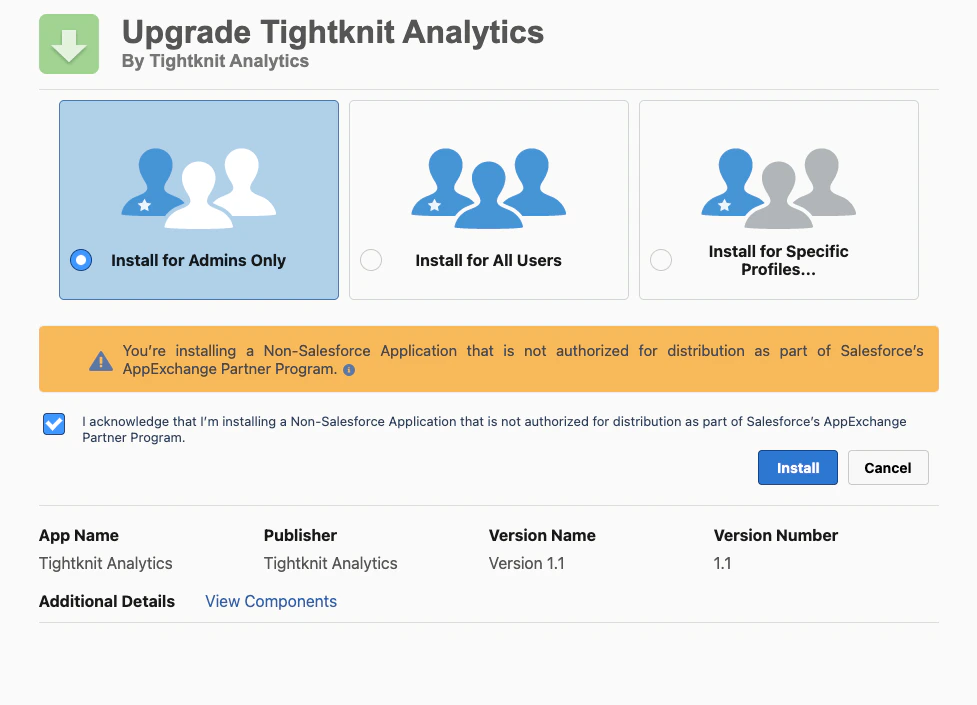
    Open the [installation link](https://login.salesforce.com/packaging/installPackage.apexp?p0=04tdM000000Yy09QAC) and follow the prompts. We recommend installing the package for **Admins only**.

    <a href="https://login.salesforce.com/packaging/installPackage.apexp?p0=04tdM000000Yy09QAC" target="_blank" rel="noopener noreferrer" style={{display:'inline-block',backgroundColor:'#87ceeb',color:'#082f49',padding:'0.5rem 1rem',borderRadius:'0.5rem',fontWeight:600,textDecoration:'none'}}>Install</a>
  </Tab>

  <Tab title="Salesforce CLI">
    ```bash theme={null}
    sf package install --package 04tdM000000Yy09QAC --target-org <org-alias> --wait 10
    ```
  </Tab>
</Tabs>

<Frame>
  <img src="https://mintcdn.com/tightknit/mpwN5zLOocDN0GdJ/assets/integrations/salesforce/managed-package-install.png?fit=max&auto=format&n=mpwN5zLOocDN0GdJ&q=85&s=6e1fe37c935d908cb8a42f43e8cf7577" alt="Salesforce managed package install screen with Install for Admins Only selected" width="977" height="705" data-path="assets/integrations/salesforce/managed-package-install.png" />
</Frame>

<Tip>
  We recommend choosing **Install for Admins Only**. It is the safest option and the Salesforce-recommended default, since it limits initial access to system administrators while you finish configuring the integration. Once setup is complete, you can grant access to other users by assigning them the Tightknit permission sets.
</Tip>

<Info>
  If your org uses a custom domain, use this URL format instead: `https://<domain>.my.salesforce.com/packaging/installPackage.apexp?p0=04tdM000000Yy09QAC`
</Info>

### Prepare Salesforce

<Info>
  **New to Salesforce administration? Read this first.** The steps below lean on a few Salesforce terms. Here is what each one means in plain language:

  * **Integration user** — a dedicated Salesforce user account that Tightknit signs in with to sync data, instead of using a real person's account. Think of it as a robot account.
  * **Permission set** — a switchable bundle of permissions you assign to a user. Salesforce starts locked down, and permission sets are how you hand out exactly the access something needs. Tightknit ships ready-made ones, so you assign rather than build them.
  * **License** — the type of seat a user occupies. It caps what that user can do, and a permission set can only switch on access the license already allows.
  * **External Client App** — the pre-built component that lets Tightknit sign in to your org securely (the OAuth handshake).

  You do all of this once, during setup. The steps below walk through each piece in order.
</Info>

<Steps>
  <Step title="Assign yourself the Tightknit Admin permission set">
    Right after installing, you may not see the **Tightknit** app in Salesforce yet, not even as an administrator. That's expected. Salesforce keeps an installed package's apps hidden until you give your own user the package's **Tightknit Admin** permission set. (This is a Salesforce rule: an installed package can only reveal its apps through a permission set, so everyone, admins included, has to assign it. There is no way around it from the admin profile.)

    To assign it to yourself:

    1. In Salesforce, go to **Setup**. In the **Quick Find** search box, type `Permission Sets` and click it.
    2. Click **Tightknit Admin** in the list.
    3. Click **Manage Assignments**, then **Add Assignment**.
    4. Check the box next to your own user, click **Next**, then click **Assign**.

    Now refresh the App Launcher (or sign out and back in) so the new access takes effect.
  </Step>

  <Step title="Open the Setup tab in the Tightknit app">
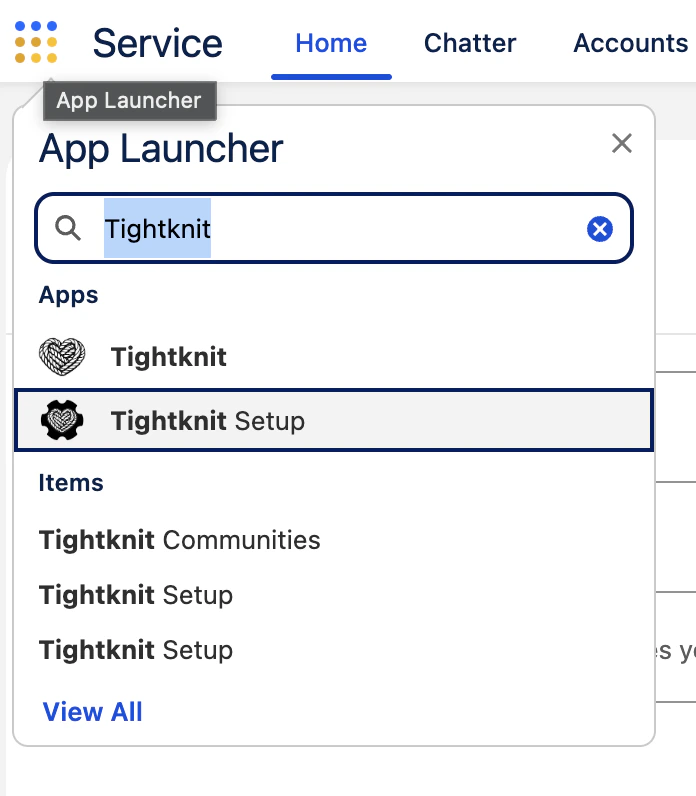
    Launch the **Tightknit** app from the Salesforce App Launcher, then open the **Tightknit Setup** tab in its navigation bar.

    <Frame caption="Search for Tightknit in the App Launcher and select the Tightknit app. Setup lives on its Tightknit Setup tab.">
      <img src="https://mintcdn.com/tightknit/n4ypj0q1FJAJOwK-/assets/integrations/salesforce/app-launcher.png?fit=max&auto=format&n=n4ypj0q1FJAJOwK-&q=85&s=ea3dd35013e530204635be6fab95a047" alt="Salesforce App Launcher with Tightknit typed into the search field and the Tightknit app highlighted in the Apps list" width="696" height="796" data-path="assets/integrations/salesforce/app-launcher.png" />
    </Frame>

    <Note>
      On earlier package versions, Setup and Health Check live in a separate **Tightknit Setup** app in the App Launcher instead of a tab. Upgrading to the latest package version moves them into the main Tightknit app.
    </Note>
  </Step>

  <Step title="Run the setup wizard to create your integration user">
    On the **Tightknit Setup** tab, the wizard walks you through picking the Salesforce user that the sync will run as and assigning it the **Tightknit Integration User** permission set. We strongly recommend creating a brand-new, **dedicated Salesforce user** for Tightknit rather than reusing a real person's account. A dedicated user keeps the sync running no matter who joins or leaves your team, and makes its activity easy to spot in your logs.

    <Tip>
      **Which license should the integration user have?** Use a **Salesforce Platform license** or a standard **Sales Cloud** or **Service Cloud** seat.

      Avoid the free **Salesforce Integration** license for this user. It is API-only and blocks UI login, which can cause the OAuth sign-in to fail when you connect the user from the Tightknit Studio. That license is built for a server-to-server (client-credentials) flow that this integration does not use; supporting a server-to-server connection with no interactive login is a known gap we are tracking as a future improvement.
    </Tip>
  </Step>

  <Step title="Grant the integration user Read access to Contacts">
    The Tightknit sync matches your community members to your existing Salesforce **Contacts** by email, so the integration user needs permission to read Contacts. The **Tightknit Integration User** permission set does **not** include this, and it can't: Salesforce blocks any installed package from handing out access to standard objects like Contact, Account, and Lead. So this one is on you to grant separately.

    Give the integration user **Read** on the **Contact** object (and **Create** too, but only if you turn on [Create Contacts](#start-the-sync) later). Pick whichever way fits how your org is set up:

    1. **Add a minimal extra permission set** *(recommended)*. Create a new permission set, give it **Read** on **Contact**, and assign it to the integration user alongside the Tightknit one. This is the cleanest option because it adds access without touching anything else, and survives package upgrades.
    2. **Edit the integration user's profile.** Open the profile the integration user is on and turn on **Read** for the **Contact** object there.

    <Warning>
      Don't assume the integration user already has Contact access and skip this. Whether it does depends on the user's license and profile, and a dedicated integration user often has neither. If Contact access is missing, the sync fails until you grant it. You don't have to check by hand, though: the **Health Check** on the Tightknit Setup tab and Tightknit Studio's connection test both flag missing Contact access before you start the sync.
    </Warning>
  </Step>

  <Step title="Configure the External Client App OAuth policies">
    The package ships an **External Client App** named **Tightknit Salesforce** that handles the secure OAuth sign-in. Set its policies before connecting:

    1. Go to **Setup**, and in **Quick Find** open **External Client App Manager**.
    2. Click **Tightknit Salesforce**, open the **Policies** tab, and click **Edit**.
    3. Under **OAuth Policies**:
       * **Permitted Users:** **"Admin approved users are pre-authorized"** (recommended), so only users you authorize can connect. You can choose **"All users may self-authorize"** instead, but it is less restrictive.
       * **Refresh Token Policy:** **"Refresh token is valid until revoked"**, so the connection doesn't expire on its own.
       * **IP Relaxation:** **"Relax IP restrictions"** unless your security team requires otherwise.
    4. Click **Manage Permission Sets** and add **Tightknit Integration User** (plus **Tightknit Admin** if the integration user is also an admin). This authorizes the integration user under the "Admin approved" policy. Skipping it is the most common setup mistake and causes the connection to fail (`OAUTH_APP_ACCESS_DENIED`, "user is not admin approved to access this app", or `OAUTH_APPROVAL_ERROR_GENERIC`).
    5. Save.
  </Step>

  <Step title="Assign the Tightknit Users permission set group to end users (optional)">
    If you want other users in your org to see the Tightknit Lightning Web Components on Contact, Account, and other record pages, assign them the **Tightknit Users** permission set group. This group contains **Tightknit Read Only** and is the recommended way to grant end-user access. See [Permission set group](#permission-set-group) for details.

    You can do this now or after the sync is running. Without this assignment, the components render an empty state for users who lack the necessary object access.
  </Step>

  <Step title="Run the Health Check (optional but recommended)">
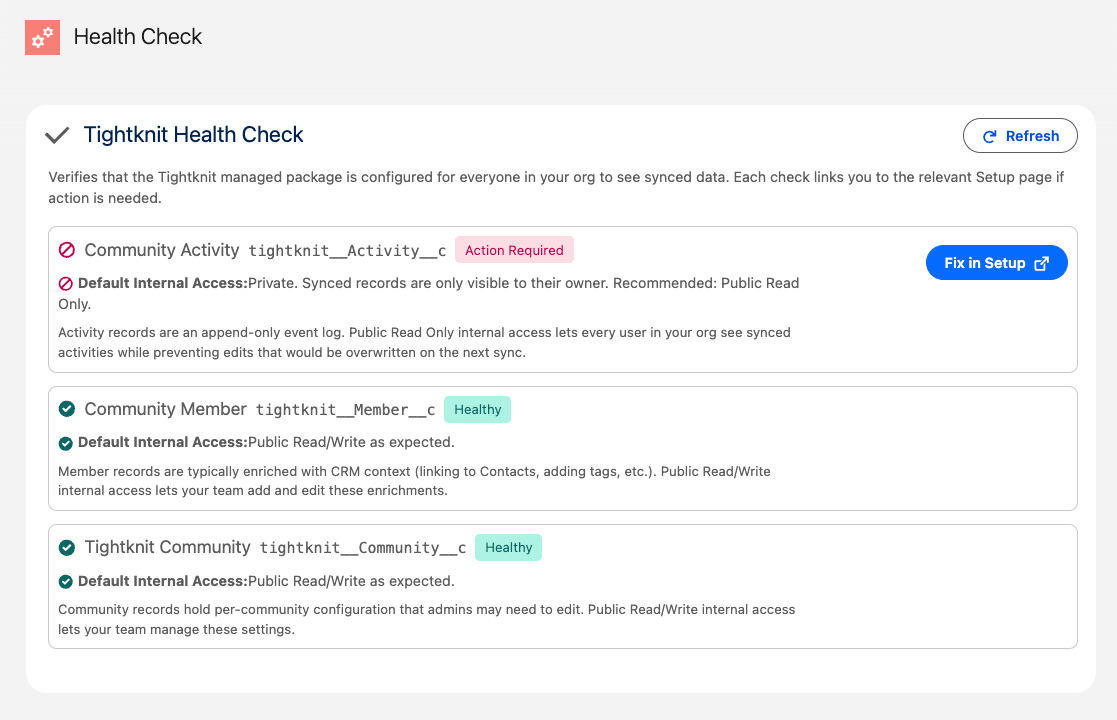
    On the **Tightknit Setup** tab, open **Health Check**. It verifies that the managed package's Org-Wide Default sharing settings let everyone in your org see synced data, with a "Fix in Setup" deep link for any check that needs attention.

    <Frame caption="The Health Check on the Tightknit Setup tab flags any Org-Wide Default sharing setting that would hide synced data from other users in the org. Each finding has a Fix in Setup button that opens the relevant Sharing Settings page in a new tab.">
      <img src="https://mintcdn.com/tightknit/-OSEi6lc3yfiiUCf/assets/integrations/salesforce/setup-health-check.png?fit=max&auto=format&n=-OSEi6lc3yfiiUCf&q=85&s=95255fb71412475289448438b63f2150" alt="Tightknit Health Check showing three OWD checks: Community Activity (Action Required, default internal access is Private), Community Member (Healthy), and Tightknit Community (Healthy). The Action Required row has a Fix in Setup button." width="1117" height="720" data-path="assets/integrations/salesforce/setup-health-check.png" />
    </Frame>

    Click **Fix in Setup** on any flagged row to open the relevant Sharing Settings page in a new browser tab, apply the recommended setting, then click **Refresh** on the Health Check to re-verify. The Health Check is non-blocking: you can connect Tightknit and start syncing without resolving every finding, but unresolved findings may mean some users in your org won't see the synced data.
  </Step>
</Steps>

### Grant Studio access

If your Salesforce administrator is not already a Studio user, you need to invite them and assign the **Integrations Manager** role so they can manage the Salesforce connection.

<Steps>
  <Step title="Invite the user">
    Navigate to **[Workspace > Users](https://studio.tightknit.ai/-/workspace#users)** and invite your IT admin via their email address.

    <Warning>
      The email used for the invitation must exactly match the email associated with their Slack profile. If the emails don't match, the user will be unable to log in.
    </Warning>
  </Step>

  <Step title="Assign the Integrations Manager role">
    Once the user has been added, assign them the **Integrations Manager** role. This grants access to manage integration settings (including Salesforce), webhooks, and API keys, without exposing other administrative areas of the Studio.
  </Step>
</Steps>

<Tip>
  For more details on Studio access and available roles, see [Access the Studio](/studio/access).
</Tip>

### Connect in Tightknit

<Steps>
  <Step title="Open the Salesforce integration settings">
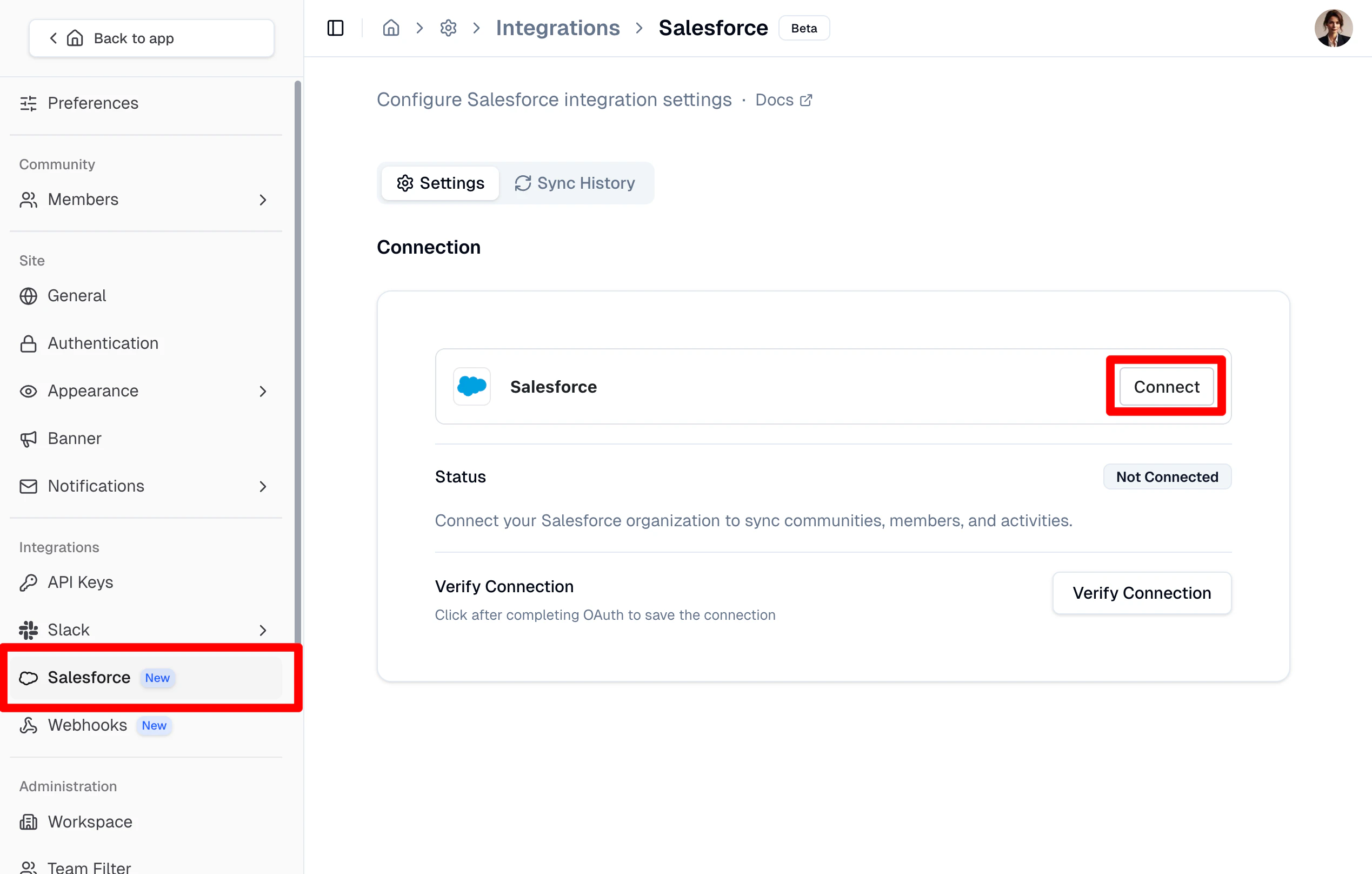
    Navigate to **[Integrations > Salesforce](https://studio.tightknit.ai/-/integrations/salesforce)** in the Tightknit Admin Studio.

    <Frame caption="Salesforce integration settings page with the Connect button.">
      <img src="https://mintcdn.com/tightknit/mpwN5zLOocDN0GdJ/assets/integrations/salesforce/salesforce-settings-connect.png?fit=max&auto=format&n=mpwN5zLOocDN0GdJ&q=85&s=cc7f12712b368d8fa8b22a231c48b8fd" alt="Salesforce integration settings page in the Studio with Salesforce highlighted in the sidebar and the Connect button highlighted" width="2538" height="1616" data-path="assets/integrations/salesforce/salesforce-settings-connect.png" />
    </Frame>
  </Step>

  <Step title="Connect to Salesforce from the Tightknit App">
    **Connect to your Salesforce org.** In a separate browser tab, log in to Salesforce **with the integration user's own credentials** (a real login, not "Login As"; see [Before you begin](#before-you-begin)). Then return here and click **Connect** to authorize. The Salesforce user that is logged in when the connection is authorized will be treated as the integration user for the Tightknit sync going forward.

    **Verify the managed package.** Click the **Verify Managed Package** button to confirm the package is correctly installed in Salesforce.
  </Step>
</Steps>

### Start the sync

After connecting your Salesforce org, the settings page presents a three-step timeline wizard: **Connect**, **Configure**, and **Backfill**. You can adjust every sync option before starting the sync for the first time.

<Steps>
  <Step title="Connect">
    Complete the Salesforce OAuth connection as described above. Once connected, this step is marked complete and the **Configure** step becomes active.
  </Step>

  <Step title="Configure sync settings">
    Set your preferred sync options before starting the sync. Available settings include:

    * **Create Contacts** — create a new Salesforce Contact for any community member that cannot be matched by email.
    * **Activity Metadata** — include additional metadata fields on synced Activity records.
    * **Matching field** — the Contact field used to match community members (default: email).
    * **Sync interval** — how frequently incremental syncs run (for example, every 5 minutes).

    <Tip>
      You can change these settings at any time, even after the initial sync is running.
    </Tip>
  </Step>

  <Step title="Review and start the sync">
    Click **Start Sync** to open the review dialog. The dialog displays your chosen configuration and asks you to verify the Managed Package installation. Once verified, confirm to activate the integration and begin the initial backfill in a single step.

    The backfill imports your existing historical data and may take several minutes depending on the size of your community. Progress is displayed on the page and refreshes automatically.
  </Step>
</Steps>

Once the backfill completes, the incremental sync runs automatically at your configured interval. All three steps are marked complete, and a **pause/resume** toggle appears so you can temporarily suspend syncing without disconnecting.

<Tip>
  To view your Salesforce sync history, click the **Sync History** tab at the top of the Salesforce integration settings page.
</Tip>

## Manage the integration

### Monitor sync history

The **Sync History** tab shows a log of every sync job (backfill and incremental) with explicit counts of succeeded and failed records. Expand any row to see a summary of that sync run.

**Investigating failed sync jobs.** When a sync job has failures, the expanded row shows an **Investigate** button. Clicking it opens a detail page with:

* A summary of the sync job (status, timing, record counts).
* A breakdown of the underlying Salesforce Bulk API jobs, showing per-object totals for processed, succeeded, and failed records.

Use this view to identify which objects or records failed and why. The most common causes are permission gaps on the integration user (see [Troubleshooting](#troubleshooting) below) and Salesforce validation rules rejecting specific records.

### Disconnect

Disconnecting requires two separate actions in the Studio: one to tear down the integration connection, and one to revoke the underlying Salesforce OAuth account.

<Steps>
  <Step title="Disconnect the integration connection">
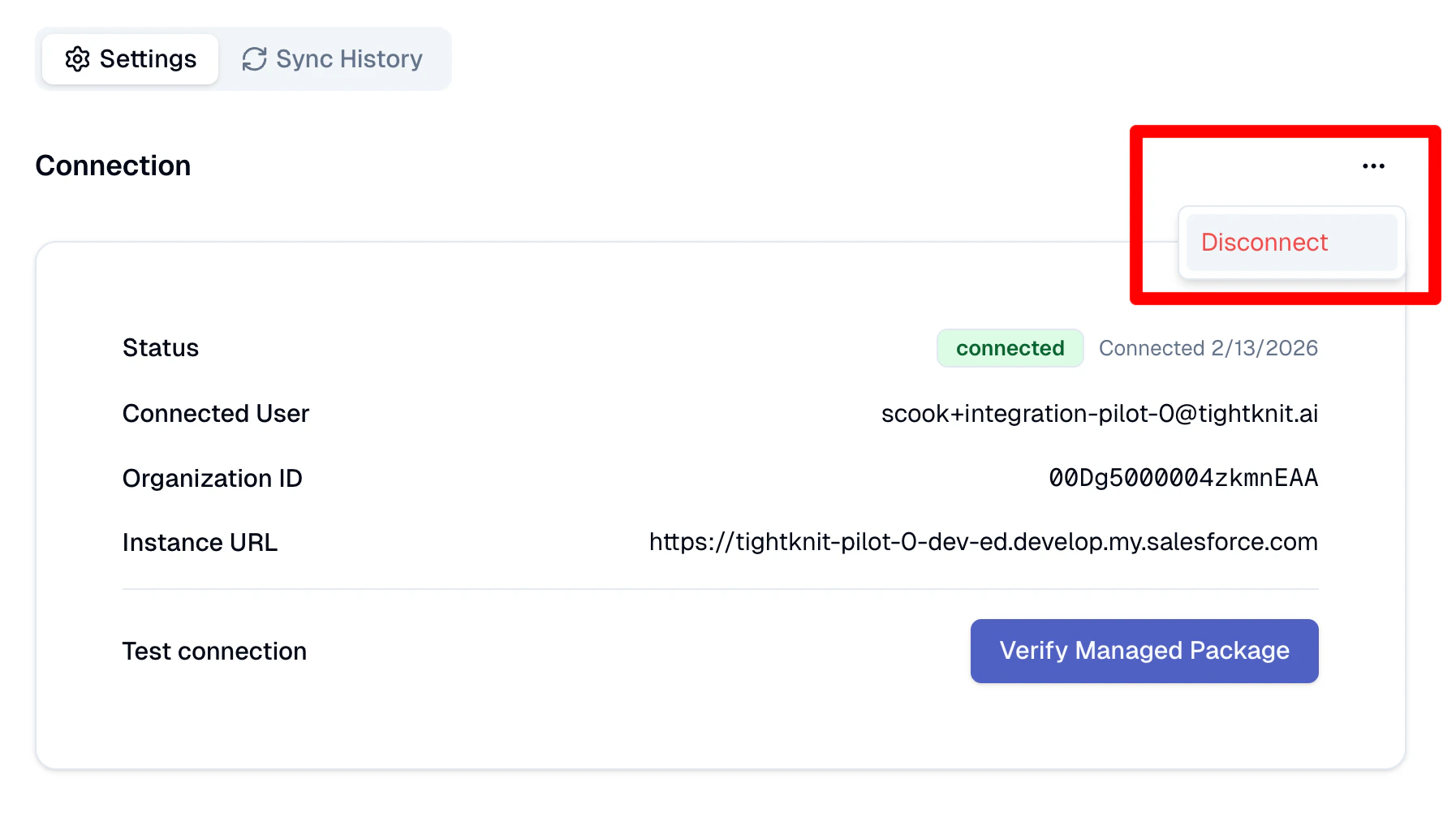
    Navigate to **[Integrations > Salesforce](https://studio.tightknit.ai/-/integrations/salesforce#connection)** and scroll to the **Connection** section. Click the **···** overflow menu to the right of **Connection** and select **Disconnect**. This reveals the connection widget below.

    <Frame caption="Overflow menu next to the Connection heading: select Disconnect.">
      <img src="https://mintcdn.com/tightknit/mpwN5zLOocDN0GdJ/assets/integrations/salesforce/disconnect-connection-menu.png?fit=max&auto=format&n=mpwN5zLOocDN0GdJ&q=85&s=82591bbd88a11c791aefbc9464ef29d4" alt="Salesforce connection settings with the Disconnect option highlighted in the overflow menu" width="1794" height="1002" data-path="assets/integrations/salesforce/disconnect-connection-menu.png" />
    </Frame>
  </Step>

  <Step title="Disconnect the Salesforce account">
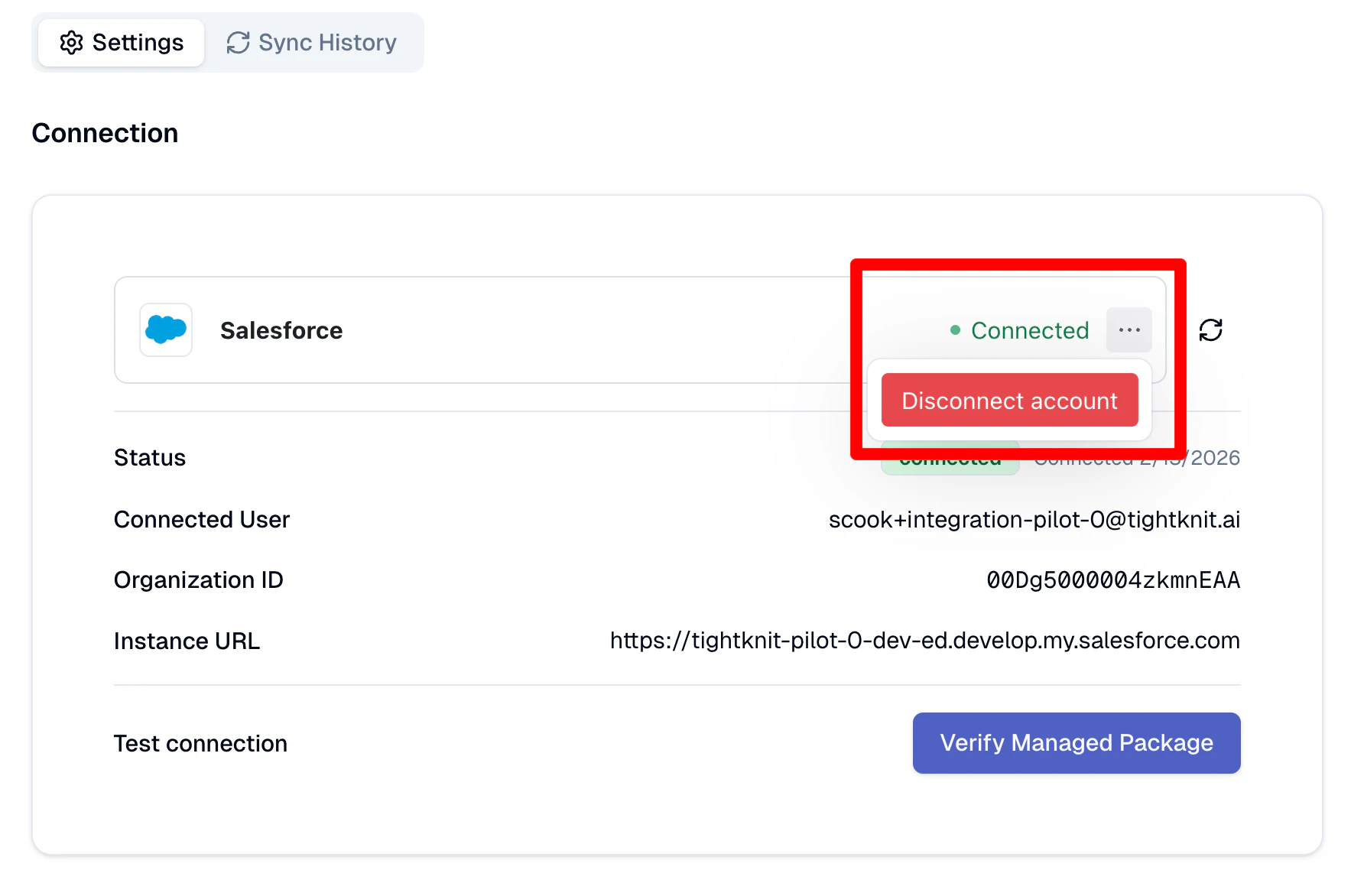
    On the newly revealed connection widget, click the **···** overflow menu next to the connection status and select **Disconnect account**. This revokes the OAuth authorization to your Salesforce org.

    <Frame caption="Overflow menu on the connection widget: select Disconnect account.">
      <img src="https://mintcdn.com/tightknit/mpwN5zLOocDN0GdJ/assets/integrations/salesforce/disconnect-account-menu.png?fit=max&auto=format&n=mpwN5zLOocDN0GdJ&q=85&s=6577831280768b92b83535e3f7e69606" alt="Connection widget with Disconnect account option highlighted in the overflow menu" width="1784" height="1172" data-path="assets/integrations/salesforce/disconnect-account-menu.png" />
    </Frame>
  </Step>

  <Step title="Refresh the page">
    Click the **refresh** button next to the connection widget to confirm the disconnection and update the page state.
  </Step>
</Steps>

## Additional customization

### LWC components

The managed package includes sample page layouts and custom Lightning Web Components that you can add to your Salesforce pages using Lightning App Builder.

We recommend exploring the following components:

| Component                              | LWC Name                                   | Target Page                                           | Description                                                                                                     |
| -------------------------------------- | ------------------------------------------ | ----------------------------------------------------- | --------------------------------------------------------------------------------------------------------------- |
| **Account Community Activity Summary** | `tightknitAccountCommunityActivitySummary` | Account Record Detail Page                            | Displays a summary of community activity for contacts associated with an Account.                               |
| **Activity Info**                      | `tightknitCommunityActivityInfo`           | Activity Record Detail Page                           | Displays detailed information about a single Activity record including related members and community.           |
| **Community Activity Summary**         | `tightknitCommunityActivitySummary`        | Community Record Detail Page                          | Displays a summary of member activity for a single Community.                                                   |
| **Community Profile**                  | `tightknitCommunityProfile`                | Contact Record Detail Page                            | Displays Tightknit community profile information based on the contact's email.                                  |
| **Contact Member Activity Log**        | `tightknitContactMemberActivityLog`        | Contact Record Detail Page                            | Displays a list of recent Tightknit activities for a Contact or Lead by matching their email to Member records. |
| **Member Activity Log**                | `tightknitMemberActivityLog`               | Member Record Detail Page                             | Displays a list of recent Tightknit activities for a Member record.                                             |
| **View in Tightknit**                  | `tightknitViewInStudioButton`              | Member Record Detail Page, Contact Record Detail Page | Button to open the member's profile page in the Tightknit Admin Studio.                                         |

#### Component previews

Select a component to see it in action. Click any image to view it at full size.

<Tabs>
  <Tab title="Account Community Activity Summary">
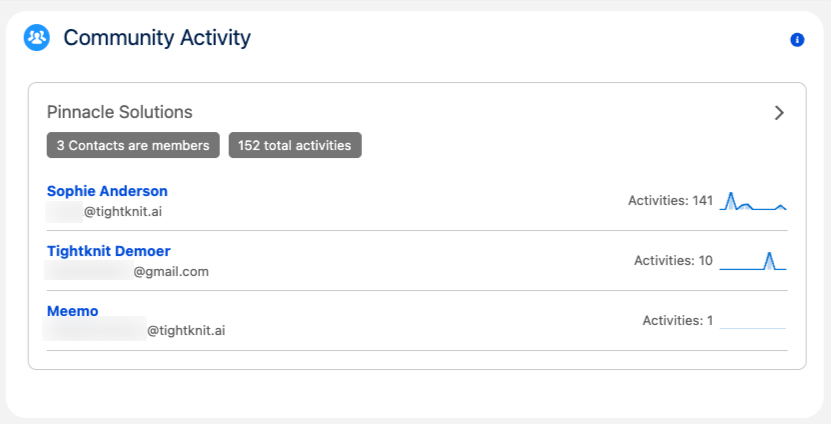
    <Frame caption="Community activity for contacts associated with an Account, with per-contact activity counts.">
      <img src="https://mintcdn.com/tightknit/-OSEi6lc3yfiiUCf/assets/integrations/salesforce/lwc/lwc-account-comm-activity.png?fit=max&auto=format&n=-OSEi6lc3yfiiUCf&q=85&s=45828fd58cd2c4ea5e5fc871ce5df7ab" alt="Account Community Activity Summary LWC showing contacts who are members and their activity counts" width="831" height="424" data-path="assets/integrations/salesforce/lwc/lwc-account-comm-activity.png" />
    </Frame>
  </Tab>

  <Tab title="Activity Info">
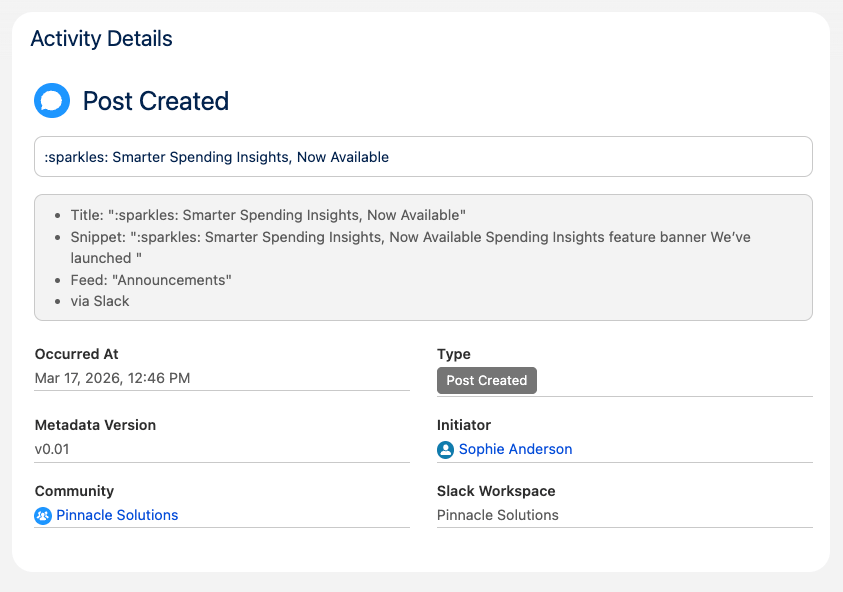
    <Frame caption="Details for a single Activity record, including metadata, initiator, and community.">
      <img src="https://mintcdn.com/tightknit/-OSEi6lc3yfiiUCf/assets/integrations/salesforce/lwc/lwc-activity-details.png?fit=max&auto=format&n=-OSEi6lc3yfiiUCf&q=85&s=961b080768d4f2b1cae0e727e4cd833e" alt="Activity Info LWC showing a Post Created activity with metadata, initiator, and community" width="843" height="592" data-path="assets/integrations/salesforce/lwc/lwc-activity-details.png" />
    </Frame>
  </Tab>

  <Tab title="Community Activity Summary">
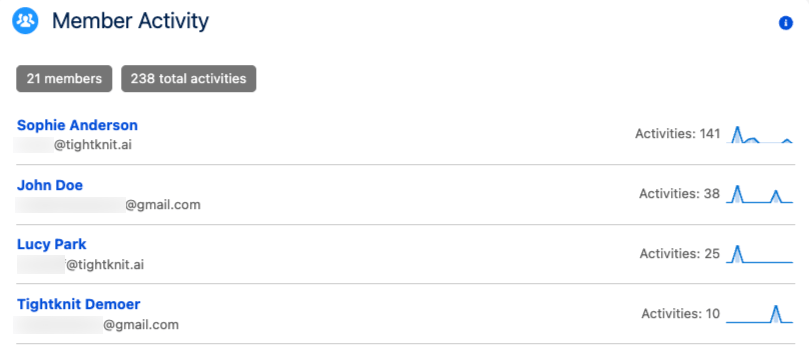
    <Frame caption="Members of a Community ranked by activity count, with activity sparklines.">
      <img src="https://mintcdn.com/tightknit/-OSEi6lc3yfiiUCf/assets/integrations/salesforce/lwc/lwc-member-activity.png?fit=max&auto=format&n=-OSEi6lc3yfiiUCf&q=85&s=47315b61145602c8fb2c1df4a1712044" alt="Community Activity Summary LWC showing community members ranked by activity count with sparklines" width="809" height="357" data-path="assets/integrations/salesforce/lwc/lwc-member-activity.png" />
    </Frame>
  </Tab>

  <Tab title="Community Profile">
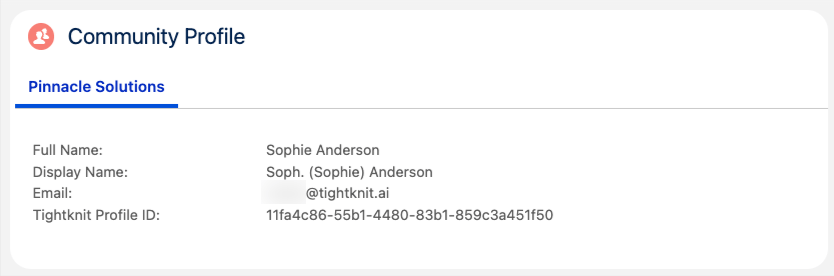
    <Frame caption="The contact's Tightknit community profile, matched by email.">
      <img src="https://mintcdn.com/tightknit/-OSEi6lc3yfiiUCf/assets/integrations/salesforce/lwc/lwc-contact-comm-profiles.png?fit=max&auto=format&n=-OSEi6lc3yfiiUCf&q=85&s=ea76c770ca22aff1c8f3948910f3eaae" alt="Community Profile LWC showing the contact's Tightknit profile fields for a community" width="834" height="276" data-path="assets/integrations/salesforce/lwc/lwc-contact-comm-profiles.png" />
    </Frame>
  </Tab>

  <Tab title="Contact Member Activity Log">
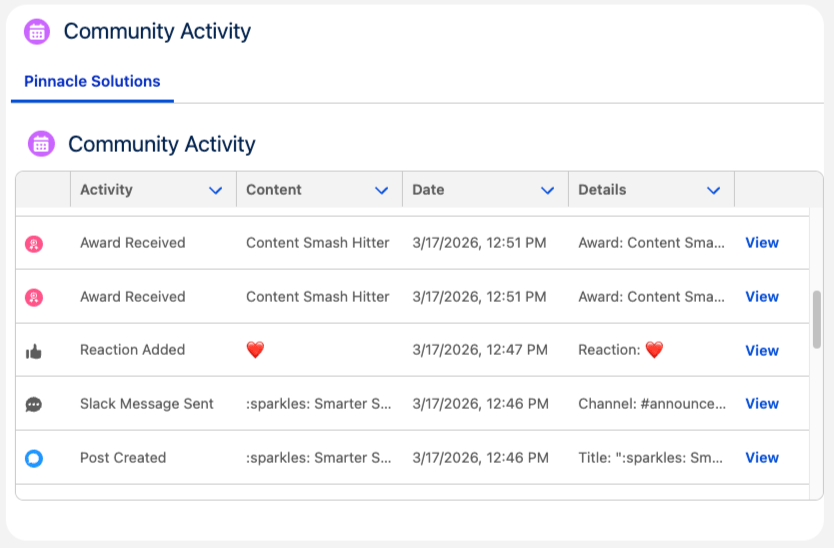
    <Frame caption="Recent Tightknit activities for a Contact, organized by community.">
      <img src="https://mintcdn.com/tightknit/-OSEi6lc3yfiiUCf/assets/integrations/salesforce/lwc/lwc-contact-comm-activity.png?fit=max&auto=format&n=-OSEi6lc3yfiiUCf&q=85&s=2e366c04720a90b2457a0b50a4d6da83" alt="Contact Member Activity Log LWC with a community tab and a table of recent activities" width="834" height="548" data-path="assets/integrations/salesforce/lwc/lwc-contact-comm-activity.png" />
    </Frame>
  </Tab>

  <Tab title="Member Activity Log">
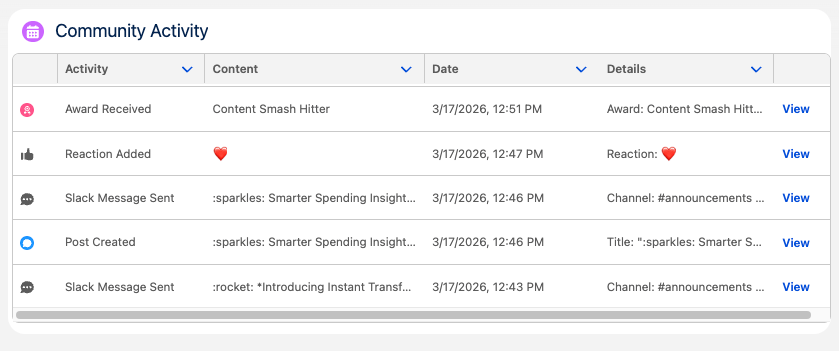
    <Frame caption="Recent Tightknit activities for a Member record, with links to view each activity.">
      <img src="https://mintcdn.com/tightknit/-OSEi6lc3yfiiUCf/assets/integrations/salesforce/lwc/lwc-community-activities.png?fit=max&auto=format&n=-OSEi6lc3yfiiUCf&q=85&s=1885ace48532d7a911ceb32c3ee6e53c" alt="Member Activity Log LWC showing a sortable table of activities with View links" width="839" height="351" data-path="assets/integrations/salesforce/lwc/lwc-community-activities.png" />
    </Frame>
  </Tab>
</Tabs>

<Note>
  **Permissions required to view LWC components.** Object Read alone is not enough — the components call Apex controllers that enforce field-level security, so a viewing user needs Apex class access, field-level read, and record visibility together. Assign the **Tightknit Users** permission set group (which contains **Tightknit Read Only**) to any user who should see the components. See [Permission sets](#permission-sets) below.
</Note>

### Permission sets

The Tightknit package ships three permission sets, each aimed at a different kind of user. Each bundles the full access that user needs, so you don't have to assign individual permissions.

To assign any of them: go to **Setup → Permission Sets**, click the set, click **Manage Assignments → Add Assignment**, pick the users, and click **Assign**.

Here's who gets which one:

| Permission set                 | Grants                                                                                                                                                                             | Assign to                                                                                                                                       |
| ------------------------------ | ---------------------------------------------------------------------------------------------------------------------------------------------------------------------------------- | ----------------------------------------------------------------------------------------------------------------------------------------------- |
| **Tightknit Read Only**        | Read-only access to Tightknit data and the LWC controllers. No create/edit/delete, no Setup tab, no admin permissions.                                                             | Any user who should **view** the Tightknit components on Contact, Lead, Account, Community, Member, and Activity pages. Safe to assign broadly. |
| **Tightknit Admin**            | Full access to the Tightknit objects plus the **Tightknit** app including its admin-only **Tightknit Setup** tab (Setup, Guides, About, and Health Check) and admin-only features. | Admins who configure or manage the integration.                                                                                                 |
| **Tightknit Integration User** | API-only access (full CRUD on Tightknit objects, `ApiEnabled`) for the sync. No Setup tab.                                                                                         | The dedicated [integration user](#prepare-salesforce) that runs the sync.                                                                       |

<Note>
  These permission sets grant access only to Tightknit's own objects and components — they do **not** grant access to your Contacts, Accounts, or Leads. The components show only the contacts and accounts a user can already see through their own profile and your org's sharing settings, so assigning **Tightknit Read Only** never widens a user's access to your CRM data.
</Note>

#### Permission set group

The package also ships a **Tightknit Users** permission set group. A permission set group bundles permission sets into a single assignable unit — you assign the *group* to a user and they receive the combined access of every set inside it.

**Tightknit Users** currently contains **Tightknit Read Only**, and it is the recommended way to grant end-user access. Assign the group instead of the underlying permission set: when future versions add new end-user capabilities to the group, everyone already assigned picks them up automatically — no re-assignment needed.

<Tip>
  **Giving all users access.** To let everyone in your org see the components, assign the **Tightknit Users** permission set group to all users — you can multi-select on the **Manage Assignments** screen, bulk-assign with Data Loader, or auto-assign new users with a record-triggered Flow on the User object. Avoid assigning **Tightknit Admin** broadly; it grants Setup access that most users don't need.
</Tip>

#### Building your own integration user permission set (advanced)

<Note>
  **Most people can skip this section.** Assigning the ready-made **Tightknit Integration User** permission set to your integration user is all the sync needs, and it picks up new Tightknit fields automatically every time you upgrade the package. Only keep reading if you have a specific reason to build a custom permission set yourself.
</Note>

You might build your own permission set if, for example, you want to combine the access for several integrations into one set, or match your org's naming conventions. If so, the rest of this section lists exactly the access the sync requires. The easiest approach is to open the packaged **Tightknit Integration User** permission set as a reference and copy its grants into yours.

**System permissions**

* `ApiEnabled` — the OAuth token can't make API calls without it. Required even on profiles that already have API access, so the integration user works on restricted profiles like **Minimum Access - Salesforce** or the **Salesforce Integration** license.

**Standard object access**

* **`Contact`: Read** — the sync queries Contacts by email to link Tightknit members to existing CRM Contacts, and the `Member__c.Contact__c` lookup field needs the target object to be readable in the user's schema.
* **`Contact`: Create** — also required if you enable the **Create Contacts** option in [Start the sync](#start-the-sync). Without that setting on, Read alone is sufficient.

**Tightknit custom object access**

On each of `Community__c`, `Member__c`, and `Activity__c`, grant: **Create**, **Read**, **Edit**, **Delete**, **View All Records**, and **Modify All Records**.

Standard CRUD lets the sync upsert records. **Modify All Records** is required because Bulk V2 upserts return `INSUFFICIENT_ACCESS_OR_READONLY` in orgs with Private OWDs or when record ownership has been reassigned away from the integration user. It is the easiest grant to overlook and the most common cause of sync failures on a hand-rolled permset.

**Field-level security on the Tightknit custom objects**

Grant **Read + Edit** on every field the sync writes across the three Tightknit objects.

The cleanest approach is to grant Read + Edit on **all custom fields on `Community__c`, `Member__c`, and `Activity__c`**. That keeps your permset correct across package upgrades without per-version edits.

<Warning>
  **The easiest field to miss: `Member__c.Contact__c`.** This is a lookup field pointing at the standard Contact object, and admins commonly skip over it when granting field-level security, partly because lookups feel like they should be governed by the target object's access alone. They aren't: the lookup field on `Member__c` needs its own FLS grant. Missing it produces a `Field name not found` Bulk V2 error that looks like a missing field rather than a permissions gap.
</Warning>

## Troubleshooting

<AccordionGroup>
  <Accordion title="The Tightknit app doesn't appear in the App Launcher">
    Assign the **Tightknit Admin** permission set to your user (**Setup → Permission Sets → Tightknit Admin → Manage Assignments**), then refresh the App Launcher or sign out and back in. Managed packages can only grant Lightning app visibility through permission sets, so even system administrators need this assignment.
  </Accordion>

  <Accordion title="Member sync fails with 'Field name not found: tightknit__Contact__c'">
    The integration user can't see the standard **Contact** object, so the `Member__c.Contact__c` lookup is unresolvable. The Tightknit permission set **cannot** grant access to standard objects (a Salesforce platform limitation), so this must be granted separately. Grant the integration user **Read** on Contact — see [Give the integration user Read access to Contacts](#prepare-salesforce). Add **Create** as well if you enable [Create Contacts](#start-the-sync).
  </Accordion>

  <Accordion title="The connection test reports missing object or field access">
    The integration user is missing object CRUD or field-level security on the Tightknit objects. Assign the **Tightknit Integration User** permission set, or — if you use your own — grant the equivalent access from [Building your own integration user permission set](#building-your-own-integration-user-permission-set-advanced). The two most common gaps are **Modify All Records** on the three Tightknit objects and **field-level security on `Member__c.Contact__c`**.
  </Accordion>

  <Accordion title="Object describes fail even with the permission set assigned">
    This typically means the integration user is on the free, API-only **Salesforce Integration** license, which we recommend against (see [Run the setup wizard](#prepare-salesforce)). The most reliable fix is to move the user to a UI-capable license such as **Salesforce Platform**. If you must stay on the Salesforce Integration license, you also have to assign the **Salesforce API Integration** permission set license (PSL): **Setup → Users → \[integration user] → Permission Set License Assignments → Edit Assignments**. Without it, the license doesn't grant entitlement to managed-package custom objects, and object describes fail even with the Tightknit Integration User permission set assigned.
  </Accordion>

  <Accordion title="A field or object looks accessible in Setup, but the sync still fails on it">
    The user's **license** may be capping access above the permission set. A permission set can only grant what the license permits. A restrictive license (some Platform licenses, or a Salesforce Integration license that doesn't include Contact) leaves the grant visible in Setup but nullified at runtime. Use a license that includes the object (Contact requires a CRM-capable license), or confirm effective access with the connection test in Tightknit Studio, which checks as the integration user.
  </Accordion>

  <Accordion title="Connecting in Studio fails with 'Something went wrong' / 'We couldn't complete the connection'">
    During **Connect**, the OAuth popup closes with a generic "Something went wrong. We couldn't complete the connection." message. Tightknit Studio only knows the Salesforce authorization didn't complete; the specific reason is on the Salesforce side. Check **Setup → Login History** in Salesforce (filter to the time of your attempt) to see the real error. The two most common causes:

    * **`OAUTH_APP_ACCESS_DENIED` ("user is not admin approved to access this app").** Your org requires admin approval for the **Tightknit Salesforce** External Client App, and the user completing the connection isn't authorized for it. Fix it in **Setup → External Client App Manager → Tightknit Salesforce → Policies → OAuth Policies → Permitted Users**: either set **"All users may self-authorize"**, or keep **"Admin approved users are pre-authorized"** and click **Manage Permission Sets** to add a permission set the connecting user holds (for example **Tightknit Integration User** or **Tightknit Admin**). See [Configure the External Client App OAuth Policies](#prepare-salesforce), then retry the connection in Studio. The related `OAUTH_APPROVAL_ERROR_GENERIC` error has the same cause and fix.
    * **Connecting a sandbox org.** Sandbox orgs aren't supported and fail the OAuth the same way, so connect a production org instead. See [Known issues](#known-issues).
    * **The integration user can't log in (Salesforce Integration / API-Only license).** If you connect as a user on the **Salesforce Integration** license or **API Only** profile, the interactive OAuth login is blocked and Login History shows a login failure. Connect as a **UI-login-capable** user instead (see the license note in [Run the setup wizard](#prepare-salesforce)).
  </Accordion>

  <Accordion title="The backfill shows 'Failed', or some records didn't sync">
    Resolve the underlying cause first (most often the integration user's Contact access — see above), then click **Retry** on the backfill in Tightknit Studio. Re-running is safe: records are matched by ID and updated in place, so it re-attempts the failed records **without creating duplicates** (though it will overwrite manual edits made to already-synced records).
  </Accordion>

  <Accordion title="Activities fail with 'Foreign key external ID … not found'">
    Members must sync before their Activities. When the member sync fails (commonly the Contact-access issue above), activities that reference those members can't resolve the lookup and fail too. Fix the member sync first, then re-run the backfill — the activity errors clear once the members exist in Salesforce.
  </Accordion>

  <Accordion title="I'm not seeing any records in the Tightknit object list views, or no data shows up in the components">
    The signed-in user is missing read access to the Tightknit objects. Assign the **Tightknit Users** permission set group (which grants the packaged **Tightknit Read Only** access) via **Setup → Permission Set Groups → Tightknit Users → Manage Assignments → Add Assignment**, then refresh. Without it, the components show an empty state even when the data has synced correctly, because the records are there but the user can't read them. To grant access org-wide, see [Permission set group](#permission-set-group).
  </Accordion>

  <Accordion title="Synced records aren't visible to other users in Salesforce">
    This is an Org-Wide Default sharing setting, not a sync problem. Open **Health Check** on the **Tightknit Setup** tab of the Tightknit app and use **Fix in Setup** on any flagged object to adjust its sharing settings.
  </Accordion>
</AccordionGroup>

## Reference

### Known issues

* **Salesforce sandbox orgs are not supported.** You can install the managed package in a sandbox and explore the Lightning Web Components (LWCs) by populating Community, Member, and Activity records manually. However, connecting a sandbox org to Tightknit is not supported yet (this is a work-in-progress feature). To run the full integration, connect a production org instead.
* **Salesforce configuration is shown per Studio user, not tenant-wide.** The Studio currently scopes the Salesforce integration settings to the Studio user who configured them, instead of sharing them across the tenant. Other Studio admins on the same tenant cannot see or collaborate on the same connection. We're working on making this configuration tenant-wide.

### Planned features

* Pre-built report templates
* `Create Member` quick action button on Contact detail page
* Support for Leads
* Support for Parent Accounts
* More sync interval options
* Custom configuration for linking Tightknit Members to Contacts (beyond email matching)

### Security

Tightknit does not store your Salesforce username or password. Instead, the integration uses **WorkOS Pipes**, an enterprise-grade authentication infrastructure, to perform a secure OAuth handshake.

This process generates a secure, revocable access token that allows Tightknit to interact with Salesforce on your behalf. This token is **encrypted at rest** and stored securely by WorkOS, a **SOC 2 Type 2** and **ISO 27001** compliant vendor.

You can **revoke Tightknit's access at any time** directly from your Salesforce settings.

<Card title="Security Overview" icon="shield" href="/security/overview">
  Learn more about Tightknit's security practices and compliance certifications.
</Card>


## Related topics

- [Studio](/studio/overview.md)
- [Activity Logs](/activity-logs/getting-started.md)
- [Activity Log Metadata Versions](/activity-logs/versions.md)
- [Access the Studio](/studio/access.md)