> ## Documentation Index
> Fetch the complete documentation index at: https://docs.tightknit.ai/llms.txt
> Use this file to discover all available pages before exploring further.

# API Keys

> Generate API Keys to access the Tightknit API.

export const PlanAvailability = ({feature = 'This feature', plan = 'enterprise', addon = false, plural = false, support = false, growth, momentum, enterprise, children}) => {
  const rank = {
    growth: 0,
    momentum: 1,
    enterprise: 2
  };
  const normalize = value => {
    if (value === true || value === 'included' || value === 'yes') {
      return 'included';
    }
    if (value === 'addon') {
      return 'addon';
    }
    return 'none';
  };
  const defaultStatus = p => {
    if (rank[p] < rank[plan]) {
      return 'none';
    }
    return addon ? 'addon' : 'included';
  };
  const overrides = {
    growth,
    momentum,
    enterprise
  };
  const status = p => overrides[p] === undefined ? defaultStatus(p) : normalize(overrides[p]);
  const plans = [{
    key: 'growth',
    label: 'Growth'
  }, {
    key: 'momentum',
    label: 'Momentum'
  }, {
    key: 'enterprise',
    label: 'Enterprise'
  }];
  const included = plans.filter(p => status(p.key) === 'included');
  const asAddon = plans.filter(p => status(p.key) === 'addon');
  const verb = plural ? 'are' : 'is';
  const srSentence = [feature, verb, 'available on:', included.map(p => `${p.label} plan`).join(', ') || 'no plans', asAddon.length > 0 ? `; as an add-on: ${asAddon.map(p => `${p.label} plan`).join(', ')}` : ''].join(' ');
  const statusCell = s => {
    if (s === 'included') {
      return <svg className="plan-availability-check" xmlns="http://www.w3.org/2000/svg" viewBox="0 0 24 24" fill="none" stroke="currentColor" strokeWidth="3" strokeLinecap="round" strokeLinejoin="round" aria-hidden="true">
          <path d="M20 6 9 17l-5-5" />
        </svg>;
    }
    if (s === 'addon') {
      return <span className="plan-availability-addon">Add-on</span>;
    }
    return <span className="plan-availability-none">—</span>;
  };
  return <div className="plan-availability">
      <span className="plan-availability-sr">{srSentence}</span>
      <div className="plan-availability-content" aria-hidden="true">
        <div className="plan-availability-feature">{feature}</div>
        {(support || children) && <div className="plan-availability-body">
            {support && <>
                Contact <a href="mailto:support@tightknit.ai">Support</a> if you
                don't see this option or want to enable it for your community.
              </>}
            {children && <> {children}</>}
          </div>}
      </div>
      <div className="plan-availability-matrix" aria-hidden="true">
        {plans.map(p => <div className="plan-availability-plan" key={p.key}>
            <span className="plan-availability-plan-name">{p.label}</span>
            {statusCell(status(p.key))}
          </div>)}
      </div>
    </div>;
};

<PlanAvailability feature="Tightknit API" plan="momentum" />

## Accessing API Keys

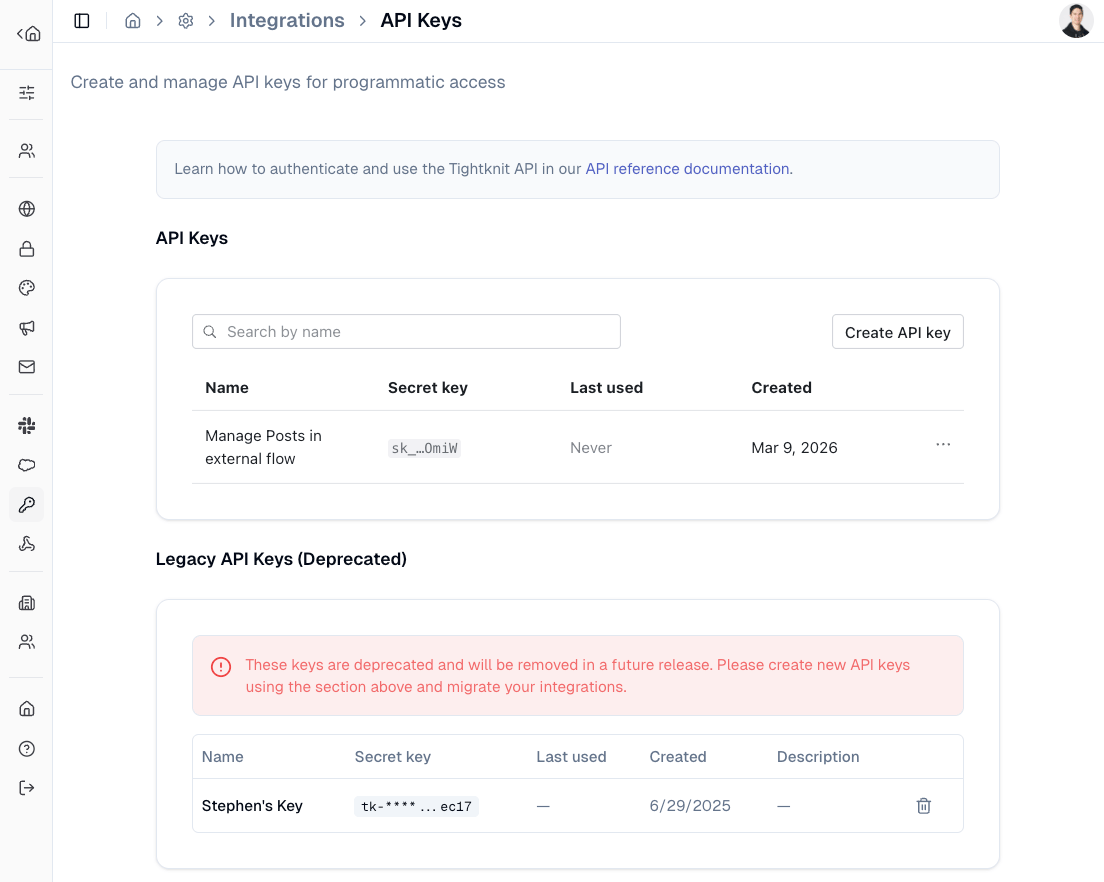
Admins can view and generate the Tightknit API keys from **[Integrations > API Keys](https://studio.tightknit.ai/-/integrations/api-keys)** in the Studio.

<Frame caption="API Keys settings page">
  <img src="https://mintcdn.com/tightknit/jjquqHa-xIMIQAvv/assets/integrations/api-keys/api-keys-page.png?fit=max&auto=format&n=jjquqHa-xIMIQAvv&q=85&s=c7ef908aac943c17157c481589582431" alt="API Keys settings page" width="1104" height="882" data-path="assets/integrations/api-keys/api-keys-page.png" />
</Frame>

## Creating a New API Key

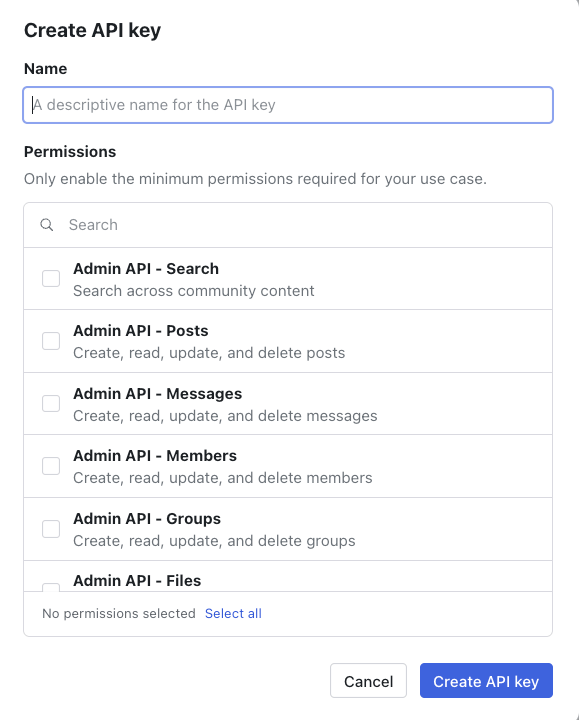
Click the `Create API key` button to generate a new API key. Give your key a descriptive name and select the permissions for the APIs the key should have access to.
<Frame caption="Create API key dialog">
  <img src="https://mintcdn.com/tightknit/jjquqHa-xIMIQAvv/assets/integrations/api-keys/create-api-key-dialog.png?fit=max&auto=format&n=jjquqHa-xIMIQAvv&q=85&s=6f71b64a0d8543eacb8f30fd01f95001" alt="Create API key dialog" width="579" height="720" data-path="assets/integrations/api-keys/create-api-key-dialog.png" />
</Frame>

Your key secret will be displayed once and will be in the format `sk_*`.

<Tip>
  You will only be shown the key secret once, so make sure to save it somewhere
  safe such as a password manager.
</Tip>

## API Key Introspection

You can inspect the current API key's details by calling `GET /admin/v0/api_key/me`. This returns the key's type, associated community, and granted permissions. This is useful for verifying that your key has the required permissions before making other API calls.

If your API key is missing a permission required by an endpoint, the API returns a `403` response with an `INSUFFICIENT_SCOPE` error code and a hint listing the permission that was required and the permissions your key currently has.

See the [API Reference](/api-reference/introduction) for full endpoint details.

## Legacy API Keys

Legacy API keys with the `tk-*` format are deprecated and will be removed in a future release. Please create new API keys and migrate your integrations.


## Related topics

- [Introduction](/api-reference/introduction.md)
- [Introspect current API key](/api-reference/api-keys/introspect-current-api-key.md)
- [CLI & MCP Server](/integrations/cli.md)
- [Slack SSO with Auth0](/guides/slack-sso-external-idp.md)
- [MCP Server](/integrations/mcp.md)
