> ## Documentation Index
> Fetch the complete documentation index at: https://docs.tightknit.ai/llms.txt
> Use this file to discover all available pages before exploring further.
# Slack SSO with Auth0
> Connect Slack workspace SSO to Auth0 as your SAML identity provider, with optional Tightknit membership verification.
**Slack plan:** Business+ or Enterprise Grid required.
**Prefer a managed solution?** Tightknit offers a hosted SSO integration that handles identity provider configuration, membership verification, and error handling out of the box, no Auth0 or third-party IDP required. Contact [support@tightknit.ai](mailto:support@tightknit.ai) to learn more.
This guide walks through setting up Slack SAML SSO with an external identity provider like Auth0. If you use a social connection (Google, Microsoft) as your login method, you can optionally add a post-login action to verify Tightknit community membership before granting access.
## Prerequisites
* A Slack workspace on the **Business+** or **Enterprise** plan
* An [Auth0](https://auth0.com) tenant (free tier works)
This guide uses Auth0 as the identity provider. The same pattern applies to other IDPs that support SAML 2.0.
## Setting up Slack SSO
### In Auth0
Auth0 provides a pre-built Slack SSO integration that handles the SAML configuration for you.
In the Auth0 Dashboard, go to **Applications > SSO Integrations**.
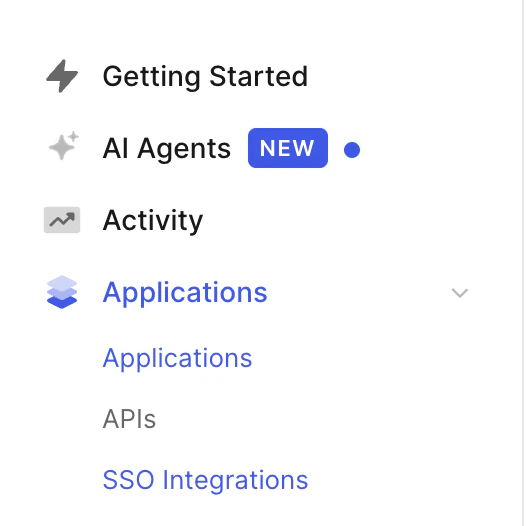 Click **Create SSO Integration**.
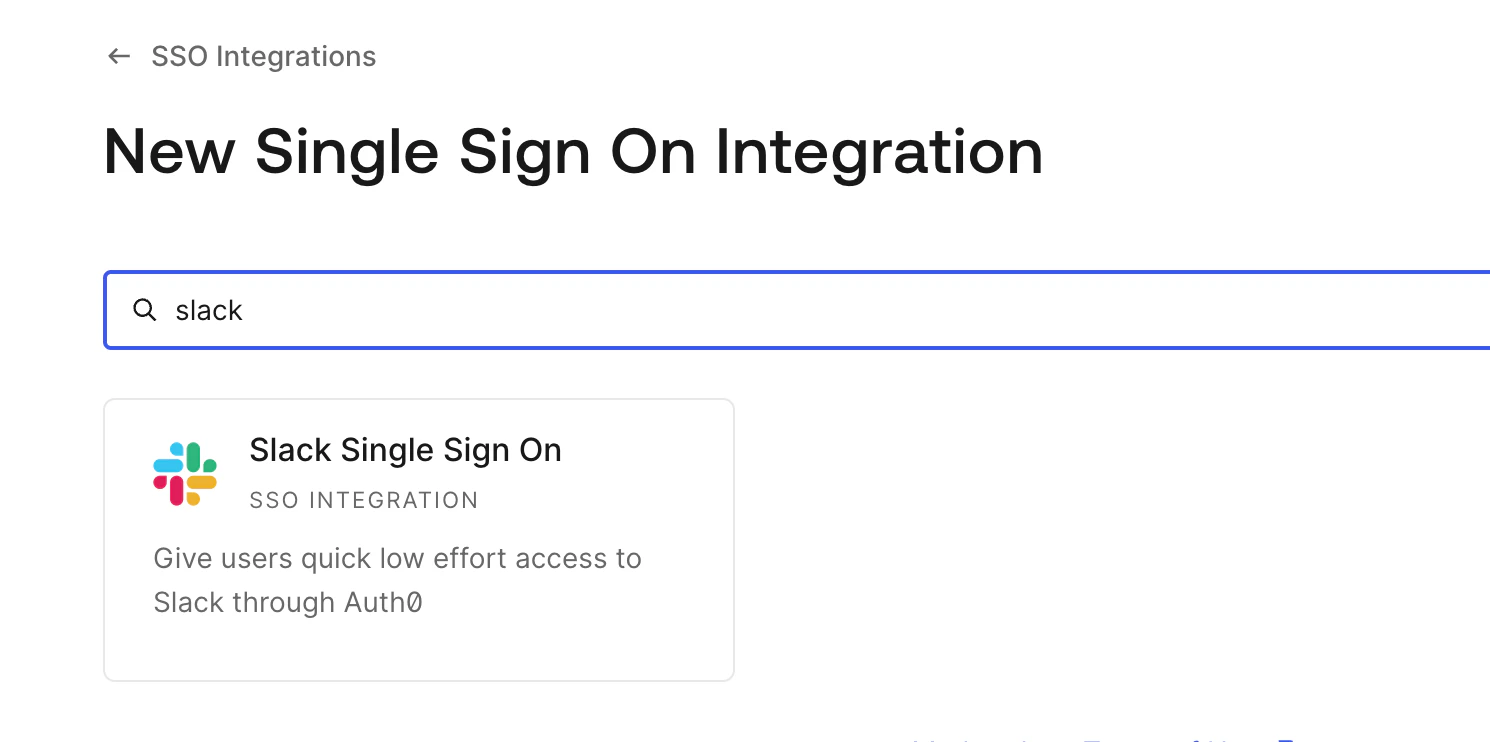
 Search for **Slack** and select **Slack Single Sign On**.
 Enter a **Name** (e.g. `Slack`) and your **Slack Team Name**, then click **Save**:
* **Business+**: your workspace URL slug, e.g. `your-workspace` (from `your-workspace.slack.com`)
* **Enterprise Grid**: your Grid org slug with the `.enterprise` suffix, e.g. `your-workspace.enterprise`
Enter a **Name** (e.g. `Slack`) and your **Slack Team Name**, then click **Save**:
* **Business+**: your workspace URL slug, e.g. `your-workspace` (from `your-workspace.slack.com`)
* **Enterprise Grid**: your Grid org slug with the `.enterprise` suffix, e.g. `your-workspace.enterprise`
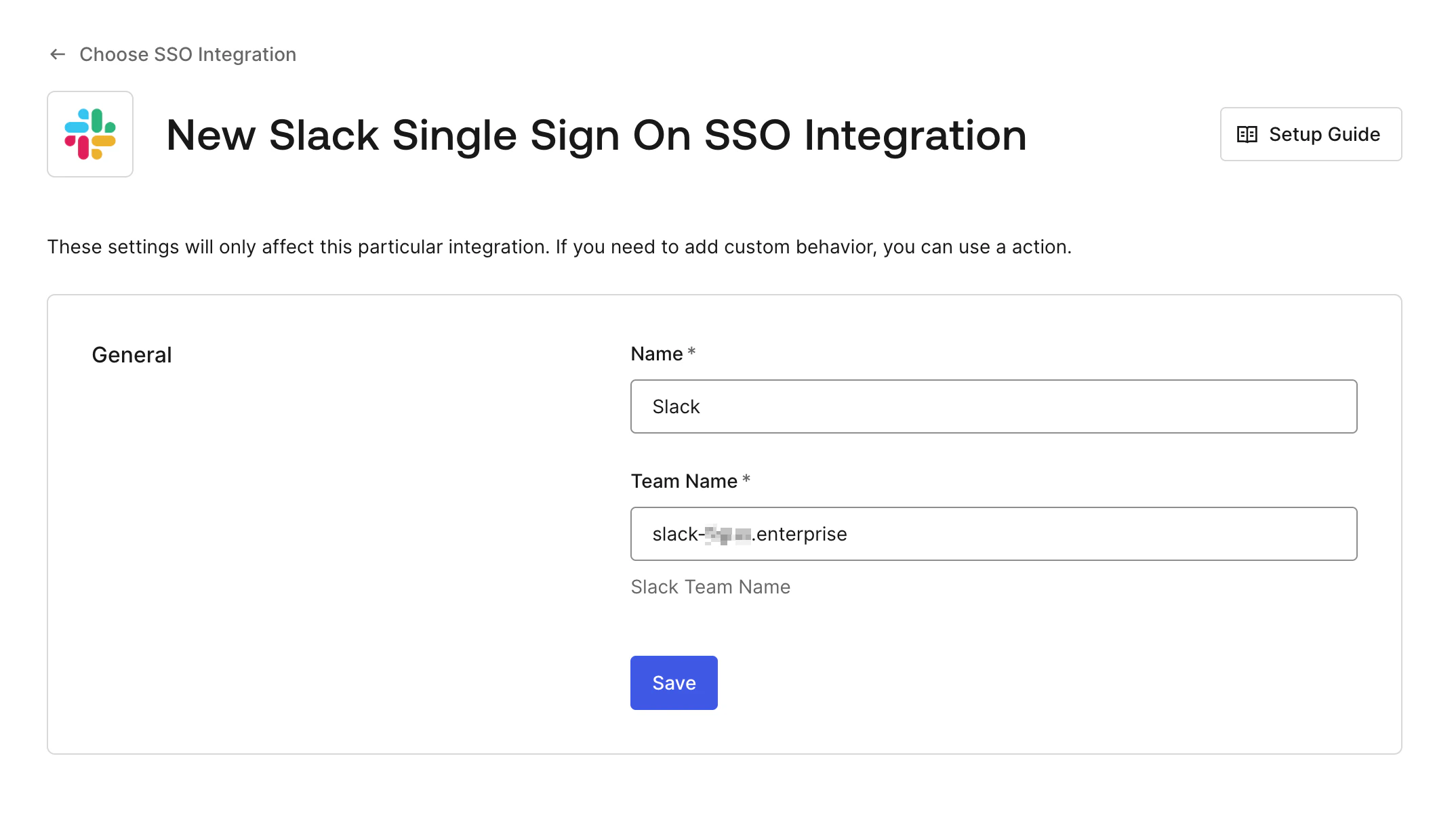 After saving, Auth0 generates the SAML endpoint URL, issuer URI, and signing certificate you need for the next section.
### In Slack
In Slack, go to **Settings & administration > Workspace settings > Authentication > SSO Settings** (or your Org-level SSO page on Enterprise Grid).
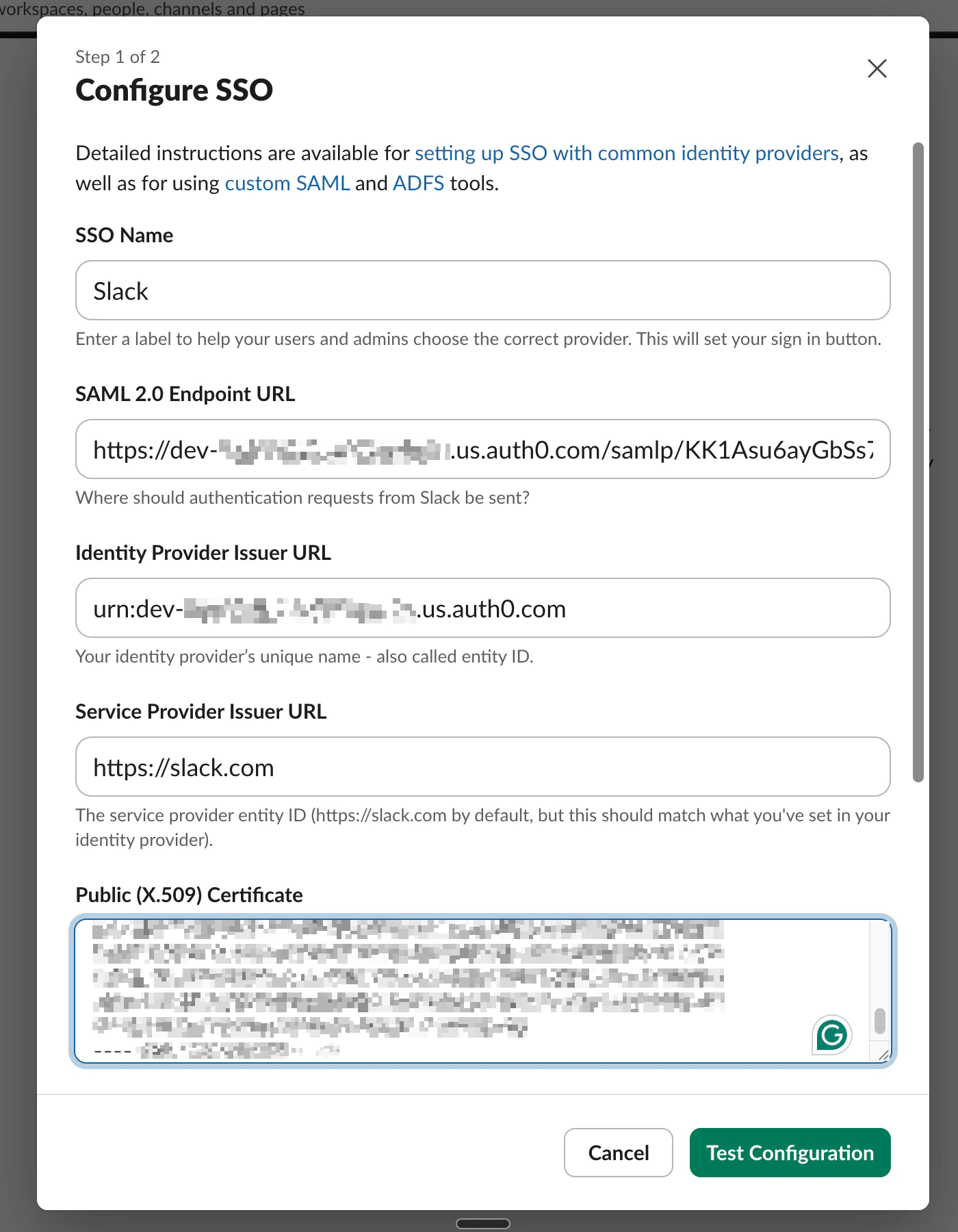
Click **Configure**. In the SSO dialog that opens, fill in the SAML fields at the top using values from your Auth0 SSO integration:
| Slack field | Auth0 value |
| -------------------------------- | -------------------------------------------------------------------------- |
| **SSO Name** | A label for the sign-in button, e.g. `Auth0` |
| **SAML 2.0 Endpoint URL** | The Auth0 SAML endpoint, e.g. `https://your-tenant.us.auth0.com/samlp/...` |
| **Identity Provider Issuer URL** | The Auth0 issuer URN, e.g. `urn:dev-xxxxx.us.auth0.com` |
| **Service Provider Issuer URL** | `https://slack.com` (default) |
| **Public (X.509) Certificate** | Copy the full certificate from Auth0 |
After saving, Auth0 generates the SAML endpoint URL, issuer URI, and signing certificate you need for the next section.
### In Slack
In Slack, go to **Settings & administration > Workspace settings > Authentication > SSO Settings** (or your Org-level SSO page on Enterprise Grid).
Click **Configure**. In the SSO dialog that opens, fill in the SAML fields at the top using values from your Auth0 SSO integration:
| Slack field | Auth0 value |
| -------------------------------- | -------------------------------------------------------------------------- |
| **SSO Name** | A label for the sign-in button, e.g. `Auth0` |
| **SAML 2.0 Endpoint URL** | The Auth0 SAML endpoint, e.g. `https://your-tenant.us.auth0.com/samlp/...` |
| **Identity Provider Issuer URL** | The Auth0 issuer URN, e.g. `urn:dev-xxxxx.us.auth0.com` |
| **Service Provider Issuer URL** | `https://slack.com` (default) |
| **Public (X.509) Certificate** | Copy the full certificate from Auth0 |
 Scroll down in the same dialog and set:
* **AuthnContextClassRef**: Leave as the default (`urn:oasis:names:tc:SAML:2.0:ac:classes:PasswordProtectedTransport`)
* **SAML Request Signing**: Leave unchecked unless your IDP requires signed requests
* **SAML Response Signing**: Check **Sign the Assertion** (at least one signing option is required)
Scroll down in the same dialog and set:
* **AuthnContextClassRef**: Leave as the default (`urn:oasis:names:tc:SAML:2.0:ac:classes:PasswordProtectedTransport`)
* **SAML Request Signing**: Leave unchecked unless your IDP requires signed requests
* **SAML Response Signing**: Check **Sign the Assertion** (at least one signing option is required)
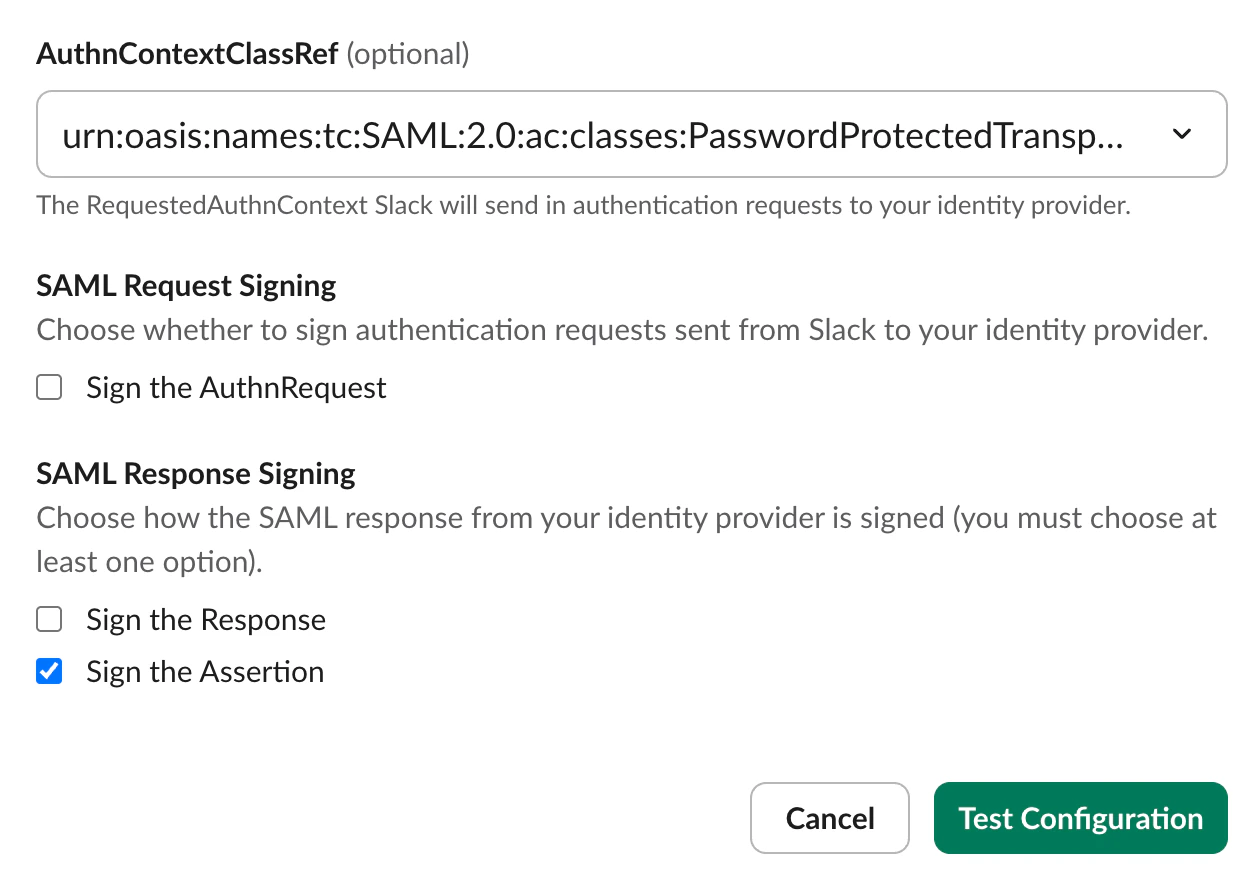 Click **Test Configuration** to verify the connection.
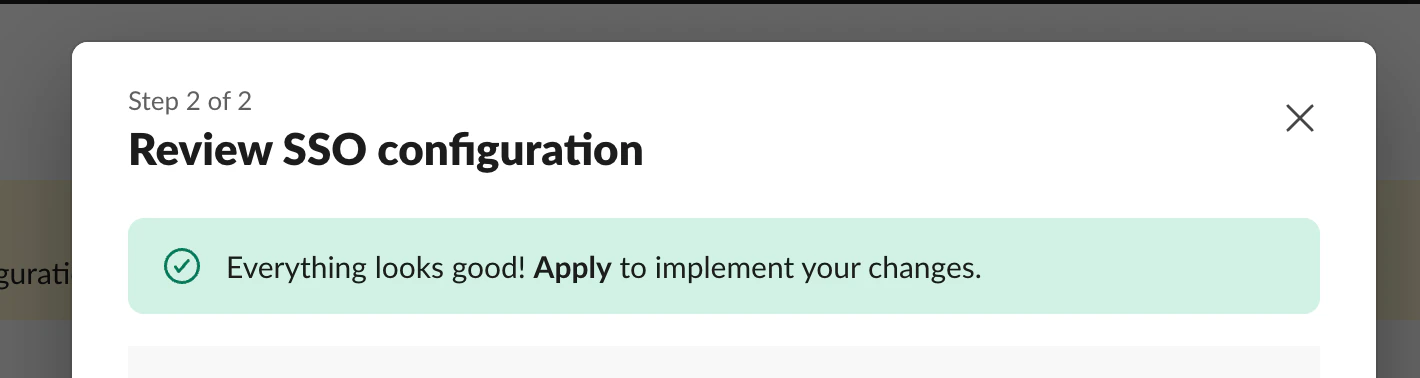
 If the test passes, review the configuration and click **Apply**.
Signing the SAML response (optional)
**Signing the assertion alone is secure for most deployments.** The assertion is the part of the SAML payload that carries the user's identity and authentication claims, so signing it protects the data Slack actually trusts. Signing the outer response adds a second signature over envelope metadata (issuer, destination, `InResponseTo`) and is defense-in-depth, not a prerequisite — the default Auth0 Slack SSO integration signs only the assertion for this reason.
Follow the steps below only if your security team explicitly requires `signResponse` (for example, to satisfy an internal SAML hardening policy or a compliance control). Doing so requires replacing the pre-built SSO integration with a custom SAML application.
To sign the full SAML response:
In Auth0, go to **Applications > Applications** and create a **Regular Web Application**.
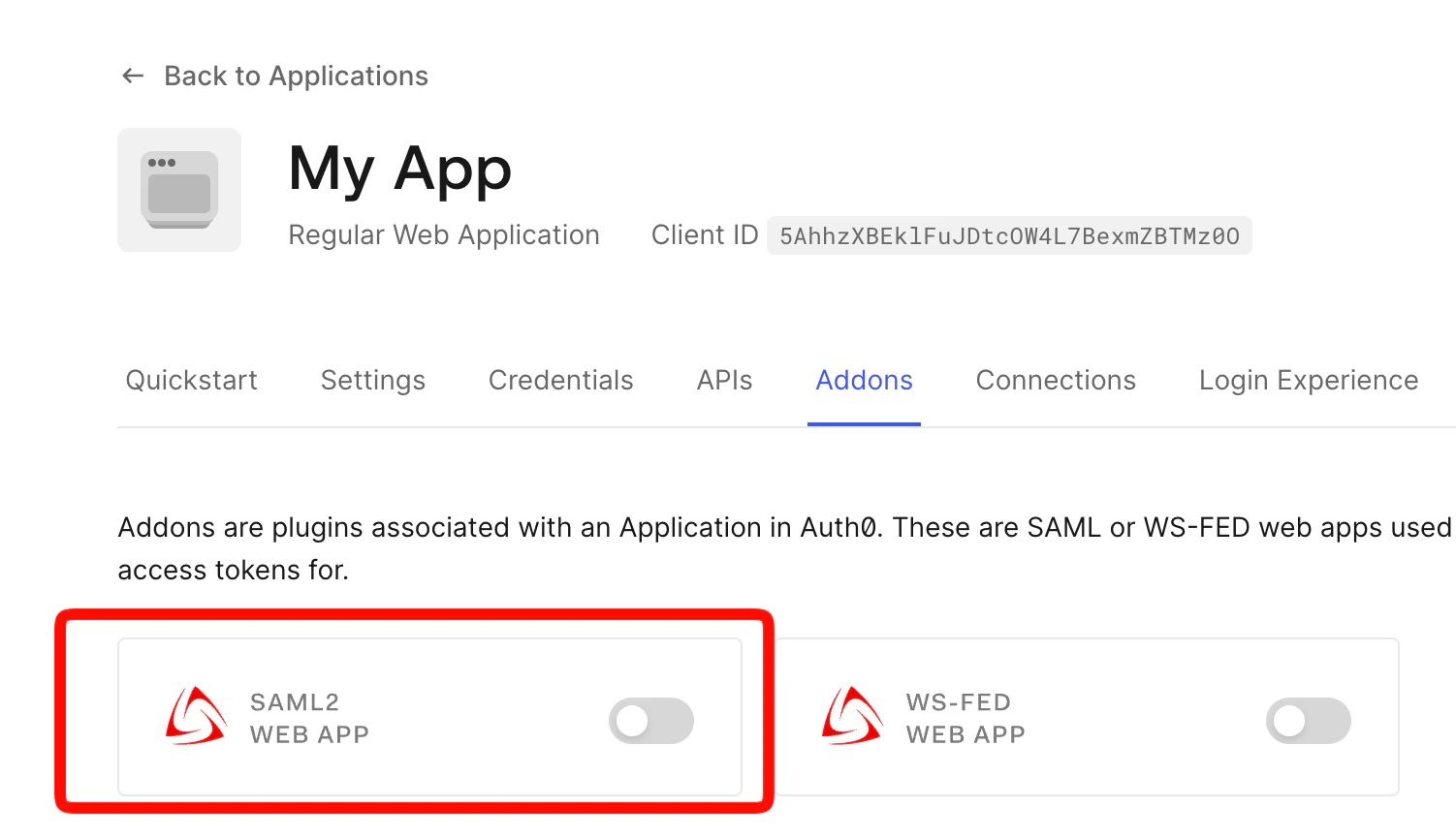
Open the application, go to the **Addons** tab, and enable the **SAML2 Web App** addon.
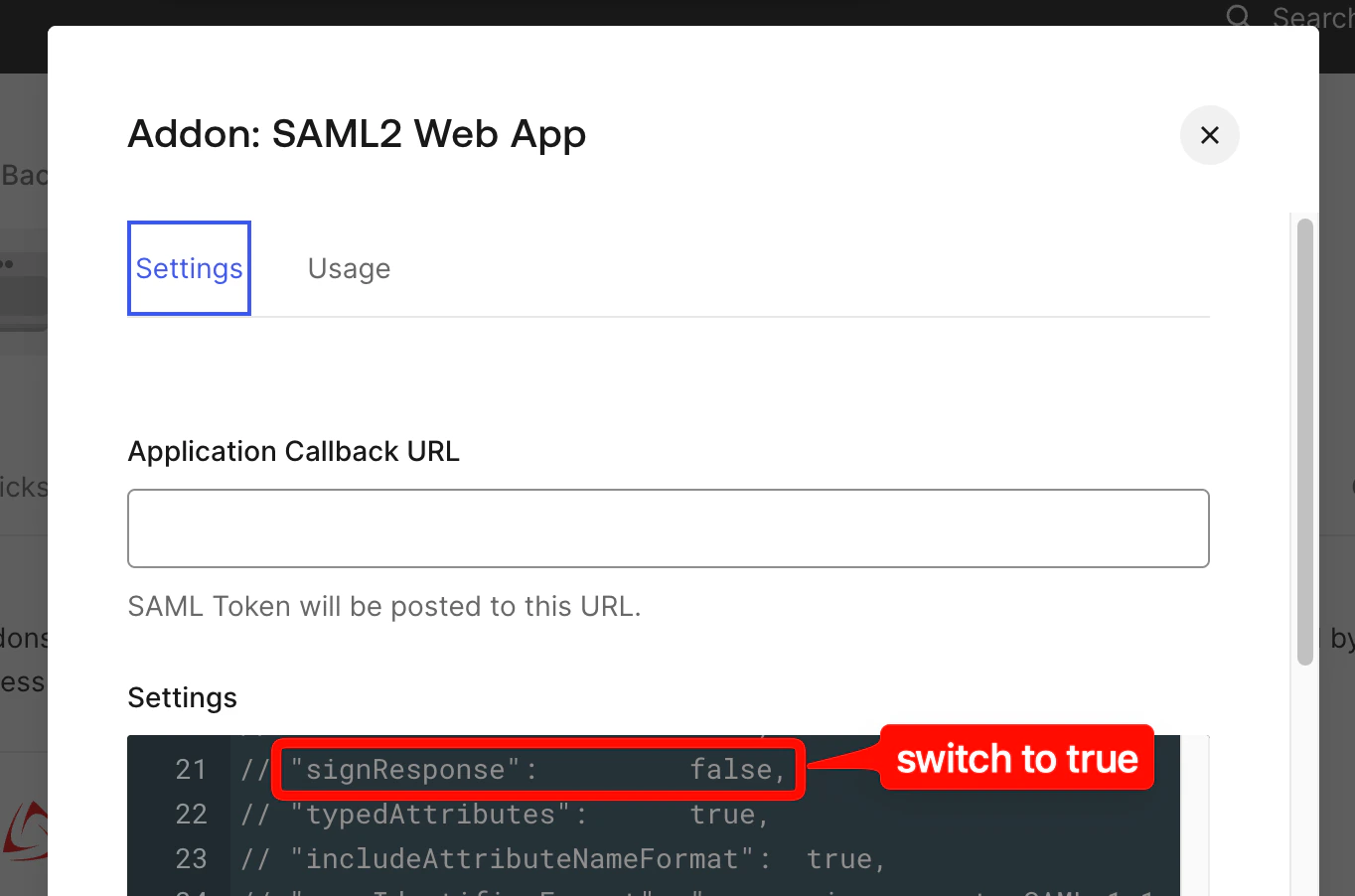
 In the addon settings, find the `signResponse` property and set it to `true`.
 Use the SAML endpoint URL and certificate from this custom application (instead of the SSO integration) when filling in the Slack SSO dialog in the [In Slack](#in-slack) section above.
At this point, Slack SSO is fully configured. Users can sign in to your Slack workspace through Auth0. The remaining steps are optional and cover adding Tightknit membership verification to the login flow.
## Verifying Tightknit community membership (optional)
If you use a social connection (Google, Microsoft, etc.) as the login method in Auth0, anyone with a valid social account can authenticate, even if they are not a member of your community. The steps below add a post-login check that verifies membership via the Tightknit API before granting access.
The full login flow with the membership check in place:
```mermaid theme={null}
sequenceDiagram
autonumber
actor User
participant Slack
participant Auth0
participant TK as Tightknit API
User->>Slack: Sign in with SSO
Slack->>Auth0: SAML authentication request
Auth0->>User: Social login prompt (Google, Microsoft, ...)
User->>Auth0: Authenticate
Auth0->>TK: POST /admin/v0/members/check
Use the SAML endpoint URL and certificate from this custom application (instead of the SSO integration) when filling in the Slack SSO dialog in the [In Slack](#in-slack) section above.
At this point, Slack SSO is fully configured. Users can sign in to your Slack workspace through Auth0. The remaining steps are optional and cover adding Tightknit membership verification to the login flow.
## Verifying Tightknit community membership (optional)
If you use a social connection (Google, Microsoft, etc.) as the login method in Auth0, anyone with a valid social account can authenticate, even if they are not a member of your community. The steps below add a post-login check that verifies membership via the Tightknit API before granting access.
The full login flow with the membership check in place:
```mermaid theme={null}
sequenceDiagram
autonumber
actor User
participant Slack
participant Auth0
participant TK as Tightknit API
User->>Slack: Sign in with SSO
Slack->>Auth0: SAML authentication request
Auth0->>User: Social login prompt (Google, Microsoft, ...)
User->>Auth0: Authenticate
Auth0->>TK: POST /admin/v0/members/check
(post-login action)
TK-->>Auth0: is_member, is_deactivated, is_forgotten
alt Active member
Auth0->>Slack: Signed SAML response
Slack->>User: Signed in to the workspace
else Non-member, deactivated, or forgotten
Auth0->>User: Redirect to your community login page
with an error code
end
```
### Additional prerequisites
* A Google (or other) social connection enabled in Auth0
* A [Tightknit API key](/integrations/api-keys) for your community
### In Tightknit Studio
Open [Tightknit Studio](https://studio.tightknit.ai/-/integrations/api-keys), go to **Integrations > API Keys**, and create or copy an existing key.
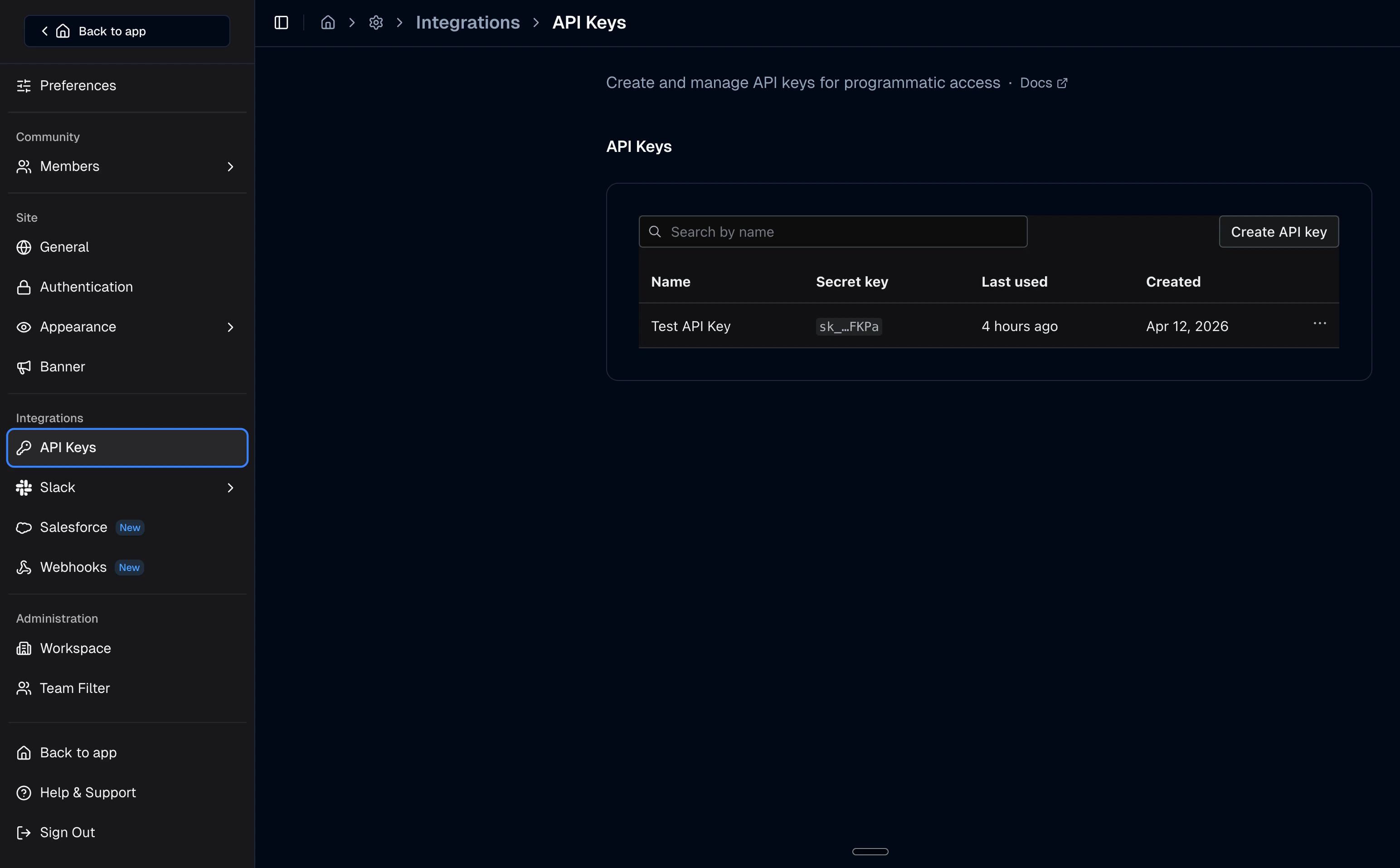 This key authenticates requests to the Tightknit membership check endpoint. Customer API keys are scoped to your community, so no additional headers are needed.
### In Auth0
**Why is this needed?** If your Auth0 tenant uses a social connection (Google, Microsoft, etc.) as the login method for your SAML application, anyone with a valid social account can authenticate, even if they are not a member of your community. IDPs cannot reject users before the social login completes, so a post-login check is required to verify membership. Without it, non-members see a broken Slack authentication failure instead of a clear error message.
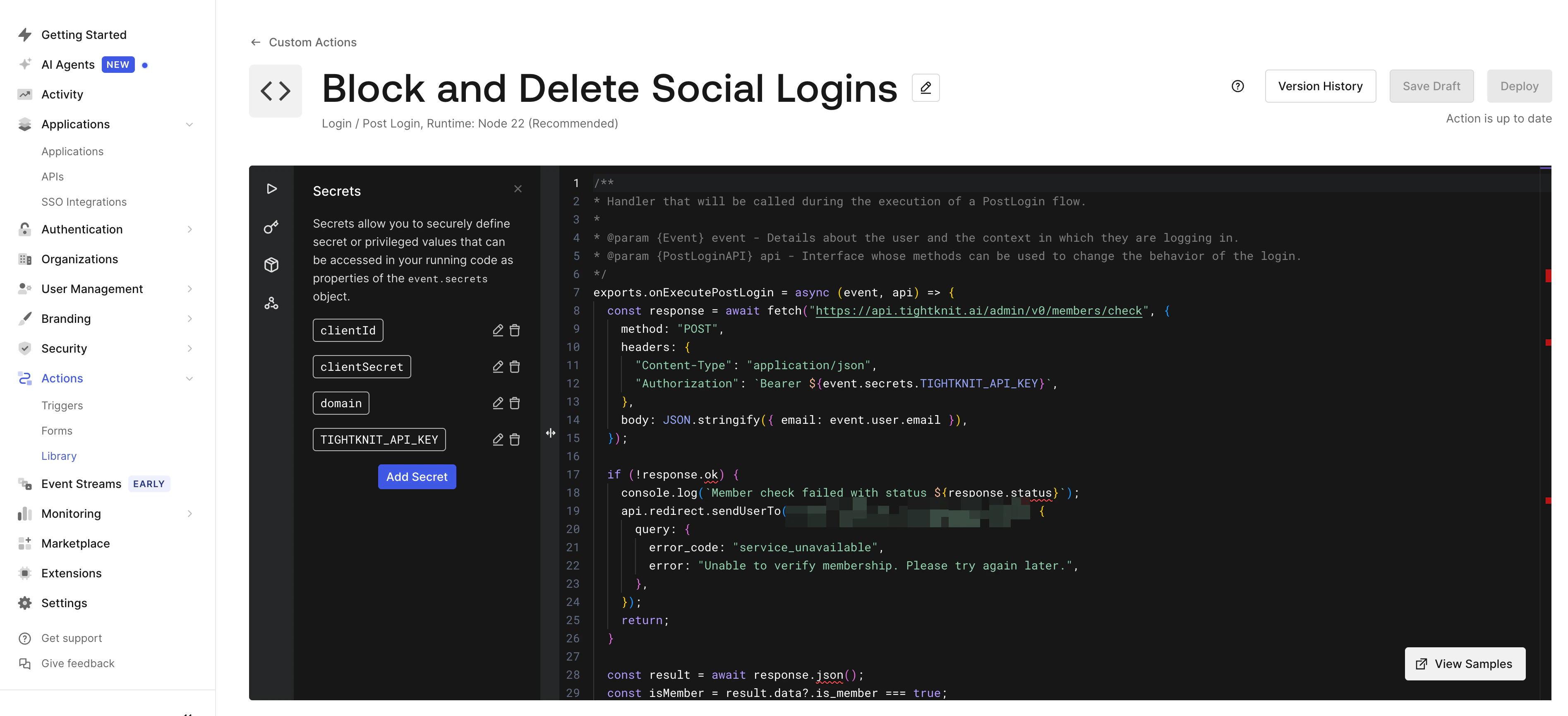
In the Auth0 Dashboard, go to **Actions > Library > Build Custom**. Name it **Tightknit Membership Check**, select the **Login / Post Login** trigger, and paste the code below.
This key authenticates requests to the Tightknit membership check endpoint. Customer API keys are scoped to your community, so no additional headers are needed.
### In Auth0
**Why is this needed?** If your Auth0 tenant uses a social connection (Google, Microsoft, etc.) as the login method for your SAML application, anyone with a valid social account can authenticate, even if they are not a member of your community. IDPs cannot reject users before the social login completes, so a post-login check is required to verify membership. Without it, non-members see a broken Slack authentication failure instead of a clear error message.
In the Auth0 Dashboard, go to **Actions > Library > Build Custom**. Name it **Tightknit Membership Check**, select the **Login / Post Login** trigger, and paste the code below.
 ```javascript Auth0 Action theme={null}
// Replace with your community's login page URL
const LOGIN_PAGE_URL = "https://your-community.tightknit.ai/login";
exports.onExecutePostLogin = async (event, api) => {
// ---------------------------------------------------------------
// Check membership via the Tightknit API.
// The endpoint returns is_member, is_deactivated, and is_forgotten
// for the given email address.
// ---------------------------------------------------------------
const response = await fetch("https://api.tightknit.ai/admin/v0/members/check", {
method: "POST",
headers: {
"Content-Type": "application/json",
// Customer API key, scoped to your community (no tenant header needed)
"Authorization": `Bearer ${event.secrets.TIGHTKNIT_API_KEY}`,
},
body: JSON.stringify({ email: event.user.email }),
});
// ---------------------------------------------------------------
// Fail closed: if the API is unreachable, block the login.
// ---------------------------------------------------------------
if (!response.ok) {
console.log(`Member check failed with status ${response.status}`);
api.redirect.sendUserTo(LOGIN_PAGE_URL, {
query: { error: "service_unavailable" },
});
return;
}
const result = await response.json();
const isMember = result.data?.is_member === true;
const isDeactivated = result.data?.is_deactivated === true;
const isForgotten = result.data?.is_forgotten === true;
// ---------------------------------------------------------------
// Not a member: redirect to error page.
// We use api.redirect.sendUserTo() instead of api.access.deny()
// because deny() produces a broken SAML response that Slack
// can't display cleanly. The redirect gives the user a clear,
// branded error message on the community login page.
// ---------------------------------------------------------------
if (!isMember) {
api.redirect.sendUserTo(LOGIN_PAGE_URL, {
query: { error: "member_not_found" },
});
// Clean up the Auth0 user if it was just auto-created.
// logins_count === 0 means this is their first attempt.
if (event.stats.logins_count === 0) {
try {
const ManagementClient = require("auth0").ManagementClient;
const management = new ManagementClient({
domain: event.secrets.domain,
clientId: event.secrets.clientId,
clientSecret: event.secrets.clientSecret,
});
await management.users.delete({ id: event.user.user_id });
} catch (e) {
console.log(`Failed to delete non-member user: ${e.message}`);
}
}
return;
}
// ---------------------------------------------------------------
// Member exists but account is deactivated or forgotten (GDPR).
// ---------------------------------------------------------------
if (isDeactivated) {
api.redirect.sendUserTo(LOGIN_PAGE_URL, {
query: { error: "account_deactivated" },
});
return;
}
if (isForgotten) {
api.redirect.sendUserTo(LOGIN_PAGE_URL, {
query: { error: "account_forgotten" },
});
return;
}
// ---------------------------------------------------------------
// Active member: allow the login to complete.
// Auth0 sends the SAML response to Slack and the user is logged in.
// ---------------------------------------------------------------
};
```
In the action editor, click the **lock icon** (Secrets) and add:
| Secret | Value |
| ------------------- | --------------------------------------------------------------- |
| `TIGHTKNIT_API_KEY` | Your Tightknit API key from the previous section |
| `domain` | Your Auth0 tenant domain, e.g. `your-tenant.us.auth0.com` |
| `clientId` | Client ID of an Auth0 M2M app authorized for the Management API |
| `clientSecret` | Client secret of that M2M app |
The `clientId` and `clientSecret` are for a Machine-to-Machine application authorized to call the Auth0 Management API. These are used to clean up orphaned user records, not for the SAML application.
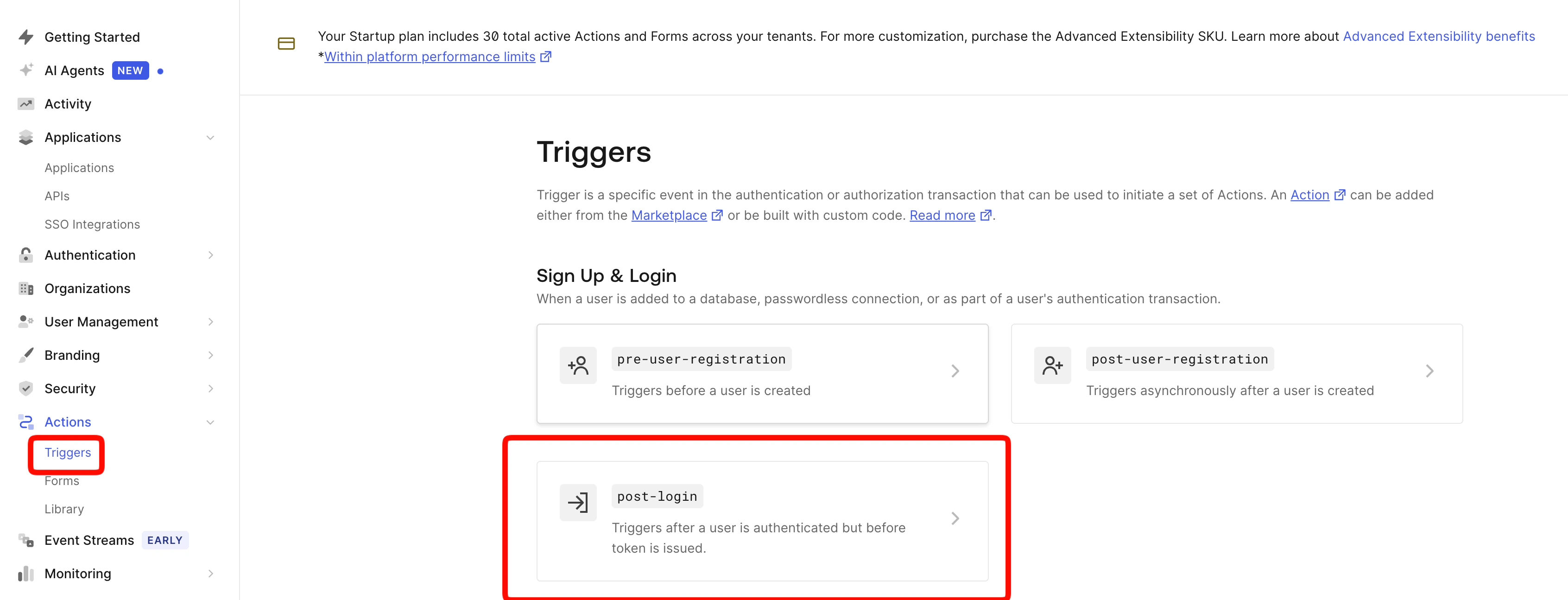
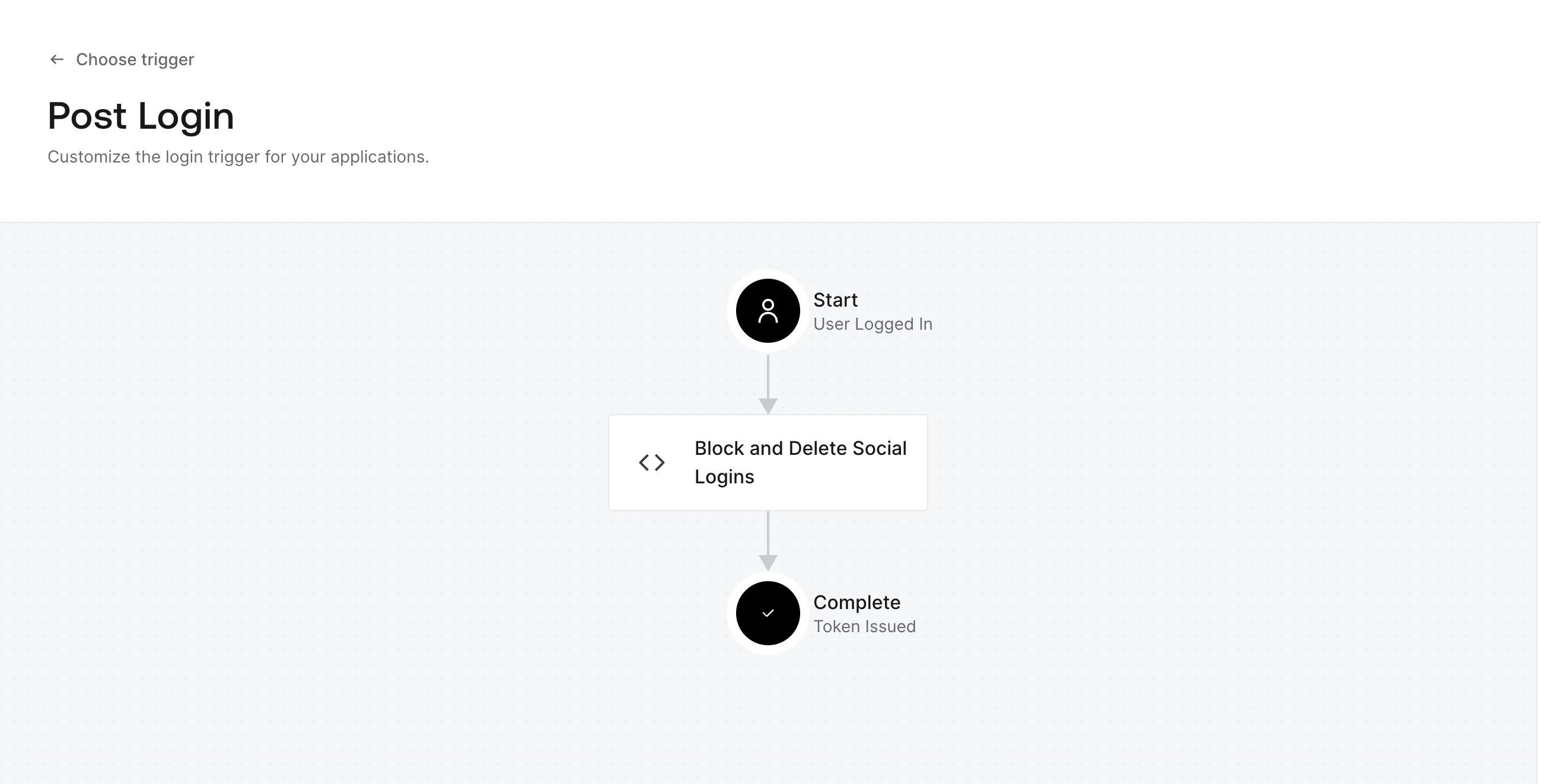
* Click **Deploy** in the action editor
* Go to **Actions > Flows > Login**
* Drag **Tightknit Membership Check** into the flow after the default login step
* Click **Apply**
```javascript Auth0 Action theme={null}
// Replace with your community's login page URL
const LOGIN_PAGE_URL = "https://your-community.tightknit.ai/login";
exports.onExecutePostLogin = async (event, api) => {
// ---------------------------------------------------------------
// Check membership via the Tightknit API.
// The endpoint returns is_member, is_deactivated, and is_forgotten
// for the given email address.
// ---------------------------------------------------------------
const response = await fetch("https://api.tightknit.ai/admin/v0/members/check", {
method: "POST",
headers: {
"Content-Type": "application/json",
// Customer API key, scoped to your community (no tenant header needed)
"Authorization": `Bearer ${event.secrets.TIGHTKNIT_API_KEY}`,
},
body: JSON.stringify({ email: event.user.email }),
});
// ---------------------------------------------------------------
// Fail closed: if the API is unreachable, block the login.
// ---------------------------------------------------------------
if (!response.ok) {
console.log(`Member check failed with status ${response.status}`);
api.redirect.sendUserTo(LOGIN_PAGE_URL, {
query: { error: "service_unavailable" },
});
return;
}
const result = await response.json();
const isMember = result.data?.is_member === true;
const isDeactivated = result.data?.is_deactivated === true;
const isForgotten = result.data?.is_forgotten === true;
// ---------------------------------------------------------------
// Not a member: redirect to error page.
// We use api.redirect.sendUserTo() instead of api.access.deny()
// because deny() produces a broken SAML response that Slack
// can't display cleanly. The redirect gives the user a clear,
// branded error message on the community login page.
// ---------------------------------------------------------------
if (!isMember) {
api.redirect.sendUserTo(LOGIN_PAGE_URL, {
query: { error: "member_not_found" },
});
// Clean up the Auth0 user if it was just auto-created.
// logins_count === 0 means this is their first attempt.
if (event.stats.logins_count === 0) {
try {
const ManagementClient = require("auth0").ManagementClient;
const management = new ManagementClient({
domain: event.secrets.domain,
clientId: event.secrets.clientId,
clientSecret: event.secrets.clientSecret,
});
await management.users.delete({ id: event.user.user_id });
} catch (e) {
console.log(`Failed to delete non-member user: ${e.message}`);
}
}
return;
}
// ---------------------------------------------------------------
// Member exists but account is deactivated or forgotten (GDPR).
// ---------------------------------------------------------------
if (isDeactivated) {
api.redirect.sendUserTo(LOGIN_PAGE_URL, {
query: { error: "account_deactivated" },
});
return;
}
if (isForgotten) {
api.redirect.sendUserTo(LOGIN_PAGE_URL, {
query: { error: "account_forgotten" },
});
return;
}
// ---------------------------------------------------------------
// Active member: allow the login to complete.
// Auth0 sends the SAML response to Slack and the user is logged in.
// ---------------------------------------------------------------
};
```
In the action editor, click the **lock icon** (Secrets) and add:
| Secret | Value |
| ------------------- | --------------------------------------------------------------- |
| `TIGHTKNIT_API_KEY` | Your Tightknit API key from the previous section |
| `domain` | Your Auth0 tenant domain, e.g. `your-tenant.us.auth0.com` |
| `clientId` | Client ID of an Auth0 M2M app authorized for the Management API |
| `clientSecret` | Client secret of that M2M app |
The `clientId` and `clientSecret` are for a Machine-to-Machine application authorized to call the Auth0 Management API. These are used to clean up orphaned user records, not for the SAML application.
* Click **Deploy** in the action editor
* Go to **Actions > Flows > Login**
* Drag **Tightknit Membership Check** into the flow after the default login step
* Click **Apply**
Force account selection (optional)
By default, Auth0 may skip the login page using a cached session, and Google may auto-select the last used account. To force users to choose every time, run these one-time Management API calls.
Get a Management API token from **Applications > APIs > Auth0 Management API > API Explorer**.
```bash theme={null}
curl -X PATCH \
https://your-tenant.us.auth0.com/api/v2/clients/YOUR_SAML_APP_CLIENT_ID \
-H "Authorization: Bearer YOUR_MGMT_TOKEN" \
-H "Content-Type: application/json" \
-d '{"sso_disabled": true}'
```
```bash theme={null}
# Get your Google connection ID
curl https://your-tenant.us.auth0.com/api/v2/connections?strategy=google-oauth2 \
-H "Authorization: Bearer YOUR_MGMT_TOKEN"
# Update the connection
curl -X PATCH \
https://your-tenant.us.auth0.com/api/v2/connections/GOOGLE_CONNECTION_ID \
-H "Authorization: Bearer YOUR_MGMT_TOKEN" \
-H "Content-Type: application/json" \
-d '{"options": {"upstream_params": {"prompt": {"value": "select_account"}}}}'
```
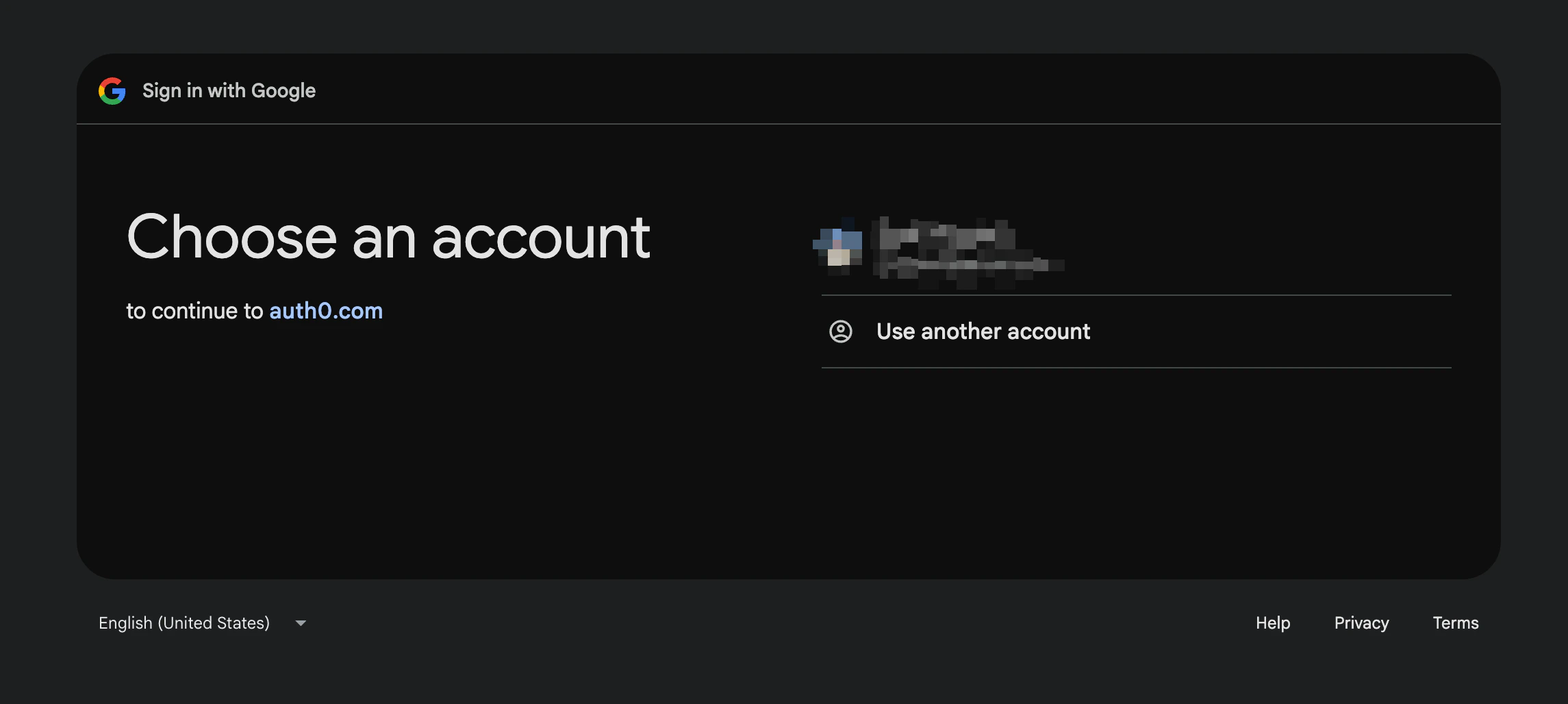 ### Test
Use Slack SSO with an email that belongs to an active community member. You should be logged into Slack.
### Test
Use Slack SSO with an email that belongs to an active community member. You should be logged into Slack.
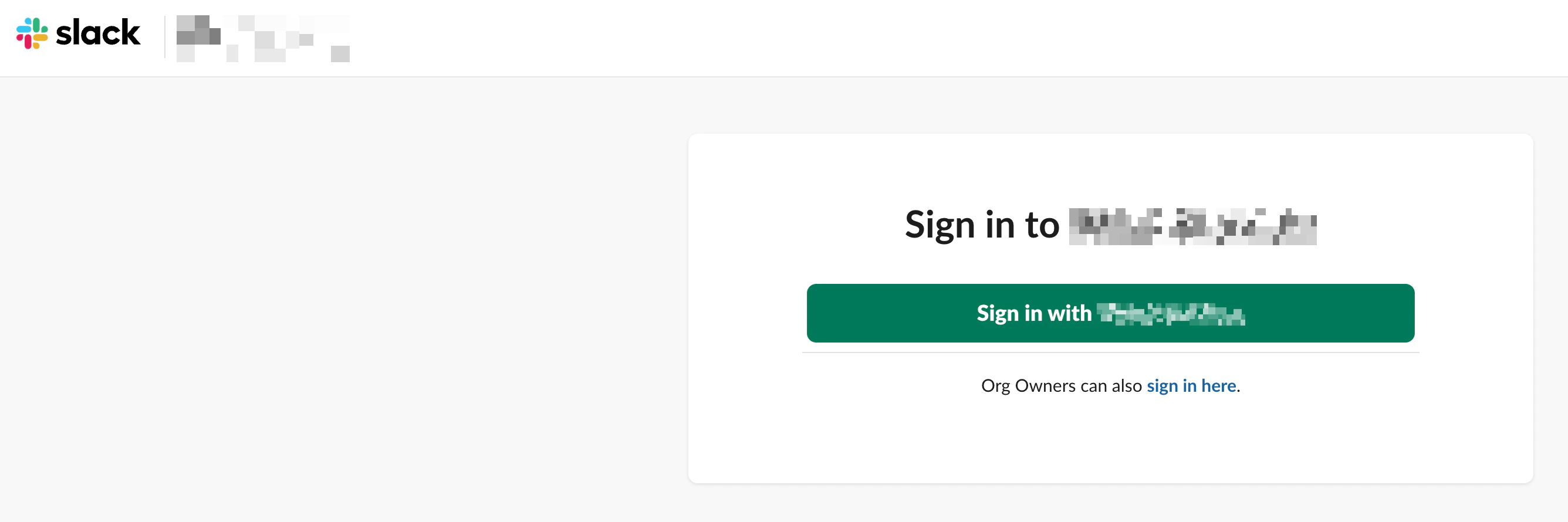
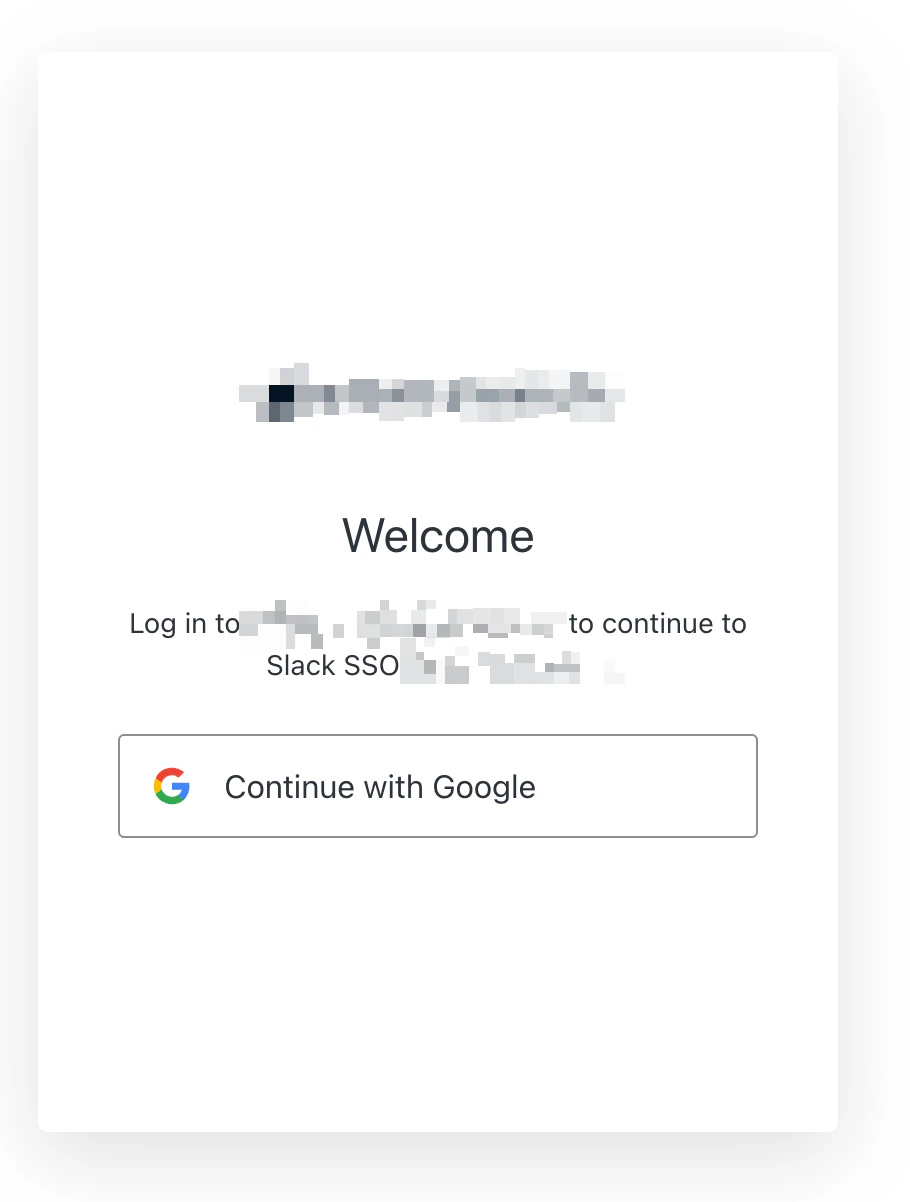 Use an email that is not in your community. You should be redirected to your login page with the message "An account with this email address does not exist."
In Auth0, go to **Monitoring > Logs** to verify the action ran. Look for `console.log` output in the event details.
## Error codes
When the action redirects to your login page, the `error` query parameter tells the page which message to display.
| Code | Message |
| --------------------- | ----------------------------------------------------------------------- |
| `member_not_found` | An account with this email address does not exist. |
| `account_deactivated` | Your account has been deactivated. Please contact your administrator. |
| `account_forgotten` | Your account is no longer available. Please contact your administrator. |
| `service_unavailable` | Unable to verify your account at this time. Please try again later. |
See [login error codes](/community-site/authentication#login-error-codes) for the full list.
## Troubleshooting
### Slack shows a broken error page
Verify the action uses `api.redirect.sendUserTo()` and not `api.access.deny()`. The `deny()` method sends a failed SAML response that Slack cannot display.
### Users are auto-logged in without choosing an account
Run the `sso_disabled` and `upstream_params` commands from [Force account selection](#force-account-selection).
### Member check returns 401 or 403
Verify the `TIGHTKNIT_API_KEY` secret is correct. Generate a new key from [Studio > Integrations > API Keys](/integrations/api-keys) if needed.
### Action does not run
Confirm the action is deployed and attached to the Login flow in **Actions > Flows > Login**.
### SAML response signing fails
If Slack rejects the SAML response, check that the certificate in Slack matches the one from Auth0. If you need a signed response (not just a signed assertion), follow the [custom SAML application steps](#sign-saml-response).
## Related topics
- [Guides](/guides/index.md)
- [Single sign-on (SSO)](/community-site/sso.md)
- [Security at Tightknit](/security/overview.md)
- [Authentication](/community-site/authentication.md)
- [Check membership](/api-reference/members/check-membership.md)
Use an email that is not in your community. You should be redirected to your login page with the message "An account with this email address does not exist."
In Auth0, go to **Monitoring > Logs** to verify the action ran. Look for `console.log` output in the event details.
## Error codes
When the action redirects to your login page, the `error` query parameter tells the page which message to display.
| Code | Message |
| --------------------- | ----------------------------------------------------------------------- |
| `member_not_found` | An account with this email address does not exist. |
| `account_deactivated` | Your account has been deactivated. Please contact your administrator. |
| `account_forgotten` | Your account is no longer available. Please contact your administrator. |
| `service_unavailable` | Unable to verify your account at this time. Please try again later. |
See [login error codes](/community-site/authentication#login-error-codes) for the full list.
## Troubleshooting
### Slack shows a broken error page
Verify the action uses `api.redirect.sendUserTo()` and not `api.access.deny()`. The `deny()` method sends a failed SAML response that Slack cannot display.
### Users are auto-logged in without choosing an account
Run the `sso_disabled` and `upstream_params` commands from [Force account selection](#force-account-selection).
### Member check returns 401 or 403
Verify the `TIGHTKNIT_API_KEY` secret is correct. Generate a new key from [Studio > Integrations > API Keys](/integrations/api-keys) if needed.
### Action does not run
Confirm the action is deployed and attached to the Login flow in **Actions > Flows > Login**.
### SAML response signing fails
If Slack rejects the SAML response, check that the certificate in Slack matches the one from Auth0. If you need a signed response (not just a signed assertion), follow the [custom SAML application steps](#sign-saml-response).
## Related topics
- [Guides](/guides/index.md)
- [Single sign-on (SSO)](/community-site/sso.md)
- [Security at Tightknit](/security/overview.md)
- [Authentication](/community-site/authentication.md)
- [Check membership](/api-reference/members/check-membership.md)