> ## Documentation Index
> Fetch the complete documentation index at: https://docs.tightknit.ai/llms.txt
> Use this file to discover all available pages before exploring further.
# Invite and activate members
> Add members to your community and set up permissions.
## 1. Invite members to Slack
Go to **Slackbot** and click **Invite New Members**
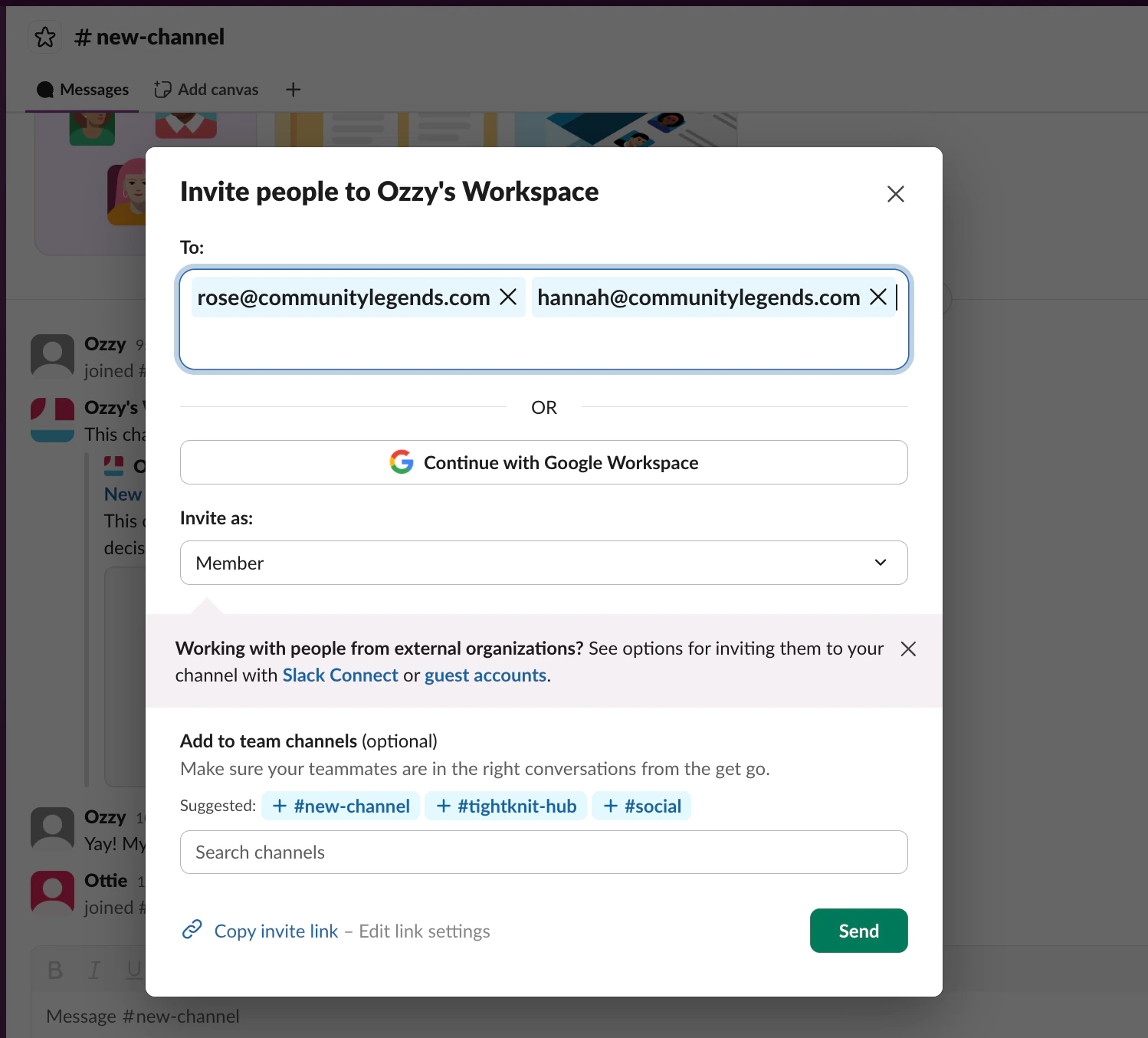
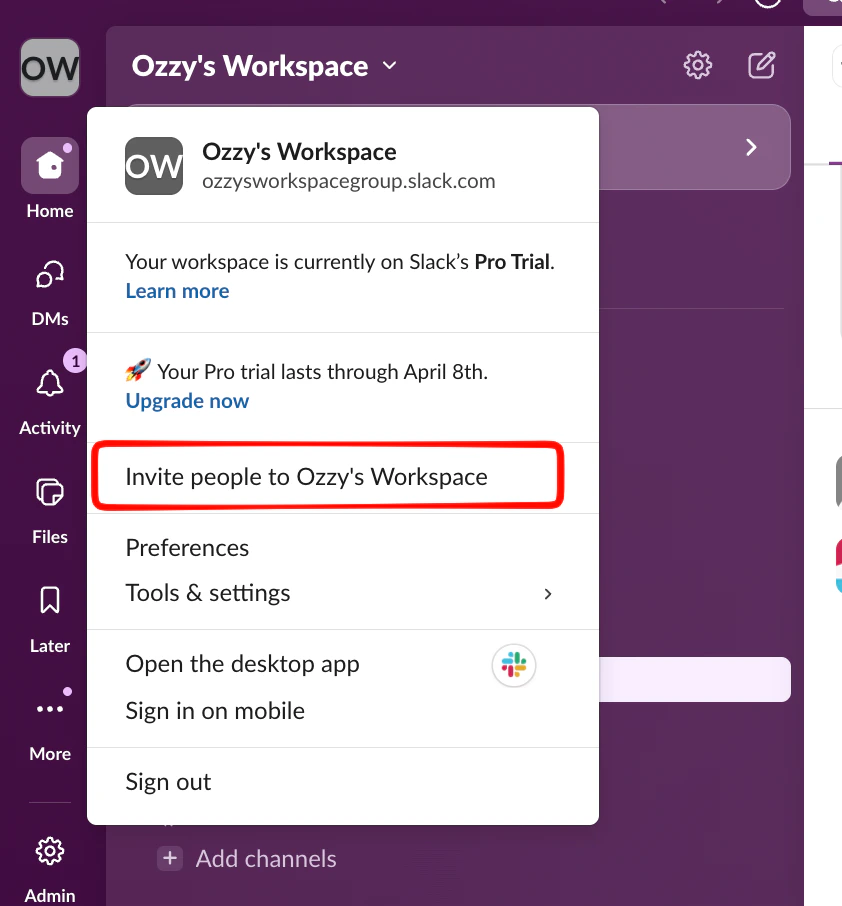 Choose your method:
* **Email:** Enter addresses separated by commas
* **Invite link:** Generate a shareable link
* **Domain allowlist:** Auto-approve specific email domains
Click **Send Invitations** or **Copy Link**
Choose your method:
* **Email:** Enter addresses separated by commas
* **Invite link:** Generate a shareable link
* **Domain allowlist:** Auto-approve specific email domains
Click **Send Invitations** or **Copy Link**
 ## 2. Add community admins
Admins help with moderation, welcoming members, and distributing decision-making.
* Go to **Members** in your Slack dashboard
* Click on a member's name to open their profile
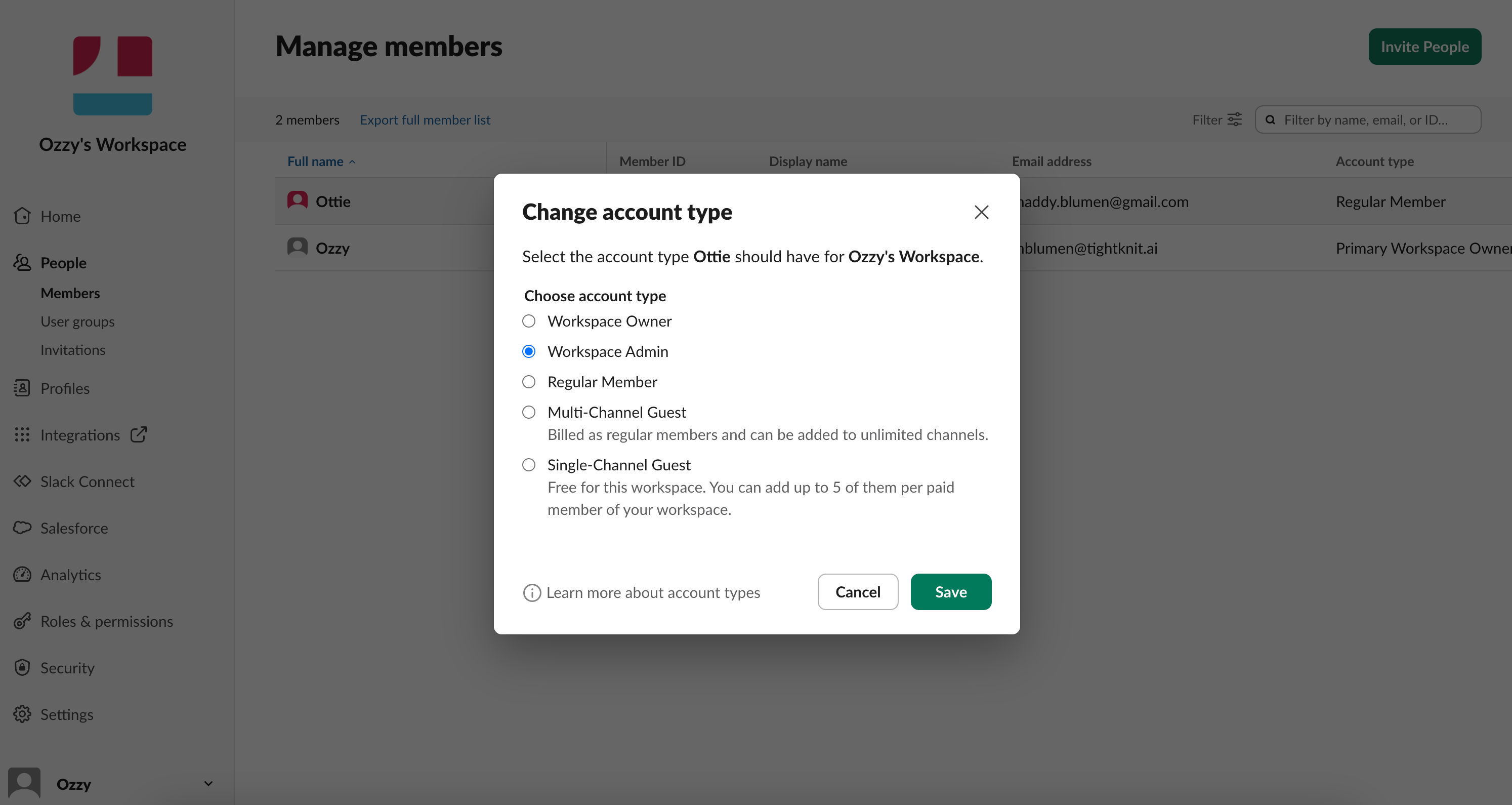
* Click **Edit Role** → select **Workspace Admin**
* Confirm the role change
## 2. Add community admins
Admins help with moderation, welcoming members, and distributing decision-making.
* Go to **Members** in your Slack dashboard
* Click on a member's name to open their profile
* Click **Edit Role** → select **Workspace Admin**
* Confirm the role change
 ### 3. Configure admin permissions
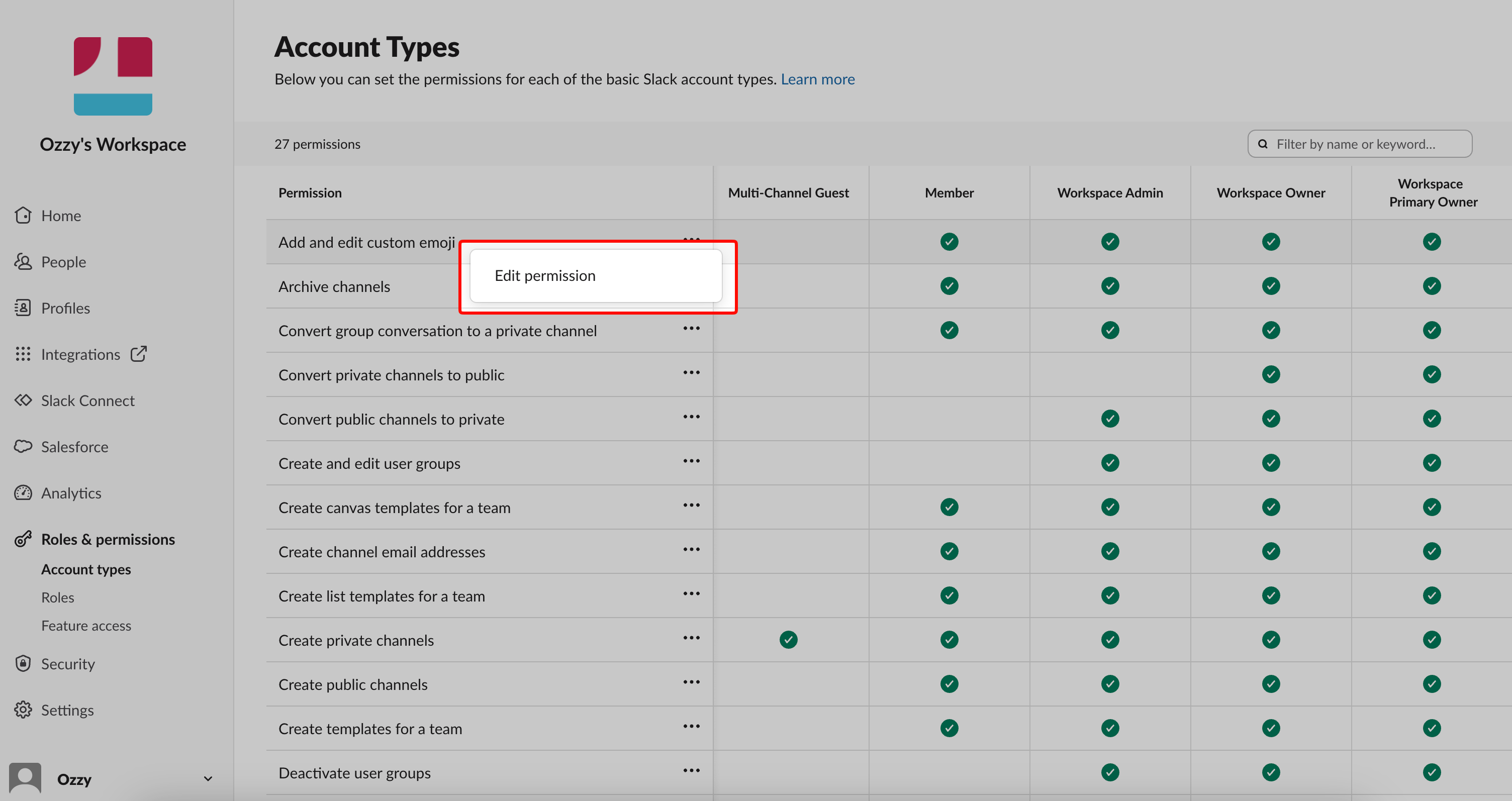
Go to **Settings** → **Roles & Permissions** to define what admins can do:
* Click **Account Types**
* Edit permissions by clicking the three dots next to each item
### 3. Configure admin permissions
Go to **Settings** → **Roles & Permissions** to define what admins can do:
* Click **Account Types**
* Edit permissions by clicking the three dots next to each item
 ## Troubleshooting
* Check email addresses for typos
* Ask members to check spam folders
* Try using an invite link instead
Go to **Settings** → **Channels** and verify channel permissions allow new members.
Go to **Settings** → **Admin Roles** and ensure the permission is enabled. Some features may be owner-only.
* Set the link to never expire
* Check if maximum uses has been reached
* Verify new sign-ups are allowed
***
**Start small:** Begin with 10-20 engaged members to test your onboarding, set the culture, and identify early champions before scaling.
## Related topics
- [Quickstart](/getting-started.md)
- [Guides](/guides/index.md)
- [Activate a Channel for Tightknit](/channels-and-feeds/activate-channel.md)
- [Slash Commands](/slack/shortcuts-and-commands/slash-commands.md)
- [Create Channels and Feeds](/guides/create-your-core-channels.md)
## Troubleshooting
* Check email addresses for typos
* Ask members to check spam folders
* Try using an invite link instead
Go to **Settings** → **Channels** and verify channel permissions allow new members.
Go to **Settings** → **Admin Roles** and ensure the permission is enabled. Some features may be owner-only.
* Set the link to never expire
* Check if maximum uses has been reached
* Verify new sign-ups are allowed
***
**Start small:** Begin with 10-20 engaged members to test your onboarding, set the culture, and identify early champions before scaling.
## Related topics
- [Quickstart](/getting-started.md)
- [Guides](/guides/index.md)
- [Activate a Channel for Tightknit](/channels-and-feeds/activate-channel.md)
- [Slash Commands](/slack/shortcuts-and-commands/slash-commands.md)
- [Create Channels and Feeds](/guides/create-your-core-channels.md)