> ## Documentation Index
> Fetch the complete documentation index at: https://docs.tightknit.ai/llms.txt
> Use this file to discover all available pages before exploring further.
# Create Your Slack Workspace
> Set up a Slack workspace that's ready to host your community.
**Slack plan:** Works on any plan, including Free.
Set up a Slack workspace that is ready to host your community. This guide covers workspace creation, essential settings, and how to prepare for Tightknit.
Skip this guide if you already have a Slack workspace.
* Click the **+** at the bottom of Slack's left sidebar
* Select **Create a new workspace**
* Use your work email and name it (e.g. `Ozzy's Workspace`)
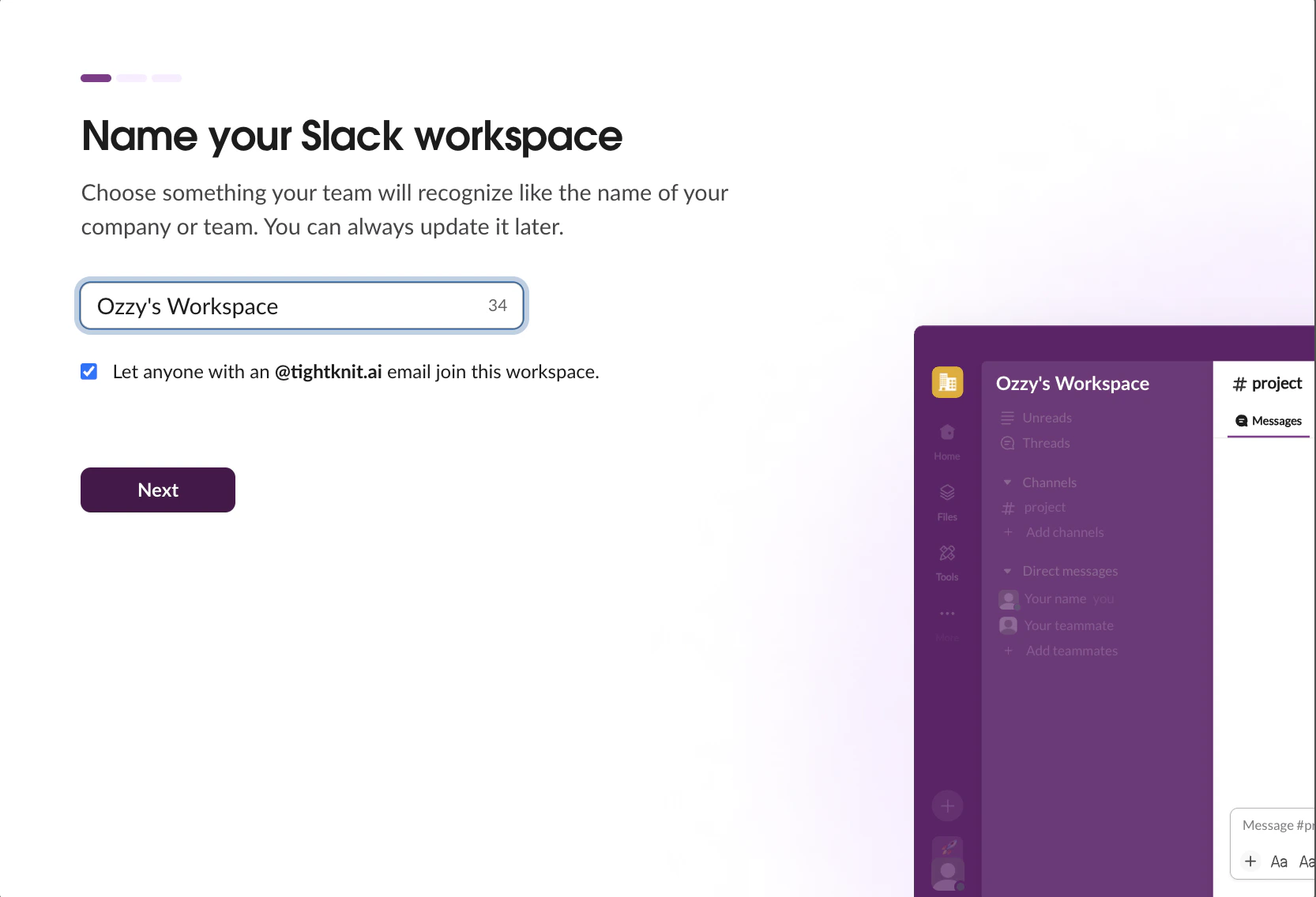 * Click your workspace name in the top-left corner
* Select **Tools & settings > Workspace settings**
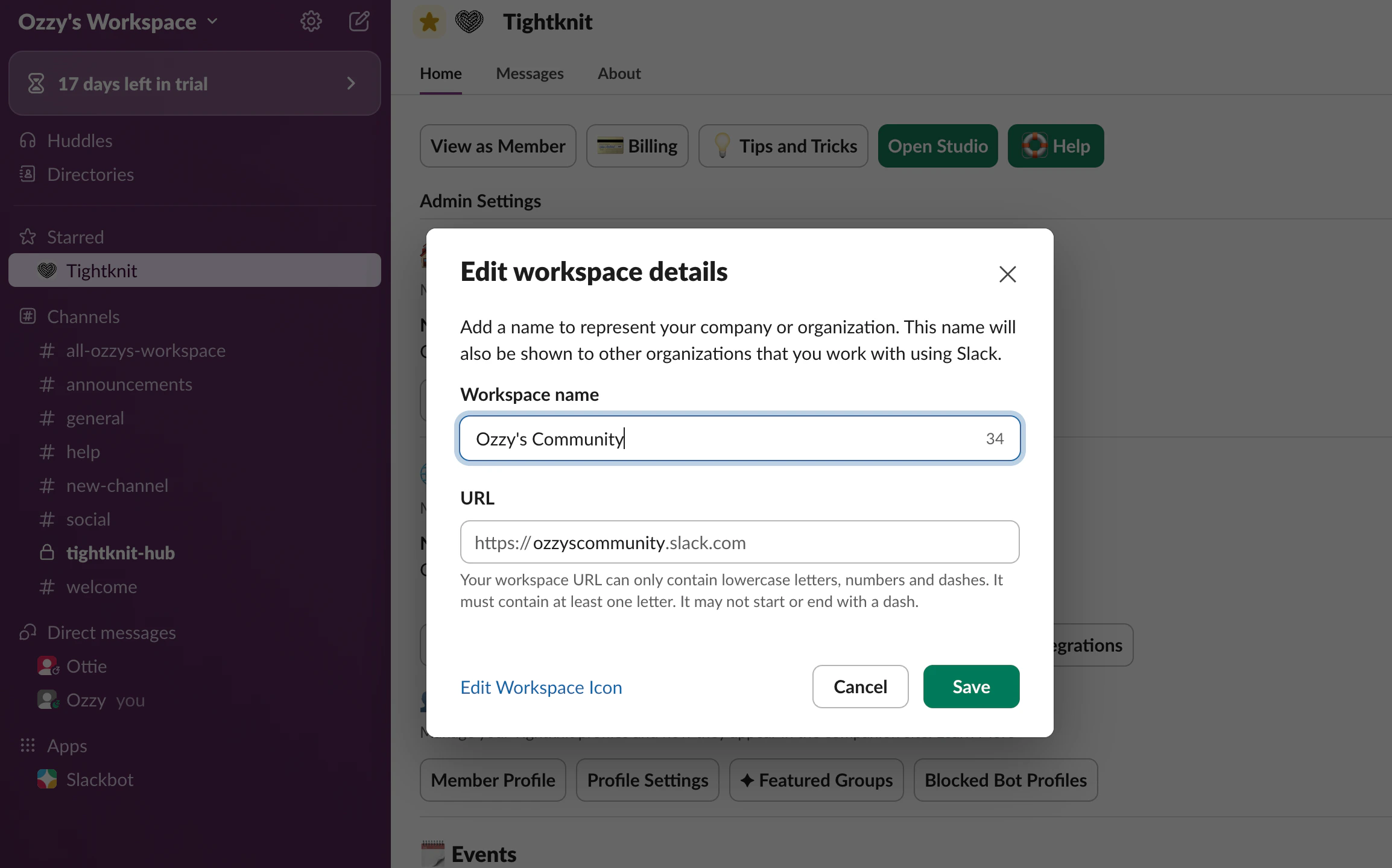
* Under Workspace name and URL, set a clean, memorable URL. This becomes part of your Slack invite link
* Click your workspace name in the top-left corner
* Select **Tools & settings > Workspace settings**
* Under Workspace name and URL, set a clean, memorable URL. This becomes part of your Slack invite link
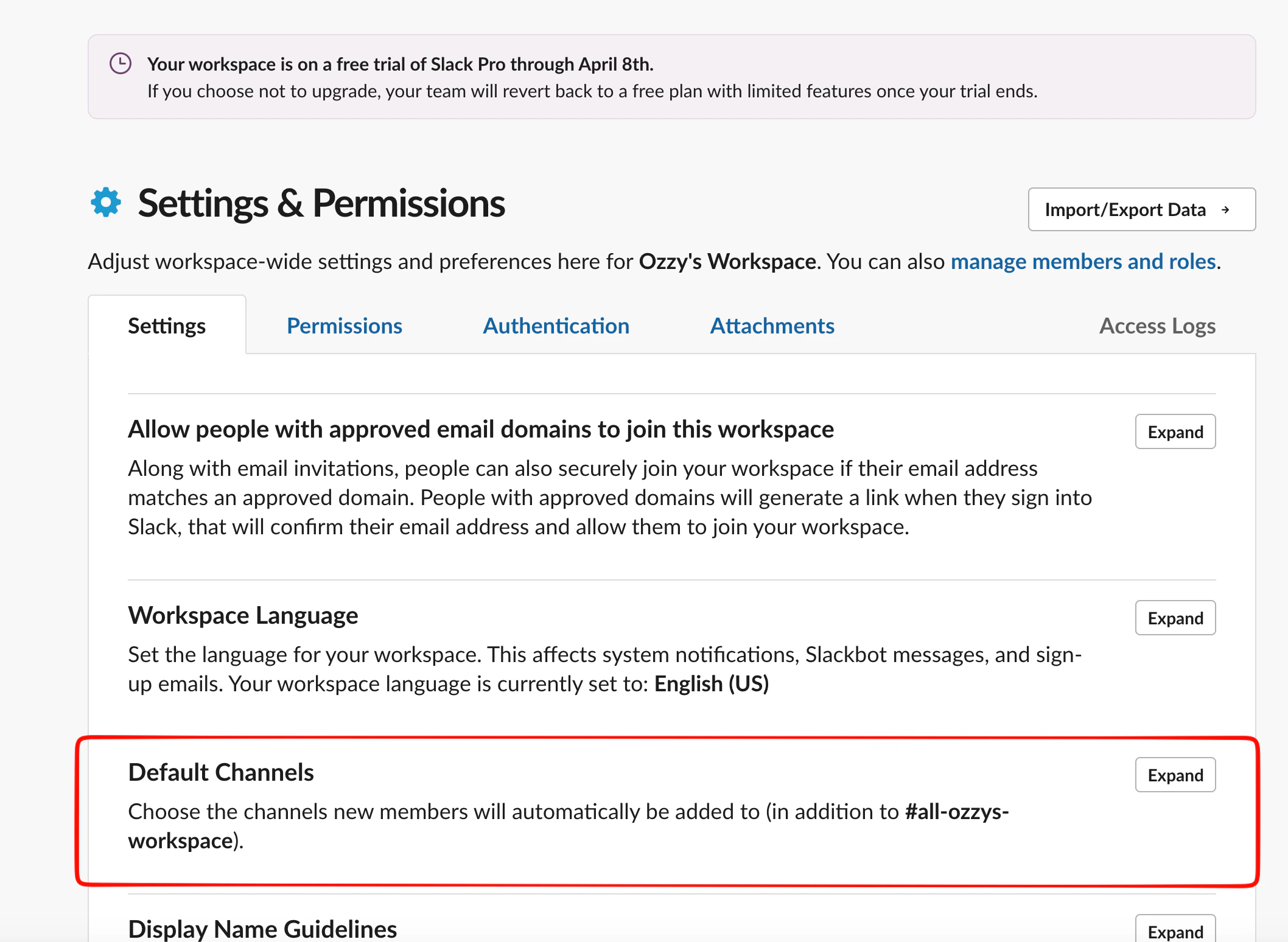
 New members are automatically added to default channels when they join. Set these now so every member lands in the right place from day one.
In Workspace settings, find **Default Channels** and click **Expand**.
New members are automatically added to default channels when they join. Set these now so every member lands in the right place from day one.
In Workspace settings, find **Default Channels** and click **Expand**.
 Add each of the four core channels:
* **#welcome-start-here** — onboarding and community norms
* **#announcements** — admin-only updates
* **#general** — already set as default, no action needed
* **#help** — questions and support
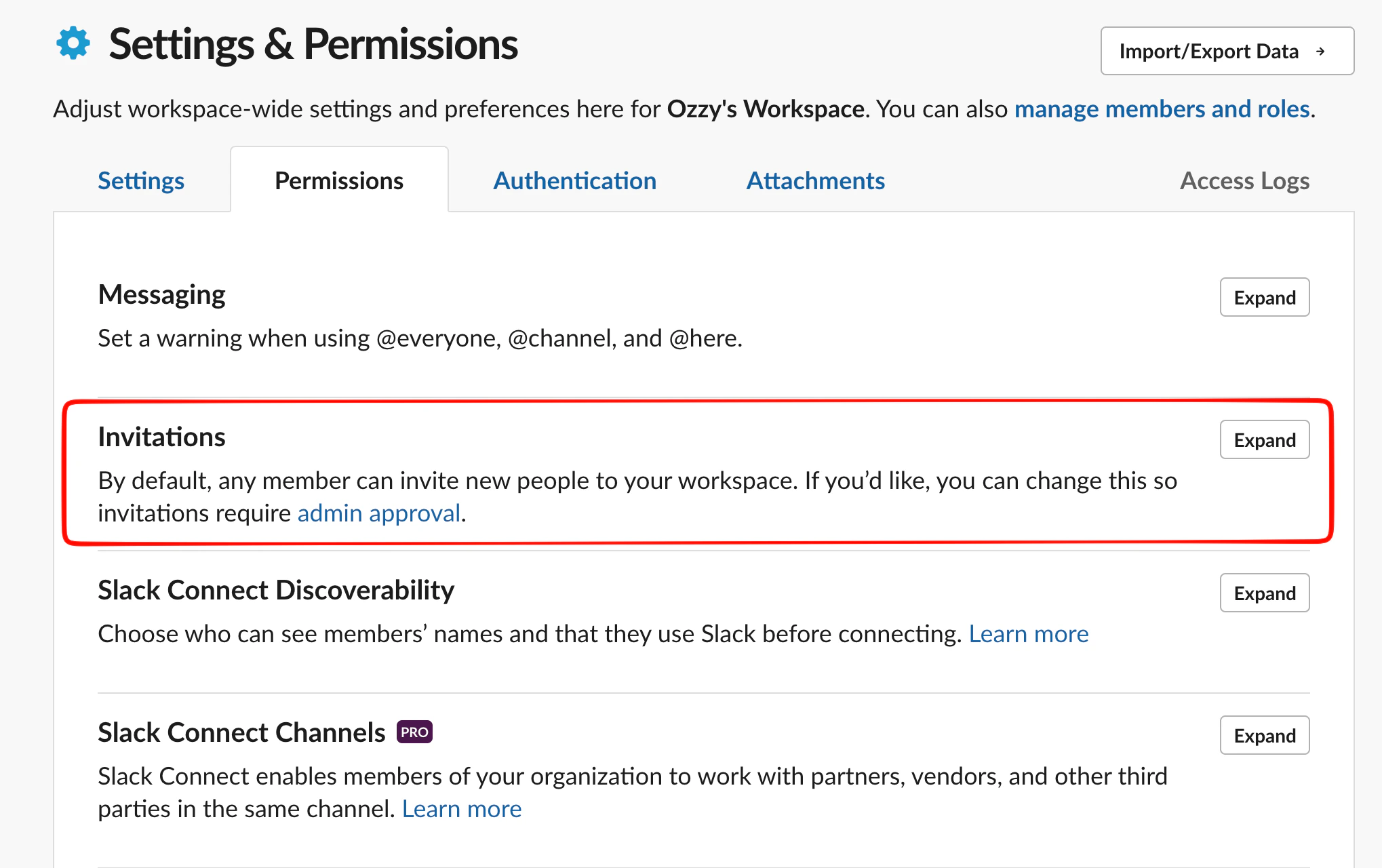
* Go to **Tools & settings > Workspace settings > Invitations**
* Choose who can send invitations:
* **All members** — good for open communities
* **Admins only** — good for invite-only or private communities
Add each of the four core channels:
* **#welcome-start-here** — onboarding and community norms
* **#announcements** — admin-only updates
* **#general** — already set as default, no action needed
* **#help** — questions and support
* Go to **Tools & settings > Workspace settings > Invitations**
* Choose who can send invitations:
* **All members** — good for open communities
* **Admins only** — good for invite-only or private communities
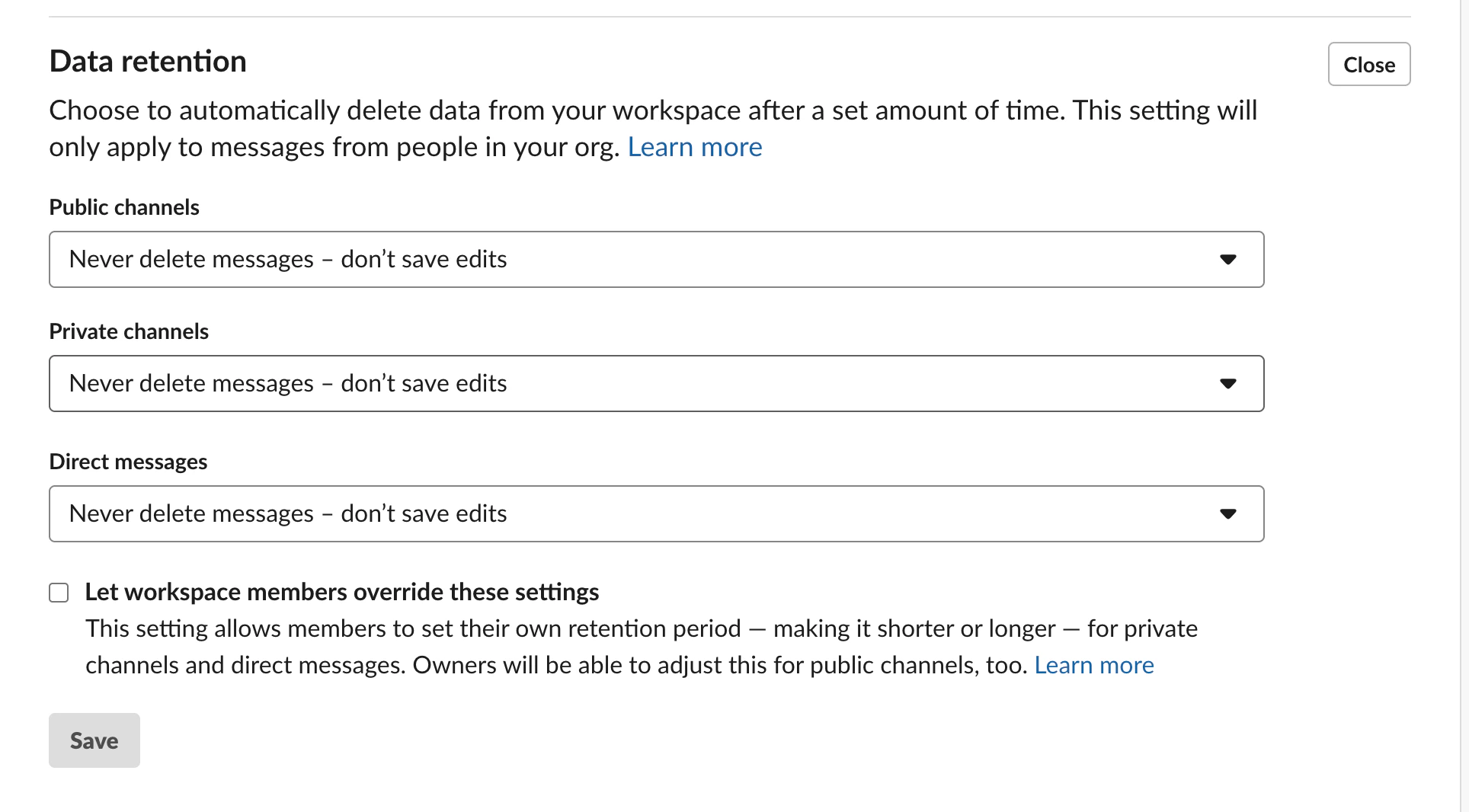
 On Slack's free plan, message history is limited. If you're on a paid plan, consider setting retention policies for channels that will capture support content. Tightknit's community site will make this content searchable, so long retention is valuable.
 If you created the workspace, you're already the Owner. If someone else created it, make sure you have Owner or Admin access before installing Tightknit.
* Go to **Tools & settings > Manage members**
* Find your name and confirm your role shows as Owner or Admin
## Related topics
- [Guides](/guides/index.md)
- [Quickstart](/getting-started.md)
- [Slack SSO with Auth0](/guides/slack-sso-external-idp.md)
- [Create Channels and Feeds](/guides/create-your-core-channels.md)
- [Create a New Event](/events/create-event.md)
If you created the workspace, you're already the Owner. If someone else created it, make sure you have Owner or Admin access before installing Tightknit.
* Go to **Tools & settings > Manage members**
* Find your name and confirm your role shows as Owner or Admin
## Related topics
- [Guides](/guides/index.md)
- [Quickstart](/getting-started.md)
- [Slack SSO with Auth0](/guides/slack-sso-external-idp.md)
- [Create Channels and Feeds](/guides/create-your-core-channels.md)
- [Create a New Event](/events/create-event.md)