> ## Documentation Index
> Fetch the complete documentation index at: https://docs.tightknit.ai/llms.txt
> Use this file to discover all available pages before exploring further.
# Create Channels and Feeds
> Set up organized Slack channels so members know exactly where to go.
**Slack plan:** Works on any plan, including Free.
## Create channels in Slack
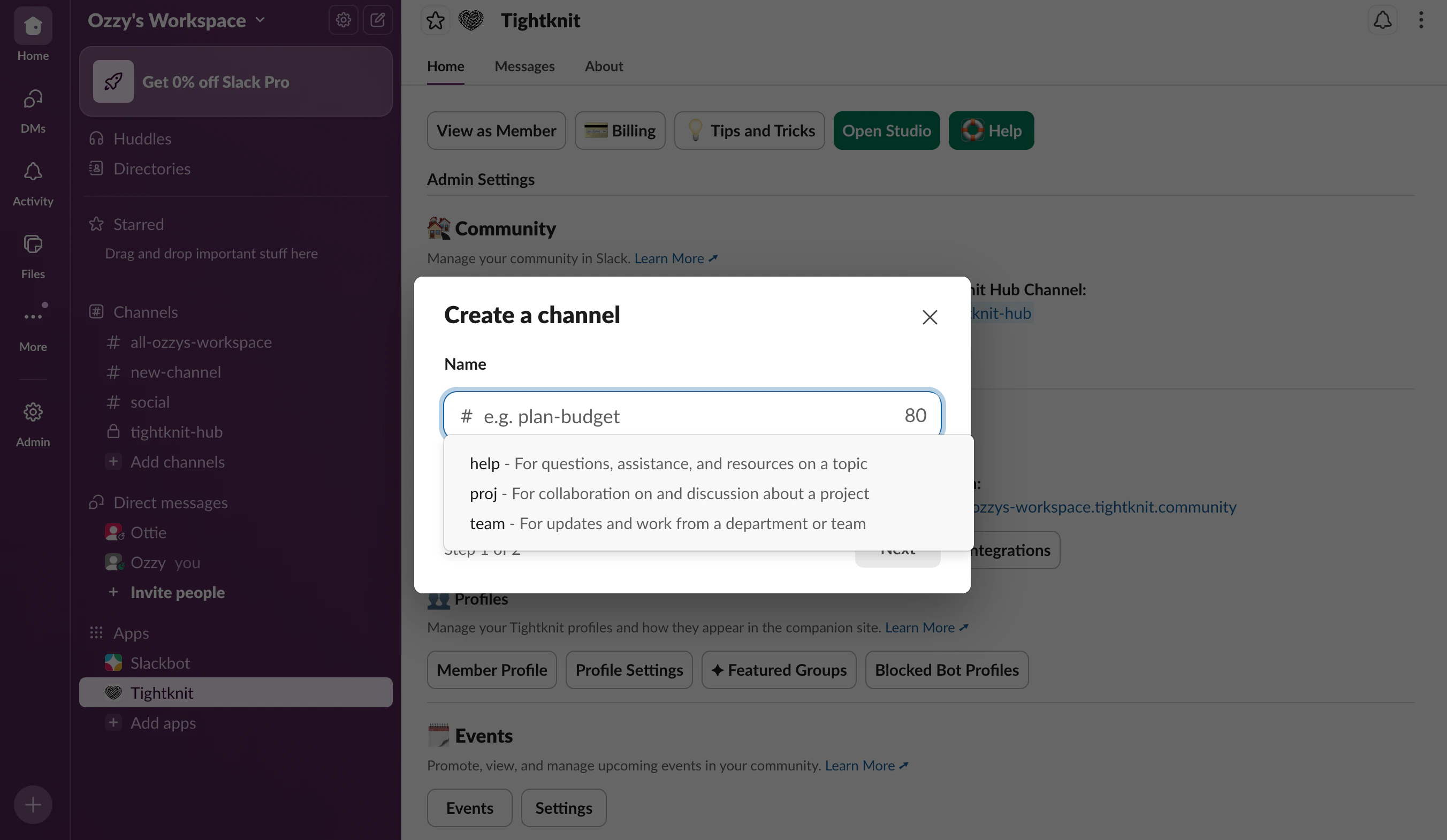
* In your Slack sidebar, click the **+** icon next to **Channels**
* Name your channel using lowercase letters, numbers, and hyphens (e.g. `welcome-start-here`, `general`, `help`)
* Choose privacy:
* **Public:** Anyone in the workspace can find and join
* **Private:** Only invited members can access (note: private channels cannot have Tightknit feeds)
* Click **Create**, then **Done**
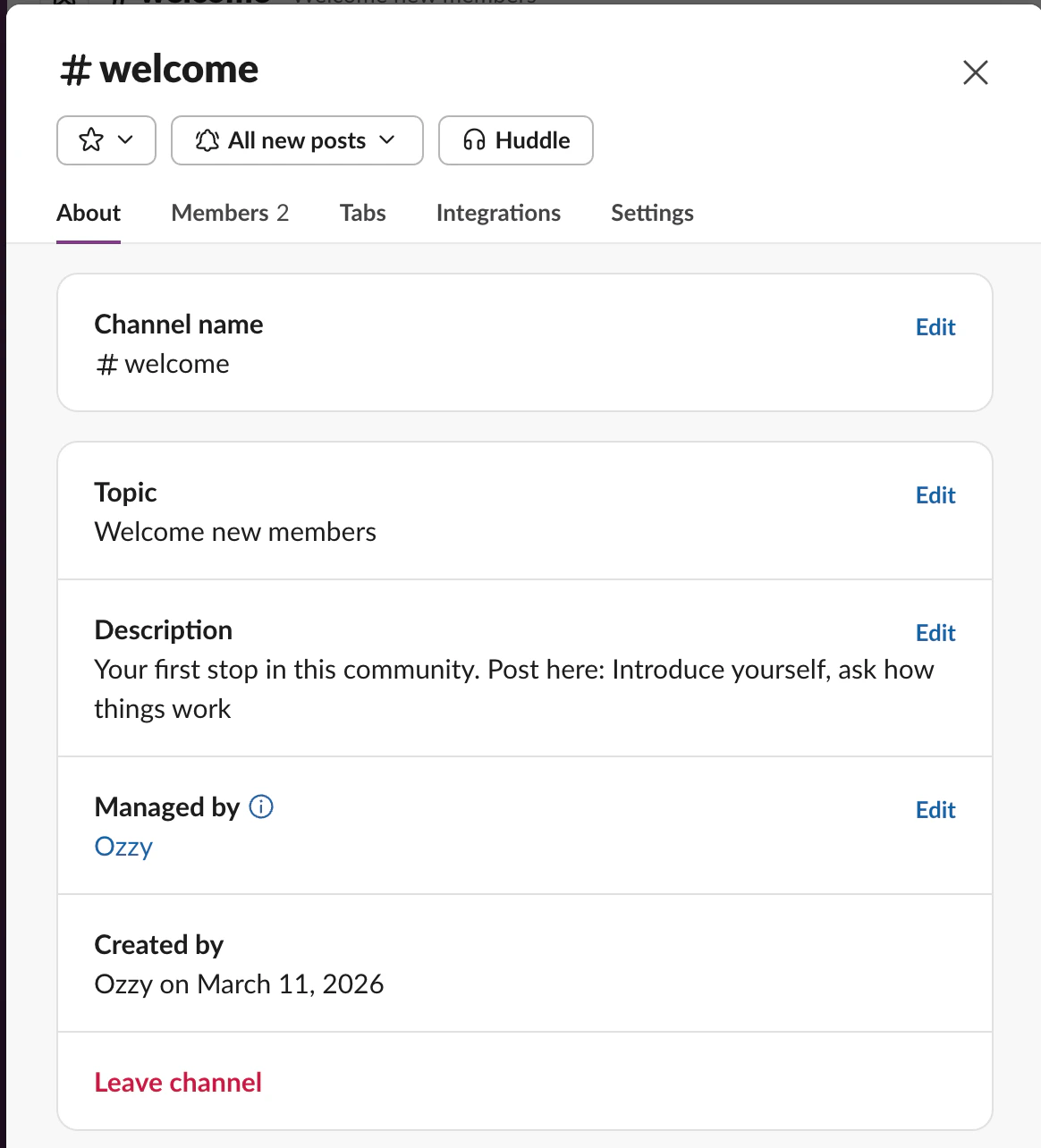
 * Open the channel and click the channel name at the top
* Go to the **Settings** tab
* Under **Posting permissions**, choose:
* **Everyone:** All members can post (default)
* **Admins only:** Restrict posting to admins and owners
* Open the channel and click the channel name at the top
* Click **Edit** next to the description field
* Add:
* **Description:** Permanent explanation (appears in channel browser)
* **Topic:** Dynamic updates or current focus (appears below channel name)
* Open the channel and click the channel name at the top
* Go to the **Settings** tab
* Under **Posting permissions**, choose:
* **Everyone:** All members can post (default)
* **Admins only:** Restrict posting to admins and owners
* Open the channel and click the channel name at the top
* Click **Edit** next to the description field
* Add:
* **Description:** Permanent explanation (appears in channel browser)
* **Topic:** Dynamic updates or current focus (appears below channel name)
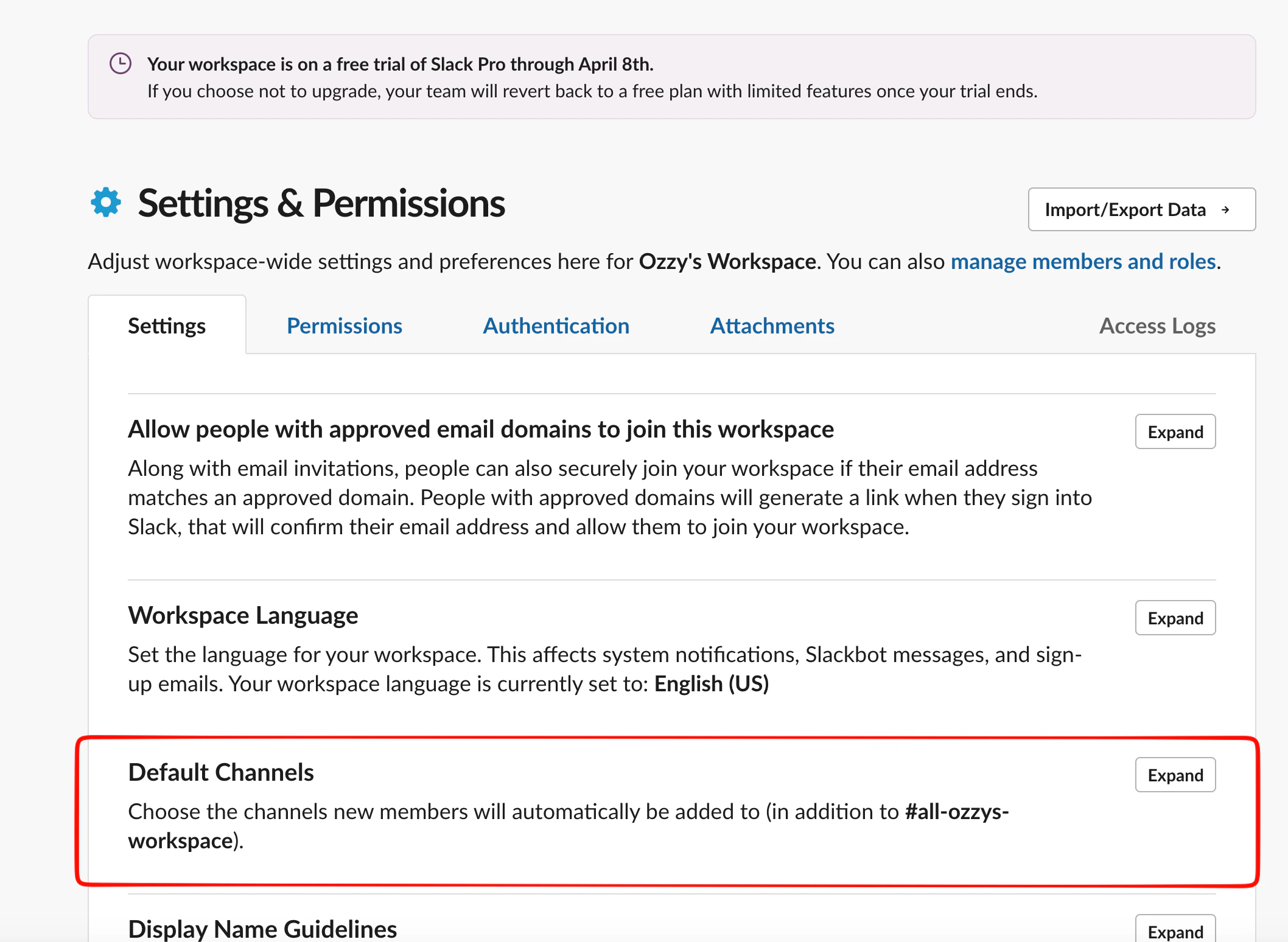
 New members are automatically added to default channels when they join. Set these now so every member lands in the right place from day one.
In Workspace settings, find **Default Channels** and click **Expand**.
New members are automatically added to default channels when they join. Set these now so every member lands in the right place from day one.
In Workspace settings, find **Default Channels** and click **Expand**.
 **Not sure which channels to create?** Start with these four:
* `#welcome-start-here` — onboarding, community norms, first post
* `#announcements` — admin-only updates
* `#general` — open conversation
* `#help` — questions and support
### Description template
> **Purpose:** \[One sentence explaining what this channel is for]
> **Post here:** \[Types of content that belong]
> **Don't post here:** \[What to avoid or where to go instead]
>
> Example — `#welcome-start-here`:
> **Purpose:** Your first stop in this community.
> **Post here:** Introduce yourself, ask how things work.
> **Don't post here:** Support questions (use `#help`).
## Activate channels and create feeds
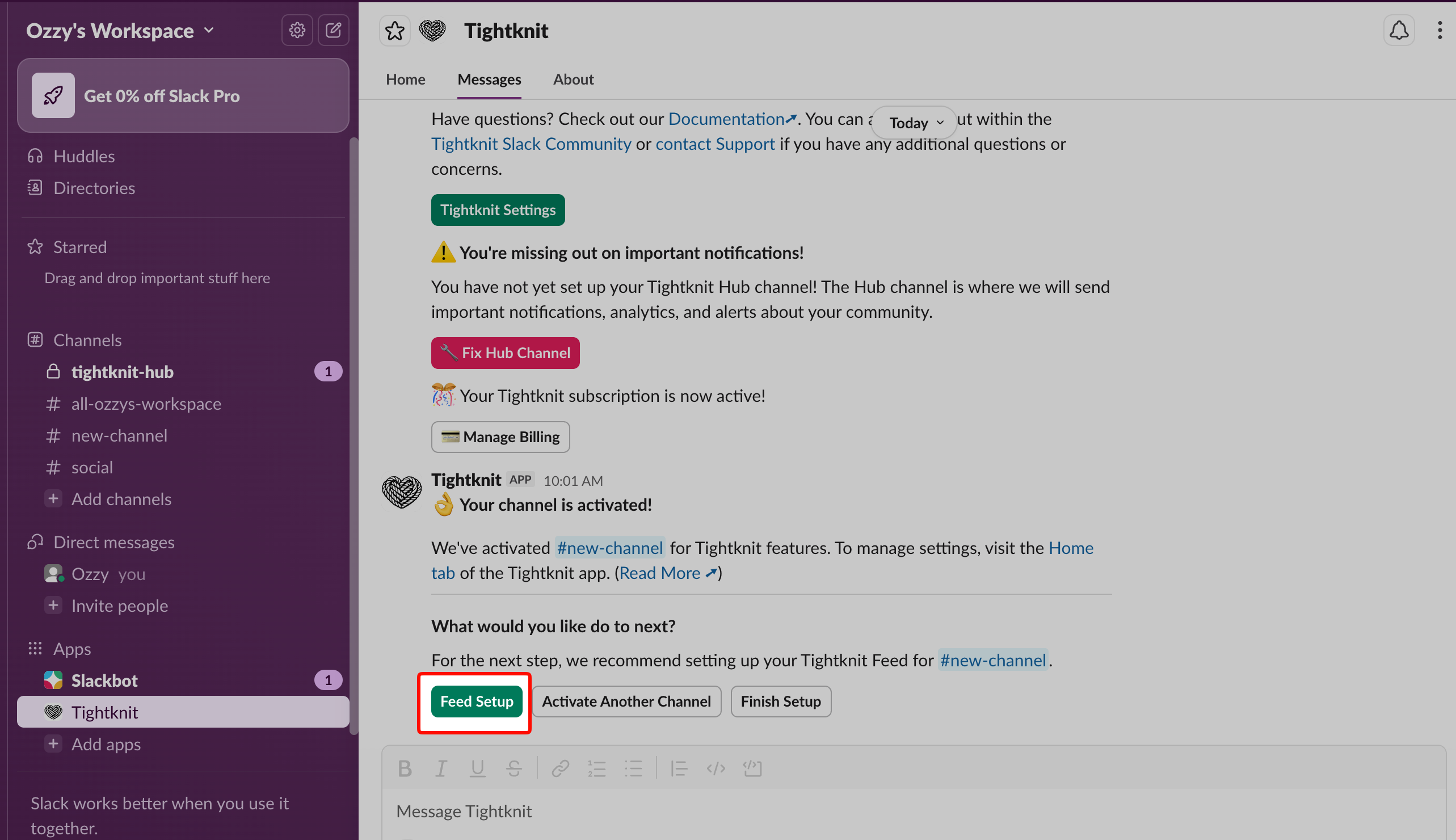
**Activating a channel** enables Tightknit to track activity, provide analytics, and use Slack features (polls, anonymous posting, etc.) in that channel. The channel content stays in Slack only.
**Creating a feed** connects an activated channel to your community site, syncing messages to the web where members can view and engage outside of Slack.
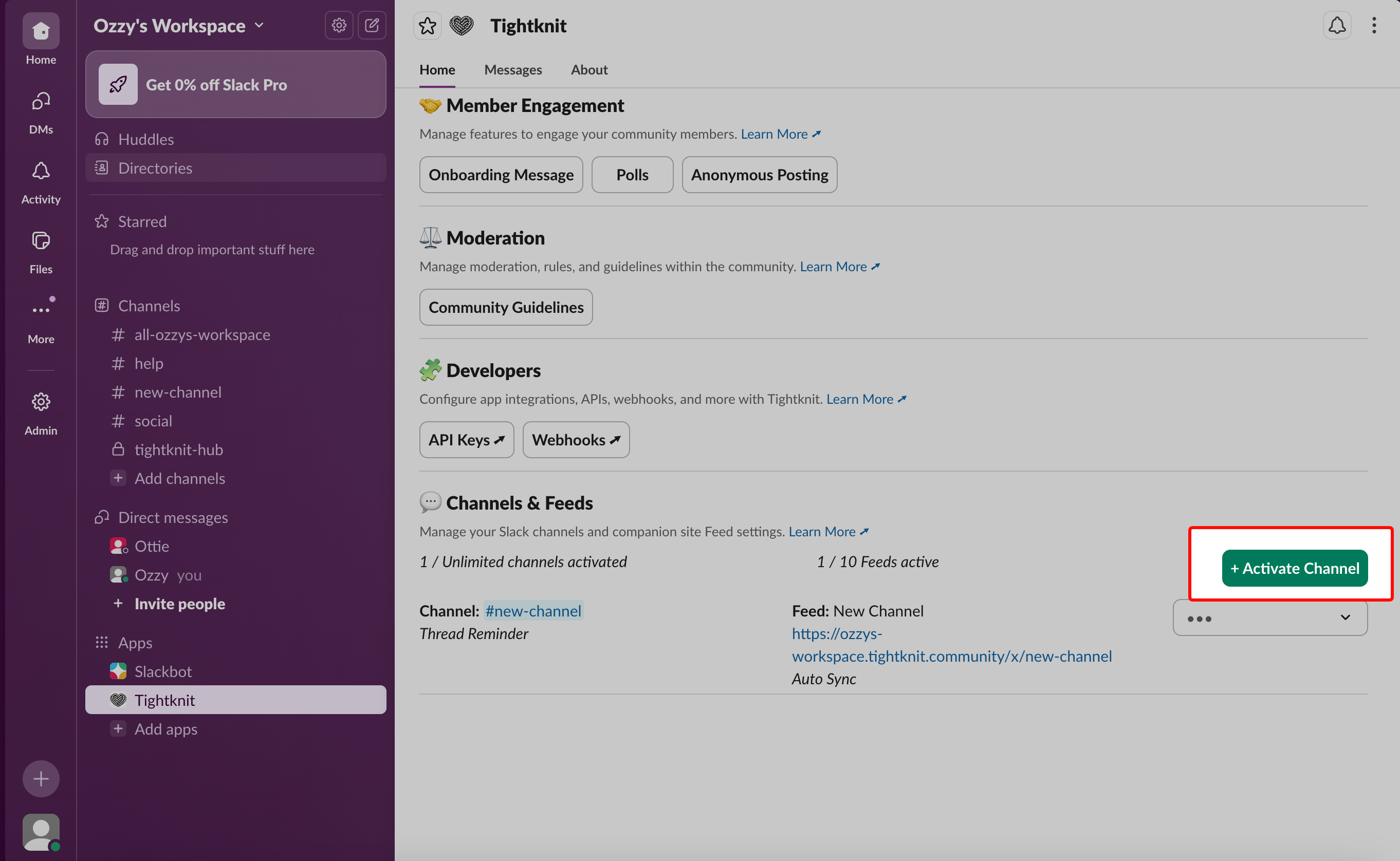
* Open the **Tightknit** app in Slack
* Go to the **Home** tab and scroll to **Feed Setup** or **Channels**
* Click **+ Add Channel** and select your channel
* Click **Submit**
**Not sure which channels to create?** Start with these four:
* `#welcome-start-here` — onboarding, community norms, first post
* `#announcements` — admin-only updates
* `#general` — open conversation
* `#help` — questions and support
### Description template
> **Purpose:** \[One sentence explaining what this channel is for]
> **Post here:** \[Types of content that belong]
> **Don't post here:** \[What to avoid or where to go instead]
>
> Example — `#welcome-start-here`:
> **Purpose:** Your first stop in this community.
> **Post here:** Introduce yourself, ask how things work.
> **Don't post here:** Support questions (use `#help`).
## Activate channels and create feeds
**Activating a channel** enables Tightknit to track activity, provide analytics, and use Slack features (polls, anonymous posting, etc.) in that channel. The channel content stays in Slack only.
**Creating a feed** connects an activated channel to your community site, syncing messages to the web where members can view and engage outside of Slack.
* Open the **Tightknit** app in Slack
* Go to the **Home** tab and scroll to **Feed Setup** or **Channels**
* Click **+ Add Channel** and select your channel
* Click **Submit**
 Connect your channel to the community site:
* In the Tightknit app Home tab, scroll to **Feed Setup**
* Click **Create Feed** and select an activated channel
* Name your feed (this appears in your site's navigation)
* Configure settings:
* **Message sync:** Sync all messages or manually select
* **Display mode:** Blog view or discussion view
* **Posting permissions:** Enable posting from site if needed
* Click **Continue** and verify the feed on your community site
Connect your channel to the community site:
* In the Tightknit app Home tab, scroll to **Feed Setup**
* Click **Create Feed** and select an activated channel
* Name your feed (this appears in your site's navigation)
* Configure settings:
* **Message sync:** Sync all messages or manually select
* **Display mode:** Blog view or discussion view
* **Posting permissions:** Enable posting from site if needed
* Click **Continue** and verify the feed on your community site
 **Important notes**
* **Private channels** can be activated for analytics, but cannot have feeds (content won't sync to the public site)
* **Announcements channels:** Set posting permissions to "admins only" before activating
* **You must activate a channel before creating a feed for it**
* Feeds appear in your site's navigation sidebar using the feed name you chose
### Quick reference
| Action | Result |
| -------------------------------- | ------------------------------------------------------- |
| Activate channel only | Analytics tracking, Slack features enabled, no web sync |
| Activate channel + create feed | Everything above + messages sync to community site |
| Enable "Allow posting from site" | Members can post from web (syncs back to Slack) |
## Related topics
- [Create a Feed](/channels-and-feeds/create-feed.md)
- [Activate a Channel for Tightknit](/channels-and-feeds/activate-channel.md)
- [Getting Started](/channels-and-feeds/getting-started.md)
- [Create a Post or Comment](/slack/posts-and-comments/create-post-or-comment.md)
- [Guides](/guides/index.md)
**Important notes**
* **Private channels** can be activated for analytics, but cannot have feeds (content won't sync to the public site)
* **Announcements channels:** Set posting permissions to "admins only" before activating
* **You must activate a channel before creating a feed for it**
* Feeds appear in your site's navigation sidebar using the feed name you chose
### Quick reference
| Action | Result |
| -------------------------------- | ------------------------------------------------------- |
| Activate channel only | Analytics tracking, Slack features enabled, no web sync |
| Activate channel + create feed | Everything above + messages sync to community site |
| Enable "Allow posting from site" | Members can post from web (syncs back to Slack) |
## Related topics
- [Create a Feed](/channels-and-feeds/create-feed.md)
- [Activate a Channel for Tightknit](/channels-and-feeds/activate-channel.md)
- [Getting Started](/channels-and-feeds/getting-started.md)
- [Create a Post or Comment](/slack/posts-and-comments/create-post-or-comment.md)
- [Guides](/guides/index.md)