> ## Documentation Index
> Fetch the complete documentation index at: https://docs.tightknit.ai/llms.txt
> Use this file to discover all available pages before exploring further.
# Quickstart
> Set up your Tightknit community in less than 5 minutes
You can set up a Tightknit community in less than 5 minutes. 🤯 Yes, seriously. All you have to do is install the app and click through our guided setup flow.
## Install the Slack App
Install the Tightknit Slack app by visiting: [https://tightknit.ai/start](https://tightknit.ai/start).
Only Slack admins and authorized users are allowed to install apps in a workspace.
In order to get the latest features from Tightknit, you may need to repeat these steps to [reinstall the app](#reinstalling-the-slack-app). This is a safe operation and will not affect your community data.
If you are interested in Tightknit and do not have this link, please [reach out to the team](https://calendly.com/tightknitai/introductory-call).
Ensure your Slack workspace is currently selected by using the dropdown menu in the top-right corner.
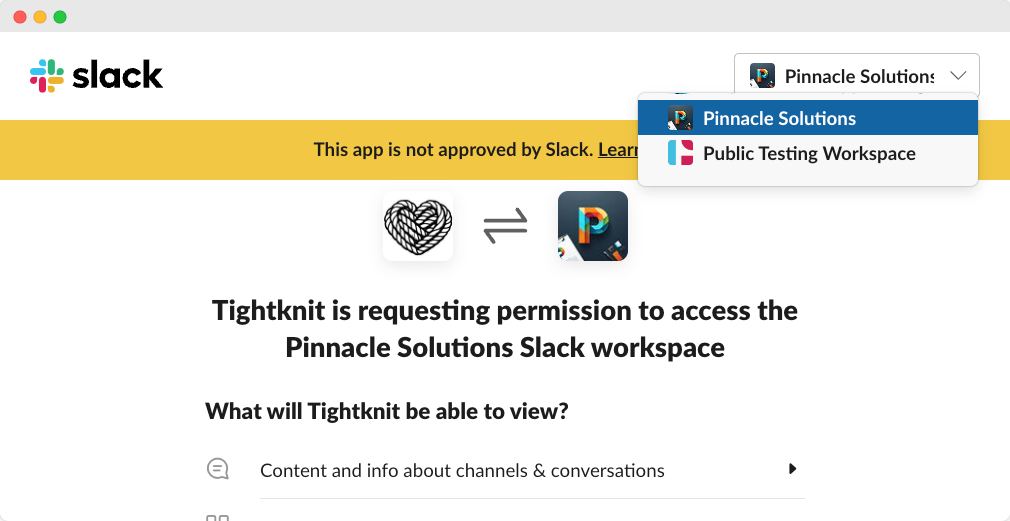 Once you have reviewed the app permissions, click `Allow`.
 You will see a success page once the app has been installed.
 For more information on installing Slack apps, see [Slack Help Center](https://slack.com/help/articles/202035138-Add-apps-to-your-Slack-workspace).
## Check out the App Home
For more information on installing Slack apps, see [Slack Help Center](https://slack.com/help/articles/202035138-Add-apps-to-your-Slack-workspace).
## Check out the App Home
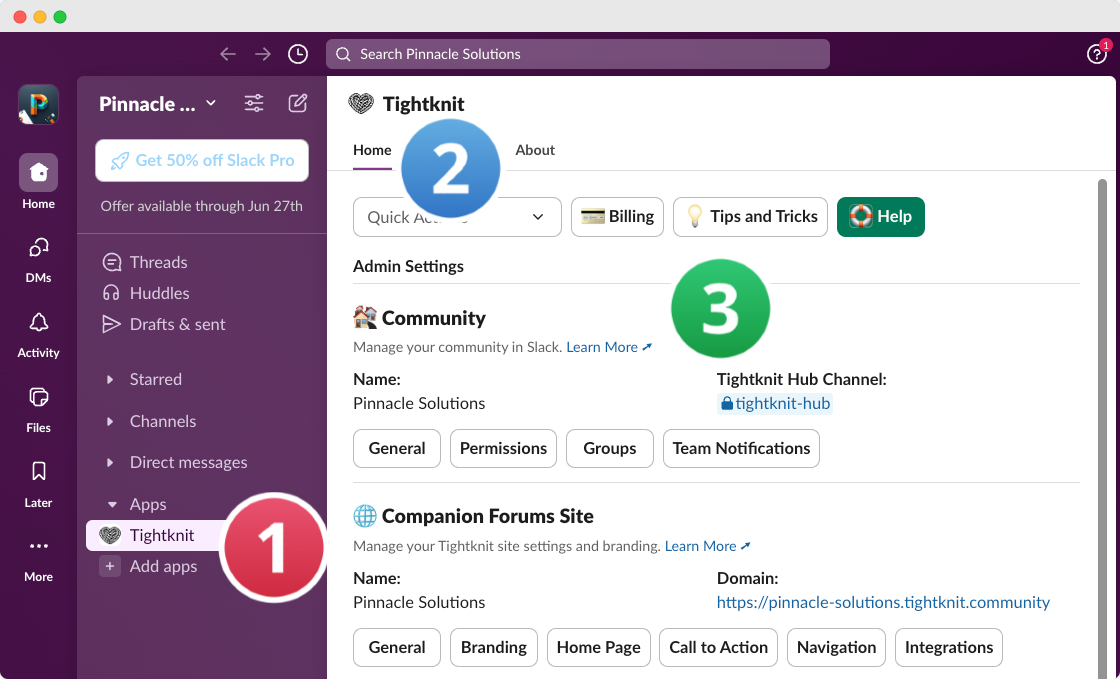 In Slack, find the Tightknit app under the Apps section in the sidebar.
If you don't see it, click `+ Add apps` and search for Tightknit.
Select the `Home` tab at the top of the page.
Learn about each module's features, starting with the **Community** section.
## Companion Site Overview
As a part of the guided setup, you'll have the opportunity to spin up a [companion forums website](/companion-site/getting-started). You will be able to sync content from Slack to your site to serve as a landing page to the rest of the internet!
In Slack, find the Tightknit app under the Apps section in the sidebar.
If you don't see it, click `+ Add apps` and search for Tightknit.
Select the `Home` tab at the top of the page.
Learn about each module's features, starting with the **Community** section.
## Companion Site Overview
As a part of the guided setup, you'll have the opportunity to spin up a [companion forums website](/companion-site/getting-started). You will be able to sync content from Slack to your site to serve as a landing page to the rest of the internet!
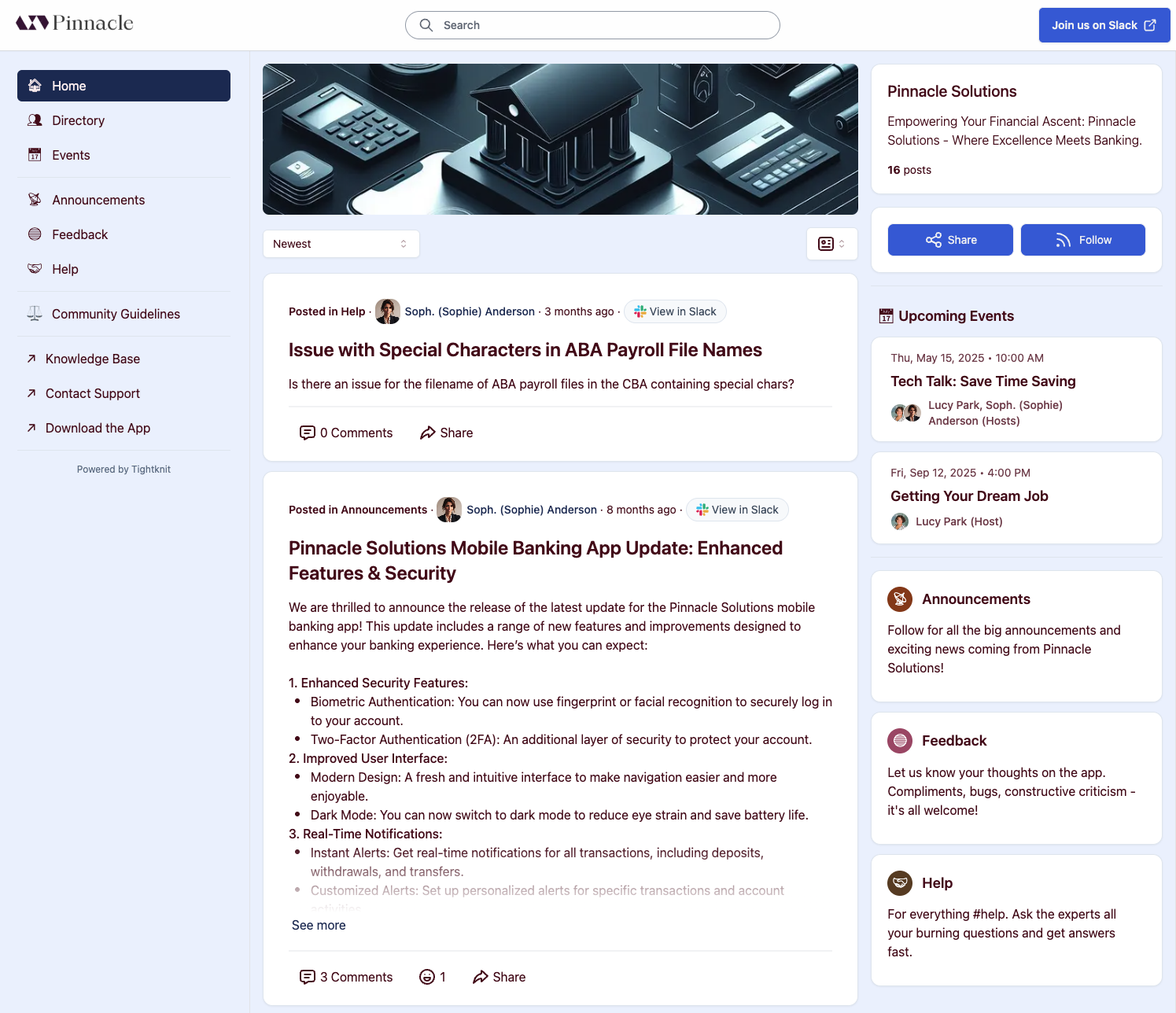 This is a high-level outline of how you would sync content from Slack over to the companion site by connecting your channels to a Tighktnit Feed:
Pick one of your Slack channels that will have its messages sent to a Feed
in the Tightknit companion site.
For example, let's say you have a `#help` channel and want to sync it to a Feed in the Tightknit companion site. Once you have completed all the steps in this guide, all
new incoming Slack messages sent in `#help` will appear as a post or comment on your site's "Help" Feed.
Give the Tightknit app the permission to ingest information from the channel by "activating" it.
If the channel is private, first add the Tightknit app as a member of the Slack channel. Then follow these
[instructions](/channels-and-feeds/activate-channel)
to allow Tightknit to see and manage the channel.
Follow these [instructions](/channels-and-feeds/create-feed) to create a
Tightknit Feed connected to the channel.
This is the easy part. ✍️ Simply send messages within the Slack channel as normal, and
sit back and relax as you watch them automatically sync to your Tightknit companion site!
💯
Tightknit will only begin syncing *new* Slack messages to the Tightknit companion
site at the time the Feed has been created. Messages sent prior to the
Feed creation date will not be synced, but if you want to sync specific older
messages, you can certainly do so by using the [message
shortcut](/slack/shortcuts-and-commands/message-shortcuts).
## Reinstalling the Slack App
In order to get the latest features from Tightknit, you may need to repeat
these steps to reinstall the app. This is a safe operation you can perform at any time and will not affect
your community data.
You can also reinstall the app at any time from: [https://slackapp.tightknit.ai/slack/install](https://slackapp.tightknit.ai/slack/install).
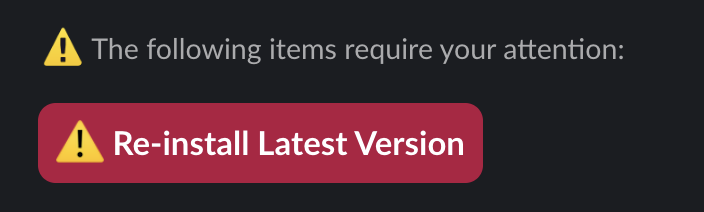
When the app is out of date, Tightknit lets you know through warnings in the Slack App Home and in the Tightknit Studio.
This is a high-level outline of how you would sync content from Slack over to the companion site by connecting your channels to a Tighktnit Feed:
Pick one of your Slack channels that will have its messages sent to a Feed
in the Tightknit companion site.
For example, let's say you have a `#help` channel and want to sync it to a Feed in the Tightknit companion site. Once you have completed all the steps in this guide, all
new incoming Slack messages sent in `#help` will appear as a post or comment on your site's "Help" Feed.
Give the Tightknit app the permission to ingest information from the channel by "activating" it.
If the channel is private, first add the Tightknit app as a member of the Slack channel. Then follow these
[instructions](/channels-and-feeds/activate-channel)
to allow Tightknit to see and manage the channel.
Follow these [instructions](/channels-and-feeds/create-feed) to create a
Tightknit Feed connected to the channel.
This is the easy part. ✍️ Simply send messages within the Slack channel as normal, and
sit back and relax as you watch them automatically sync to your Tightknit companion site!
💯
Tightknit will only begin syncing *new* Slack messages to the Tightknit companion
site at the time the Feed has been created. Messages sent prior to the
Feed creation date will not be synced, but if you want to sync specific older
messages, you can certainly do so by using the [message
shortcut](/slack/shortcuts-and-commands/message-shortcuts).
## Reinstalling the Slack App
In order to get the latest features from Tightknit, you may need to repeat
these steps to reinstall the app. This is a safe operation you can perform at any time and will not affect
your community data.
You can also reinstall the app at any time from: [https://slackapp.tightknit.ai/slack/install](https://slackapp.tightknit.ai/slack/install).
When the app is out of date, Tightknit lets you know through warnings in the Slack App Home and in the Tightknit Studio.