> ## Documentation Index
> Fetch the complete documentation index at: https://docs.tightknit.ai/llms.txt
> Use this file to discover all available pages before exploring further.
# Awards
> Customize and give out awards to recognize member achievements and contributions
## Award Components
An **Award** is a vehicle for recognition in your community and can consist of one or more customizable gifts, including a badge, an overlay profile photo frame, and a credential / certificate.
### Badge
A Badge is a visual marker or icon awarded to users to recognize quality, mark achievements ([*e.g. completing a Journey*](/gamification/journeys)) or indicate exclusive reputation ([*e.g. membership in a Group*](/community/groups)).
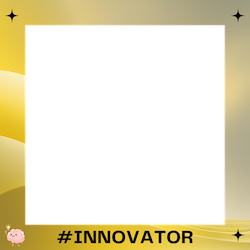
### Profile Photo Frame
A profile photo frame is a great way for your members to show off their achievements within the community and to their own network. Recipients of the award can use the frame to generate a new profile photo.
 ### Credential / Certificate
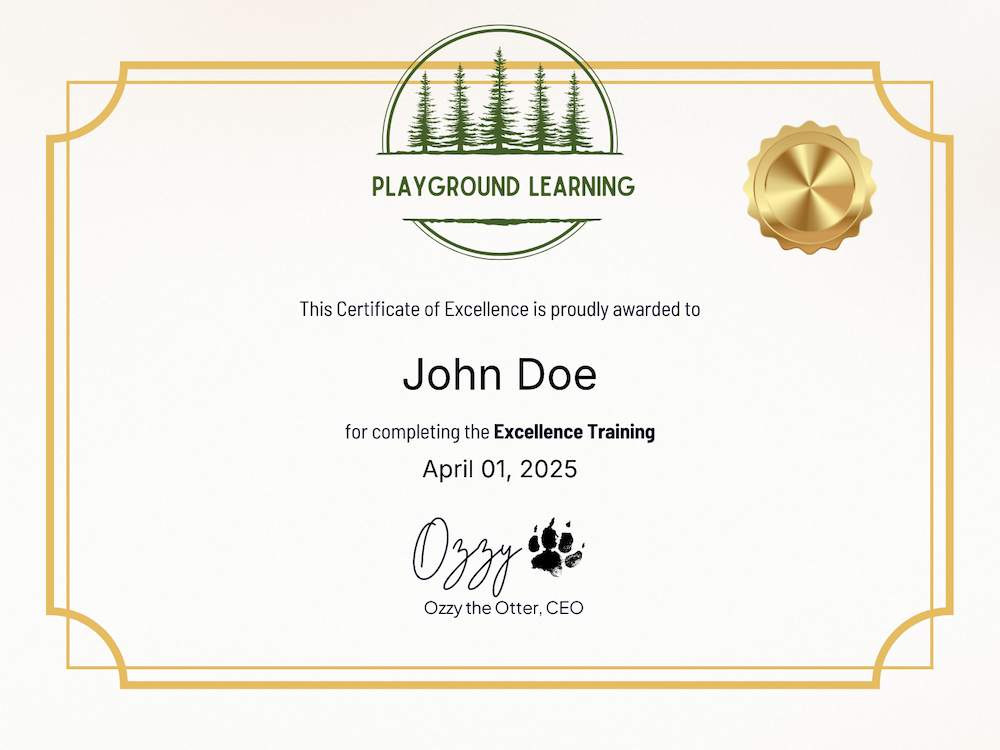
Members can earn credentials and generate certificates to recognize an achievement. Simply provide Tightknit with the appropriate [background template image](/branding), and we will generate the certificate with the user's name and granted award date.
### Credential / Certificate
Members can earn credentials and generate certificates to recognize an achievement. Simply provide Tightknit with the appropriate [background template image](/branding), and we will generate the certificate with the user's name and granted award date.
 Admin users can manage their Awards and Award settings from Slack or from the Studio.
## Administration
Admin users can manage their Awards and Award settings under the **Gamification** section in the Tightknit app home.
### Create a New Award
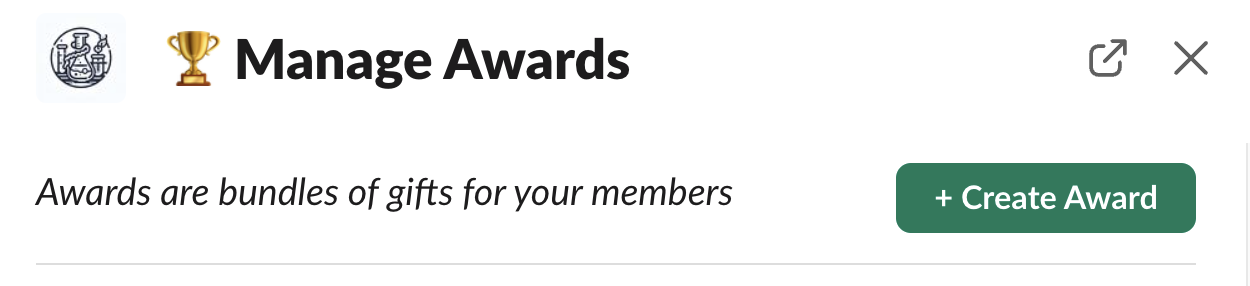
To create a new Award, click the `Awards` button in the Gamification module to access the **Manage Awards** panel. This panel contains all Awards available in the community.
Admin users can manage their Awards and Award settings from Slack or from the Studio.
## Administration
Admin users can manage their Awards and Award settings under the **Gamification** section in the Tightknit app home.
### Create a New Award
To create a new Award, click the `Awards` button in the Gamification module to access the **Manage Awards** panel. This panel contains all Awards available in the community.
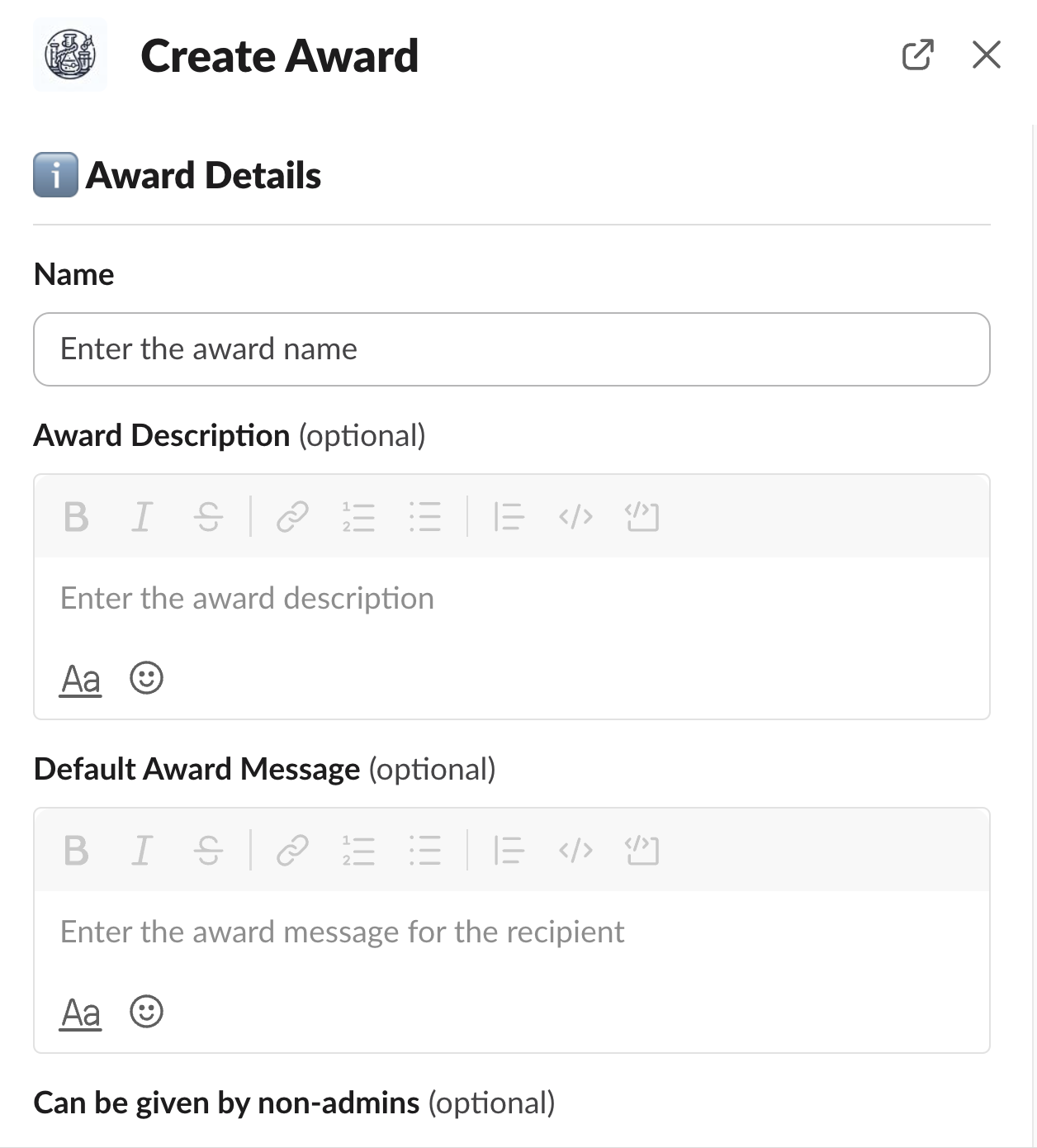
 Click `Create Award` button to access the Award creation modal, where you can configure the following:
* **Name** - the name of the Award
* **Award Description** - the description of the Award, such as its purpose and under which conditions it is awarded to a user
* **Default Award Message** - the default message included when the Award notification is sent to a user; this can be overridden when manually giving out an Award
* **Can be given by non-admins** - when this setting is enabled, members with the "Give Award" permission from an assigned [Permission Set](/community/permission-sets) and admins may give this Award to other members. If disabled, only admins may give this Award.
* **LinkedIn Sharing** - when this setting is enabled, the `Add to LinkedIn` button is included in the Award notification message to the user, which opens a pre-filled form to add a new [License & certification](https://www.linkedin.com/help/linkedin/answer/a567169) entry to their profile. The framed profile photo message also includes instructions on how to share the award in a LinkedIn post.
Don't forget to set your LinkedIn organization ID under [**Gamification
settings**](/gamification/settings) so your LinkedIn company is pre-filled for the user.
* **Award URL Route (Slug)** - used as the URL route for the achievements page on the companion site; if left blank, generated automatically based on the Name
* **Badge**
* **Badge Image** - the image of the Badge (see [Branding Guide](/branding))
* **Profile Photo Frame**
* **Profile Photo Frame Image** - the overlay image used to generate a framed profile photo for users that have earned the Award. Recommended format is 512 x 512 px PNG. The frame visual should be a square border with a transparent center (see [Branding Guide](/branding))
* **Credential**
* **Certificate Template Image** - the background template when generating credentials / certificates for users that have earned an Award (see [Branding Guide](/branding))
* **Certificate font** - the font family to apply to the generated text on the certificate (e.g. name and date). Available fonts: Domine, Helvetica Neue, Host Grotesk, Instrument Sans, and Inter (default).
* **Certificate Elements** - control which visual elements are applied or omitted from the certificate, such as the award date.
Use our [Canva certificate template](https://www.canva.com/design/DAGq0A1weoA/bVMjsyTTKXdyczE3aV4k4A/view?mode=preview) to quickly create a certificate background image with the correct dimensions (1500 x 1125 px).
Click `Create Award` button to access the Award creation modal, where you can configure the following:
* **Name** - the name of the Award
* **Award Description** - the description of the Award, such as its purpose and under which conditions it is awarded to a user
* **Default Award Message** - the default message included when the Award notification is sent to a user; this can be overridden when manually giving out an Award
* **Can be given by non-admins** - when this setting is enabled, members with the "Give Award" permission from an assigned [Permission Set](/community/permission-sets) and admins may give this Award to other members. If disabled, only admins may give this Award.
* **LinkedIn Sharing** - when this setting is enabled, the `Add to LinkedIn` button is included in the Award notification message to the user, which opens a pre-filled form to add a new [License & certification](https://www.linkedin.com/help/linkedin/answer/a567169) entry to their profile. The framed profile photo message also includes instructions on how to share the award in a LinkedIn post.
Don't forget to set your LinkedIn organization ID under [**Gamification
settings**](/gamification/settings) so your LinkedIn company is pre-filled for the user.
* **Award URL Route (Slug)** - used as the URL route for the achievements page on the companion site; if left blank, generated automatically based on the Name
* **Badge**
* **Badge Image** - the image of the Badge (see [Branding Guide](/branding))
* **Profile Photo Frame**
* **Profile Photo Frame Image** - the overlay image used to generate a framed profile photo for users that have earned the Award. Recommended format is 512 x 512 px PNG. The frame visual should be a square border with a transparent center (see [Branding Guide](/branding))
* **Credential**
* **Certificate Template Image** - the background template when generating credentials / certificates for users that have earned an Award (see [Branding Guide](/branding))
* **Certificate font** - the font family to apply to the generated text on the certificate (e.g. name and date). Available fonts: Domine, Helvetica Neue, Host Grotesk, Instrument Sans, and Inter (default).
* **Certificate Elements** - control which visual elements are applied or omitted from the certificate, such as the award date.
Use our [Canva certificate template](https://www.canva.com/design/DAGq0A1weoA/bVMjsyTTKXdyczE3aV4k4A/view?mode=preview) to quickly create a certificate background image with the correct dimensions (1500 x 1125 px).
 For information on associating an Award with Group membership, see [Groups](/community/groups#create-a-group).
### Send an Award
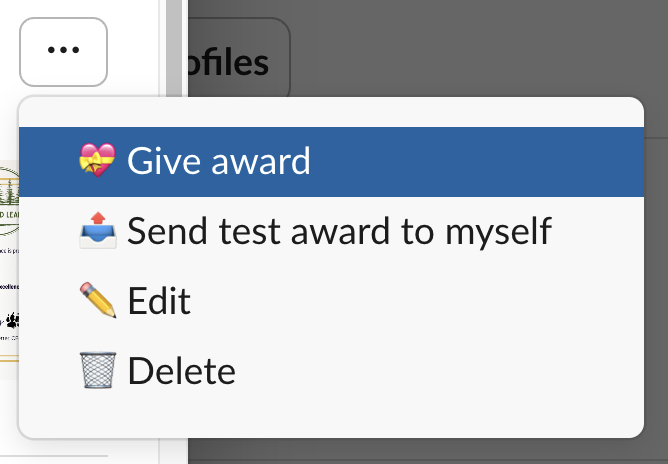
To give an Award to a member of the community, you can click the `Give an award` option in the Quick Actions menu at the top of the app home. Alternatively, you can locate the Award you want to give in the Manage Awards panel, click the menu button `•••`, and select the `Give award` option.
For information on associating an Award with Group membership, see [Groups](/community/groups#create-a-group).
### Send an Award
To give an Award to a member of the community, you can click the `Give an award` option in the Quick Actions menu at the top of the app home. Alternatively, you can locate the Award you want to give in the Manage Awards panel, click the menu button `•••`, and select the `Give award` option.
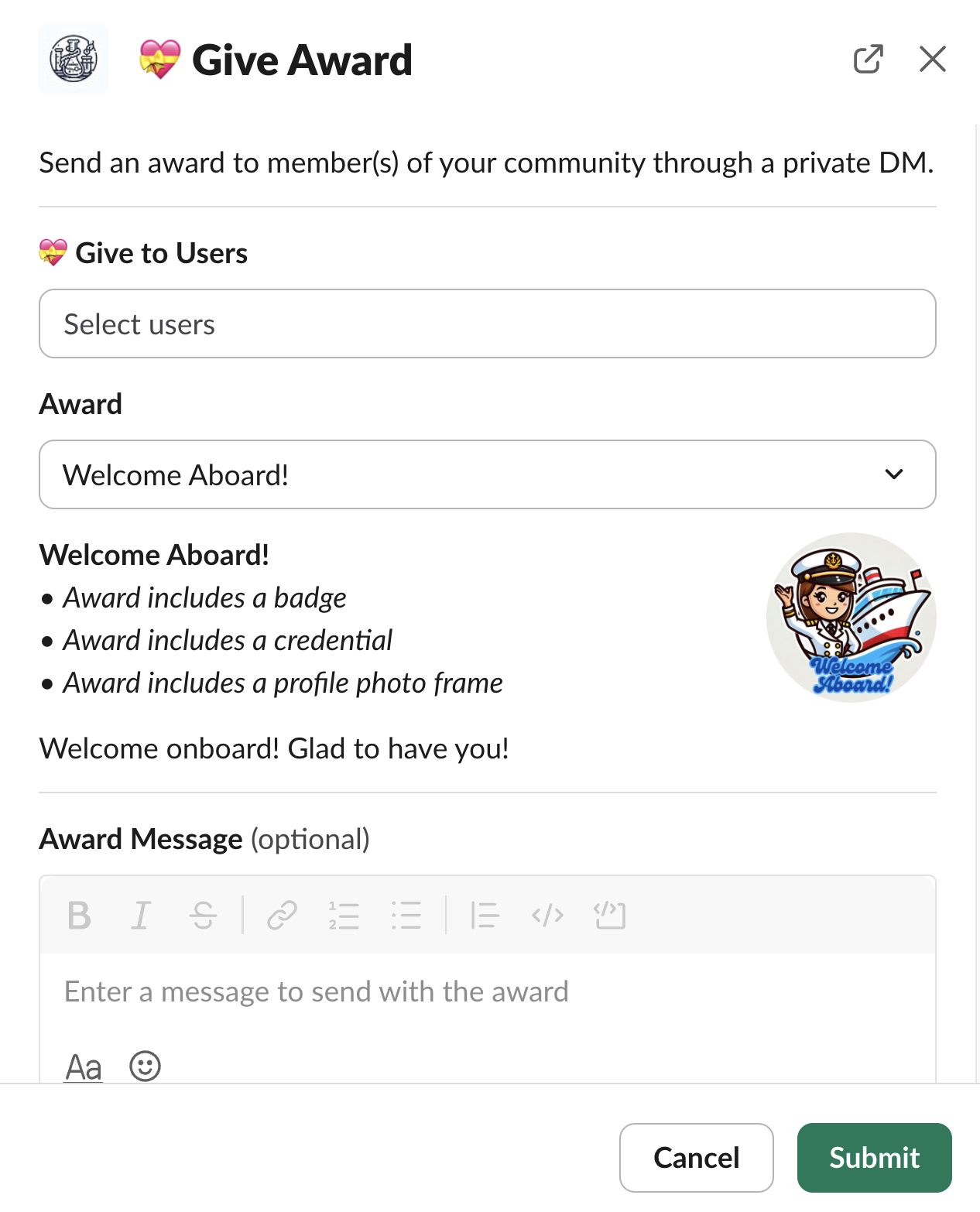
 From here you will be able to select the user(s) receiving the Award and the message sent with the award notification.
 #### Send a Test Award
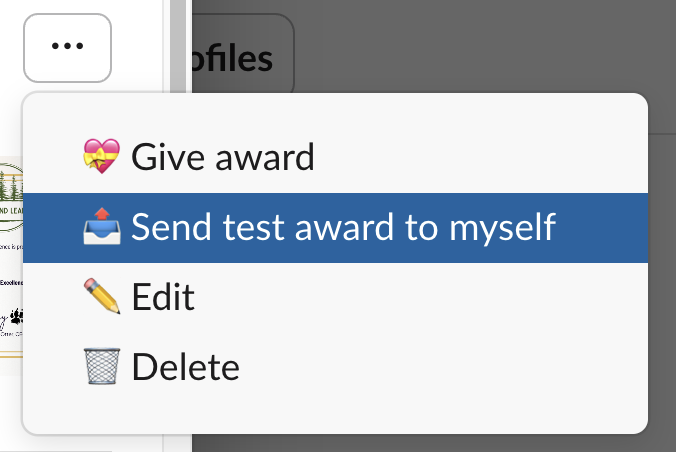
Want to try out what it's like to receieve an Award yourself? No problem! In the Manage Awards panel, click the menu button `•••`, and select the `Send test award to myself` option.
#### Send a Test Award
Want to try out what it's like to receieve an Award yourself? No problem! In the Manage Awards panel, click the menu button `•••`, and select the `Send test award to myself` option.
 ## Awards
### Viewing My Awards
Use the global shortcut `/awards` to open to the **My Awards** modal. The shortcut option will appear as you type `/awards` into the search bar or any conversation message.
Alternatively, non-admin users can view the awards they have earned under the **My Awards** section in the Tightknit app home.
## Awards
### Viewing My Awards
Use the global shortcut `/awards` to open to the **My Awards** modal. The shortcut option will appear as you type `/awards` into the search bar or any conversation message.
Alternatively, non-admin users can view the awards they have earned under the **My Awards** section in the Tightknit app home.
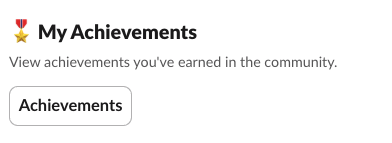 Users can access certain actions related to any of their previously earned awards, including [generating a framed profile photo](#generate-a-framed-profile-photo).
### Receiving an Award
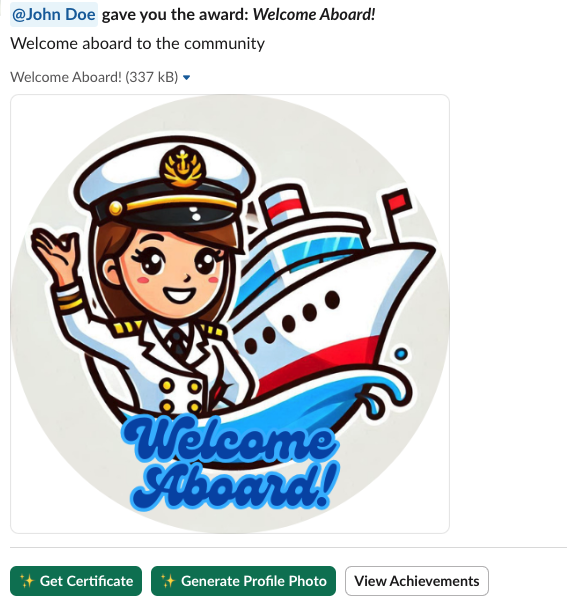
When a user receives an Award, they get a private notification message containing:
* the user that sent the Award (unless sent anonymously)
* the Award message
* the badge image (if any)
* the Award description
* action buttons, including a **Download Award** button for saving the badge image
Users can access certain actions related to any of their previously earned awards, including [generating a framed profile photo](#generate-a-framed-profile-photo).
### Receiving an Award
When a user receives an Award, they get a private notification message containing:
* the user that sent the Award (unless sent anonymously)
* the Award message
* the badge image (if any)
* the Award description
* action buttons, including a **Download Award** button for saving the badge image
 If you have a companion site, the user's award will also be present under Awards on their profile page.
#### Generate a Framed Profile Photo
Recipients of an Award with a profile photo frame will have the option to generate a framed photo. When a user clicks the `Generate Profile Photo`, we generate a new profile picture using their current photo overlaid with the Profile Photo Frame image.
If you have a companion site, the user's award will also be present under Awards on their profile page.
#### Generate a Framed Profile Photo
Recipients of an Award with a profile photo frame will have the option to generate a framed photo. When a user clicks the `Generate Profile Photo`, we generate a new profile picture using their current photo overlaid with the Profile Photo Frame image.
 ##### Fixing Duplicate Framed Profile Photos
We recommend making sure you have a fresh profile photo before generating a new one with an award frame. Otherwise, you could overlay one framed photo on top of another in a way that doesn't look very good! Don't worry - it's easy to fix.
Follow this [guide](https://slack.com/help/articles/204092246-Edit-your-profile) to edit your Profile and upload a new profile photo using your original photo with no frame. Then try generating the photo again!
#### Generate a Certificate
Receipients of an Award with a credential certificate will have the option to generate a certificate. When a user clicks the `Generate Certificate`, we prompt the user for the name that will appear on the certificate. The user's input name and the award granted date is used in conjunction with the [Certificate Template Image](#create-a-new-award) to generate the certificate image.
##### Fixing Duplicate Framed Profile Photos
We recommend making sure you have a fresh profile photo before generating a new one with an award frame. Otherwise, you could overlay one framed photo on top of another in a way that doesn't look very good! Don't worry - it's easy to fix.
Follow this [guide](https://slack.com/help/articles/204092246-Edit-your-profile) to edit your Profile and upload a new profile photo using your original photo with no frame. Then try generating the photo again!
#### Generate a Certificate
Receipients of an Award with a credential certificate will have the option to generate a certificate. When a user clicks the `Generate Certificate`, we prompt the user for the name that will appear on the certificate. The user's input name and the award granted date is used in conjunction with the [Certificate Template Image](#create-a-new-award) to generate the certificate image.
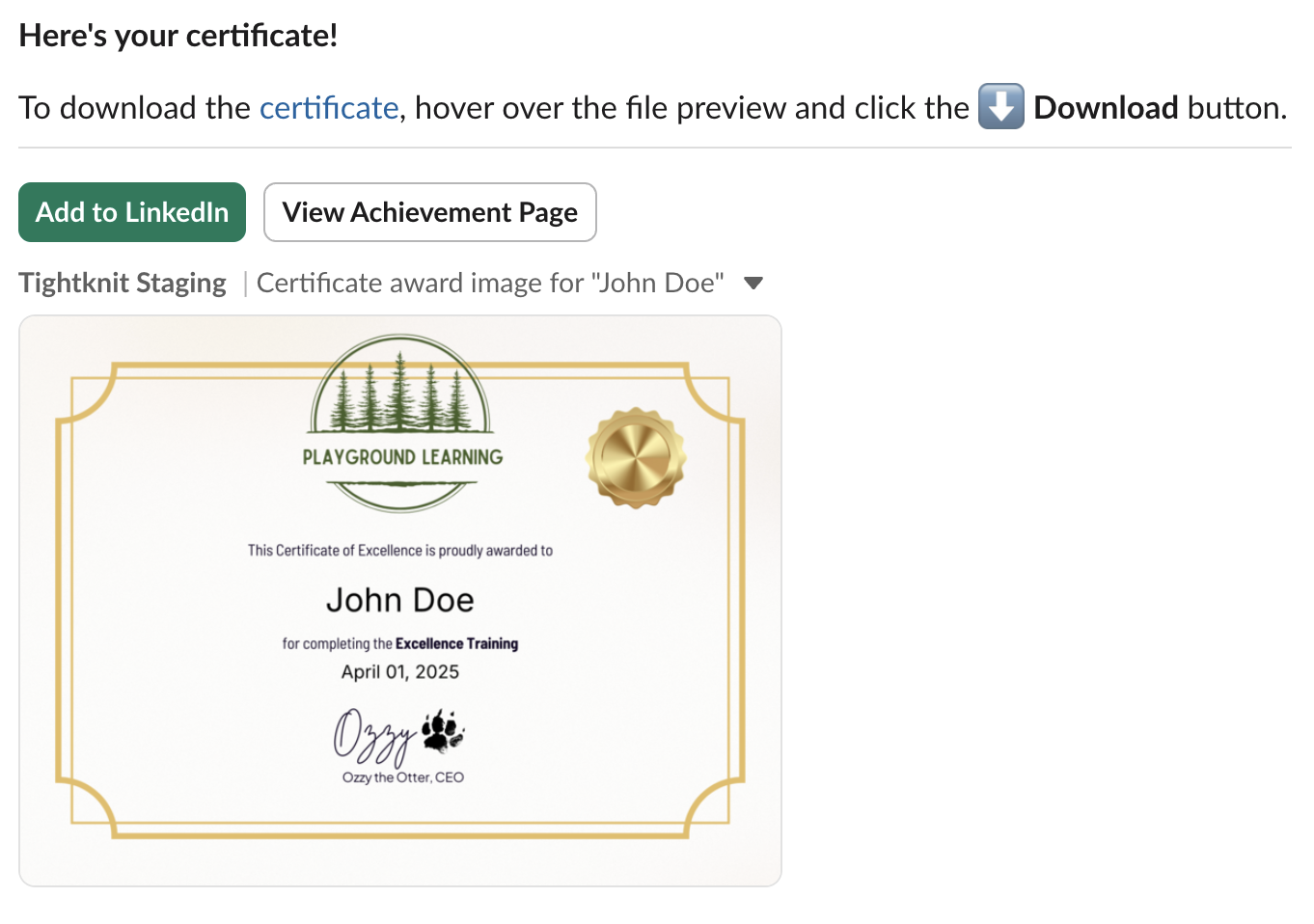 Members will also have the option to conventiently add the credential to the license/certification section of their LinkedIn. In order to auto-fill your company's LinkedIn profile as the issuing organization, configure the LinkedIn ID in the [Gamification settings](/gamification/settings).
If you have a companion site, the user's most recent certificate will appear on the user's profile achievements page.
## Export Awards History
Studio admins can export the full awards history as a CSV file for reporting, compliance, or offline analysis.
Press **Cmd+K** in the Studio and search for "Export Awards" to run the export action.
The CSV file downloads automatically. It includes one row per award assignment.
Members will also have the option to conventiently add the credential to the license/certification section of their LinkedIn. In order to auto-fill your company's LinkedIn profile as the issuing organization, configure the LinkedIn ID in the [Gamification settings](/gamification/settings).
If you have a companion site, the user's most recent certificate will appear on the user's profile achievements page.
## Export Awards History
Studio admins can export the full awards history as a CSV file for reporting, compliance, or offline analysis.
Press **Cmd+K** in the Studio and search for "Export Awards" to run the export action.
The CSV file downloads automatically. It includes one row per award assignment.