> ## Documentation Index
> Fetch the complete documentation index at: https://docs.tightknit.ai/llms.txt
> Use this file to discover all available pages before exploring further.
# Getting Started
> Learn the basics of Events in Tightknit.
Tightknit is an incredibly powerful tool for engaging your community with new events.
With Tightknit, you can:
* 📝 Create, edit, and delete events directly from Slack
* 🎁 Share events with your community across multiple channels
* 🎫 Enable members to RSVP to events directly from Slack
* 🏆 Allow champions to create events with an integrated approval flow
* ⚡ Automatically update Slack event announcements across all channels
* 📅 Remind members of upcoming events
* ⏪ Recaps and recordings
## Accessing Events
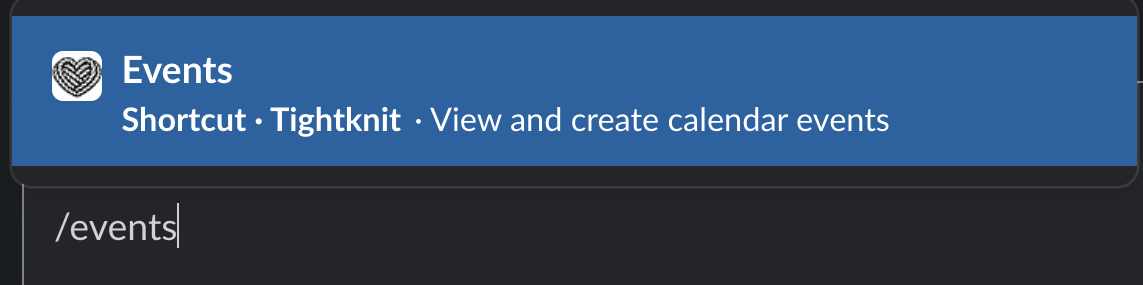
Use the global shortcut `/events` to open to the Events modal. The shortcut option will appear as you type `/events` into the search bar or any conversation message.
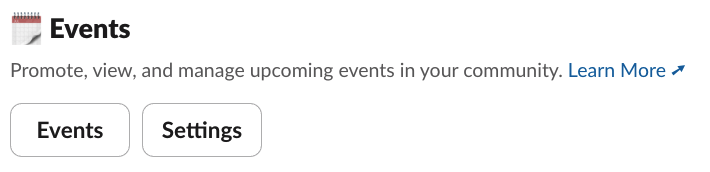
 Alternatively, users can access the modal by clicking the `Events` button in the Tightknit app home under the **Events** module.
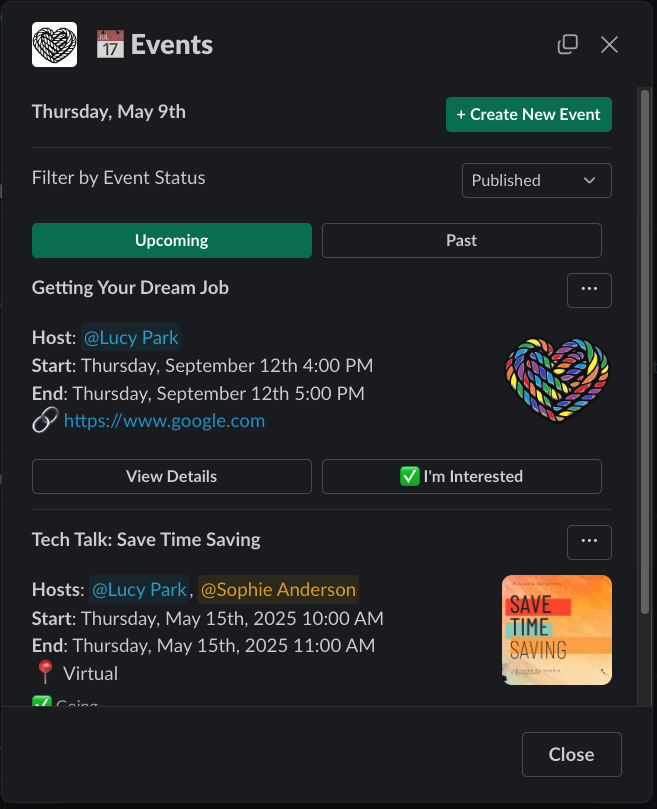
 For non-admin users, the Events List modal displays all events published to
any channel in the workspace.
## Events List Panel
To see your community's upcoming events within a Slack workspace, any user in the workspace may use the [global shortcut](/events/getting-started#accessing-events) to show events to all users within a workspace.
The easiest way to access this shortcut is to type `/events` in any message input box.
This will display a list of all public events that are currently scheduled.
For non-admin users, the Events List modal displays all events published to
any channel in the workspace.
## Events List Panel
To see your community's upcoming events within a Slack workspace, any user in the workspace may use the [global shortcut](/events/getting-started#accessing-events) to show events to all users within a workspace.
The easiest way to access this shortcut is to type `/events` in any message input box.
This will display a list of all public events that are currently scheduled.
 ### Views
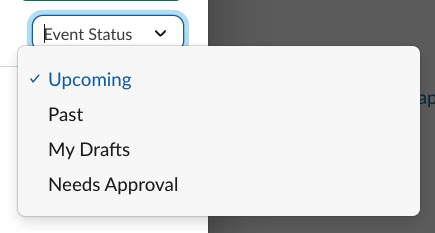 From this panel, members can select a view to filter the listed events depending on their permissions.
| **Filter** | **Standard User** | **Events Managers** | **Admin** |
| :------------- | :--------------------- | :--------------------------------------------------------- | ----------------------------------------- |
| Upcoming | Public upcoming events | Public upcoming events + unlisted events owned by the user | All upcoming events (public and unlisted) |
| Past | Public past events | Public past events + unlisted events owned by the user | All past events (public and unlisted) |
| My Drafts | -- | Events owned by the user in draft state | Events owned by the user in draft state |
| Needs Approval | -- | Events owned by the user awaiting admin approval | All events awaiting admin approval |
### Actions
From the panel, admin users and designated [events managers](/community/permission-sets#create-a-permission-set) can:
* Create new event drafts
* Submit drafts for admin approval (with the **Manage & Draft Events** permission) or publish events directly without admin approval (with the **Manage & Publish Events** permission)
* Edit and delete events
Events managers may only edit an event if they are the owner or were marked
as the Host of the event. **Manage & Publish Events** is a superset of
**Manage & Draft Events** and grants both publish and draft capabilities.
## Related topics
- [Getting Started](/profiles/getting-started.md)
From this panel, members can select a view to filter the listed events depending on their permissions.
| **Filter** | **Standard User** | **Events Managers** | **Admin** |
| :------------- | :--------------------- | :--------------------------------------------------------- | ----------------------------------------- |
| Upcoming | Public upcoming events | Public upcoming events + unlisted events owned by the user | All upcoming events (public and unlisted) |
| Past | Public past events | Public past events + unlisted events owned by the user | All past events (public and unlisted) |
| My Drafts | -- | Events owned by the user in draft state | Events owned by the user in draft state |
| Needs Approval | -- | Events owned by the user awaiting admin approval | All events awaiting admin approval |
### Actions
From the panel, admin users and designated [events managers](/community/permission-sets#create-a-permission-set) can:
* Create new event drafts
* Submit drafts for admin approval (with the **Manage & Draft Events** permission) or publish events directly without admin approval (with the **Manage & Publish Events** permission)
* Edit and delete events
Events managers may only edit an event if they are the owner or were marked
as the Host of the event. **Manage & Publish Events** is a superset of
**Manage & Draft Events** and grants both publish and draft capabilities.
## Related topics
- [Getting Started](/profiles/getting-started.md)