> ## Documentation Index
> Fetch the complete documentation index at: https://docs.tightknit.ai/llms.txt
> Use this file to discover all available pages before exploring further.
# General Settings
> Configure basic settings for your companion site
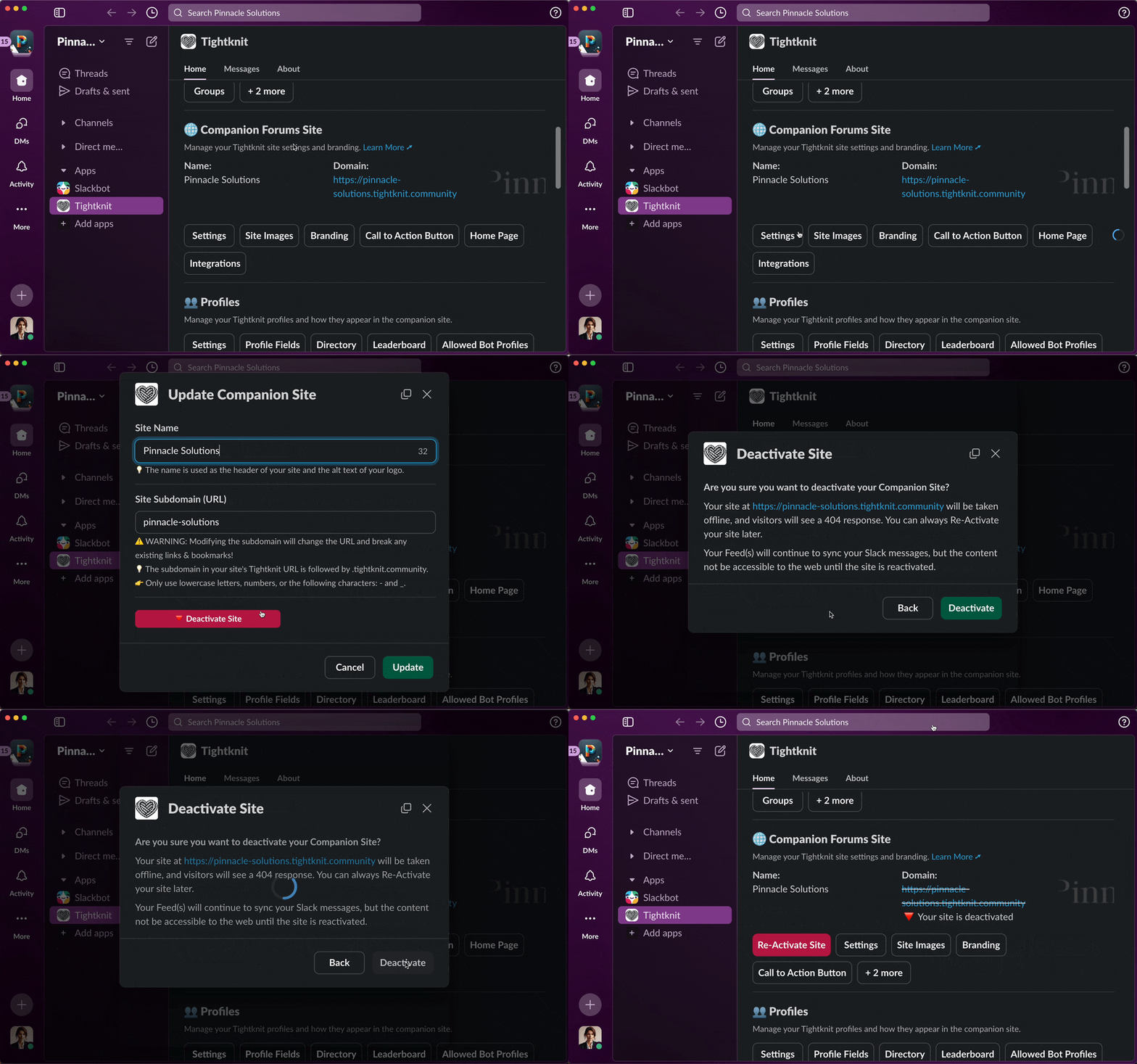
You can access the General settings for the Companion Site by clicking the `General` button under the **Companion Forums Site** module in your Tightknit app home.
## Site Details
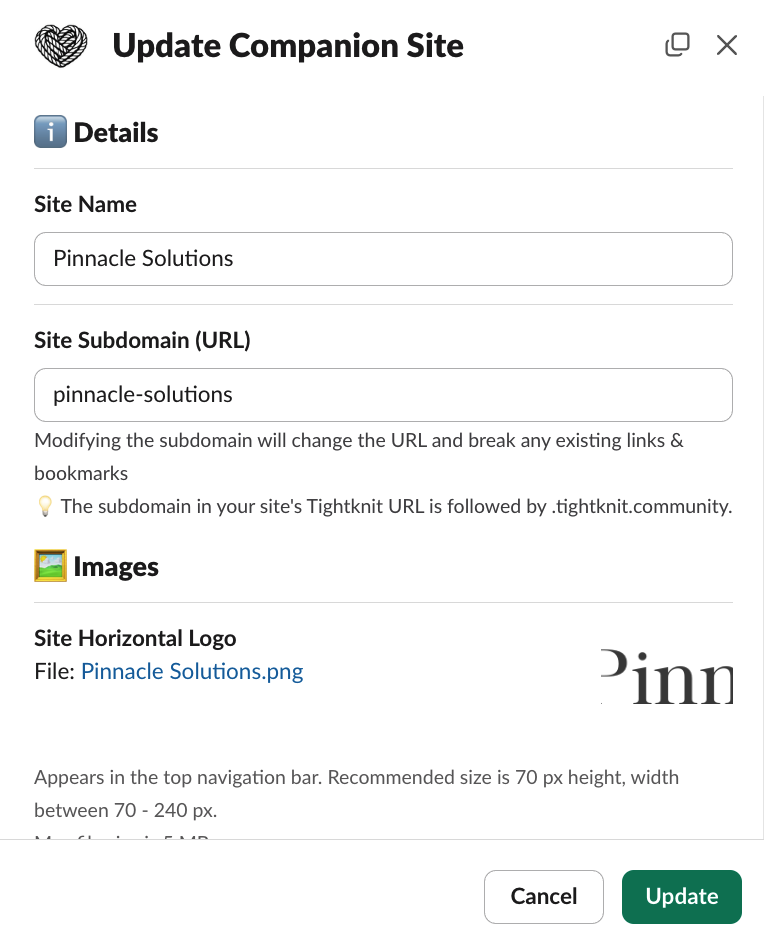
Within the Site Settings modal, you can configure the following:
* **Site Name** - This is the name of your site.
This will be used as the title in the header of your Tightknit companion site as well as the title within SEO metadata.
* **Site Subdomain (URL)** - This is the subdomain that will be used when you host your site on `.tightknit.community`. The subdomain is not used if you register a custom domain.
* **Search Engine Discoverability** - Opt your site in or out of being discoverable by search engines. When disabled, excludes your sites' routes from robots.txt and sitemaps.
* **Site Access Control** - Determines who can access your companion site.
* **Public Access** - all pages on the site are accessible to the public. Users can optionally sign in for personalized features.
* **Restricted Access** - all pages on the site are private. Login is required to view content.
 If you're interested in using a custom domain, please reach out to
[Support](mailto:support@tightknit.ai) or ask for help within the Slack
community.
If not on a custom domain, updating a sites's slug will change the URL of all
pages in the site. This will break any links that have been shared and may
have a negative impact on SEO.
## Video Embeds
This setting is available to enterprise plan customers. Contact [Support](mailto:support@tightknit.ai) to learn more.
The **Autoload Video Embeds** setting controls whether third-party video players (such as YouTube and Vimeo) load automatically when a visitor opens a page. By default, videos autoload for all sites.
Enterprise customers can disable autoloading in the Studio under **Website > General > Video Embeds**. When disabled, embedded videos display a placeholder with a link to the video instead of loading the player. This is useful for communities that use a Consent Management Platform (CMP), where third-party iframes must wait for visitor consent before loading.
## Site Images
Within the modal, you can additionally configure the following images associated with your Companion Site:
* Site Horizontal Logo
* Site Icon
* Favicon
* Social Media Image
For more information on the specs and recommendations of these images, see the [Branding Guide](/branding#image-assets).
## Deactivating the Companion Site
To deactivate the Companion Site, click the `Deactivate Site` button within the `Settings` modal. This action will take your site offline. Visitors will no longer be able to see your content and will receive a 404 Not Found response.
You can re-activate your site by clicking the `Re-Activate Site` button within the Companion Site module.
If you're interested in using a custom domain, please reach out to
[Support](mailto:support@tightknit.ai) or ask for help within the Slack
community.
If not on a custom domain, updating a sites's slug will change the URL of all
pages in the site. This will break any links that have been shared and may
have a negative impact on SEO.
## Video Embeds
This setting is available to enterprise plan customers. Contact [Support](mailto:support@tightknit.ai) to learn more.
The **Autoload Video Embeds** setting controls whether third-party video players (such as YouTube and Vimeo) load automatically when a visitor opens a page. By default, videos autoload for all sites.
Enterprise customers can disable autoloading in the Studio under **Website > General > Video Embeds**. When disabled, embedded videos display a placeholder with a link to the video instead of loading the player. This is useful for communities that use a Consent Management Platform (CMP), where third-party iframes must wait for visitor consent before loading.
## Site Images
Within the modal, you can additionally configure the following images associated with your Companion Site:
* Site Horizontal Logo
* Site Icon
* Favicon
* Social Media Image
For more information on the specs and recommendations of these images, see the [Branding Guide](/branding#image-assets).
## Deactivating the Companion Site
To deactivate the Companion Site, click the `Deactivate Site` button within the `Settings` modal. This action will take your site offline. Visitors will no longer be able to see your content and will receive a 404 Not Found response.
You can re-activate your site by clicking the `Re-Activate Site` button within the Companion Site module.