> ## Documentation Index
> Fetch the complete documentation index at: https://docs.tightknit.ai/llms.txt
> Use this file to discover all available pages before exploring further.
# Authentication
> Learn how authentication works on your companion site
The Tightknit companion site supports two access modes: **Public Access** and **Restricted Access**. Site privacy and user login are configured independently. You can enable login on a public site so users can access personalized features, or restrict access entirely so only authenticated users can view content.
## Access Control Options
### Public Access
* All pages are publicly accessible to anyone on the internet
* No login required to view content
* Content is discoverable by search engines
* Perfect for public communities and open knowledge sharing
* Users can optionally sign in for personalized features
### Restricted Access
* All pages require authentication
* Only authenticated users can access the site
* Content is private and not indexed by search engines
* Ideal for internal teams and private communities
* Certain public-facing actions are automatically hidden (see [below](#restricted-access-behavior))
## Enabling Authentication
You can configure site access and authentication settings from the [Companion Site settings](/companion-site/general) in Studio or from the Slack app home:
1. Go to the [Tightknit app home](/slack/getting-started) in Slack
2. Navigate to the **Companion Forums Site** module
3. Click **General** to open the site settings
4. Under **Site Access Control**, select **🔒 Restricted Access - login required**
5. Save your changes
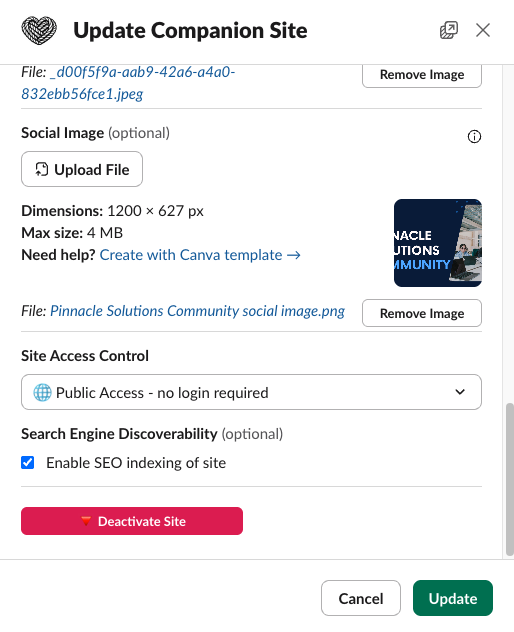 Site privacy (public vs. restricted) is managed separately from which login methods are enabled. You can enable login providers on a public site to allow users to sign in for personalized features, without requiring login to view content.
## Supported Login Methods
Tightknit supports a variety of login methods for your companion site. You can customize which authentication providers appear on your login page from the [companion site authentication settings](https://studio.tightknit.ai/-/website/authentication) in Studio.
### OAuth Providers
Sign in with third-party accounts using industry-standard OAuth 2.0:
* **Google** - Sign in with any Google account
* **Microsoft** - Sign in with a Microsoft account
* **GitHub** - Sign in with a GitHub account
* **Slack** - Sign in with a Slack account that's a member of your workspace
### Email Sign-in Code
* **Email Sign-in Code** - Users enter their email address and receive a one-time 6-digit verification code. They enter the code on the site to sign in. No password required.
Sign-in emails can be blocked, quarantined, or filtered as spam by strict corporate email security, and members sometimes sign in with a different email than the one on their profile. For member-friendly guidance (including how to allowlist our senders), see [Not receiving emails from Tightknit](/support/troubleshooting#not-receiving-emails-from-tightknit).
### Single Sign-On (SSO)
* **Enterprise SSO** - Integrate with your organization's identity provider using OIDC, SAML 2.0, or token-based JWT. [Learn more about SSO](/companion-site/sso).
All login methods use secure, industry-standard authentication protocols.
## Enabling interactivity
[Interactivity](/companion-site/overview#interactivity) lets members do more than read content. Once enabled, members can sign in, create posts, and leave comments that sync back to your Slack workspace. Because every interaction is tied to a signed-in member, you enable interactivity by turning on login and offering at least one login method.
Interactivity is available on the [Enterprise plan](https://tightknit.ai/pricing). Contact [Support](mailto:support@tightknit.ai) if you don't see these settings or want to enable it for your community.
Configure these settings in Studio under **[Website > Authentication](https://studio.tightknit.ai/-/website/authentication)**:
Under **Access**, turn on **Allow members to log in**. If your site uses [Restricted Access](#access-control-options), login is required and this setting is enabled automatically.
Give members a way to sign in by enabling one or more methods:
* **Methods** — Email Sign-in Code (passwordless email sign-in via one-time code)
* **Providers** — Slack, Google, Microsoft, or GitHub
* **Single Sign-On** — your organization's [SSO provider](/companion-site/sso)
To let members create posts and comments from the site, enable **Post from Site** on each Feed where you want it. See [Feed settings](/channels-and-feeds/create-feed#feed-settings).
Posting and commenting are controlled per Feed. Once login is enabled, members can sign in, but they can only create posts or comments on Feeds that have **Post from Site** turned on.
## Limitations
### Google Groups and Aliases
Google Sign-in does not support **email aliases**, **Google Groups**, or other **distribution list emails**. OAuth authentication requires individual user accounts, not shared or group email addresses.
If a user attempts to sign in with a Google Group email (e.g.,
[team@company.com](mailto:team@company.com)) or a distribution list, the authentication will fail. Users
must sign in with their personal Google account.
**Examples of unsupported email types:**
* Google Groups (e.g., [team@company.com](mailto:team@company.com), [support@company.com](mailto:support@company.com))
* Email distribution lists
* Shared mailboxes
* Service accounts
## Restricted access behavior
When your site is set to **Restricted Access**, several public-facing actions are automatically hidden across the site since all visitors are already authenticated members:
* **Share** — The Share button and Share overflow menu are hidden on all pages, including feeds, posts, events, members, and resources.
* **Embed** — Embed options are hidden since content is not publicly accessible.
* **Follow (RSS)** — The Follow/RSS button is hidden on feed pages.
* **Explore** — The Explore button is hidden on feed pages.
These elements remain visible on public sites where they serve their intended purpose of helping visitors share and discover content.
## Login page customization
You can customize the appearance of the login page's side marketing panel from Studio under **[Website > Login Page](https://studio.tightknit.ai/-/website/login-page)**. The following options are available:
* **Enabled** — Toggle the marketing panel on or off.
* **Color theme** — Choose a color theme for the panel.
* **Background color** — Set a solid background color (hex) that overrides the default branding gradient.
* **Background image** — Upload an image to use as a full-cover background on the side panel. When set, the background image takes precedence over the background color.
* **Title and description** — Customize the marketing copy shown on the panel.
* **Media image** — Upload a featured image to display on the panel.
The background color and background image options give you full control over the panel's appearance. Use a background image for a branded visual, or a solid color for a clean, minimal look.
### Legal links
You can configure legal links that appear in the footer of the login form. These links are displayed as a consent line (e.g., "By continuing, you agree to our User Agreement and Privacy Policy").
To manage legal links, go to **[Legal & Terms](https://studio.tightknit.ai/-/website/login-page#legal-terms)** in Studio. You can add up to 5 links, reorder them via drag-and-drop, and customize each link's label and URL.
#### User Agreement
The **Tightknit User Agreement** is a required legal link that appears on every companion site login page. It cannot be removed because it establishes the legal relationship between your community members and the Tightknit platform.
The User Agreement is required because:
* **User consent** — When members sign in to your companion site, they are creating an account on Tightknit's platform. The User Agreement ensures they understand and consent to how their data is collected, stored, and processed.
* **Community standards** — The agreement sets baseline expectations for acceptable behavior and content on your community, protecting both you and your members.
* **Legal compliance** — Displaying the User Agreement at sign-in satisfies regulatory requirements for informed consent, including GDPR and CCPA obligations around data processing transparency.
The User Agreement URL is required and cannot be modified.
#### Adding custom legal links
In addition to the required User Agreement, you can add your own legal links such as a Privacy Policy or Terms of Service. Each link requires a label and a valid HTTPS URL. All configured links appear together in the login form consent line.
## Session Management
Once signed in, users remain authenticated for **7 days**. After this period, they'll need to sign in again to access restricted content.
Sessions are automatically refreshed when users are active on the site. If a user accesses the site within 24 hours of their last activity, their session is extended for another 7 days. This means active users won't be logged out unexpectedly during normal use.
## Security Features
* **Secure Cookies** - All authentication cookies are encrypted and secure
* **HTTPS Only** - Authentication only works over secure connections
* **Session Timeout** - Automatic logout after 7 days of inactivity
* **OAuth 2.0** - Industry-standard authentication protocol
* **Token Encryption** - OAuth access tokens and refresh tokens are encrypted at rest in the database to protect against unauthorized access if the database is compromised
## Login error codes
When authentication fails, the login page displays an error message based on an error code in the URL query parameter. These codes help identify the specific failure reason.
| Code | Description |
| ----------------------------- | ------------------------------------------------------------------------------------------ |
| `user_not_found` | No account found with the provided credentials. |
| `member_not_found` | An account exists but no active member profile was found in this community. |
| `account_deactivated` | The member's account has been deactivated by an administrator. |
| `account_forgotten` | The member's account has been removed through a GDPR data erasure request. |
| `authentication_failed` | Authentication failed due to invalid or expired credentials. |
| `tenant_mismatch` | The user is not authorized to access this community (SSO tenant mismatch). |
| `email_not_found` | The login provider did not return an email address for the account. |
| `email_otp_invalid` | The sign-in code is invalid, has already been used, or does not exist. |
| `email_otp_expired` | The sign-in code has expired. Request a new one. |
| `email_otp_too_many_attempts` | Too many incorrect attempts. The code has been invalidated; request a new one. |
| `magic_link_email_not_found` | The email address used for the magic link does not have an active member profile. (Legacy) |
| `magic_link_invalid` | The magic link is invalid or has already been used. (Legacy) |
| `magic_link_expired` | The magic link has expired. Request a new one. (Legacy) |
| `service_unavailable` | An upstream service was temporarily unavailable during authentication. Try again. |
If you use an external identity provider (such as Auth0) with a post-login action that checks membership via the Tightknit API, you can redirect rejected users to your login page with these error codes to display a meaningful message. For example: `https://your-community.tightknit.ai/login?error=member_not_found`
## Troubleshooting
### Users Can't Sign In
* Ensure the user is using a supported browser
* Check that they have a valid account for one of the enabled login methods
* Verify the user is a member of your Slack workspace (for Slack login)
* If using Email Sign-in Code, check that the verification code email was not caught by a spam filter
### Session Issues
* Clear browser cookies and try again
* Check that the site is using HTTPS
* Ensure cookies are enabled in the browser
### Access Denied
* Confirm the user is a member of your Slack workspace (if using Slack login)
* Check that the site access control is set to "Restricted Access"
* Verify the user completed the full authentication flow
Site privacy (public vs. restricted) is managed separately from which login methods are enabled. You can enable login providers on a public site to allow users to sign in for personalized features, without requiring login to view content.
## Supported Login Methods
Tightknit supports a variety of login methods for your companion site. You can customize which authentication providers appear on your login page from the [companion site authentication settings](https://studio.tightknit.ai/-/website/authentication) in Studio.
### OAuth Providers
Sign in with third-party accounts using industry-standard OAuth 2.0:
* **Google** - Sign in with any Google account
* **Microsoft** - Sign in with a Microsoft account
* **GitHub** - Sign in with a GitHub account
* **Slack** - Sign in with a Slack account that's a member of your workspace
### Email Sign-in Code
* **Email Sign-in Code** - Users enter their email address and receive a one-time 6-digit verification code. They enter the code on the site to sign in. No password required.
Sign-in emails can be blocked, quarantined, or filtered as spam by strict corporate email security, and members sometimes sign in with a different email than the one on their profile. For member-friendly guidance (including how to allowlist our senders), see [Not receiving emails from Tightknit](/support/troubleshooting#not-receiving-emails-from-tightknit).
### Single Sign-On (SSO)
* **Enterprise SSO** - Integrate with your organization's identity provider using OIDC, SAML 2.0, or token-based JWT. [Learn more about SSO](/companion-site/sso).
All login methods use secure, industry-standard authentication protocols.
## Enabling interactivity
[Interactivity](/companion-site/overview#interactivity) lets members do more than read content. Once enabled, members can sign in, create posts, and leave comments that sync back to your Slack workspace. Because every interaction is tied to a signed-in member, you enable interactivity by turning on login and offering at least one login method.
Interactivity is available on the [Enterprise plan](https://tightknit.ai/pricing). Contact [Support](mailto:support@tightknit.ai) if you don't see these settings or want to enable it for your community.
Configure these settings in Studio under **[Website > Authentication](https://studio.tightknit.ai/-/website/authentication)**:
Under **Access**, turn on **Allow members to log in**. If your site uses [Restricted Access](#access-control-options), login is required and this setting is enabled automatically.
Give members a way to sign in by enabling one or more methods:
* **Methods** — Email Sign-in Code (passwordless email sign-in via one-time code)
* **Providers** — Slack, Google, Microsoft, or GitHub
* **Single Sign-On** — your organization's [SSO provider](/companion-site/sso)
To let members create posts and comments from the site, enable **Post from Site** on each Feed where you want it. See [Feed settings](/channels-and-feeds/create-feed#feed-settings).
Posting and commenting are controlled per Feed. Once login is enabled, members can sign in, but they can only create posts or comments on Feeds that have **Post from Site** turned on.
## Limitations
### Google Groups and Aliases
Google Sign-in does not support **email aliases**, **Google Groups**, or other **distribution list emails**. OAuth authentication requires individual user accounts, not shared or group email addresses.
If a user attempts to sign in with a Google Group email (e.g.,
[team@company.com](mailto:team@company.com)) or a distribution list, the authentication will fail. Users
must sign in with their personal Google account.
**Examples of unsupported email types:**
* Google Groups (e.g., [team@company.com](mailto:team@company.com), [support@company.com](mailto:support@company.com))
* Email distribution lists
* Shared mailboxes
* Service accounts
## Restricted access behavior
When your site is set to **Restricted Access**, several public-facing actions are automatically hidden across the site since all visitors are already authenticated members:
* **Share** — The Share button and Share overflow menu are hidden on all pages, including feeds, posts, events, members, and resources.
* **Embed** — Embed options are hidden since content is not publicly accessible.
* **Follow (RSS)** — The Follow/RSS button is hidden on feed pages.
* **Explore** — The Explore button is hidden on feed pages.
These elements remain visible on public sites where they serve their intended purpose of helping visitors share and discover content.
## Login page customization
You can customize the appearance of the login page's side marketing panel from Studio under **[Website > Login Page](https://studio.tightknit.ai/-/website/login-page)**. The following options are available:
* **Enabled** — Toggle the marketing panel on or off.
* **Color theme** — Choose a color theme for the panel.
* **Background color** — Set a solid background color (hex) that overrides the default branding gradient.
* **Background image** — Upload an image to use as a full-cover background on the side panel. When set, the background image takes precedence over the background color.
* **Title and description** — Customize the marketing copy shown on the panel.
* **Media image** — Upload a featured image to display on the panel.
The background color and background image options give you full control over the panel's appearance. Use a background image for a branded visual, or a solid color for a clean, minimal look.
### Legal links
You can configure legal links that appear in the footer of the login form. These links are displayed as a consent line (e.g., "By continuing, you agree to our User Agreement and Privacy Policy").
To manage legal links, go to **[Legal & Terms](https://studio.tightknit.ai/-/website/login-page#legal-terms)** in Studio. You can add up to 5 links, reorder them via drag-and-drop, and customize each link's label and URL.
#### User Agreement
The **Tightknit User Agreement** is a required legal link that appears on every companion site login page. It cannot be removed because it establishes the legal relationship between your community members and the Tightknit platform.
The User Agreement is required because:
* **User consent** — When members sign in to your companion site, they are creating an account on Tightknit's platform. The User Agreement ensures they understand and consent to how their data is collected, stored, and processed.
* **Community standards** — The agreement sets baseline expectations for acceptable behavior and content on your community, protecting both you and your members.
* **Legal compliance** — Displaying the User Agreement at sign-in satisfies regulatory requirements for informed consent, including GDPR and CCPA obligations around data processing transparency.
The User Agreement URL is required and cannot be modified.
#### Adding custom legal links
In addition to the required User Agreement, you can add your own legal links such as a Privacy Policy or Terms of Service. Each link requires a label and a valid HTTPS URL. All configured links appear together in the login form consent line.
## Session Management
Once signed in, users remain authenticated for **7 days**. After this period, they'll need to sign in again to access restricted content.
Sessions are automatically refreshed when users are active on the site. If a user accesses the site within 24 hours of their last activity, their session is extended for another 7 days. This means active users won't be logged out unexpectedly during normal use.
## Security Features
* **Secure Cookies** - All authentication cookies are encrypted and secure
* **HTTPS Only** - Authentication only works over secure connections
* **Session Timeout** - Automatic logout after 7 days of inactivity
* **OAuth 2.0** - Industry-standard authentication protocol
* **Token Encryption** - OAuth access tokens and refresh tokens are encrypted at rest in the database to protect against unauthorized access if the database is compromised
## Login error codes
When authentication fails, the login page displays an error message based on an error code in the URL query parameter. These codes help identify the specific failure reason.
| Code | Description |
| ----------------------------- | ------------------------------------------------------------------------------------------ |
| `user_not_found` | No account found with the provided credentials. |
| `member_not_found` | An account exists but no active member profile was found in this community. |
| `account_deactivated` | The member's account has been deactivated by an administrator. |
| `account_forgotten` | The member's account has been removed through a GDPR data erasure request. |
| `authentication_failed` | Authentication failed due to invalid or expired credentials. |
| `tenant_mismatch` | The user is not authorized to access this community (SSO tenant mismatch). |
| `email_not_found` | The login provider did not return an email address for the account. |
| `email_otp_invalid` | The sign-in code is invalid, has already been used, or does not exist. |
| `email_otp_expired` | The sign-in code has expired. Request a new one. |
| `email_otp_too_many_attempts` | Too many incorrect attempts. The code has been invalidated; request a new one. |
| `magic_link_email_not_found` | The email address used for the magic link does not have an active member profile. (Legacy) |
| `magic_link_invalid` | The magic link is invalid or has already been used. (Legacy) |
| `magic_link_expired` | The magic link has expired. Request a new one. (Legacy) |
| `service_unavailable` | An upstream service was temporarily unavailable during authentication. Try again. |
If you use an external identity provider (such as Auth0) with a post-login action that checks membership via the Tightknit API, you can redirect rejected users to your login page with these error codes to display a meaningful message. For example: `https://your-community.tightknit.ai/login?error=member_not_found`
## Troubleshooting
### Users Can't Sign In
* Ensure the user is using a supported browser
* Check that they have a valid account for one of the enabled login methods
* Verify the user is a member of your Slack workspace (for Slack login)
* If using Email Sign-in Code, check that the verification code email was not caught by a spam filter
### Session Issues
* Clear browser cookies and try again
* Check that the site is using HTTPS
* Ensure cookies are enabled in the browser
### Access Denied
* Confirm the user is a member of your Slack workspace (if using Slack login)
* Check that the site access control is set to "Restricted Access"
* Verify the user completed the full authentication flow