> ## Documentation Index
> Fetch the complete documentation index at: https://docs.tightknit.ai/llms.txt
> Use this file to discover all available pages before exploring further.

# Permission Sets

> Grant permissions to your community members.

export const PlanAvailability = ({feature = 'This feature', plan = 'enterprise', addon = false, plural = false, support = false, growth, momentum, enterprise, children}) => {
  const rank = {
    growth: 0,
    momentum: 1,
    enterprise: 2
  };
  const normalize = value => {
    if (value === true || value === 'included' || value === 'yes') {
      return 'included';
    }
    if (value === 'addon') {
      return 'addon';
    }
    return 'none';
  };
  const defaultStatus = p => {
    if (rank[p] < rank[plan]) {
      return 'none';
    }
    return addon ? 'addon' : 'included';
  };
  const overrides = {
    growth,
    momentum,
    enterprise
  };
  const status = p => overrides[p] === undefined ? defaultStatus(p) : normalize(overrides[p]);
  const plans = [{
    key: 'growth',
    label: 'Growth'
  }, {
    key: 'momentum',
    label: 'Momentum'
  }, {
    key: 'enterprise',
    label: 'Enterprise'
  }];
  const included = plans.filter(p => status(p.key) === 'included');
  const asAddon = plans.filter(p => status(p.key) === 'addon');
  const verb = plural ? 'are' : 'is';
  const srSentence = [feature, verb, 'available on:', included.map(p => `${p.label} plan`).join(', ') || 'no plans', asAddon.length > 0 ? `; as an add-on: ${asAddon.map(p => `${p.label} plan`).join(', ')}` : ''].join(' ');
  const statusCell = s => {
    if (s === 'included') {
      return <svg className="plan-availability-check" xmlns="http://www.w3.org/2000/svg" viewBox="0 0 24 24" fill="none" stroke="currentColor" strokeWidth="3" strokeLinecap="round" strokeLinejoin="round" aria-hidden="true">
          <path d="M20 6 9 17l-5-5" />
        </svg>;
    }
    if (s === 'addon') {
      return <span className="plan-availability-addon">Add-on</span>;
    }
    return <span className="plan-availability-none">—</span>;
  };
  return <div className="plan-availability">
      <span className="plan-availability-sr">{srSentence}</span>
      <div className="plan-availability-content" aria-hidden="true">
        <div className="plan-availability-feature">{feature}</div>
        {(support || children) && <div className="plan-availability-body">
            {support && <>
                Contact <a href="mailto:support@tightknit.ai">Support</a> if you
                don't see this option or want to enable it for your community.
              </>}
            {children && <> {children}</>}
          </div>}
      </div>
      <div className="plan-availability-matrix" aria-hidden="true">
        {plans.map(p => <div className="plan-availability-plan" key={p.key}>
            <span className="plan-availability-plan-name">{p.label}</span>
            {statusCell(status(p.key))}
          </div>)}
      </div>
    </div>;
};

<PlanAvailability feature="Permission Sets" plural plan="momentum" />

A **Permission Set** is a collection of permissions and privileges that can be granted to a user (*coming soon*) or a Group.

A user's permissions are calculated as the superset of all Permission Sets assigned to them or assigned to Groups that they are a member of. For example, to have event-related permissions, a user must be a member of at least one Group with an assigned Permission Set containing event permissions.

## How to Access

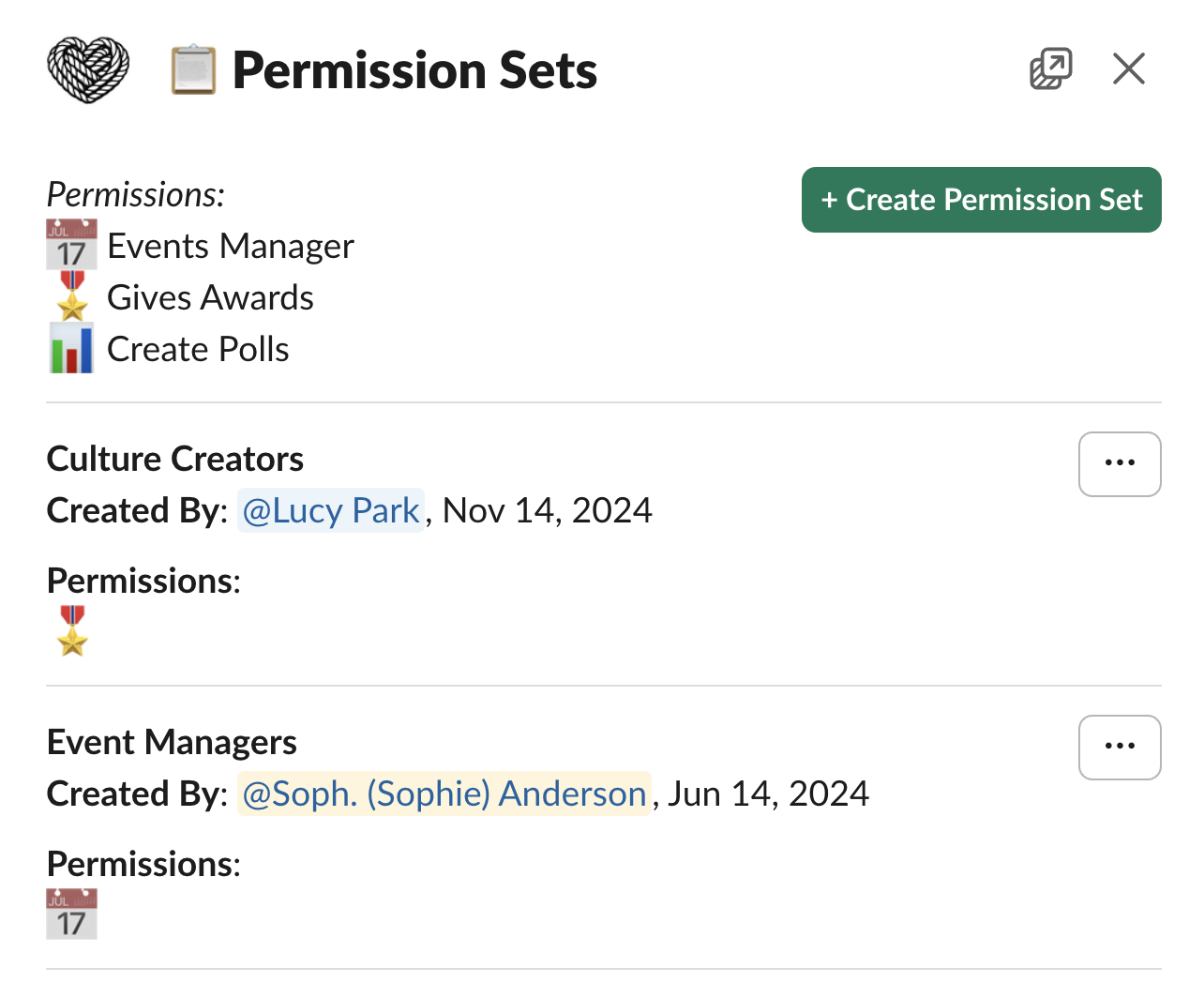
Admins can access Permission Sets settings by clicking the `Permission Sets` button under the **Community** module.

<Frame caption="Permission Sets list panel">
  <img src="https://mintcdn.com/tightknit/UUILCHqZIh1p4QUW/assets/community/permission-sets/permission-sets-list.png?fit=max&auto=format&n=UUILCHqZIh1p4QUW&q=85&s=f6be3f197def18b355dda971769b3c9e" alt="Permission Sets list panel" width="1284" height="1064" data-path="assets/community/permission-sets/permission-sets-list.png" />
</Frame>

From the Permission Sets List panel, admins are able to view, manage, and create Permission Sets.

## Create a Permission Set

To create a new Permission Set, click the `Create Permission Set` button. Within the Permission Set creation modal, you can configure the following:

* **Name** - the name associated with your Permission Set
* **Permissions** - list of permissions enabled for this set
  * **Manage & Draft Events** - the user can draft new events, submit them for admin approval, and edit or delete their own events. They can also access `Events` from the app home.
  * **Manage & Publish Events** - the user can publish events directly without admin approval, and edit or delete their own events. This permission is a superset of **Manage & Draft Events**: selecting it grants drafting capability automatically, and the **Manage & Draft Events** checkbox is hidden when this is enabled.
  * **Give Awards** - the user has the ability to [give Awards](/gamification/awards#send-an-award) to members of the Community.
  * **Create Polls** - the user has the ability to [create Polls](/member-engagement/polls).
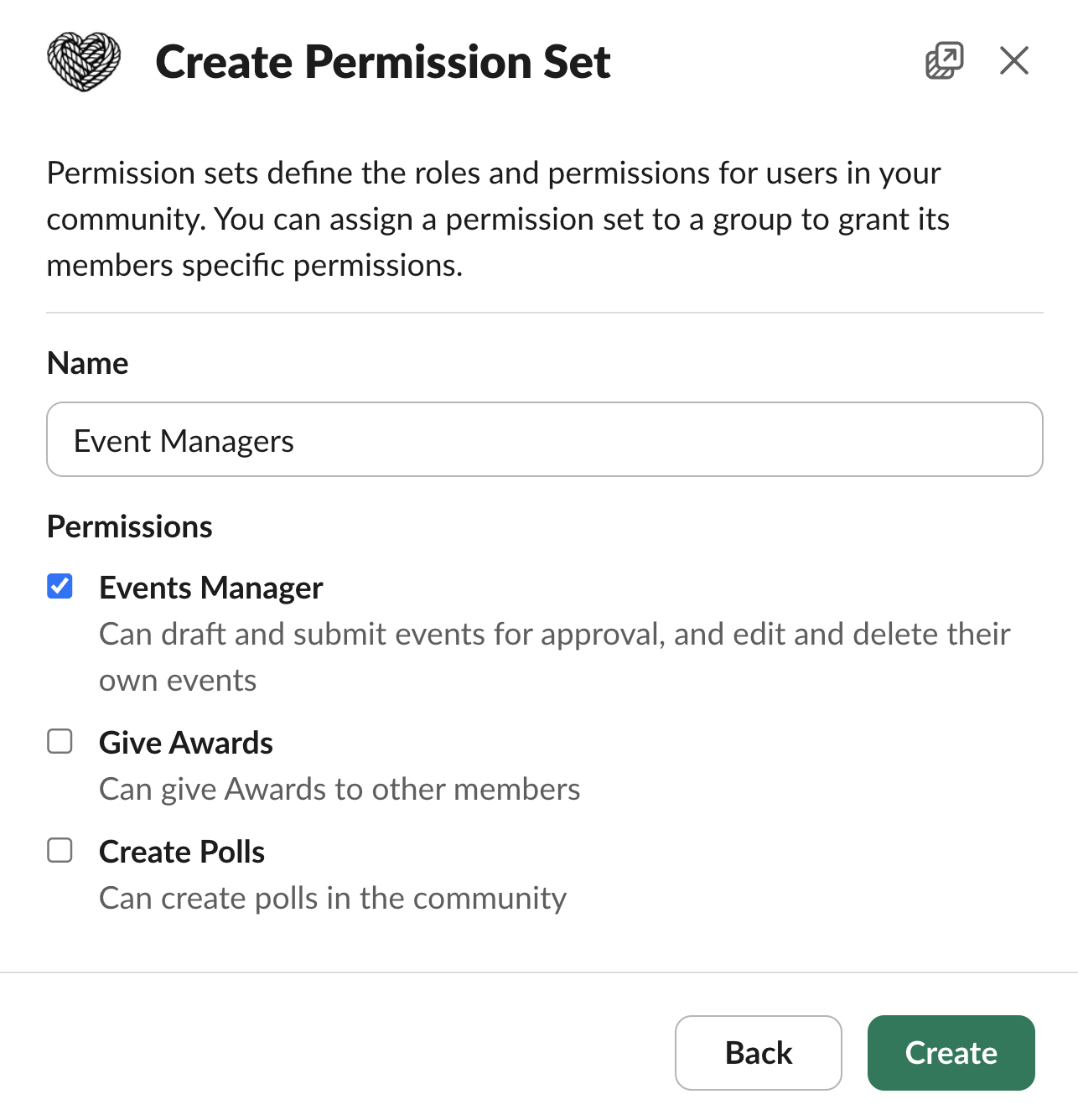
<Frame caption="Create Permission Set modal">
  <img src="https://mintcdn.com/tightknit/UUILCHqZIh1p4QUW/assets/community/permission-sets/create-permission-set-modal.png?fit=max&auto=format&n=UUILCHqZIh1p4QUW&q=85&s=87a6b79008c1fc5897f8e1e8e186f287" alt="Create Permission Set modal" width="1286" height="1336" data-path="assets/community/permission-sets/create-permission-set-modal.png" />
</Frame>

<Info>More permissions coming soon!</Info>


## Related topics

- [Salesforce](/integrations/salesforce.md)
- [Groups](/community/groups.md)
- [Automated Onboarding Journeys](/guides/set-up-automated-onboarding-journeys.md)
- [Create a New Event](/events/create-event.md)
- [Awards](/gamification/awards.md)
