> ## Documentation Index
> Fetch the complete documentation index at: https://docs.tightknit.ai/llms.txt
> Use this file to discover all available pages before exploring further.
# General Settings
> Configure your Community's general settings.
You can access the General settings for the Community by clicking the `General` button under the **Community** module in your Tightknit app home.
## Community Details
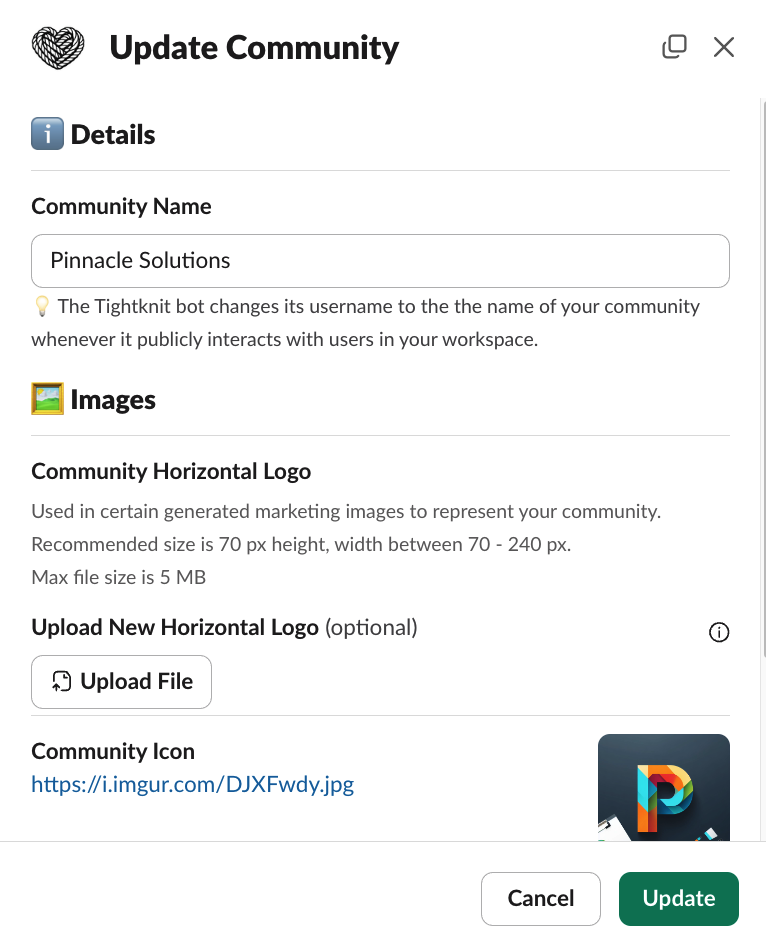
Within the Community Settings modal, you can configure the following:
* **Community Name** - This is the name of your community.
When the Tightknit bot sends a message in public channels, it overrides its appearance to match the name and icon of the community. In other words, you can maintain your community branding without distracting your users with a "Tightknit" bot.
However, when Tightknit sends private messages to individual users in a DM, it will appear as the Tightknit bot. These messages can be found under the **Messages** tab of the app home.
 ## Community Images
Within the modal, you can additionally configure the following images associated with your community's brand in the Slack workspace:
* **Community Horizontal Logo** - used in certain graphics to represent the community brand
* **Community Icon** - used as the user icon when the Tightknit app sends public Slack messages to members of the community
For more information on the specs and recommendations of these images, see the [Branding Guide](/branding#image-assets).
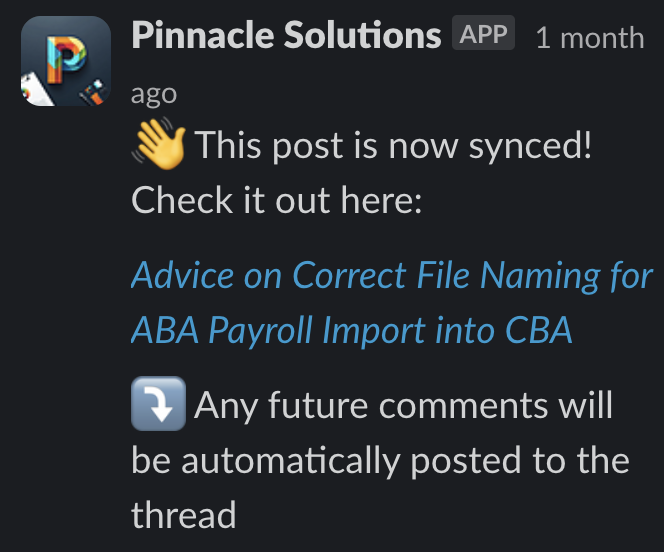
Here's an example of the **New Post Notification Agent** replying a public thread while using the branded name and icon of the community "Pinnacle Solutions".
## Community Images
Within the modal, you can additionally configure the following images associated with your community's brand in the Slack workspace:
* **Community Horizontal Logo** - used in certain graphics to represent the community brand
* **Community Icon** - used as the user icon when the Tightknit app sends public Slack messages to members of the community
For more information on the specs and recommendations of these images, see the [Branding Guide](/branding#image-assets).
Here's an example of the **New Post Notification Agent** replying a public thread while using the branded name and icon of the community "Pinnacle Solutions".
 ## Related topics
- [General Settings](/community-site/general.md)
- [Studio](/studio/overview.md)
- [Getting Started](/slack/getting-started.md)
- [Studio Settings](/studio/settings.md)
- [Authentication](/community-site/authentication.md)
## Related topics
- [General Settings](/community-site/general.md)
- [Studio](/studio/overview.md)
- [Getting Started](/slack/getting-started.md)
- [Studio Settings](/studio/settings.md)
- [Authentication](/community-site/authentication.md)