> ## Documentation Index
> Fetch the complete documentation index at: https://docs.tightknit.ai/llms.txt
> Use this file to discover all available pages before exploring further.

# Overview

> Learn the basics of the Tightknit community site.

export const PlanAvailability = ({feature = 'This feature', plan = 'enterprise', addon = false, plural = false, support = false, growth, momentum, enterprise, children}) => {
  const rank = {
    growth: 0,
    momentum: 1,
    enterprise: 2
  };
  const normalize = value => {
    if (value === true || value === 'included' || value === 'yes') {
      return 'included';
    }
    if (value === 'addon') {
      return 'addon';
    }
    return 'none';
  };
  const defaultStatus = p => {
    if (rank[p] < rank[plan]) {
      return 'none';
    }
    return addon ? 'addon' : 'included';
  };
  const overrides = {
    growth,
    momentum,
    enterprise
  };
  const status = p => overrides[p] === undefined ? defaultStatus(p) : normalize(overrides[p]);
  const plans = [{
    key: 'growth',
    label: 'Growth'
  }, {
    key: 'momentum',
    label: 'Momentum'
  }, {
    key: 'enterprise',
    label: 'Enterprise'
  }];
  const included = plans.filter(p => status(p.key) === 'included');
  const asAddon = plans.filter(p => status(p.key) === 'addon');
  const verb = plural ? 'are' : 'is';
  const srSentence = [feature, verb, 'available on:', included.map(p => `${p.label} plan`).join(', ') || 'no plans', asAddon.length > 0 ? `; as an add-on: ${asAddon.map(p => `${p.label} plan`).join(', ')}` : ''].join(' ');
  const statusCell = s => {
    if (s === 'included') {
      return <svg className="plan-availability-check" xmlns="http://www.w3.org/2000/svg" viewBox="0 0 24 24" fill="none" stroke="currentColor" strokeWidth="3" strokeLinecap="round" strokeLinejoin="round" aria-hidden="true">
          <path d="M20 6 9 17l-5-5" />
        </svg>;
    }
    if (s === 'addon') {
      return <span className="plan-availability-addon">Add-on</span>;
    }
    return <span className="plan-availability-none">—</span>;
  };
  return <div className="plan-availability">
      <span className="plan-availability-sr">{srSentence}</span>
      <div className="plan-availability-content" aria-hidden="true">
        <div className="plan-availability-feature">{feature}</div>
        {(support || children) && <div className="plan-availability-body">
            {support && <>
                Contact <a href="mailto:support@tightknit.ai">Support</a> if you
                don't see this option or want to enable it for your community.
              </>}
            {children && <> {children}</>}
          </div>}
      </div>
      <div className="plan-availability-matrix" aria-hidden="true">
        {plans.map(p => <div className="plan-availability-plan" key={p.key}>
            <span className="plan-availability-plan-name">{p.label}</span>
            {statusCell(status(p.key))}
          </div>)}
      </div>
    </div>;
};

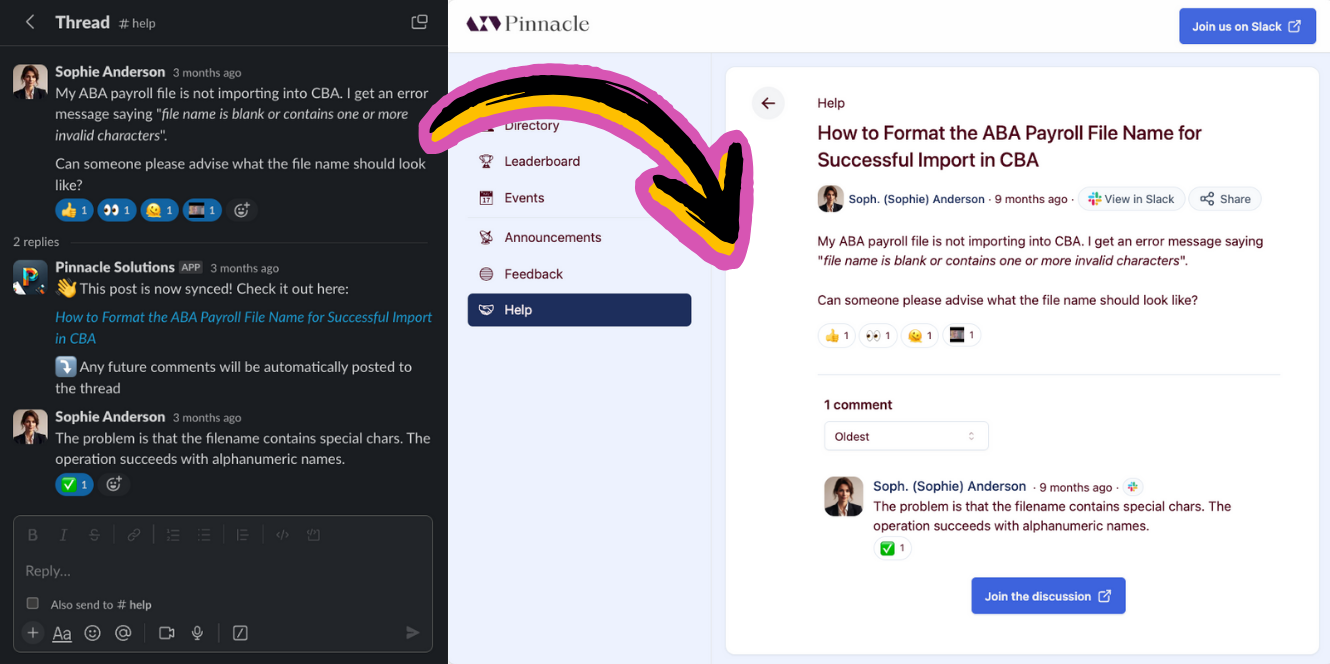
The Tightknit community site is a website that hosts the content created within your Slack workspace and transforms it into a beautiful format for the searchable web.

<Frame caption="Slack content syncing to the community site">
  <img src="https://mintcdn.com/tightknit/8RgBfwvyxlVVp-GI/assets/site-sync-graphic.png?fit=max&auto=format&n=8RgBfwvyxlVVp-GI&q=85&s=67c557ce5554803f202cf0a1490db355" alt="Slack content syncing to the community site" width="1330" height="664" data-path="assets/site-sync-graphic.png" />
</Frame>

The benefits of having a community site include:

* SEO boost for your brand
* Landing page which drives traffic to your Slack community
* Unlocking community knowledge to search engines
* Retain messages indefinitely
* Pages to share on social media
* Embeddable components
* Search (*alpha*)

## Interactivity

Authenticated users can interact with your community site beyond just reading content. When interactivity is enabled, users can log in, create posts, and leave comments, all of which sync with your connected Slack workspace.
<PlanAvailability feature="Interactivity">
  To turn it on, enable login and choose your login methods in Studio. See
  [Enabling interactivity](/community-site/authentication#enabling-interactivity).
</PlanAvailability>

### Logging In

Users can sign in to the community site if they are a member of the community. See [Authentication](/community-site/authentication) for more details.

### Making Posts

Authenticated users can create new posts directly from the community site. Users select a Feed to post to, compose their content, and publish. The post is automatically synced to the associated Slack channel, appearing as a new message.

<Note>
  Posting and commenting from the site must be enabled on a per-Feed basis in
  the [Feed settings](/channels-and-feeds/create-feed#feed-settings).
</Note>

### Editing Posts

Post authors can edit their own posts directly on the community site. From the post detail page, click the actions menu and select **Edit** to modify the title and body of the post. Edits are automatically synced back to the associated Slack message.

<Note>
  Only posts that were originally created on the community site can be edited on
  the site. Posts originating from Slack should be [edited in
  Slack](/slack/posts-and-comments/edit-post-or-comment).
</Note>

### Making Comments

Authenticated users can leave comments on posts directly from the community site. Comments are synced to the associated Slack channel as thread replies on the original message.

<Note>
  Posting and commenting from the site must be enabled on a per-Feed basis in
  the [Feed settings](/channels-and-feeds/create-feed#feed-settings).
</Note>

### Editing Comments

Comment authors can edit their own comments inline on the community site. Click the actions menu on a comment and select **Edit** to modify the comment body. Edits are automatically synced back to the associated Slack thread reply.

<Note>
  Only comments that were originally created on the community site can be edited
  on the site. Comments originating from Slack should be [edited in
  Slack](/slack/posts-and-comments/edit-post-or-comment).
</Note>

### Deleting Posts and Comments

Authors can delete their own site-created posts and comments directly from the community site. Deletions are synced back to Slack, and the corresponding message or thread reply is also removed. See [Delete a Post or Comment](/slack/posts-and-comments/delete-post-or-comment#deleting-from-the-community-site) for details.

<Info>
  Posts and comments that originated from Slack cannot be deleted from the
  community site. You will be redirected to Slack to delete the content there
  instead. Deleting in Slack will cascade the deletion to the community site as
  well.
</Info>

### Notifications

When interactivity is enabled, users can receive notifications about activity on their posts and comments. Admins can also configure [Team Notifications](/slack/notification-settings) to receive alerts in a designated Slack channel for events like new users joining and awards received.

## Access from the Slack App Home

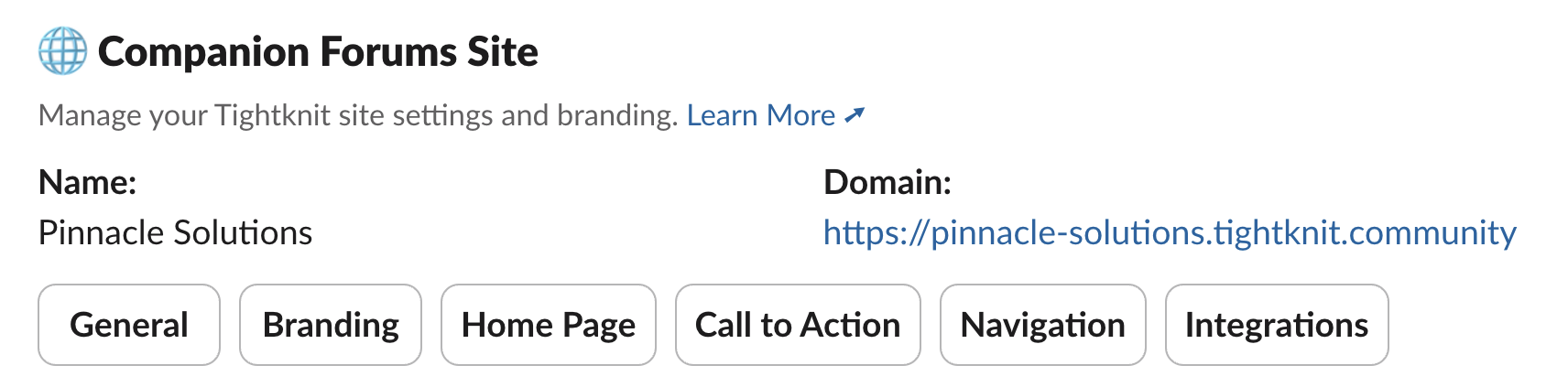
You can access settings related to the Community Site for under the **Community Site** section in the Tightknit App Home. If you have not created a community site yet, you can click the `+ Create Community Site` button to launch the guided setup flow.

<Frame caption="Community site module in the Slack app home">
  <img src="https://mintcdn.com/tightknit/510fnWGbA38NwHOk/assets/tightknit-site/site-module.png?fit=max&auto=format&n=510fnWGbA38NwHOk&q=85&s=f7f69fef13e1756d5261e15c9445e539" alt="Community site module in the Slack app home" width="1712" height="423" data-path="assets/tightknit-site/site-module.png" />
</Frame>


## Related topics

- [Pages](/community-site/pages.md)
- [Thread Engagement Reminder](/member-engagement/thread-responder.md)
- [Automated Onboarding Journeys](/guides/set-up-automated-onboarding-journeys.md)
- [Navigating Studio Analytics](/guides/navigating-studio-analytics.md)
- [Guides](/guides/index.md)
