> ## Documentation Index
> Fetch the complete documentation index at: https://docs.tightknit.ai/llms.txt
> Use this file to discover all available pages before exploring further.
# Navigation & Routes
> Configure custom navigation items for your community site.
You can access the navigation and route settings by clicking the `Navigation` button under the **Community Site** module in your Tightknit app home.
# Enabled Pages
You can configure which pages and routes are enabled on your community site. When disabled, the routes are not accessible and do not display any data.
* [Groups list page](/community-site/pages#groups-list) - enables the Groups list and Group detail pages
* [Members list page](/community-site/pages#members-list) - enables the Members list page. The Member profile page is not affected by this setting and is *always* accessible.
* [Events list page](/community-site/pages#events-list) - enables the Events list and Event detail pages
# Navigation Sidebar Custom Links
This feature is currently in beta.
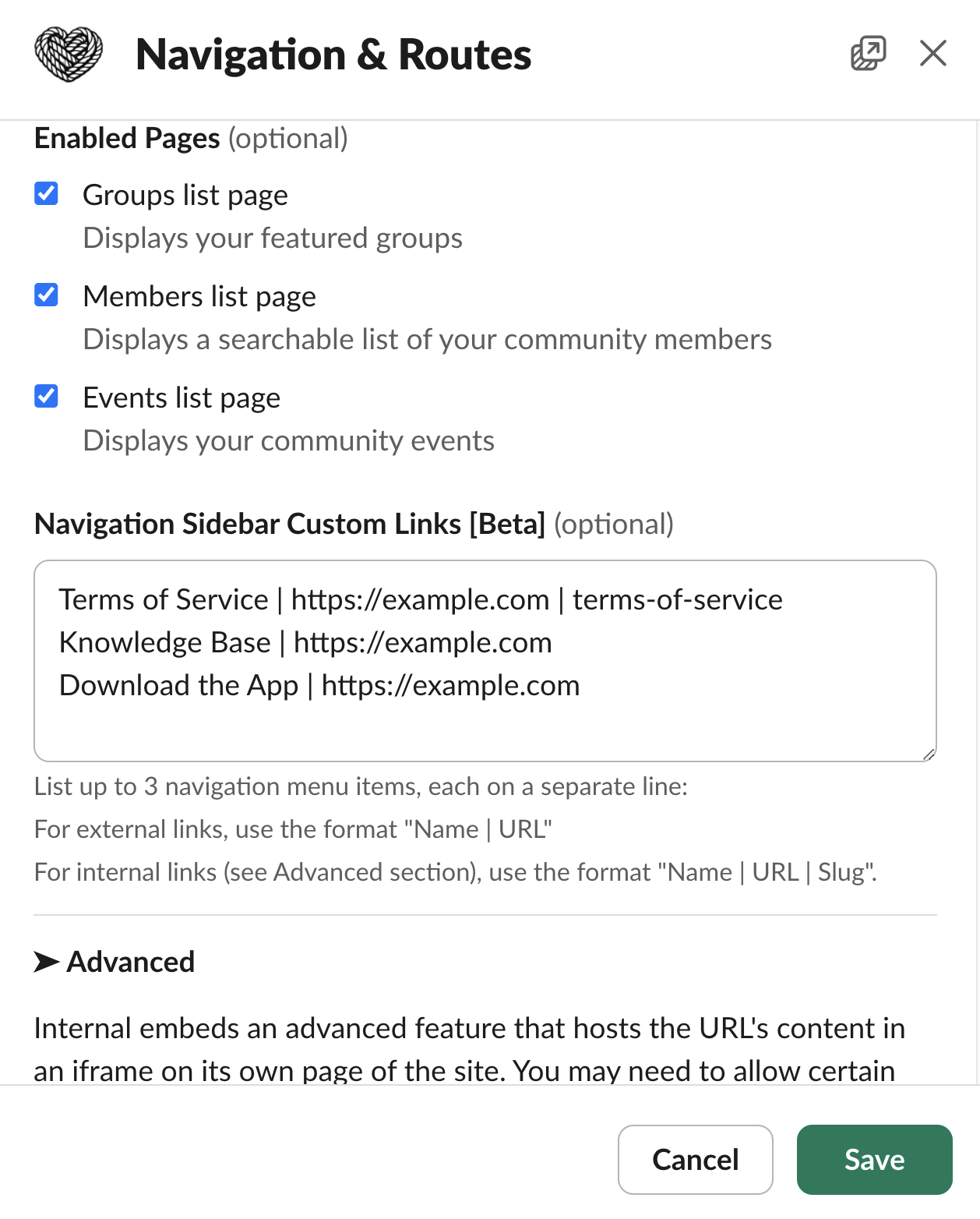
You can configure the up to 3 custom links that will appear in the [navigation sidebar](/community-site/pages#sidebar) of the community site. Each item can either be an external link or an internal link to an embedded page.
Each navigation item configuration must be input on a separate line. For example:
```text theme={null}
Terms of Service | https://tightknit.ai/legal/terms-of-service | terms-of-service
Knowledge Base | https://example.com
Download the App | https://example.com
```
 ### Navigation Item Types
#### External Link
An external link is a simple URL that will be opened in a new tab when the navigation item is clicked. The navigation item configuration must follow the format: `Name | URL`.
For example, the following configuration will create a navigation item with the label "Knowledge Base" that will open the URL "[https://example.com](https://example.com)" in a new tab when clicked:
```text theme={null}
Knowledge Base | https://example.com
```
#### Internal Link (Embedded Page)
Internal embeds an advanced feature. In order to allow certain domains within
the iframe for the page to function properly, you may need to configure
certain site security protocols.
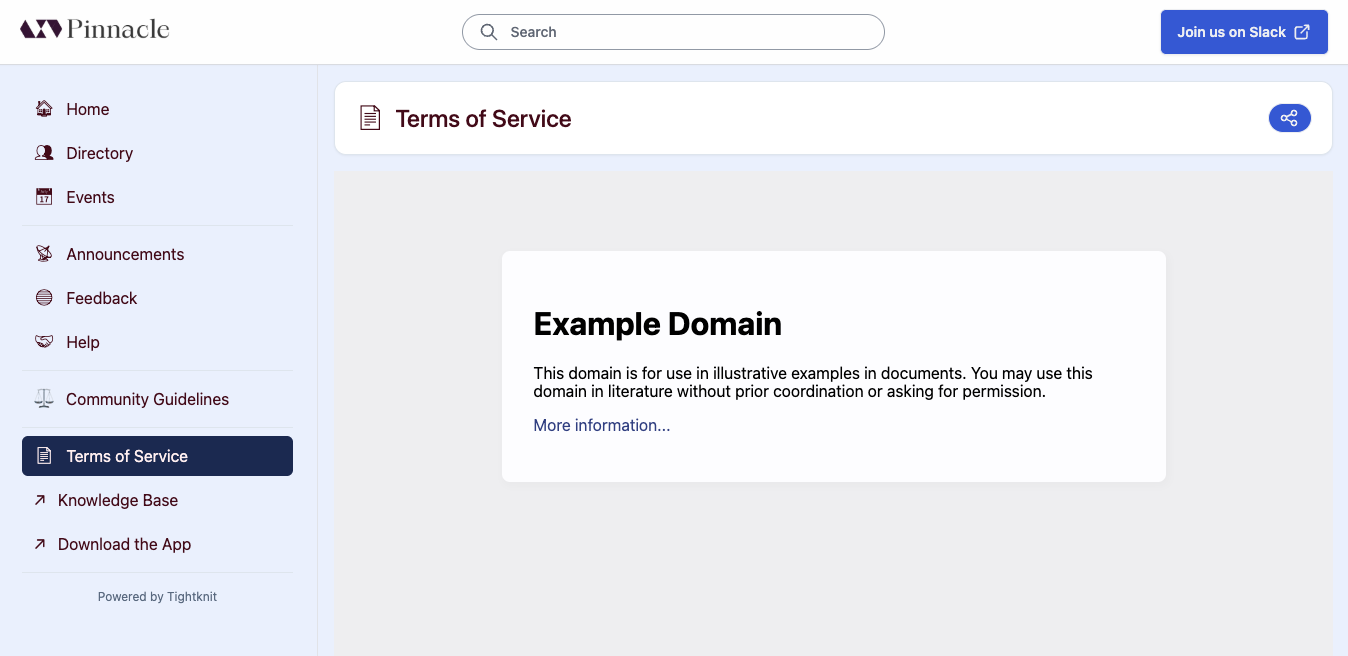
An internal link points to an embedded page within the community site. The navigation item configuration must follow the format: `Name | URL | slug`. When an internal link is configured, the the embedded page is added to the community site at the URL: `https:///p/`.
For example, the following configuration will create a navigation item with the label "Terms of Service" that will open the embedded page at the URL: `https:///p/terms-of-service`. This page will contain an embedded iframe with the contents of the URL `https://example.com`.
```text theme={null}
Terms of Service | https://example.com | terms-of-service
```
### Navigation Item Types
#### External Link
An external link is a simple URL that will be opened in a new tab when the navigation item is clicked. The navigation item configuration must follow the format: `Name | URL`.
For example, the following configuration will create a navigation item with the label "Knowledge Base" that will open the URL "[https://example.com](https://example.com)" in a new tab when clicked:
```text theme={null}
Knowledge Base | https://example.com
```
#### Internal Link (Embedded Page)
Internal embeds an advanced feature. In order to allow certain domains within
the iframe for the page to function properly, you may need to configure
certain site security protocols.
An internal link points to an embedded page within the community site. The navigation item configuration must follow the format: `Name | URL | slug`. When an internal link is configured, the the embedded page is added to the community site at the URL: `https:///p/`.
For example, the following configuration will create a navigation item with the label "Terms of Service" that will open the embedded page at the URL: `https:///p/terms-of-service`. This page will contain an embedded iframe with the contents of the URL `https://example.com`.
```text theme={null}
Terms of Service | https://example.com | terms-of-service
```
 Embedded pages are useful for displaying content from external sources within
your community site. For example, you can embed your community's calendar or
other content from external sources. For best practices, make sure the
embedded URL is the same domain as the community site (see [Site
Details](/community-site/general#site-details)).
#### Content Security Policy
The URLs for internal embeds must meet certain criteria before they can be successfully emdedded in an iframe.
First, the target URL must allow itself to be embedded by the community site's domain. This accomplished by a combination of the [`X-Frame-Options`](https://developer.mozilla.org/en-US/docs/Web/HTTP/Headers/X-Frame-Options) header and/or the [`frame-ancestors`](https://developer.mozilla.org/en-US/docs/Web/HTTP/Headers/Content-Security-Policy/frame-ancestors) directive in the [`Content-Security-Policy`](https://developer.mozilla.org/en-US/docs/Web/HTTP/Headers/Content-Security-Policy) header. For modern browsers, it is recommended to use the `Content-Security-Policy` and include the community site domain in `frame-ancestors` directive.
For example, you could configure your third-party site to use the following `Content-Security-Policy` header to allow it to be embedded within the community site:
```
Content-Security-Policy: frame-ancestors 'self' https://my-site.tighktnit.community
```
Check with your site administrator to see which security settings are appropriate for your case.
Second, you must register the domain(s) of any resource that could appear within the embedded experience. For example: if you have links to pages that could take the user to another domain, images that are hosted on another domain, etc., these domains must be registered with Tightknit in the *Additional Allowed iframe Sources*, or else they will fail to load within the iframe.
The *Additional Allowed iframe Sources* will be used in the `frame-src` directive of the `Content-Security-Policy` header on the community site. The value must be a space-separated list of domains. Tightknit automatically includes `'self'` and the domain of the navigation item URL.
You may use a wildcard within a domain (e.g. `https://*.my-site.com`) or by itself `*` to allow *all* domains.
Using the `*` wildcard to allow all domains should be used with caution. This
may lead to security vulnerabilities if not properly configured.
## Related topics
- [Global Event Settings](/events/global-event-settings.md)
- [Community Guidelines](/moderation/community-guidelines.md)
- [Branding Guide](/branding.md)
- [Pages](/community-site/pages.md)
- [Tutorial: Running Simultaneous Events Across Multiple Zoom Accounts](/events/tutorials/multiple-zoom-accounts.md)
Embedded pages are useful for displaying content from external sources within
your community site. For example, you can embed your community's calendar or
other content from external sources. For best practices, make sure the
embedded URL is the same domain as the community site (see [Site
Details](/community-site/general#site-details)).
#### Content Security Policy
The URLs for internal embeds must meet certain criteria before they can be successfully emdedded in an iframe.
First, the target URL must allow itself to be embedded by the community site's domain. This accomplished by a combination of the [`X-Frame-Options`](https://developer.mozilla.org/en-US/docs/Web/HTTP/Headers/X-Frame-Options) header and/or the [`frame-ancestors`](https://developer.mozilla.org/en-US/docs/Web/HTTP/Headers/Content-Security-Policy/frame-ancestors) directive in the [`Content-Security-Policy`](https://developer.mozilla.org/en-US/docs/Web/HTTP/Headers/Content-Security-Policy) header. For modern browsers, it is recommended to use the `Content-Security-Policy` and include the community site domain in `frame-ancestors` directive.
For example, you could configure your third-party site to use the following `Content-Security-Policy` header to allow it to be embedded within the community site:
```
Content-Security-Policy: frame-ancestors 'self' https://my-site.tighktnit.community
```
Check with your site administrator to see which security settings are appropriate for your case.
Second, you must register the domain(s) of any resource that could appear within the embedded experience. For example: if you have links to pages that could take the user to another domain, images that are hosted on another domain, etc., these domains must be registered with Tightknit in the *Additional Allowed iframe Sources*, or else they will fail to load within the iframe.
The *Additional Allowed iframe Sources* will be used in the `frame-src` directive of the `Content-Security-Policy` header on the community site. The value must be a space-separated list of domains. Tightknit automatically includes `'self'` and the domain of the navigation item URL.
You may use a wildcard within a domain (e.g. `https://*.my-site.com`) or by itself `*` to allow *all* domains.
Using the `*` wildcard to allow all domains should be used with caution. This
may lead to security vulnerabilities if not properly configured.
## Related topics
- [Global Event Settings](/events/global-event-settings.md)
- [Community Guidelines](/moderation/community-guidelines.md)
- [Branding Guide](/branding.md)
- [Pages](/community-site/pages.md)
- [Tutorial: Running Simultaneous Events Across Multiple Zoom Accounts](/events/tutorials/multiple-zoom-accounts.md)