> ## Documentation Index
> Fetch the complete documentation index at: https://docs.tightknit.ai/llms.txt
> Use this file to discover all available pages before exploring further.

# General Settings

> Configure basic settings for your community site

export const PlanAvailability = ({feature = 'This feature', plan = 'enterprise', addon = false, plural = false, support = false, growth, momentum, enterprise, children}) => {
  const rank = {
    growth: 0,
    momentum: 1,
    enterprise: 2
  };
  const normalize = value => {
    if (value === true || value === 'included' || value === 'yes') {
      return 'included';
    }
    if (value === 'addon') {
      return 'addon';
    }
    return 'none';
  };
  const defaultStatus = p => {
    if (rank[p] < rank[plan]) {
      return 'none';
    }
    return addon ? 'addon' : 'included';
  };
  const overrides = {
    growth,
    momentum,
    enterprise
  };
  const status = p => overrides[p] === undefined ? defaultStatus(p) : normalize(overrides[p]);
  const plans = [{
    key: 'growth',
    label: 'Growth'
  }, {
    key: 'momentum',
    label: 'Momentum'
  }, {
    key: 'enterprise',
    label: 'Enterprise'
  }];
  const included = plans.filter(p => status(p.key) === 'included');
  const asAddon = plans.filter(p => status(p.key) === 'addon');
  const verb = plural ? 'are' : 'is';
  const srSentence = [feature, verb, 'available on:', included.map(p => `${p.label} plan`).join(', ') || 'no plans', asAddon.length > 0 ? `; as an add-on: ${asAddon.map(p => `${p.label} plan`).join(', ')}` : ''].join(' ');
  const statusCell = s => {
    if (s === 'included') {
      return <svg className="plan-availability-check" xmlns="http://www.w3.org/2000/svg" viewBox="0 0 24 24" fill="none" stroke="currentColor" strokeWidth="3" strokeLinecap="round" strokeLinejoin="round" aria-hidden="true">
          <path d="M20 6 9 17l-5-5" />
        </svg>;
    }
    if (s === 'addon') {
      return <span className="plan-availability-addon">Add-on</span>;
    }
    return <span className="plan-availability-none">—</span>;
  };
  return <div className="plan-availability">
      <span className="plan-availability-sr">{srSentence}</span>
      <div className="plan-availability-content" aria-hidden="true">
        <div className="plan-availability-feature">{feature}</div>
        {(support || children) && <div className="plan-availability-body">
            {support && <>
                Contact <a href="mailto:support@tightknit.ai">Support</a> if you
                don't see this option or want to enable it for your community.
              </>}
            {children && <> {children}</>}
          </div>}
      </div>
      <div className="plan-availability-matrix" aria-hidden="true">
        {plans.map(p => <div className="plan-availability-plan" key={p.key}>
            <span className="plan-availability-plan-name">{p.label}</span>
            {statusCell(status(p.key))}
          </div>)}
      </div>
    </div>;
};

You can access the General settings for the Community Site by clicking the `General` button under the **Community Site** module in your Tightknit app home.

## Site Details

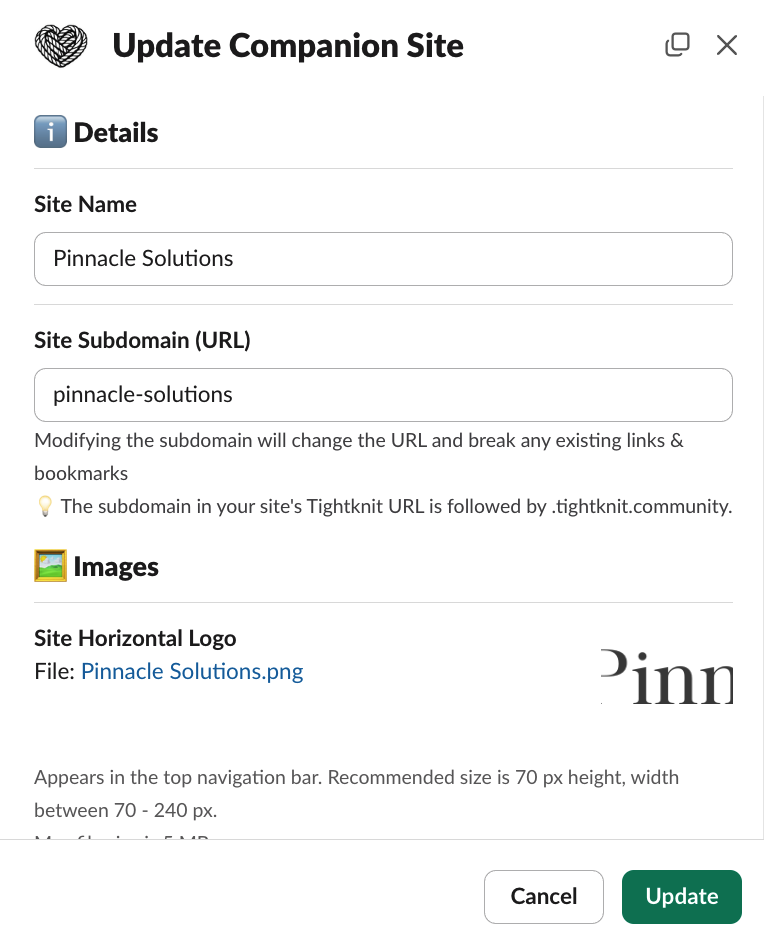
Within the Site Settings modal, you can configure the following:

* **Site Name** - This is the name of your site.
  This will be used as the title in the header of your Tightknit community site as well as the title within SEO metadata.
* **Site Subdomain (URL)** - This is the subdomain that will be used when you host your site on `.tightknit.community`. The subdomain is not used if you register a custom domain.
* **Search Engine Discoverability** - Opt your site in or out of being discoverable by search engines. When disabled, excludes your sites' routes from robots.txt and sitemaps.
* **Site Access Control** - Determines who can access your community site.
  * **Public Access** - all pages on the site are accessible to the public. Users can optionally sign in for personalized features.
  * **Restricted Access** - all pages on the site are private. Login is required to view content.

<Frame caption="Community site settings modal">
  <img src="https://mintcdn.com/tightknit/510fnWGbA38NwHOk/assets/tightknit-site/site-settings-modal.png?fit=max&auto=format&n=510fnWGbA38NwHOk&q=85&s=1b73cfc200f87b5dd68b84c28ba70035" alt="Community site settings modal" width="764" height="939" data-path="assets/tightknit-site/site-settings-modal.png" />
</Frame>

<Info>
  If you're interested in using a custom domain, please reach out to
  [Support](mailto:support@tightknit.ai) or ask for help within the Slack
  community.
</Info>

<Warning>
  If not on a custom domain, updating a sites's slug will change the URL of all
  pages in the site. This will break any links that have been shared and may
  have a negative impact on SEO.
</Warning>

## Video Embeds

<PlanAvailability feature="Video embed autoload control" support />

The **Autoload Video Embeds** setting controls whether third-party video players (such as YouTube and Vimeo) load automatically when a visitor opens a page. By default, videos autoload for all sites.

Enterprise customers can disable autoloading in the Studio under **Site > General > Video Embeds**. When disabled, embedded videos display a placeholder with a link to the video instead of loading the player. This is useful for communities that use a Consent Management Platform (CMP), where third-party iframes must wait for visitor consent before loading.

## Site Images

Within the modal, you can additionally configure the following images associated with your Community Site:

* Site Horizontal Logo
* Site Icon
* Favicon
* Social Media Image

For more information on the specs and recommendations of these images, see the [Branding Guide](/branding#image-assets).

## Deactivating the Community Site

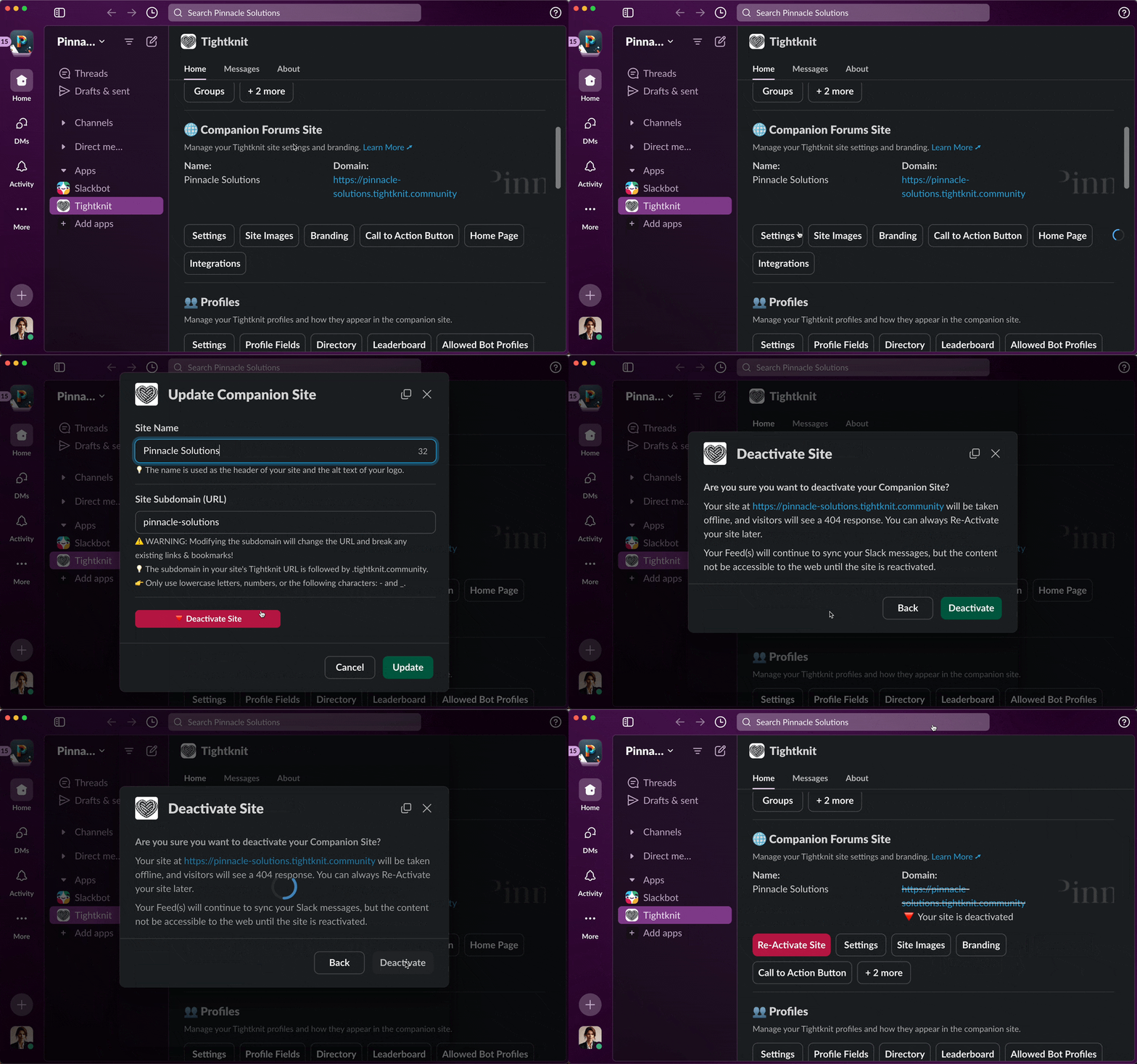
To deactivate the Community Site, click the `Deactivate Site` button within the `Settings` modal. This action will take your site offline. Visitors will no longer be able to see your content and will receive a 404 Not Found response.

You can re-activate your site by clicking the `Re-Activate Site` button within the Community Site module.

<Frame caption="Deactivating and reactivating the community site">
  <img src="https://mintcdn.com/tightknit/Alib_AyeoUZhTrY3/assets/tightknit-site/deactivate-site.gif?s=10ae3ca0c4e2f8d552b227b4dd0ffdc1" alt="Deactivating and reactivating the community site" width="960" height="599" data-path="assets/tightknit-site/deactivate-site.gif" />
</Frame>


## Related topics

- [Studio](/studio/overview.md)
- [Getting Started](/slack/getting-started.md)
- [Studio Settings](/studio/settings.md)
- [Authentication](/community-site/authentication.md)
- [Create Channels and Feeds](/guides/create-your-core-channels.md)
