> ## Documentation Index
> Fetch the complete documentation index at: https://docs.tightknit.ai/llms.txt
> Use this file to discover all available pages before exploring further.
# Call to Action
> Manage the calls to action on your community site.
You can access the Call-to-Action settings by clicking the `Call to Action` button under the **Community Site** module in your Tightknit app home.
Within the Call-to-Action settings modal, you can configure the following:
* **Call-to-Action Text** - This is the text that is present on the Call-to-Action button [across the Tightknit community site experience](/community-site/pages#navbar-header). If you do not wish to show this button, leave this field empty.
* **Call-to-Action URL** - This is the URL that the button will link to when clicked. By default, it is the `/join` URL of your site. [Read More↗](#static-join-link)
## Advanced Settings
### Static Join Link
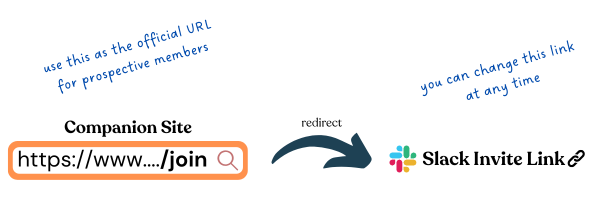
Each Community Site has a `/join` URL that is inactive unless you have registered a Static Join Link with Tightknit. Once you have provided a join link, for example `https://www.how-to-join-my-community.com`, then users that visit the `/join` URL on your site will now be redirected to `https://www.how-to-join-my-community.com`.
What's the purpose of this? Well, the method to join your community could change over time. One day you may use a Slack invite link to let users directly join the workspace; but later, might may instead want to lead users to an initial sign-up form. Regardless, the `/join` URL of your Community Site stays the same (*and looks nice!*). This way, you can always give the `/join` URL to prospective community members, such as in outbound emails, and safely change the redirect URL behind the scenes at any point in the future. Tightknit will also track the number of visitors to the `/join` URL.
 #### Slack Invite Link
To let users join your workspace directly, we recommend using your Slack invite link. You can find your invite link [here](https://slack.com/help/articles/201330256-Invite-new-members-to-your-workspace#share-an-invitation-link).
Each admin user in the workspace can generate their own unique shared invite
link. You can register any of those links with Tightknit.
A Slack invitation link expires after it is used for 400 successful sign-ups.
You must then [generate a new link](#generate-a-new-invite-link) and register
it again with Tightknit.
#### Generating a new Slack invite link
Is your link expired or expiring? Go into your Slack workspace admin settings. Select the "Invitations" page under the administration menu, i.e., the URL is at `/admin/invites`. Click on the "Invite Links" tab. Find the user whose link was registered with Tightknit and click "Deactivate."
Now, simply [repeat the process to generate an invite link](https://slack.com/help/articles/201330256-Invite-new-members-to-your-workspace#share-an-invitation-link). Don't forget to register again it with Tightknit!
## Related topics
- [Pages](/community-site/pages.md)
- [Slack SSO with Auth0](/guides/slack-sso-external-idp.md)
- [Integrations](/community-site/integrations.md)
- [Salesforce](/integrations/salesforce.md)
- [Tutorial: Running Simultaneous Events Across Multiple Zoom Accounts](/events/tutorials/multiple-zoom-accounts.md)
#### Slack Invite Link
To let users join your workspace directly, we recommend using your Slack invite link. You can find your invite link [here](https://slack.com/help/articles/201330256-Invite-new-members-to-your-workspace#share-an-invitation-link).
Each admin user in the workspace can generate their own unique shared invite
link. You can register any of those links with Tightknit.
A Slack invitation link expires after it is used for 400 successful sign-ups.
You must then [generate a new link](#generate-a-new-invite-link) and register
it again with Tightknit.
#### Generating a new Slack invite link
Is your link expired or expiring? Go into your Slack workspace admin settings. Select the "Invitations" page under the administration menu, i.e., the URL is at `/admin/invites`. Click on the "Invite Links" tab. Find the user whose link was registered with Tightknit and click "Deactivate."
Now, simply [repeat the process to generate an invite link](https://slack.com/help/articles/201330256-Invite-new-members-to-your-workspace#share-an-invitation-link). Don't forget to register again it with Tightknit!
## Related topics
- [Pages](/community-site/pages.md)
- [Slack SSO with Auth0](/guides/slack-sso-external-idp.md)
- [Integrations](/community-site/integrations.md)
- [Salesforce](/integrations/salesforce.md)
- [Tutorial: Running Simultaneous Events Across Multiple Zoom Accounts](/events/tutorials/multiple-zoom-accounts.md)