> ## Documentation Index
> Fetch the complete documentation index at: https://docs.tightknit.ai/llms.txt
> Use this file to discover all available pages before exploring further.
# Announcement Banner
> Show a site-wide announcement banner on your community site, and control its placement, dismissibility, and color.
The **announcement banner** is a site-wide message that appears on every page of your community site. Use it for anything every visitor needs to see at once: an upcoming event, a maintenance window, a product launch, or a call to join your Slack workspace.
Configure it at **[Site > Banner](https://studio.tightknit.ai/-/website/banner)** in Studio.
The announcement banner is a bar of text shown site-wide. It is not the same as your **page banners**, which are the images at the top of individual pages. Page banner images are set under [Site > Overview](/community-site/general).
 ## Settings
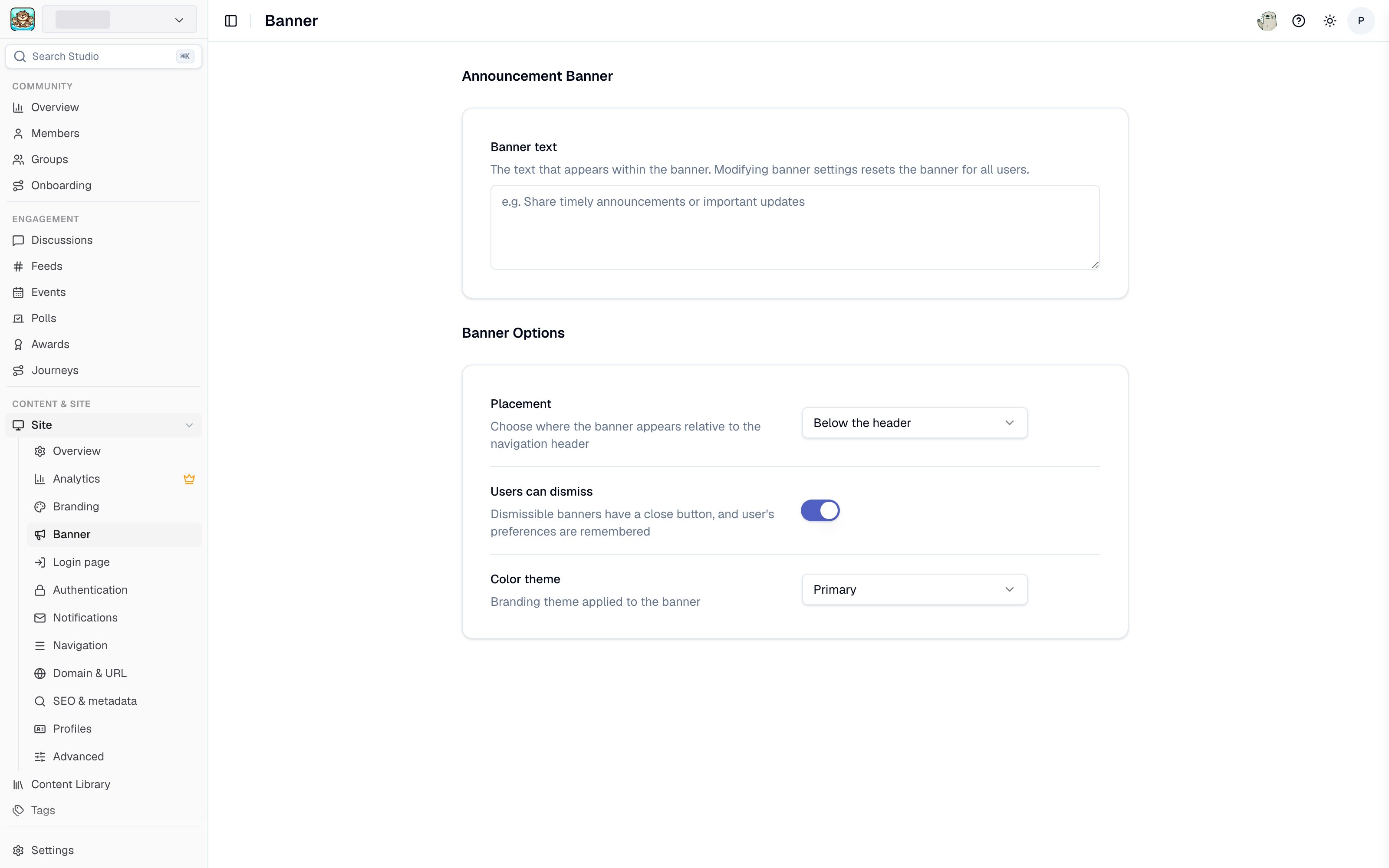
Studio splits these across two sections: **Announcement Banner** holds the text, and **Banner Options** holds the rest.
* **Banner text** - The message itself. Keep it to one line where you can, since the banner appears on every page.
* **Placement** - Choose **Above the header** or **Below the header**. Above the header is the more prominent of the two.
* **Users can dismiss** - When enabled, visitors get a close button and the banner stays hidden for them afterwards. Enable this for informational messages, and leave it off for anything a visitor must see on every visit.
* **Color theme** - Choose **Primary**, **Secondary**, or **Muted**. Each maps to a color from your active [branding set](/branding#branding-sets), so the banner stays on-brand automatically. Use Primary to draw attention and Muted for background information.
Changes save automatically.
Clear the banner text to remove the banner from your site. There is no separate on/off toggle.
## Related pages
* **[Call to action](/community-site/call-to-action)** - a persistent prompt to join your Slack community, rather than a temporary announcement.
* **[Branding](/branding)** - the colors the banner themes are drawn from.
* **[Home page](/community-site/general)** - page banner images.
## Related topics
- [MCP Server](/integrations/mcp.md)
- [Site Overview Settings](/community-site/general.md)
- [Overview](/community-site/overview.md)
- [Tightknit Studio](/studio/overview.md)
- [Global Event Settings](/events/global-event-settings.md)
## Settings
Studio splits these across two sections: **Announcement Banner** holds the text, and **Banner Options** holds the rest.
* **Banner text** - The message itself. Keep it to one line where you can, since the banner appears on every page.
* **Placement** - Choose **Above the header** or **Below the header**. Above the header is the more prominent of the two.
* **Users can dismiss** - When enabled, visitors get a close button and the banner stays hidden for them afterwards. Enable this for informational messages, and leave it off for anything a visitor must see on every visit.
* **Color theme** - Choose **Primary**, **Secondary**, or **Muted**. Each maps to a color from your active [branding set](/branding#branding-sets), so the banner stays on-brand automatically. Use Primary to draw attention and Muted for background information.
Changes save automatically.
Clear the banner text to remove the banner from your site. There is no separate on/off toggle.
## Related pages
* **[Call to action](/community-site/call-to-action)** - a persistent prompt to join your Slack community, rather than a temporary announcement.
* **[Branding](/branding)** - the colors the banner themes are drawn from.
* **[Home page](/community-site/general)** - page banner images.
## Related topics
- [MCP Server](/integrations/mcp.md)
- [Site Overview Settings](/community-site/general.md)
- [Overview](/community-site/overview.md)
- [Tightknit Studio](/studio/overview.md)
- [Global Event Settings](/events/global-event-settings.md)