> ## Documentation Index
> Fetch the complete documentation index at: https://docs.tightknit.ai/llms.txt
> Use this file to discover all available pages before exploring further.
# Getting Started
> Learn how to manage channels and feeds in Tightknit.
Manage channel-level features and connect your Slack channels to feeds in the Companion Site. To give the app permissions to view and manage your Slack channels, you must first **activate the channel for Tightknit**. This will unlock community management features for the channel, as well as allow you to connect a Feed.
Channels can exist in three states: **non-activated** (default), **activated**
(with data ingestion and Slack features enabled), and **activated with a Feed**
(syncing content to your companion site). Learn more about [channel
states](/channels-and-feeds/activate-channel#understanding-channel-states).
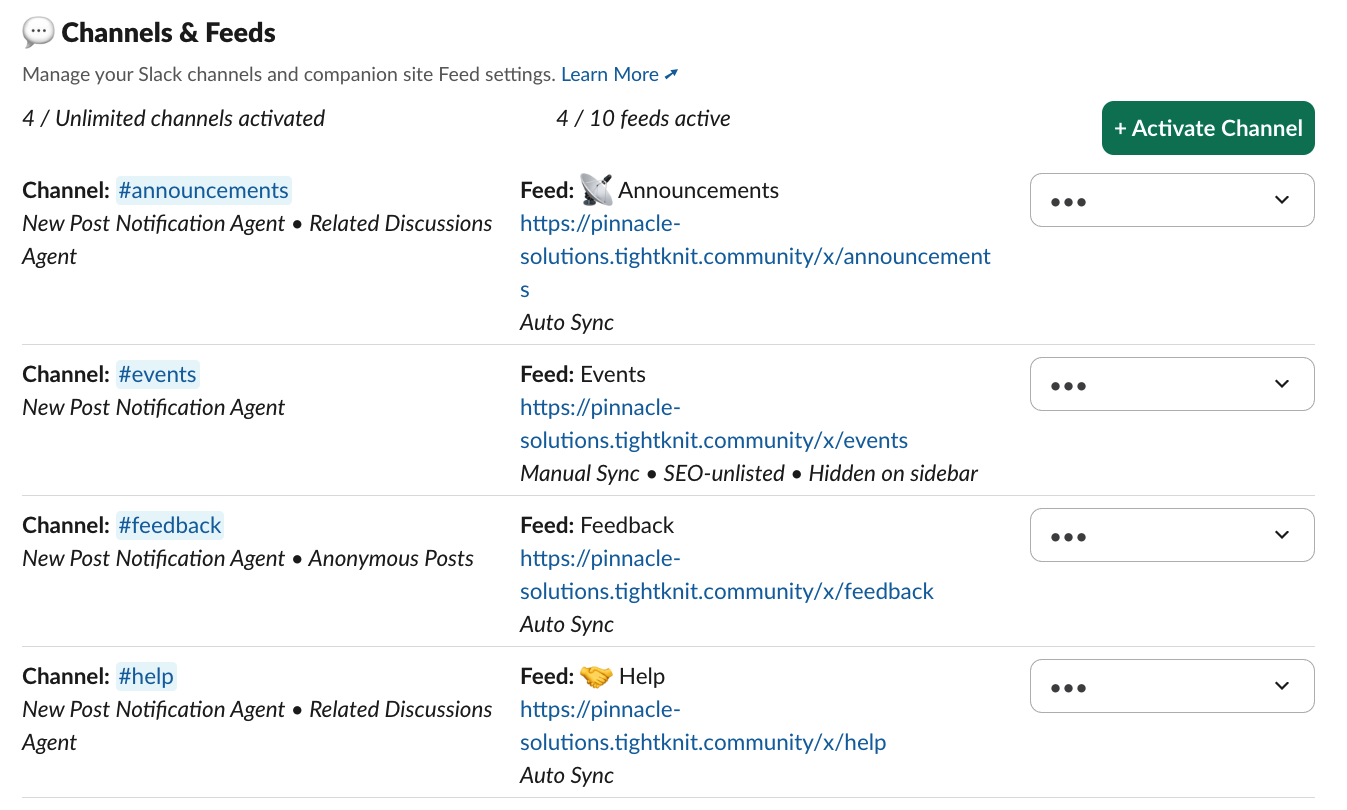
## The Channels & Feeds Module
You can find your channel and Feed settings under the **Channels & Feeds** module in the App Home.