> ## Documentation Index
> Fetch the complete documentation index at: https://docs.tightknit.ai/llms.txt
> Use this file to discover all available pages before exploring further.
# Create a Feed
> Learn how to create a Feed.
The Tightknit companion site is required to create Feeds.
**[Feeds](/companion-site/pages#feed)** are the backbone of all posts in your companion site.
Each Feed is configured to monitor your Slack channel and control when and how messages are posted to the site. Feeds can be managed from the app settings under the `Channels & Feeds` section.
When you [activate a Slack channel](/channels-and-feeds/activate-channel#understanding-channel-states), Tightknit automatically creates a Feed for it. By default this Feed is disabled and is not exposed to your companion site. In most cases you don't create a Feed from scratch. Instead, you configure an existing Feed's settings to control how (and whether) its messages sync to your companion site.
## How to Access
You must first [activate Tightknit in a Slack
channel](/channels-and-feeds/activate-channel) before a Feed is available.
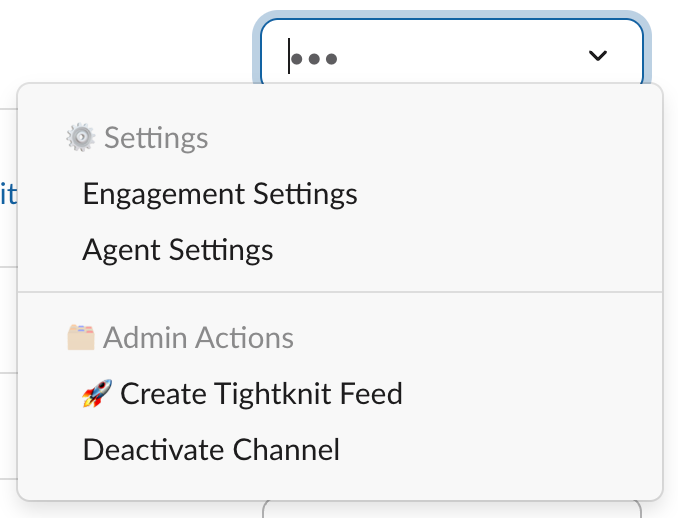
A Feed is created automatically when you activate a channel, including during the guided setup to [activate a channel](/channels-and-feeds/activate-channel#activate-a-channel-for-tightknit), and you're taken straight to its settings to configure it. If an activated channel doesn't yet have a Feed, you can create one manually by clicking the `Create Tightknit Feed` option within the dropdown menu of the channel settings.
 ## Feed Settings
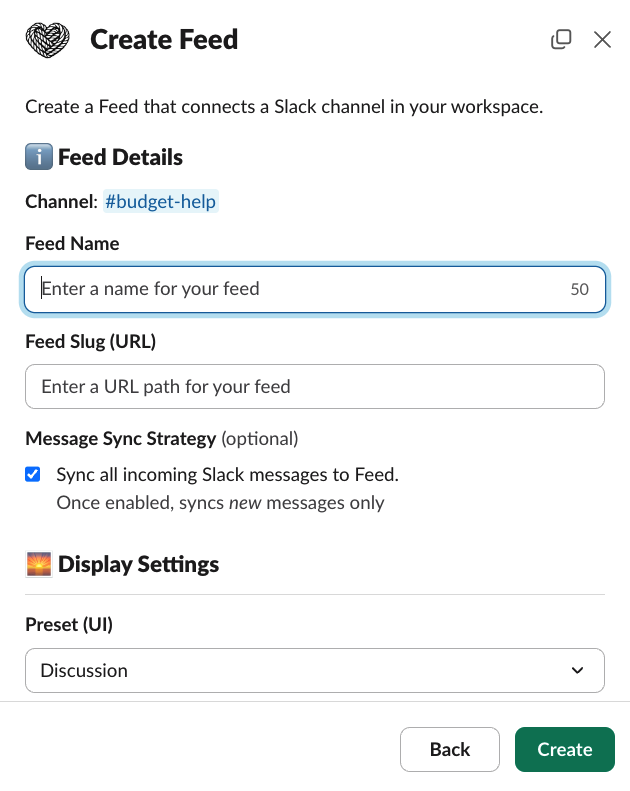
In the Feed creation modal you can configure the following settings:
* **Selected Channel** - The channel that this Feed will listen to for new messages.
* **Feed Name** - The name of the Feed.
* **Feed Slug** - The URL path for the Feed. Keep this short and simple (only use lowercase letters, numbers, or the following characters: `-` and `_`). Try not to change this often as it would break users' existing links and bookmarks.
* **Preset** - The Tightknit companion site UI display preset for the Feed. This is used during Feed creation to determine default values for display settings such as List View Display and Post Detail Display. The display values can be overridden in the optional settings below.
* **Message Sync Settings** - By default, Tightknit will sync all incoming new Slack messages and replies to the Feed, including messages from bots, starting from the time that this setting is enabled. If you do *not* want to auto-sync messages (e.g., you prefer to manually sync select posts using the [shortcut](/slack/shortcuts-and-commands/message-shortcuts#tightknit-shortcuts)), uncheck this option.
* **Disallowed Bots** - Messages from all bot users sync into Feeds by default. If you don't want certain bots to appear in this Feed, add them to the Disallowed Bots list. Only messages from bots on this list will be excluded from syncing.
Additional optional settings:
* **List View Display** - The default display setting for posts in the Feed list view, such as Snippet, Compact, Card, or Changelog. [Read more](/companion-site/pages#display-settings).
* **Post Detail Display** - The default display setting for the detail page of posts in this Feed, such as Discussion or Blog. [Read more](/companion-site/pages#display-settings-1).
* **Navigation Sidebar Emoji Icon** - The emoji icon, such as 📡, that is displayed next to the Feed name in the Tightknit companion site sidebar using the [Noto Emoji Google font](https://fonts.google.com/noto/specimen/Noto+Emoji). If none is set, the sidebar displays a default icon.
The Noto Emoji Google font has limited support across browsers. We highly
recommend testing your choice of emoji in the [Noto Emoji Type
tester](https://fonts.google.com/noto/specimen/Noto+Emoji/tester) within the
major browsers.
* **Show Pinned Posts** - Toggle to show or hide the [pinned posts carousel](/companion-site/pages#pinned-posts) at the top of the Feed page on the companion site. When enabled, messages that are pinned in the connected Slack channel appear in a carousel above the main post list. New Feeds have this enabled by default.
* **AI-Generated Post Titles** - Toggle to enable or disable AI-generated titles for posts synced to this Feed. When enabled, Tightknit uses AI to automatically generate a title and URL slug for each post. [Read more](/slack/posts-and-comments/create-post-or-comment#title-and-slug).
* **Navigation Sidebar** - Toggle to show or hide the Feed from navigation menus, including the sidebar on the companion site.
* **Read Access** - Controls who can view the Feed's content on the companion site. See [Feed Visibility](#feed-visibility) below.
* **Post from Site** - Toggle to allow authenticated users to create new posts and comments directly from the companion site for this Feed. Requires [Interactivity](/companion-site/overview#interactivity) to be enabled.
* **SEO Settings** - Feeds that are unlisted are excluded from SEO, i.e. disallowed in `robots.txt` and excluded from sitemaps.
Once you have entered the details of your new Feed, click the `Create` button to create the Feed.
## Feed Settings
In the Feed creation modal you can configure the following settings:
* **Selected Channel** - The channel that this Feed will listen to for new messages.
* **Feed Name** - The name of the Feed.
* **Feed Slug** - The URL path for the Feed. Keep this short and simple (only use lowercase letters, numbers, or the following characters: `-` and `_`). Try not to change this often as it would break users' existing links and bookmarks.
* **Preset** - The Tightknit companion site UI display preset for the Feed. This is used during Feed creation to determine default values for display settings such as List View Display and Post Detail Display. The display values can be overridden in the optional settings below.
* **Message Sync Settings** - By default, Tightknit will sync all incoming new Slack messages and replies to the Feed, including messages from bots, starting from the time that this setting is enabled. If you do *not* want to auto-sync messages (e.g., you prefer to manually sync select posts using the [shortcut](/slack/shortcuts-and-commands/message-shortcuts#tightknit-shortcuts)), uncheck this option.
* **Disallowed Bots** - Messages from all bot users sync into Feeds by default. If you don't want certain bots to appear in this Feed, add them to the Disallowed Bots list. Only messages from bots on this list will be excluded from syncing.
Additional optional settings:
* **List View Display** - The default display setting for posts in the Feed list view, such as Snippet, Compact, Card, or Changelog. [Read more](/companion-site/pages#display-settings).
* **Post Detail Display** - The default display setting for the detail page of posts in this Feed, such as Discussion or Blog. [Read more](/companion-site/pages#display-settings-1).
* **Navigation Sidebar Emoji Icon** - The emoji icon, such as 📡, that is displayed next to the Feed name in the Tightknit companion site sidebar using the [Noto Emoji Google font](https://fonts.google.com/noto/specimen/Noto+Emoji). If none is set, the sidebar displays a default icon.
The Noto Emoji Google font has limited support across browsers. We highly
recommend testing your choice of emoji in the [Noto Emoji Type
tester](https://fonts.google.com/noto/specimen/Noto+Emoji/tester) within the
major browsers.
* **Show Pinned Posts** - Toggle to show or hide the [pinned posts carousel](/companion-site/pages#pinned-posts) at the top of the Feed page on the companion site. When enabled, messages that are pinned in the connected Slack channel appear in a carousel above the main post list. New Feeds have this enabled by default.
* **AI-Generated Post Titles** - Toggle to enable or disable AI-generated titles for posts synced to this Feed. When enabled, Tightknit uses AI to automatically generate a title and URL slug for each post. [Read more](/slack/posts-and-comments/create-post-or-comment#title-and-slug).
* **Navigation Sidebar** - Toggle to show or hide the Feed from navigation menus, including the sidebar on the companion site.
* **Read Access** - Controls who can view the Feed's content on the companion site. See [Feed Visibility](#feed-visibility) below.
* **Post from Site** - Toggle to allow authenticated users to create new posts and comments directly from the companion site for this Feed. Requires [Interactivity](/companion-site/overview#interactivity) to be enabled.
* **SEO Settings** - Feeds that are unlisted are excluded from SEO, i.e. disallowed in `robots.txt` and excluded from sitemaps.
Once you have entered the details of your new Feed, click the `Create` button to create the Feed.
 In order to comply with privacy requirements, Tightknit will notify users
whose messages may get synced to a Feed on the companion site. When a Feed is
connected to a channel, Tightknit sends a public message in the channel once.
In order to comply with privacy requirements, Tightknit will notify users
whose messages may get synced to a Feed on the companion site. When a Feed is
connected to a channel, Tightknit sends a public message in the channel once.
 When a user joins a channel that has already been connected to a Feed,
Tightknit sends a private notification to the user.
When a user joins a channel that has already been connected to a Feed,
Tightknit sends a private notification to the user.
 The number of Feeds you can create is determined by your
[plan](https://tightknit.ai/pricing). If you need more Feeds, please contact
[Support](mailto:support@tightknit.ai).
## Feed Visibility
Feed visibility controls who can view the Feed's posts on the companion site. You can configure visibility in the **Read Access** setting when creating or editing a Feed.
| Visibility Level | Who Can View |
| ----------------- | --------------------------------------------------------------------------------------------- |
| **Public** | Anyone visiting the site, including anonymous visitors. |
| **Authenticated** | Only logged-in members of the community. |
| **Members Only** | Only members who belong to the Feed (mirrored from the connected Slack channel's membership). |
The Home feed respects feed visibility. Logged-in members see posts from all feeds they have access to, while anonymous visitors only see posts from public feeds.
Feed visibility only applies to your **companion site**. It does **not**
restrict who can see this content in the [Studio](/studio/overview). Any Studio
user whose [role](/studio/access#roles) grants access to a page that surfaces
messages (for example, **Discussions**, **Activities**, or **Members**) can
view content from activated channels regardless of Feed visibility, including
messages from private Slack channels and Members Only Feeds. Control who can
see this content in the Studio by managing [Studio user
roles](/studio/access#roles), not Feed visibility.
Advanced read-access options (Authenticated, Members Only) require the [Enterprise plan](https://tightknit.ai/pricing).
Feed member lists are automatically synced from the connected Slack channel's membership. When a user joins or leaves the Slack channel, their access to the companion site Feed is updated accordingly.
## Related topics
- [Create Channels and Feeds](/guides/create-your-core-channels.md)
- [Create a Post or Comment](/slack/posts-and-comments/create-post-or-comment.md)
- [Create a New Event](/events/create-event.md)
- [Guides](/guides/index.md)
- [CLI & MCP Server](/integrations/cli.md)
The number of Feeds you can create is determined by your
[plan](https://tightknit.ai/pricing). If you need more Feeds, please contact
[Support](mailto:support@tightknit.ai).
## Feed Visibility
Feed visibility controls who can view the Feed's posts on the companion site. You can configure visibility in the **Read Access** setting when creating or editing a Feed.
| Visibility Level | Who Can View |
| ----------------- | --------------------------------------------------------------------------------------------- |
| **Public** | Anyone visiting the site, including anonymous visitors. |
| **Authenticated** | Only logged-in members of the community. |
| **Members Only** | Only members who belong to the Feed (mirrored from the connected Slack channel's membership). |
The Home feed respects feed visibility. Logged-in members see posts from all feeds they have access to, while anonymous visitors only see posts from public feeds.
Feed visibility only applies to your **companion site**. It does **not**
restrict who can see this content in the [Studio](/studio/overview). Any Studio
user whose [role](/studio/access#roles) grants access to a page that surfaces
messages (for example, **Discussions**, **Activities**, or **Members**) can
view content from activated channels regardless of Feed visibility, including
messages from private Slack channels and Members Only Feeds. Control who can
see this content in the Studio by managing [Studio user
roles](/studio/access#roles), not Feed visibility.
Advanced read-access options (Authenticated, Members Only) require the [Enterprise plan](https://tightknit.ai/pricing).
Feed member lists are automatically synced from the connected Slack channel's membership. When a user joins or leaves the Slack channel, their access to the companion site Feed is updated accordingly.
## Related topics
- [Create Channels and Feeds](/guides/create-your-core-channels.md)
- [Create a Post or Comment](/slack/posts-and-comments/create-post-or-comment.md)
- [Create a New Event](/events/create-event.md)
- [Guides](/guides/index.md)
- [CLI & MCP Server](/integrations/cli.md)